Theme Manager
One place to find any page or setting of your website and open the editor that really owns it. Free.
What it does
A WordPress site keeps its content in many places: pages, the theme's own settings, menus, plugin screens, WooCommerce. Theme Manager does two things about that:
- It finds things. Search for a page, a template or a pattern, see where its content comes from, and jump to the right editor.
- It edits your theme's settings. They appear as task sections you can edit, preview and save, with drafts, checkpoints and changes scheduled for later. A theme with its own Theme Manager support (the AffStackDev theme has it) brings its own sections; with any other theme you get its Customizer settings and a block theme's colours and fonts. The WordPress sections (logo, home page, menus, Additional CSS, store notice, page and product text) come with every theme.
Theme Manager never keeps a second copy of your content. Everything you save goes into the place it always lived in: the theme's settings, the page, the menu. The original editors keep working, and removing Theme Manager changes nothing that was saved.
What you need
- WordPress 6.5 or newer and PHP 7.4 or newer.
- Optional: a free Theme Manager license from your AffStackDev account (it does not end). Theme Manager works fully without it; the license adds signed updates from affstackdev.com and counts for the full mode of AffStackDev Suite.
- WooCommerce only for the store-related tools.
- Any theme. Templates and template parts are found with a block theme (or a classic theme that uses block templates).
Where it is
Appearance → Theme Manager. With the Suite installed also AffStackDev → Theme Manager; both open the same thing.
| Tab | For |
|---|---|
| Custom Theme | Edit your theme's sections. It opens first. |
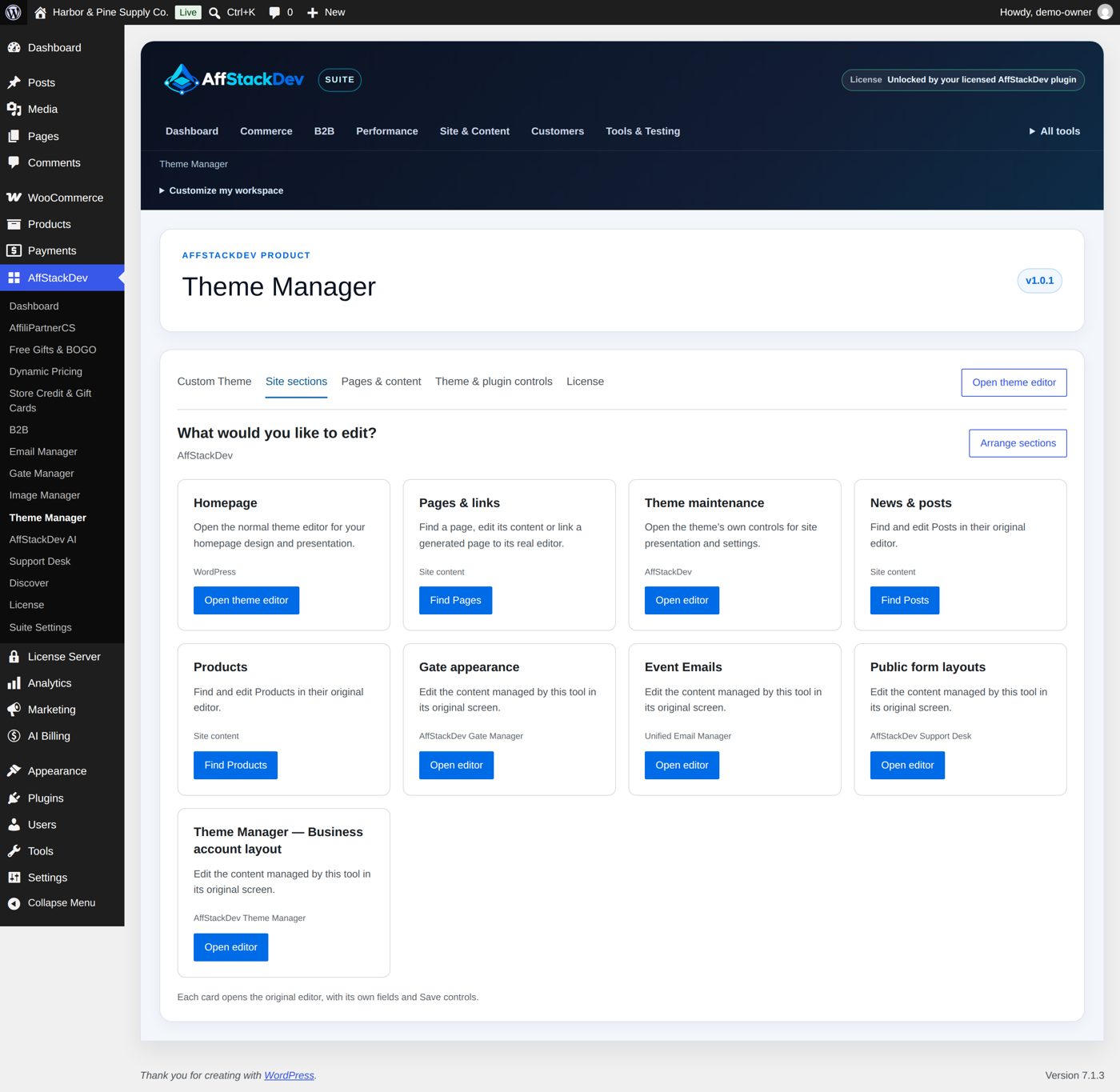
| Site sections | A set of shortcut cards: home page, pages, menus, theme editors. |
| Pages & content | Find a page, post, product, template, template part or pattern and see where its content comes from. |
| Theme & plugin controls | Find the settings screen of your theme or of a plugin. |
| License | Optional: activate and check the free license for signed updates. |
The button Open theme editor always takes you to WordPress's own full design editor.
Who can use it
Staff who may change theme options in WordPress (administrators). Theme Manager gives nobody more rights than WordPress does: a page someone may not edit stays closed to them here too.