Give and manage credit
Give a customer credit in two steps, find any credit later, correct it, stop it, send its email again.
Give credit
Open Issue Credit.
- Who gets it. Search for a registered customer, or enter an external recipient email for someone without an account.
- Amount, in your store's currency.
- Reason: Manual, Compensation, Refund alternative, Loyalty, Promotion, Giveaway or Other. It is for your records and reports. To give back what a customer paid for an order, use Refund … as store credit on the order instead (Refund an order as store credit): it records the WooCommerce refund and the credit together.
- Optional: a customer message (goes into the email), an internal note (staff only), an expiry date (empty means it never expires).
- Optional rules: only for certain products or categories; whether it may be combined with ordinary coupons; whether it may also cover tax and shipping.
- Review credit. Read the summary.
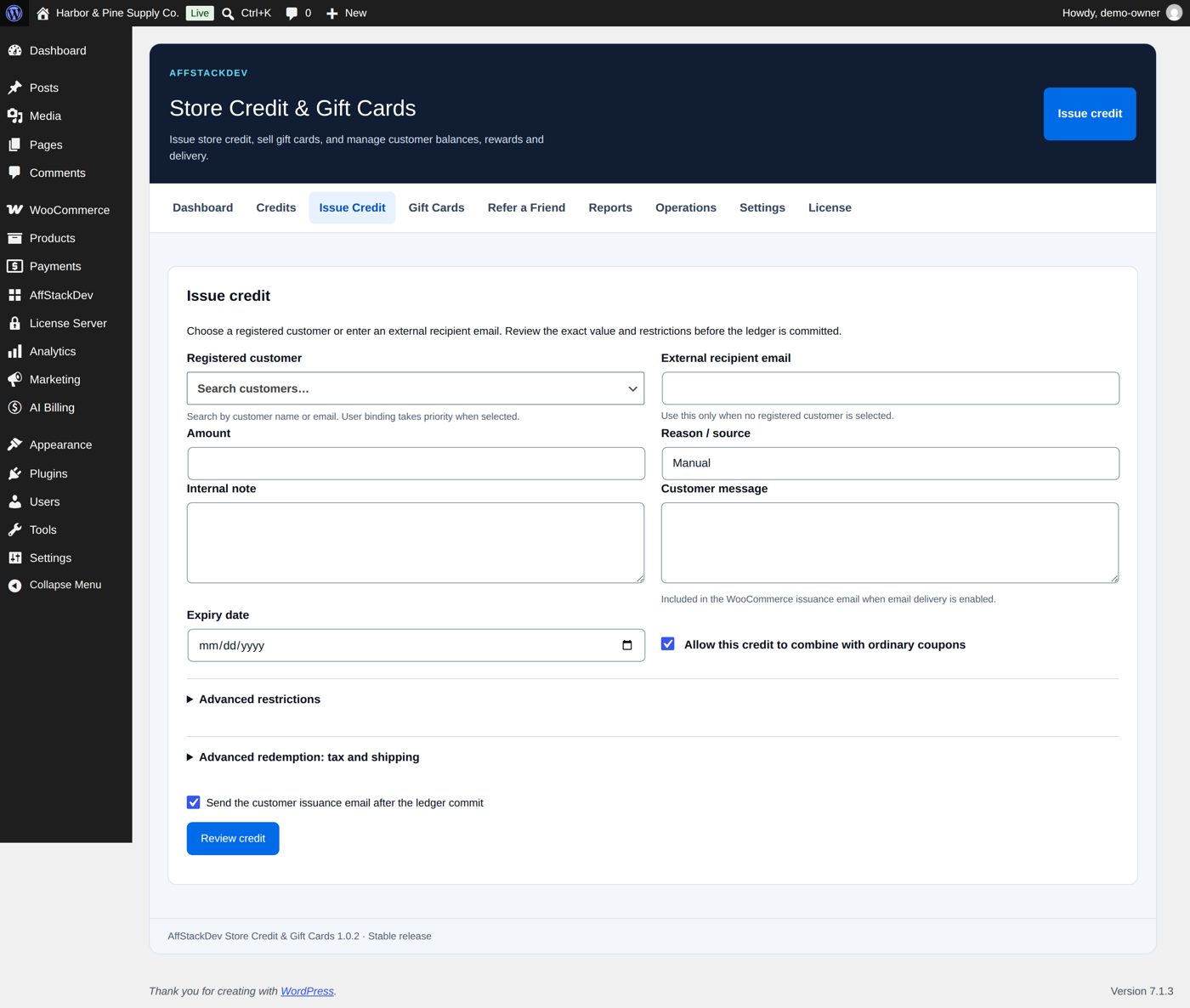
- Issue store credit. Only now does the credit exist. If Send the customer issuance email after the ledger commit is ticked (it is at the start), the customer gets an email with the amount and the code.
Account or email: who can spend it
- Credit for a registered customer belongs to that account. They sign in and apply it with one click; no code needed.
- Credit for an email address is used with its code, and the order's billing email must be that address. Knowing the code is not enough.
Worked example: $15 for a late delivery
Avery Collins, a customer of the sample store, got the Ridgeline tent five days late. The owner gives $15 of store credit as an apology:
| Field | Value |
|---|---|
| registered customer | Avery Collins |
| Amount | 15.00 |
| Reason | Compensation |
| customer message | Sorry your tent arrived late. Here is $15 of store credit for your next order. |
| internal note | Ridgeline tent delivered five days late. |
| expiry | empty: it does not expire |
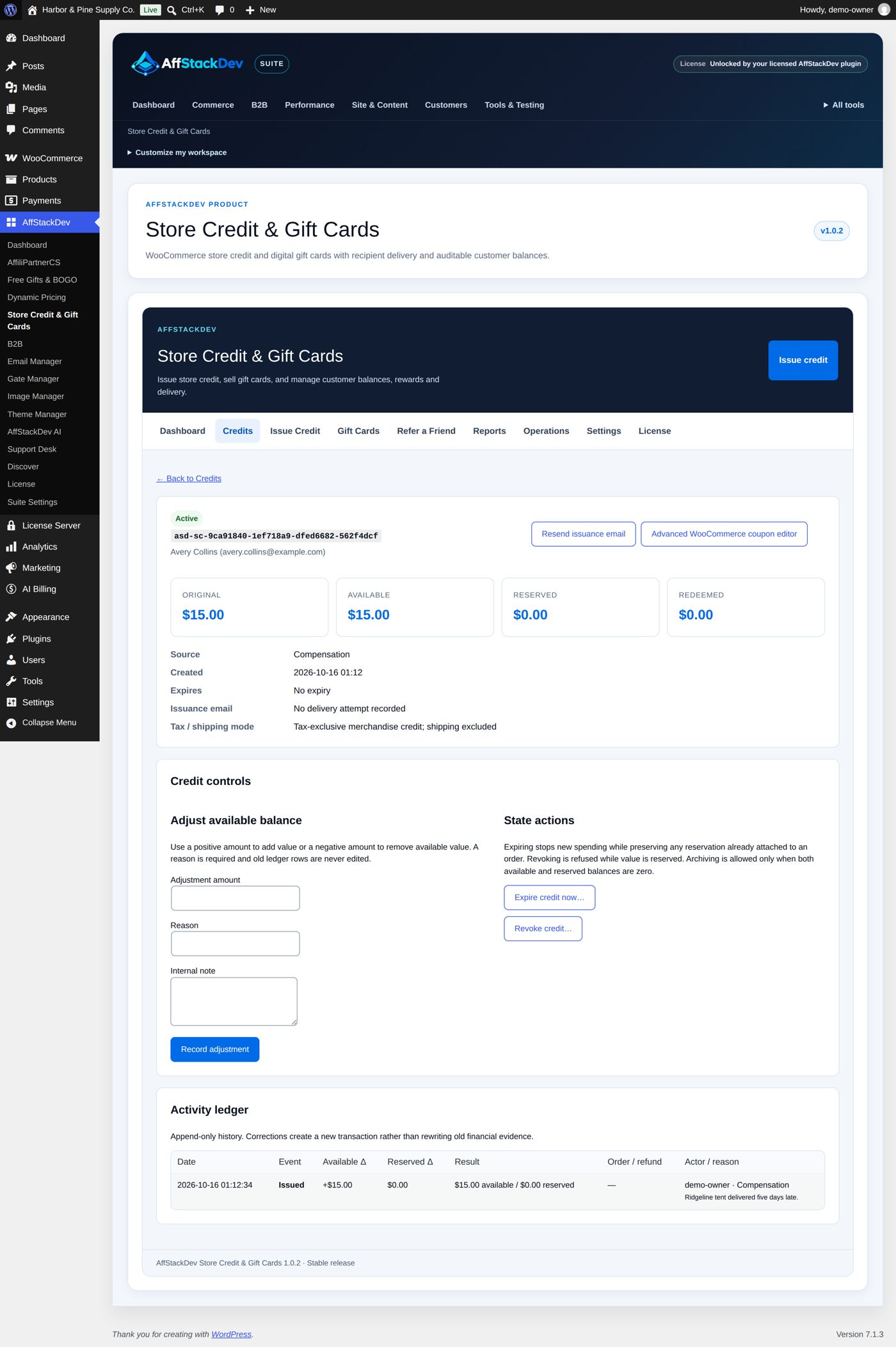
Review credit, then Issue store credit. The credit's page shows it at once: Active, its code, Avery's name, Original $15.00, Available $15.00, nothing reserved or redeemed yet; Source Compensation, Expires No expiry. Under Credit controls you can adjust the balance (Record adjustment, with a reason) or Expire credit now… / Revoke credit…. The Activity ledger has one line: Issued, +$15.00, with who issued it and the note.
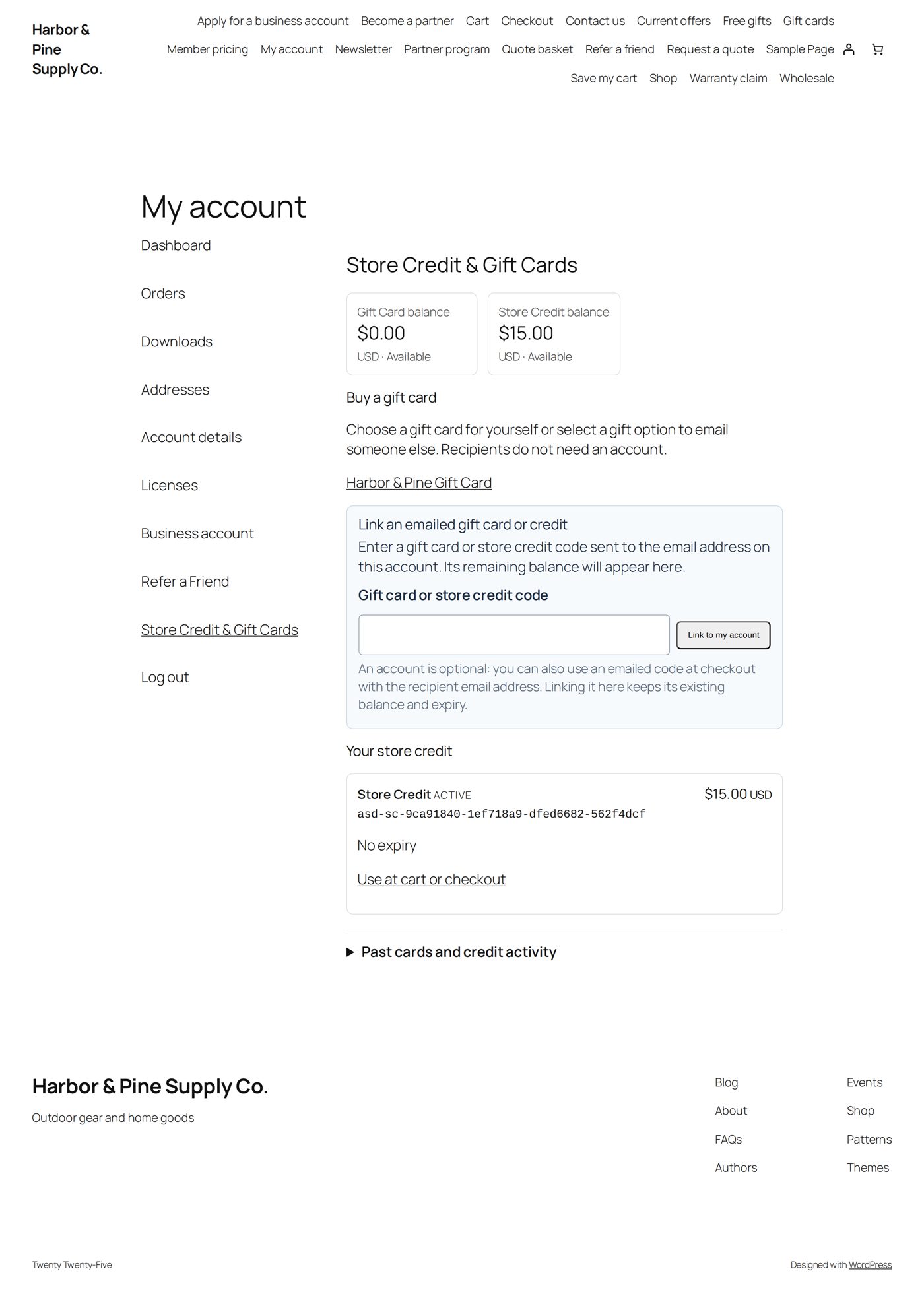
Avery sees it under My Account → Store Credit & Gift Cards: Store Credit balance $15.00, and the credit itself with No expiry and Use at cart or checkout.
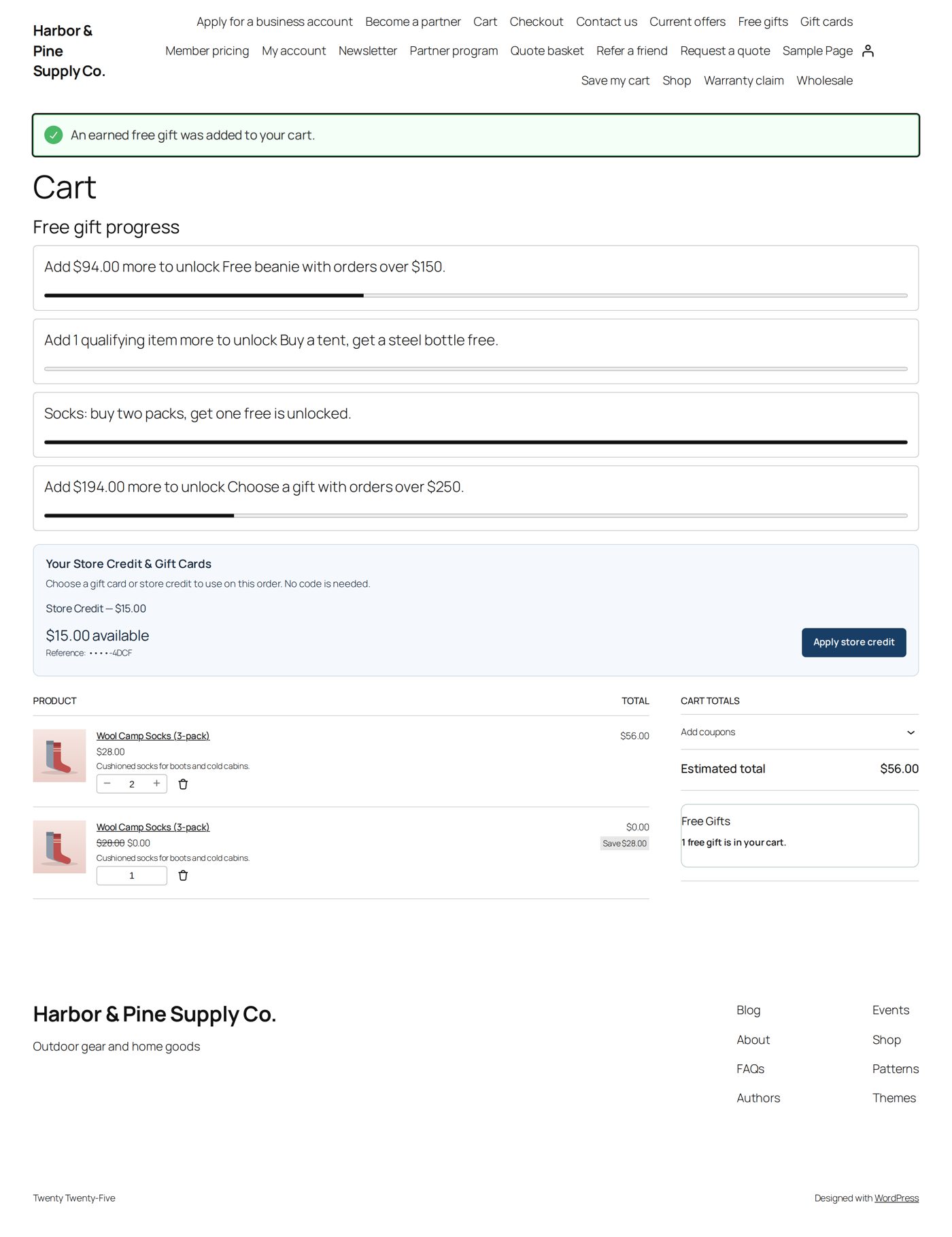
In the cart, Avery's credit is offered without a code (Your Store Credit & Gift Cards, "$15.00 available") and is used with Apply store credit. In this cart the store's own free-gift promotion is also at work: two packs of socks earned a third free (Free Gifts & BOGO).
Find a credit
Credits lists store credit and gift cards together, 25 per page. Views: All, Active, Reserved, Exhausted (nothing left), Expired, Revoked, Archived. Search by code, customer name, login or email.
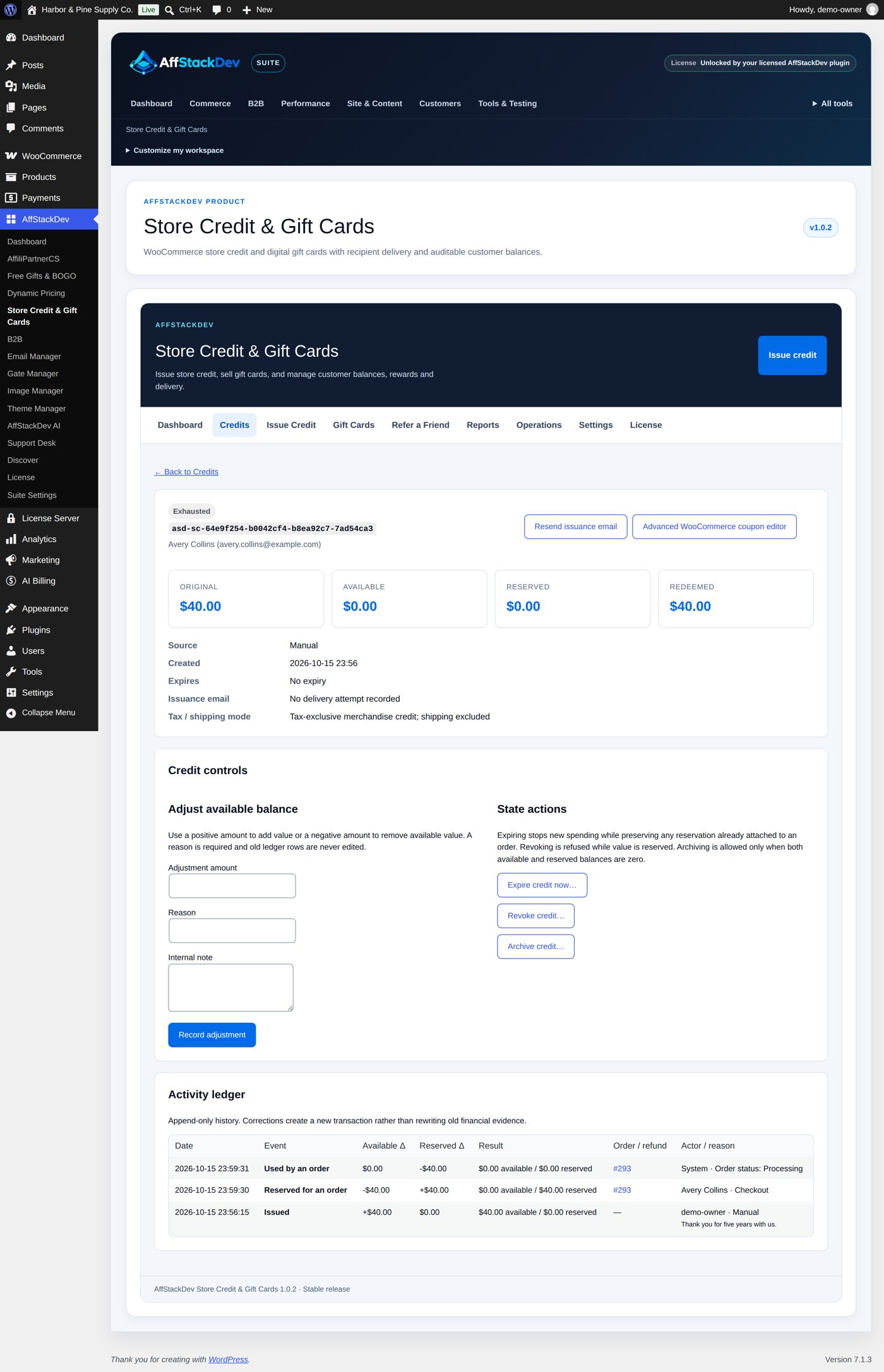
Open a credit to see its amounts, its rules and its history line by line, with links to the orders that used it.
Correct or stop a credit
In a credit's detail, under Credit controls:
| Control | Does | Note |
|---|---|---|
| Adjust available balance | Adds or takes away available value. Enter a positive or negative amount and a reason. | You cannot take away more than is available. The old history stays; the correction is added as a new line. |
| Expire credit now | Stops new spending from now. | Value held for a running order stays held. |
| Revoke credit | Makes what is left unspendable. | Not possible while an order still holds some of it. |
| Archive credit | Puts an empty credit out of the way. | Only when available and reserved are both zero. |
| Resend issuance email | Sends the email again. | Creates no value. |
There is no undo for revoke or archive. If you revoked by mistake, issue a new credit.
Many credits at once
Operations has what you need for larger jobs:
- Bulk CSV: prepare a file with one line per credit, upload it, check the preview, then commit. Nothing is issued before you commit.
- CSV exports: all credits, or the history of the last 30, 90 or 365 days or everything.
- Liability: what is outstanding, by currency, by age and by expiry. Useful for your bookkeeping.
Cashback
Give customers part of what they spend back as store credit. Off at the start. In Settings, under Cashback, tick Give cashback as store credit on paid orders of signed-in customers and set:
| Setting | At the start | Means |
|---|---|---|
| Cashback percent | 2 | Share of what the customer paid for products, after discounts and store credit. Not tax, shipping, fees or gift cards. |
| Minimum order for cashback | 0 | Orders below this, counted the same way, earn nothing. 0: any order. |
| Most cashback per order | 0 | A cap per order. 0: no cap. |
| Days to wait before adding it | 14 | Time for returns before the credit is given. |
| Cashback expires after (days) | 0 | 0: it does not expire. |
| Products without cashback (IDs) and Categories without cashback (IDs) | empty | Items that earn nothing. |
How it goes:
- A signed-in customer's order is paid. The order note says about how much cashback is coming and when. The settings of that moment stay with the order, so later changes do not affect it.
- After the waiting days the cashback is added as one store credit with the source Cashback, and the customer gets the store credit email. Their order page shows it.
- A refund before then lowers it; a cancelled or fully refunded order gets none. A refund after it was added takes back what the order no longer earns, from what is left of that credit; what the customer already spent stays with them.
The amount is rounded down to the cent: 2 % of a $30.00 and a $10.00 product is $0.80. Guests earn no cashback, and with AffStackDev B2B neither do business customers and applicants under review.
Reports
Reports shows 7, 30, 90 or 365 days: issued, redeemed, restored, expired or revoked, how many customers and orders. Period activity and today's outstanding balance are two different things; both are shown.
If numbers look wrong, use the read-only check on the same screen. It points at credits whose history and balance do not agree. It repairs nothing by itself, on purpose.
Privacy requests
Store Credit & Gift Cards takes part in WordPress's own tools (Tools → Export Personal Data and Erase Personal Data). An export gives the person's credits (amounts, state, expiry, the message sent with a gift, the last four characters of each code) and their history. An erasure removes the gift messages; the balances and history stay, because you need them for value still outstanding, refunds and your bookkeeping. The plugin also suggests a paragraph for your privacy policy (Settings → Privacy in WordPress).