Organize and edit
Find a file fast, put order into the library, see where a picture is used, and change a picture without losing the original.
The library
Open the Library tab. Switch between Grid and List, search by title, file name or caption, and filter by file type, folder or collection. Each page shows up to 30 items.
The library shows everything WordPress has: pictures, PDFs, documents, audio, video. What you can do with a file depends on its kind: a picture can be edited and optimized, a PDF can give a picture of one of its pages.
Folders and collections
Both are labels. Nothing is moved on your server and no web address changes.
- A folder is a place in a tree: Products → Spring 2027. A file is in the folders you put it in.
- A collection is a group for a purpose: Homepage, Press kit. One file can be in several collections.
Tick files, open Bulk actions and choose Add to folder, Move to folder, Remove from folder, Add to collection or Remove from collection, or drag them toward a folder; you see what will change before it is applied. Renaming or deleting a folder or collection never deletes a file.
New uploads are sorted by themselves into Website images with sub-folders for Uploads, Pages, Posts and Products, according to where the picture is attached. A folder you chose yourself always wins over this automatic one.
Worked example: the spring catalog and the home page
The sample store keeps its product photos in the automatic Products folder. For the spring catalog the owner wants four of them together (tent, sleeping bag, backpack, bottle), and two of those marked for the home page.
- In the library open Folders and collections. Make a folder Catalog and inside it Spring 2027. Make a collection Homepage.
- Tick the four pictures, open Bulk actions, choose Add to folder and Spring 2027. ("Add" keeps the pictures in Products too; Move to folder would take them out of it.)
- Tick the tent and the backpack, Bulk actions, Add to collection, Homepage.
Choose Spring 2027 under Folder and select Filter media: the four pictures, each card saying which folders and collections it is in.
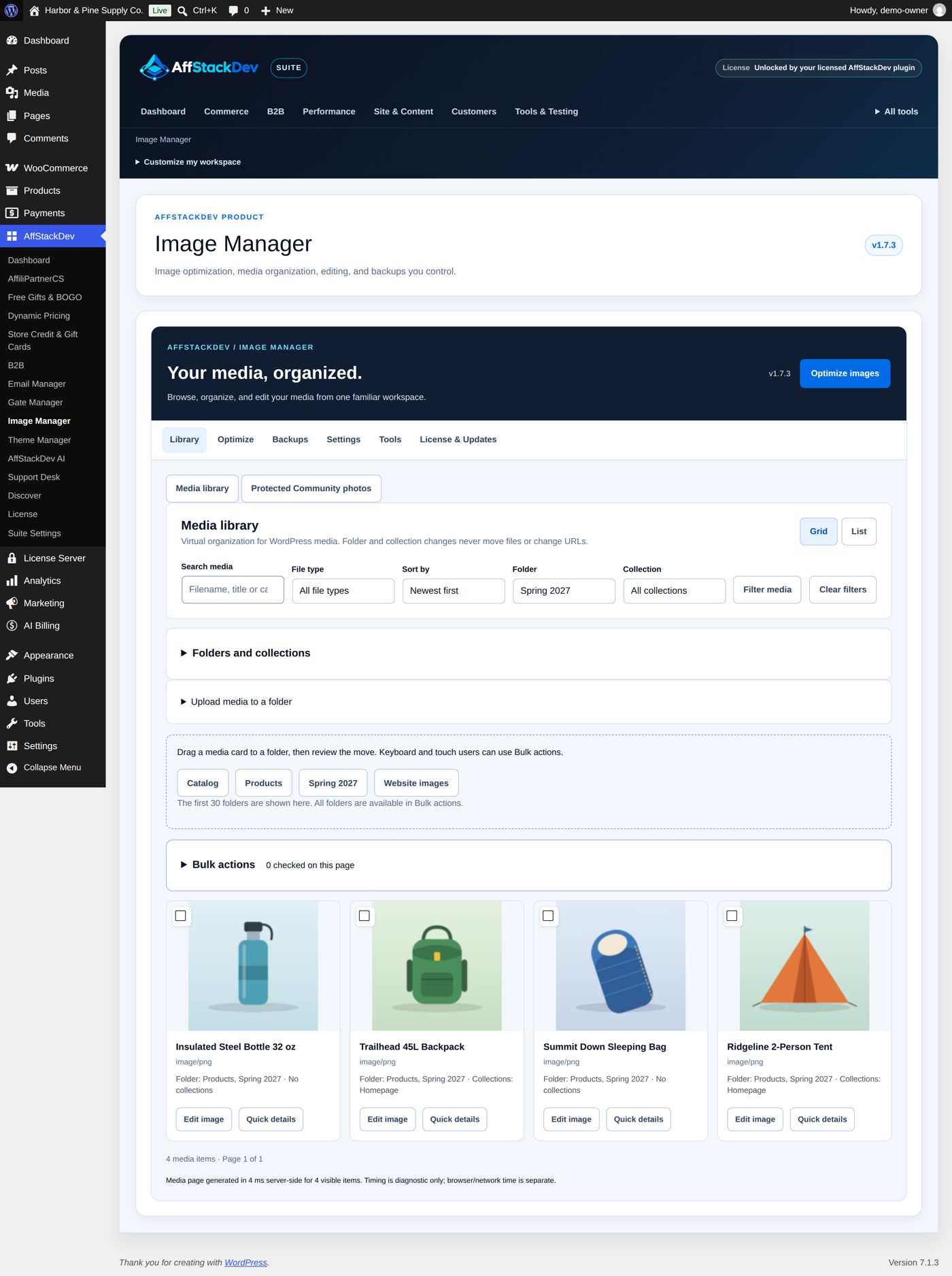
With List and the collection Homepage chosen, the same library shows the two home page pictures:
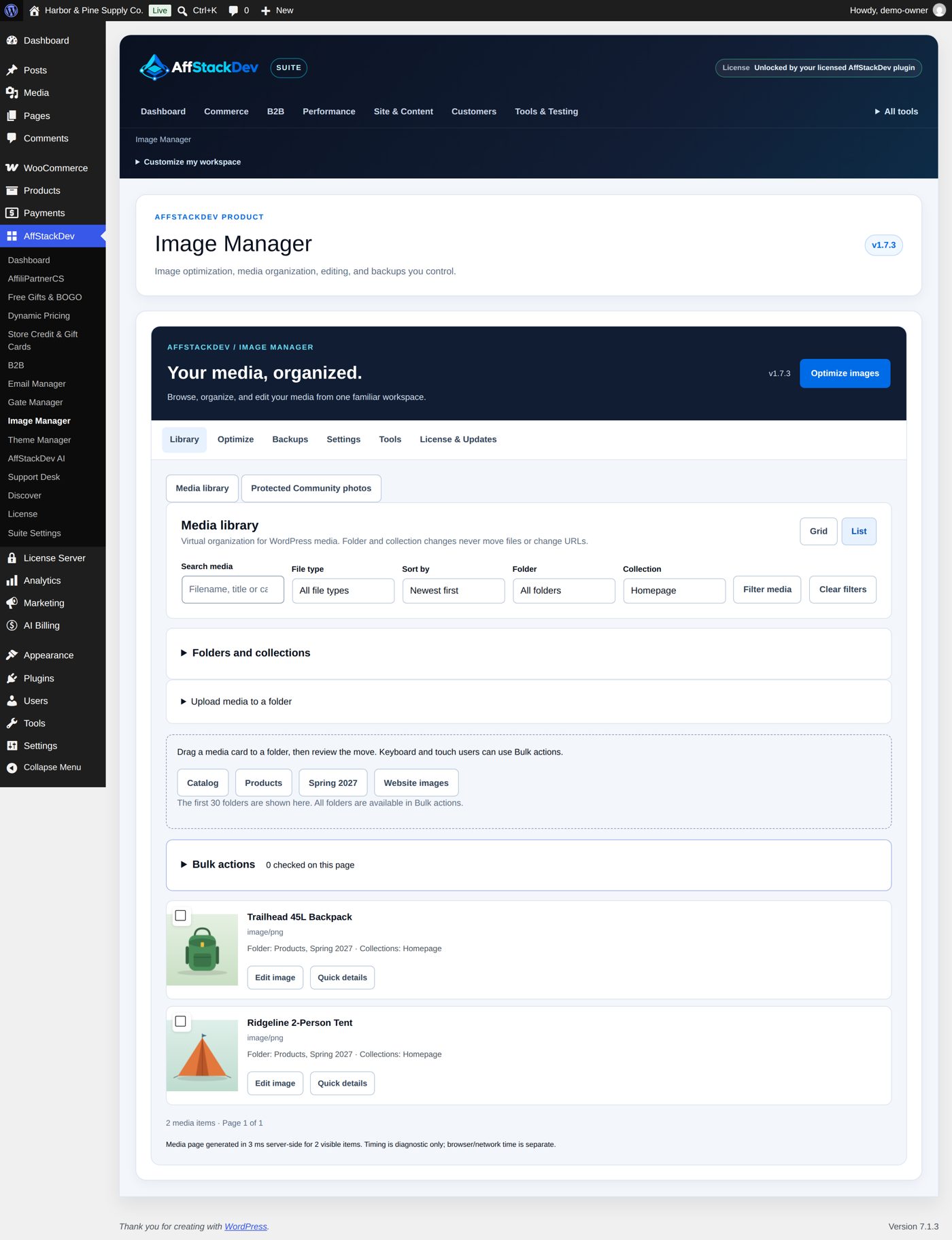
No file moved and no address changed: the product pages show the same pictures as before.
A gallery from a folder
A page can show the pictures of one folder as a gallery that keeps itself up to date: put a picture into the folder
and it appears, take it out and it disappears. In the block editor add the block Image Manager folder gallery
(under Media) and choose the folder, the columns, the picture size, what a click opens, the order and how many
pictures at most; or write the shortcode [afsd_im_folder_gallery folder="12"] with the folder's number. The
gallery is WordPress's own, so your theme styles it.
Visitors see nothing of a folder until you allow it. In the library open Folders and collections, then Website galleries: choose the folder and Show in website galleries, tick the confirmation that every picture in it may be shown to visitors, and select Save website gallery choice. The panel then lists the folder with its shortcode. Stop showing in website galleries empties its galleries for visitors again; the pictures stay where they are. A sub-folder joins a gallery only when the gallery includes sub-folders and that sub-folder is switched on too. Only pictures are shown, never other files. While a folder is off, you (signed in) see a short note in its place instead of the gallery.
Import folders from another plugin
Coming from another folder plugin? Under Folders and collections, open Import folders from another plugin. It finds the folders of FileBird, Real Media Library, HappyFiles, Enhanced Media Library and Folders (Premio), whether the plugin is still active or not, and shows how many folders and file placements each has. Tick the confirmation and select the import button of that plugin.
- The tree stays the same, and every file goes into the same folders. Files are only added to folders, never taken out of one; a folder of the same name in the same place is reused.
- Folders a FileBird user kept for themselves go under a folder with that user's name.
- In Real Media Library a shortcut is a second entry of the same file: the file itself goes into that folder.
- The other plugin's folders are only read, never changed. Remove that plugin yourself when you no longer need it.
- A big import works in steps: when it says more remains, select Continue import. Running it again adds nothing twice.
WP Media Folder and WordPress Media Library Folders are not imported.
Folders for pages and posts
Pages, posts and products can have folders too, so a long list of pages becomes Landing pages, Legal, Blog → Recipes and so on. On the Settings tab, under Folders for pages and posts, tick the lists that should have folders: Posts, Pages, Products, Coupons, or any other list your site has. Nothing is ticked at the start.
Each ticked list (for example Pages in the WordPress menu) then shows a folder bar under its heading: all items, Not in a folder, and your folders as a tree, each with how many items it holds. Drafts, scheduled and private items count; the trash does not. Click a folder to see only its items. A Folder column shows where each item is.
- To put items into a folder, tick them, open Bulk actions, choose the folder under Move to folder and Apply. Or drag a row (or several ticked rows) onto a folder in the bar. An item is in one folder at a time.
- To take items out of their folder, choose Bulk actions → Take out of its folder.
- To make, rename, move or delete folders, open Manage folders in the bar. New folder makes one at the top or inside another folder (Create folder); you can Rename a folder, use Move folder to put it inside another folder or back at the top, and Delete folder after ticking the confirmation.
Deleting a folder deletes no page, post or product: its items are simply outside any folder, and its sub-folders move up one level. Two folders with the same name in the same place are not allowed. Everyone who may edit an item may move it (an author only their own posts); making and changing folders is for editors and administrators.
These folders only sort the list in your admin. Visitors never see them, no web address changes, and nothing on your website looks different. Untick a list in Settings and its bar disappears; tick it again and its folders are back with everything in them.
Title, caption and alt text for many files at once
Tick the files, open Bulk actions, choose Update attachment metadata and tick the fields to change: Set attachment title, Set attachment caption, Set image alt-text default. Fill them in, tick the confirmation and select Apply to checked media. The text replaces that field on every ticked file. A field whose box you tick but leave empty is cleared; a field whose box is not ticked stays as it is.
Alt text is set only on pictures, and only as the Media Library's default: alt text already written into a page stays as it is. Nothing here renames a file or changes its address.
Worked example: alt text for three product photos
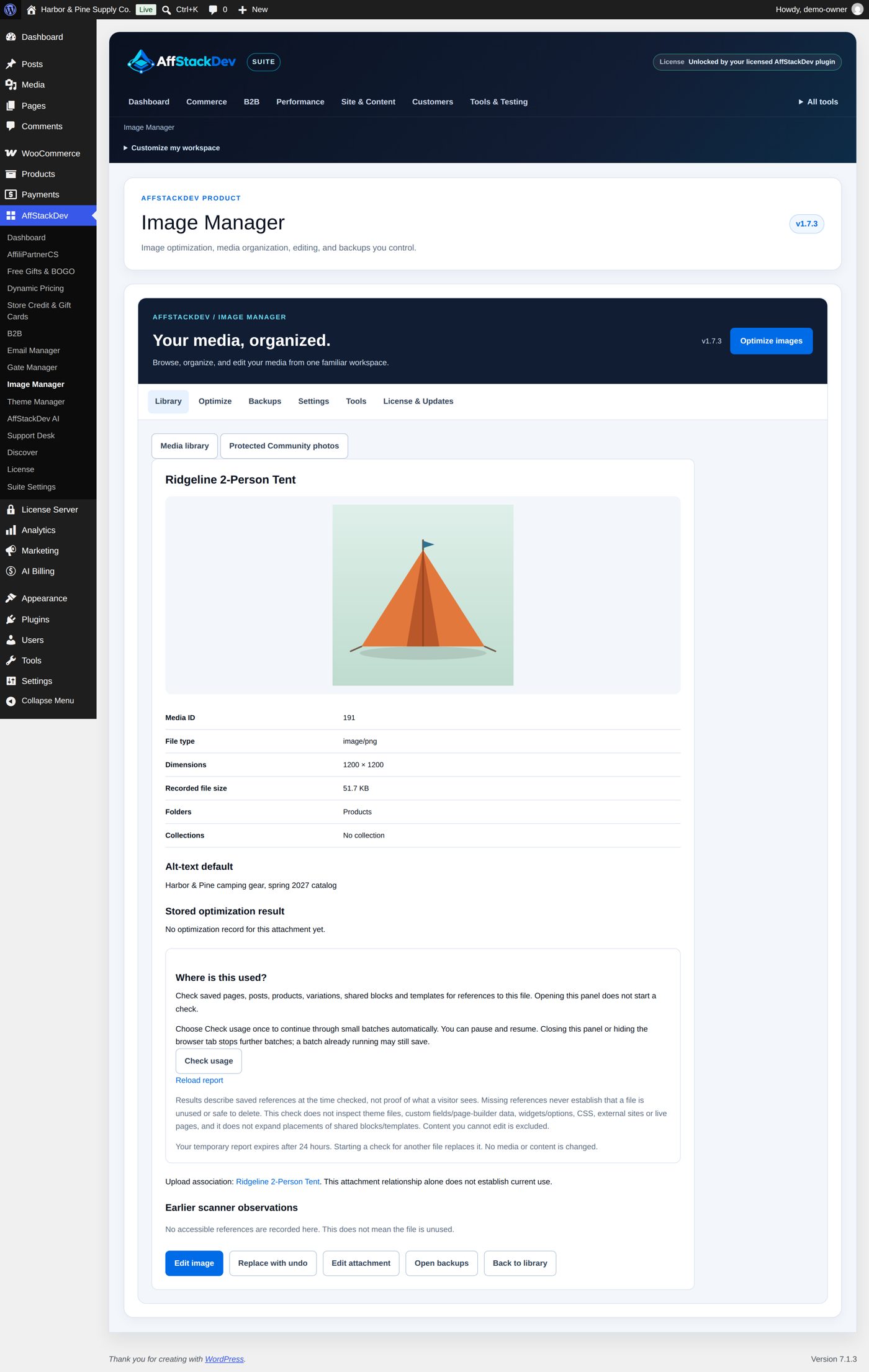
Tick the tent, the sleeping bag and the backpack, Bulk actions, Update attachment metadata, tick only Set image alt-text default and write Harbor & Pine camping gear, spring 2027 catalog. Tick the confirmation and select Apply to checked media. Titles and captions stay as they were, because their boxes were not ticked. Opening one of the three (Quick details) shows the new text under Alt-text default:
Upload into a folder
In the library open Upload media to a folder, pick the folder, choose up to eight files and select Upload to selected folder. WordPress's own rules for file types and size apply.
Details, and where a file is used
Open a file for its preview, size, dimensions and the links to WordPress's own editor.
Check usage looks through the content you are allowed to edit: pages, posts, products, product galleries. It works in steps and can be paused. It shows up to 100 places.
Files with no use found
To tidy up the library, open Files with no use found and select Check the library. It reads your saved pages, posts, products, templates, reusable blocks, Additional CSS, comments and reviews, featured images, product galleries, category pictures, picture addresses in custom fields and page-builder data, the site icon and logo, the header and background picture, WooCommerce's placeholder and email header picture, the widgets, and the folders your Image Manager folder galleries show (every file in such a folder counts as used, whether the folder is switched on or not). It works in steps; select Continue checking until it says the check is finished. Then it lists the files none of those places use, by ID or by any of the file's names (every size included). Each file in the list opens its details, where Check usage can look once more. Put these files into a new collection gathers the whole list, so you can go through it in the library.
Edit a copy
Select Edit image on a picture's card or in its details. The Reversible image editor opens with the picture, its size and file size, and three groups of settings:
| Group | Setting | Choices |
|---|---|---|
| Crop | Crop | No crop, Centered square (1:1), Centered 4:3, Centered 3:2, Centered 16:9, Custom pixel rectangle |
| X, Y, Width, Height | Only for Custom pixel rectangle: where the rectangle starts and how big it is, in pixels | |
| Rotate / flip | Rotate | No rotation, 90° clockwise, 90° counter-clockwise, 180° |
| Flip | No flip, Horizontal, Vertical | |
| Resize | Maximum width, Maximum height | Leave blank to keep. The shape is kept and a picture is never made larger. Crop, rotate and flip happen before the resize. |
- Choose your settings, tick "Prepare this edit for review. This does not change the source attachment or website output." and select Prepare edit preview.
- The Original source and the Prepared edit appear side by side, with the new size and file size. Look at it.
- To keep it, tick "Create this edited version as a new Media Library image. Existing pages/products will keep using the current source until I deliberately choose the new image." and select Save edited copy. Otherwise Discard draft and return to original.
You get a new item in the Media Library, in the same folders and collections as the original. The original and every page that uses it stay untouched. Put the new picture where you want it. The editor lists your earlier copies under Saved edited copies.
Worked example: a square copy for a product grid
The owner wants the tent photo at 800 pixels for a grid of square tiles. In the editor: Crop Centered square (1:1), Maximum width 800, the tick, Prepare edit preview.
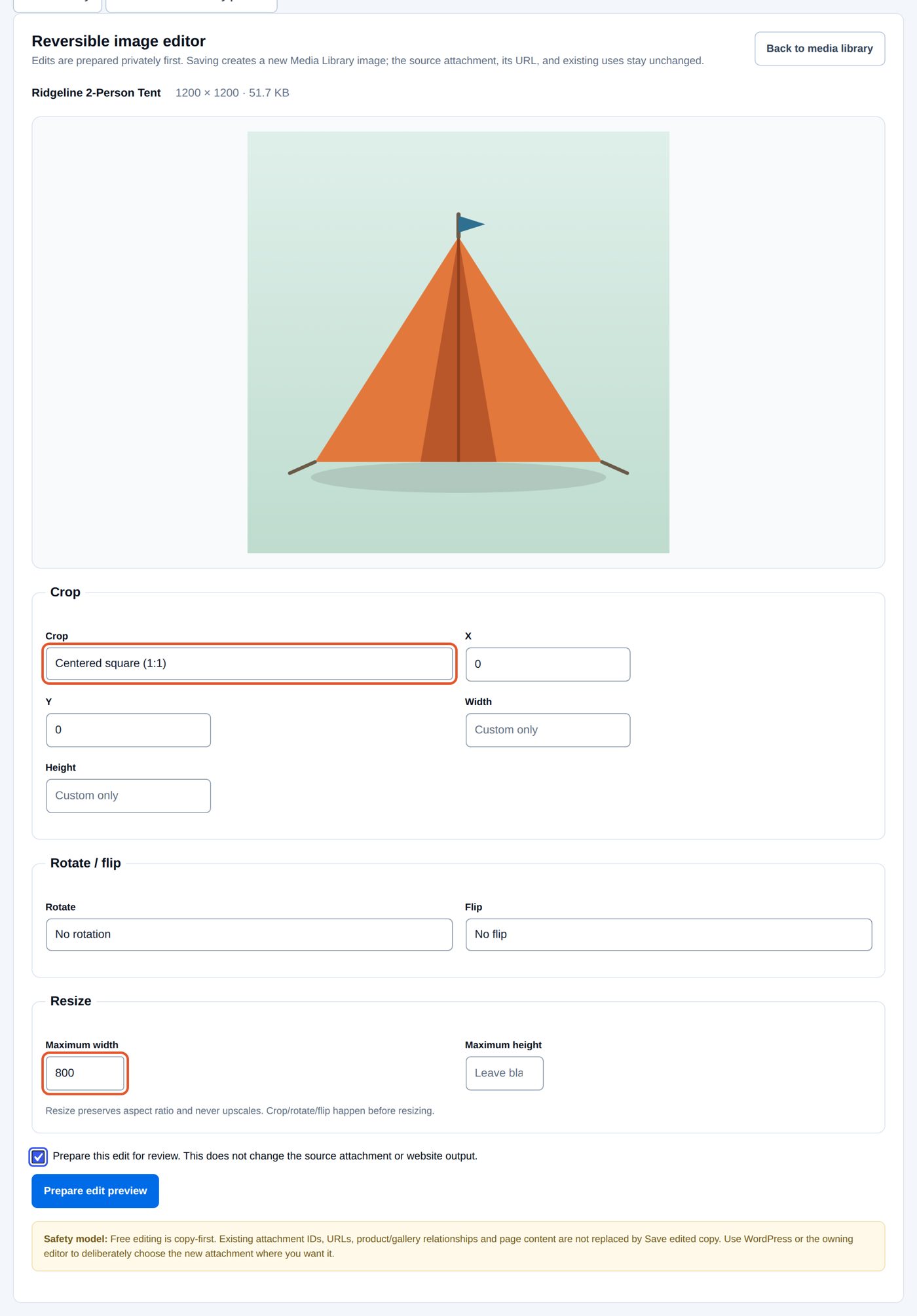
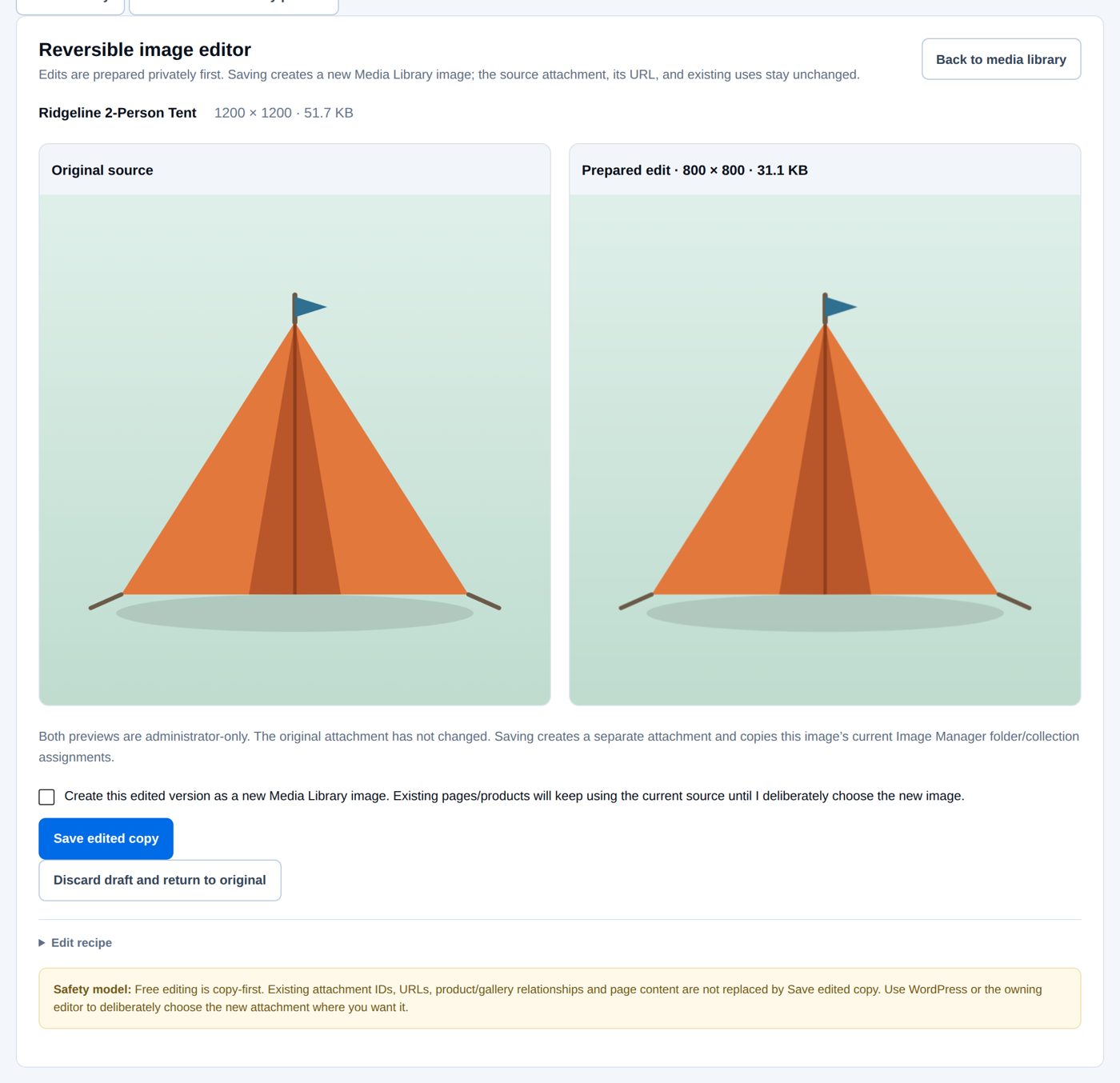
The tent photo was square already, so the crop changes nothing you can see; the copy is 800 × 800 pixels and 31.1 KB instead of 1200 × 1200 and 51.7 KB. Nothing is saved until Save edited copy.
A picture from a PDF page
Open a PDF, enter the Page number and choose the Maximum image edge (1280, 1920 or 2560 pixels; 1920 is preselected), select Prepare page preview, look at the preview, tick the confirmation and select Save page as new image. The result is a PNG as a separate item; the PDF stays as it is. This needs a hosting feature (Imagick with PDF support); Tools says whether you have it.
Replace a picture and keep its place
Sometimes the picture should change but everything that uses it should stay connected: a product photo with a better shot.
- Open the picture. Under Replacement file, choose the new file.
- Pick the new file (same kind: JPEG for JPEG, PNG for PNG) and look at the preview.
- Select Preview replacement: you see the Current source and the Private preview side by side.
- Tick the confirmation and select Create recovery point and apply replacement. Image Manager first makes a safety copy (a recovery point) and checks it; only then is the picture switched.
Undo latest replacement brings back the previous picture, as long as it was not edited again in between. Pages that refer to the picture by its WordPress ID follow the change; a web address typed into a text by hand does not.
If something does not work
| What you see | Usual cause |
|---|---|
| The edit or replace action is missing | The file is not a picture format your hosting can process. Check Tools. |
| PDF conversion is not offered | The hosting has no PDF support in Imagick. The PDF itself keeps working. |
| The replacement is not applied | The safety copy could not be made: it needs ZIP support and a private folder for backups (see Tools). |
| A preview "expired" | Previews are temporary. Prepare it again. |
| A list has no folder bar | That list is not ticked under Folders for pages and posts on the Settings tab. |
| Manage folders is missing from the bar | Your account may move items but not change folders (authors). An editor or administrator can. |