Tax exemptions, reports and records
Let business customers apply for tax exemption and decide on the evidence (worked example: a camp in Minnesota), build business sales reports, export records, and what happens if you ever remove B2B.
Tax exemptions
An exemption is yours to grant: applying removes no tax. It belongs to one customer, for the destination and dates you approved, and a colleague in the same company does not inherit it. "An application stays taxable until it has a valid approval for the checkout destination."
Set it up
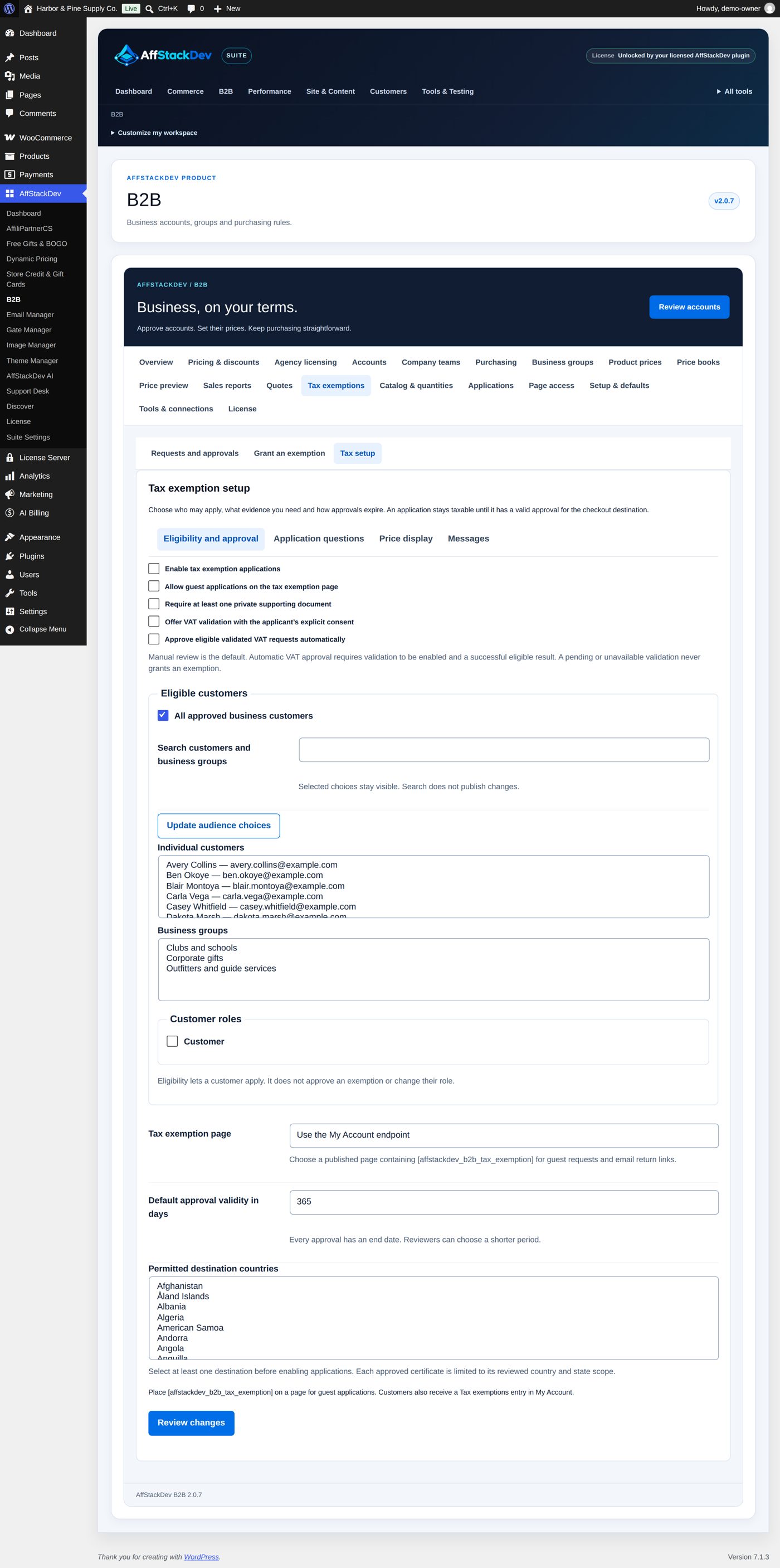
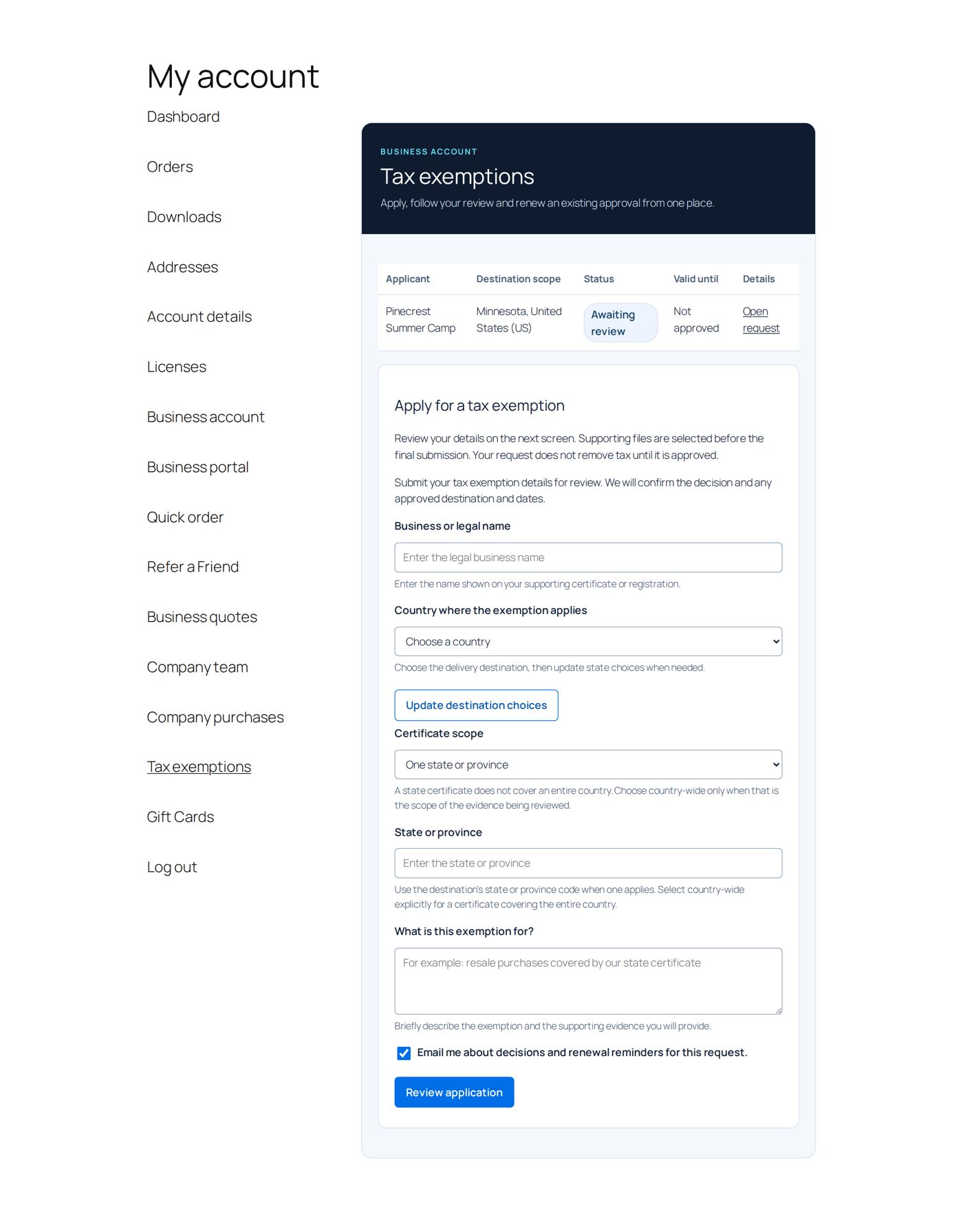
Tax exemptions → Tax setup has four sections: Eligibility and approval, Application questions, Price display and Messages. Everything starts switched off, with manual review.
| Field (Eligibility and approval) | At the start | What it does |
|---|---|---|
| Enable tax exemption applications | not ticked | opens applications, once at least one destination is chosen |
| Permitted destination countries | none | where exemptions can apply. "Each approved certificate is limited to its reviewed country and state scope." |
| Eligible customers | All approved business customers | and, or instead, chosen Individual customers, Business groups and Customer roles. "Eligibility lets a customer apply. It does not approve an exemption or change their role." |
| Require at least one private supporting document | not ticked | applicants must attach evidence |
| Offer VAT validation with the applicant's explicit consent | not ticked | an official VAT number check, only with consent |
| Approve eligible validated VAT requests automatically | not ticked | only together with VAT validation; "A pending or unavailable validation never grants an exemption." |
| Allow guest applications on the tax exemption page | not ticked | needs a published page with [affstackdev_b2b_tax_exemption] (Tax exemption page); customers also get My Account → Tax exemptions |
| Default approval validity in days | 365 | 1 to 1,825. "Every approval has an end date. Reviewers can choose a shorter period." |
Application questions adds your own questions to the application. Price display can show Catalog price display and Cart price display with or without tax for chosen customers ("This changes price presentation only. It does not approve exemptions or remove checkout tax."). Messages holds the customer texts and emails, for example the status texts the customer reads on their Tax exemptions page.
The customer applies
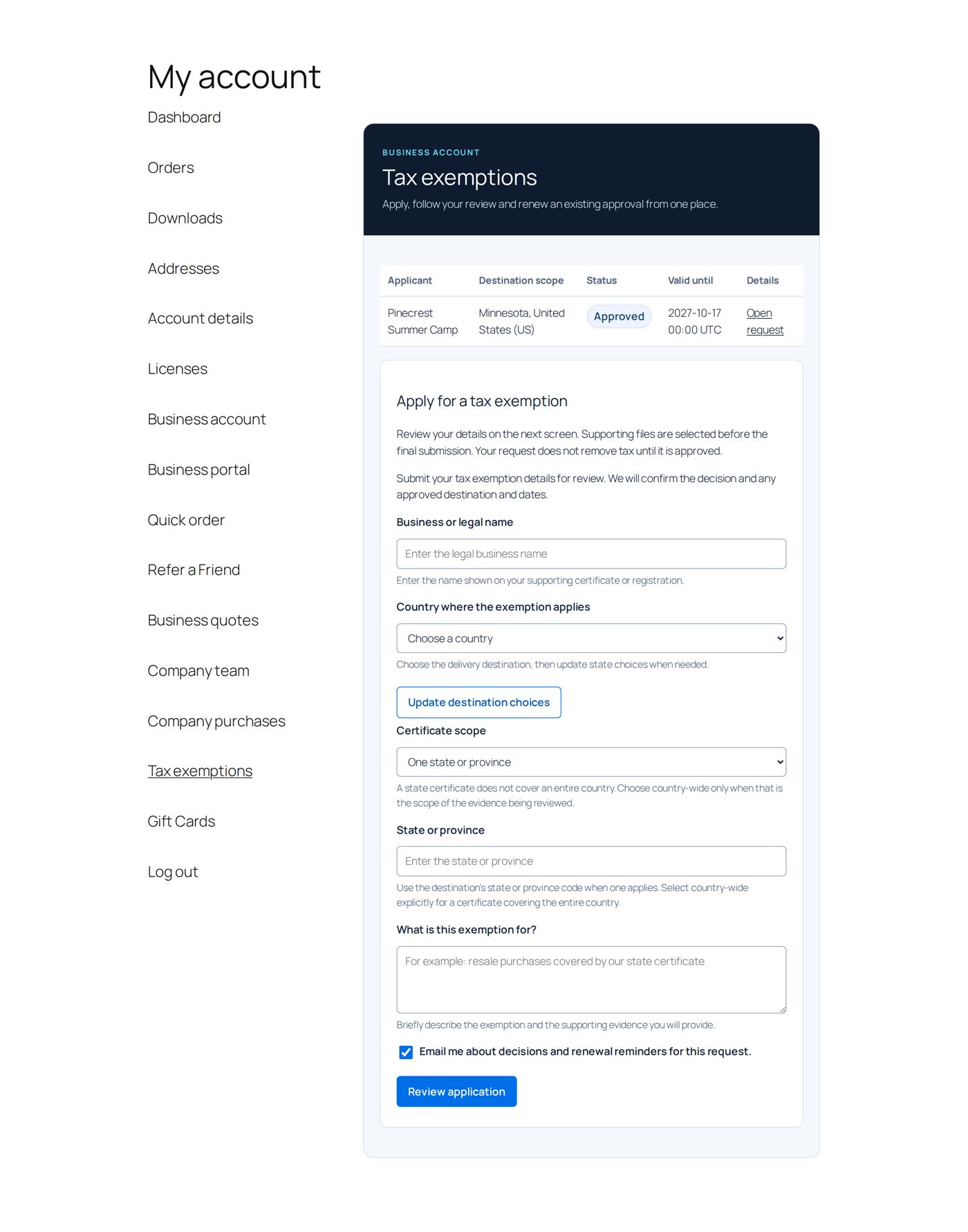
Under My Account → Tax exemptions (or your public page): Business or legal name, Country where the exemption applies (with Update destination choices), Certificate scope (One state or province, or deliberately the whole country), State or province, What is this exemption for?, your questions, then Review application, then up to three documents (PDF, JPEG or PNG, 2 MB each) and Submit application. "Your request does not remove tax until it is approved."
You decide
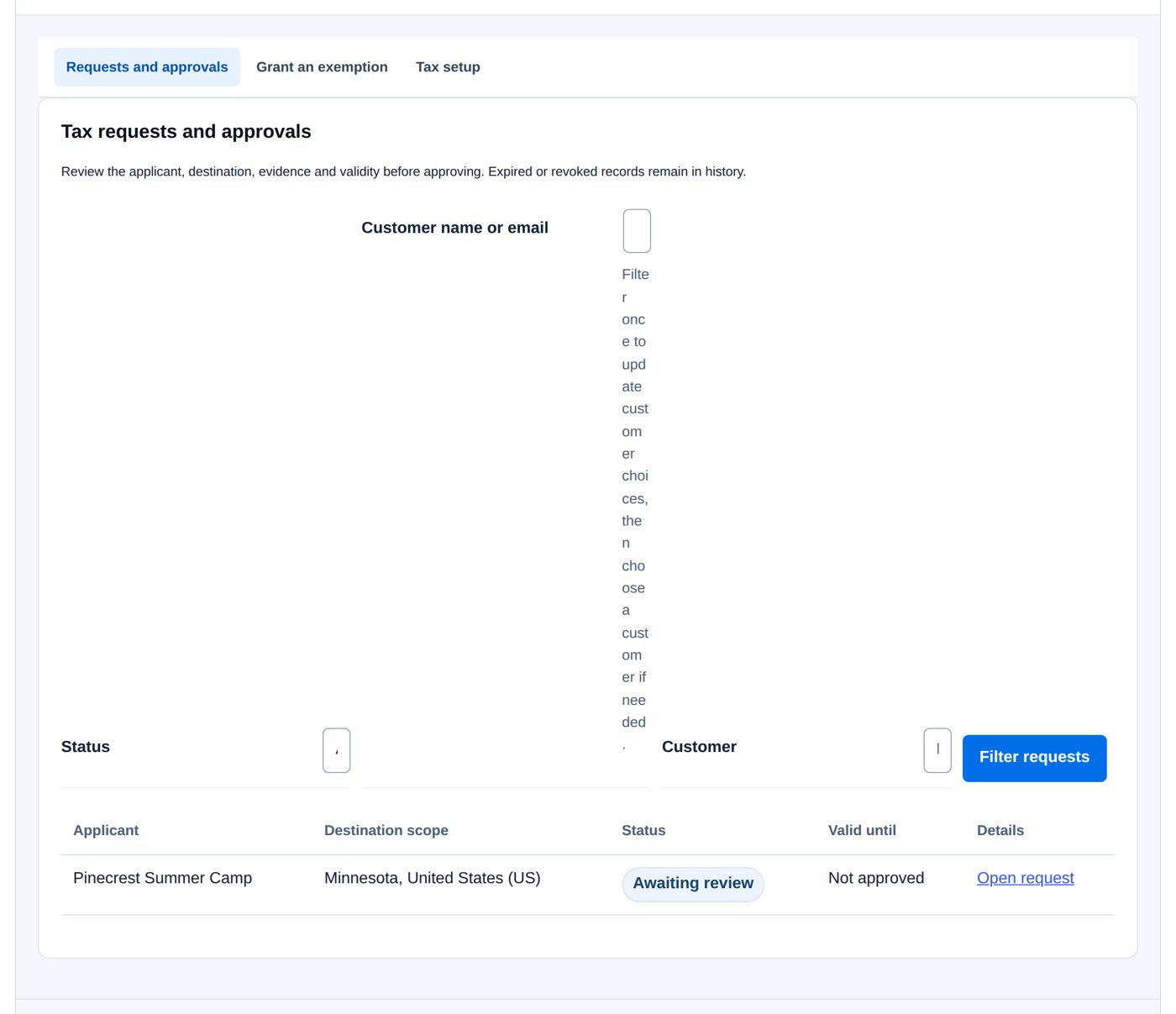
Tax exemptions → Requests and approvals lists every request with Applicant, Destination scope, Status, Valid until and Open request. In a request, under Review this exemption:
| Field | What it does |
|---|---|
| Decision | Approve for the reviewed destination or Do not approve (an approved one: Revoke approval) |
| I reviewed evidence that covers the entire requested country. | only for a country-wide request; must be ticked to approve it |
| Valid from (UTC) | "Approval starts at the beginning of this date." Today at the start. |
| Valid through (UTC) | "Approval expires after the reviewed period." Today plus the default validity at the start. |
| Reason shown to the customer | "Required. Explain the approval, the missing information, or why approval is ending." |
Review changes, then Publish these changes. Grant an exemption records an exemption for a customer whose evidence you already checked ("This creates an approval record with your reason and validity dates.").
At checkout the exemption applies only for the approved destination and dates, and only to that customer. Each order keeps the tax decision made when it was placed.
Worked example: Pinecrest Summer Camp, Minnesota
Ben Okoye runs Pinecrest Summer Camp, a nonprofit camp with a Minnesota exemption certificate (form ST3).
- Harbor & Pine switches applications on: Enable tax exemption applications, Permitted destination countries United States, Eligible customers All approved business customers, validity 365 days.
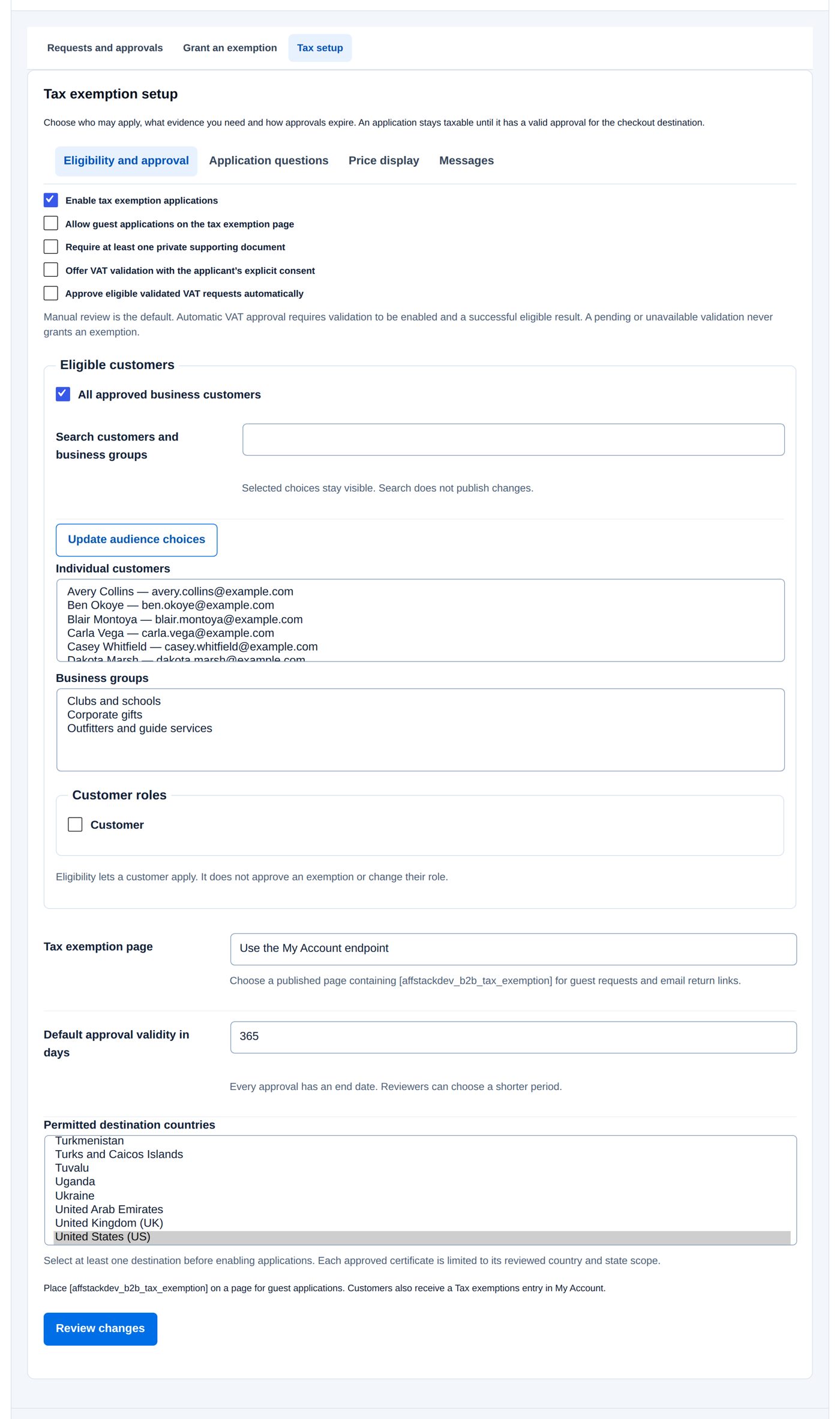
- Ben applies for Minnesota under My Account → Tax exemptions ("Nonprofit summer camp; our Minnesota exemption certificate (form ST3) is on file with you."). His page lists the request as Awaiting review.
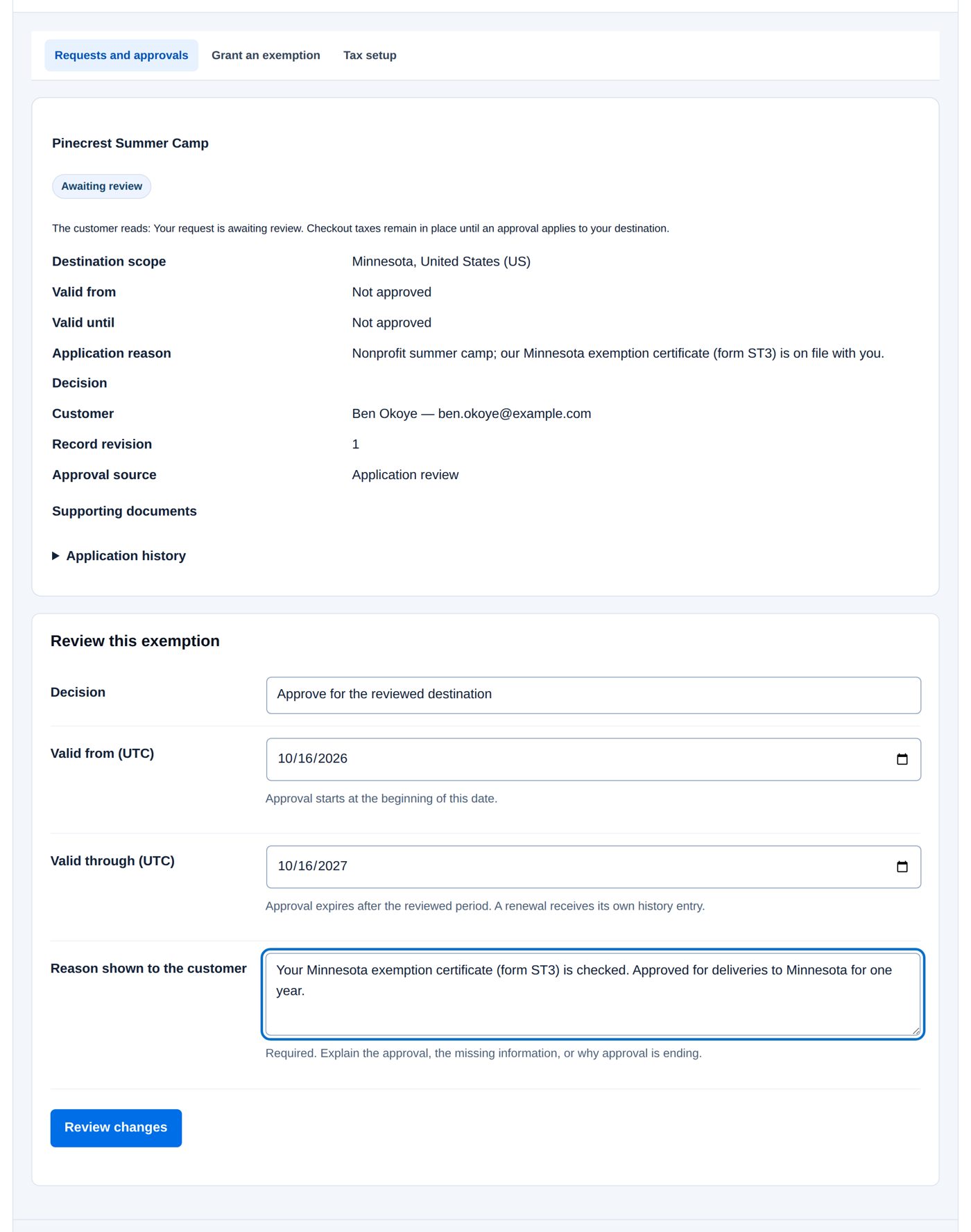
- Requests and approvals shows the request.
- Open request: the destination ("Minnesota, United States (US)"), the reason, the customer, and what the customer reads. Under Review this exemption: Decision Approve for the reviewed destination, the dates as they start (today to the same day next year), Reason shown to the customer "Your Minnesota exemption certificate (form ST3) is checked. Approved for deliveries to Minnesota for one year."
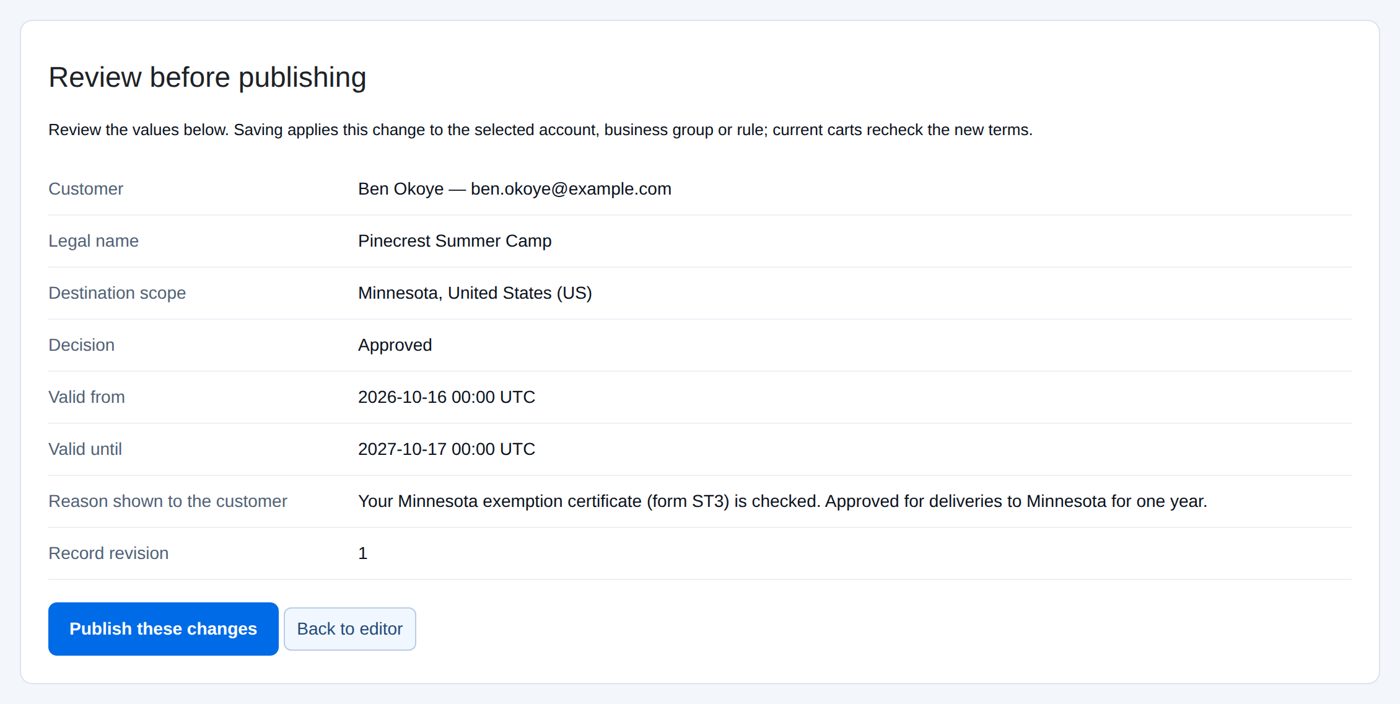
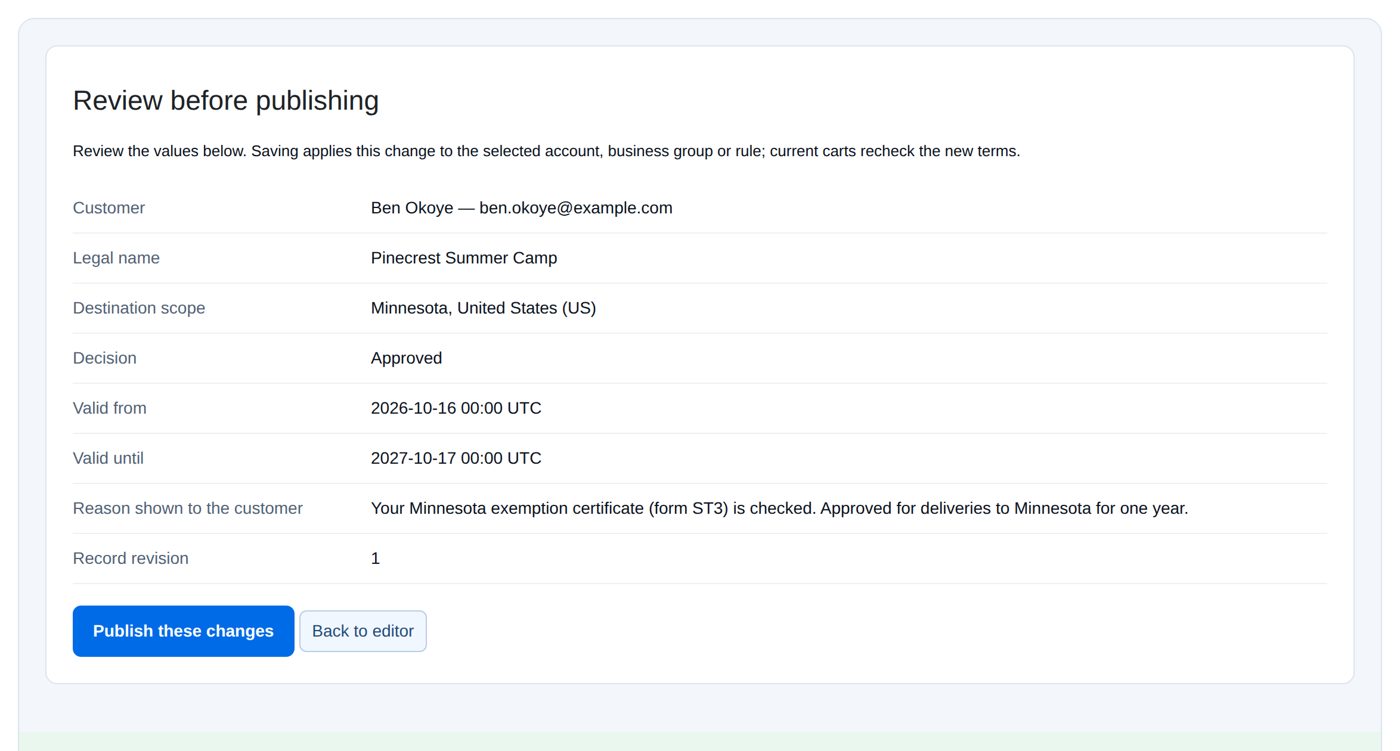
- Review changes, then Publish these changes.
Ben's page now shows the request as Approved with its end date. Orders he places for delivery to Minnesota within those dates are exempt; deliveries elsewhere are taxed as usual.
Sales reports
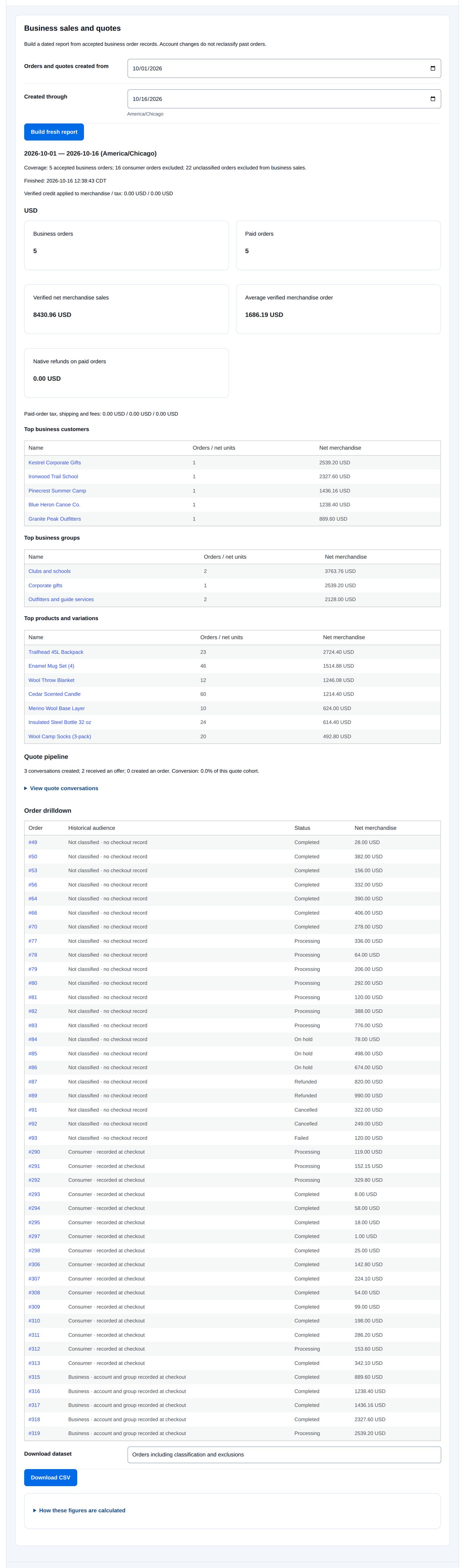
Sales reports ("Build a dated report from accepted business order records. Account changes do not reclassify past orders."):
- Choose Orders and quotes created from and Created through (the current month at the start, in your site's time zone; at most 366 days).
- Build fresh report. The report is built in batches: "Building report: 43 orders and 0 quotes examined. Totals appear after all batches finish."
- Finish remaining batches completes it (or Continue building report one batch at a time, which works without JavaScript; Pause after this batch stops). "You can leave this page and return to this report within one hour."
The finished report shows its coverage ("Coverage: 5 accepted business orders; 16 consumer orders excluded; 22 unclassified orders excluded from business sales.") and, per currency, Business orders, Paid orders, Verified net merchandise sales, Average verified merchandise order and Native refunds on paid orders; the tables Top business customers, Top business groups and Top products and variations; the Quote pipeline ("3 conversations created; 2 received an offer; ..."); and the Order drilldown: each order with its Historical audience (who the customer was when they ordered, for example Business · account and group recorded at checkout or Not classified · no checkout record for an order B2B kept no checkout record of, such as one placed before B2B was installed), its Status and Net merchandise. Download dataset with Download CSV exports it. Everything is as it was when each order was placed; currencies are never combined. How these figures are calculated explains every figure. A report does not change when orders change later: build a fresh one for current figures.
Records, diagnostics and connections
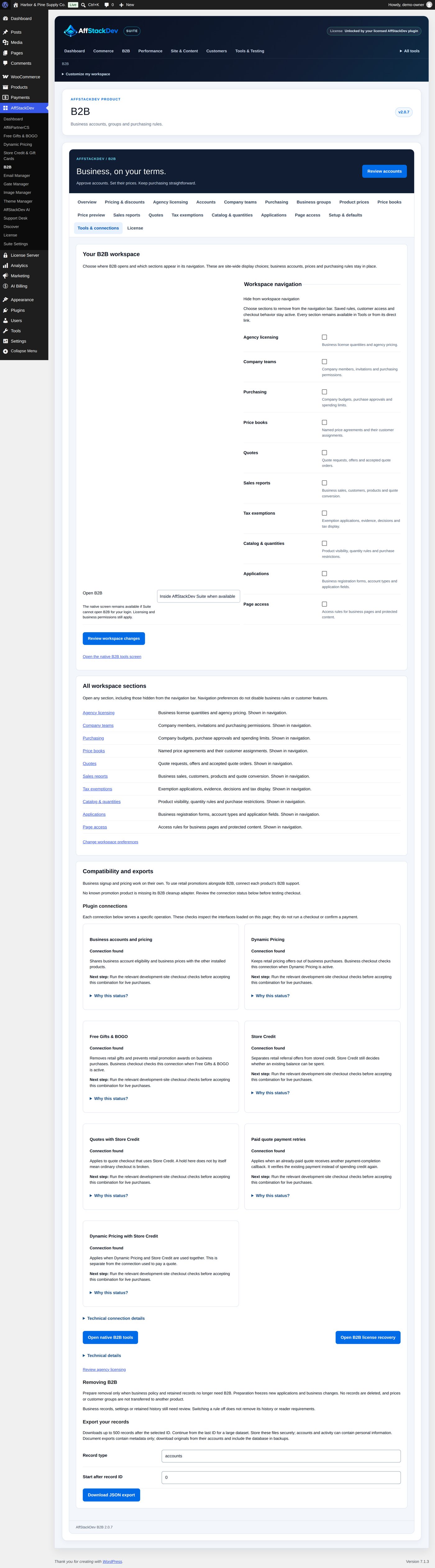
Tools & connections:
- Your B2B workspace: open B2B inside the Suite or on its own WordPress screen, and hide sections you do not use. Hidden sections keep working.
- Compatibility and exports: whether Dynamic Pricing, Free Gifts & BOGO and Store Credit are connected for business customers. If one is not, business checkout is paused until it is.
- Support diagnostics: a download for support; it holds no full customer accounts.
- Export your records: JSON downloads of up to 500 records each, by record type. Handle them like the customer data they contain.
Removing B2B
Deactivating or deleting B2B keeps its business records, settings and order evidence; there is no bulk erase. Tools & connections → Removing B2B offers Freeze and prepare removal only when no business records or rules still depend on B2B. To keep using B2B after preparing, choose Cancel retirement there.
When it does not work
| You or the customer see | It means |
|---|---|
| "Select at least one destination before enabling applications. ..." | Permitted destination countries is empty. |
| "Tax settings changed. Reopen this form and review the current settings." | Someone saved Tax setup while you had it open. |
| "The form did not arrive completely. Reload it and check the server input limit before trying again." | The server cut a large form short. |
| "No tax exemption requests match this view." | The filter shows no requests. |
| "Tax changes are currently unavailable. Existing records remain readable." | No active license; nothing can be decided until it is active. |
| "The next batch did not finish. Reload this report to check its progress before continuing." | A report batch failed (before 2.0.7: always, see the note above). Reload; Continue building report goes on from where it stopped. |
Questions
Does an approved exemption cover the whole company?
No, only the customer it was approved for.
What happens when an approval ends?
The status becomes Expired; checkout taxes apply again until a renewal is approved. Expired and revoked records stay in history.
Can I approve a request without documents?
Yes, unless Require at least one private supporting document is on. The reason you write is kept with the decision.
Do reports include consumer orders?
No. They count accepted business orders; consumer orders and orders that cannot be classified safely are listed as excluded.
Related pages
| Page | What it covers |
|---|---|
| Business accounts | Who is an approved business customer. |
| Getting started | Hiding sections you do not use. |
| B2B overview | All B2B sections at a glance. |