Get started
From the download to a working Store Credit & Gift Cards: install, license, the settings to check, a test credit you spend yourself, and your first gift card.
1. Download and install
- On affstackdev.com open My Account → Downloads and download Store Credit & Gift Cards. Keep the ZIP file as it is; do not unpack it.
- In your WordPress admin open Plugins, choose Add Plugin (older WordPress versions call it Add New), then Upload Plugin.
- Choose the ZIP file and select Install Now, then Activate Plugin.
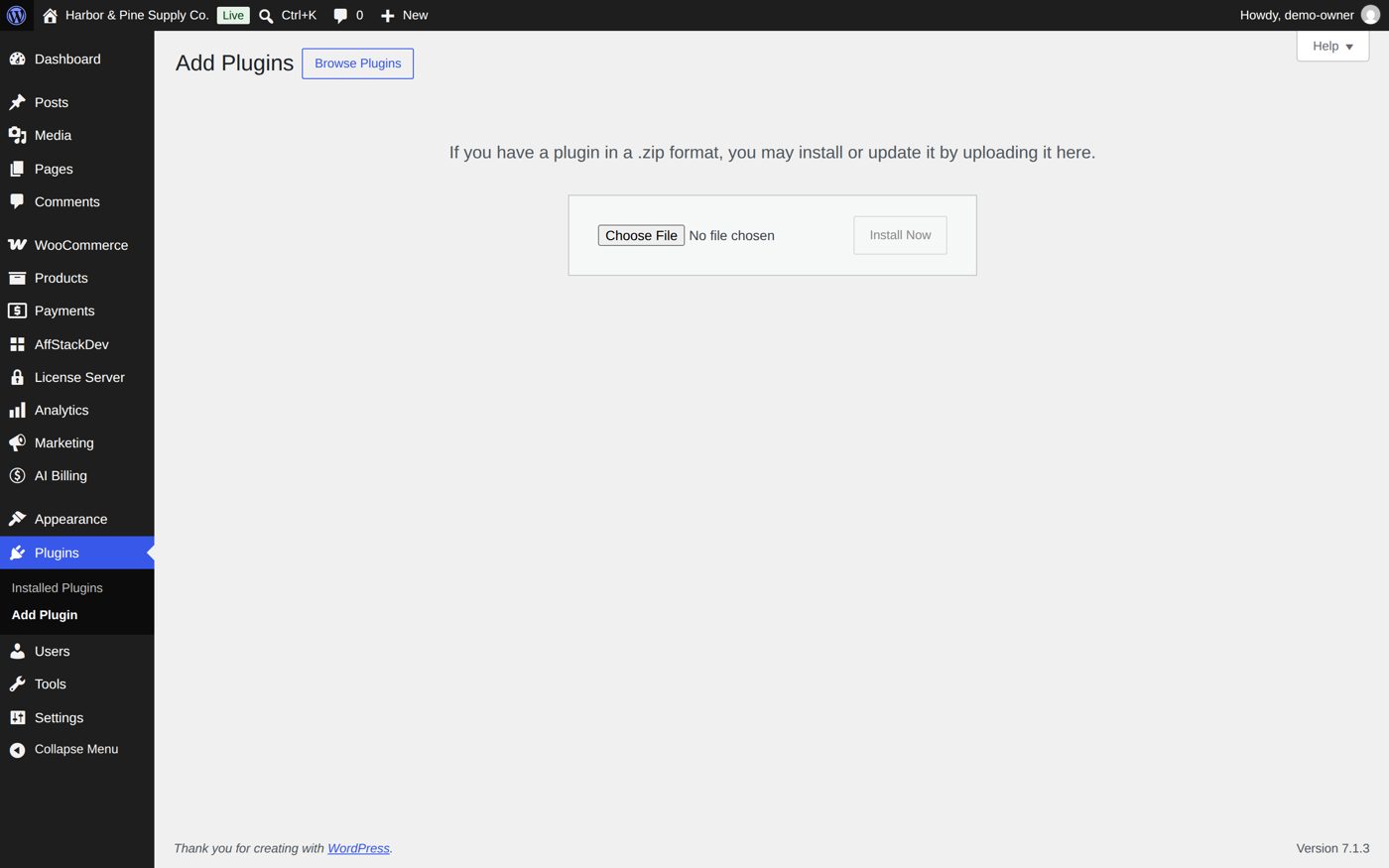
Store Credit & Gift Cards now has its place in the WordPress menu: Store Credit & Gift Cards. With the AffStackDev Suite installed you also find it in the AffStackDev menu. If WordPress refuses the file, or to install a newer version over an older one, see Install a plugin.
2. Activate the license
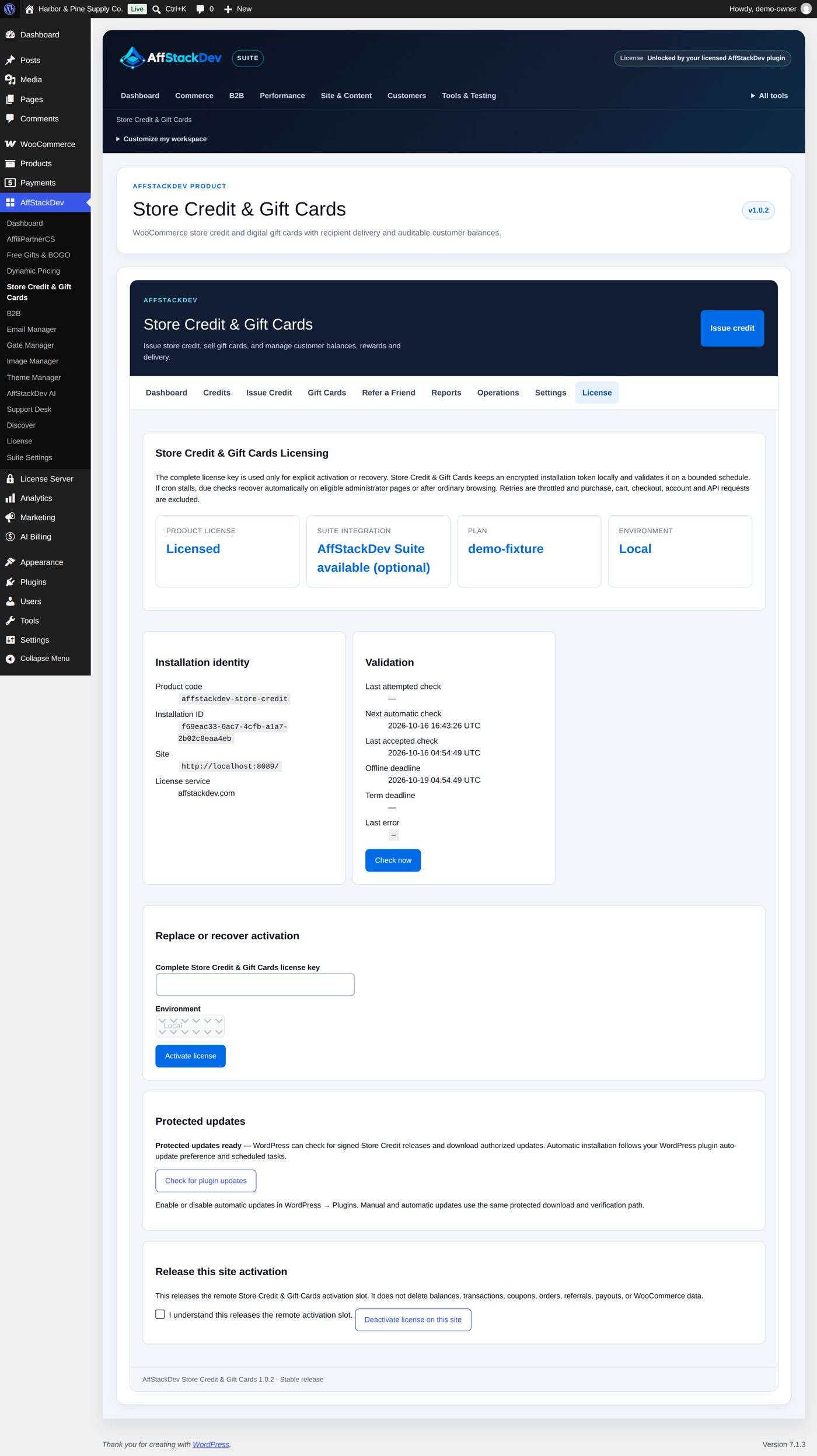
Open Store Credit & Gift Cards → License (with the Suite: the plugin's License tab). Paste the key from My Account → Licenses on affstackdev.com, check the Environment (Production for your live store, Staging for a test copy) and activate.
A fresh installation works for 72 hours without a license. After that, new credit, new gift card sales and new referrals wait until the license is active. Credit your customers already have keeps working in any case. More: Activate your license.
3. Look at the settings once
Open Settings. It holds three preferences and the downloads of the full guide:
| Setting | At the start | Means |
|---|---|---|
| Enhanced UI | On | The screens change in place without full page loads. Off uses ordinary page loads; the Suite's basic mode switches it off too. |
| Allow multiple store credit or gift card codes on the same order | Ticked | A customer may use several credits on one order. |
| New credits may combine with ordinary coupons by default | Ticked | The starting choice for each new credit; you can still change it per credit when you issue it. |
Change what you need and select Save settings.
4. Give a test credit
Use a customer account of your own (or make a test customer), so you can see what a customer sees.
- Open Issue Credit.
- Search for that registered customer.
- Enter an Amount, for example 10, and the Reason Manual.
- Select Review credit, read the summary, then Issue store credit.
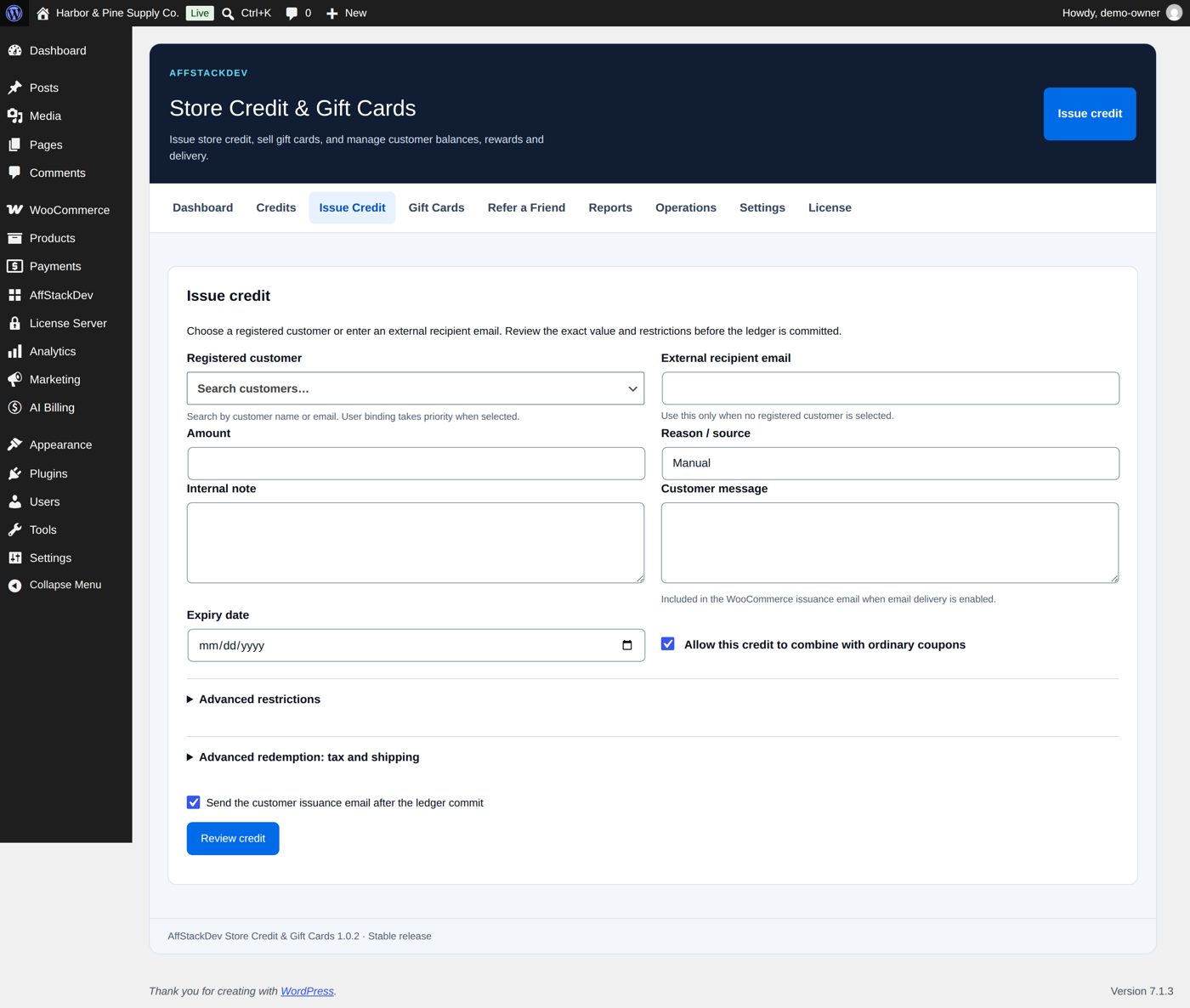
The credit now appears under Credits with its history. Details on every field: Give and manage credit.
5. Spend it as the customer
Sign in as that customer (a private browser window keeps your admin session apart) and put a product in the cart.
- Above the cart a panel titled Your Store Credit & Gift Cards lists the credit with the button Apply store credit.
- Apply it. After a moment the total is recalculated and the button becomes Remove.
- Under My Account → Store Credit & Gift Cards the customer sees the balance and its history.
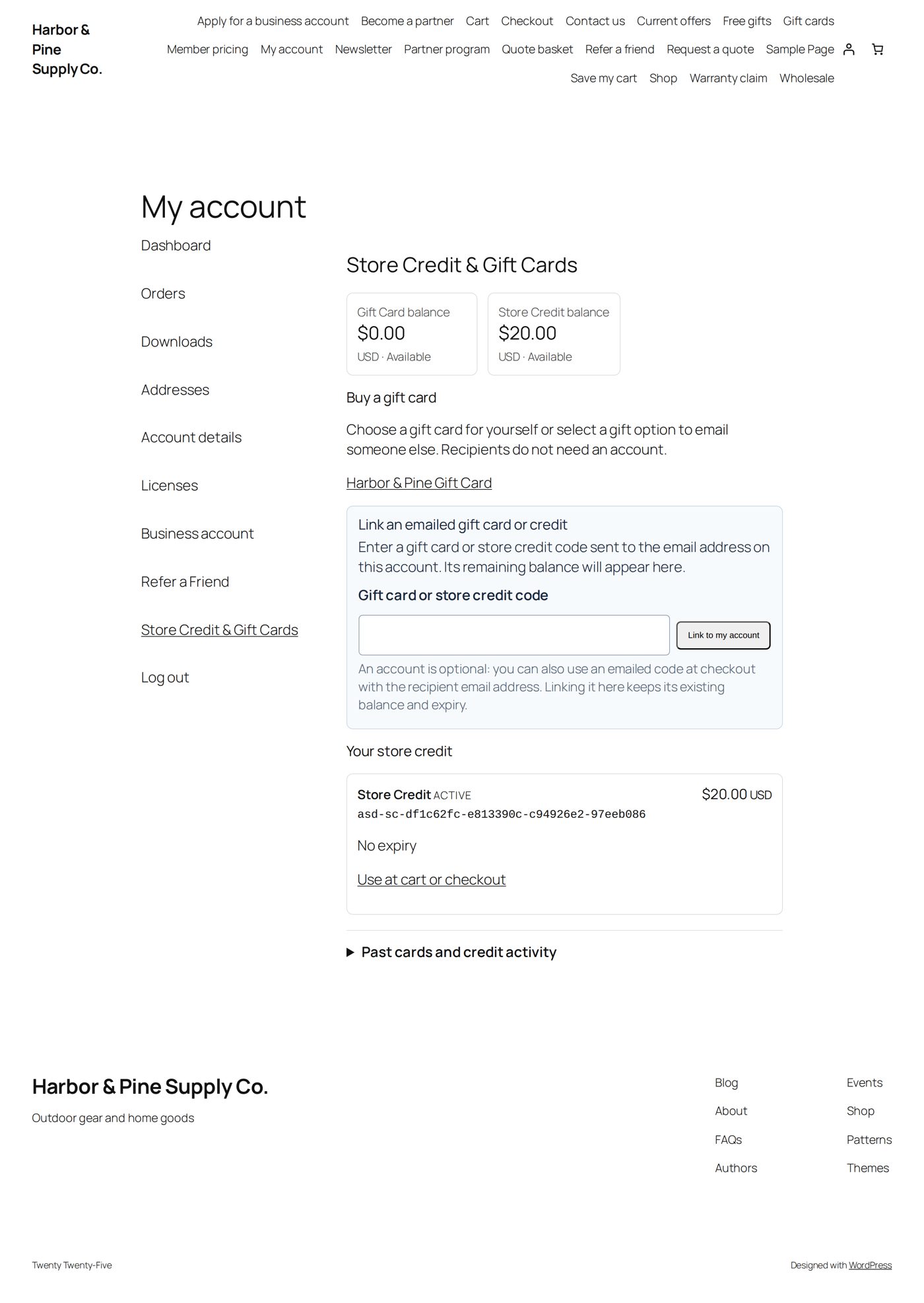
If you place the test order, the credit is reserved and then used; cancel the order afterwards and the credit comes back. What happens with orders and refunds: At checkout, and after.
6. Your first gift card
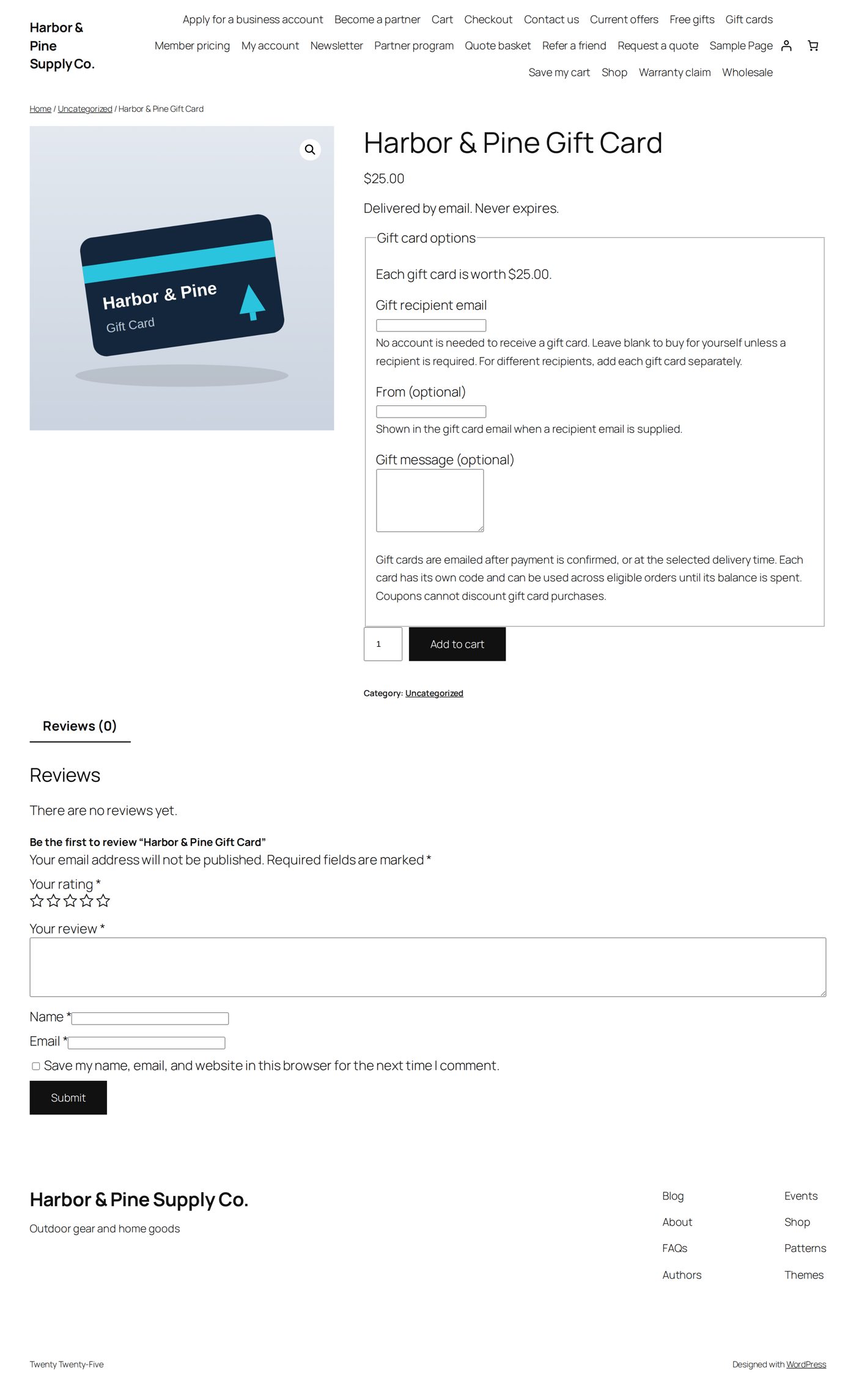
Open Gift Cards and select Create draft gift card. You get an unpublished product named Gift Card, already set up the way a gift card must be. Give it your name, description and picture, choose on its Gift card tab what it is worth, then publish it. Everything about selling gift cards: Sell gift cards.
7. Refer a Friend, when you want it
Refer a Friend is off until you set it up: what the friend gets, what the customer who referred gets, and which offers may be combined. See Refer a Friend.
What else Store Credit & Gift Cards can do
| Page | What it covers |
|---|---|
| Give and manage credit | Give a customer credit in two steps, find any credit later, correct it, stop it, send its email again. |
| Sell gift cards | A gift card is a normal WooCommerce product with a few extra settings. Create one, decide what it is worth and who it goes to. |
| At checkout, and after: orders and refunds | What your customer sees and does, what happens to the credit while an order is open, and what to do when an order is cancelled or refunded. |
| Refer a Friend | Customers invite friends with a personal link. When a friend makes a first purchase, the friend and the customer each get what you promised. |