At checkout, and after: orders and refunds
What your customer sees and does, what happens to the credit while an order is open, and what to do when an order is cancelled or refunded.
What the customer sees
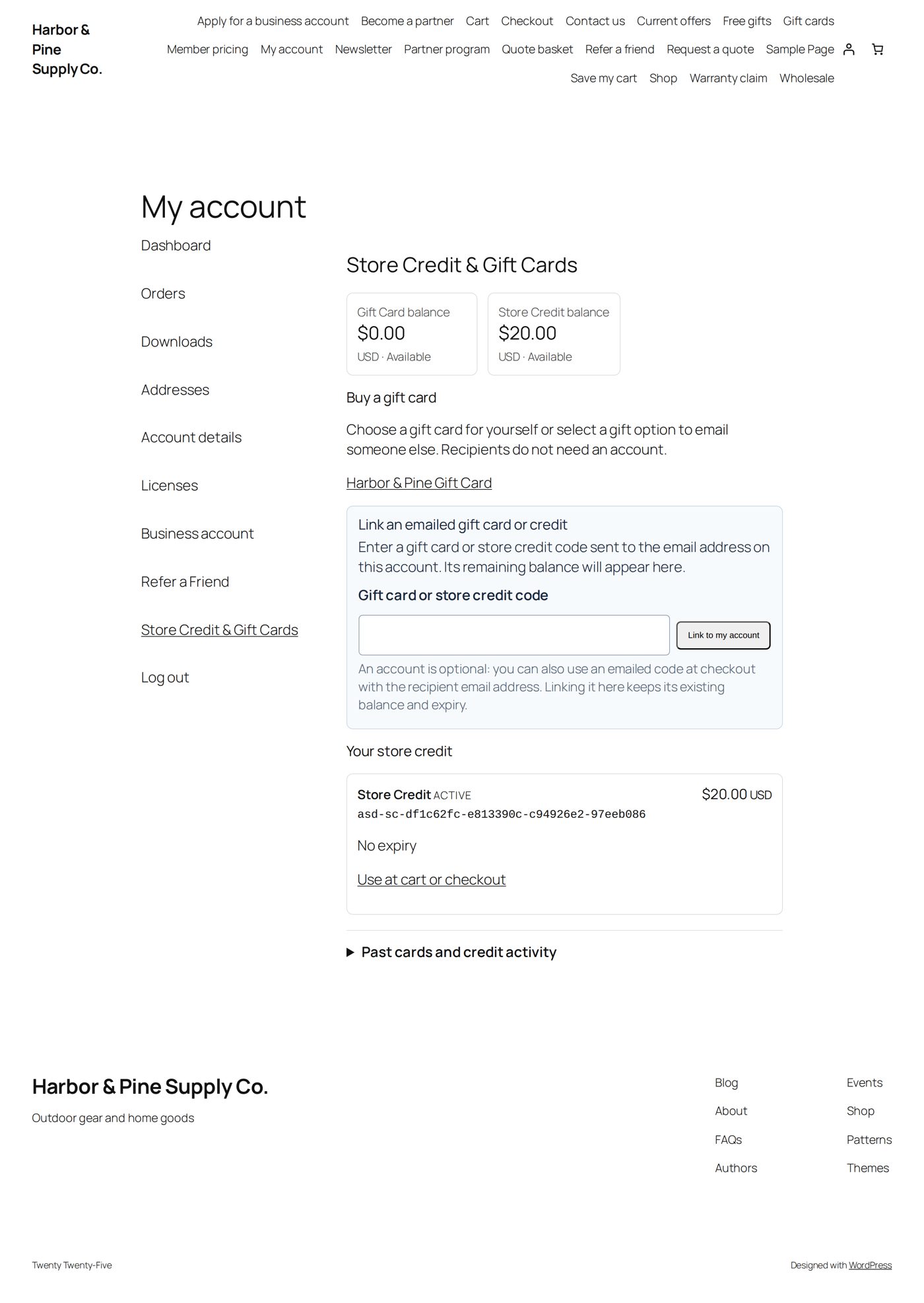
In their account. My Account has Gift Cards (always there, also with nothing on it) and Store Credit (when they have some). They see their own credits, what is available, when it expires and the latest activity. Never anyone else's, and never your internal notes. Next to a card they find Download as PDF (Print a gift card) and, when you allow it, Send to someone (below) and Add money (Adding money to a card).
At cart and checkout. A signed-in customer with credit sees a panel above the cart or checkout, titled Your Gift Cards or Your Store Credit & Gift Cards. Each credit has a button: Apply gift card or Apply store credit. After a moment the total is recalculated and the button becomes Remove.
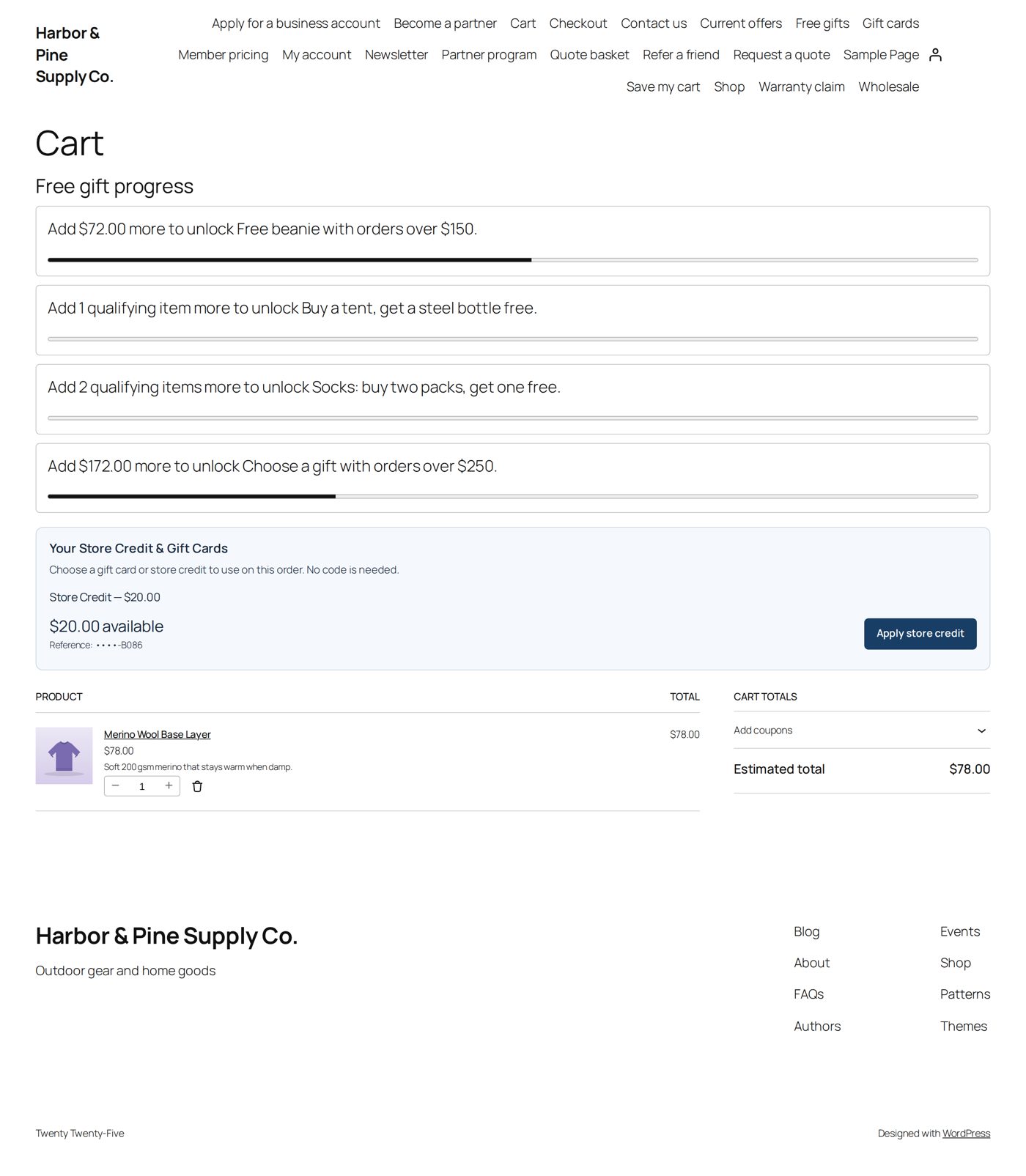
Credit is never spent by itself. The customer decides, every time, and can take it off again before placing the order.
Someone with a code but no account types the code into the normal coupon field and uses the email address the credit was sent to as billing email.
Sending balance to someone else
Off at the start. In Settings, Customers may send balance to someone else offers Off, Gift card balance (gift cards only) and Gift card and store credit balance.
When it is on, the customer sees Send to someone next to a card or credit in My Account. They enter the Amount (up to what is available), Their email address and an optional message, and select Send. The amount leaves their card at once; the other person gets a new card or credit of their own, with the same rules and expiry, and the usual email with its code. A send cannot be taken back.
- Refer a Friend rewards and partner payouts cannot be sent.
- At most 10 sends per customer per day. Sending the same form twice sends it once.
- In Credits the new one has the source Gift card sent by a customer or Store credit sent by a customer. The sender's history shows Sent, the receiver's Received.
What credit can pay for
- Products, within the rules you set for that credit (certain products or categories only, if you chose that).
- Tax and shipping only if you allowed it when you issued the credit.
- Not gift cards, and not fees.
- If the credit is larger than the order, the rest stays available for next time.
- Several credits on one order are possible while Allow multiple store credit or gift card codes on the same order is ticked in Settings (it is at the start).
A code that would pay nothing in this cart (for example because nothing in the cart is among its allowed products) is taken off again with a notice. The balance is untouched.
Shoppers in another currency
If your store uses WPML Multilingual & Multicurrency for WooCommerce, or FOX - Currency Switcher with Is multiple allowed set to Yes, to sell in other currencies, customers can pay with store credit and gift cards in those currencies too. Credit stays in your store's currency; at checkout it is converted with the switcher's exchange rate.
- With 1 USD = 0.9 EUR, a $20.00 gift card pays €18.00.
- What a credit pays is rounded down and what it costs is rounded up, so it never pays more than it holds.
- The cart shows each credit with both amounts, for example $20.00 (€18.00), and the order note gives the rate.
- Cancelling the order or a full refund gives back exactly what the credit paid.
Gift cards bought, cashback earned and refunds given as store credit on such an order are in your store's currency too, converted at the order's rate: a $25.00 gift card costs €22.50, and refunding €9.00 as store credit gives $10.00. With other currency switchers (and with FOX set to No), credit can be spent and gift cards bought only while the shop shows your store's currency.
What happens to credit during an order
| Order is ... | The credit is ... |
|---|---|
| in the cart | only shown as a possible reduction; nothing is held yet |
| placed, waiting for payment (Pending, On hold) | reserved for this order |
| payment failed | still reserved, so the customer can try to pay again |
| Processing or Completed | redeemed: used |
| cancelled | released; if it was already used, it is given back |
Reserved credit cannot be used on another order. If a customer says "my credit is gone", look for an unpaid order that is holding it, and cancel that order if it will not be paid.
Refunds
| You do | What happens to the credit |
|---|---|
| A full refund in WooCommerce | The credit this order used is given back automatically. |
| Set an order that was paid entirely with credit to Refunded | There is no money to refund, so WooCommerce creates no refund. The credit is given back when the status changes. |
| A partial refund | Nothing automatic: you decide how much credit to give back. The order shows a note with a link, Restore original store credit. The plugin does not guess a share. |
| Refund … as store credit on the order | The refunded amount becomes a new store credit for the customer; nothing goes back through the payment gateway. Credit the order used follows the two lines above. See below. |
| Reopen a cancelled or refunded order | The credit is not spent again by itself. Apply it again if it should pay. |
For orders that sold a gift card, see Refunding an order that contained a gift card.
Refund an order as store credit
Instead of paying money back, you can refund a paid order as store credit:
- Open the order and select Refund.
- Choose the lines, quantities and amounts exactly as for any WooCommerce refund.
- Select Refund … as store credit (the button shows the amount, for example Refund $10.00 as store credit) and confirm.
WooCommerce records the refund as it does for a manual refund (the lines, restocking, the refunded total, the status Refunded once everything is refunded), and the same amount becomes one store credit:
- for the order's customer account, or, for a guest order, for the billing email (spent with its code and that email);
- source Refund alternative, no expiry, no product restriction;
- the customer's refunded-order email says the refund was given as store credit and shows the code. With Email the store credit to the customer ticked (it is at the start), the usual store credit email follows too.
Tick The store credit may also pay tax and shipping when the credit should be spendable on tax and shipping like money; without it, it pays for products.
Each refund gives exactly one credit; a second click on an old screen is refused. If the credit could not be issued, the order note says why and Order actions offers Issue the store credit of a refund made as store credit, which never gives a second credit. Deleting that refund revokes its credit if none of it was used.
The button is not available for an unpaid order, an order in another currency than the store, or an order with neither an account nor a billing email. For an order that sold gift cards, first stop and revoke its cards (Refunding an order that contained a gift card).
Example: an order of $30.00 paid with a $10.00 credit and $20.00 by card, refunded in full as store credit, leaves the customer with a new $20.00 credit and their $10.00 credit back.
If something does not work
| What the customer or you see | Usual cause |
|---|---|
| No "Apply" panel at checkout | The customer is not signed in, or has no available credit (it may be reserved, expired or for another currency). |
| The code is refused | Wrong billing email for an emailed credit; the credit is expired or revoked; a coupon in the cart does not allow other discounts. |
| The credit covers less than expected | It is restricted to certain products, or does not cover shipping and tax. |
| Credit stays "reserved" | An order is still waiting for payment. Complete or cancel that order. |
| The credit email did not arrive | Open the credit and Resend issuance email. Check that WooCommerce's Store credit / gift card issued email is enabled. |