Who sees and buys what
Hide products or prices from anyone who is not an approved business, sell in cases of 12, keep pages for business customers, set a minimum order per group, and choose payment and delivery methods. With four worked examples.
What it is for
B2B decides three things separately for every product: who may see it, who may see its price and who may buy it, plus the quantities a business buys in. On top of that come pages only for business customers, order limits per account or group, and the payment and delivery methods businesses may use. Have ready: your business groups (Getting started).
Catalog & quantities
Open Catalog & quantities and choose Add new. A rule is for one product or variation, or for a category with all its subcategories.
| Field | At the start | What it does |
|---|---|---|
| Apply to | Product or variation | or Category and its descendants |
| Product or variation / Product category | the product (search by name or SKU with Search choices) or the category | |
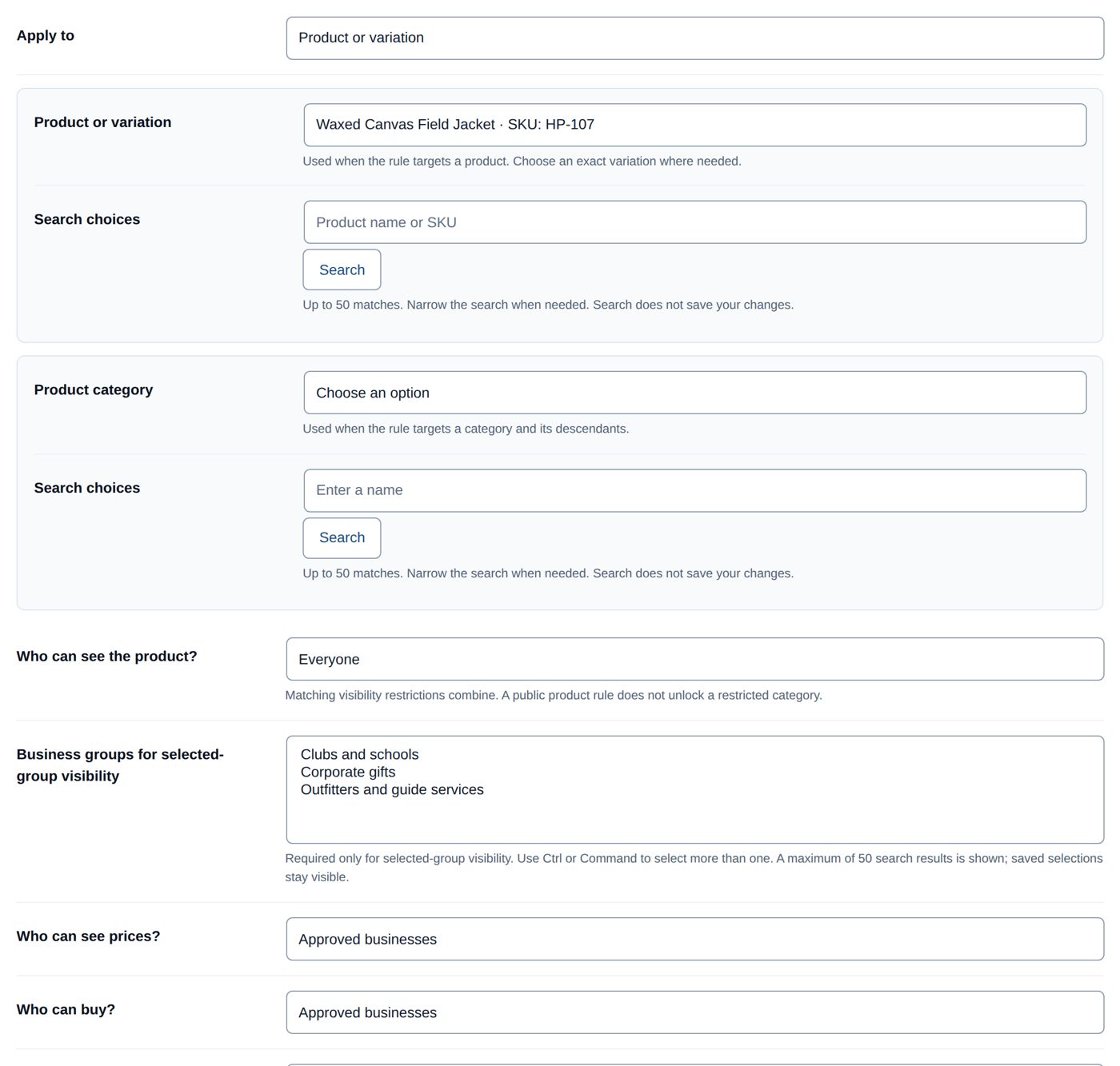
| Who can see the product? | Everyone | Approved businesses, Selected business groups (choose them under Business groups for selected-group visibility) or Selected audience below. "Matching visibility restrictions combine. A public product rule does not unlock a restricted category." |
| Who can see prices? | Everyone with catalog access | Approved businesses, Nobody — hide prices or Selected audience below |
| Who can buy? | Everyone with visible prices | Approved businesses, Nobody — catalog only or Selected audience below |
| Selected audience | none | Approved business customers with these customer roles, Approved business groups, Specific approved business or retail customers, Exclude these customers from this rule (always comes first), Include guests in the selected audience, Include registered retail customers in the selected audience. Waiting, rejected and on-hold business accounts never get access through an audience. |
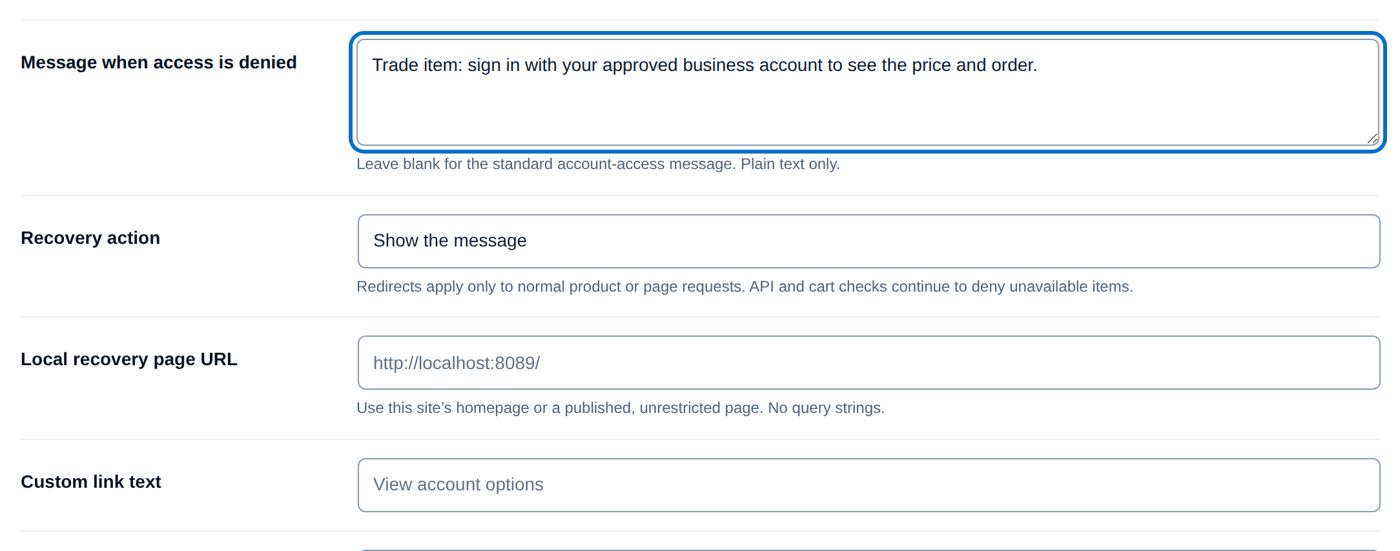
| Message when access is denied | empty | "Leave blank for the standard account-access message." The standard message is "Sign in with your approved business account to view this item." Plain text only. |
| Recovery action | Show the message | Show a custom link (with Custom link text, "View account options" at the start) or Redirect to a local page (Local recovery page URL: your homepage or a published, unrestricted page). "Redirects apply only to normal product or page requests." |
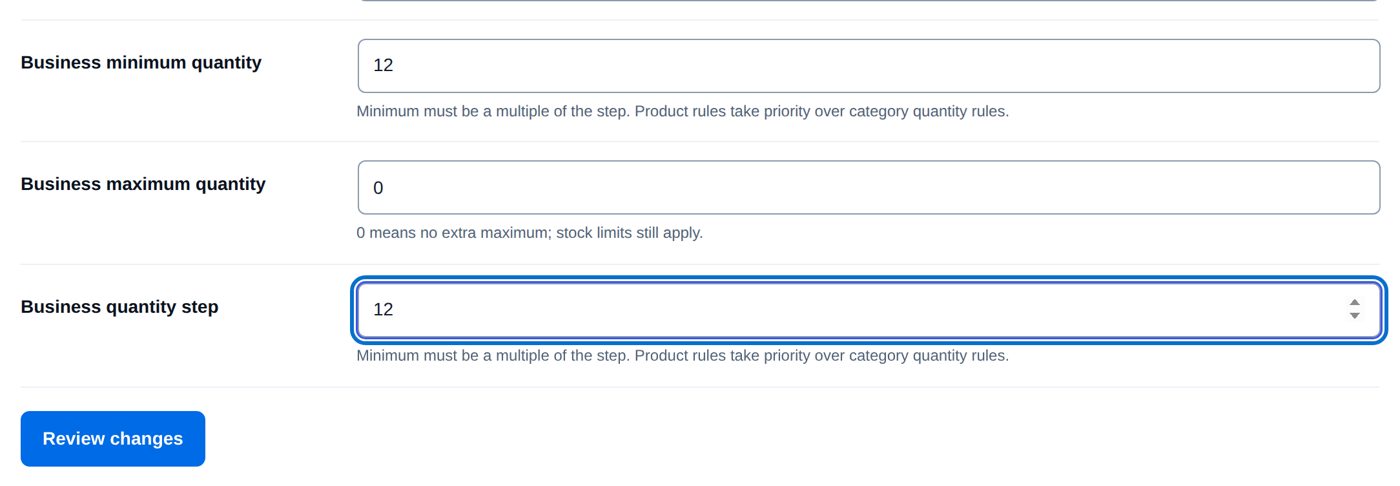
| Business minimum quantity | 1 | "Minimum must be a multiple of the step." |
| Business maximum quantity | 0 | "0 means no extra maximum; stock limits still apply." |
| Business quantity step | 1 | buy in steps of this many |
"Product rules take priority over category quantity rules": for quantities, a rule on the exact variation comes before one on its parent product, which comes before a category rule. For visibility, rules add up: a rule that allows a product does not undo a stricter rule on its category.
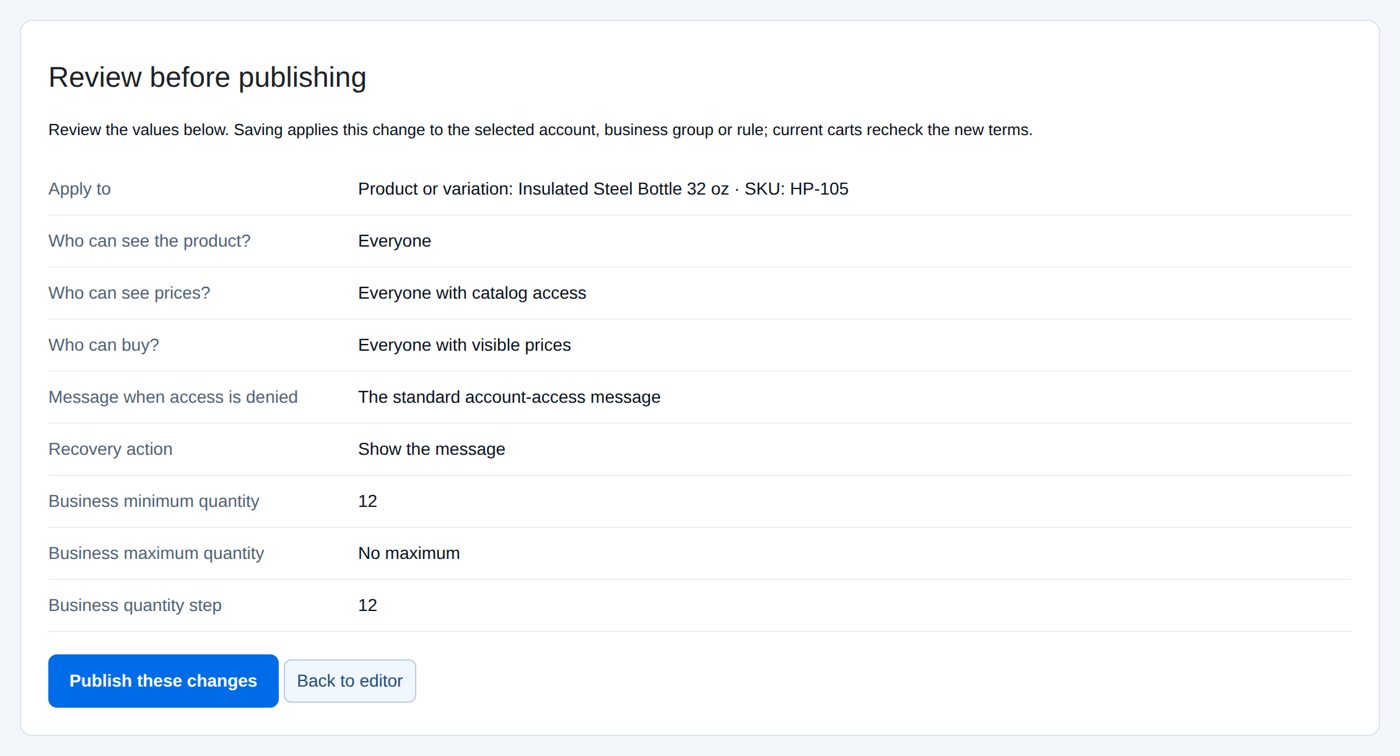
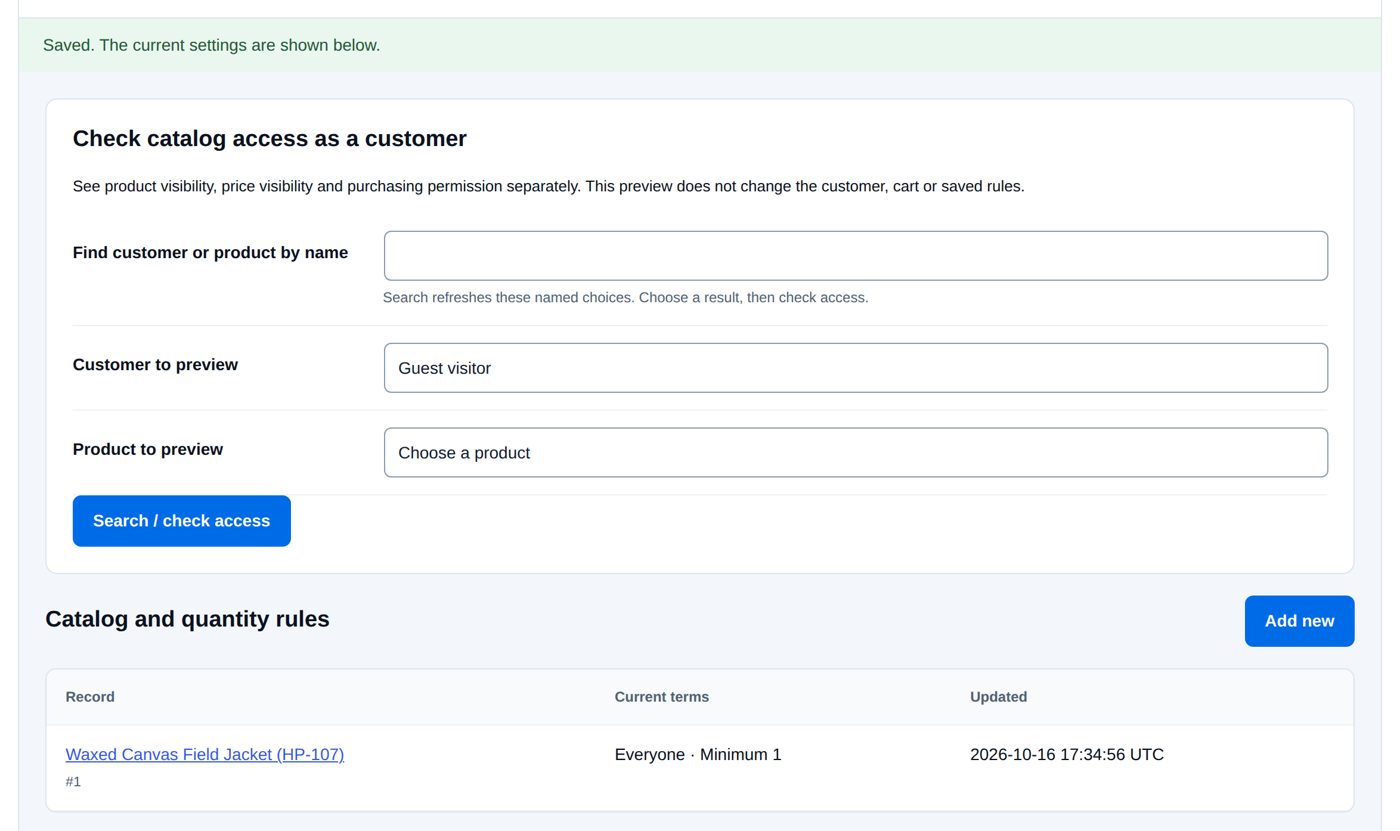
Review changes lists the rule in words; Publish these changes saves it. An existing rule has Review removal to delete it.
Hidden prices also leave the product's structured data for search engines, and public product feeds never show a signed-in customer's private prices.
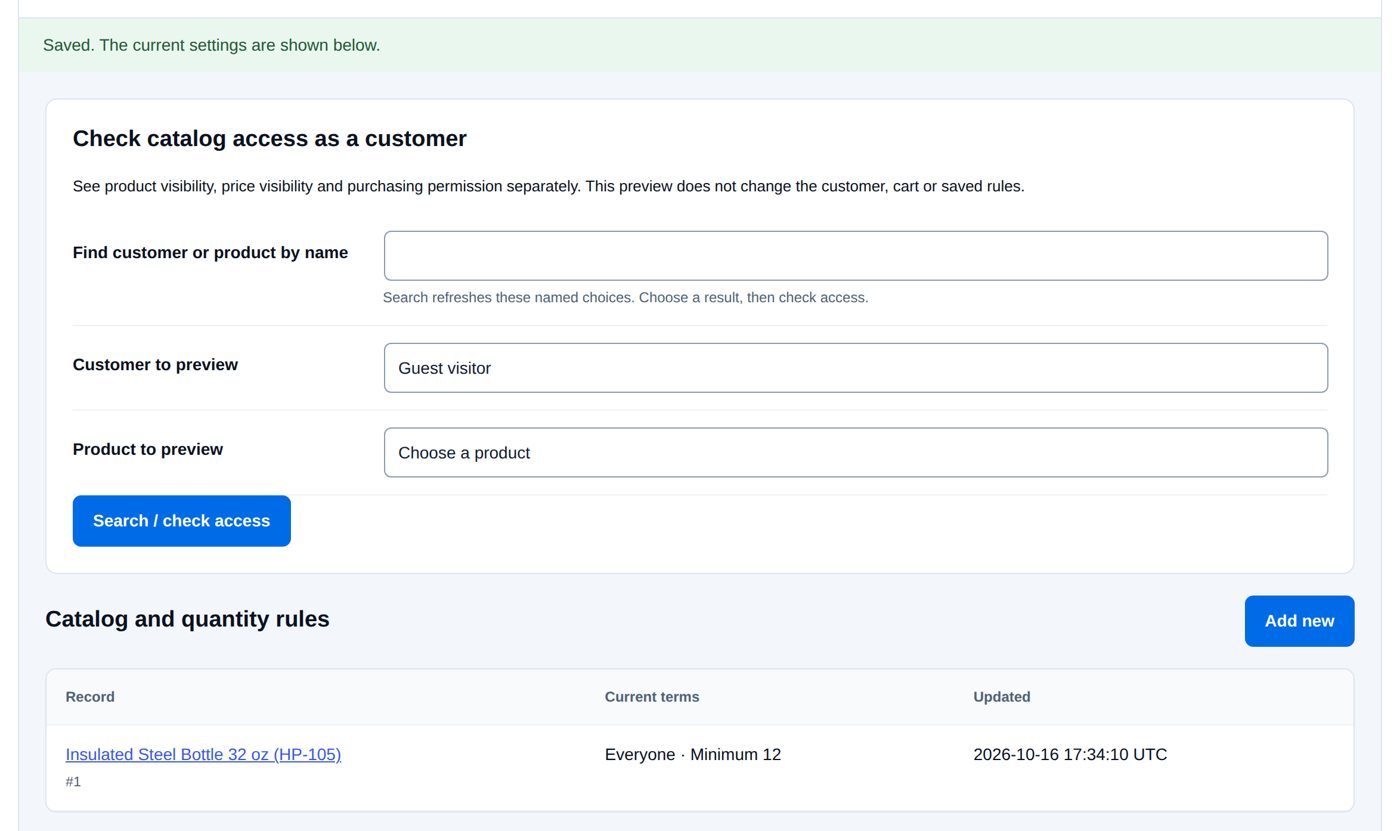
Check catalog access as a customer
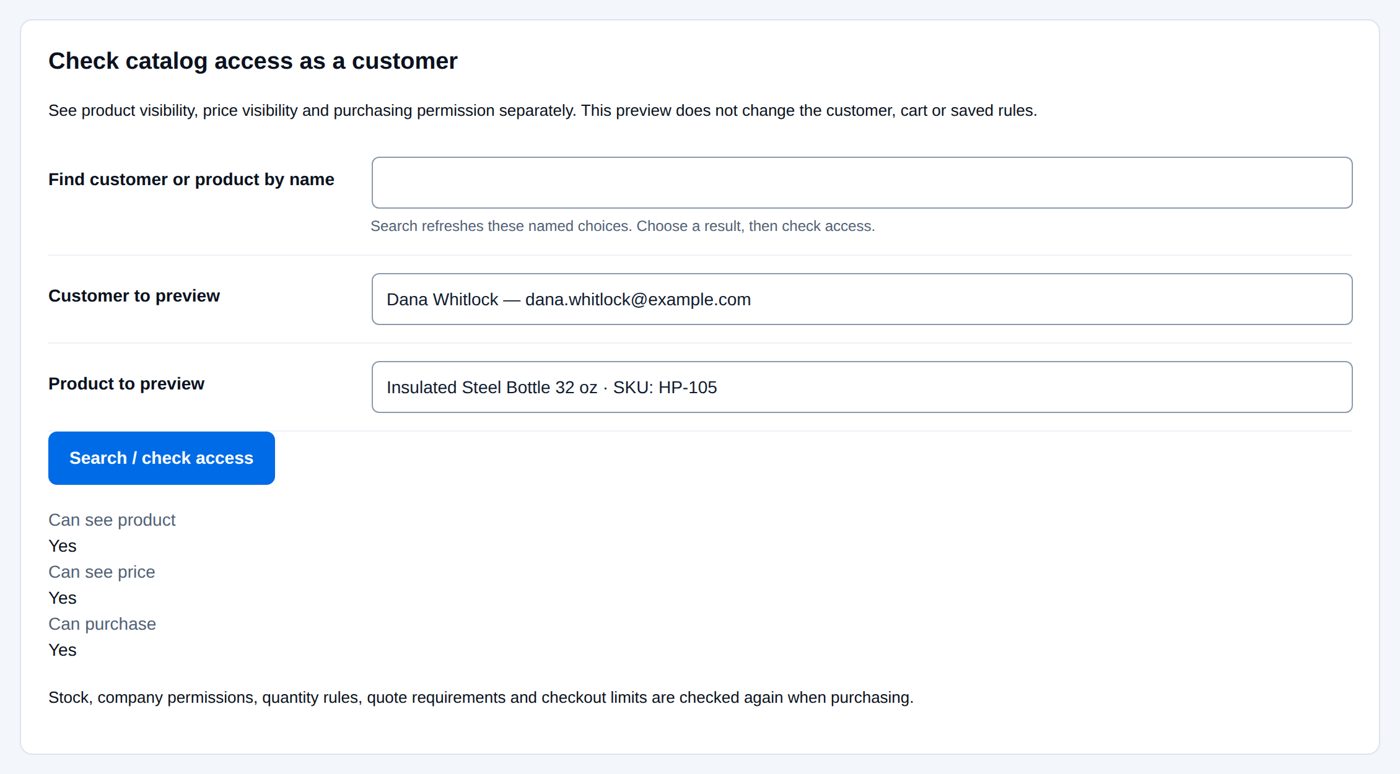
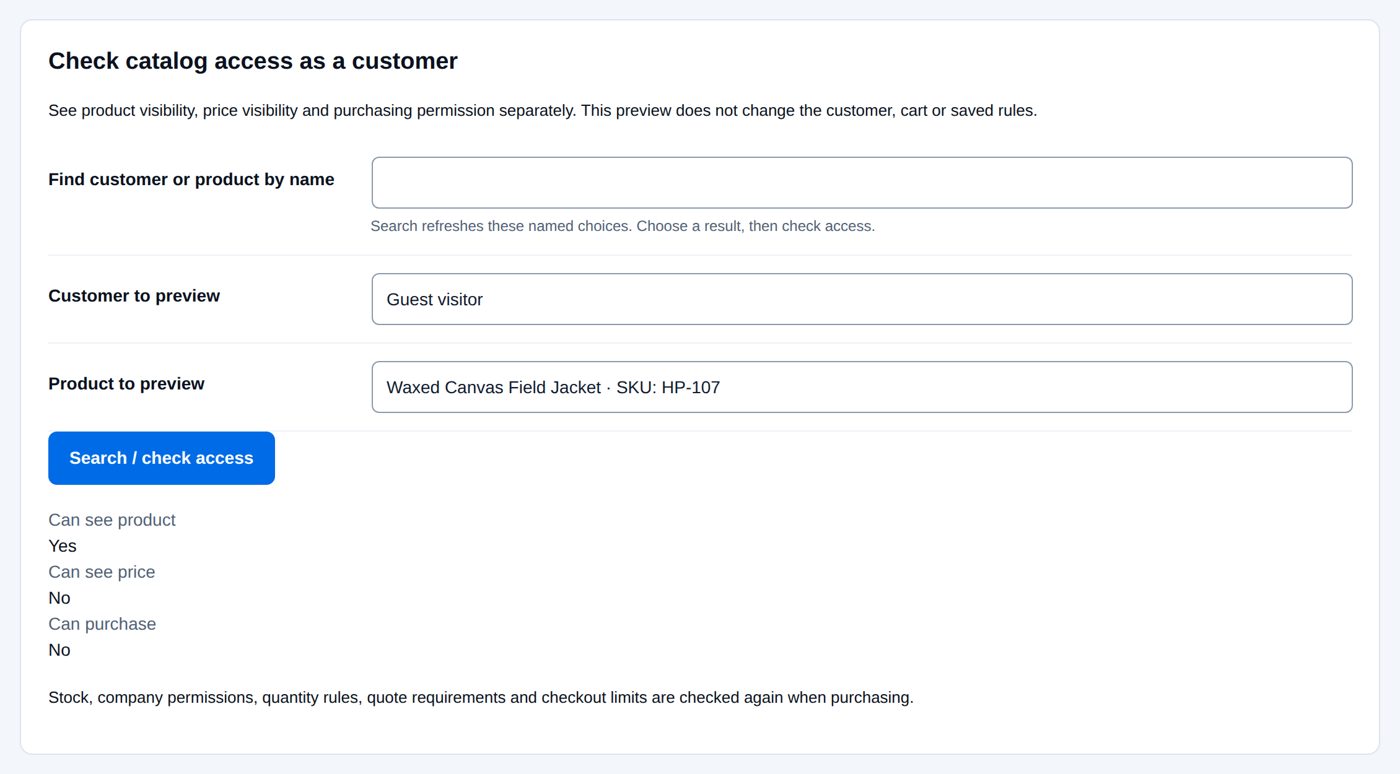
At the top of the screen: choose a Customer to preview (or Guest visitor) and a Product to preview (Find customer or product by name narrows the lists) and choose Search / check access. B2B answers Can see product, Can see price and Can purchase with Yes or No. "This preview does not change the customer, cart or saved rules." Stock, company permissions, quantity rules, quote requirements and checkout limits are checked again when the customer buys.
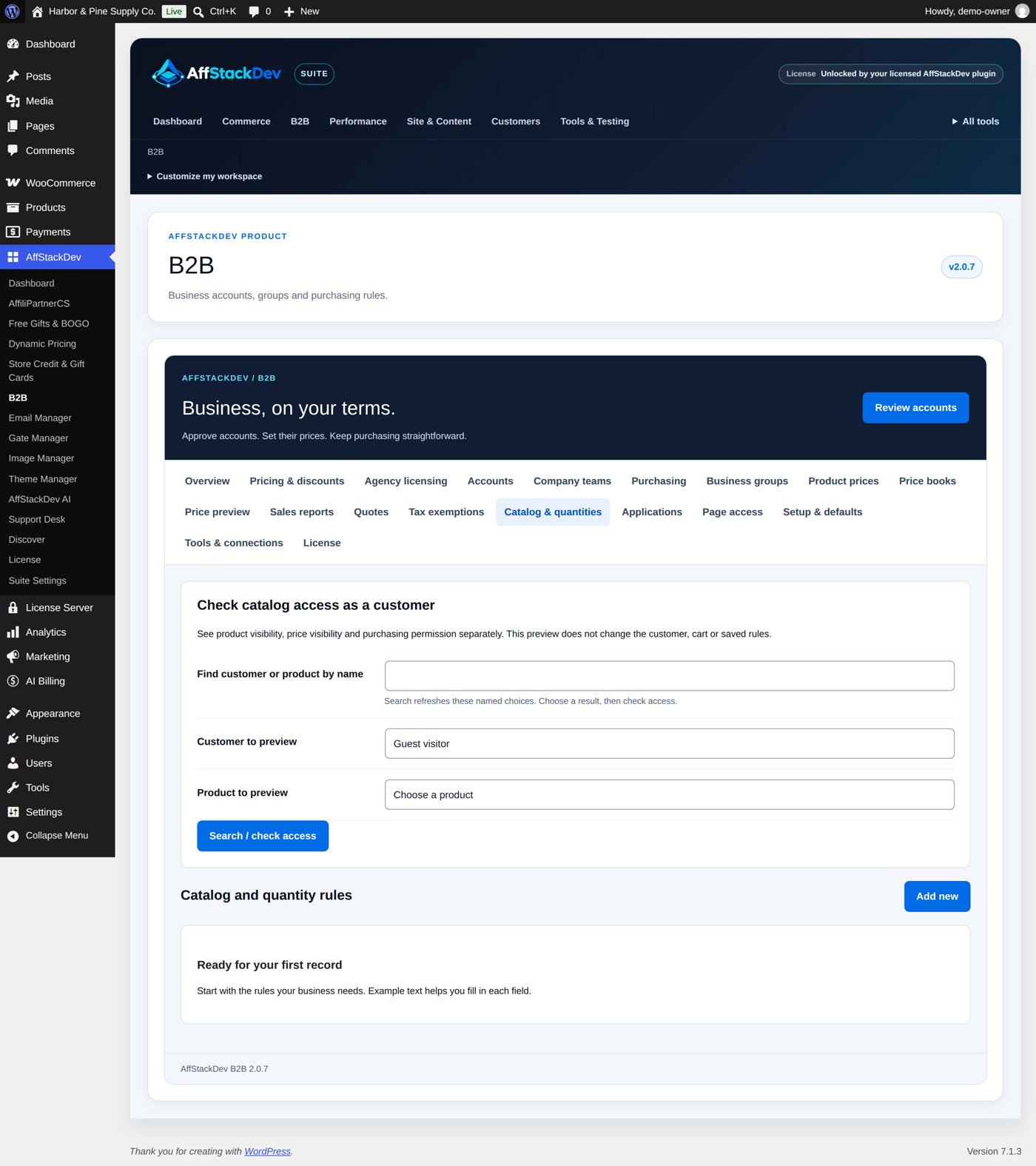
Worked example: the steel bottle in cases of 12
Harbor & Pine sells the Insulated Steel Bottle 32 oz ($32.00) to businesses by the case of 12. Everyone may still see and buy it; only the quantities change for business customers.
- Catalog & quantities → Add new. Apply to Product or variation, the bottle. Leave Who can see the product?, Who can see prices? and Who can buy? as they start.
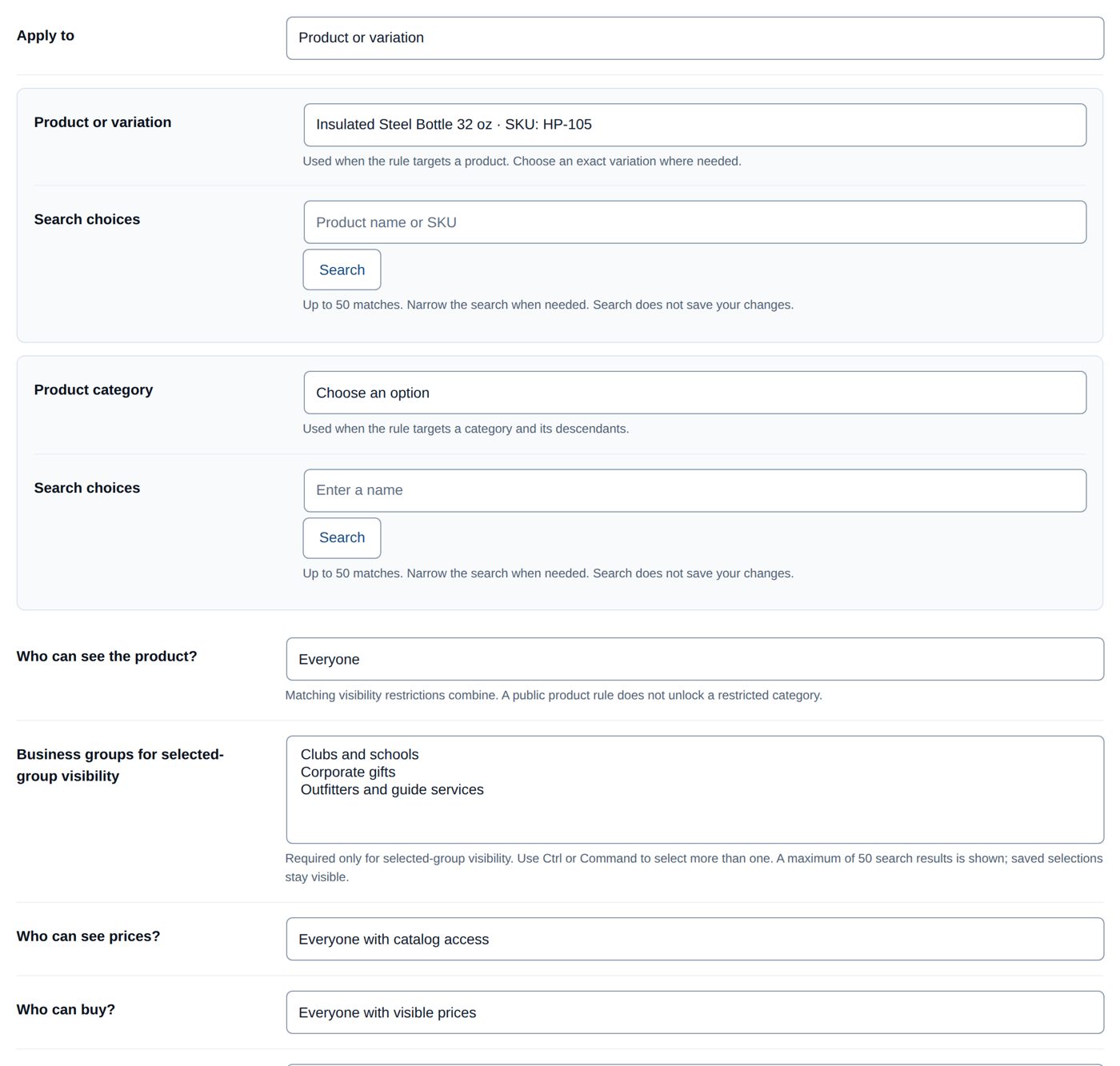
- Business minimum quantity 12, Business maximum quantity 0, Business quantity step 12.
- Review changes: "Product or variation: Insulated Steel Bottle 32 oz · SKU: HP-105", Everyone, Everyone with catalog access, Everyone with visible prices, "The standard account-access message", Show the message, minimum 12, "No maximum", step 12. Then Publish these changes.
- Check catalog access as a customer with Dana Whitlock (Granite Peak Outfitters) and the bottle: Yes, Yes, Yes.
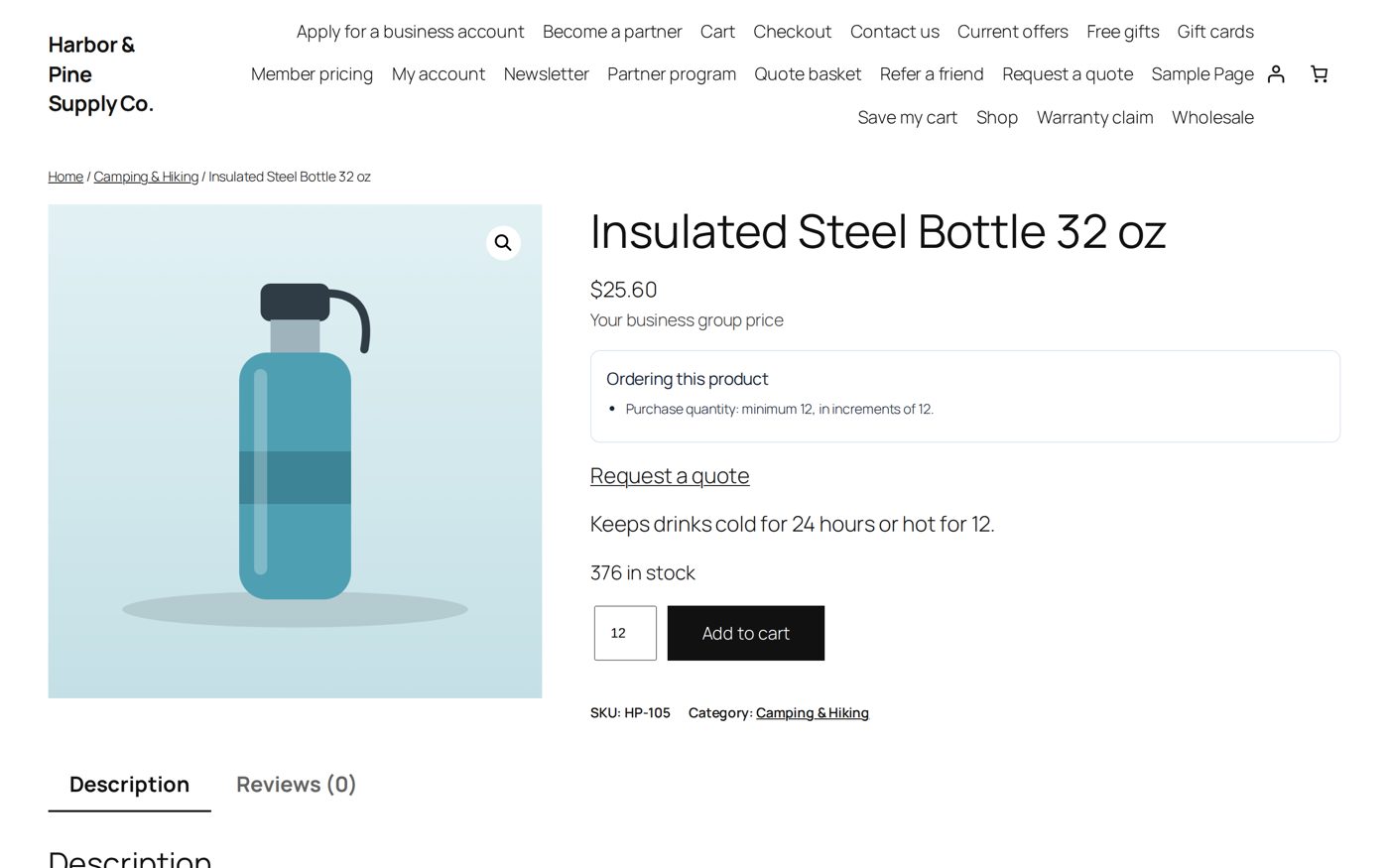
On the product page Dana sees her group's price ($25.60, "Your business group price"), a box Ordering this product with "Purchase quantity: minimum 12, in increments of 12." and a quantity field that starts at 12.
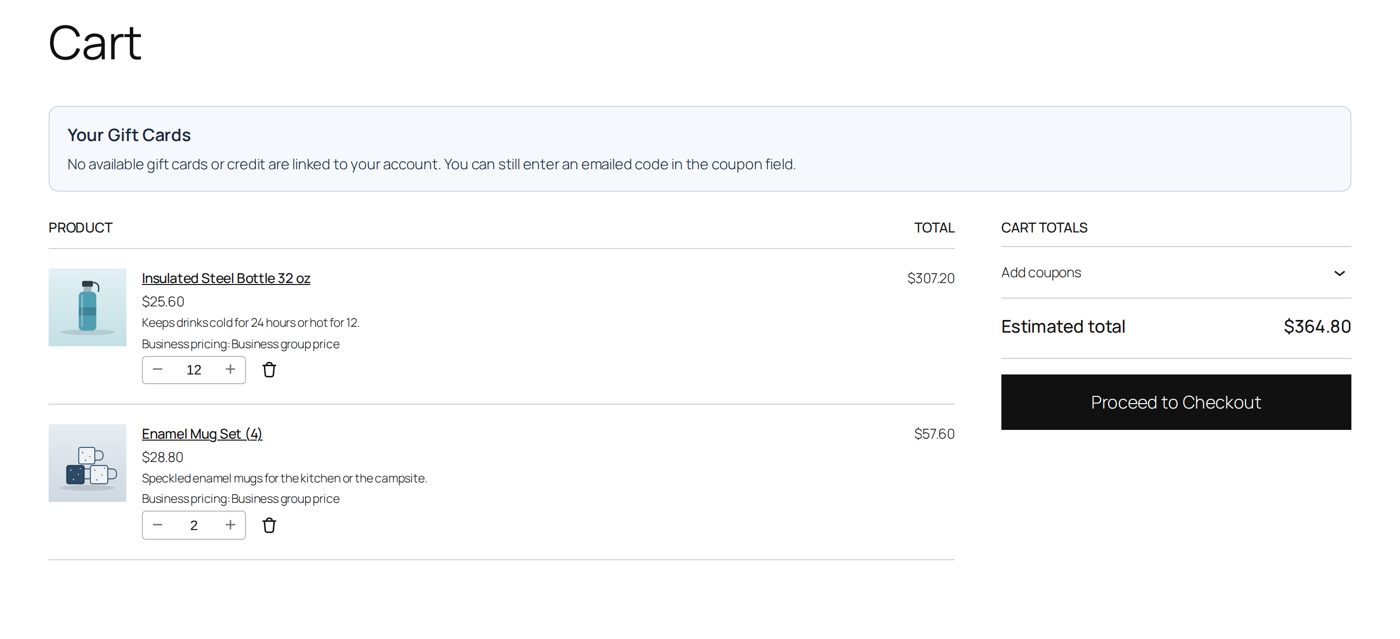
A case of 12 in her cart costs $307.20. A quantity that does not fit the rule (5, or 13) is refused: "Use at least 12 units in steps of 12. Maximum: stock available."
Retail customers and visitors buy the bottle one at a time as before: the quantities are business quantities.
Worked example: a trade-only jacket
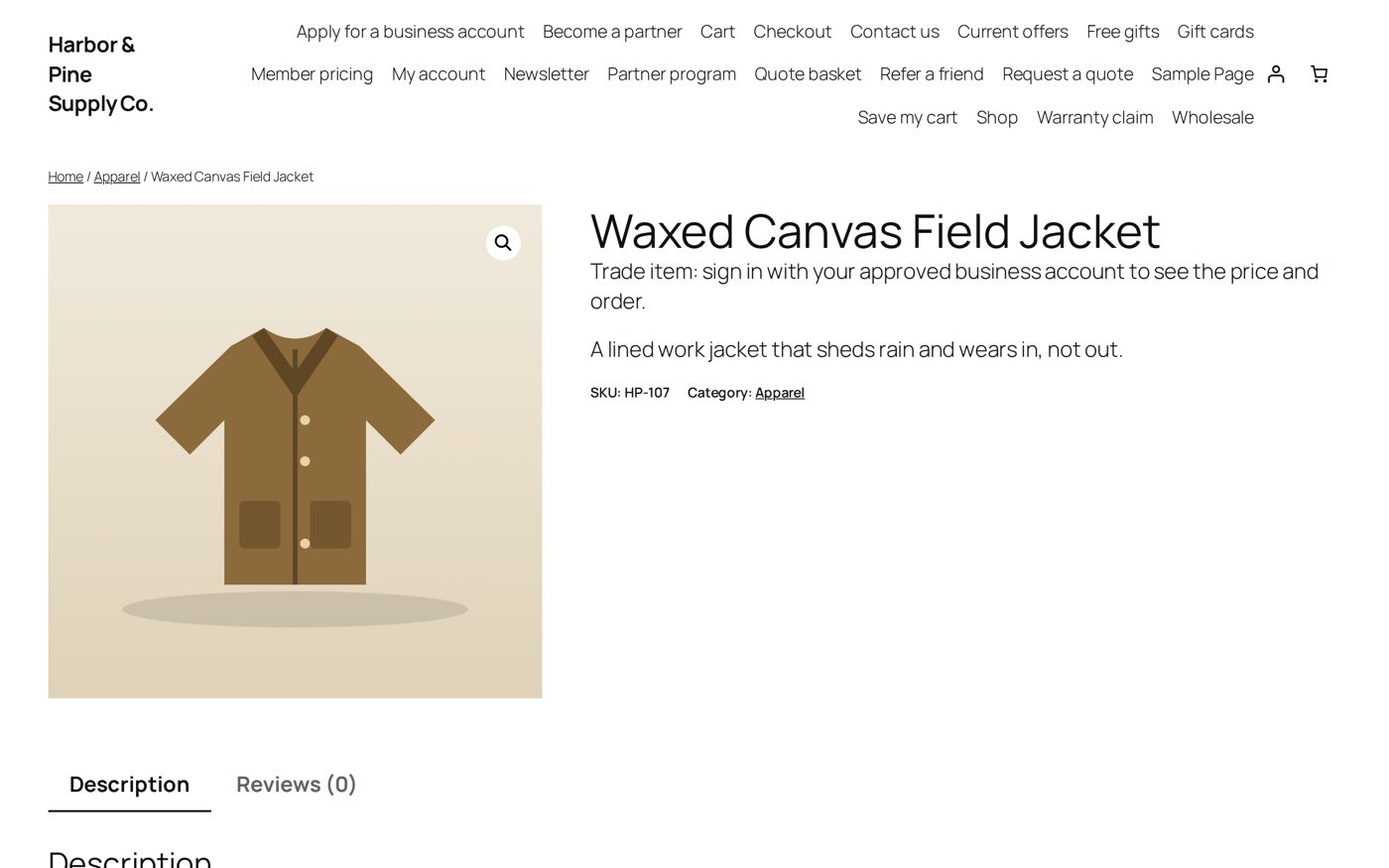
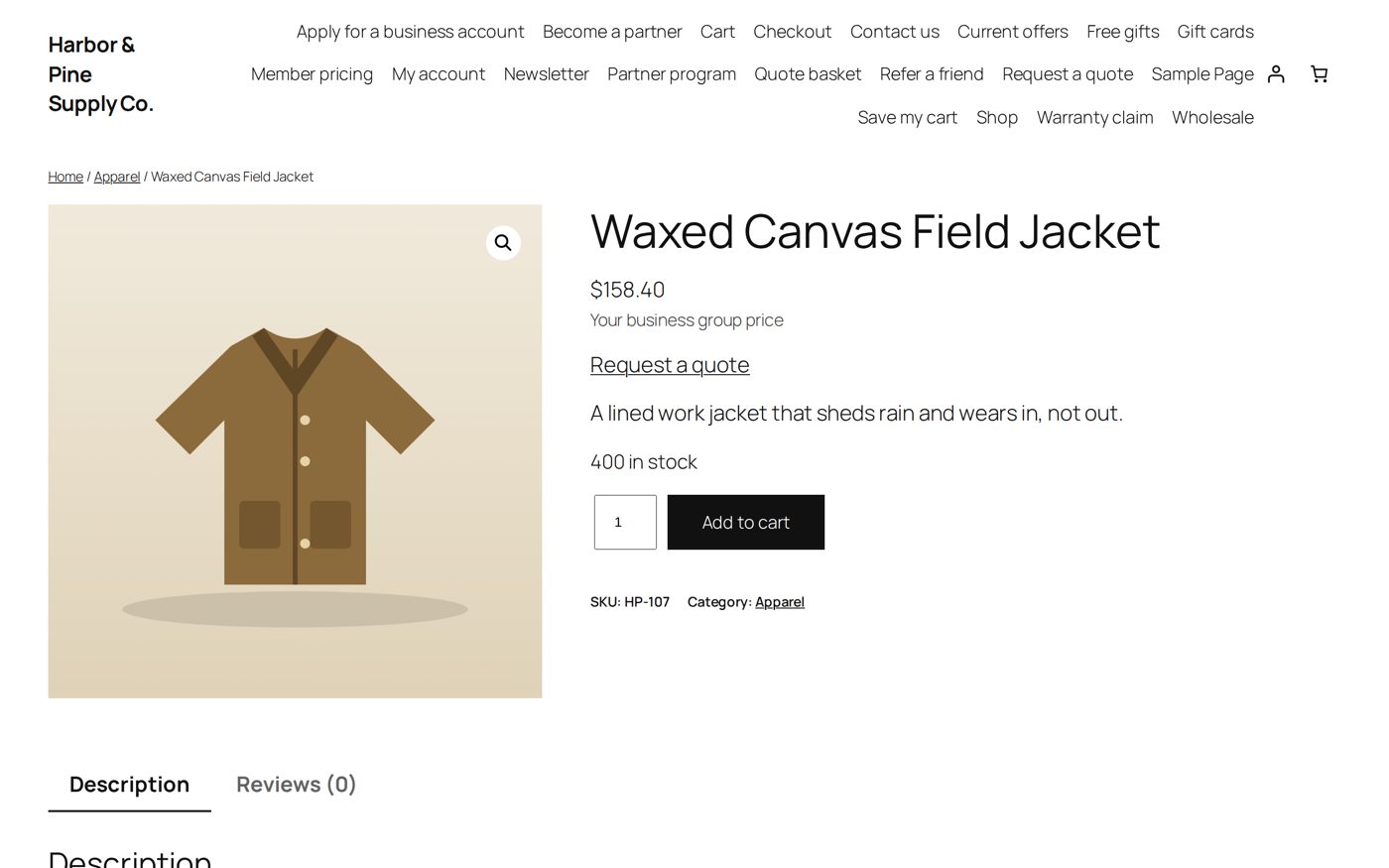
The Waxed Canvas Field Jacket is for trade customers only: visitors may see it, but its price and the buy button are for approved businesses.
- Catalog & quantities → Add new, Apply to Product or variation, the jacket; Who can see the product? Everyone; Who can see prices? Approved businesses; Who can buy? Approved businesses.
- Message when access is denied: "Trade item: sign in with your approved business account to see the price and order." Recovery action Show the message.
- Review changes, Publish these changes.
- Check it as a Guest visitor: Can see product Yes, Can see price No, Can purchase No.
A visitor sees the jacket with your message where the price and the buy button would be:
Dana, an approved business customer, sees her price and can order:
Pages only for business customers
Page access → Set page access:
| Field | What it does |
|---|---|
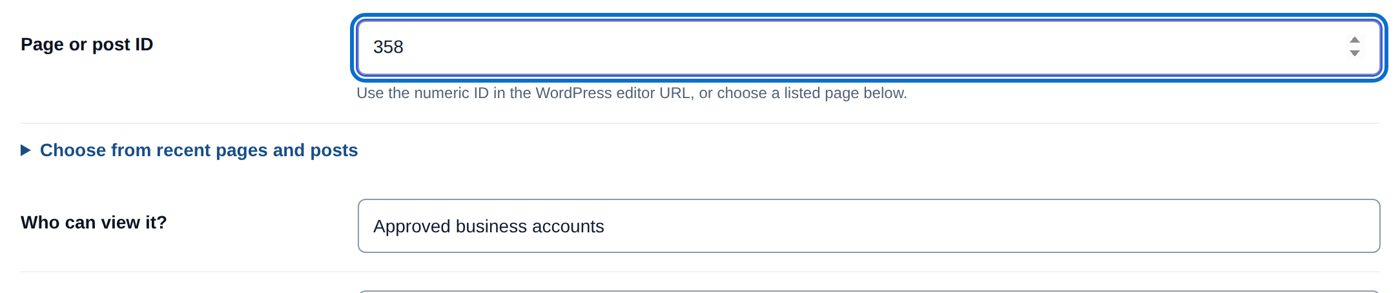
| Page or post ID | "Use the numeric ID in the WordPress editor URL, or choose a listed page below." (Choose from recent pages and posts) |
| Who can view it? | Approved business accounts, Selected customers, roles, groups or guests (the selected-audience fields), Approved accounts in selected business groups (Business groups for selected-group access), Pending business applicants (signed-in applicants waiting for review), Retail customers and visitors (also rejected or withdrawn applicants) |
| Selected audience fields, Message when access is denied, Recovery action | as for catalog rules (above) |
| Remove this B2B restriction | on an existing restriction; "Native WordPress visibility still applies." |
Up to 100 restricted pages. A restricted page also leaves search results, menus, page lists, feeds, sitemaps, embeds and the REST API for those who may not see it. Your account, application, cart, checkout, shop and privacy pages cannot be restricted, so that everyone can always sign in, apply and pay. "After changing restrictions, clear page/CDN/search caches." Media files attached to a page have their own addresses and are not protected by this rule.
Worked example: a trade price list page
- Create the page Trade price list in WordPress and note its ID (in the address of the editor,
post=355). - Page access: Page or post ID 355, Who can view it? Approved business accounts. Review and publish: the list shows "Trade price list (#355) · Approved business accounts".
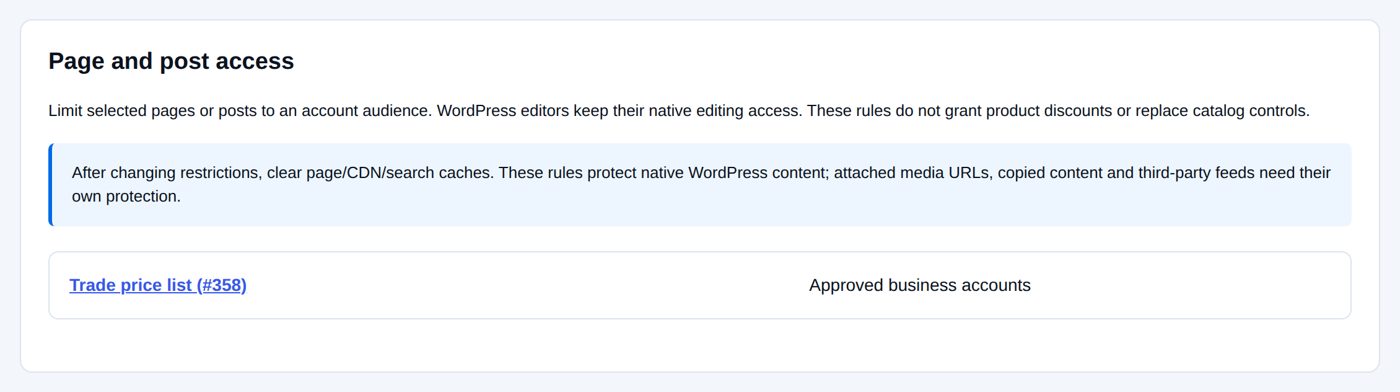
A visitor who opens the page gets B2B's notice instead: "Sign in to the appropriate account, view your business application, or contact the store if you need access." with links Sign in / My Account and Business application.

Dana sees the page:

Order limits for an account or group
Purchasing → Business order limits: choose Who receives these purchase limits? (an account, a group or business defaults) and Open these limits. One complete set of limits applies: the account's, else the group's, else the defaults'. "Account terms take precedence over group terms, then business defaults."
| Field | At the start | What it does |
|---|---|---|
| Purchase limit policy | Use inherited purchase limits (account, group); No additional account or group limits (defaults) | Use the limits below for this audience's own limits |
| Minimum eligible units, Maximum eligible units | 0 | whole units across the business cart; "Use 0 for no minimum." / "Use 0 for no maximum." Protected licensed products and gifts are not counted. |
| Quantity increment | 1 | "Counts from the minimum: minimum 26 and increment 5 allows 26, 31, 36 and so on." |
| Amount to check | eligible merchandise total after coupons and before tax | or eligible merchandise subtotal before coupons and tax, or final order total including all items, tax, shipping and fees. Store credit and gift cards are payment and never lower the counted amount. |
| Minimum amount | 0 | in the store currency, for example 250 or 249.99; "Use 0 for no minimum." |
| Maximum amount | empty | "Leave blank for no maximum; 0 is an explicit zero maximum." |
| Customer restriction messages | five standard messages | reword what buyers read; placeholders {minimum}, {maximum}, {step}, {quantity}, {amount}, {remaining}, {basis} |
| Try a quantity and amount before publishing | a sample quantity and amount checked against these limits ("This sample meets these purchase limits." or the message a buyer would get) |
"Saving binds these amounts to" your store currency; a later currency change needs a new review. These limits come on top of the Minimum business order value and Maximum business order value in Setup & defaults, product quantity rules, quote requirements and company spending controls.
Worked example: Clubs and schools order at least $250
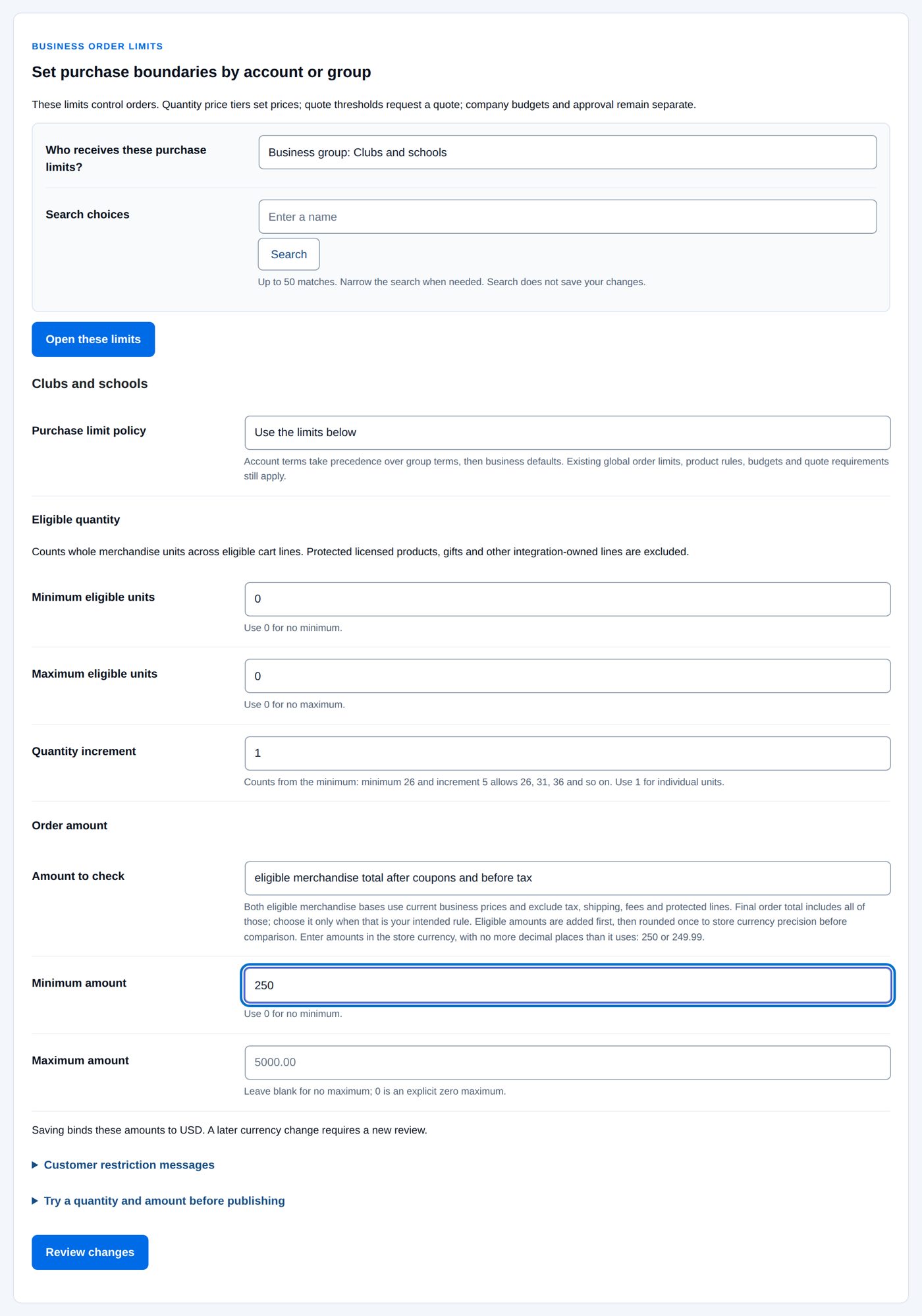
- Purchasing → Business order limits, Who receives these purchase limits? Business group: Clubs and schools, Open these limits.
- Purchase limit policy Use the limits below; Amount to check as it starts; Minimum amount 250.
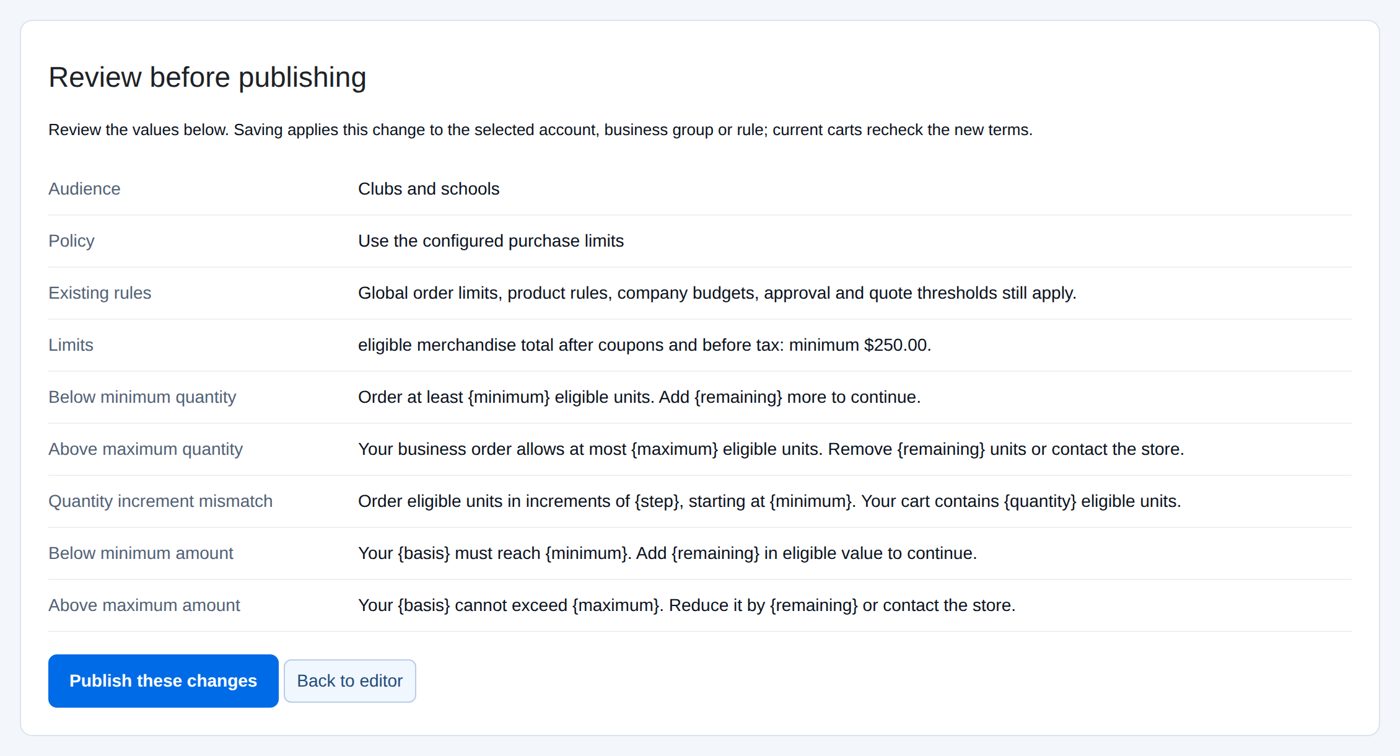
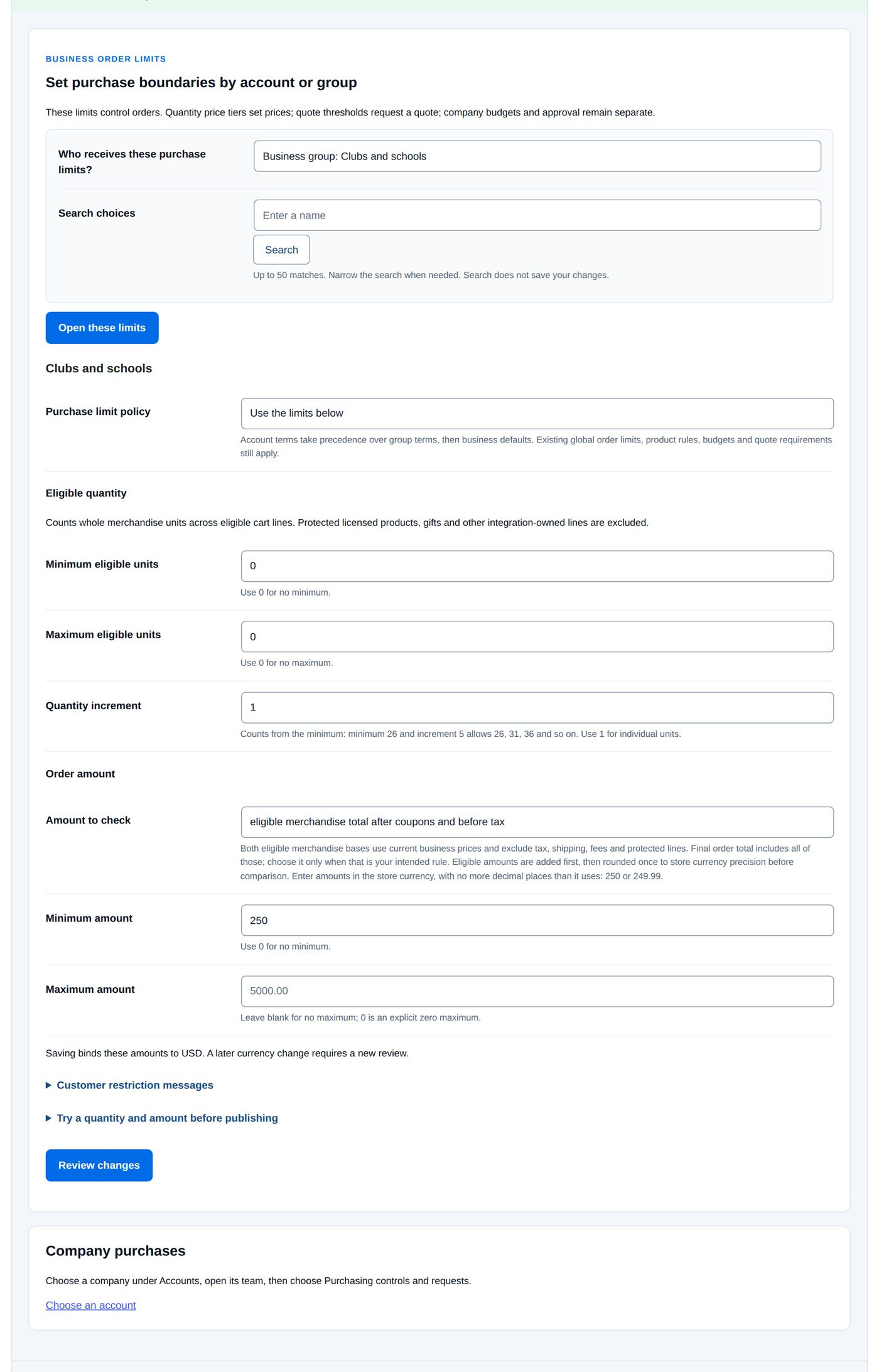
- Review changes, Publish these changes.
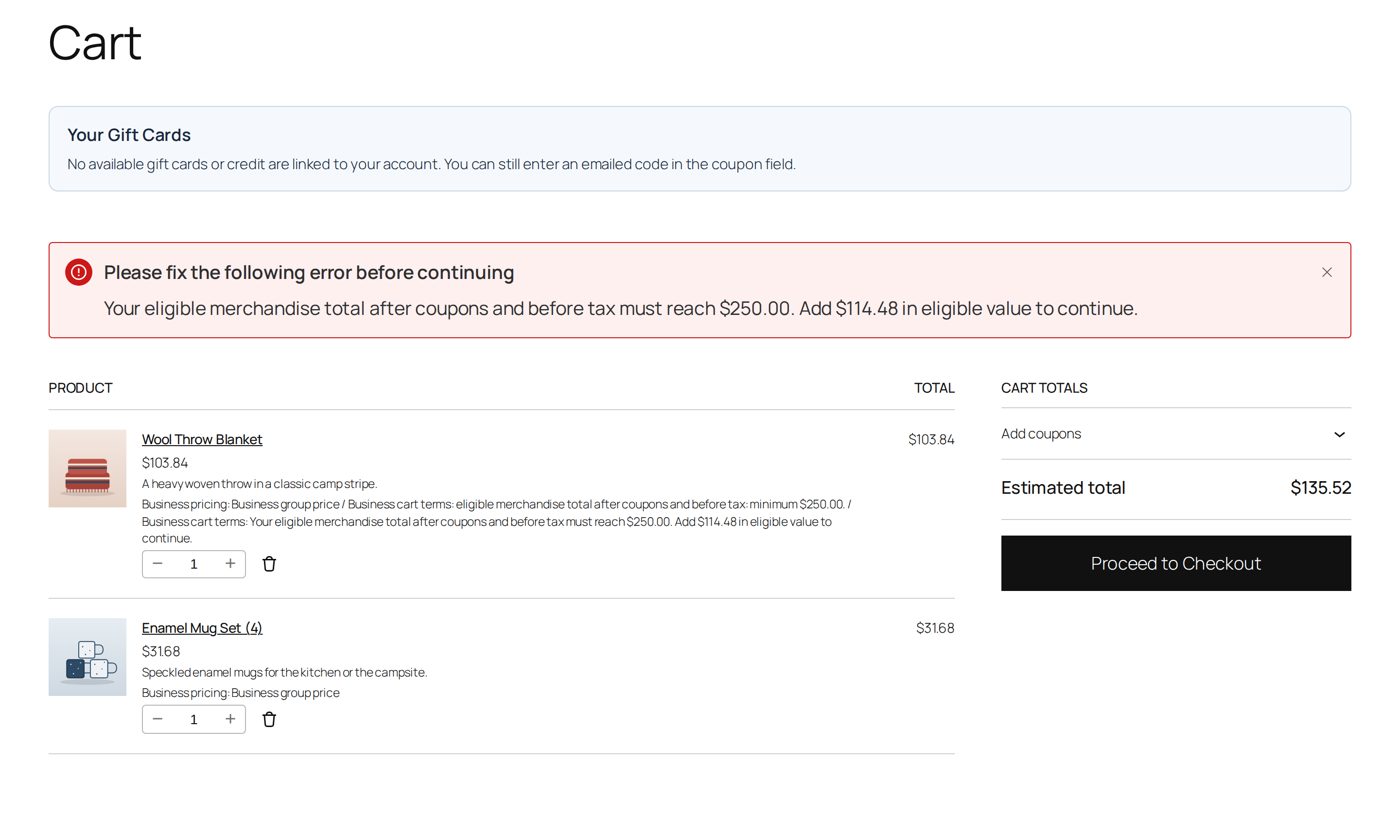
Ben Okoye of Pinecrest Summer Camp has a blanket and a mug set in his cart, $135.52 at the group's prices. The cart shows "Please fix the following error before continuing" with "Your eligible merchandise total after coupons and before tax must reach $250.00. Add $114.48 in eligible value to continue." and the order cannot be placed until the cart reaches $250.00.
Payment and delivery methods
In the business defaults, a group or an account you choose which WooCommerce payment and shipping methods business customers may use, each with a Permission:
| Permission | Effect |
|---|---|
| Use inherited terms | The next level decides (accounts and groups). |
| Allow all available methods | Whatever WooCommerce offers for the order. |
| Allow selected methods | Only the ticked ones. |
| Do not allow any methods | None; checkout is then not possible. |
An account's own rule comes first, then the group's. Where neither has one, Customer-role method rules (up to 25 roles) decide for customers with those roles: "Multiple matching role rules use only methods allowed by every matching rule." Otherwise the business defaults decide. An explicit Allow all available methods on the account or group overrides narrower rules below it. "These terms only narrow methods available at checkout": B2B never switches on a payment method or adds a shipping rate WooCommerce does not offer. A method you selected that is later switched off in WooCommerce stays restricted until it returns.
B2B's own payment method, Pay on account (pay later by invoice, with payment terms and a credit limit), is set up on Accounts receivable: Pay on account.
Separate business stock
A product (or a variation) can keep a business quantity beside its WooCommerce stock: business customers see and buy from the business quantity, retail customers from the WooCommerce stock, and neither touches the other.
Worked example: 40 steel bottles kept for trade customers
- Open the steel bottle product, Inventory tab. WooCommerce's stock is 120. Tick Separate business stock, enter Business quantity 40, leave Business backorders at Do not allow, and Update.
- A retail customer still sees "120 in stock"; an approved business customer sees "40 in stock" and cannot put more than 40 in the cart ("Only 40 of “Steel bottle” are available for business orders.").
- Granite Peak orders 24: the business quantity is 16 the moment the order is placed, before payment, and the order notes "Business stock taken: Steel bottle × 24 (40 → 16)". The WooCommerce stock stays 120.
- If Granite Peak's order is cancelled, the 24 go back to the business quantity. A refund with Restock refunded items gives back the refunded bottles.
Good to know: two business customers ordering the last bottles at the same moment cannot both get them. An unpaid order keeps its bottles until it is cancelled (WooCommerce cancels unpaid checkout orders after its Hold stock (minutes)). Changing a quantity on the order screen does not change the business quantity; correct it on the product. Orders you create on the order screen use the WooCommerce stock.
When it does not work
| You or the customer see | It means |
|---|---|
| "Sign in with your approved business account to view this item." | The standard message of a rule that hides the product or its price from this visitor. |
| "This content is not available to your account." / "Sign in to the appropriate account, view your business application, or contact the store if you need access." | A page restricted with Page access. |
| "Keep account, application, cart, checkout, shop and privacy pages available through their existing controls." | You tried to restrict one of those pages. |
| "Choose at least one business group." | Page access with Approved accounts in selected business groups but no group chosen. |
| "Use at least 12 units in steps of 12. Maximum: stock available." (with your numbers) | A business quantity that does not fit the product's Business minimum quantity, Business quantity step or Business maximum quantity. |
| "Order at least {minimum} eligible units. Add {remaining} more to continue." and the other limit messages | The cart is outside Business order limits; the message names what to change. |
| "The merchandise value is outside your business order limits. Adjust the cart or contact the store." | The cart is outside the Minimum business order value / Maximum business order value of Setup & defaults. |
| "Business purchase terms changed. Reload and review the limits again." | Someone saved these limits while you had them open. |
| "Enter purchase limits with no more decimal places than the store currency uses, for example 249.99 for a currency with cents." | An amount has more decimals than your currency. |
| A business customer sees no payment method at checkout | A Do not allow any methods or a selection whose methods are not available for that order. |
Questions
Can I hide a whole category from retail customers?
Yes: a rule with Apply to Category and its descendants and Who can see the product? Approved businesses. Products in it disappear for everyone else from the shop, search, category lists, menus, sitemaps and the REST API.
Does a hidden price hide the product?
No. Seeing, seeing the price and buying are three separate choices.
Do quantity rules apply to retail customers?
No. Business minimum, maximum and step apply to business customers only.
Can a group have a different minimum order than the defaults?
Yes: Purchasing → Business order limits for that group.
Where do I say which payment methods a group may use?
On the group itself (Business groups), or for everyone on Setup & defaults.
Related pages
| Page | What it covers |
|---|---|
| Business prices | What approved businesses pay. |
| Quotes | Products or quantities that need a quote first. |
| Company buying | Company spending caps and purchase approvals. |
| Gate Manager | A private area for a customer role. |