Activate your license
Every plugin has its own key and its own License screen. Enter the key, pick the kind of site, activate.
Why this step matters
Each AffStackDev plugin checks its own license. What you already have (settings, customer balances, records) is never deleted because a license is missing; the plugin waits. What waits differs per plugin:
| Plugin | Without an active license |
|---|---|
| Gate Manager | Everything works. The optional free license adds signed updates and counts for the full mode of AffStackDev Suite. |
| Image Manager | Everything works. The free license is only needed for updates. |
| Theme Manager | Everything works. The optional free license adds signed updates and counts for the full mode of AffStackDev Suite. |
| Support Desk | Your support forms and chat tell customers "Online support is temporarily unavailable. Please contact the store directly." |
| Unified Email Manager | Only its License screen opens. Contacts, settings and history are kept, and unsubscribe links keep working. |
| Store Credit & Gift Cards | Works for the first 72 hours after installation. After that no new credit, gift-card sales or referral rewards; customers can still spend the balances they have. |
| Free Gifts & BOGO | No gift offers for shoppers, and promotions cannot be created or changed. Saved promotions and reports stay readable. |
| Dynamic Pricing | No discounts or price changes for shoppers, and rules cannot be edited. The order inspector, reports and the export stay open. |
| B2B | Ordinary customers still check out. Business prices and new business orders wait; business records stay readable. |
| AffiliPartnerCS | Works for the first 72 hours after installation. After that partners can still sign in and see their history, and you can read reports and export, but no new commissions are recorded and no payouts or other changes are made. |
The steps
- On affstackdev.com open My Account → Licenses and open the card of the plugin you installed. A license whose key you have not made yet shows Generate key: select it, then copy the key with Copy key right away. The complete key is shown only this once; afterwards your account shows only a masked hint of it. Each plugin has its own key; a key for one plugin does not work in another. A pack (for example 5 sites) has one license, and one key, per live site.
- On your site, open the plugin's License screen (table below).
- Paste the key.
- Check the Environment: Production for your live store; Staging, Development or Local for a test copy. WordPress usually pre-selects the right one.
- Select the button that activates the license. The screen then shows the license as active, the site it is bound to and when it will be checked next.
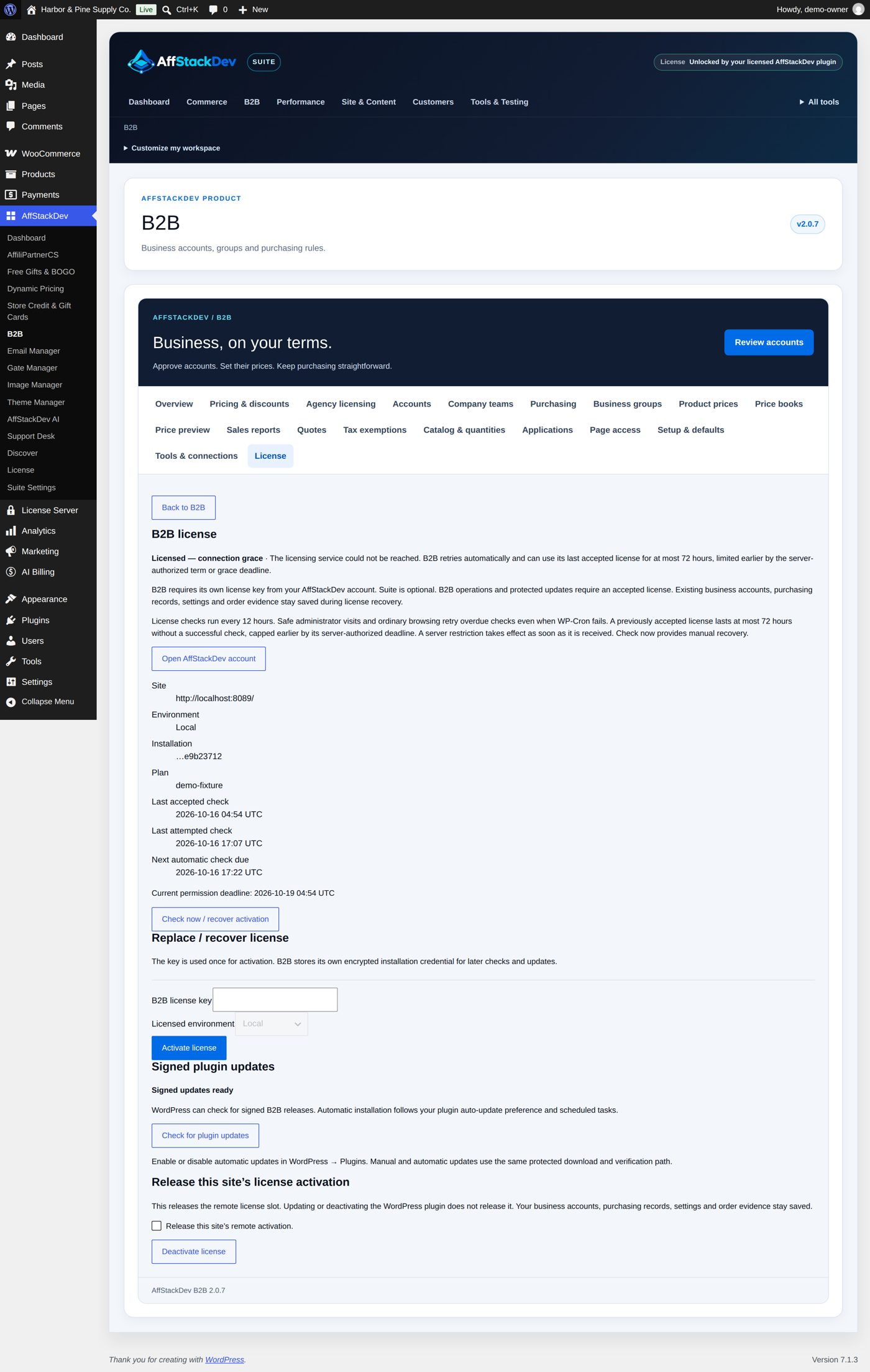
Where the License screen is
| Plugin | Open |
|---|---|
| AffStackDev Suite | AffStackDev → License (the Suite needs no key; see below) |
| Gate Manager | Settings → Gate Manager, the License tab |
| Image Manager | Image Manager's License & Updates tab (Media → Image Manager; with the Suite: AffStackDev → Image Manager) |
| Theme Manager | Appearance → Theme Manager → License |
| Support Desk | Support Desk → License |
| Unified Email Manager | Email Manager → License |
| Store Credit & Gift Cards | Store Credit & Gift Cards → License |
| Free Gifts & BOGO | Free Gifts & BOGO's License tab (Free Gifts & BOGO menu; with the Suite: AffStackDev → Free Gifts & BOGO) |
| Dynamic Pricing | Dynamic Pricing's License tab (WooCommerce → Dynamic Pricing; with the Suite: AffStackDev → Dynamic Pricing) |
| B2B | B2B's License tab (WooCommerce → B2B; with the Suite: AffStackDev → B2B) |
| AffiliPartnerCS | AffiliPartnerCS → License |
Every plugin keeps its license screen in its own screens. With the Suite installed, the plugins move into the AffStackDev menu: open the plugin there and use its License tab (Image Manager: License & Updates).
The Suite needs no key
The Suite's extra comforts (the enhanced interface, faster page changes, arranging your dashboard) are available while any AffStackDev plugin on the same site has an active license. Nothing to enter.
One live site, one test copy
A license can be active on one Production site and on one test copy at the same time. To move a license to another live site, open the License screen on the old site and deactivate it there first; that frees the place. Deleting the plugin does not free it.
Lost your key?
Your account cannot show a complete key again, but it can give you a new one. On My Account → Licenses open the plugin's card, open Replace lost key on that license, tick Invalidate my old key now., and select Replace key. Copy the new key at once. The old key stops working immediately; the license keeps its dates. Enter the new key on the site that used the old one.
If activation fails
| What you see | What it means |
|---|---|
| The key is not accepted | Check that it is this plugin's key and that the whole key was pasted. |
| No place left | The license is already active on another site of the same kind. Deactivate it there, or use a package with more licenses. |
| The license service cannot be reached | Your site could not connect. Try Check now a little later; your host must allow outgoing HTTPS connections. |