Newsletters, follow-ups and cart reminders
The emails you add yourself: one message to an audience, a series after a purchase, a single message after an event, a reminder for a cart left behind.
Pick the right tool
| You want to ... | Use |
|---|---|
| send one email to a group, once | a Campaign |
| send a series of emails after a purchase or signup | a Sequence |
| send one extra email when something happens (order placed, status changed) | an Event Email |
| tell your audience about new blog posts, each one or in a digest | a New posts automation |
| remind a shopper of a cart they left | Abandoned Carts |
| change an email your site already sends | Site Emails, not this page |
They all use templates: reusable emails with your branding. A template is General, Order, Cart or New posts, depending on what it can show: only an Order template can show order details, only a Cart template the cart, only a New posts template your posts.
Build an email with blocks
A new template opens in the Block builder. On the left are the email's blocks from top to bottom; beside them a Live view shows the email as your customers will see it.
- Add a block from the list: Heading, Text, Picture, Button, Products, Articles, Divider, Space, Two columns, Social links, Saved section or Plain HTML. It appears at the bottom, open for editing.
- Fill it in where it is. The live view changes as you type. Placeholders such as
{{first_name}}show a sample name there and the reader's own name in the email. - Put it in its place. Drag a block by its handle (☰), or use its ↑ and ↓ buttons. Duplicate copies a block, Remove takes it out.
- Make it yours. Under Colours, font and width choose the page and email background, the text colour, the colour of links and buttons, the font and the width of the email. Phone shows the email at a phone's width; two columns sit one under the other there.
- Save. The template keeps its blocks, and the email goes out as HTML that email programs show as you designed it. A block that is not finished (a picture without its address, say) stops the save and is named by its number.
A block you want again in other emails: Save this block as a section, and it is under Saved section from then on. Products and articles become cards with their picture, name and link; product cards show no price, so the shop always shows the current one. Social links are shown as words, which every email program displays. If you prefer to write HTML, choose HTML editor under How to write this email: an email built with blocks then keeps the HTML its blocks made.
A campaign (newsletter)
- Write the message. Under Campaigns, create a General template or pick a starter and make it yours, with the block builder or the HTML editor. You can put in text, pictures, buttons, products and articles from your site. Starters come ready for a monthly newsletter, a product launch, a renewal reminder, a win-back email, a thank-you and review request, purchase help and a cart reminder.
- Choose the audience (Audiences) and the purpose under Create campaign:
| Purpose | Who gets it |
|---|---|
| Newsletter / promotional email | Contacts in the audience who may receive newsletters. Carries the preference links; counts toward the frequency limit. |
| Store-wide notice | Contacts in the audience, with or without an account, except those who opted out or are blocked. Carries the preference links; counts toward the frequency limit. |
| Account / policy notice | Only contacts with a current account on your site. A service message: a marketing opt-out does not exclude them (blocks still do), there is no marketing footer and it does not count toward the frequency limit. Use it only for real account or policy news. |
- Preview and test. Send the test to your own address.
- Build the recipient review. Email Manager goes through the audience and shows who would get the email and who is skipped and why (no consent, unsubscribed, duplicate). No email is sent by this.
- Approve and schedule. Choose the time. A review older than 48 hours, or a changed audience or template, must be built again first.
Sending happens in portions so that your mail service is not flooded: 25 recipients per portion at the start (1 to 100 possible), at least a minute apart, within a window of 7 days (1 to 30). You can pause or cancel a running campaign; an email that already left cannot be called back.
Right before each email goes out, consent and unsubscribes are checked again. Someone who unsubscribed after your review is not written to.
Worked example: a newsletter to the newsletter subscribers
The sample store, Harbor & Pine, has 50 contacts; most signed up through its newsletter form, and the audience Newsletter subscribers holds those.
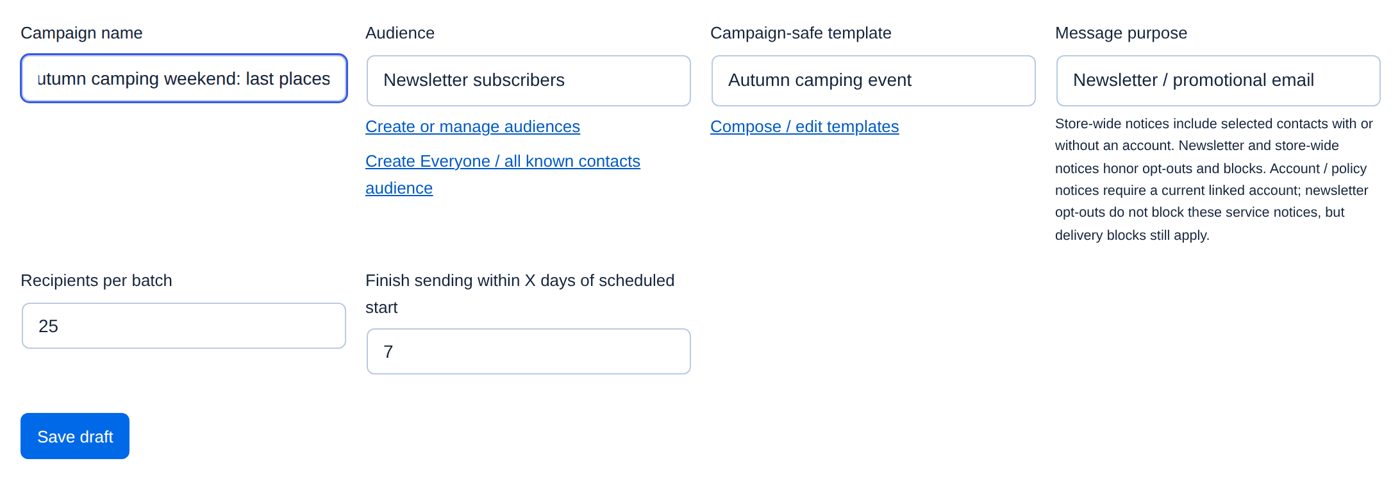
The draft. Under Campaigns, Create campaign: Campaign name Autumn camping weekend: last places, Audience Newsletter subscribers, Campaign-safe template (here the Autumn camping event template), Message purpose Newsletter / promotional email. Recipients per batch stays at 25 and Finish sending within X days of scheduled start at 7. Save draft.
A saved campaign opens with its own steps along the top: Audience & message, Preview & test, Recipients, Schedule, Results (and Sending limits).
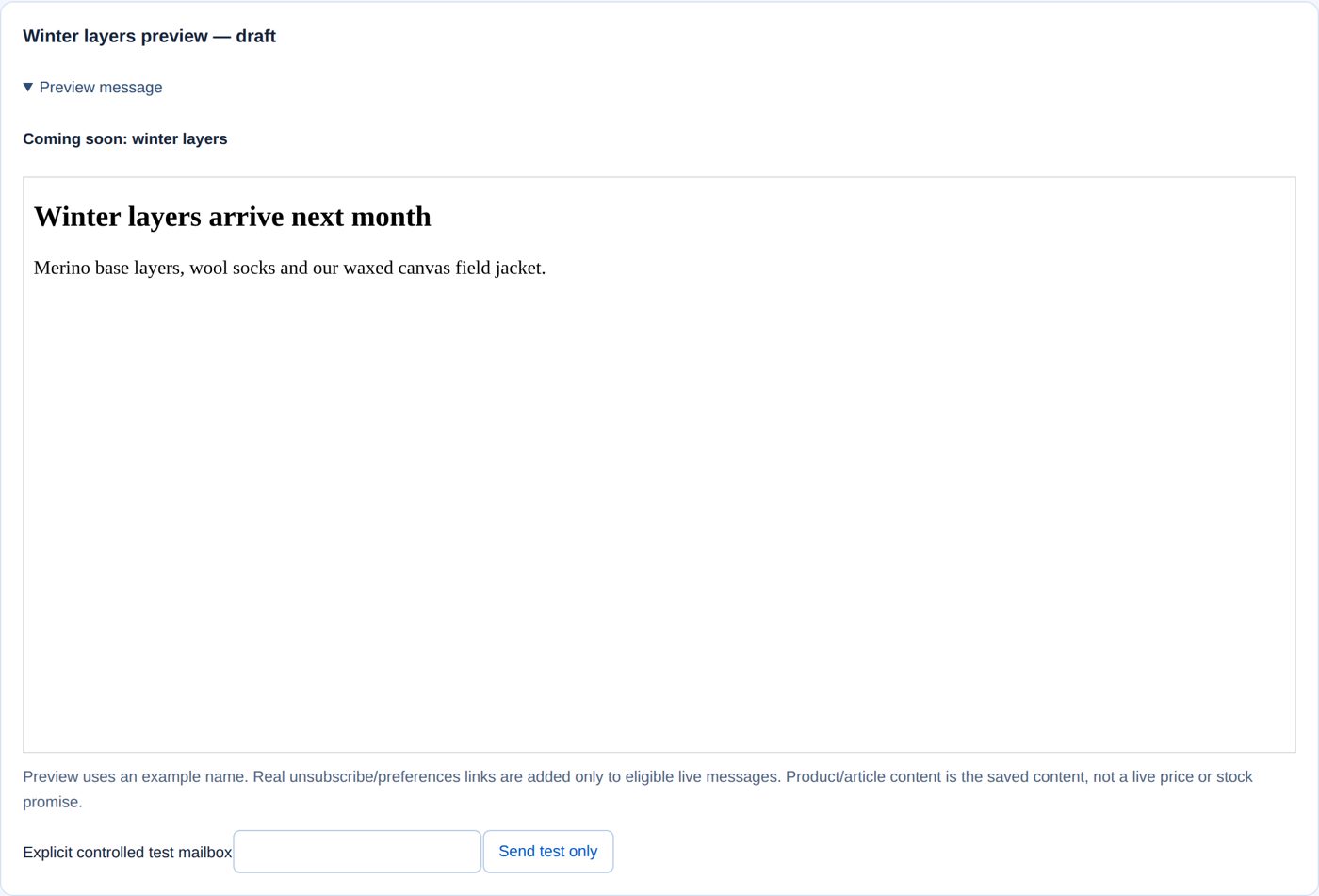
Preview & test. The subject and the message as subscribers will get it (with an example name). Put your own address in Explicit controlled test mailbox and Send test only: nobody else gets it.
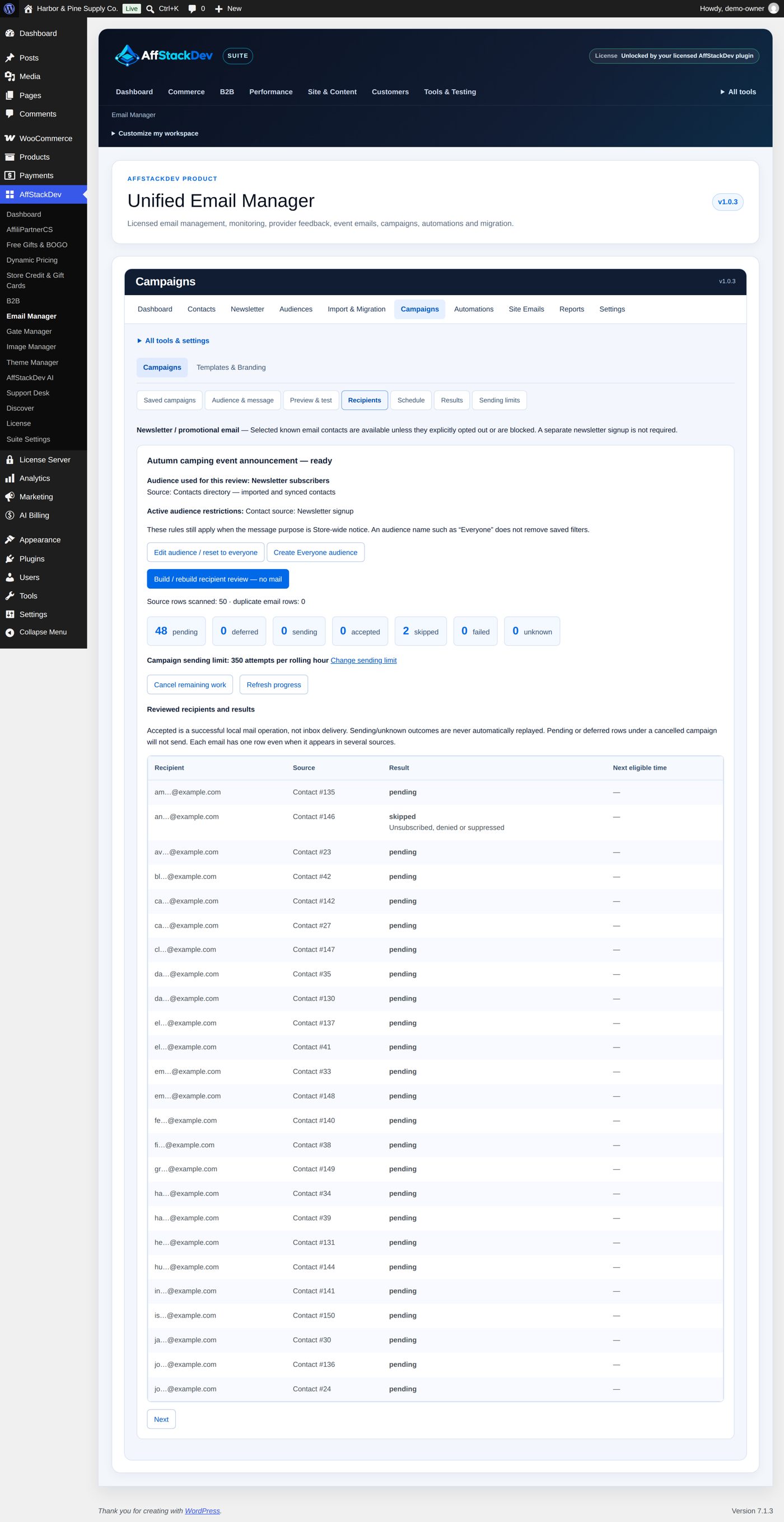
Recipients. Build / rebuild recipient review — no mail goes through the audience and lists every address with what would happen to it. For the store's Autumn camping event announcement: 50 contacts scanned, 48 pending (will be sent), 2 skipped ("Unsubscribed, denied or suppressed"). The addresses are shortened on screen. The campaign's sending limit is shown too (350 attempts per rolling hour here; Change sending limit).
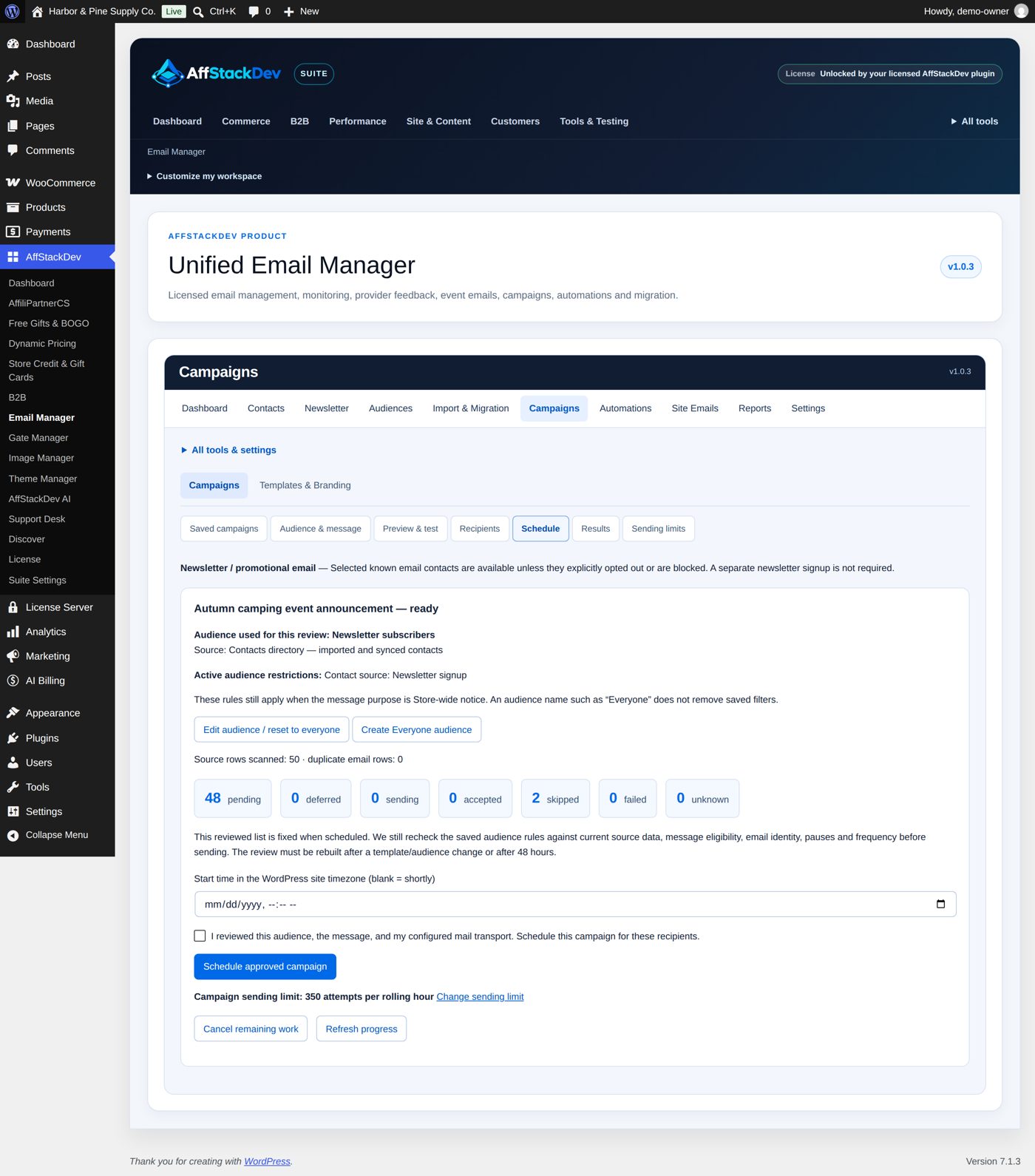
Schedule. The reviewed list is fixed when you schedule. Choose Start time in the WordPress site timezone (blank = shortly), tick "I reviewed this audience, the message, and my configured mail transport. Schedule this campaign for these recipients." and select Schedule approved campaign. A review older than 48 hours, or one made before the audience or template changed, has to be built again first.
Afterwards Results shows each address with accepted, failed or another outcome. "Accepted" means your site handed the email to its mail system, not that it reached the inbox.
A sequence (follow-ups)
Under Automations → Sequences. A sequence starts for a person when something happens: a new account, or an order reaching Completed. It then sends up to ten emails, each a number of days after the one before.
After its emails a sequence can ask one Yes/No check and go on down a Yes path or a No path, each with up to ten emails and its own waits. The screen draws it from top to bottom: the emails, the check, then the Yes and No emails side by side. The check asks one of these:
- Bought again since the sequence started: a paid order placed after the sequence started (not the order that started it).
- Has bought one of these products or categories you choose.
- Opened the previous email or Clicked a link in the previous email: known only while counting opens and clicks is on (Settings → Data & retention).
- Is in this audience you choose.
For example: 14 days after the thank-you email, check Bought again since the sequence started; on No send an email about what is new in the shop, on Yes a thank-you for coming back. Anything the check cannot confirm counts as No. The sequence's Activity shows each customer's answer and which emails went out; the other path's emails are marked as not sent.
- Limit it to orders with certain products or categories.
- Decide what happens after a partial refund (by default the rest of the sequence stops).
- A review request is held back when your store already sends its own review request for that order, or when the customer has already reviewed the product.
A ready starter comes as a draft: a first email 21 days after the order was completed, a second 84 days later. Change the days to fit your product, then set the sequence active.
Each order enters a sequence once. Emails with marketing content go only to people who gave consent; someone without it is skipped, and a later tick does not bring old emails back.
An event email
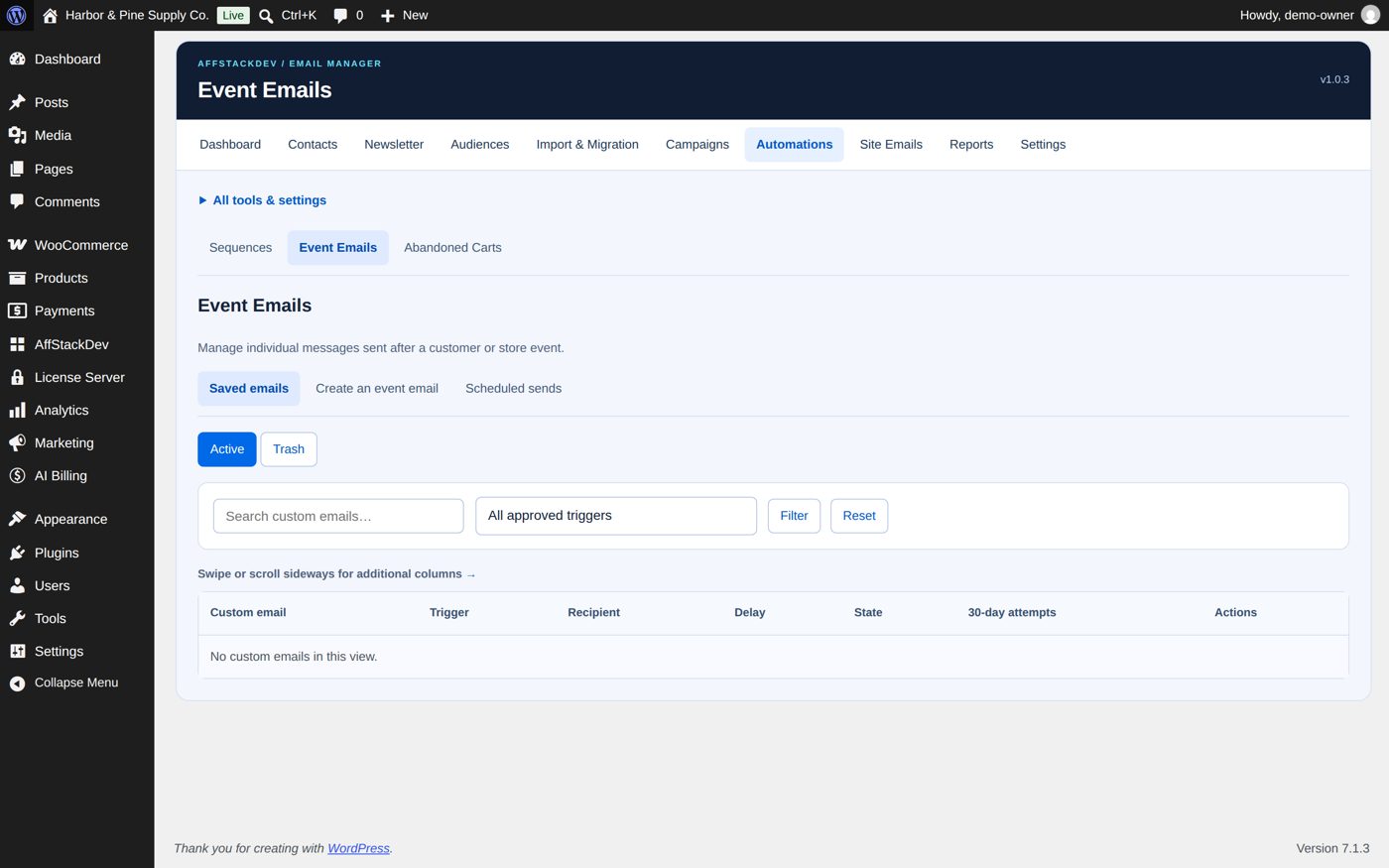
Under Automations → Event Emails: one extra message after an event. Ready starters:
| Starter | Sent when |
|---|---|
| New user registered | a WordPress account is created |
| New order created | WooCommerce creates an order |
| Order status changed | an order reaches a status you pick |
| Post-purchase check-in | 3 days after an order is completed |
| Purchase questions / help | 5 days after |
| Review request | 7 days after (needs marketing consent) |
| Product low stock | WooCommerce reports low stock (to you, not to customers) |
A new event email is saved switched off. Write it, preview it, test it, then enable it.
New blog posts
Under Automations → New posts. Email Manager emails your audience about your blog posts by itself: one email for each new post, or a digest of the posts since the last email, daily or weekly at an hour you choose.
- A template of the New posts kind. If you have none, select Add the two example templates (one post, and a digest) and change them under Campaigns → Templates. Such a template can show the post's title, link, excerpt, featured picture, author and date, or for a digest every post as a card.
- The automation. Create automation: a name, the audience, the template, each new post or a digest, and if you like only some categories. For each new post you can wait a few minutes after publishing, so a quick correction still makes it in.
- Switch it on. Status Active, Save automation. That is your approval: from then on each email is an ordinary campaign named after the post (or the digest) that builds its recipient review and schedules itself.
Only contacts who may receive newsletters get it, with the unsubscribe link, the frequency limit and the sending limit of every campaign. Only public posts without a password count. A post published before you switched it on, back-dated by more than two days, updated or published a second time never sends, and a digest without new posts sends nothing. Every email shows under Campaigns, where you can pause or cancel it like any campaign.
Abandoned carts
Under Automations → Abandoned Carts. You switch it on under Capture & timing; it then watches new carts (carts from before are not picked up).
Who is reminded. Only people who agreed:
- a signed-in customer who has given marketing consent;
- a guest who used the Save cart reminders form: their email address and a box they tick themselves. Typing an email address into the checkout is not enough. A guest's yes covers the reminders for that one cart only; it does not put them on your newsletter.
Only ordinary products and variations in whole quantities are saved. Carts with subscriptions, bundles or add-on options are left out.
The reminders. Up to three, each with a Cart template. The first goes out after the cart was left alone for 60 minutes (you can set 1 minute to 7 days); you set the gaps to the second and third. After 7 days (1 to 30) a cart is given up.
Coming back. The reminder has a link. It opens a page that asks the shopper to confirm; then the saved items are put back into the cart, at today's prices and only as far as they are in stock. The link works once. Nothing is restored just by opening the email.
Reminders stop as soon as the shopper restores the cart or places the order.
What all of them share
- Marketing emails carry an unsubscribe link, always.
{{support_email}}, the address customers should write to, is set once: Support email address under Campaigns → Templates → Branding & sections. Left empty, Email Manager uses Support Desk's support email, then WooCommerce's Reply-to address, then WooCommerce's From address.- The frequency limit counts them together.
- If your site's background tasks are not running, nothing goes out on time. See Reports, and when something is off.