Your first gate
Install Gate Manager, look at the age gate that is already there, then build a gate of your own and switch it on. The free license is optional.
1. Download and install
- On affstackdev.com open My Account → Downloads and download Gate Manager. Keep the ZIP file as it is; do not unpack it.
- In your WordPress admin open Plugins, choose Add Plugin (older WordPress versions call it Add New), then Upload Plugin.
- Choose the ZIP file and select Install Now, then Activate Plugin.
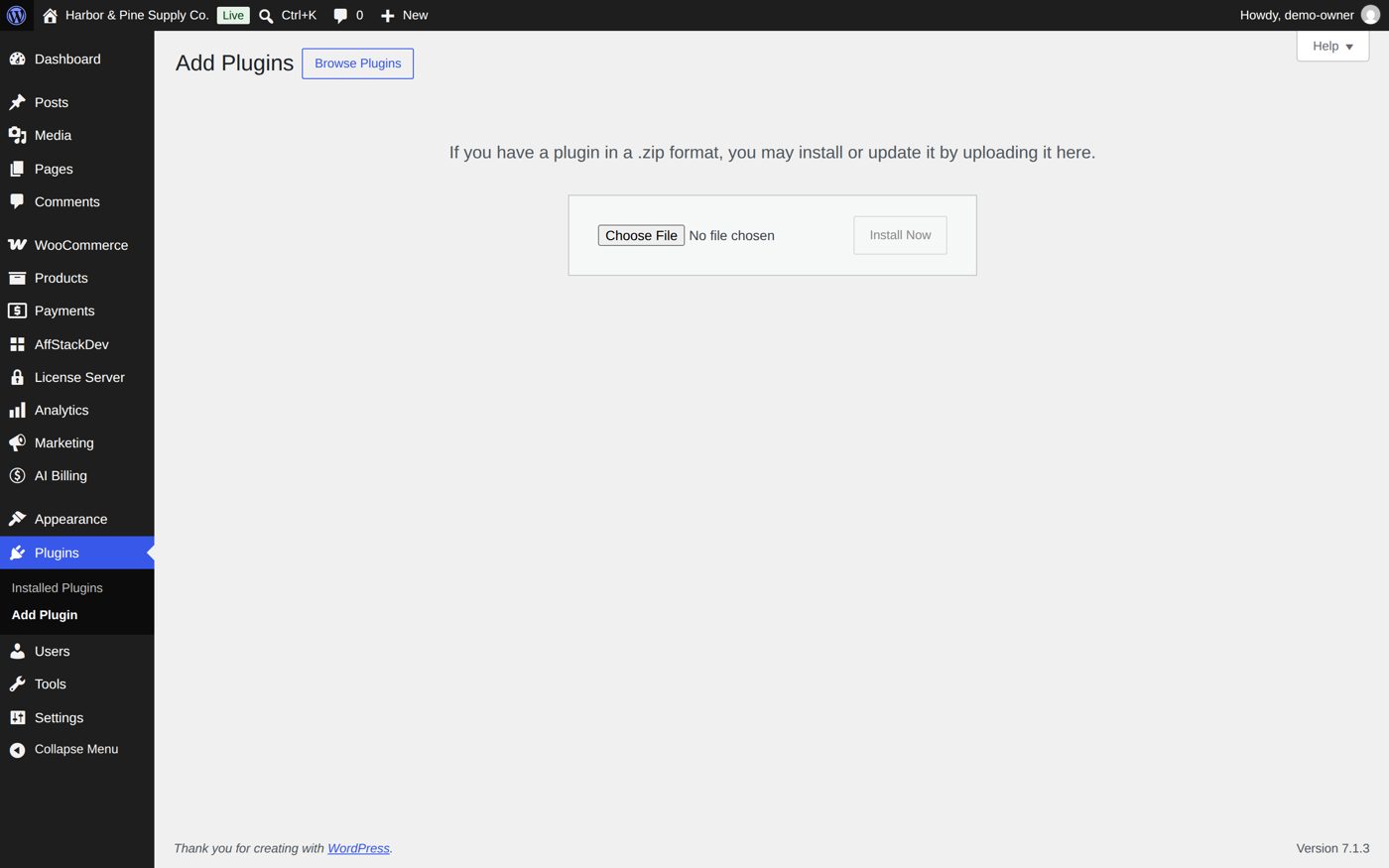
Gate Manager now has its place in the WordPress menu: Settings → Gate Manager. With the AffStackDev Suite installed you also find it in the AffStackDev menu. If WordPress refuses the file, or to install a newer version over an older one, see Install a plugin.
2. The free license (optional)
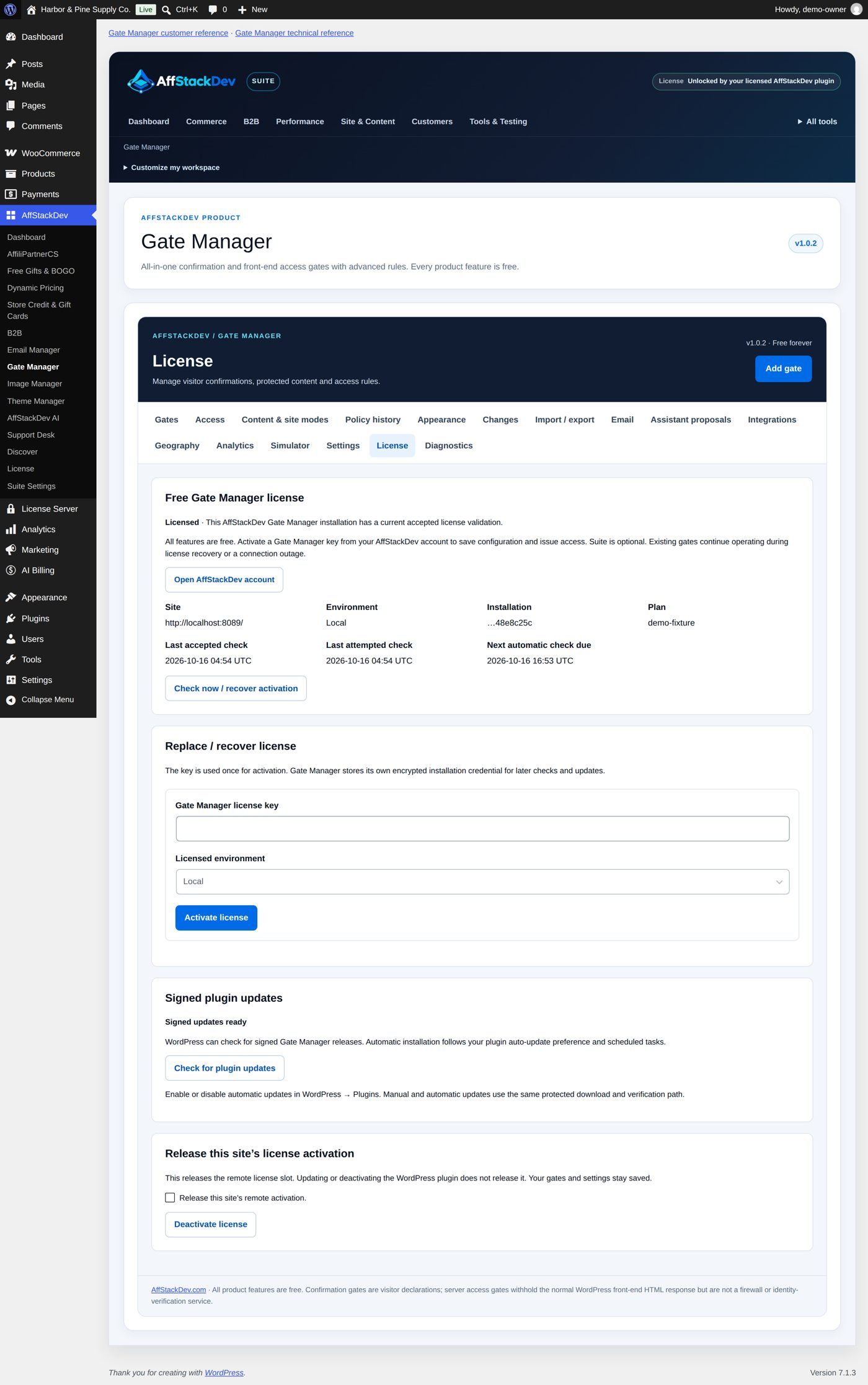
Gate Manager works fully without a license. The free license adds signed updates from affstackdev.com and counts for the full mode of AffStackDev Suite: to use it, open the License tab, enter your free Gate Manager key and activate it (Activate your license).
3. The gate that is already there
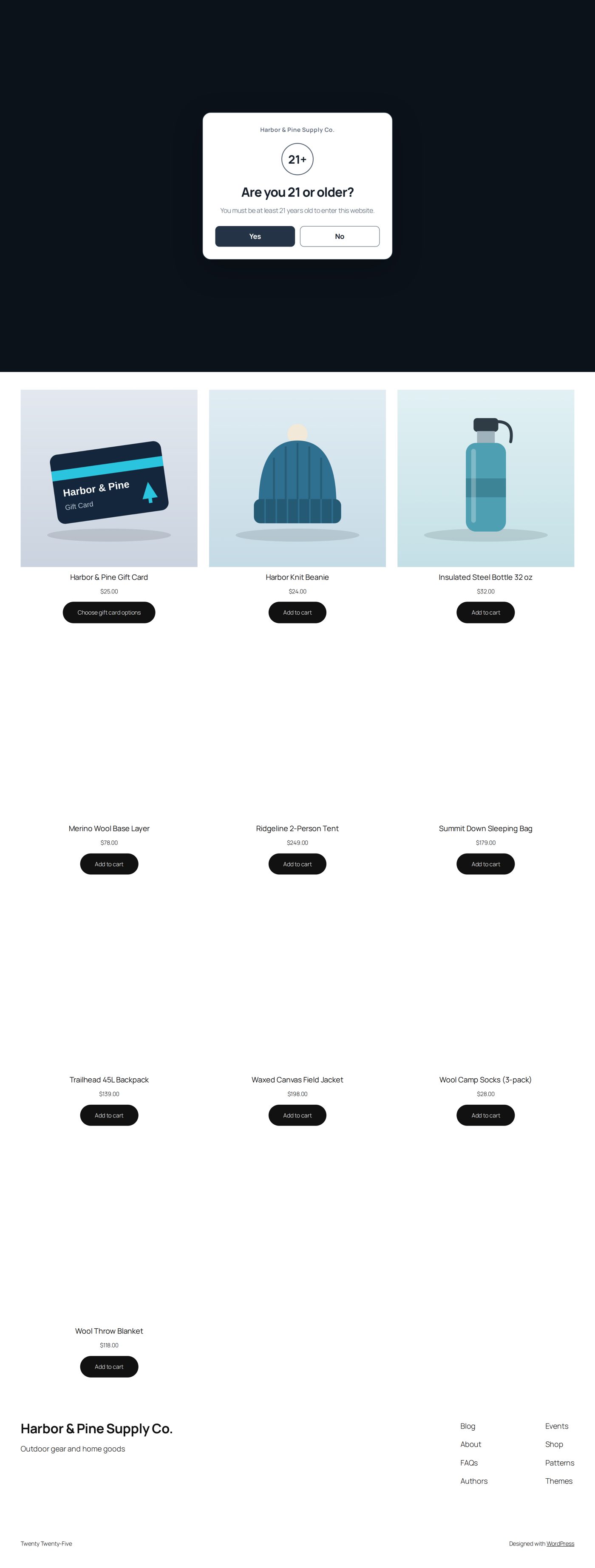
A new installation comes with one gate: an Age confirmation for 21 and older. It is switched off: no visitor is asked anything until you enable it. It is set up so that the home page stays open and signed-in visitors are not asked.
If you sell age-restricted goods, this is your start: on the Gates tab, select Review draft on that gate (or Edit gate to change it first), read through it, tick the confirmation and select Enable this gate. If you do not need it, leave it off or delete it.
4. Make a gate
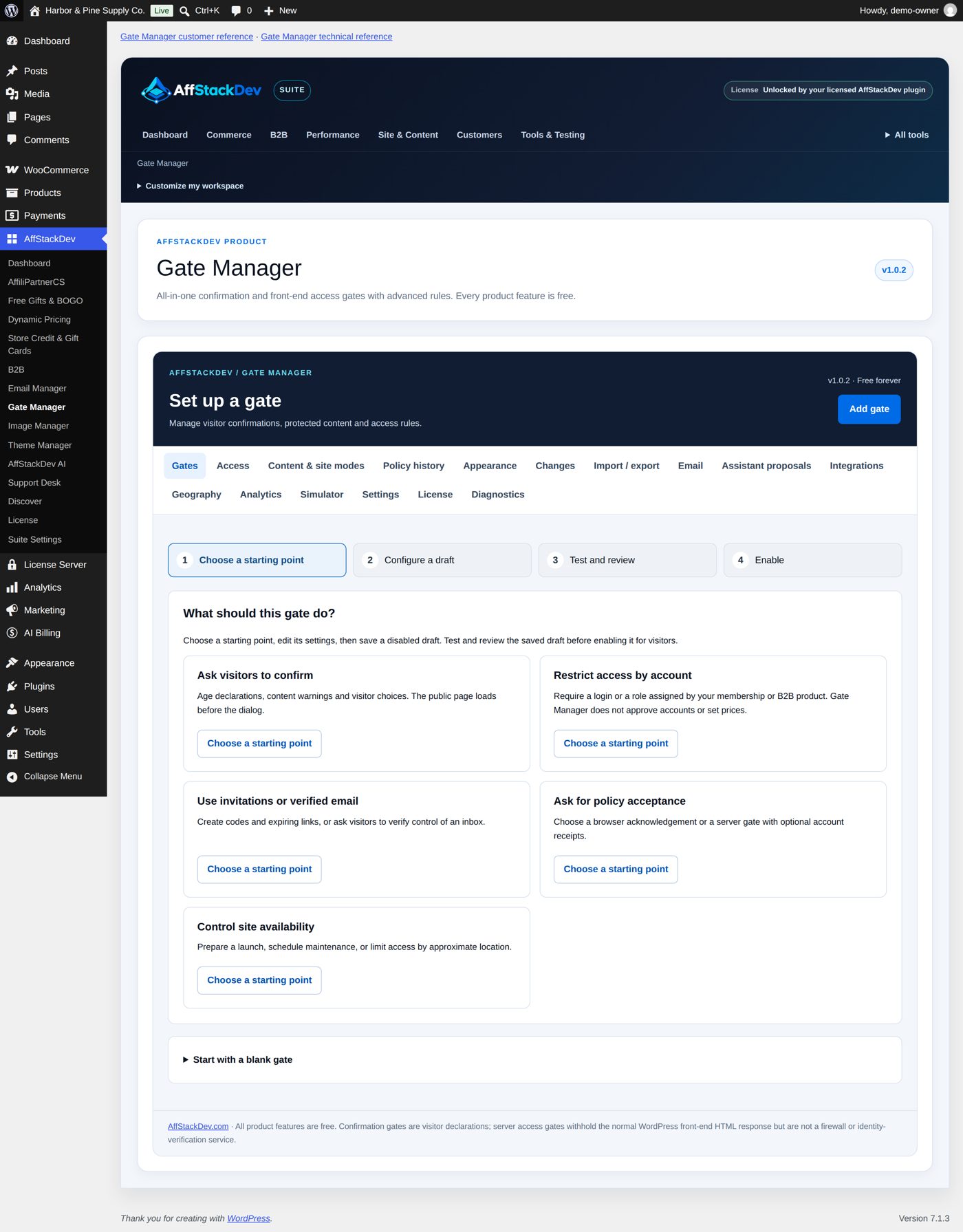
Select Add gate. Set up a gate walks you through four steps: Choose a starting point, Configure a draft, Test and review, Enable.
- What should this gate do? Pick a purpose: Ask visitors to confirm, Restrict access by account, Use invitations or verified email, Ask for policy acceptance or Control site availability. Each offers ready-made starting points (for example 18+ content, Client preview, Members-only content, Coming Soon; sixteen in all). Start with a blank gate lets you pick the kind of gate yourself.
- Give it a name you will recognize in the list, and write what the visitor reads: the title, the text and the button labels.
- Where it applies, Page scope: All public pages, except exclusions, or Only included paths. Allow this gate on the homepage too decides about the home page. Under Excluded paths keep your login page, your policy page and the page visitors are sent to when they say No reachable; exclusions always win.
- What is required: depends on the kind (an age, a role, a code, dates).
- Save. A new gate is always saved disabled.
The sixteen starting points
Every starting point is an ordinary gate with a few settings filled in. It is saved disabled, and you can change everything. It never invents a role, a destination, a code, a screen page or a location source for you: the last column says what you add.
| Purpose | Starting point | What it sets up | You add |
|---|---|---|---|
| Ask visitors to confirm | 21+ store | Age confirmation for 21 and older; the home page stays open | For a store: product or category rules and the purchase check (store and site) |
| 18+ content | Age confirmation for 18 and older | Which pages, and where a visitor who says No goes | |
| Content warning | A warning with continue or leave | The warning text and the pages | |
| Retail / wholesale routing | Visitor routing | Your retail and wholesale destinations | |
| Restrict access by account | Wholesale login | Sign-in required on /wholesale/*; any account passes |
Nothing more; use Dealer portal if only approved dealers may enter |
| Dealer portal | Role restriction on /dealer/* |
The dealer role your account or B2B plugin gives approved dealers | |
| Employee area | Role restriction on /staff/* |
The role your site gives employees | |
| Members-only content | Role restriction for parts of pages only | Your membership role, then the gate around the private part (private areas) | |
| Use invitations or verified email | Client preview | Access codes & invitations on /preview/* |
A code or an invitation on the Access tab |
| Invitation only | Access codes & invitations on /invited/* |
An expiring invitation link and its use limit | |
| Verified email | Email verification on /verified/*; any address passes |
Optionally, the addresses or domains you accept | |
| Ask for policy acceptance | Policy notice | Policy acknowledgement (a tick in the browser, nothing saved with the account) | The address of your policy |
| Recorded policy | Recorded policy acceptance | The address and version of your published policy | |
| Control site availability | Coming Soon | A launch screen | A published page for the screen, and who may still see the site |
| Maintenance | A maintenance screen | A published page for the screen, and optional times | |
| Country availability | Location eligibility | The allowed countries and where the location comes from (Geography tab) |
The five confirmations
The confirmation kinds ask in the browser and remember only a Yes. They lock nothing: for a real lock use an access requirement (private areas).
| Kind | The visitor ... |
|---|---|
| Age confirmation | says they are at least the age you set (21 at the start), or leaves. If you choose Date of birth, they type their date of birth instead. |
| Content warning | reads your warning, then continues or leaves. A visitor who leaves goes to the address you set. |
| Policy acknowledgement | ticks that they read your policy (its link opens separately) before going on. Nothing is saved with their account; for a saved record use Recorded policy acceptance. |
| Custom confirmation | answers your own question with one of your two buttons. It collects nothing else. |
| Visitor routing | picks one of up to 20 destinations you list (for example Retail and Wholesale) and is taken there. Choosing one opens no protected page. |
5. Review and enable
Select Review draft on the gate. The review shows Where it applies, Who passes, any Additional targeting, Exemptions and order and the Configuration checks, and offers Test draft in Simulator. While editing, Preview shows the gate on a desktop and a phone screen. When it is right, tick I reviewed the scope, requirements and visitor behavior for this site. and select Enable this gate.
After enabling, clear your page cache if you use one, then look at the page signed out (a private browser window is easiest).
Worked example: a store that sells to adults 21 and older
The pictures in this guide come from a sample store, Harbor & Pine (camping gear, candles, blankets). Say it also sells products that only adults 21 and older may buy. What the owner wants:
- every shop and product page asks the age question once;
- the home page and the privacy policy stay open, so anyone can see who the store is;
- customers who signed in are not asked, and the sign-in page itself is never in the way;
- a regular visitor can tick a box and not be asked again on that browser for a month.
Open Gates, select Edit gate on the age confirmation that came with Gate Manager, and fill in:
| Field | Value | Why |
|---|---|---|
| Internal name | Age confirmation (21+) | So you recognize it in the list. |
| Minimum declared age | 21 | |
| Question / heading, Explanation and the two button labels | empty | Empty fields use Gate Manager's own wording, translated into your site's language. |
| Page scope | All public pages, except exclusions | |
| Allow this gate on the homepage too | off | The home page stays open. |
| Excluded paths | /privacy-policy/ and /my-account/* (one per line) |
The policy can be read first; customers can reach the sign-in form. |
| Skip this gate for logged-in visitors | on | Signed-in customers are not asked. |
| Ask again after no site clicks | 60 | |
| Offer "Remember this browser" | on | |
| Remember for this many days | 30 | |
| No / Leave destination | empty | A visitor who answers No gets a blank page. |
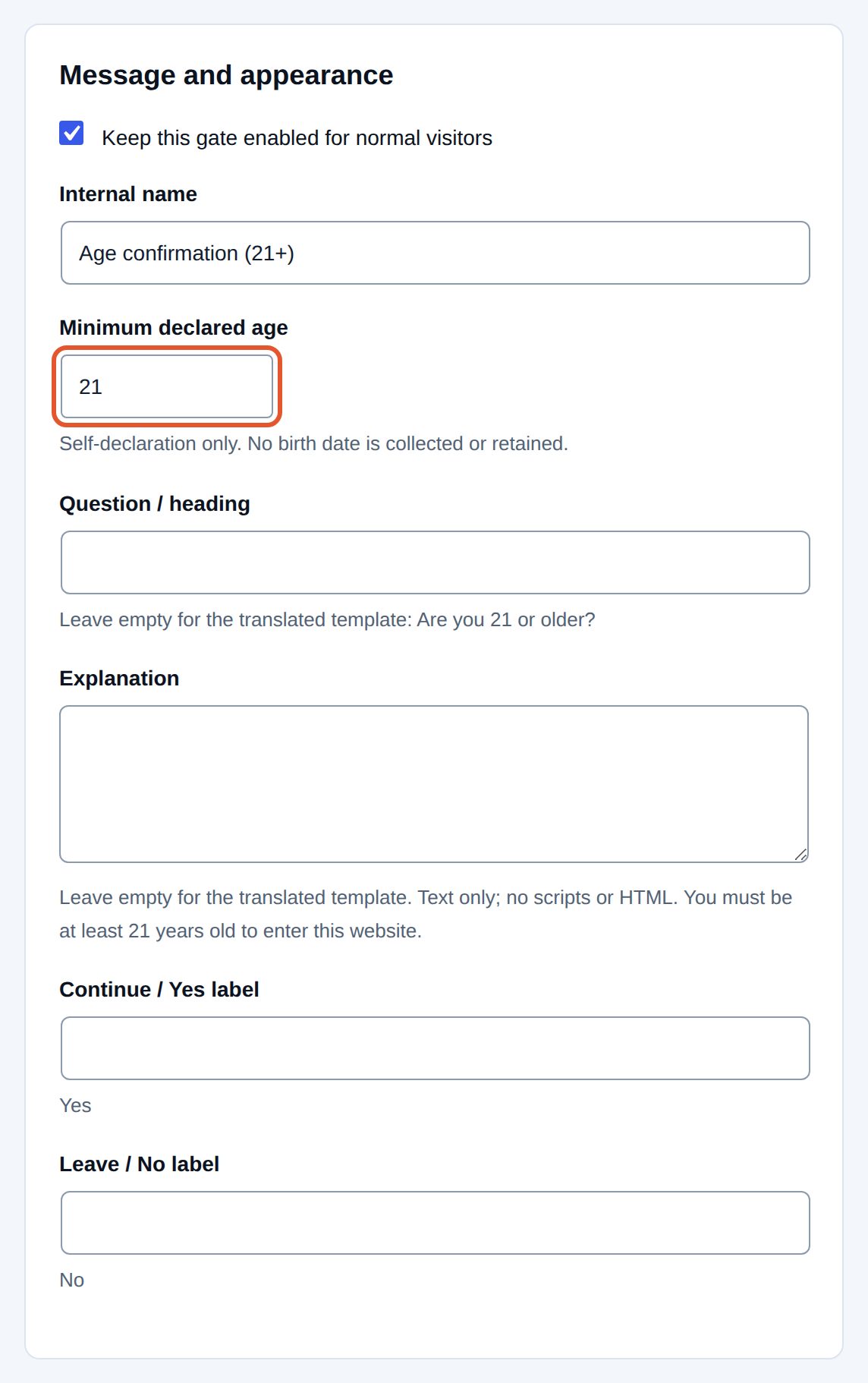
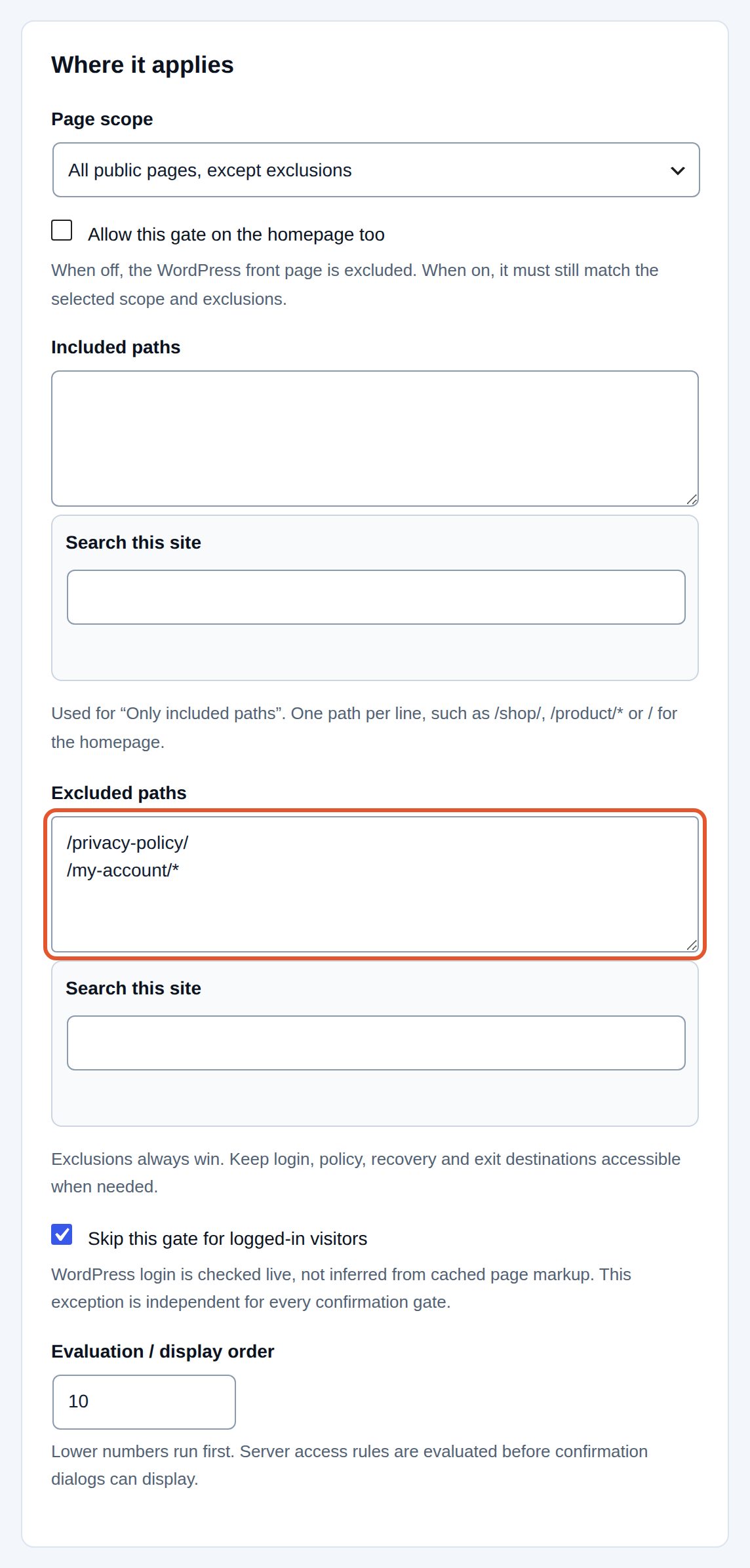
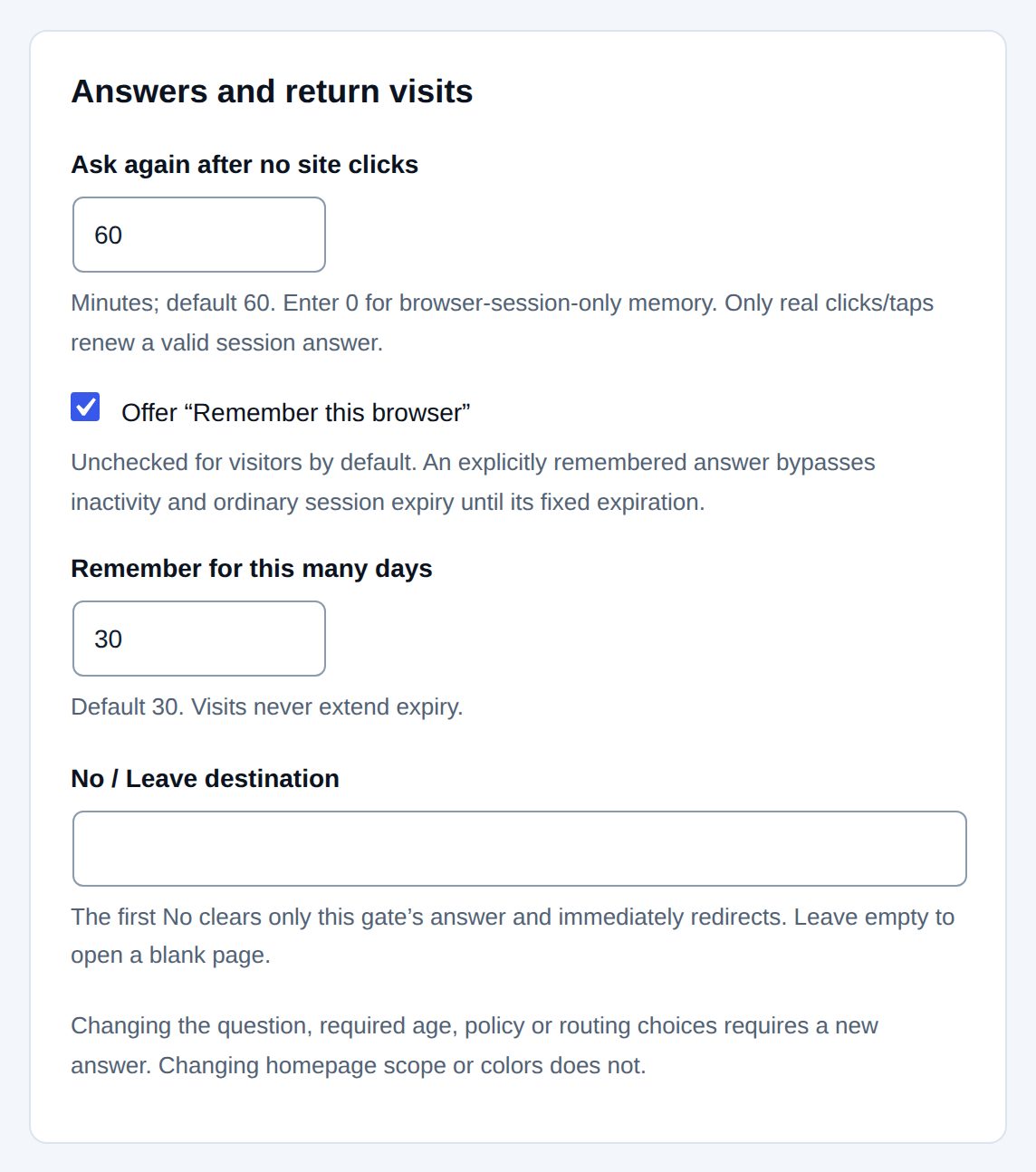
Save, review and enable it (step 5 above). A visitor who opens the shop now sees the question over the page, with the box "Remember this browser for 30 days" and the advice "Only select this on a personal device you do not share.":
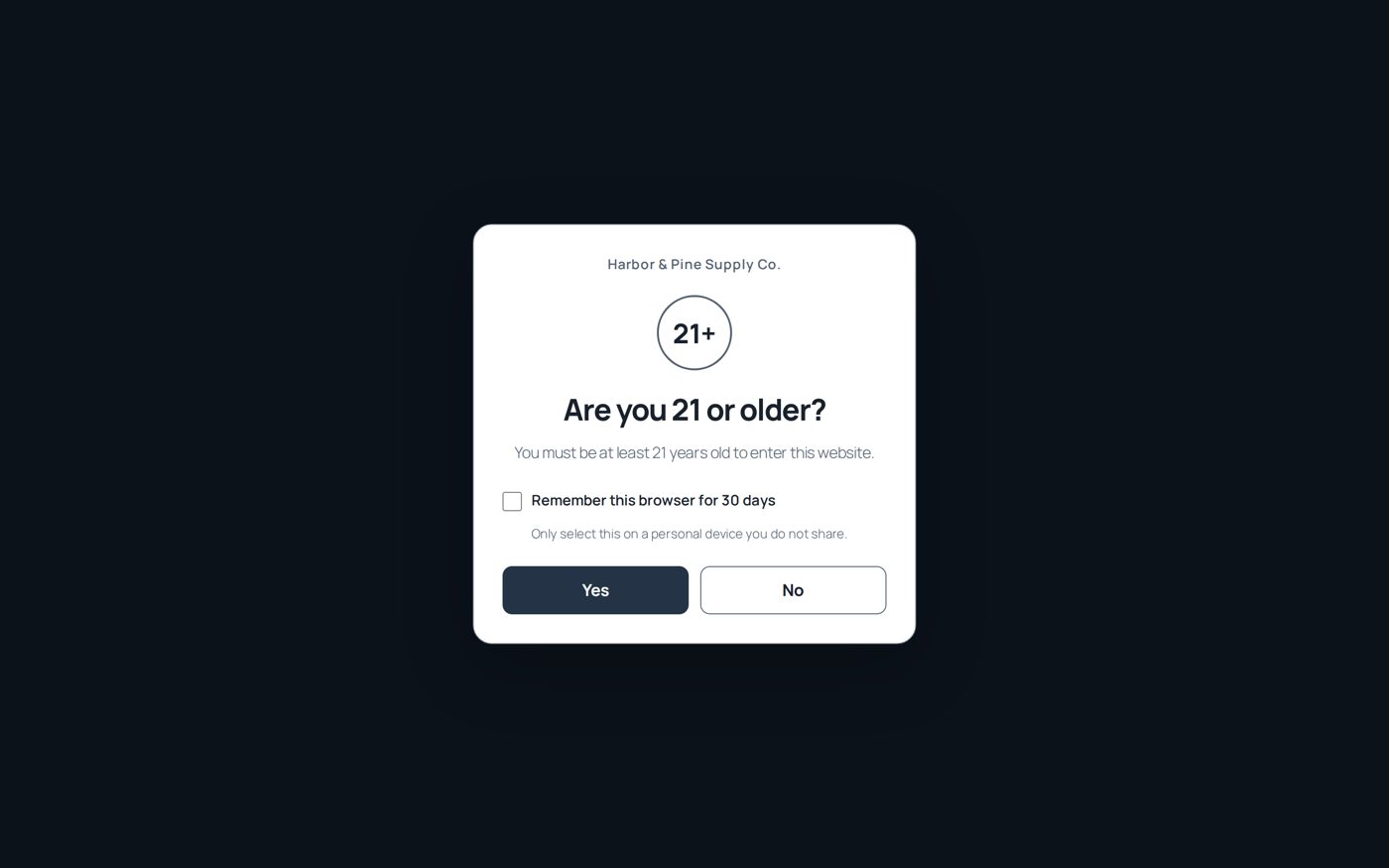
What happens next:
| The visitor ... | Result |
|---|---|
| answers Yes | The shop opens. They are asked again after 60 minutes without a click, or after 30 days if they ticked Remember this browser. |
| answers No | A blank page (no leave destination is set). Their earlier answer for this gate is cleared. |
| opens the home page or the privacy policy | No question. |
| has signed in | No question, on any page. |
How long an answer is remembered
For confirmations, under Answers and return visits in the gate:
- Ask again after no site clicks: 60 minutes at the start. A visitor who answered is asked again after that long without a click on your site. Enter 0 to keep the answer only as long as the browser session lasts.
- Offer "Remember this browser": off at the start. When you offer it, a visitor who ticks the box is not asked again for Remember for this many days (30 at the start).
- Changing the question, the required age, the policy or the routing choices asks every visitor again. Changing the home page setting or the colors does not. To make everyone answer again on purpose, open the gate and use Reset answers or delete this gate.
Several gates on one page
Each gate has an Evaluation / display order number (Order on the Gates tab): lower numbers run first. Access rules are checked on the server before any confirmation can show. A visitor must pass every access gate that applies; confirmations are then asked one after the other.
For every field of the editor, what it starts at and what its messages mean, see Every setting of a gate.
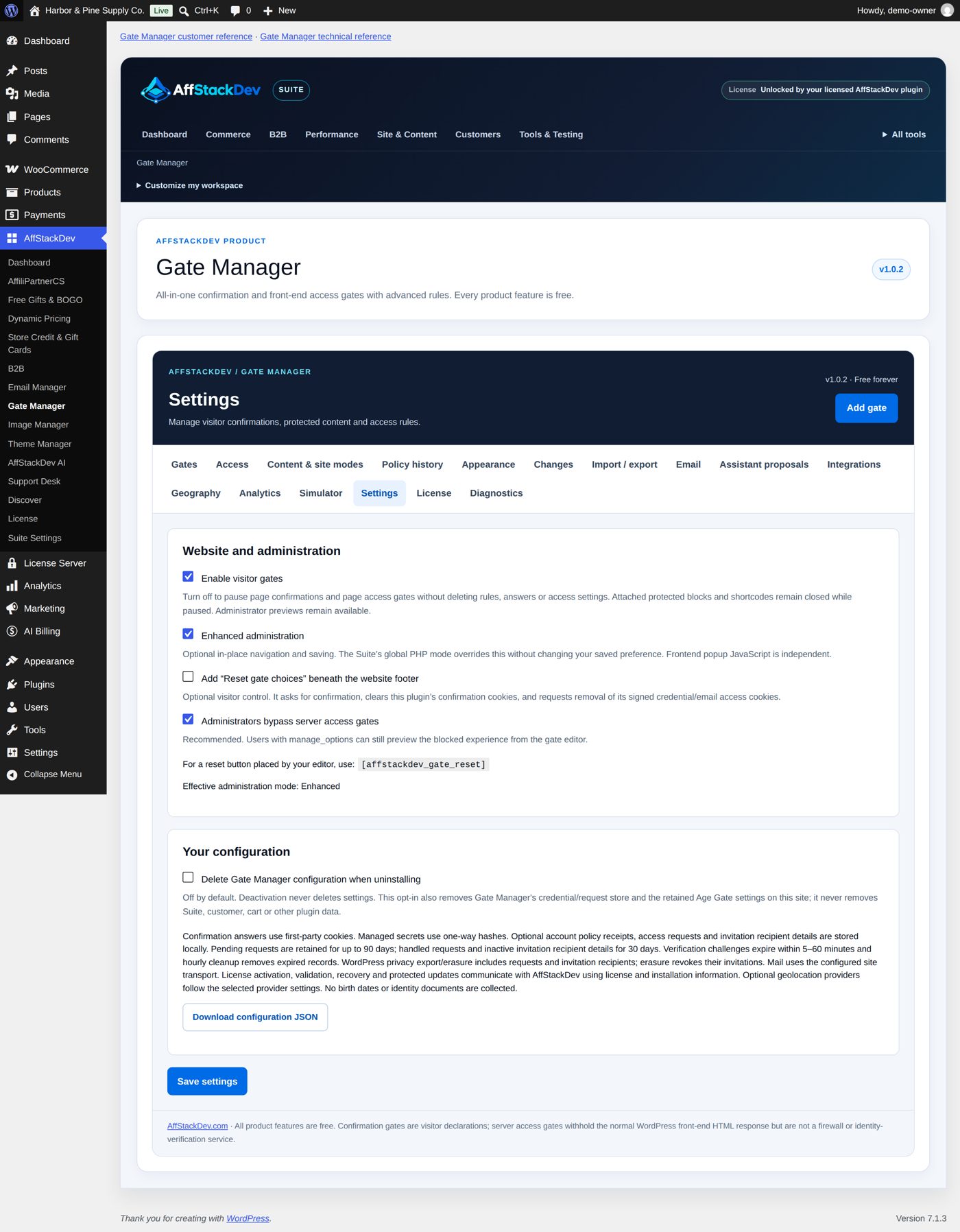
The switches in Settings
| Setting | Starts | What it does |
|---|---|---|
| Enable visitor gates | On | Off pauses every page gate at once, without deleting anything. Protected sections stay closed while paused. |
| Enhanced administration | On | Gate Manager's screens change in place without full page loads. The Suite's basic (PHP) mode overrides it. |
| Add "Reset gate choices" beneath the website footer | Off | Gives visitors a link to clear their answers. The shortcode [affstackdev_gate_reset] places such a button yourself. |
| Administrators bypass server access gates | On | Administrators pass access gates; they can still preview the blocked page from the gate editor. |
| Delete Gate Manager configuration when uninstalling | Off | Only when on does deleting the plugin remove its settings and records. Deactivating never deletes. |
Download configuration JSON on the same tab saves your configuration to a file.
Limits worth knowing
Up to 50 gates. An age between 1 and 120. Up to 20 destinations in a Visitor routing gate.
What else Gate Manager can do
| Page | What it covers |
|---|---|
| Private areas: logins, codes, invitations | Keep a page or a part of a page for the right people: members, dealers, a client with a code, anyone who can prove an email address. |
| Your store and your site: purchase checks, Coming Soon, Maintenance | Make a gate count at Add to cart and checkout, and put up a launch or maintenance screen while you work. |
| Check it, and when something is off | See what a visitor would see before they do, find out why a gate did or did not appear, and move a setup to another site. |