Reports, and when something is off
What "sent" really means, how to see what happened to an email, and the usual reasons something did not go out.
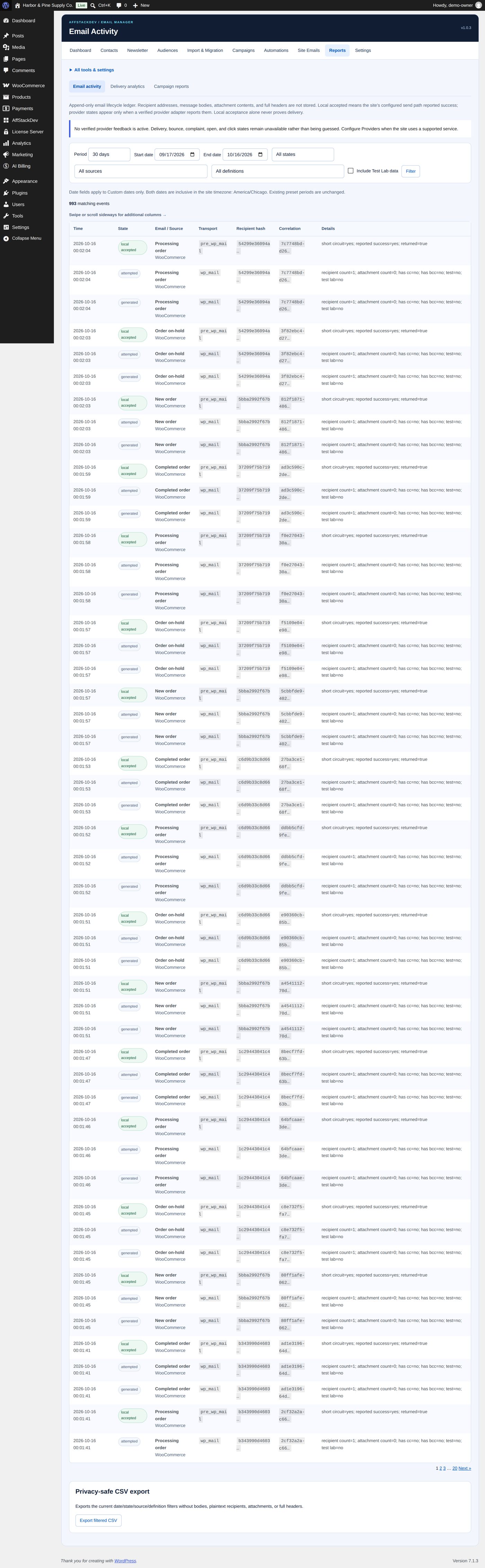
What the words mean
| Word | Means | Does not mean |
|---|---|---|
| Attempted | Your site tried to send the email. | |
| Accepted (local) | Your site's mail connection took it. | That it reached the inbox. |
| Suppressed | A pause of yours held it back. | A fault. |
| Skipped | A rule said no: no consent, unsubscribed, order refunded, too many emails this week. | A fault. Skipping is often the right result. |
| Delivered / Bounced / Complaints | Your mail provider reported it. | |
| Opened / Clicked | Email Manager's own counting or your mail provider's tracking saw it. | An exact count of readers. |
Delivered, bounced and complaints only appear when a mail provider reports back; opened and clicked also when Email Manager counts them itself (below). Email Manager can receive such reports from Mailgun, SendGrid and Brevo (set up under Settings, delivery providers). If you send through SMTP.com with WP Mail SMTP Pro and its email log switched on, Email Manager also reads delivered and failed from that log (no opens or clicks). Without any of these, you see what your own site knows: attempted and accepted. A number that cannot be known is shown as unavailable, not as zero.
Opens and clicks
Email Manager can count, itself, who opened its newsletters, sequences and cart reminders and which links they clicked, whatever sends your mail. It is off at the start: switch on Count opens and clicks of Email Manager's marketing emails under Settings → Data & retention.
While it is on, those emails carry a tiny picture and their links pass through your site before opening the page. Tests, account notices, plain-text emails and the unsubscribe and preference links are never counted or changed. Each email counts as opened once and each link as clicked once; a click also counts as an open. Campaign reports then show opens and clicks with the number of people, for example 12 (9 people).
The numbers are estimates: some mail apps open every picture by themselves (Apple Mail), others block pictures until the reader allows them. WordPress's "Export personal data" and "Erase personal data" include a person's opens and clicks, and WordPress's privacy policy guide offers a paragraph about them for your privacy policy.
The reports
Reports shows activity for Today, the last 7, 30 or 90 days, or dates you choose, with filters by source and state. One email can produce several lines (accepted, delivered, opened), so the number of lines is not the number of people.
Export filtered CSV saves what you filtered, up to 50,000 lines. It contains no message texts and no plain email addresses.
How long activity is kept is your choice under Settings → Data & retention: 30, 90, 180 or 365 days (90 at the start). Clearing reports never deletes templates, consent or orders.
"Nothing was sent"
Go through these in order:
| Check | Where |
|---|---|
| Is the license active? | Email Manager → License. Without it the sending features wait; unsubscribing still works. |
| Does the site send email at all? | Send a test from Site Emails. No test email means the mail connection is the problem, not Email Manager. |
| Is something paused? | Site Emails → Manage → Status & pause controls, and the pause of the campaign or sequence itself. |
| Is it switched on? | New event emails and sequences start as drafts or switched off. |
| Did the person give consent? | The recipient review of a campaign and the progress of a sequence name the reason for every skip. |
| Are background tasks running? | Emails are sent by scheduled tasks. On a site with very few visitors they can run late; your host can switch on a real scheduler. |
| Was the frequency limit reached? | The email waits for the next free day within its sending window. |
"The customer says it did not arrive"
Accepted by your site is not delivered. Look at the mail service's own log or, if connected, at the delivered and bounced lines in Reports. Check the spam folder and the sender address: a sender address your mail service is not allowed to use is the most common cause.
A due time passed and it still waits
A scheduled time means "may be sent from now on", not "is sent at this second". Sending happens in portions, with pauses between them, and only when the site's background tasks run.
Removing Email Manager
Deactivating stops its scheduled work and keeps everything. Deleting the plugin keeps the data too (it removes only the license connection on this site and the schedules). It does not free the license place: open License and deactivate there first if you want to use the license on another site.
To remove Email Manager's own data for good, a site administrator adds define( 'UEM_REMOVE_DATA_ON_UNINSTALL', true ); to wp-config.php before deleting the plugin. That removes its settings, tables and records; WordPress accounts, WooCommerce orders and lists at outside mail services are not touched. Decide before you delete: afterwards there is nothing left to remove it with.
For a support request, Diagnostics has Export safe diagnostic report: versions, states and settings, without message texts, customer addresses, reset links or passwords.