Private areas: logins, codes, invitations
Keep a page or a part of a page for the right people: members, dealers, a client with a code, anyone who can prove an email address.
Choose the requirement
| You want ... | Use | The visitor needs |
|---|---|---|
| any signed-in customer | Login required | a WordPress account on your site |
| only dealers, staff or members | Role restriction | an account with a role you pick |
| a client or a small group, no accounts | Access codes & invitations | a code or an invitation link from you |
| proof of an email address, no account | Email verification | to open a link or enter a code sent to their inbox |
| a page that opens or closes at a time | Scheduled access | to come within the time window |
| a signed acceptance of your terms | Recorded policy acceptance | to accept the current policy version |
| visitors from certain countries | Location eligibility | to be, or say they are, in an allowed place |
Accounts and roles stay where they are: WordPress and your membership or business plugin create them and assign them. Gate Manager only asks "does this visitor have it?".
A whole page, or only a section
When you edit an access gate, Protect decides where it acts:
- Whole matching pages: every page that matches the gate's paths.
- Only attached protected blocks / shortcodes: nothing is closed until you put the gate around something.
To protect a section: in the WordPress editor insert the Gate Manager Protected Content block, choose the gate in it, and put the private blocks inside. Leave the introduction outside so everybody can read it. A visitor without access sees a "Get access" link in place of the private part. A shortcode does the same for classic content; the Content & site modes tab shows it.
Codes and invitations
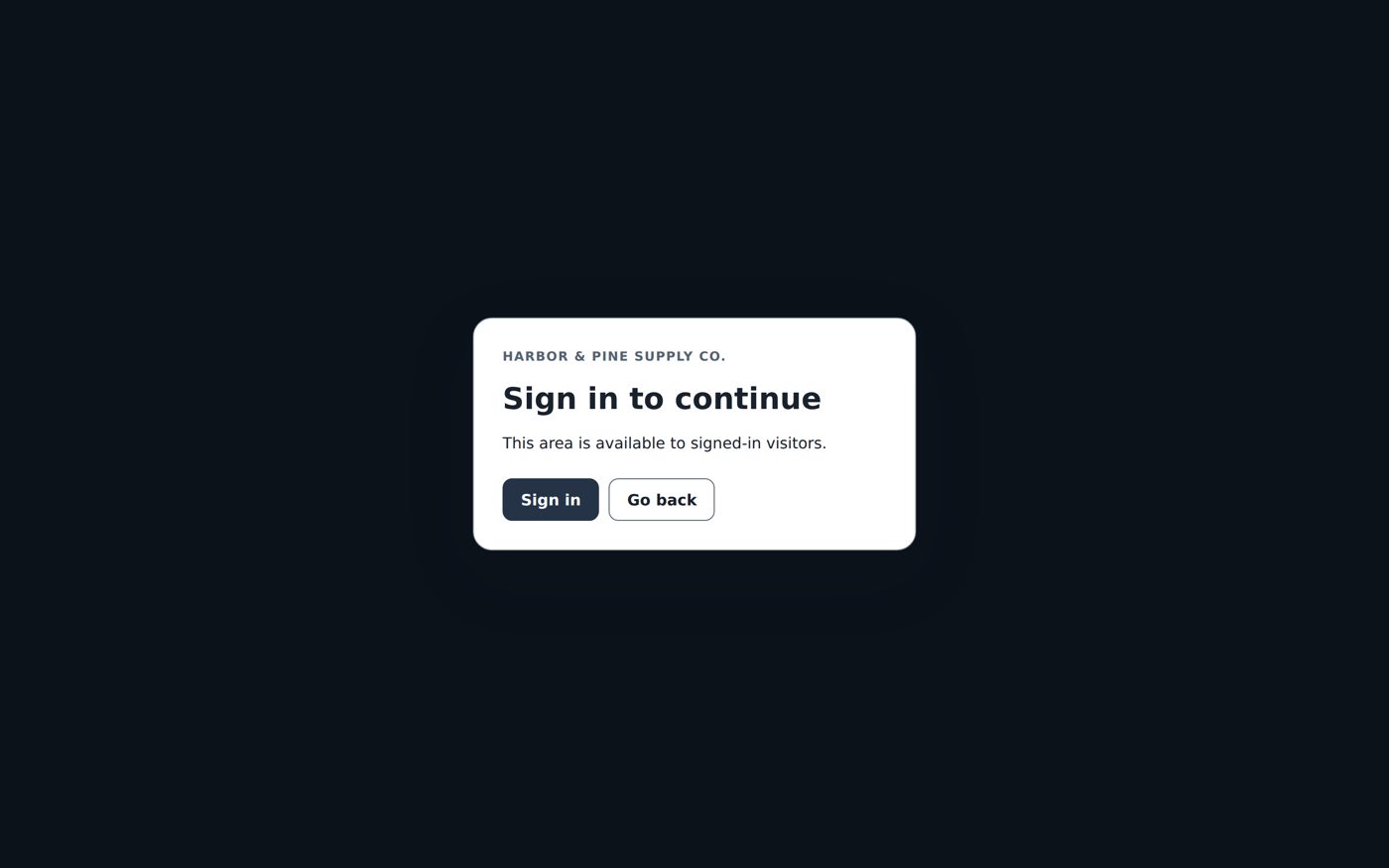
Open the Access tab and choose the access-code gate.
- A code: let Gate Manager make one or type your own. Give it a label (who is it for?), an expiry date and a maximum number of uses.
- An invitation link: a link that lets one person in. Send it from the site or copy it and send it yourself. The link first shows a Continue step, so that an email program that previews links does not use it up.
- Revoke ends a code or link at once. The list shows which are active, expired, used up or revoked.
Codes and full links are shown only once, when you create them. Copy them then.
After a visitor got in, their browser keeps the access for 12 hours (Keep successful credential access for, 720 minutes at the start) unless you set another time for that gate.
Let visitors ask for access
Turn on Allow visitors to request access on the gate. A visitor who is stopped can leave a name, an email address and a message. You find the request on the Access screen: Approve sends a one-use invitation, Deny closes it. Approving gives access to this gate only (the link lasts 48 hours unless you change Approved request link lifetime); it does not create an account or a newsletter subscription.
Worked example: a wholesale price list for signed-in customers
Harbor & Pine keeps its wholesale price list on a page at /wholesale/ and wants only customers with an account to
see it. Any account will do; checking that the account belongs to an approved dealer would be a Role restriction
instead.
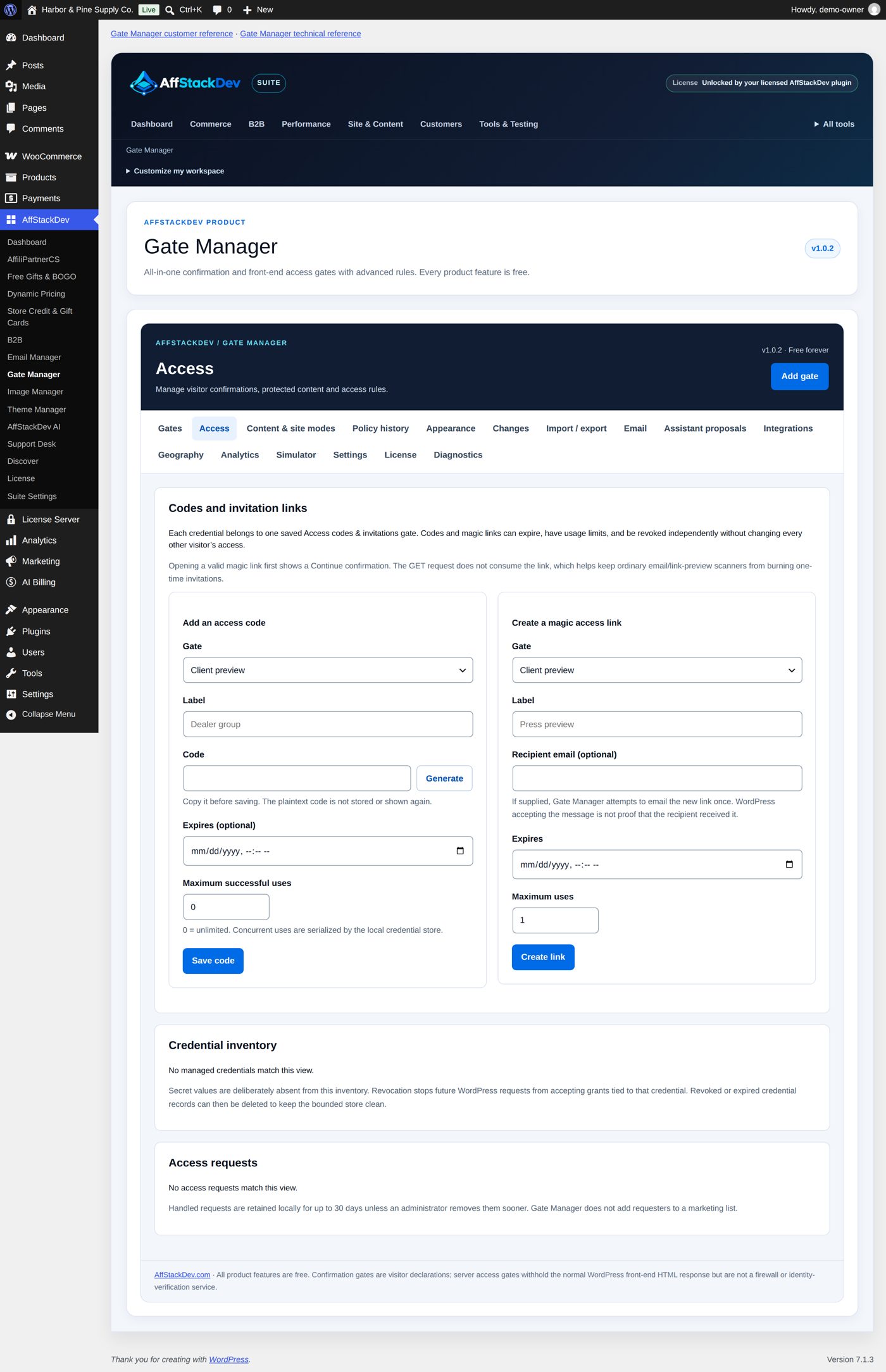
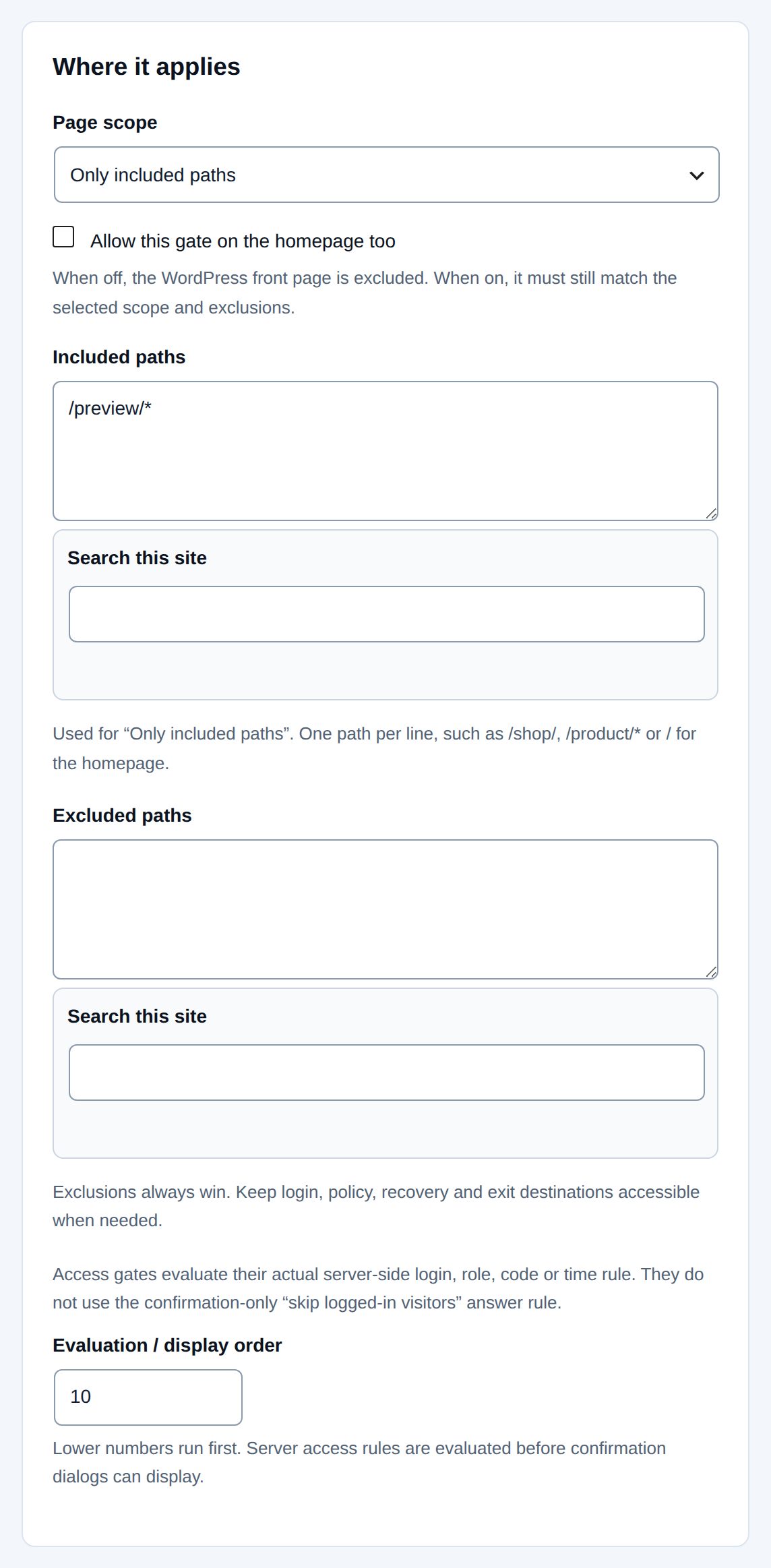
- Add gate, purpose Restrict access by account, starting point Wholesale login. It is a Login required
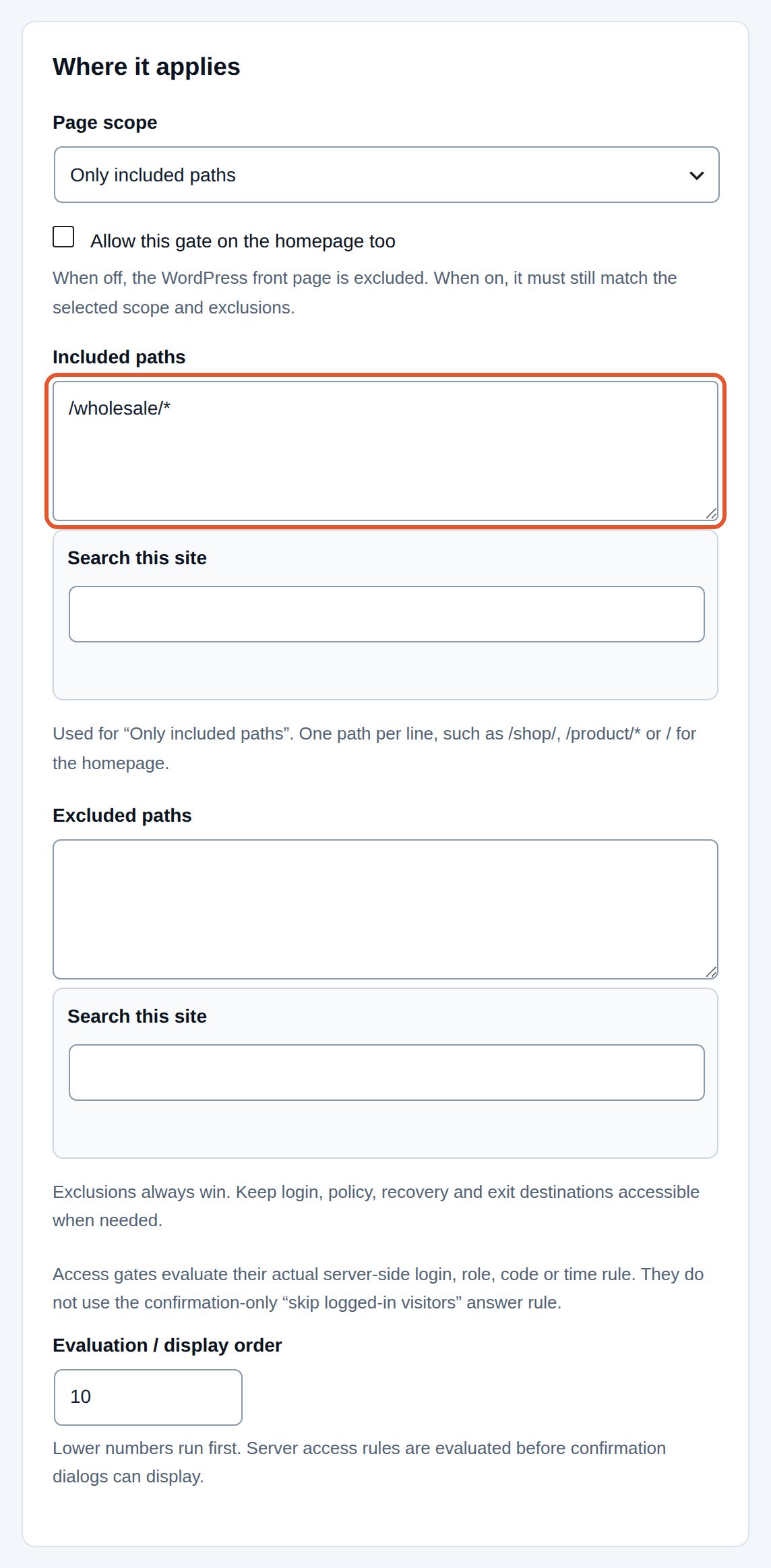
gate with Page scope set to Only included paths and the path
/wholesale/*, which covers/wholesale/and every address below it. - Leave Send noindex while access is blocked on, so search engines do not list the price list.
- Save draft and review, read the review, tick the confirmation and Enable this gate.
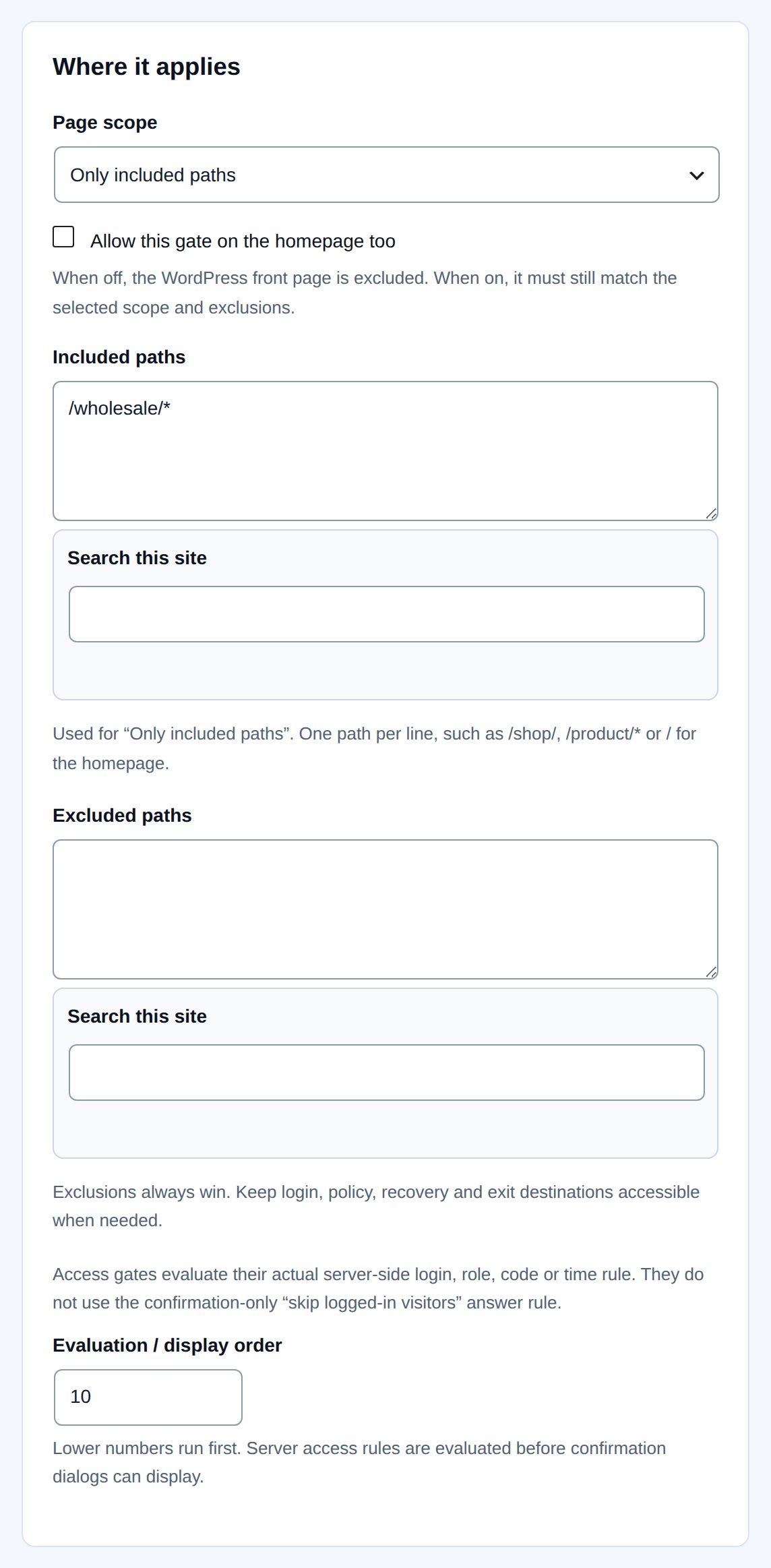
A visitor who is not signed in and opens /wholesale/ gets this screen instead of the page: "Sign in to continue",
with Sign in and Go back:
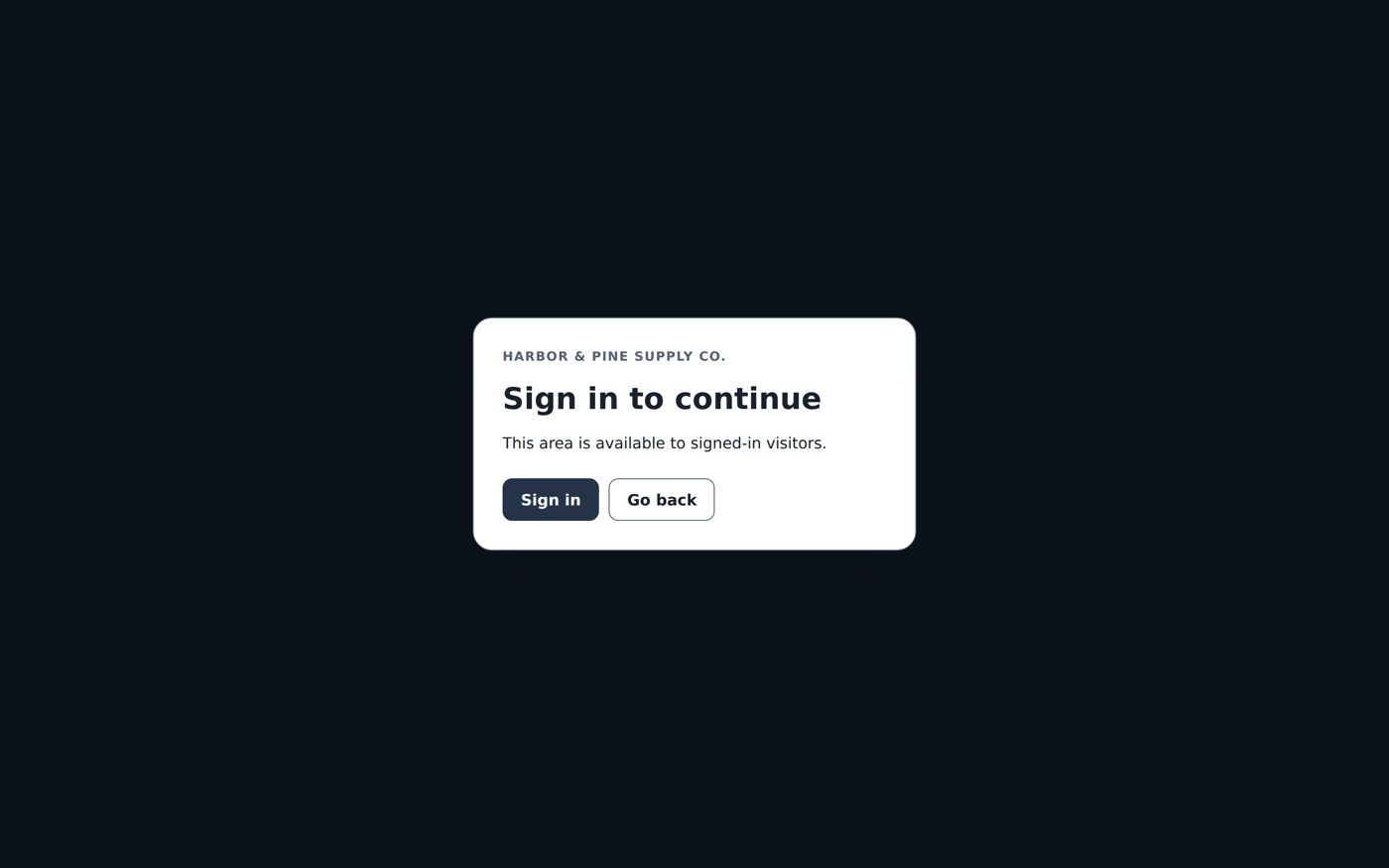
After signing in they come back to /wholesale/ and see the price list. Every other page of the store stays open to
everyone.
Worked example: a client preview with an access code
Harbor & Pine shows its spring catalog to one partner, Rosa Martinez of Lakeshore Guide Service, before it goes on sale. Rosa has no account, so a code is easier than a login.
- Add gate, purpose Use invitations or verified email, starting point Client preview: an Access codes &
invitations gate on
/preview/*. It is saved disabled. - In the gate turn on Allow visitors to request access, so someone else from Rosa's team can ask instead of being stuck. Keep successful credential access for stays at 720 minutes: after entering the code, a browser keeps the access for 12 hours.
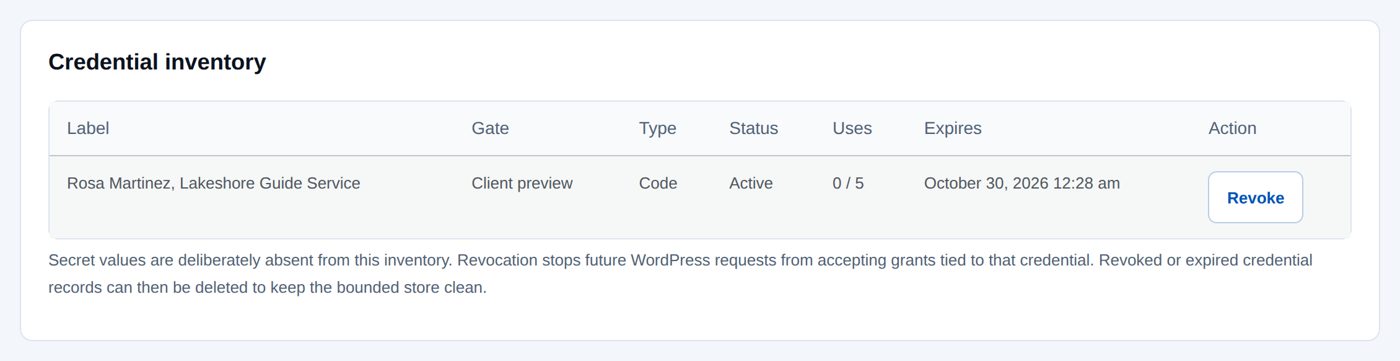
- Open the Access tab, Add an access code: choose the gate, label
Rosa Martinez, Lakeshore Guide Service, codeLAKESHORE-SPRING(or Generate one), Expires (optional) in 14 days, Maximum successful uses 5. Save code. Copy the code now: it is not shown again. - Back on the gate: Review draft, then Enable this gate. A code-protected gate cannot be enabled before it has at least one active code or accepts access requests.
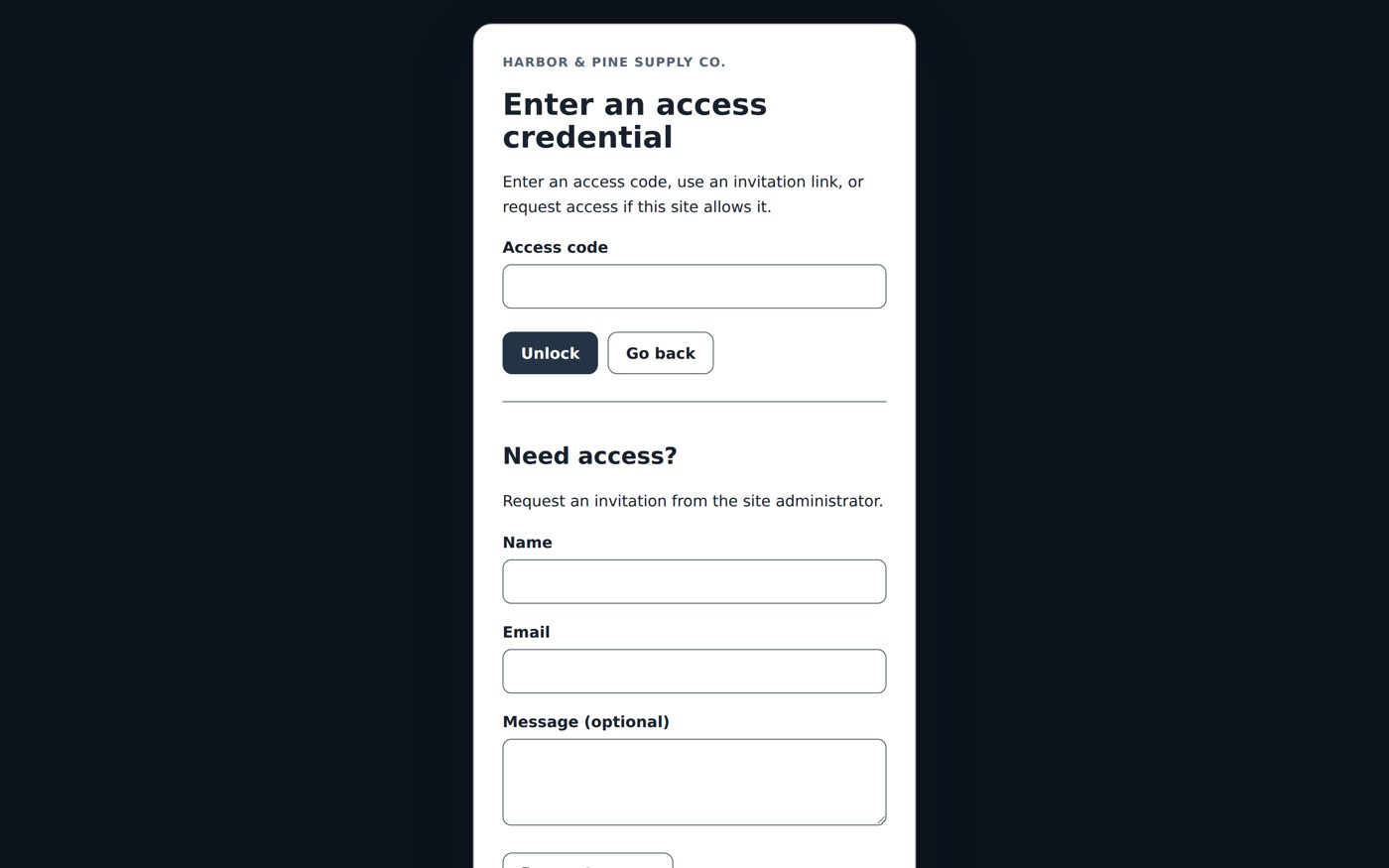
Send Rosa the address /preview/ and the code. At /preview/ she sees Enter an access credential with an
Access code field and Unlock. Because requests are allowed, Need access? follows, with Name, Email,
Message (optional) and Request access for anyone who has no code:
When the preview is over, select Revoke on the code: it stops working at once, and browsers that entered with it lose their access too.
Email verification
The visitor enters an email address and receives a six-digit code, a link, or both (Verification method: Six-digit code, Magic link or Code and magic link). The code or link is valid for 10 minutes unless you change Verification message lifetime (5 to 60). You can accept any address, only certain addresses, or only certain domains (for example your company's).
Mail is sent through your site's normal mail setup. Gate Manager sends four messages: the verification code or link, an invitation you send, the invitation that goes out when you approve a request, and the notice to you about a new access request. On the Email tab you can change the wording of each, preview them and send yourself a test.
A spam check on the forms
Off at the start. On the Settings tab, Spam check on visitor forms asks visitors to show they are a person before Gate Manager checks an access code, stores an access request or sends a verification email. Each form keeps its own limits either way: a few code tries per gate and network address, a hidden trap field and limits on access requests, and limits on verification emails.
| Setting | What it does | At the start |
|---|---|---|
| Check | Off: only the forms’ own limits; Built-in question: no account or keys: the visitor ticks I’m not a robot and answers a small sum ("What is 7 plus 3?"), checked on your site, nothing is sent anywhere else; or Cloudflare Turnstile: your own keys: Cloudflare's check, usually one click or none. | Off: only the forms’ own limits |
| Use it on | Access code form, Access request form, Email verification form. At least one while the check is on. | all three |
| Site key, Secret key (under Cloudflare Turnstile keys) | The two keys of a Turnstile widget you add for your site's address in your Cloudflare account. Cloudflare's public testing keys are refused: they let everyone through. | empty |
Select Save spam check.
- Built-in question: each question works once, for 15 minutes and 5 answers; after a wrong answer the form shows a new one. Programs that can read the question can still answer it: it stops simple form robots, not a determined attacker.
- Turnstile: the visitor's browser loads Cloudflare's check and your site asks Cloudflare whether it was passed; what the visitor typed into the form is not sent to Cloudflare. If Cloudflare cannot be reached, those forms are refused until it can. It needs JavaScript in the visitor's browser.
- Secret key: it shows only as "A secret key is saved": type a new one to replace it, or choose another check and tick Remove the saved secret key (choose another check first). It is not part of Download configuration JSON, the Changes history or what an AI assistant can read.
When it helps: an access form that gets junk requests, or many wrong codes from changing addresses.
Recorded policy acceptance
Use this when "they clicked OK" is not enough. You give the policy's address and a version. A signed-in visitor's acceptance is saved with their account: who, which version, when (no IP address). A visitor who is not signed in can accept too; that acceptance is remembered only in their browser. When you change the version, visitors accept again and the older receipts stay in the history.
The Policy history tab lists and exports the receipts and sets how long they are kept: 365 days at the start, 0 keeps them for good. A receipt older than that no longer lets the visitor in; they accept again. Deleting a WordPress user deletes their receipts, and WordPress's own personal-data export and erasure tools include Gate Manager's receipts, access requests and invitation recipients.