Payouts
How payable commissions become payout batches on your schedule, the payout methods and what partners must give for each, paying and recording a batch, store credit payouts, PayPal and Stripe, other currencies, tax tracking and the payout records, with worked examples.
How payouts work
- A commission becomes Pending Payout when its adjustment hold ends (Links, attribution and commissions).
- On your payout day AffiliPartnerCS adds up each partner's Pending Payout commissions per currency. Where the total reaches the Minimum Payout, it makes a batch for the partner's payout method. Smaller totals carry forward.
- You pay each batch and record it. Nothing is ever paid automatically: external methods you pay yourself and then Mark Paid; PayPal, Stripe and store credit are sent from the batch after your review.
A batch keeps the amounts, method, recipient, fees and bonus it was made with. Changing a fee, a method or the partner's details later does not change a batch that exists.
The Payouts screen
At the top: Current Schedule, Next Payout Date, Created / Awaiting Payment and Total Paid (store currency). Then the panels Reviewed Provider Payouts (PayPal and Stripe), Store Credit payouts, Payout Methods, Payout-Time FX Rates, the buttons for batches, Unbatched Pending Payout Balances and Payout Batch History.
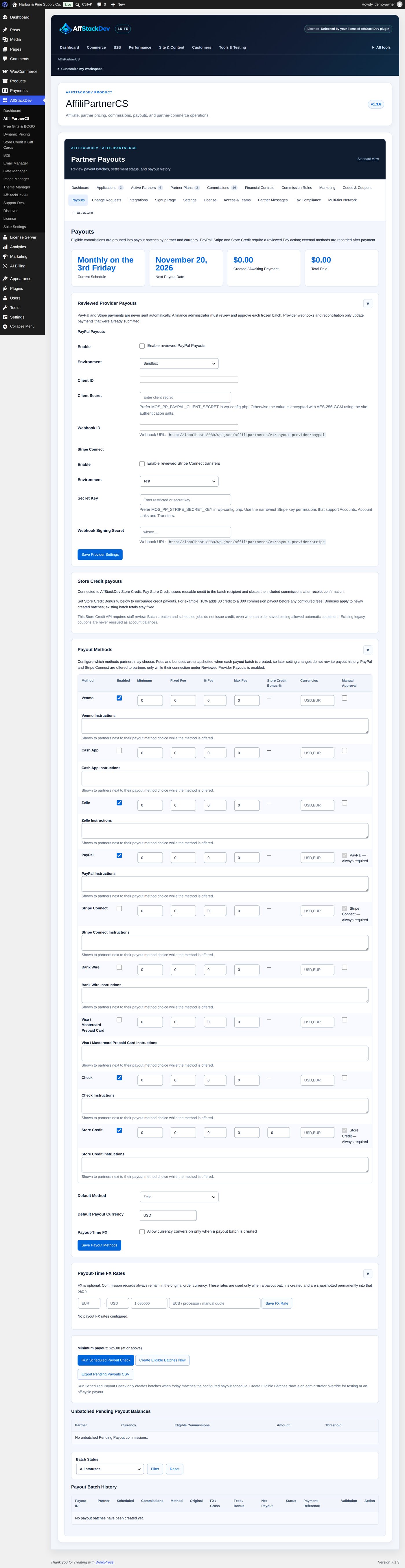
The schedule and the minimum are set under Settings (Getting started). AffiliPartnerCS checks the schedule once a day. Run Scheduled Payout Check makes batches only when today is a payout day; Create Eligible Batches Now makes them today anyway (for an extra payout, or to test). Both keep the minimum and the other checks and pay nothing. The answer: "Payout check complete." with the number of batches made.
Payout methods
Payouts → Payout Methods says which methods partners may choose and on which terms:
| Column | What it does |
|---|---|
| Enabled | Offered to partners. At the start Venmo, Cash App, Zelle, PayPal, Bank Wire, Visa / Mastercard Prepaid Card, Check and Store Credit are on, Stripe Connect is off. |
| Minimum | The method's own minimum for a batch, on top of the general Minimum Payout. |
| Fixed Fee, % Fee, Max Fee | A fee taken from the payout: a fixed amount, a percentage, and an optional cap on both together. All 0 at the start. |
| Store Credit Bonus % | Store Credit only: extra credit on top of the commission, to make credit attractive. |
| Currencies | The currencies the method may pay in (for example USD,EUR); empty means any. |
| Manual Approval | On for every method at the start. Recorded on each batch and in the pending payouts export. PayPal, Stripe Connect and Store Credit always need your review (Always required). |
| ... Instructions | A note for partners about the method ("Payments arrive within 2 business days"); shown to partners next to their payout method choice. |
Below the table: Default Method (for partners who have chosen nothing; Manual / Legacy at the start), Default Payout Currency and Payout-Time FX (Other currencies). Save Payout Methods saves: "Payout methods saved. Existing payout batches keep the methods, fees and bonuses they were created with."
What partners give for each method, in their workspace (Payout profile):
| Method | Partner gives | You pay |
|---|---|---|
| Venmo | username, phone or email | outside the plugin, then Mark Paid |
| Cash App | $Cashtag |
outside, then Mark Paid |
| Zelle | email or phone | outside, then Mark Paid |
| PayPal | PayPal email | from the batch, through your PayPal Payouts account |
| Stripe Connect | completes Stripe's own onboarding | from the batch, through your Stripe account |
| Bank Wire | confirms bank details were sent to you outside the plugin (never entered here) | outside, then Mark Paid |
| Visa / Mastercard Prepaid Card | payout identifier and delivery email | outside, then Mark Paid |
| Check | mailing name and full address | outside (check number as reference), then Mark Paid |
| Store Credit | a store login with an email, linked to the partner | from the batch, as store credit in your shop |
Store Credit is offered only while AffStackDev Store Credit & Gift Cards is active. PayPal and Stripe Connect are offered only while their connection is enabled under Reviewed Provider Payouts.
Worked example: checks from $50, a 10% bonus for store credit
Harbor & Pine has Venmo, Zelle, Check and Store Credit switched on, and PayPal too (without a PayPal connection it is not offered to partners). Mailing a check for a few dollars costs more than it is worth; credit in the shop costs Harbor & Pine less than money, so it rewards partners who choose it.
- Payouts → Payout Methods: in the Check row Minimum 50; in the Store Credit row Store Credit Bonus % 10.
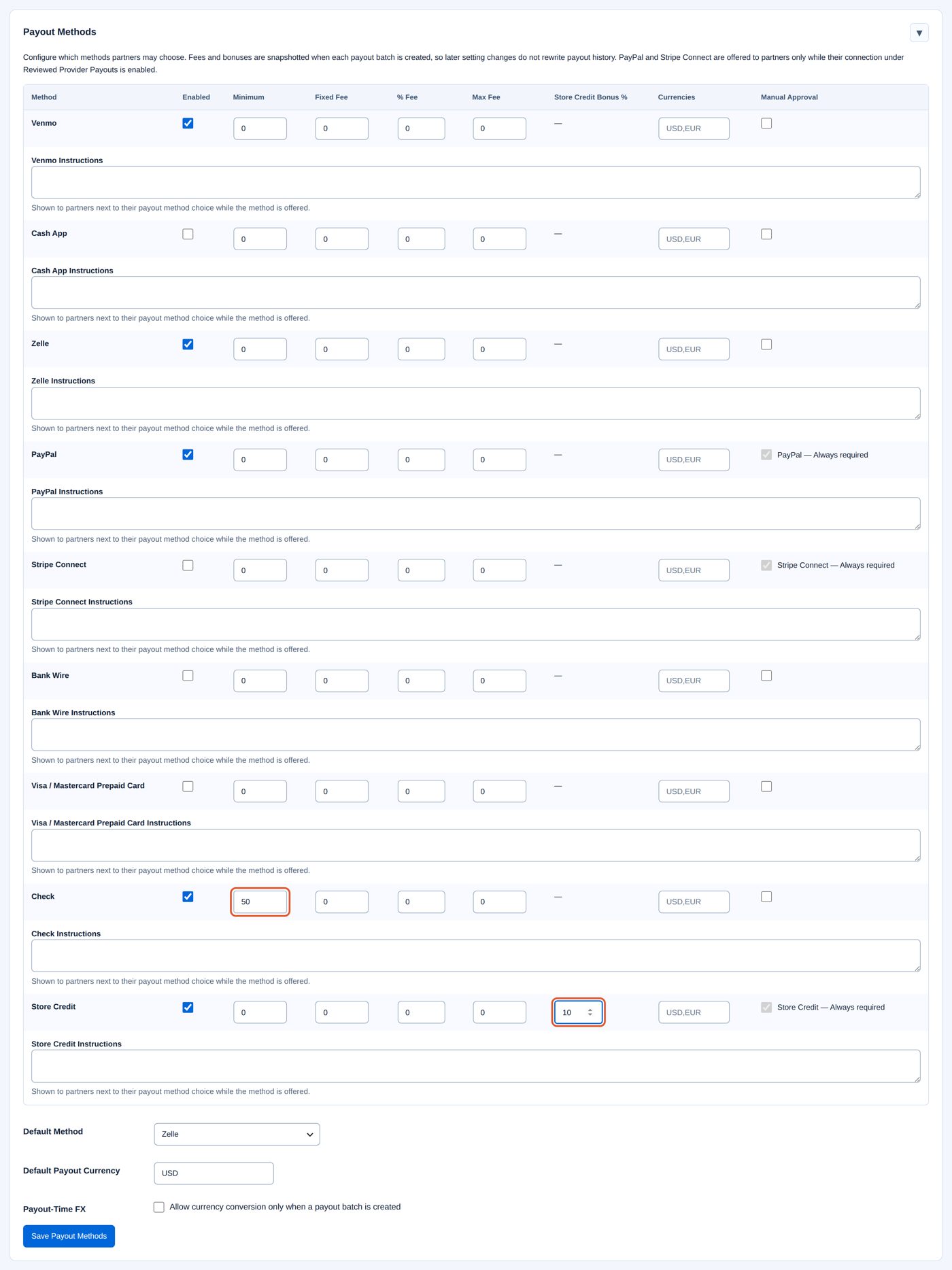
- Save Payout Methods.

A partner paid by check now gets a batch only from $50; one paid in store credit gets $10 extra for every $100 of commission. Batches that already exist keep their terms.
PayPal and Stripe
PayPal and Stripe payouts are sent from your own account through the provider's payout service, after you review each batch. Under Payouts → Reviewed Provider Payouts:
| Provider | Fields |
|---|---|
| PayPal Payouts | Enable (Enable reviewed PayPal Payouts), Environment (Sandbox or Live), Client ID, Client Secret, Webhook ID; the Webhook URL to enter at PayPal is shown. |
| Stripe Connect | Enable (Enable reviewed Stripe Connect transfers), Environment (Test or Live), Secret Key, Webhook Signing Secret; the Webhook URL is shown. |
Save Provider Settings saves. Secret fields are never shown again; leave them empty to keep what is saved. Your PayPal account needs PayPal's Payouts feature; your Stripe account needs Connect. Partners paid by Stripe connect their own Stripe account from their workspace (Connect with Stripe).
A PayPal or Stripe batch is paid with its own controls: tick I reviewed…, type the batch reference and choose Review and Send. Check Provider Status asks the provider what happened to a payment that is still on its way. Nothing is resent automatically.
Batches
Unbatched Pending Payout Balances lists each partner and currency with Pending Payout commissions: Partner, Currency, Eligible Commissions, Amount and Threshold (Ready when the amount reaches the Minimum Payout, Carry forward when not).
Payout Batch History lists the batches, 50 per page, with the filter Batch Status:
| Column | Shows |
|---|---|
| Payout ID | The batch reference, such as PAY-23719F9A9A. |
| Partner, Scheduled, Commissions | Who, the payout day, how many commissions. |
| Method | The method and the partner's details (handle, email or address). |
| Original, FX / Gross, Fees / Bonus, Net Payout | The commission total, after conversion, fees and bonus, and what the partner receives. |
| Status, Payment Reference | Where the batch stands, and your reference once paid. |
| Validation | OK when the batch still matches its commissions; otherwise the reason, and payment is blocked. After payment also the tax check ("Tax snapshot: Not Required — USD 51.62"). |
| Action | The payment controls of the method, and CSV. |
| Status | What to do |
|---|---|
| Pending Review | Check it, then pay it with the method's control. |
| Submitted / Processing | PayPal or Stripe is processing it; wait, or Check Provider Status. Do not pay again. |
| Needs Review | Read the reason: a finance review after offboarding, a failed provider payment, an unresolved store credit attempt. |
| Provider Paid — Recover Ledger | The provider paid; Recover Internal Ledger closes the commissions. Nothing is paid again. |
| Paid | Done. |
| Reversed — Action Required | The provider reversed the payment; look at it there. Nothing is resent automatically. |
| Voided | No payment. |
Worked example: a payout day, one batch paid by Zelle
The demo's completed orders have reached Pending Payout (the hold is over). The minimum is $25:
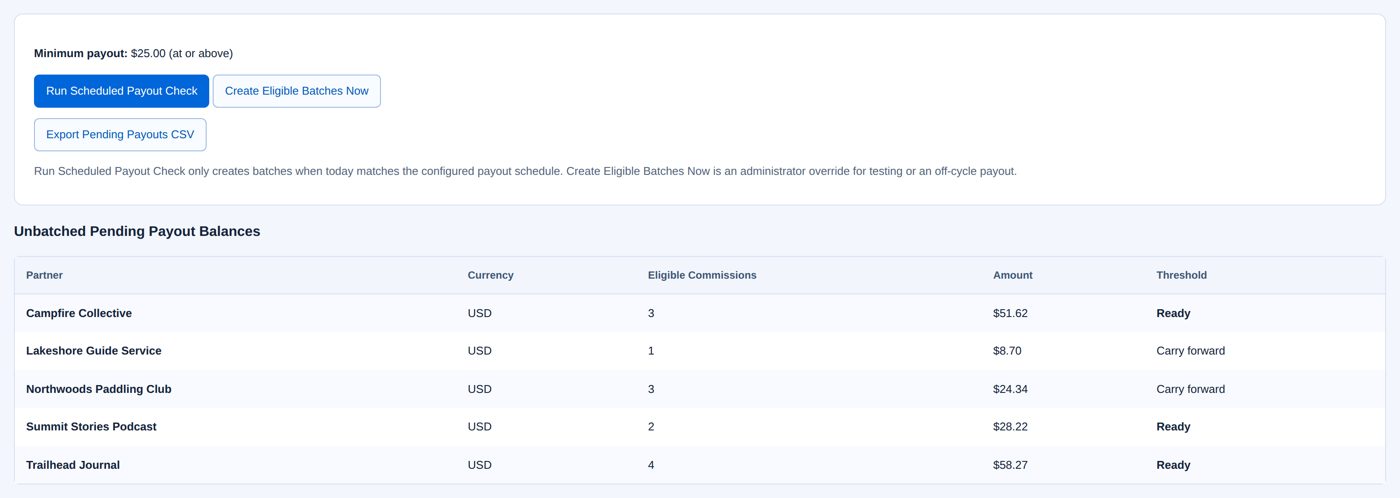
| Partner | Commissions | Amount | |
|---|---|---|---|
| Campfire Collective | 3 | $51.62 | Ready |
| Lakeshore Guide Service | 1 | $8.70 | Carry forward |
| Northwoods Paddling Club | 3 | $24.34 | Carry forward (just under $25) |
| Summit Stories Podcast | 2 | $28.22 | Ready |
| Trailhead Journal | 4 | $58.27 | Ready |
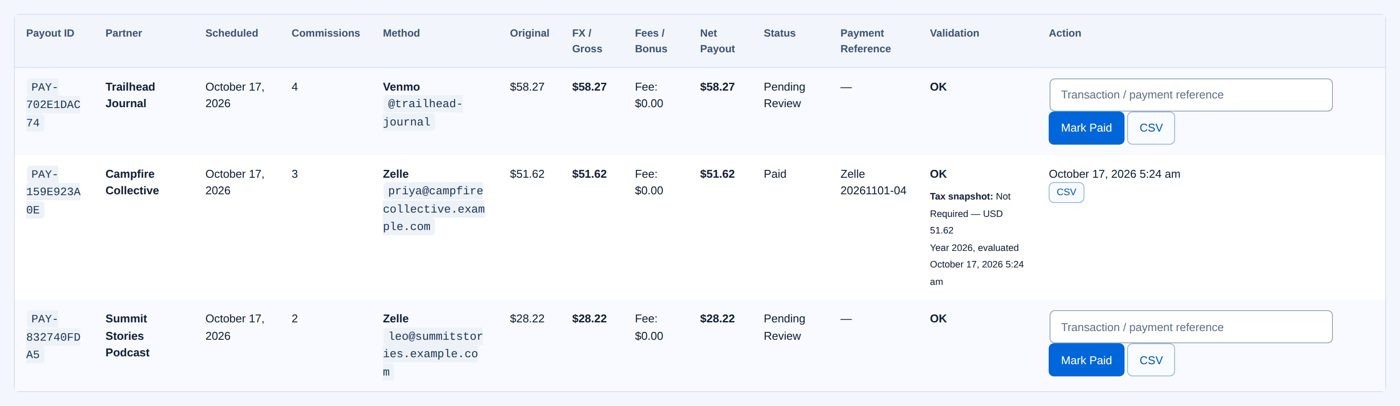
- Choose Create Eligible Batches Now. Three batches appear as Pending Review: Trailhead Journal by Venmo, Campfire Collective and Summit Stories Podcast by Zelle. Lakeshore and Northwoods stay in the balances for a later payout day.
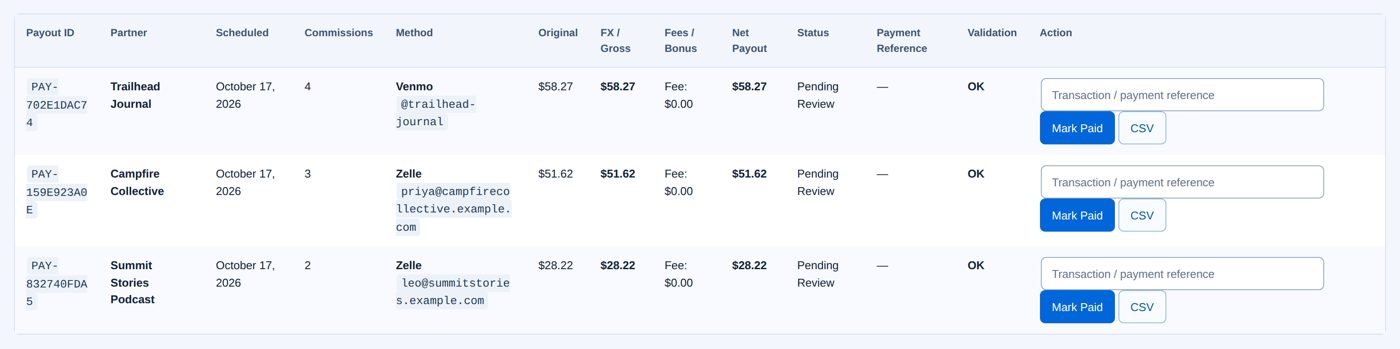
- Send Campfire Collective $51.62 with Zelle in your bank's app. Enter the transfer's reference, Zelle 20261101-04, in the batch's reference field.

- Choose Mark Paid: "Payout marked Paid. The commissions in that batch were marked Paid at the same time."

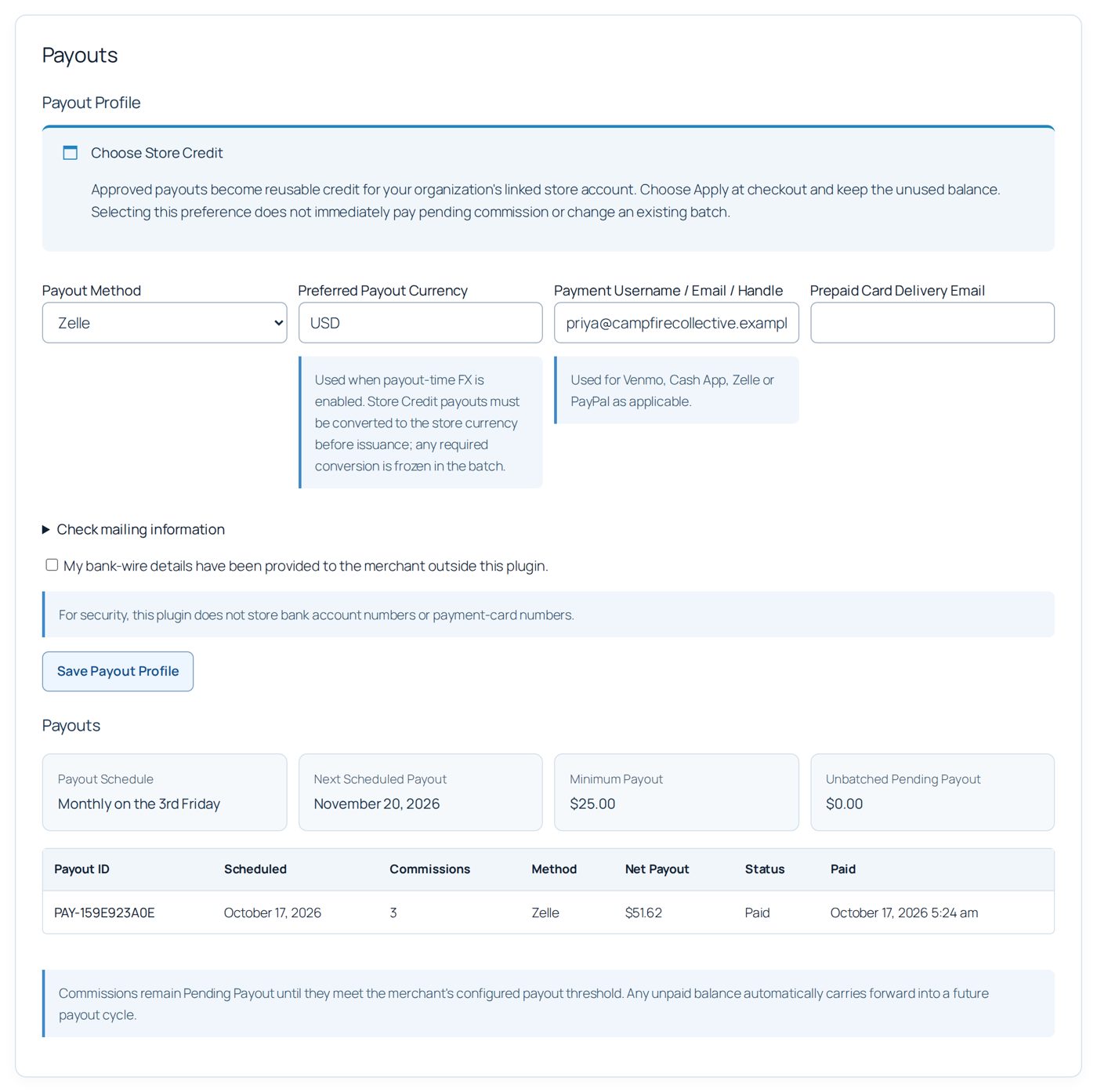
Priya sees the payment under Payouts in her workspace, and the commissions under Commissions as Paid:
Mark Paid records a payment you made; it sends no money. The reference field is optional (for a check it is labelled Check number).
Store credit
A store credit payout puts the batch's net amount on the partner's own store account through AffStackDev Store Credit & Gift Cards. The partner spends it in your shop like any store credit: with coupons, without expiry.
It needs both plugins active and licensed, a partner linked to a store login with an email, the store's currency, and your role allowed to manage payouts, store credit and WooCommerce. The batch names the recipient ("Recipient:", the login and its store credit account number); tick "I reviewed the recipient, currency, commission, bonus, fees, and net credit shown in this batch." and choose Pay Store Credit. A commission paid as credit is paid once: spending the credit, or refunding an order paid with it, does not pay it again. If something stops halfway, Recover Store Credit Payout completes the same payout without issuing credit twice.
Worked example: Summit Stories Podcast in store credit with 10% extra
Leo Hartmann chose Store Credit as his payout method; the method gives 10% extra.
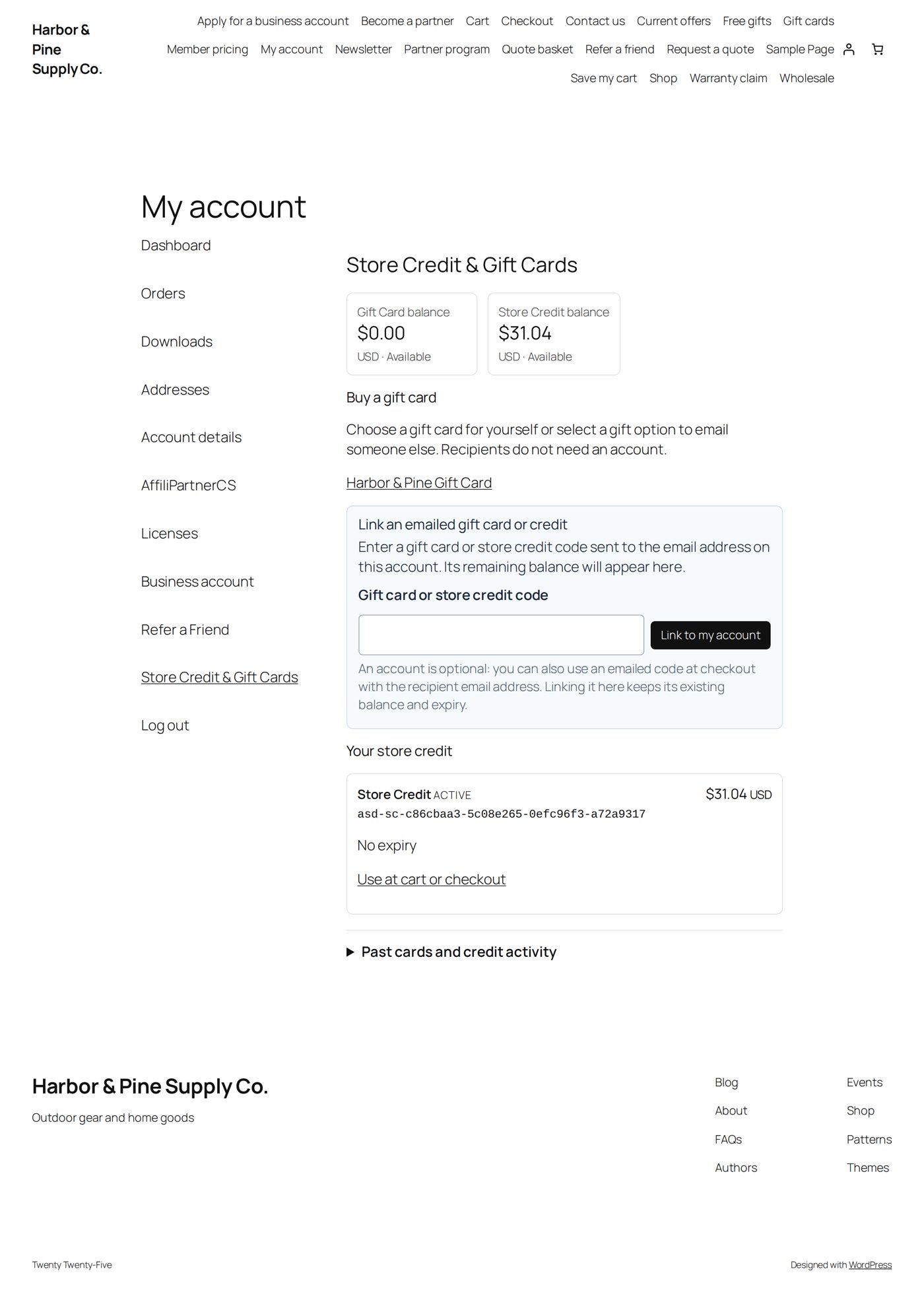
- With Summit Stories Podcast's $28.22 payable, Create Eligible Batches Now makes a Store Credit batch: original $28.22, bonus +$2.82, net $31.04, recipient leo. Tick the review box.

- Pay Store Credit. The batch is Paid; the commissions are Paid.

Leo's My Account → Store Credit & Gift Cards shows $31.04 of store credit, no expiry:
An offboarded partner's batches
Suspending or terminating a partner keeps what it has earned. Its Pending Review batches move to Needs Review, and batches made for it later start there, with "Accrued offboarding liability — manual finance review required." Write why you approve it, tick "I verified the partner status, recipient, amount, currency, tax state, and payout method." and choose Approve Reviewed Liability: the batch goes back to Pending Review, unchanged, to be paid as usual. Approving pays nothing by itself.
Other currencies
Commissions stay in their order's currency. To pay in another one, tick Payout-Time FX (Allow currency conversion only when a payout batch is created) and enter rates under Payout-Time FX Rates: the order currency (EUR), → the payout currency (USD), the rate (1.080000) and where it comes from ("ECB / processor / manual quote"), then Save FX Rate. EUR → USD and USD → EUR are two separate rates; no live rate is fetched. The batch keeps the rate it was made with. A partner's Preferred Payout Currency chooses the target; without a rate the commissions wait. Store credit is always in the store currency.
Tax Compliance
Tax Compliance tracks how much each partner was paid in a year, for tax reporting with a hosted provider. AffiliPartnerCS stores no tax forms or tax numbers.
| Field | At the start | What it does |
|---|---|---|
| Enable threshold tracking | off | Tracks paid totals per partner and year. |
| Annual paid threshold | 2000 USD | The amount (and its currency) from which a partner's tax status matters. Review it each tax year. |
| Payout hold | on | Hold a payout that would meet or exceed the threshold until status is Approved. |
| Hosted provider | empty | The provider's name and its session creation endpoint (an https:// address). |
| Signing secret | empty | Signs the requests to the provider and checks its answers; leave it empty to keep the saved one. |
Save Settings saves; Export 2026 Status CSV downloads the year's table (the button names the current year). The table 2026 Partner Status lists each partner with Paid / Threshold, Status (Not Required, Required, Requested, Received, Approved, Needs Update), the form type (Form not classified, W-9, W-8BEN, W-8BEN-E) and Save. With the hold on, a payout that would bring a partner to the threshold waits until its status is Approved.
Records
- CSV on a batch downloads that batch; Export Pending Payouts CSV downloads every batch still Pending Review (for your bank or bookkeeping). Downloads never pay or mark anything.
- Infrastructure → Exports downloads partners, applications, commissions, fraud alerts and audit activity (Exports, privacy and maintenance).
Emails to partners
| Goes to | When | Switch under Settings → Email Notifications | |
|---|---|---|---|
| Payout batch ready | the partner, and the Admin Notification Email | a batch is made (not for an offboarded partner's batch) | Payout batch ready |
| Payout paid | the partner (for store credit: the store account that got the credit) | you Mark Paid, or a PayPal, Stripe or store credit payment completes | Payout marked paid |
| New commission | the partner | shortly after a sale earns the partner a commission (renewals too; not bonuses, adjustments or network commissions), once per commission | New commission (email to the partner), off at the start |
The store credit email names the commission, bonus, fees, the credit and where to use it. The new-commission email names the order number, the amount, how the sale came (link or landing page, coupon, member pricing, lifetime customer) and when it can be paid; it never names the customer. It goes out from WooCommerce's background queue, so it can take a minute or two, and a commission voided before then is not announced.
When it does not work
| You see | It means |
|---|---|
| A partner with Ready gets no batch | Its method is switched off or not offered (PayPal or Stripe without a connection), its details are incomplete (a check without full address), the method's own Minimum is higher, or its currency needs a rate. The audit log has the reason ("Payout batch skipped because payout method/profile terms were not ready."). |
| "This frozen provider method is not enabled. Configure it before submission; do not settle this provider batch through the manual path." | A PayPal or Stripe batch from before; enable the connection under Reviewed Provider Payouts. |
| Validation shows a problem | The batch no longer matches its commissions; payment stays blocked. Do not change the batch; look at the named commissions. |
| "Store Credit must be issued in the store currency. Enable payout-time FX and configure the required rate before creating this batch." | A commission in another currency, for a partner paid in store credit. |
| The store credit control explains that the service is not available | AffStackDev Store Credit & Gift Cards is not active or not licensed, or your role may not manage store credit. |
| A batch waits with a tax hold | The partner reaches the Annual paid threshold and its tax status is not Approved yet. |
Questions
Can I pay a partner before the payout day?
Yes: Create Eligible Batches Now. Only Pending Payout commissions are included; commissions still in their hold are not.
A partner changed its payout method after its batch was made. What now?
The existing batch keeps the method it was made with. Pay it that way, or ask the partner; the new method applies from the next batch.
Can I undo Mark Paid?
No. If a payment really did not happen, correct it with a Manual Commission Adjustment and note it in the partner's Private Notes.
Does AffiliPartnerCS move money for Venmo, Zelle or checks?
No. You pay through your own bank or app, then record it with Mark Paid.
Are the fees mine or the partner's?
The partner's: they are taken from the payout. Leave them at 0 if you carry the cost yourself.
Related pages
| Page | What it covers |
|---|---|
| Links, attribution and commissions | Which partner gets a sale, affiliate links, how much a partner earns, holds and refunds, rules, corrections, bonuses and tiers. |
| Partners, plans and coupons | Partner records section by section, adding a partner by hand, plans, coupons, suspending and deleting. |
| The partner's workspace and more | What partners see and do under My Account, change requests, messages, teams, member pricing, staff roles, exports and maintenance. |