Your store and your site: purchase checks, Coming Soon, Maintenance
Make a gate count at Add to cart and checkout, and put up a launch or maintenance screen while you work.
Gates that follow the purchase (WooCommerce)
A gate on a page asks the visitor when they look. For a store that is sometimes not enough: the same rule should hold when the product goes into the cart and when the order is placed.
- Make the gate with its real requirement, for example Age confirmation or Role restriction.
- In the gate's rules add at least one WooCommerce condition: a product, a category, a tag, a SKU, an attribute, something about the cart (contents, quantity, subtotal, a coupon) or about the customer (country, earlier purchases).
- Turn on Enforce matching WooCommerce rules during purchase for the gate.
- Review, enable, then try it: add a matching product to the cart signed out, and go through cart and checkout.
The check covers Add to cart, the classic cart and checkout, and the block cart and checkout. WooCommerce stays in charge of prices, stock, orders and payment; Gate Manager only says yes or no to the purchase.
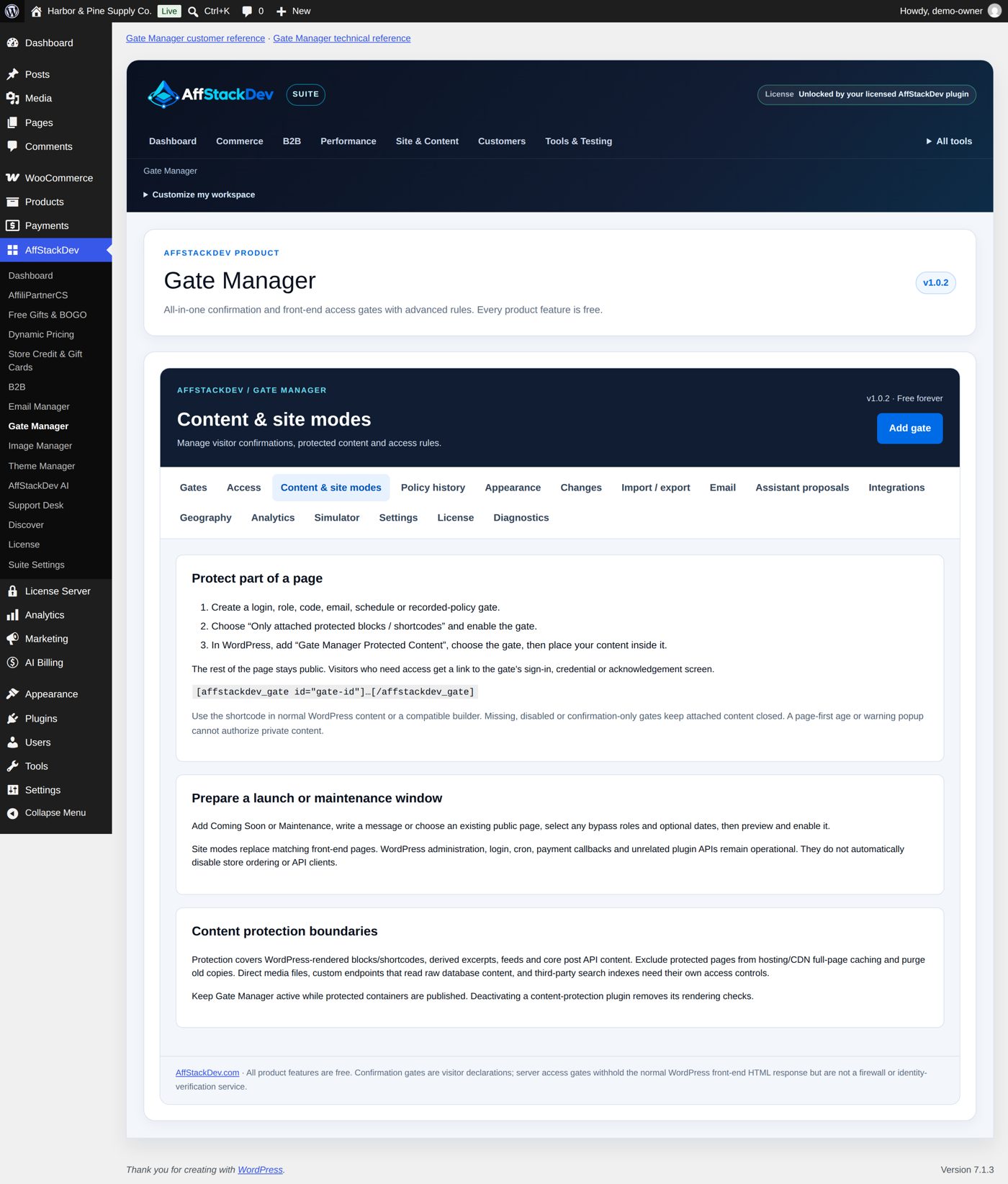
Coming Soon
Shows a launch screen instead of the matching pages. Visitors and search engines get a normal page (not an error).
- Write the message in the gate, or choose a published page as the Gate screen page.
- Screen layout decides how that page is shown: Inside the gate card, under the heading and explanation (the gate's heading and explanation, your page's content under them, and a Sign in button), or The whole page, as your site shows it (see below).
- Administrators always see the real site. Add bypass roles for staff who also need to.
- Optional start and end times.
Let a client look before launch: make an Access codes & invitations gate, give the client an invitation, and set the Coming Soon gate to show only to visitors who do not hold that invitation. Revoke the invitation when the preview is over.
Design the screen as a whole page
With The whole page, as your site shows it, a visitor gets your page exactly as your site shows it when you open that page yourself: made with the block editor like any other page, with your theme's styles. The gate's heading, explanation and Sign in button are not added; nothing of your design is changed.
- Make the page in WordPress (Pages, Add New Page) with the blocks you want: a cover picture, columns, buttons, a sign-up form. Publish it; it must be public (no password).
- Your theme's header and footer (with its menu) appear as on any page. For a screen without them, choose a page template without header and footer in the page's Template setting, if your theme offers one, or make one in the Site Editor that holds only the page's content.
- In the gate, under Content and site behavior: Gate screen page is your page, Screen layout is The whole page, as your site shows it.
- Save draft and review. Preview saved gate (in the gate's editor) opens the whole page in a new tab, with a note at the bottom that it is your preview. Then Enable this gate.
A page made with Elementor works the same way: build the page with the free Elementor page builder, publish it and choose it in the gate as above, with The whole page, as your site shows it. Visitors get it exactly as Elementor shows it at the page's own address. For a screen without your theme's header and footer, choose Elementor Canvas in the page's Template setting (Elementor adds it to the list).
What stays the same as with the card: the visitor keeps the address they asked for in the browser, and the page of that
address is not sent (not its text, its title or its search description). Coming Soon answers with a normal page;
Maintenance answers "503, temporarily unavailable" with the Retry after time. With Send noindex while access is
blocked (on at the start) search engines are asked not to list it. An age question or another confirmation is not
shown on top of the screen. Your staff sign in at your usual WordPress sign-in address (/wp-login.php); put a
Login/out block on the page if you want a button for it.
Worked example: Coming Soon while the store is being built
Harbor & Pine opens on 1 November and wants a proper launch page until then, written in the WordPress editor like any page. The shop manager, who is entering products, must still see the real site.
- Make a page in WordPress, for example "Opening soon", with what you want to tell visitors (what you sell, when you open, how to reach you), and Publish it. It must be public (no password).
- Add gate, purpose Control site availability, starting point Coming Soon.
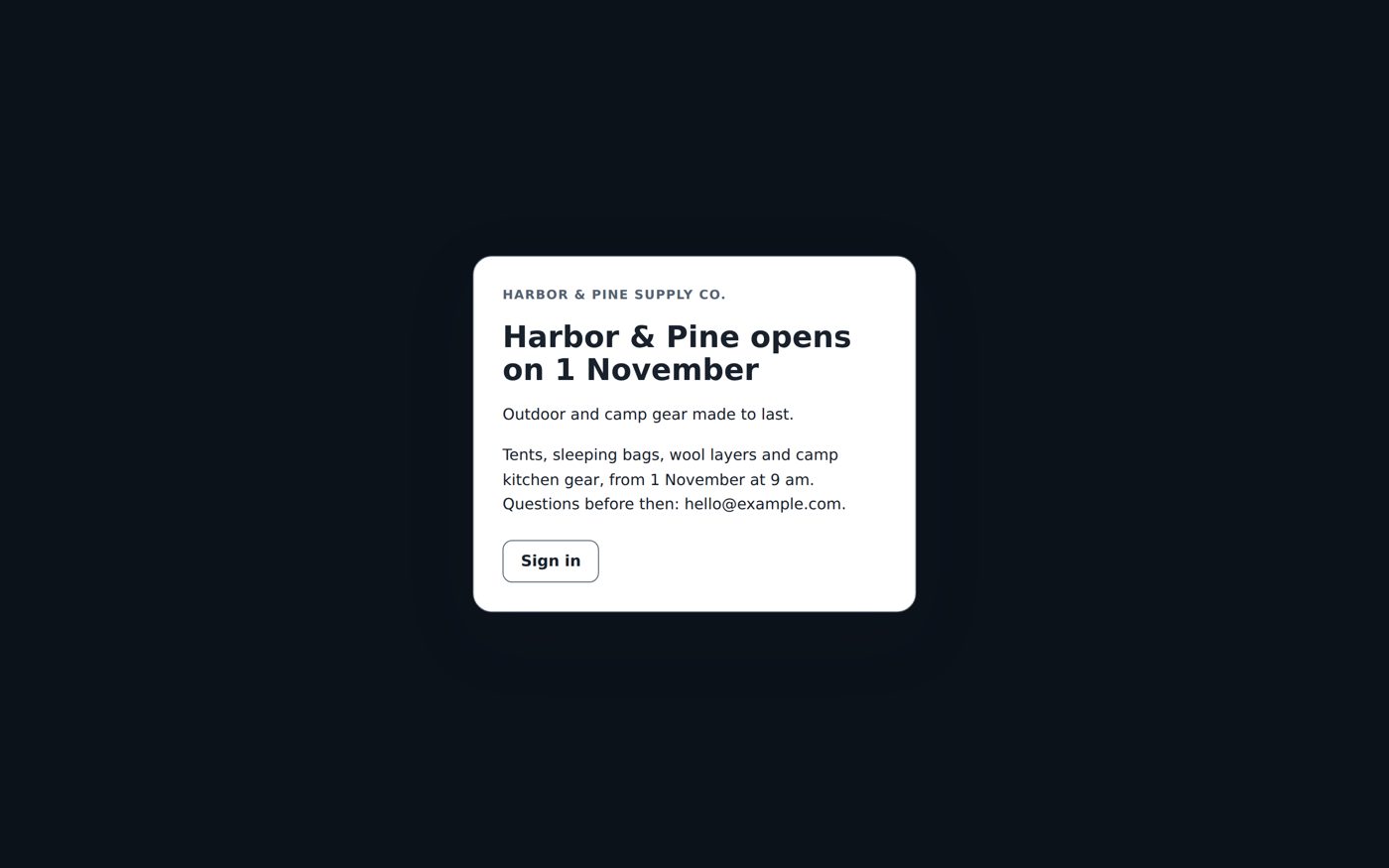
- Write the headline in Question / heading ("Harbor & Pine opens on 1 November") and a first line in Explanation ("Outdoor and camp gear made to last."). Left empty, the screen says "Something new is on the way" and "We are getting ready to welcome you. Please check back soon."
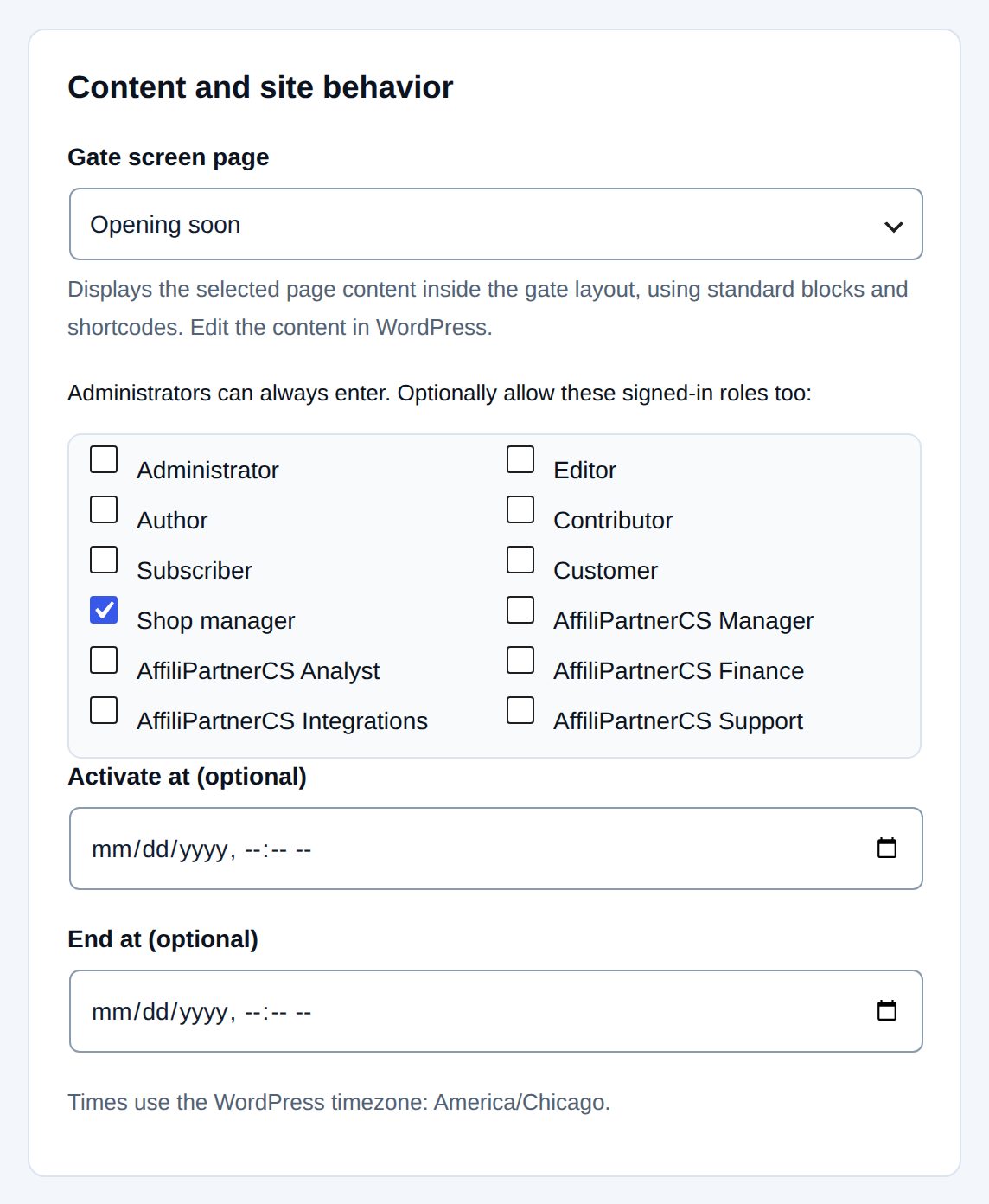
- Under Content and site behavior: Gate screen page is the page you made; tick Shop manager under the roles that may still enter (administrators always can). Leave Activate at (optional) and End at (optional) empty to switch it on and off yourself, or set the opening time so the screen goes away on its own.
- Save draft and review, then Enable this gate.
Every visitor who is not signed in with one of those roles now gets this screen instead of any page of the site: the gate's heading and explanation, your page's content under them (with its blocks styled as in the editor), and a Sign in button for your staff. The WordPress admin and the sign-in page keep working. To show "Opening soon" as the whole screen instead, set Screen layout to The whole page, as your site shows it (above).
Maintenance
Like Coming Soon, but it tells browsers and search engines "temporarily unavailable, come back later" (HTTP 503 with a Retry-After time you set). Use it for short work on the site, with an end time or by switching it off by hand. It has the same Gate screen page and Screen layout choices.
Scheduled access
Opens a page at a time, closes it at a time, or both. Times are in your WordPress time zone. Good for a sale page, a ticket window, a lesson that becomes available on a date.
Where a gate applies
Every gate has the same basic choice under Page scope: All public pages, except exclusions, or Only included paths. A path can be exact (/wholesale/) or include everything below it. On top of that, rules can look at:
- the page: post type, category, a specific page or product;
- the visitor: signed in or not, role, new or returning;
- the request: a word in the address, where they came from;
- time: weekdays, hours, dates;
- another gate: "only for visitors who already passed gate X".
Rules combine with ALL conditions or ANY condition, and groups can be nested. If that sounds like much: start with paths only. The Simulator tab (Check it) shows what a set of rules does before any visitor meets it.
Location
Off by default. If you turn it on (the Geography tab), you choose where the country comes from: the visitor's own choice, your Cloudflare setup, WooCommerce's shipping country or its location lookup, or a database file you provide. A location found this way is an estimate or a statement by the visitor, not proof of where someone lives. A Location eligibility gate lets in only visitors whose location is known and allowed: when the location cannot be found, the gate stays closed.