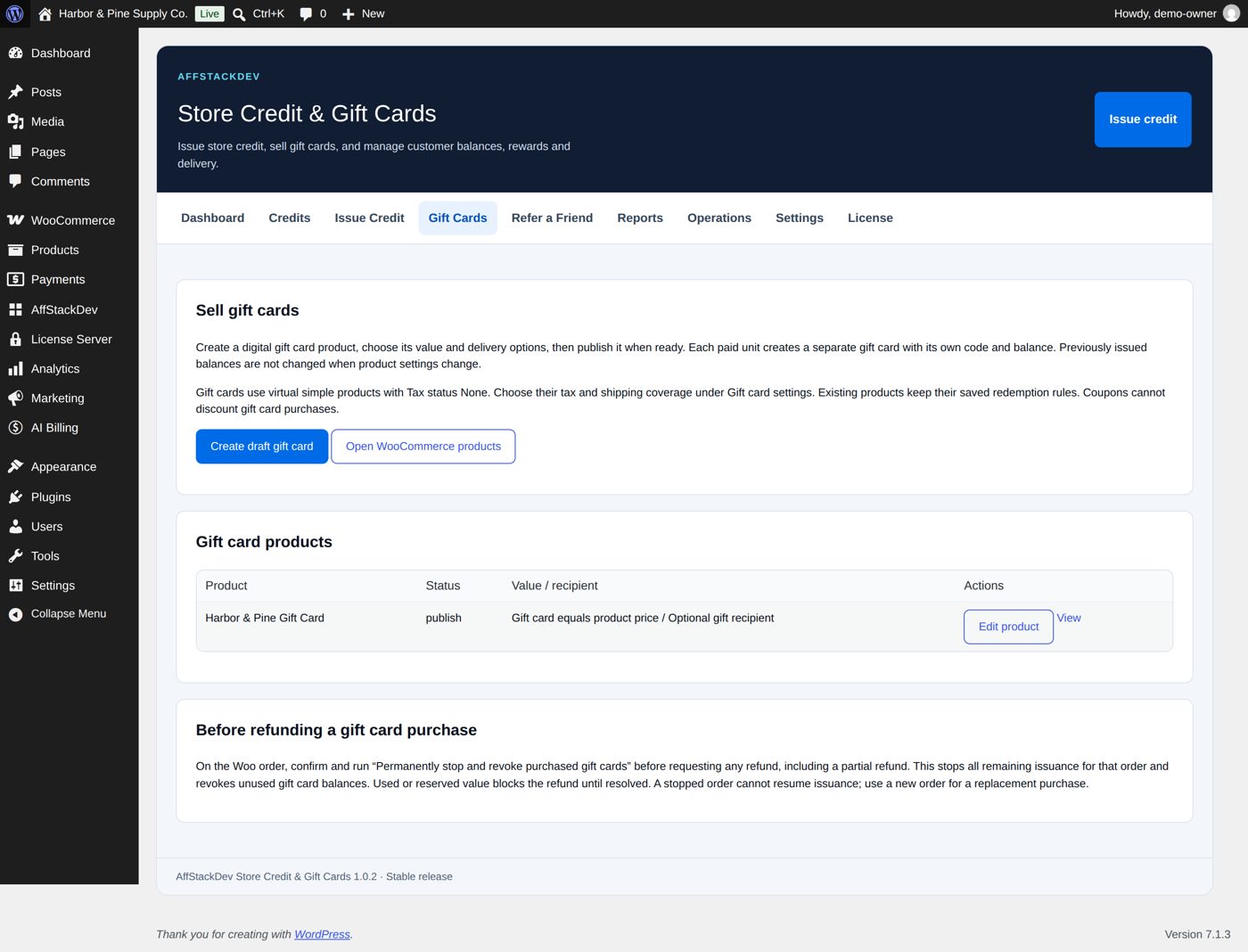
Sell gift cards
A gift card is a normal WooCommerce product with a few extra settings. Create one, decide what it is worth and who it goes to.
Create the product
Open Gift Cards and select Create draft gift card. You get an unpublished product named Gift Card, already set up the way a gift card must be: a simple product, virtual, tax status None, price 25. Change its name, description and picture in the normal WooCommerce product editor, then publish it when you are ready.
To turn an existing product into a gift card: it must be a simple product with a regular price and Tax status: None, and virtual (not virtual for a printed card you ship: see Physical gift cards); tick Gift card and open its Gift card tab. Variable products cannot be gift cards.
What is it worth?
Four ways, chosen on the product's Gift card tab:
| Way | The buyer pays | The card is worth |
|---|---|---|
| Gift card equals product price | the product's price | the same |
| Separate fixed face value | the product's price | an amount you set (pay 25, get 30) |
| Customer selects a preset value | one of your amounts (for example 25, 50, 100; up to 20 of them) | that amount |
| Customer enters a value | what they type, within your minimum, maximum and step (at the start 5, 500 and 1) | that amount |
Who is it for?
| Setting | Means |
|---|---|
| Purchaser only | The card goes to the buyer. |
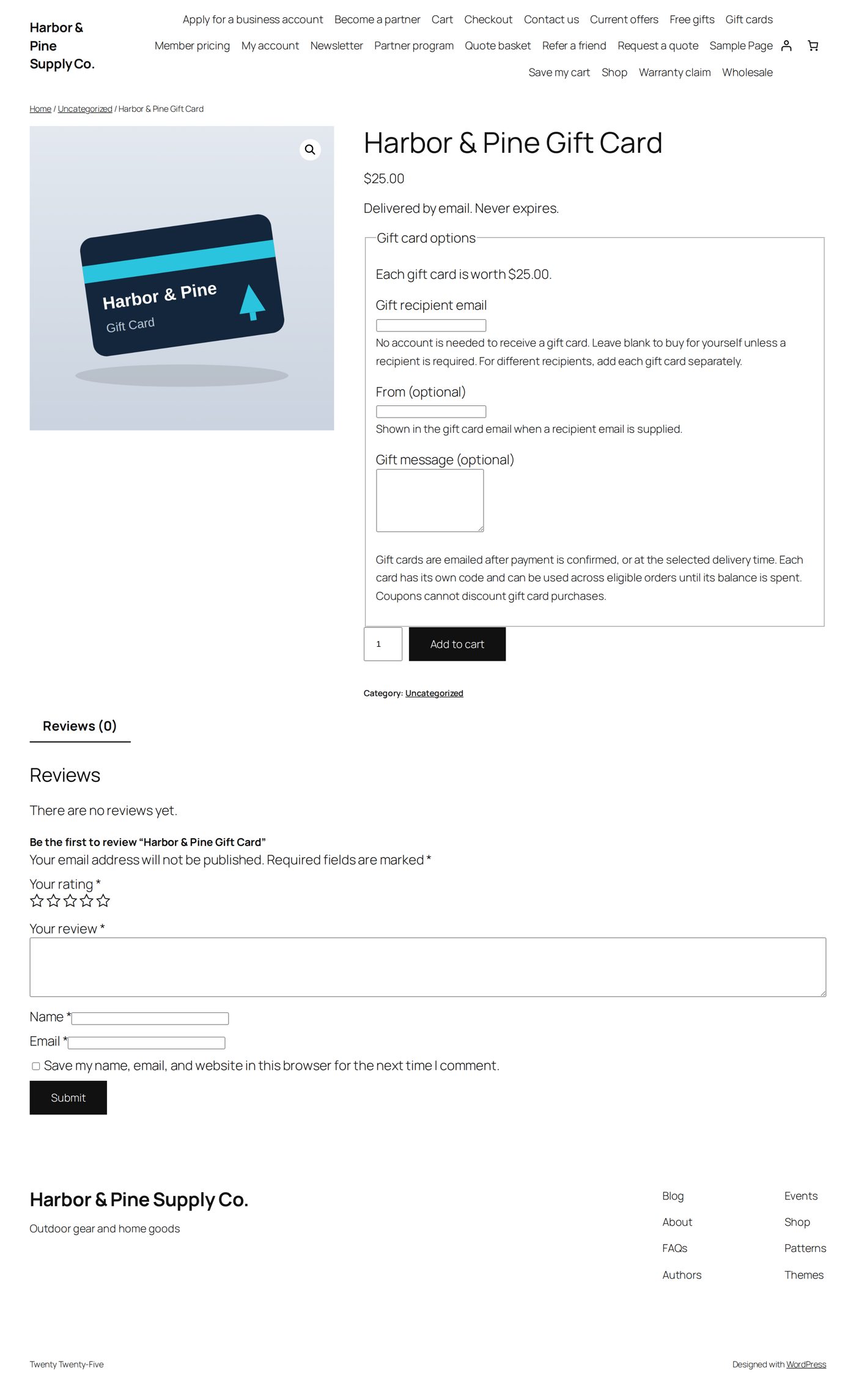
| Optional gift recipient | The buyer may enter someone's email address, or keep it. |
| Gift recipient required | The buyer must enter a recipient. |
The buyer can add a message. One cart line is one recipient; to send cards to two people, the buyer adds the product twice. Quantity 2 on one line means two separate cards for the same person.
More settings on the same tab: how many cards per order (10 at the start, at most 20), an expiry (days after the card is issued; 0 means never), scheduled delivery (the buyer picks a date), what the card may be spent on, and whether it may be combined with coupons when spent.
Card designs
Give the buyer pictures to choose from. On the product's Gift card tab, under Card designs, select Choose pictures and pick up to 12 pictures from the Media Library, or type their IDs into Design pictures. The first one is the standard design.
On the product page the buyer sees the pictures under Card design and picks one. The chosen picture is at the top of the gift card email, on the card in My Account and on the printable card. The cart and the order name it (Card design) with the picture's Alternative text from the Media Library, so give your pictures a good alternative text.
If you delete a picture from the Media Library, it leaves the product the next time you save the product, and cards that used it are shown without a picture. Their value does not change.
Physical gift cards
A printed card you put in the parcel. Tick Physical card (shipped) on the Gift card tab and untick Virtual in General, so WooCommerce asks for a shipping address and charges shipping.
- The card is issued when the order is paid, like any gift card: its own code and balance, spent the same way.
- It belongs to the recipient email the buyer entered, or to the buyer. A card that whoever holds it can spend is a holder card.
- Also email a physical card (ticked at the start) sends the gift card email as well. Untick it when the printed card should be a surprise.
- To print it, open the order and select Printable card (PDF) next to the card in Purchased gift cards.
A physical card has no delivery date and takes no top-ups.
When the card is sent
When the order is paid: status Processing or Completed. Nothing is issued for a pending, on-hold or failed order. For cash on delivery the card waits until the order is Completed.
The recipient gets an email with the card design, the value, the code, the message and how to use it. The email is WooCommerce's Store credit / gift card issued email; its on/off switch and wording are under WooCommerce → Settings → Emails.
Gift cards cannot be bought with store credit or a gift card, and a coupon does not reduce their price. That keeps anyone from turning a discount into spendable value.
What the recipient does
- No account needed. At cart or checkout they enter the code in the coupon field and use the email address the card was sent to as billing email.
- Or they add it to their account: sign in (the account's email must be the recipient email), open My Account → Gift Cards, enter the code under Link an emailed gift card or credit. From then on it is applied with one click, and it stays with the account even if they change their email address later.
- Or they scan the QR code on a printed card: it opens the cart with the code ready (Print a gift card).
Holder cards
A holder card works like cash: it has no recipient and no email, and whoever has the card can spend it. Off at the start: in Settings, tick Allow holder gift cards (printed cards that anyone holding them can spend).
Each card has a number like GC-7K3M-Q9TD-2XWR-H5PN and, if you want, a 6-digit PIN that you hide under a scratch-off label. The shopper types the number and the PIN together in the coupon field, for example GC-7K3M-Q9TD-2XWR-H5PN-482913; spaces and lower case are fine. A shopper who links the card in My Account makes it theirs, so a lost card can no longer be spent by someone else.
To sell them online: On a physical gift card product, tick Holder card (anyone holding it can spend it) and PIN under a scratch-off. Each paid card is printed from the order (Printable card (PDF)) and shipped; no email is sent. Cover the box with the PIN and the QR code with a scratch-off label.
To print a stack for the shop or an event: in Gift Cards → Holder gift cards, under Make a batch: a name, how many cards (up to 500), a value (or leave it empty and enter it when each card is sold), PIN or no PIN, and an expiry. Then, in Batches:
- Numbers for the printer (CSV): send this file to a card printing company. It has every card's number, PIN and QR code address, so keep it as safe as the cards.
- Card sheet (PDF): print the cards yourself on business-card paper, 10 per page, and cover each Scratch here box with a scratch-off label.
Unsold cards are worth nothing. When you sell one, enter its number under Activate a card when it is sold (and the value, if the batch has none) and select Activate card. For an event where every card has the same value, Activate cards 1 to 50 at once. If a stack is lost or stolen, Void unused cards: those cards can never be activated.
Adding money to a card
Let customers add money to a gift card they already have. Tick Top-ups on a gift card product (not a physical one) and publish it.
In My Account → Gift Cards the customer then sees Add money on each of their gift cards that has no expiry date. It opens that product with the card chosen ("Adding money to your gift card …"). They choose an amount the product allows and pay. When the order is paid, the amount is added to the same card, with the same code; there is no new card and no new email. Their history shows Topped up.
- Only for the customer's own gift cards, signed in, in your store's currency.
- The added money follows the card's rules (what it may pay for).
- The cart and the order show Amount added (each) and Top-up for gift card with the end of the card's code.
To refund a top-up order, follow Refunding an order that contained a gift card: step 2 takes the added amount back off the card, as long as it was not spent.
Print a gift card
Every gift card and store credit has a printable page (PDF): your store's name, the card design, the value, the code with a QR code, the balance when printed, the expiry, the sender and message, and how to use it. The page is Letter size for stores in the United States and Canada, A4 elsewhere.
- The customer: Download as PDF next to the card in My Account.
- You: Download printable card (PDF) on the credit's page, or Printable card (PDF) on the order.
- With the email: tick Attach the printable gift card (PDF) to the gift card email in Settings.
The QR code opens your cart with the code. When the cart has products, the code is applied by itself; when the cart is empty, the page says the code is ready and applies it as soon as products are in the cart. The usual rules still apply: a card sent to an email address needs that address as billing email.
Refunding an order that contained a gift card
Do this before you refund anything on that order, even when the refund is for another item in it:
- Open the order. In Purchased gift cards, tick the confirmation.
- In Order actions choose Permanently stop and revoke purchased gift cards (no cash refund) and apply.
- Then make the normal WooCommerce refund.
Step 2 cancels cards that were not used, and takes money this order added to a card (a top-up) back off that card. It applies to all gift cards of that order and cannot be taken back. If a card was already spent, the order is not ready for a refund until you have sorted that out.
If your product page shows no gift fields
Themes with a block-based product template sometimes leave out the place where the amount and recipient fields go. Put this shortcode on the product page, with the product's ID: [afsd_store_credit_purchase product_id="123"]