Getting started
Download and install, license, the default business terms field by field, the signup page and your first business group, step by step with pictures: everything to do before the first business customer applies.
What to have ready
- Your B2B license key from affstackdev.com (My Account → Licenses).
- WordPress 6.7, WooCommerce 10.0 and 64-bit PHP 8.1 or newer (what B2B needs).
- A rough idea of your terms: does every business get the same discount, or do you have kinds of customers (outfitters, schools, lodges) with their own terms? Kinds of customers become business groups.
Harbor & Pine, the sample store of these pages, sells outdoor gear and home goods to everyone and has three business groups: Outfitters and guide services (20% off), Clubs and schools (12%) and Corporate gifts (8%).
1. Download and install
- On affstackdev.com open My Account → Downloads and download B2B. Keep the ZIP file as it is; do not unpack it.
- In your WordPress admin open Plugins, choose Add Plugin (older WordPress versions call it Add New), then Upload Plugin.
- Choose the ZIP file and select Install Now, then Activate Plugin.
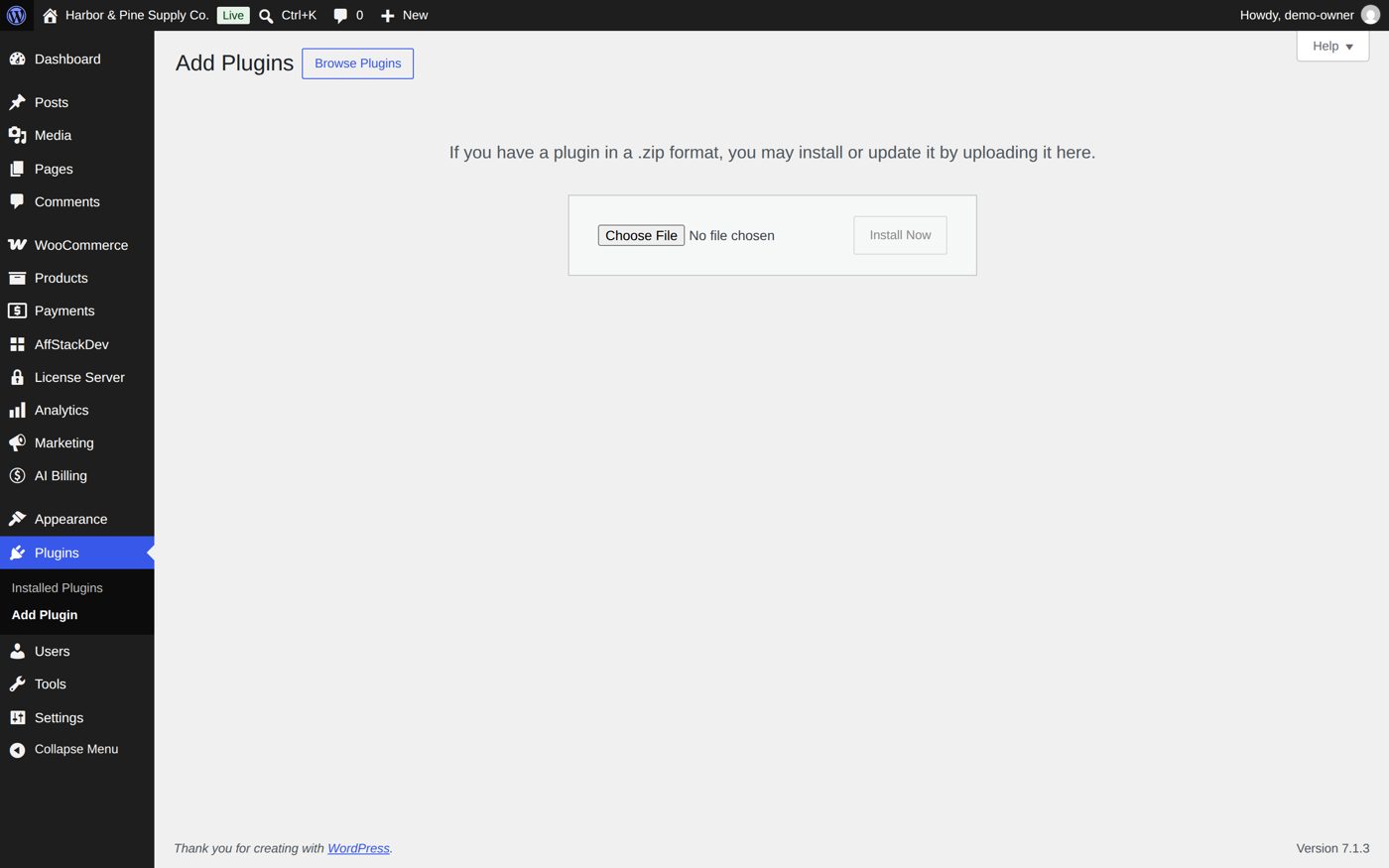
B2B now has its place in the WordPress menu: WooCommerce → B2B. With the AffStackDev Suite installed you also find it in the AffStackDev menu. If WordPress refuses the file, or to install a newer version over an older one, see Install a plugin.
2. Activate the license
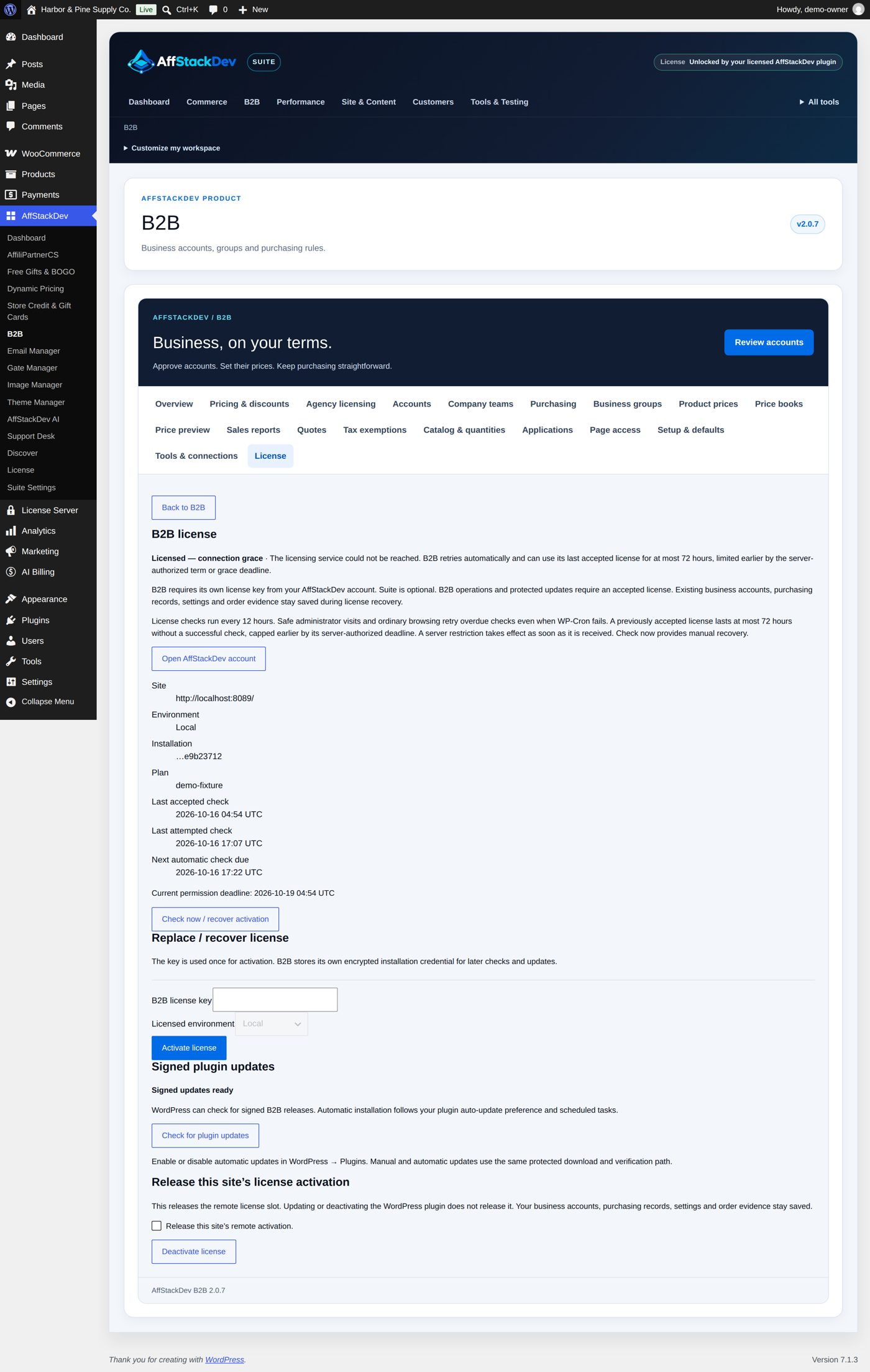
Open B2B (WooCommerce → B2B, or AffStackDev → B2B with the Suite; a site administrator does this). Until a license is active it opens on the license form; afterwards the form is under its License tab:
- Enter the B2B license key from your affstackdev.com account.
- Choose the Licensed environment: Production for your live store; Staging, Development or Local for a test copy. One license covers one live site and one test copy.
- Choose Activate license and read the status shown.
Without an active license B2B keeps everything it has saved, and staff can still read accounts, quotes and reports, but no business change can be made. More in Activate your license.
3. Set the default business terms
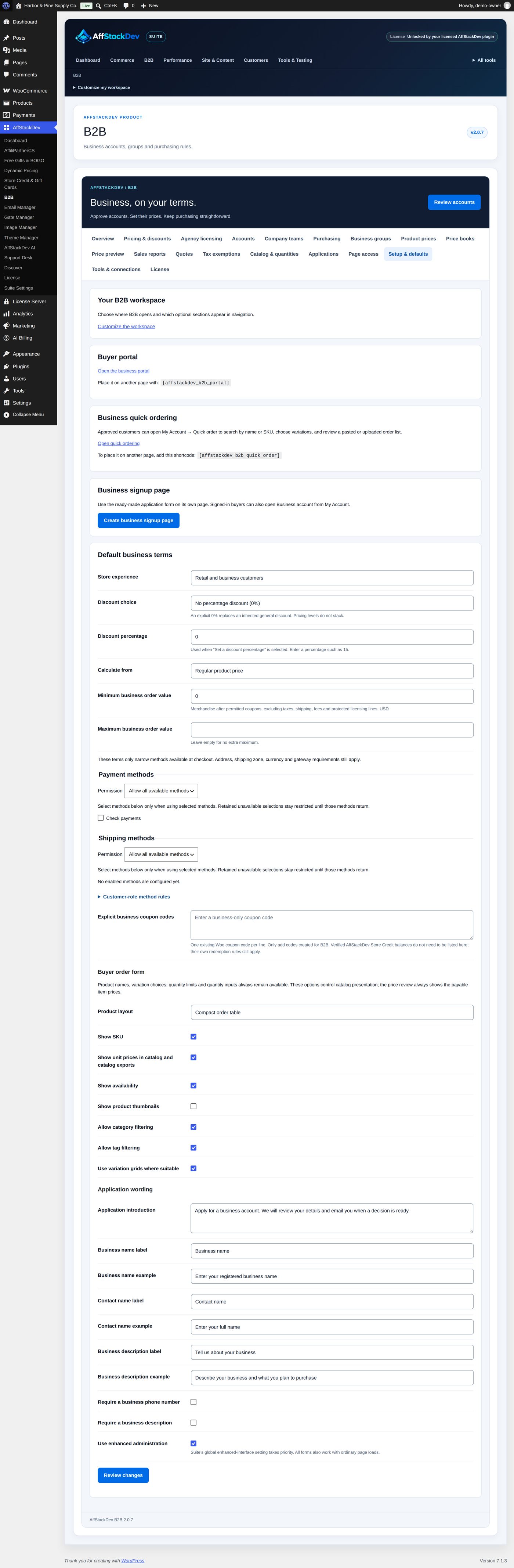
Open Setup & defaults. The screen has five parts: Your B2B workspace (a link to Customize the workspace), Buyer portal and Business quick ordering (links and shortcodes, see Company buying), Business signup page (step 4) and Default business terms.
The default business terms apply to every approved business account whose group and account have no terms of their own. Each field, as a new installation starts:
| Field | At the start | What it does | Example |
|---|---|---|---|
| Store experience | Retail and business customers | Retail and business customers: everyone shops, approved businesses get their terms. Business-only catalog: products are hidden from everyone who is not an approved business account. Public catalog, business prices and purchasing: everyone browses, but prices and buying are for approved businesses. | Retail and business customers |
| Discount choice | No percentage discount (0%) | Set a discount percentage uses the next field; No percentage discount (0%) gives approved businesses no general discount. "Pricing levels do not stack": a group or account with its own terms replaces this. | Set a discount percentage |
| Discount percentage | 0 | Used with Set a discount percentage, 0 to 100. 15 turns 100.00 into 85.00. | 5 |
| Calculate from | Regular product price | Regular product price, or Active Woo sale price, otherwise regular (a product on sale is discounted from its sale price). | Regular product price |
| Minimum business order value | 0 | The least a business order must reach, in the store currency: "Merchandise after permitted coupons, excluding taxes, shipping, fees and protected licensing lines." Store credit and gift cards are payment and do not lower it. | 150 |
| Maximum business order value | empty | "Leave empty for no extra maximum." If set, at least the minimum. | empty |
| Payment methods, Permission | Allow all available methods | Allow all available methods, Allow selected methods (tick them below) or Do not allow any methods. Only narrows what WooCommerce offers (Who sees and buys what). | Allow all available methods |
| Shipping methods, Permission | Allow all available methods | the same for delivery methods | Allow all available methods |
| Customer-role method rules | none | payment and delivery rules for approved businesses with a certain customer role (fold-out) | none |
| Explicit business coupon codes | empty | Existing WooCommerce coupon codes business customers may use, one per line, up to 100. Other coupon codes do not work for business customers (also while their application waits). Store credit balances need no entry here. | TRADE10 |
| Buyer order form | Compact order table; Show SKU, Show unit prices in catalog and catalog exports, Show availability, Allow category filtering, Allow tag filtering, Use variation grids where suitable ticked; Show product thumbnails not ticked | how the Quick order page looks (Company buying) | as at the start |
| Application wording | Application introduction "Apply for a business account. We will review your details and email you when a decision is ready."; Business name label "Business name"; Business name example "Enter your registered business name"; Contact name label "Contact name"; Contact name example "Enter your full name"; Business description label "Tell us about your business"; Business description example "Describe your business and what you plan to purchase" | the texts of the signup form | "Apply for a trade account. We answer within one working day." |
| Require a business phone number | not ticked | the phone question becomes compulsory | ticked |
| Require a business description | not ticked | the description becomes compulsory | not ticked |
| Use enhanced administration | ticked | B2B's screens save and switch without full page loads. "Suite's global enhanced-interface setting takes priority. All forms also work with ordinary page loads." | ticked |
Use a decimal point for amounts and no currency signs or thousands separators.
Worked example: a $150 minimum for business orders
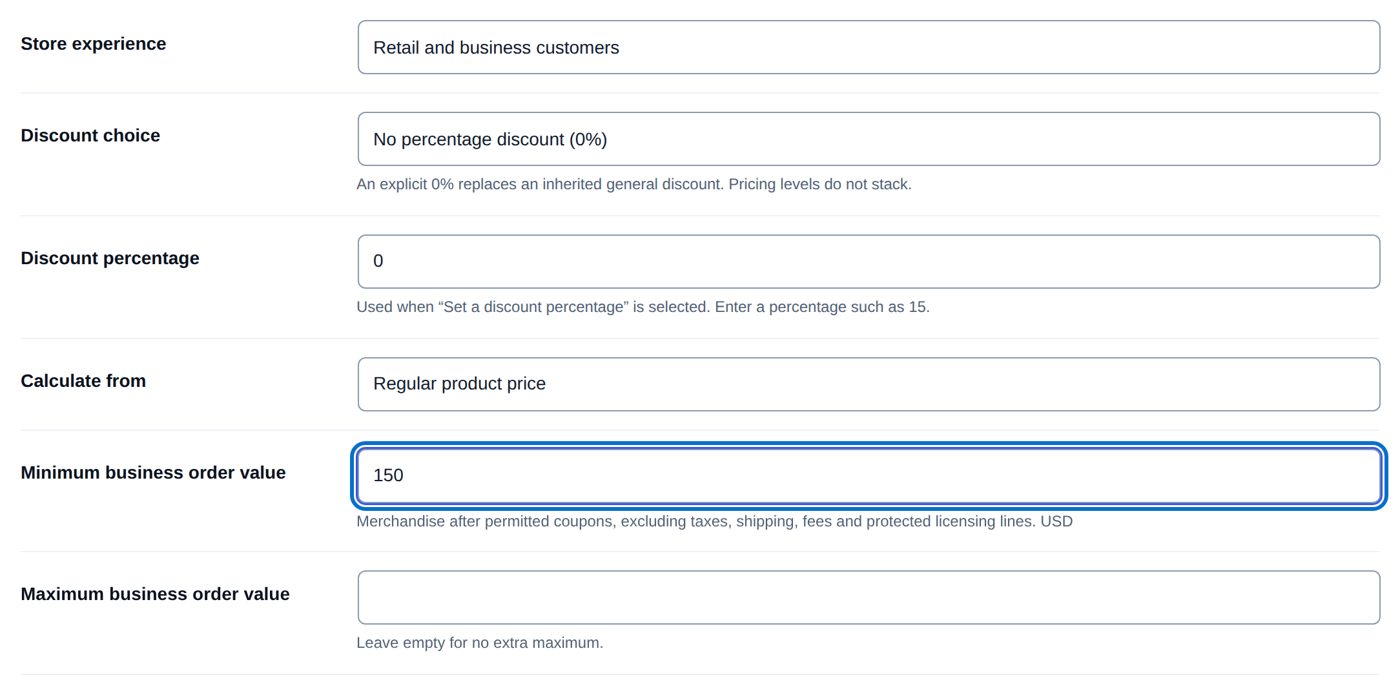
Harbor & Pine wants every business order to reach $150 of merchandise.
- Open Setup & defaults. Under Default business terms enter 150 in Minimum business order value.
- Choose Review changes. The Review before publishing card lists every default with its value, in the screen's words: Minimum business order value "$150.00", Maximum business order value "No maximum", the payment and shipping choices, the order form choices.
- Choose Publish these changes, or Back to editor to correct something. Publishing answers "Saved. The current settings are shown below."
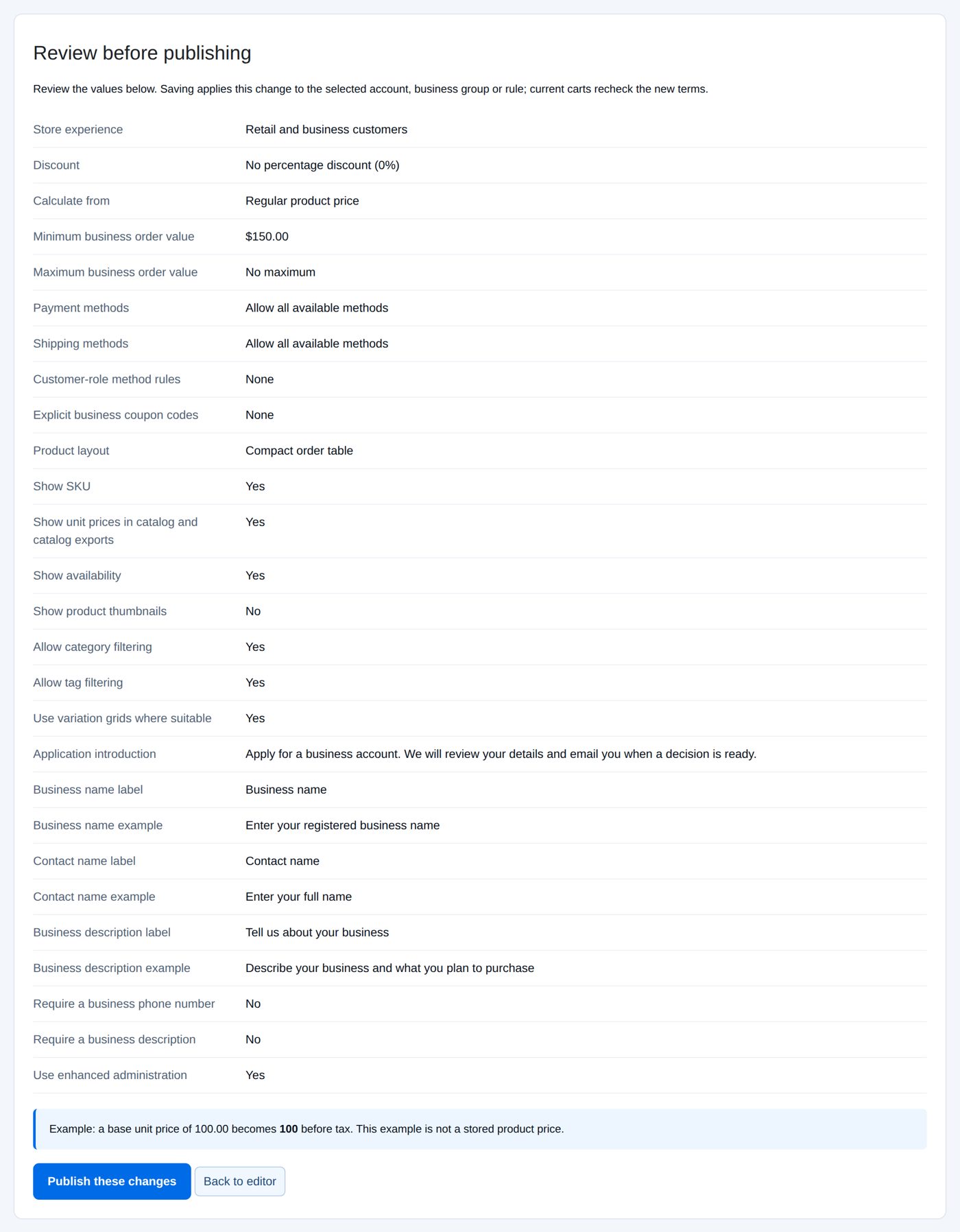
An approved business customer whose cart holds less than $150 of merchandise then reads "The merchandise value is outside your business order limits. Adjust the cart or contact the store." and cannot place the order. Retail customers are not affected. For a minimum per group or per account, see Order limits.
4. Put up the signup page
Customers can always apply under My Account → Business account. Most stores also want a page of their own:
- In Setup & defaults → Business signup page, choose Create business signup page. B2B publishes a page called Business account application with the signup form (
[affstackdev_b2b_application]) on it. Your WordPress user needs permission to publish pages. - The card now shows Open your signup page and Edit page. Change the wording of the form under Application wording (step 3).
- Link the page from your menu or footer.

The form on the page is the same as under My Account → Business account: a visitor creates a login and applies in one go, a signed-in customer applies with their login. What the form asks is set on Applications (Business accounts).
The other buyer pages can be placed the same way:
| Shortcode | Shows |
|---|---|
[affstackdev_b2b_application] |
The business signup form. |
[affstackdev_b2b_portal] |
The business portal of the signed-in buyer. |
[affstackdev_b2b_quick_order] |
The quick order form. |
5. Create your first business group
A business group carries terms that many accounts share. Name groups however you work: Tier 1, Dealers, Outfitters.
Worked example: "Lodges and inns", 15% off the regular price
- Open Business groups and choose Add new. The shortcuts Tier 1 to Tier 5, Dealers and Distributors only fill in the name.
- Business group name: Lodges and inns.
- Who this group is for: "Lodges, inns and resorts that buy blankets, mugs and candles for their rooms." This is an "Internal description for your team"; customers do not see it.
- Discount choice: Set a discount percentage; Discount percentage: 15.
- Calculate from: Regular product price.
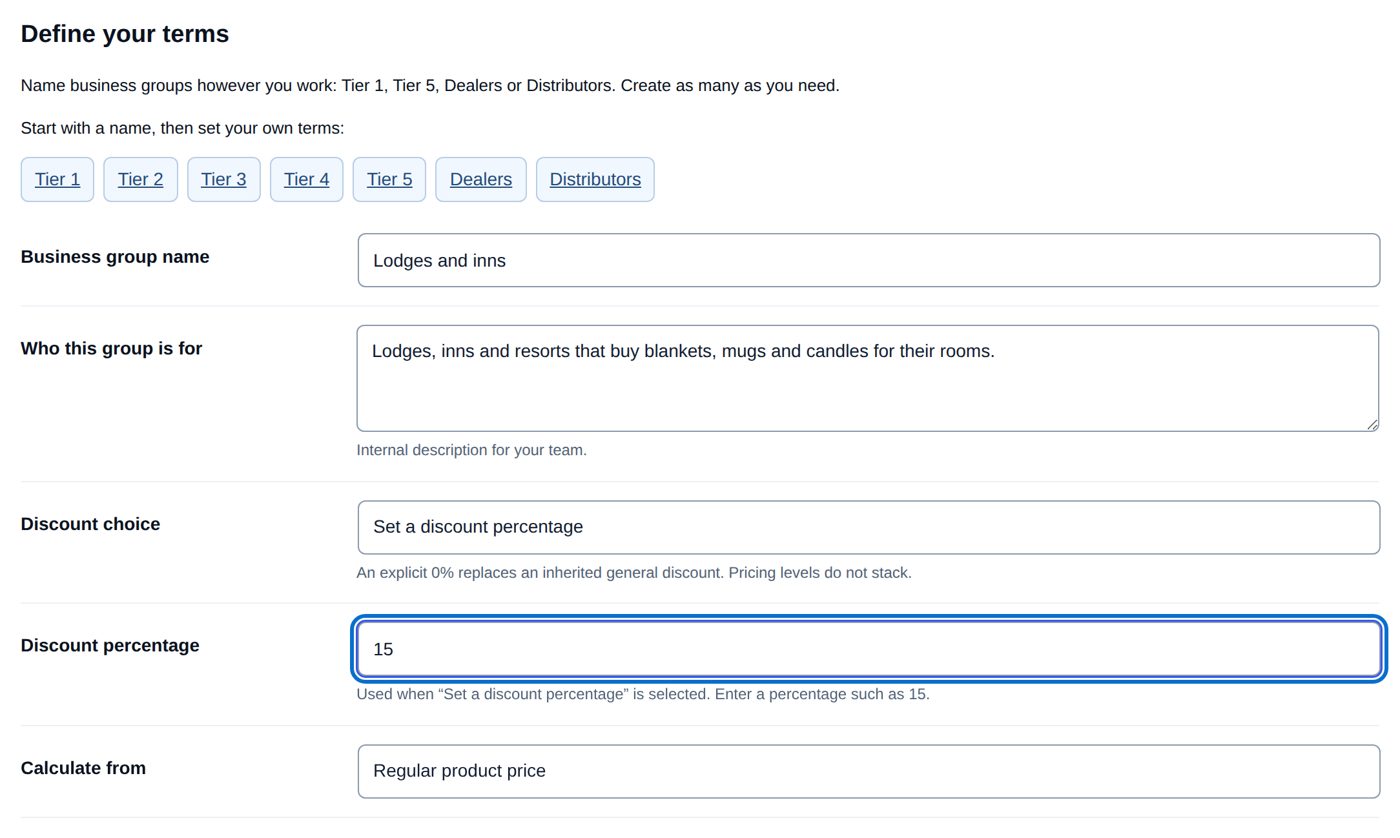
- Leave the rest as a new group starts: payment and shipping methods on Use inherited terms, no coupon codes, and the Quote rules on Use inherited setting or empty.
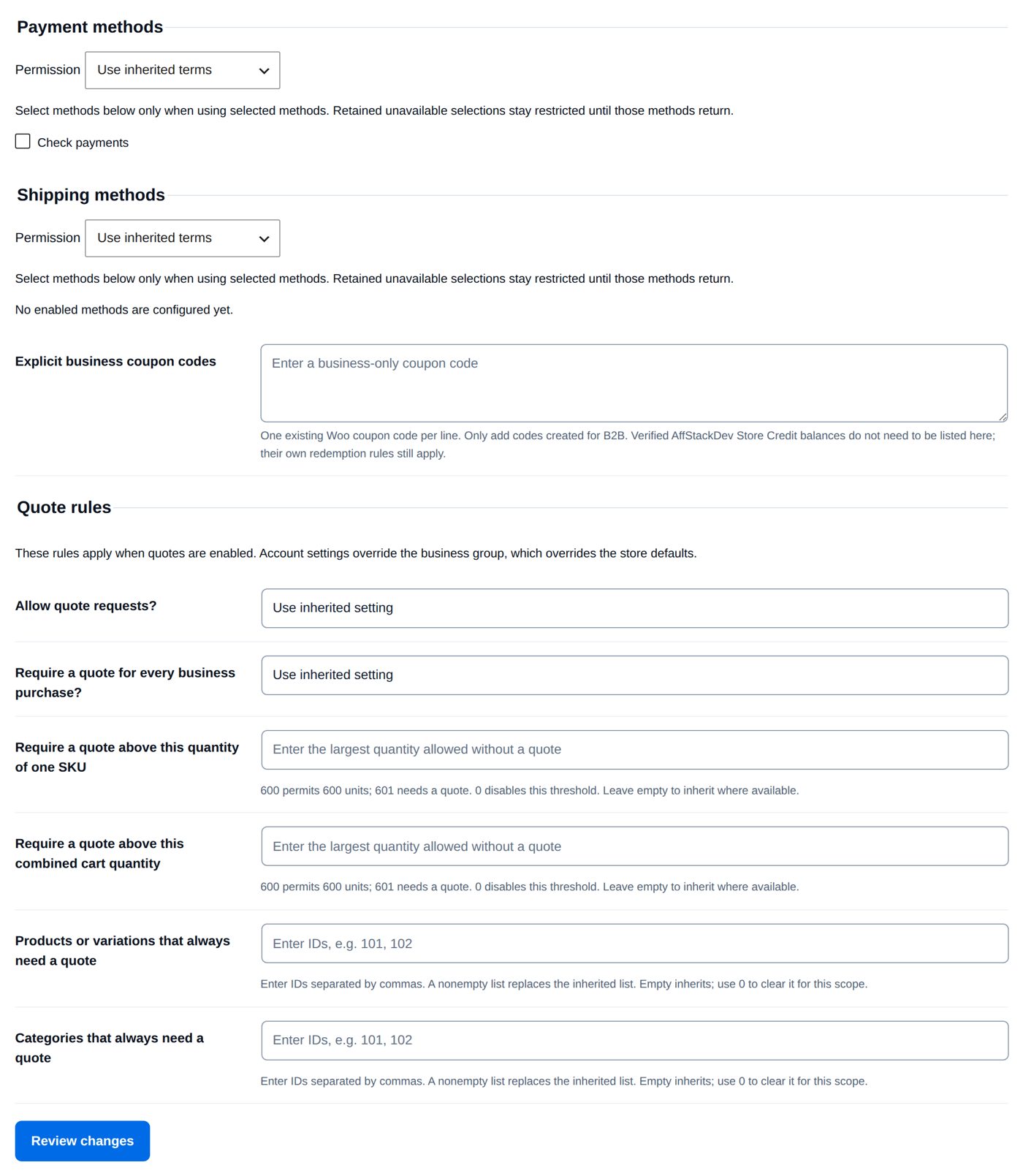
- Choose Review changes. The review lists every field in words and works an example: "a base unit price of 100.00 becomes 85 before tax". Choose Publish these changes: "Saved. The current settings are shown below." The list of Business groups shows each group with its Current terms (15%) and when it was Updated.
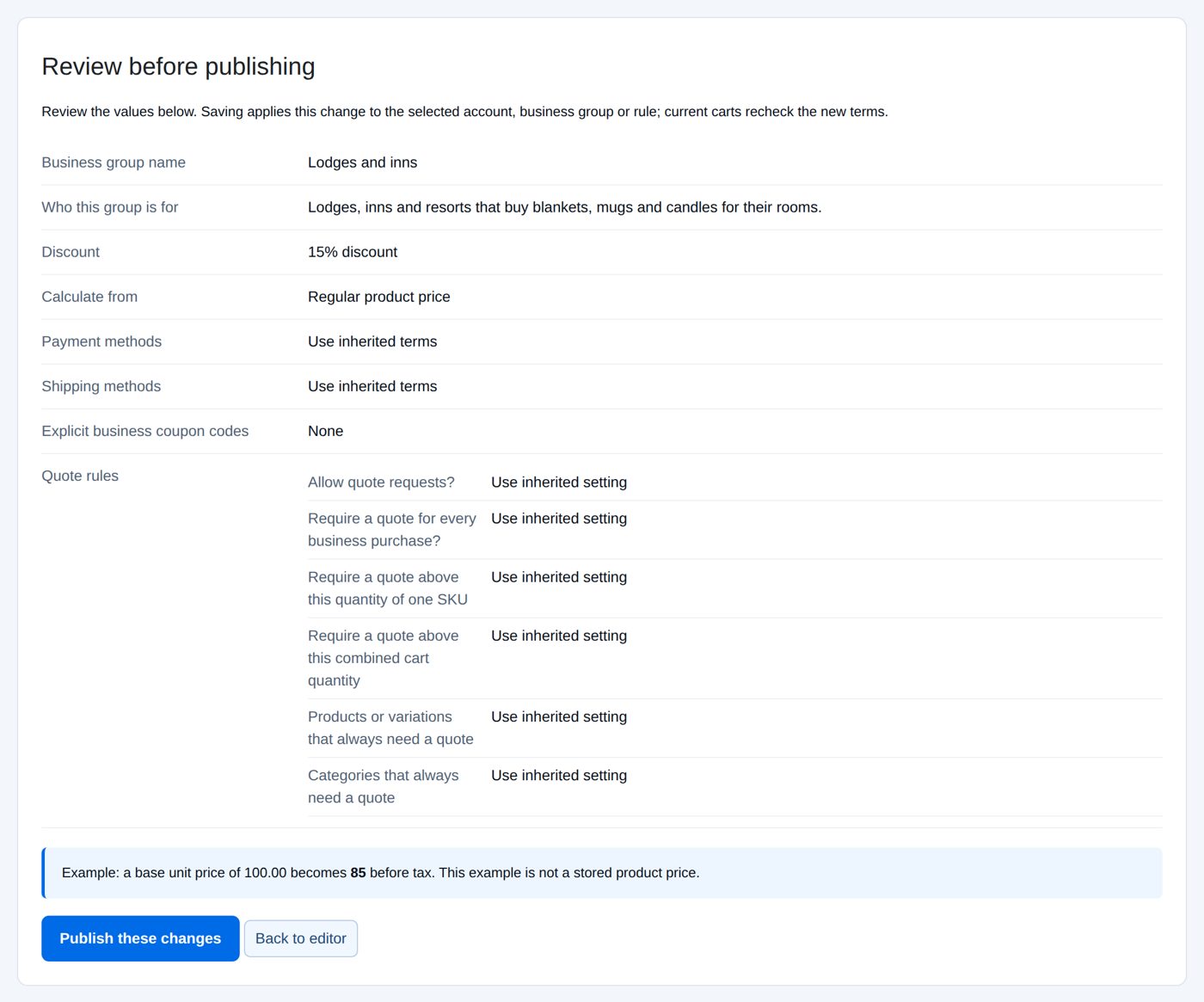
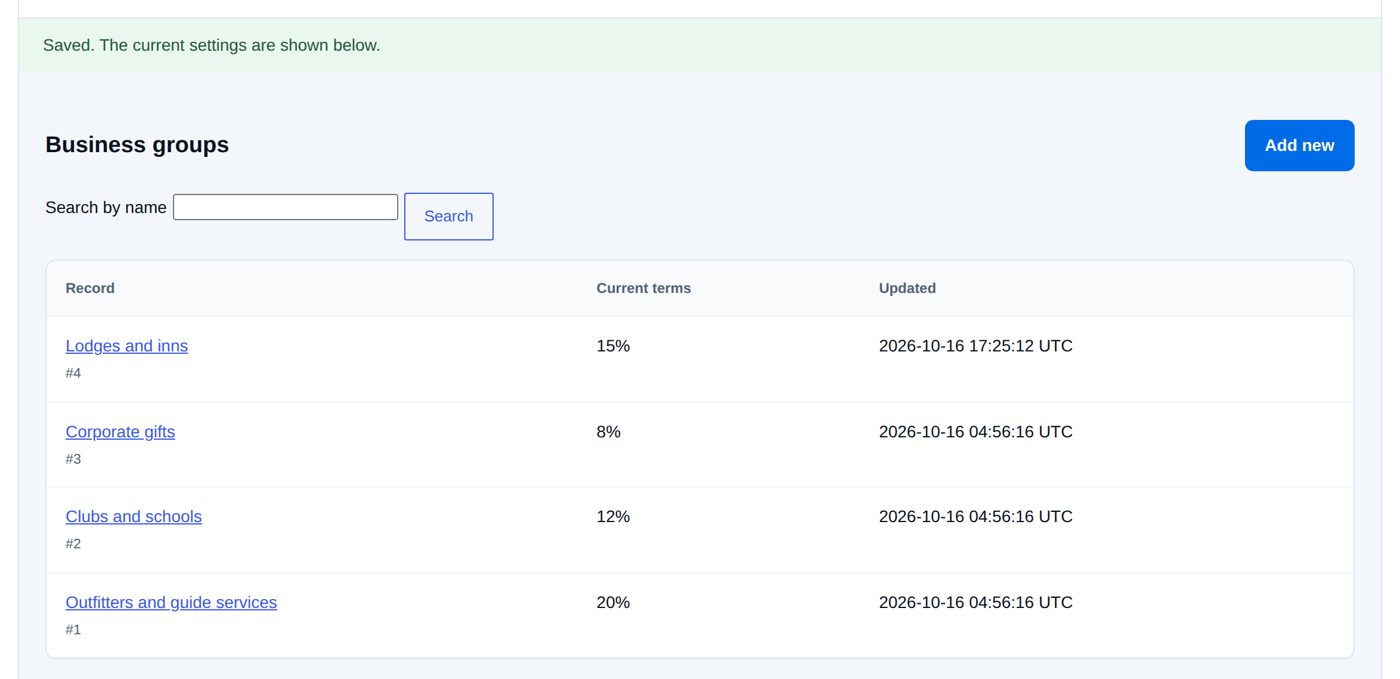
The group gives nothing to anyone yet: an account gets its terms when you approve it into the group (the next page).
Every field of a business group
| Field | A new group starts with | What it does |
|---|---|---|
| Business group name | empty (or the shortcut's name) | the name staff see; the group's buyers read it on their Business account page ("Business group: Lodges and inns") |
| Who this group is for | empty | an internal description for your team |
| Discount choice | Use inherited discount | Use inherited discount (the default business terms decide), Set a discount percentage or No percentage discount (0%). An explicit 0% stops the default discount for this group. |
| Discount percentage | empty | used with Set a discount percentage |
| Calculate from | Use inherited price basis | or Regular product price, Active Woo sale price, otherwise regular |
| Payment methods / Shipping methods, Permission | Use inherited terms | or Allow all available methods, Allow selected methods, Do not allow any methods |
| Explicit business coupon codes | empty | codes this group may use; a list here replaces the default list |
| Quote rules: Allow quote requests?, Require a quote for every business purchase? | Use inherited setting | Yes or No for this group (Quotes) |
| Require a quote above this quantity of one SKU, Require a quote above this combined cart quantity | empty (inherit) | "600 permits 600 units; 601 needs a quote. 0 disables this threshold." |
| Products or variations that always need a quote, Categories that always need a quote | empty (inherit) | product or category IDs separated by commas; 0 clears an inherited list for this group |
To change a group later, open it from the list, change it, review and publish. A group cannot be deleted; a group nobody belongs to gives nothing. Accounts can be moved to another group at any time on Accounts, or move by themselves when they reach a spending target (see below).
6. Try it once
- In a private browser window, register as a test customer and apply on the signup page.
- Approve the application on Accounts and put it in your group (Business accounts).
- Open Price preview, choose the test account and a product, and look at the price and where it came from (Business prices).
- Sign in as the test customer and put the product in the cart.
Move accounts to another group by themselves
A company can move to a better group once it has bought enough: B2B checks what each company has spent and moves it for you.
Worked example: Lodges and inns move to "Preferred lodges" after $10,000 in a year
- Create a second group, Preferred lodges, with 20% off the regular price, as in the example above.
- Open Business groups. Under the list of groups is Automatic moves between groups.
- In its last line: Order 1, On ticked, Move accounts from Lodges and inns, To Preferred lodges, When the company has spent at least (USD) 10000, Counting The last days, Days 365.
- Choose Review changes. The review reads "Lodges and inns → Preferred lodges when the company has spent at least $10,000.00 (in the last 365 days). On". Choose Publish these changes.
- B2B now checks every approved account in the background. A lodge that has already spent $10,000 in the last 365 days moves to Preferred lodges in the check that publishing starts; the others move a few seconds after the business order that takes them past $10,000 is paid.
The move shows in the account's Recent account activity: "Moved from Lodges and inns to Preferred lodges by automatic move 1: spent at least $10,000.00 (in the last 365 days) · automatic". From then on the lodge's buyers see the Preferred lodges prices.
What counts as spent
| Counts | Does not count |
|---|---|
| Paid business orders (Processing, Completed) of everyone in the company team | Orders not paid yet (On hold, Pending payment), cancelled orders, fully refunded orders |
| Each order's products after discounts | Tax, shipping, fees |
| Store credit and gift cards used to pay (they are money) | Refunded products, and refunds of an amount that name no product |
| Orders in the store currency | Orders placed before the account was approved (those are retail orders) |
Good to know
- Moves are checked from the top of the list, and a company can pass several groups in one check: with "No group → Tier 1 at 1,000" and "Tier 1 → Tier 2 at 10,000", a company that has spent 12,000 lands in Tier 2.
- Nothing moves a company back down by itself. To move one down, change its group on Accounts. Two moves that go round in a loop (Tier 1 → Tier 2 and Tier 2 → Tier 1) cannot be published.
- Keep this account in its group on an account's form keeps that account where you put it.
- Tell the company owner when their account moves (off at the start) sends the owner one email per move; you write the subject and text, with {business} and {group} filled in for you.
- Check all accounts now checks every approved account at once; B2B also checks them once a day. Only approved accounts move, and only while the B2B license is active.
- Untick On to keep a move without using it; tick Remove to delete it. Up to 50 moves.
Who sees what at checkout
| Status | What the customer gets |
|---|---|
| Waiting for review | No consumer promotions (Dynamic Pricing offers, Free Gifts & BOGO gifts), and no business prices yet. Ordinary shopping stays possible. |
| Approved | Business prices and tools. No consumer promotions, also when the business discount is 0%. |
| On hold | No consumer promotions and no ordering. |
| Not approved or withdrawn | An ordinary customer again. |
How B2B, Dynamic Pricing, Free Gifts & BOGO and Store Credit fit together: Working together.
When it does not work
| You see | It means |
|---|---|
| The license form instead of B2B's sections | No active license yet, or it was released. Activate it (step 2). |
| "You need permission to publish pages for this action." | Your WordPress user may not publish pages; ask an administrator to choose Create business signup page. |
| "Someone changed this record. Reload and review before saving." (or "... Reload it and review their changes before saving.") | A colleague, or you in another tab, saved the same record while you had it open. Reload, make your change again, review and publish. |
| "The request could not be completed. Your entries are still here; try again." | The connection dropped while saving with enhanced administration; your entries stay in the form. |
| "The store currency has changed. Review the order limits and save these defaults. ..." | The store currency is not the one the defaults were saved in. Check the amounts and publish the defaults again. |
| A My Account link answers "page not found" | Open Settings → Permalinks and save once. |
Questions
Do retail customers notice anything?
Not with Retail and business customers: they shop as before. B2B never changes the regular or sale price saved on a product; business prices are worked out for approved business customers in the cart.
Do I need business groups?
No. Without groups every approved account gets the default business terms. Groups are for different terms for different kinds of customers.
Can a business be in two groups?
No, an account belongs to one group or to none (business defaults). For a single customer's own terms, give the account its own discount on Accounts.
Can I undo a published change?
Publish the old value again. Price books keep versions you can restore (Business prices); other records do not.
Where do I hide sections I do not use?
Tools & connections → Your B2B workspace → Hide from workspace navigation. Hidden sections keep working.
Related pages
| Page | What it covers |
|---|---|
| Business accounts: applying and approving | How a business applies, how you decide, and how to shape the application form: account types, questions, approval rules and emails. |
| Business prices | A general discount, groups, prices for single products, role prices and price books with quantity bands, and how B2B picks the one price that applies. |
| Who sees and buys what | Hide products or prices from people who are not approved, set minimum and step quantities, keep pages for business customers, limit order sizes, and choose payment and delivery methods. |
| Quotes | A business asks for a price, you answer and send an offer, they accept and pay exactly that offer. |
| Company buying | The business portal, colleagues in a company team, quick order and saved lists, spending limits and purchase approvals. |
| Tax exemptions, reports and records | Tax exemption applications and decisions, business sales reports, exports, and what happens if you ever remove B2B. |