Partners, plans and coupons
The partner record section by section, adding a partner by hand, Partner Plans field by field, giving a partner its plans, Codes & Coupons, accounts and invitations, private notes, suspending, terminating and deleting, with worked examples.
What it is for
A partner record holds everything about one partner: its name and site, the store login it uses, its plans, coupons and affiliate code, its key for member pricing, and its history. Plans are the terms you reuse for many partners. Coupons are real WooCommerce coupons linked to a partner.
Active Partners
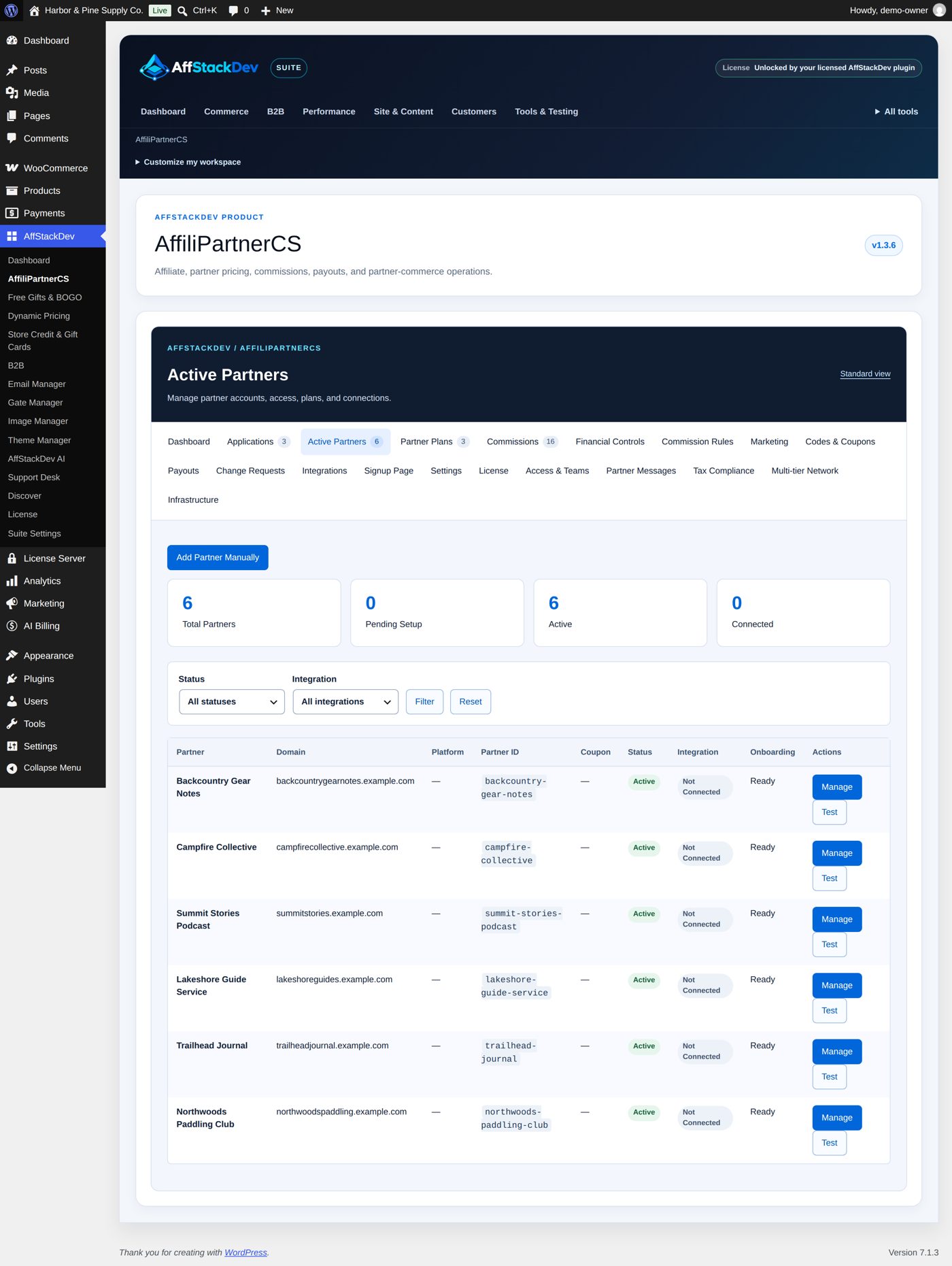
Active Partners lists every partner, whatever its status: the counts Total Partners, Pending Setup, Active and Connected; the filters Status (All statuses, Pending Setup, Active, Suspended, Terminated) and Integration (All integrations, Connected, Not Connected, Failed) with Filter and Reset; and 50 partners per page with Partner, Domain, Platform, Partner ID, Coupon, Status, Integration, Onboarding and Manage. A partner approved from an application also has Application, which opens that application. Staff allowed to manage authentication keys also have Test, which tests member pricing for that partner (Member pricing).
| Status | Means |
|---|---|
| Pending Setup | The partner has no plan, coupon or affiliate link yet, or member pricing is not connected yet. |
| Active | Its codes and links count. |
| Suspended | Paused: codes, links and member pricing stop; history and money owed stay (Suspend, reactivate or terminate). |
| Terminated | Ended for good. |
The partner record
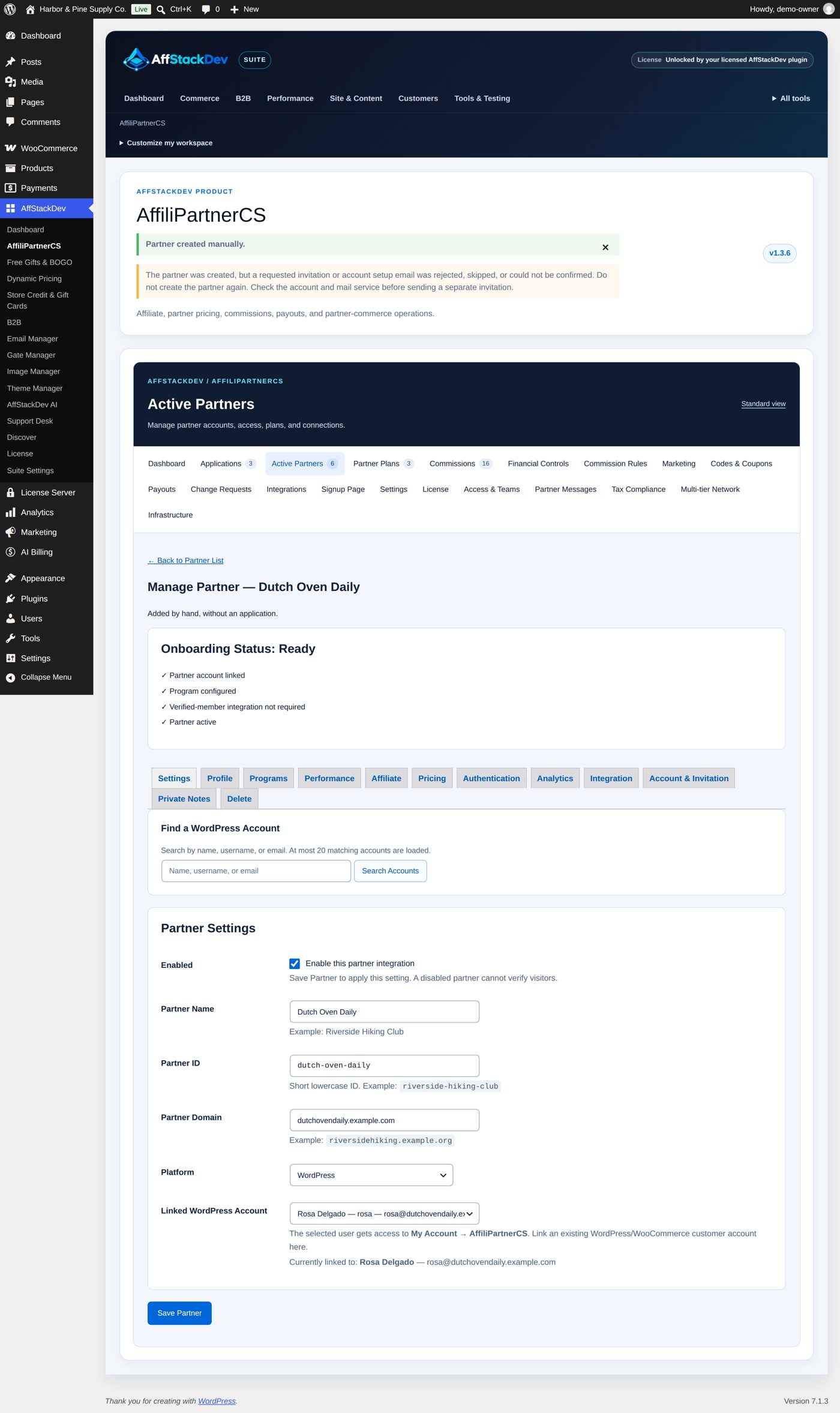
Manage opens the record. Under the partner's name it says where the partner came from: "Joined through application #1, sent October 15, 2026." with View Original Application, or "Added by hand, without an application." Then Onboarding Status checks four things: Partner account linked, Program configured (a plan, a coupon or affiliate links), Verified-member integration (connected, or not required when the partner has no member pricing plan) and Partner active. Then come the sections; save a section with Save Partner before you open the next.
| Section | Holds |
|---|---|
| Settings | Enabled (Enable this partner integration), Partner Name, Partner ID, Partner Domain, Platform, Linked WordPress Account with Find a WordPress Account above it. |
| Profile | Partner Home URL, Login URL, Logo URL, Description: the community profile shown on the member pricing page. |
| Programs | The partner's three plans, and Change Request History (below). |
| Performance | Current Tier and Lock this partner to the current tier (Bonuses and tiers). |
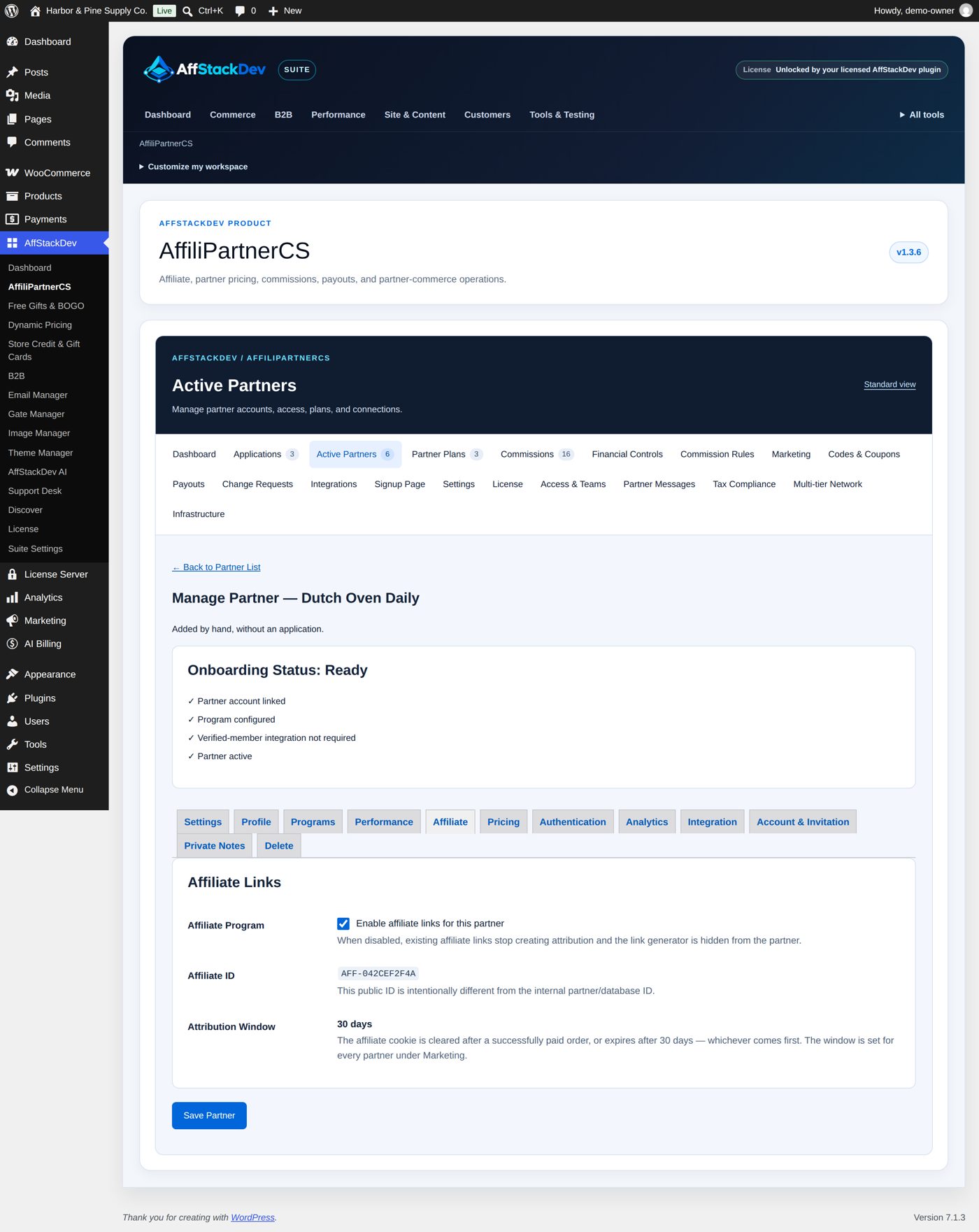
| Affiliate | Enable affiliate links for this partner, the Affiliate ID, the Attribution Window. |
| Pricing | Member pricing: Direct Member Coupon, Public / Social Coupon, Session Length. |
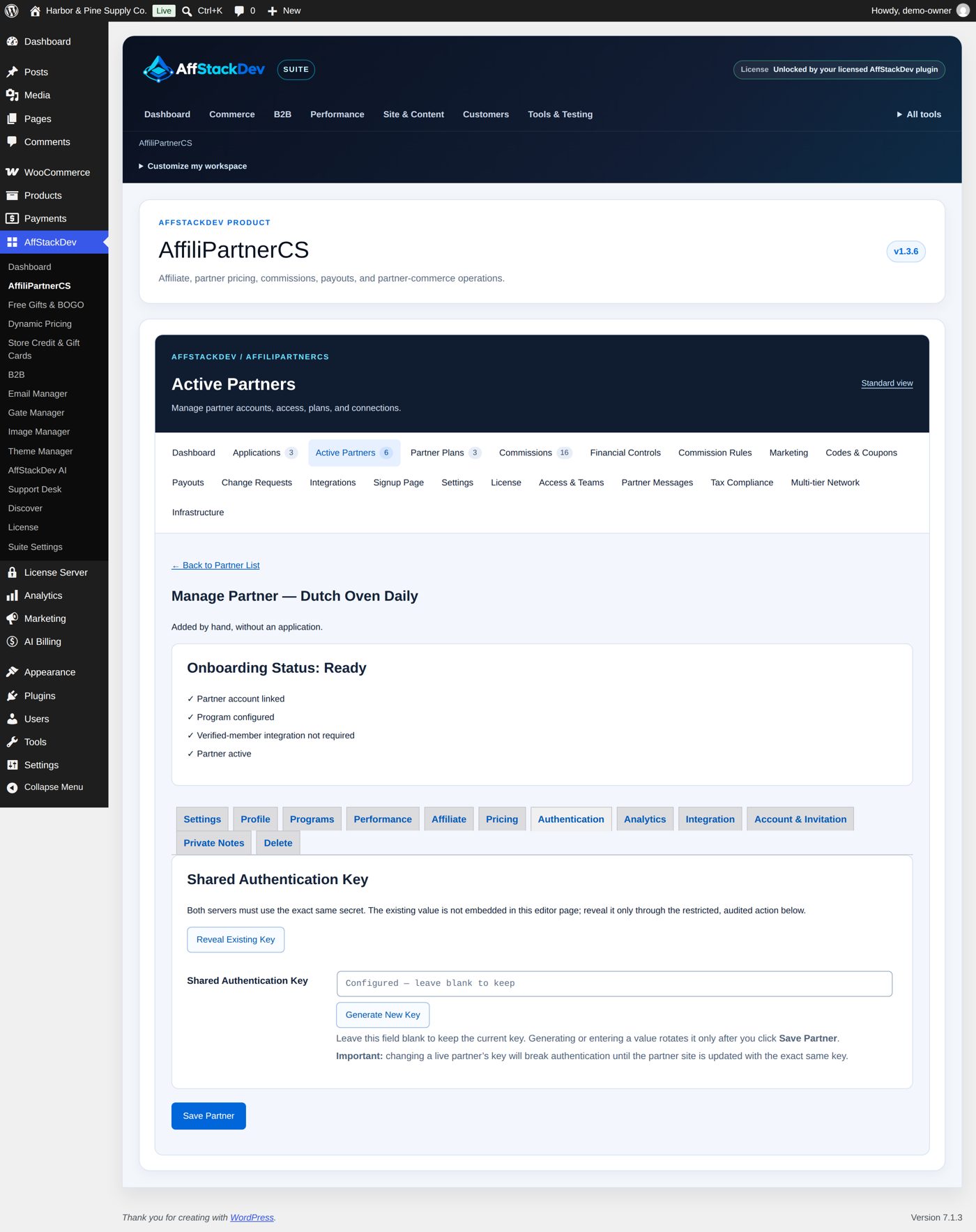
| Authentication | The Shared Authentication Key for member pricing: Reveal Existing Key, Generate New Key. |
| Analytics | Visits, orders, sales, discounts and commissions for 7, 30, 90 days or 12 months. |
| Integration | The addresses a community connector needs and Test Verified Signal. |
| Account & Invitation | Link or create the partner's login and send the invitation (below). |
| Private Notes | Notes only your staff see. |
| Delete | Delete Partner, for a record that was never used. |
Settings
| Field | What it does |
|---|---|
| Enabled | Unticking it and saving suspends the partner; ticking it again for a suspended partner reactivates it. A disabled partner cannot verify visitors, and its codes and links stop. |
| Partner Name | The name in your screens, on the member pricing page and in the partner's workspace. |
| Partner ID | A short lowercase ID, made from the name: the Site ID a community connector sends. Change it only together with the connector; old member links stop working. |
| Partner Domain | The partner's domain, such as trailheadjournal.example.com; used to spot double applications. |
| Platform | What the partner's site runs on. Only a description: it installs nothing. A platform from the application that this list does not have is shown and kept as it is. |
| Linked WordPress Account | The store login that opens the partner workspace under My Account → AffiliPartnerCS. Find a WordPress Account searches by name, username or email (at least two characters, up to 20 results). — No account linked — removes the access without deleting the login. A login already linked to another partner cannot be chosen. |
Profile
Partner Home URL is the community's address; Login URL where the Log in to ... button on the member pricing page sends visitors who are not signed in; Logo URL the full address of the partner's logo; Description a short text for visitors who are not verified. The buttons appear only for a member pricing plan with Click-Back. Partners can ask to change these four fields and their name (Change requests).
Programs: which plans the partner has
A partner can have three plans at the same time:
| Field | Used for |
|---|---|
| Verified Member Plan | Orders of community members who came through member pricing. |
| Public Coupon Plan | Orders placed with the partner's public/social WooCommerce coupon. |
| Affiliate Plan | Orders that came through the partner's affiliate link. |
Each list offers the enabled plans of that type and — Disabled / No Plan —. Edit Selected Plan opens the plan, Create New Plan a new one; Current: shows what the chosen plan gives the customer and the partner. Save Partner saves the choice.
Above the section a Coupon / Plan Configuration Warning appears when the plans and coupons do not fit together, for example "Public Partner Coupon: a plan is assigned but no WooCommerce coupon is configured.", "... coupon "..." is configured but no Partner Plan is assigned.", "... WooCommerce coupon "..." does not exist.", "... plan expects ..., but coupon "..." is ..." or "... coupon "..." is expired." WooCommerce gives the discount; the plan only records what you intend.
Change Request History shows when the partner's last change request was approved. After an approved request the partner waits the days set under Settings → Change Request Frequency before asking again; changes you make yourself do not start that wait.
Affiliate
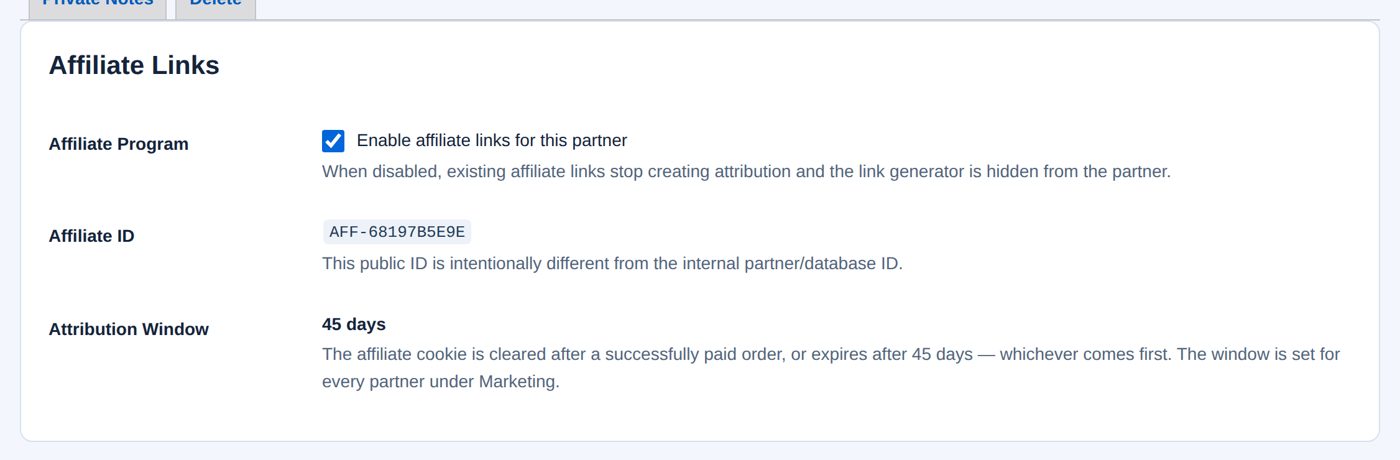
Enable affiliate links for this partner switches the partner's affiliate link on. The Affiliate ID (AFF- and ten letters and digits) is made automatically and differs from the Partner ID. Attribution Window shows how long a referral counts, as set for every partner under Marketing (Links, attribution and commissions). A link counts only with an enabled Affiliate Plan under Programs; without one the section warns: "Affiliate links are enabled, but no Affiliate Plan is assigned."
Pricing and Authentication
These two sections are for member pricing (Member pricing for communities). Pricing names the Direct Member Coupon (the protected coupon members get after verification), the Public / Social Coupon and the Session Length (1 to 365 days, 30 for a new partner). Coupons are created on Codes & Coupons; here you only see and change which codes belong to the partner.
Authentication holds the partner's Shared Authentication Key. Every partner gets one when it is created. Reveal Existing Key shows it (logged); Generate New Key makes a new one, which takes effect with Save Partner. "Important: changing a live partner's key will break authentication until the partner site is updated with the exact same key."
Private Notes
Write in Private partner note and choose Add Private Note. Notes are listed newest first with author and date, never shown to the partner and never emailed. They cannot be edited or deleted; add a correction as a new note.
Add a partner by hand
For a partner who does not need to apply: Active Partners → Add Partner Manually.
| Field | At the start | What it does |
|---|---|---|
| Partner Name | empty | Required. |
| Website URL | empty | Its host becomes the Partner Domain. |
| Platform | — Not set — | A description of the partner's site. |
| Description | empty | The community description. |
| Partner Contact Email | empty | "Used to link/create the Partner Dashboard account and send the welcome message." |
| Contact Name | empty | |
| Store Account | Create account if missing, otherwise link existing | Or Link existing account with this email, or Do not link an account yet. A new account gets WordPress's normal "set your password" email. |
| Verified Member Plan, Public Coupon Plan, Affiliate Plan | — Disabled / No Plan — | Each list offers the enabled plans of its type. |
| Direct Member Coupon, Public / Social Coupon | empty | Codes of coupons that already exist in WooCommerce. |
| Affiliate Links | not ticked | Enable affiliate links for this partner; tick it together with an Affiliate Plan. |
| Shared Authentication Key | empty | "Leave blank to generate a secure key automatically." |
| Invitation | ticked | Send Partner Dashboard welcome/invitation email when an account is linked. The key is never in the email. |
Create Partner creates the record and opens it: "Partner created manually." A partner with a coupon or affiliate plan (and no member pricing plan) starts Active; one with a member pricing plan or nothing yet starts Pending Setup.
Worked example: Dutch Oven Daily, an affiliate partner
Rosa Delgado writes a camp cooking blog. Harbor & Pine adds it directly with its 10% affiliate plan.
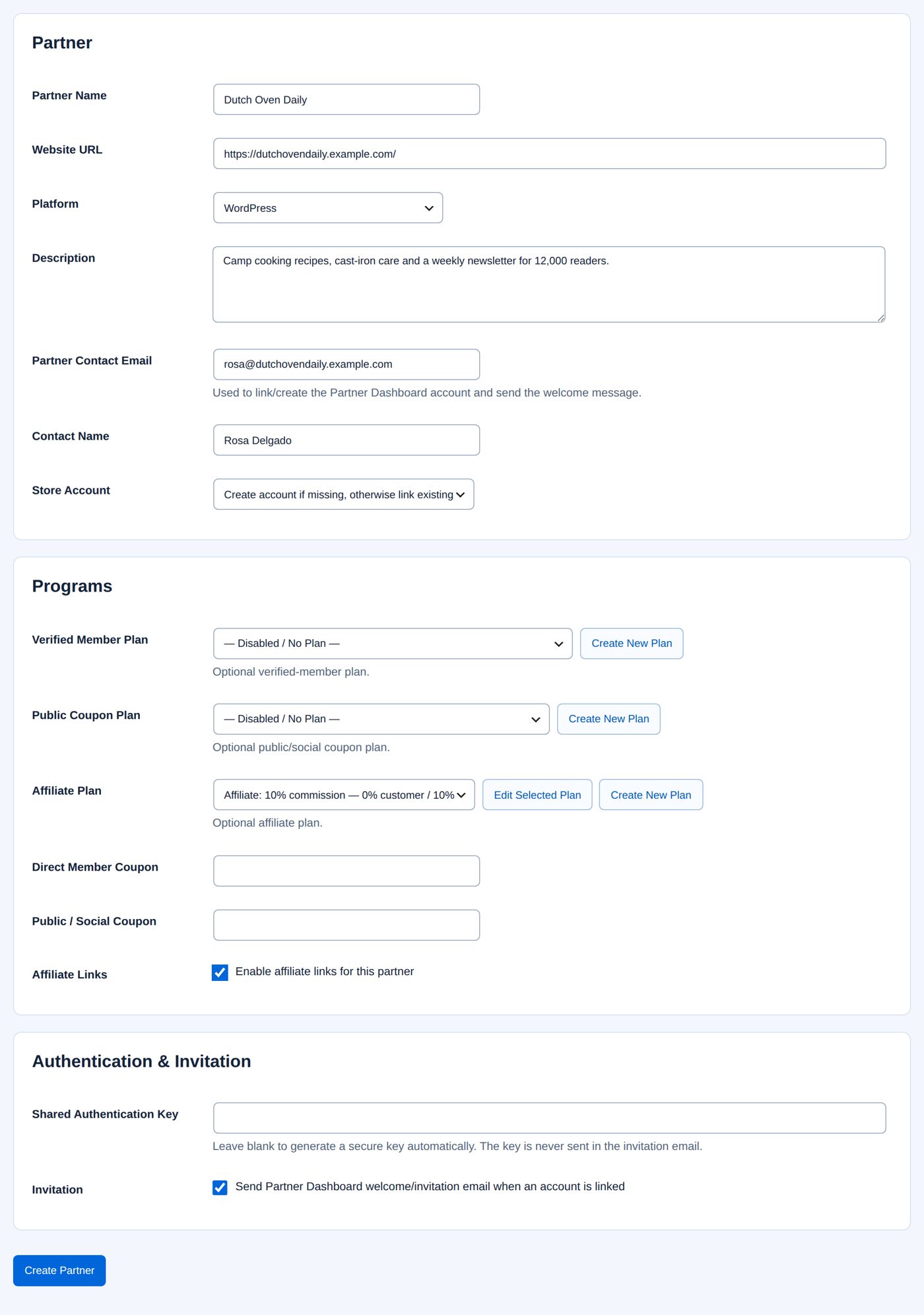
- Active Partners → Add Partner Manually.
- Partner Name Dutch Oven Daily, Website URL
https://dutchovendaily.example.com/, Platform WordPress, a short Description, Partner Contact Emailrosa@dutchovendaily.example.com, Contact Name Rosa Delgado. - Store Account: Create account if missing, otherwise link existing.
- Affiliate Plan: Affiliate: 10% commission; tick Affiliate Links. Leave the key empty and Invitation ticked.
- Create Partner. The record opens with Onboarding Status: Ready: the account was created and linked, the program is configured, member pricing is not needed, the partner is active. Rosa gets the invitation and WordPress's password email.
Her Affiliate section shows her Affiliate ID; her Authentication section shows that a key was made ("Configured — leave blank to keep"):
Rosa can now sign in, open My Account → AffiliPartnerCS and make links (The partner's workspace).
Partner Plans
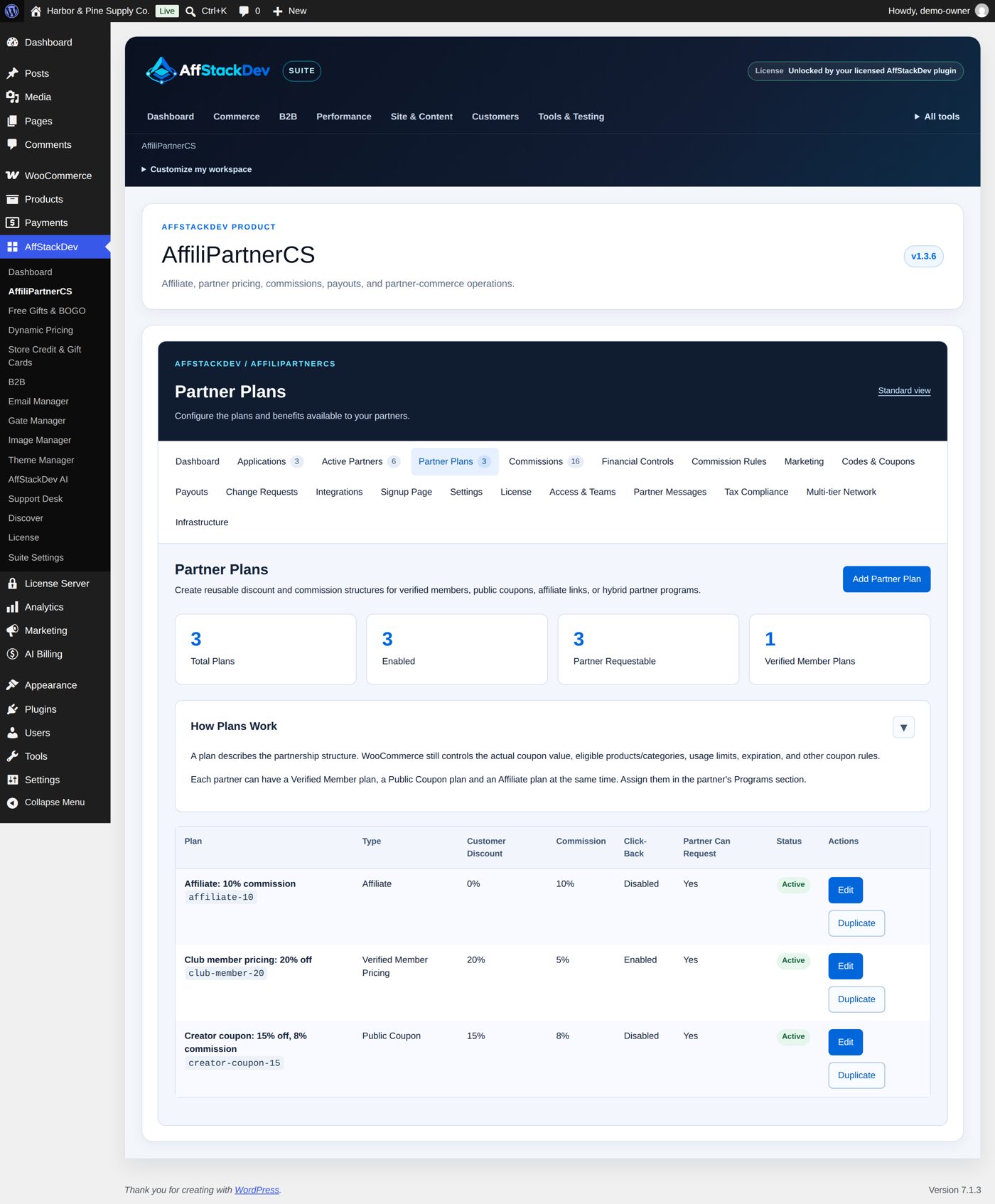
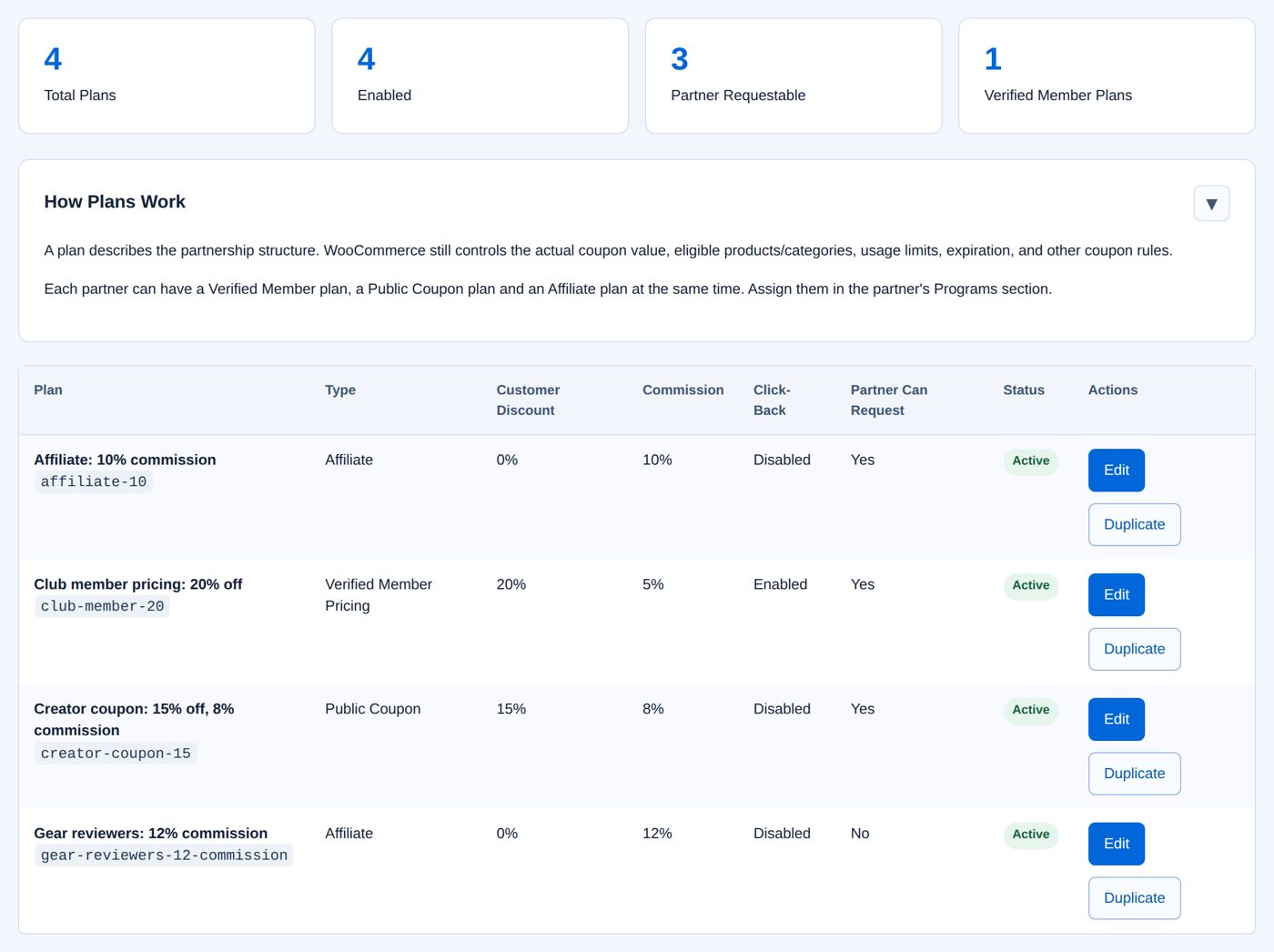
Partner Plans shows the counts Total Plans, Enabled, Partner Requestable and Verified Member Plans, a short How Plans Work, and the list with Plan, Type, Customer Discount, Commission, Click-Back, Partner Can Request, Status, Edit and Duplicate.
Add Partner Plan (or Edit):
| Field | At the start | What it does |
|---|---|---|
| Plan Name | empty | Required. |
| Plan ID | empty | Made from the name when left empty; must be unique. |
| Program Type | Verified Member Pricing | Verified Member Pricing (member pricing through a community), Public Coupon, Affiliate or Hybrid. A partner's three plan lists each take their own type; a Hybrid plan cannot be given to a partner there, only named in a manual attribution correction or a plan rule. |
| Expected Customer Discount | Percentage Discount, 0 | Or Fixed Cart Discount, Fixed Product Discount. What the partner's coupon should give; it does not change the coupon. A coupon that differs makes the partner's Programs section warn. |
| Partner Commission | Percentage, 0 | Or Fixed Amount Per Qualifying Order: once per order, not per item. A percentage is at most 100. |
| Click-Back | not ticked | Member pricing plans only: visitors who are not verified see Log in to ... and Visit ... buttons on the member pricing page. |
| Partner Can Request | not ticked | A marker for your team, counted on Partner Plans. Partners do not see plans or choose them. |
| Enabled | ticked | Enable this plan. A disabled plan keeps its history but is not offered for new assignments. |
| Copied From | None / Independent | A note of which plan this one was copied from; the copy does not follow later changes. |
| Internal Notes | empty | For your team. |
Duplicate makes a copy named "... Copy" with the same terms, to change and save. Delete Partner Plan (on the plan's page) works only for a plan that was never used; switch a used plan off instead. Changing a plan does not change past commissions or the partners' coupons.
Worked example: a plan for gear reviewers, given to Backcountry Gear Notes
Harbor & Pine pays review sites more for affiliate sales: 12% of the merchandise, no customer discount.
- Partner Plans → Add Partner Plan. Plan Name Gear reviewers: 12% commission, Program Type Affiliate, Expected Customer Discount Percentage Discount 0, Partner Commission Percentage 12, a note under Internal Notes.
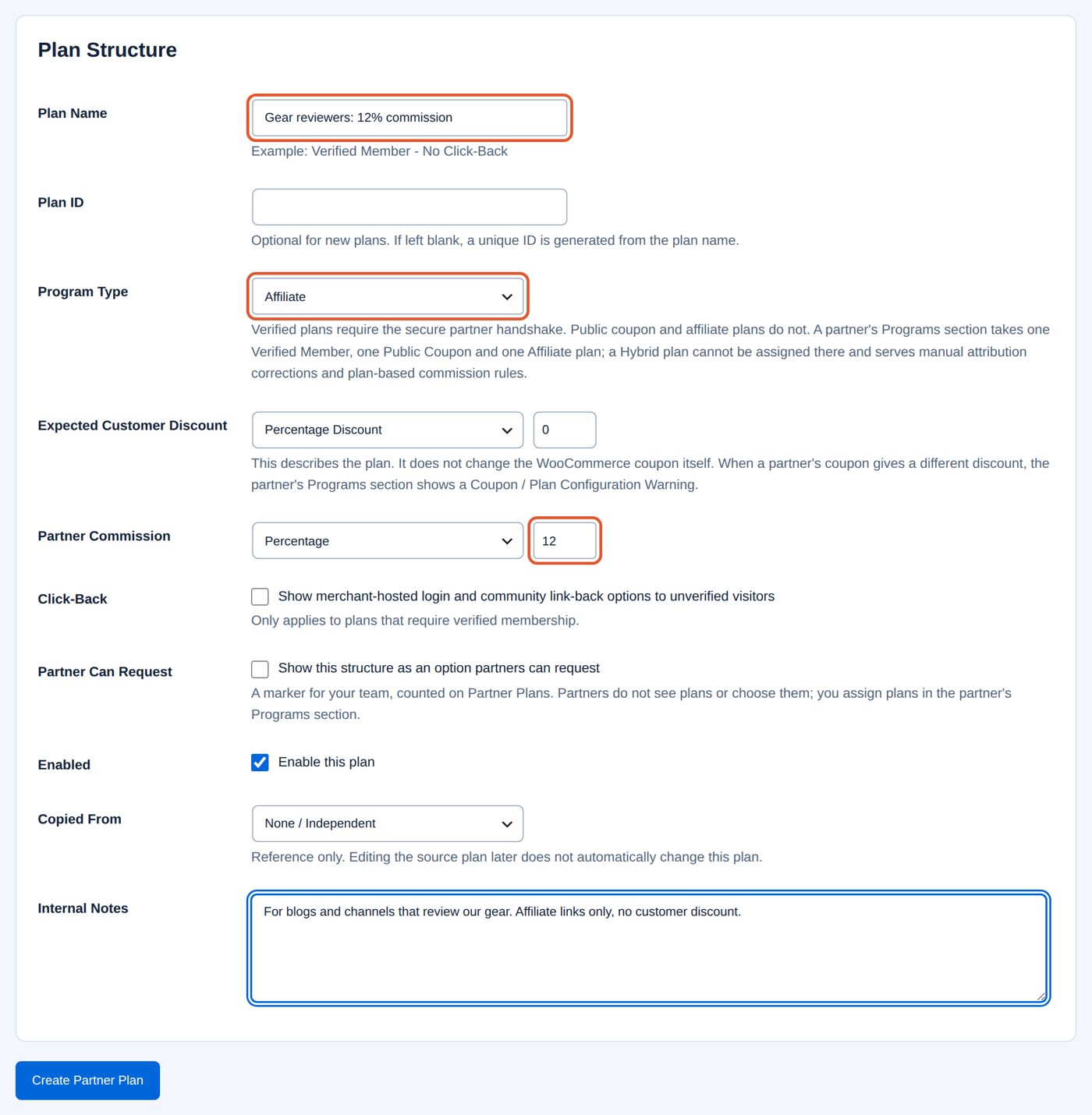
- Create Partner Plan: "Partner Plan saved." The plan is in the list:
- Active Partners → Manage Backcountry Gear Notes → Programs. Affiliate Plan: Gear reviewers: 12% commission. Save Partner: "Partner saved." Current: shows Customer: 0% · Commission: 12%.
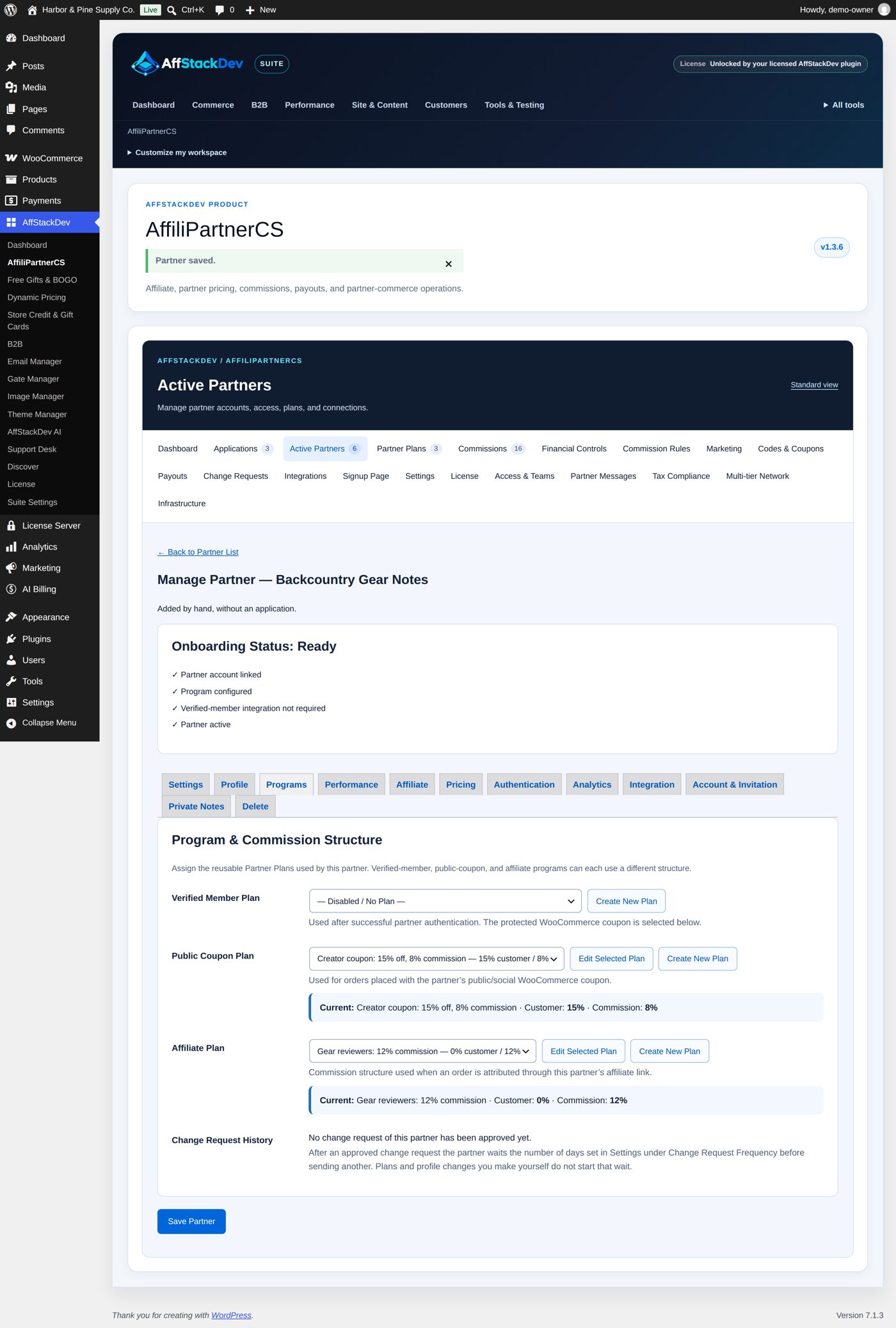
From now on Backcountry's affiliate sales earn 12%. Sales with its coupon still earn 8% under its Creator coupon plan, and commissions of earlier orders keep their rate.
Codes and coupons
Codes & Coupons shows each partner's Verified Member Coupon, Public / Social Coupon, Affiliate Code, Affiliate Link and Partner Status (50 per page). Create / Attach, or a partner chosen under Manage a Partner's Codes with Load Partner, opens the partner's two coupon cards. The coupons are ordinary WooCommerce coupons: everything you can set in WooCommerce still applies, and they stay editable under Marketing → Coupons.
| Field | What it does |
|---|---|
| Coupon Code | A new card suggests a code from the partner's name ("Leave the suggested code or enter your own."). On an existing coupon, "Changing this also changes the real WooCommerce coupon code." |
| Discount Type, Amount | Percentage discount, Fixed cart discount or Fixed product discount; a new coupon starts with the discount of the partner's plan for that card. |
| Description | WooCommerce's coupon description. |
| Options | Individual use only, Allow free shipping, Exclude sale items. |
| Minimum Spend, Maximum Spend | Merchandise the cart must reach, or may not exceed. |
| Usage Limit, Usage Limit Per User | How often the code may be used in all, and per customer; "0 = unlimited." |
| Expiration Date | The last day the code works. |
| WooCommerce Status | Published / Active or Draft / Disabled. |
Create WooCommerce Coupon or Save Coupon in WooCommerce saves; Open Full WooCommerce Coupon Editor or Advanced: Edit in WooCommerce opens WooCommerce's editor for product and email restrictions. Attach Existing WooCommerce Coupon links a coupon you made in WooCommerce first, unchanged ("The coupon itself is not copied or recreated"). Detach from Partner removes the link and keeps the coupon; switch the coupon off in WooCommerce too if the offer should end.
The Affiliate Link column shows the partner's link to your home page (?mpp_ref= and the Affiliate ID); links to other pages with a campaign name are made in the partner's workspace (Affiliate links).
Partner coupons are consumer offers: a business customer of AffStackDev B2B, or a cart with a licensed product, gets no partner discount (Which partner gets the sale).
Worked example: Campfire Collective's coupon, once per customer from $50
Campfire Collective shares campfire15 (15% off) with its members. Harbor & Pine wants it used once per customer, on orders from $50, until the end of the year.
- Codes & Coupons → Create / Attach in the row of Campfire Collective.
- In the card Public / Social Coupon (assigned plan Creator coupon: 15% off, 8% commission): Minimum Spend 50, Usage Limit Per User 1, Expiration Date 12/31/2026, and a Description.
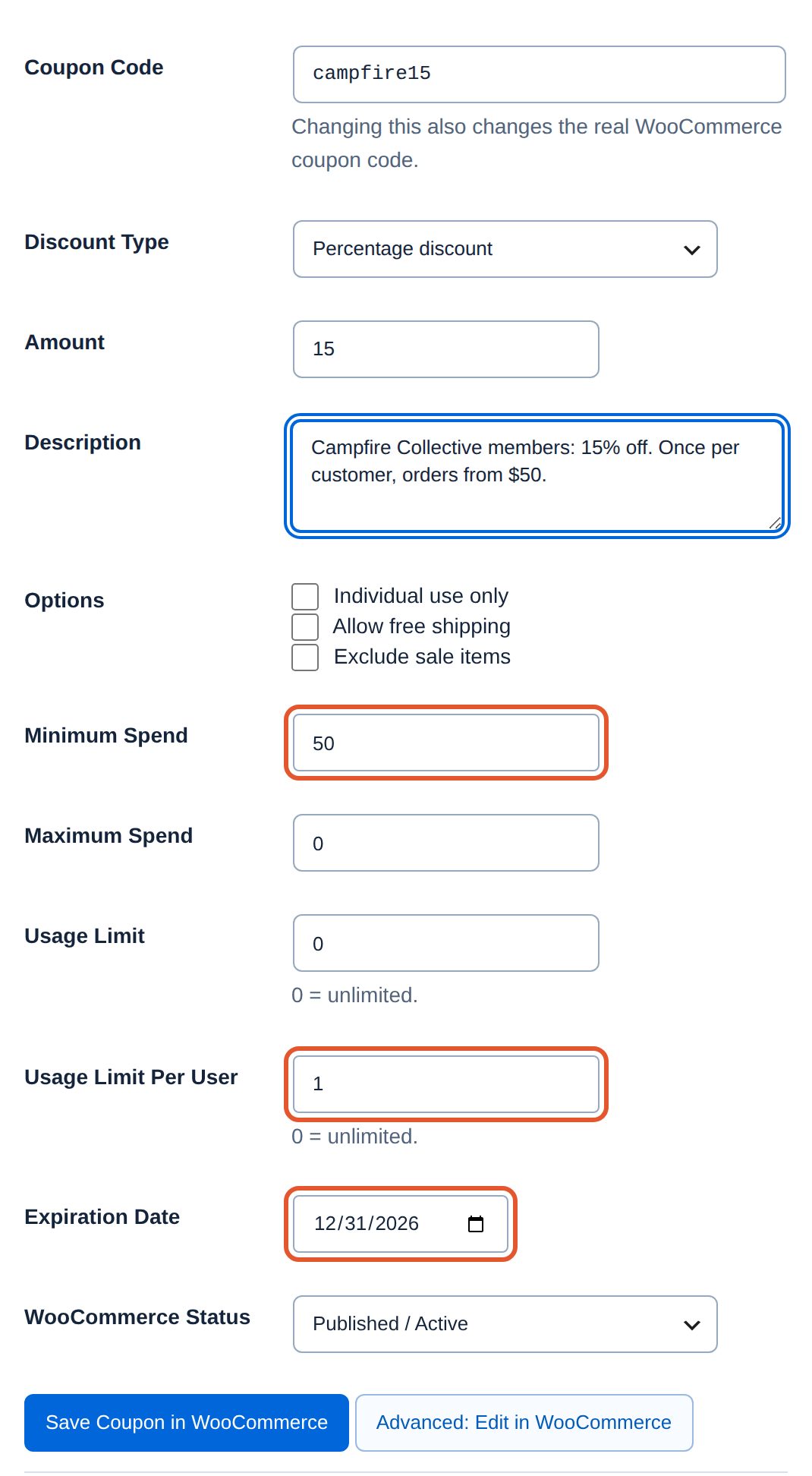
- Save Coupon in WooCommerce: "Coupon saved in WooCommerce and linked to the partner."
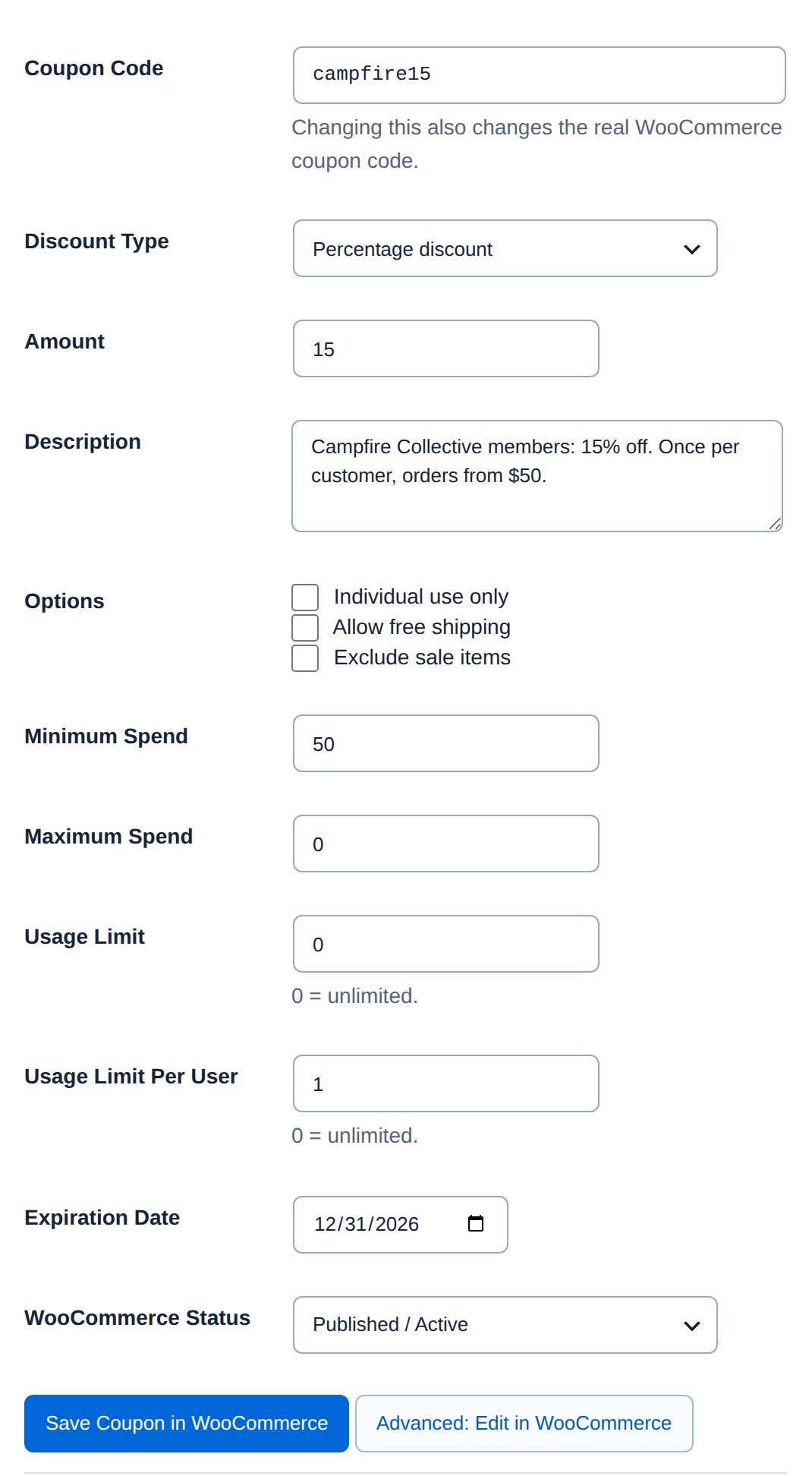
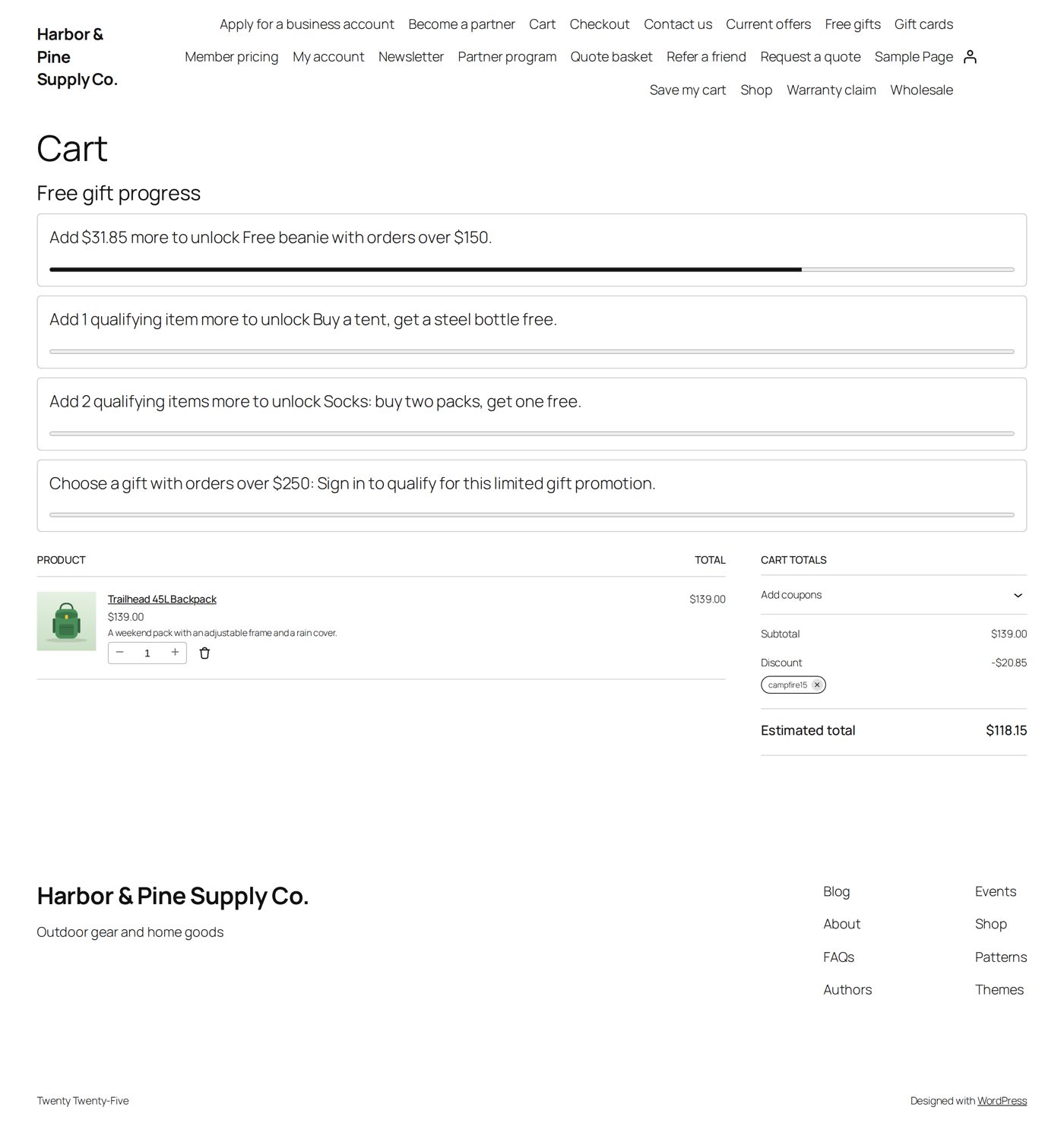
A member who puts the Trailhead 45L Backpack ($139.00) in the cart and enters campfire15 gets $20.85 off; the order is credited to Campfire Collective:
Account and invitation
Account & Invitation links the partner's login, or creates one, and sends the welcome email:
| Field | What it does |
|---|---|
| Contact Email | Taken from the application, or from the linked login. |
| Contact Name | Optional. |
| Account Action | Link existing account with this email (an existing login not linked elsewhere), Create account if missing, otherwise link existing, or Send invitation only; do not change linked account for a partner that is already linked. |
Link/Create Account & Send Invitation does it. "Creating an account uses WordPress/WooCommerce's normal password setup flow. Authentication keys are never emailed." The invitation is the Partner Invitation email of Signup Page (The application emails).
A partner organization can also have colleagues with their own logins (Teams).
Suspend, reactivate or terminate
Open Infrastructure → Offboarding, choose the Partner, the Action (Suspend, Reactivate or Terminate Permanently), write a Reason and choose Apply Partner Status Action. Unticking Enabled in the partner's Settings suspends as well.
- Suspend stops member pricing, the affiliate link and saved links, and sets the partner's coupons to Draft, so the codes stop working even for people who know them. Commissions already earned stay; unpaid batches of the partner wait for a finance review (Payouts). The partner can still sign in and read its history.
- Reactivate puts back what the suspension stopped, including the coupons it had set to Draft. Batches held for review stay held until finance approves them.
- Terminate Permanently ends the partnership: new key, codes and links stopped for good, history and money owed kept. A terminated partner cannot be reactivated.
Delete Partner under Delete removes a record only when nothing refers to it (no orders, coupons, commissions, payouts, notes, messages and so on). For a partner with any history, suspend or terminate instead.
When it does not work
| You see | It means |
|---|---|
| "Partner name is required." | Partner Name is empty. |
| "Invalid partner plan assignment." | The chosen plan is switched off or of another type. |
| "Creating a partner also creates an authentication secret. You do not have permission to perform that action." | Your role may not manage authentication keys; ask an administrator or an AffiliPartnerCS Manager. |
| The Coupon / Plan Configuration Warning | Plan and coupon disagree: correct the coupon on Codes & Coupons or choose another plan. |
| "The partner was created, but a requested invitation or account setup email was rejected, skipped, or could not be confirmed. Do not create the partner again. ..." | The record exists. Check the account and your site's mail, then send the invitation from Account & Invitation. |
| A partner sees "page not found" under My Account | Open Settings → Permalinks and save once. |
| A coupon works for nobody | Is the partner suspended (coupons are Draft), the coupon expired, or the cart below its Minimum Spend? |
Questions
Can one partner have both a coupon and an affiliate link?
Yes. Give it a Public Coupon Plan and an Affiliate Plan; each sale is credited once, through whichever came first in the order of Which partner gets the sale.
Does changing a plan change commissions already earned?
No. Each commission keeps the plan and rate of its order.
Can a partner choose or change its plan?
No, only you assign plans. Partners can ask for changes to their profile, or write to you (Messages).
What is the difference between Partner ID and Affiliate ID?
The Partner ID (trailhead-journal) identifies the partner to a member pricing connector. The Affiliate ID (AFF-...) is in affiliate links. Both differ from the internal number in the address of the record.
A partner's login must change. How?
In Settings, find the new login with Find a WordPress Account, choose it under Linked WordPress Account and Save Partner. The old login loses access; it is not deleted.
Related pages
| Page | What it covers |
|---|---|
| Applications | The program page and its application form, reviewing, approving, asking for more information, the application emails. |
| Links, attribution and commissions | Which partner gets a sale, affiliate links, how much a partner earns, holds and refunds, rules, corrections, bonuses and tiers. |
| Payouts | Payout methods, the schedule, batches, paying and recording, store credit, PayPal and Stripe, currencies, tax. |
| The partner's workspace and more | What partners see and do under My Account, change requests, messages, teams, member pricing, staff roles, exports and maintenance. |