Work with requests, and live chat
The daily work: read new requests, hand them to the right person, answer, file them away. And how the contact bubble and live chat work.
The inbox
Open Requests. You start in Inbox. The other views are Archive, Spam, Trash and All requests (everything except Trash). Newest requests are on top.
Narrow the list with the filters: kind of request (Contact, Warranty Registration, Quote Request), status, who it is assigned to (also "Unassigned" and "Assigned to me"), folder, and a search by title, email, phone or reference. With due dates on there is a filter Overdue / Due within 24 hours, and each open request shows how long is left. A request with files shows how many. Export CSV under the filters downloads the whole view (Export CSV).
Quick view shows a request and its recent history without leaving the list.
Status and assignment
Every request has a status:
| Status | Use it when |
|---|---|
| New | Nobody has looked yet. |
| In progress | Someone is working on it. |
| Waiting on customer | You asked the customer something. |
| Resolved | Answered; nothing more expected. |
| Closed | Finished. |
Choose the status and the person in the request and save. Only colleagues who may answer requests are offered. Support Desk records who changed what. If a colleague changed the same request while you had it open, you are told instead of overwriting their change: reload and look again.
Private note: write it and select Save private note. Notes are for your team only, with the author and the time. The customer never sees notes, the status or who is assigned. Notes and history cannot be edited or deleted afterwards.
Answer
In the request, write your reply (or start from a saved reply); Preview reply shows it as the customer will see it, Send email reply sends it in your design (the General staff reply template). With the customer portal on you can add Files for the customer (how). The request keeps a copy of every reply sent and whether the site's mail system accepted it. Sending a reply does not change the status; set it yourself.
Worked example: a question about a sleeping bag zip
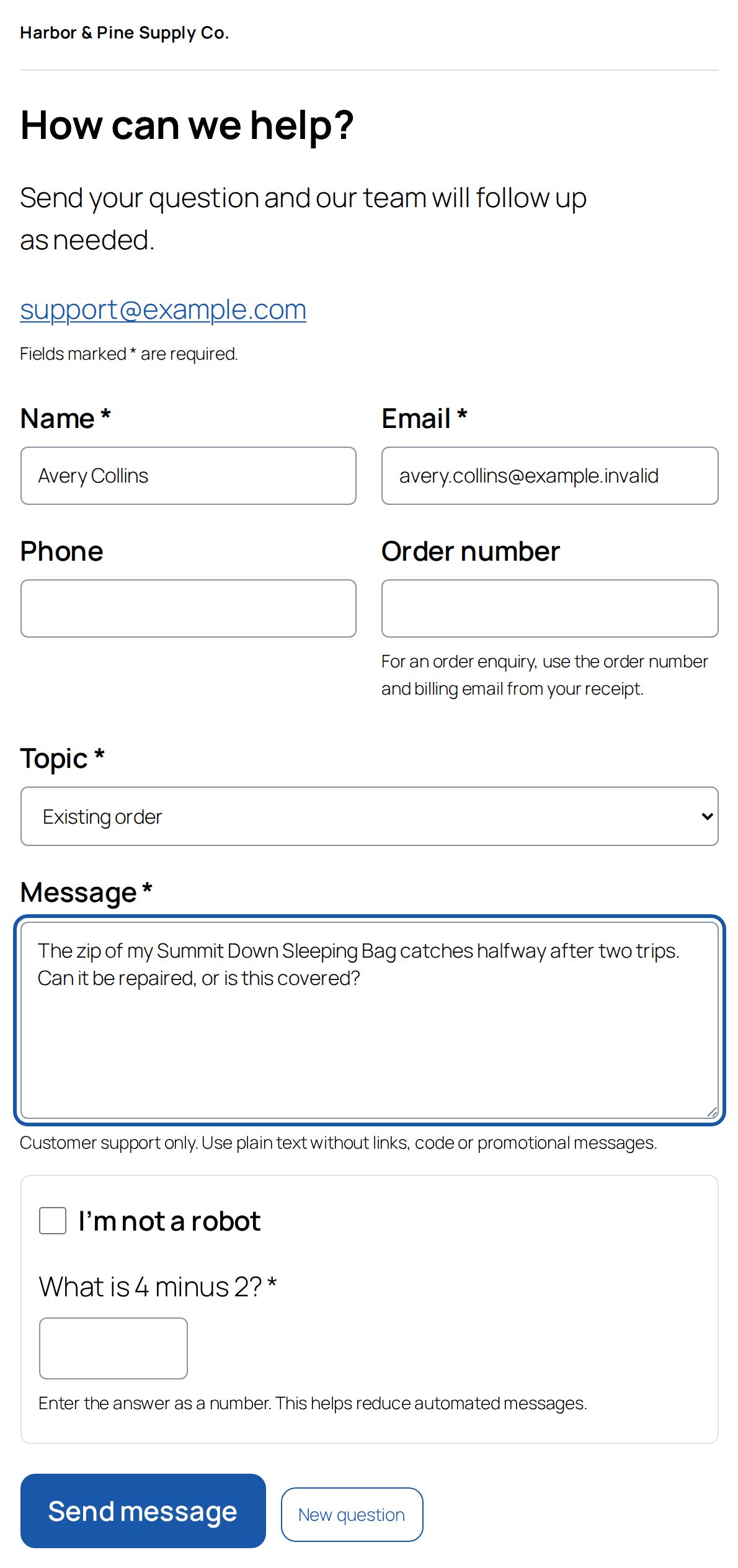
Avery Collins bought a sleeping bag from the sample store, Harbor & Pine. The zip catches. Avery opens the Contact page and fills in the form: name, email, Topic Existing order and the message. Before Send message the form asks its human check: tick "I'm not a robot" and answer a small sum ("What is 4 minus 2?"). That keeps automated messages out.
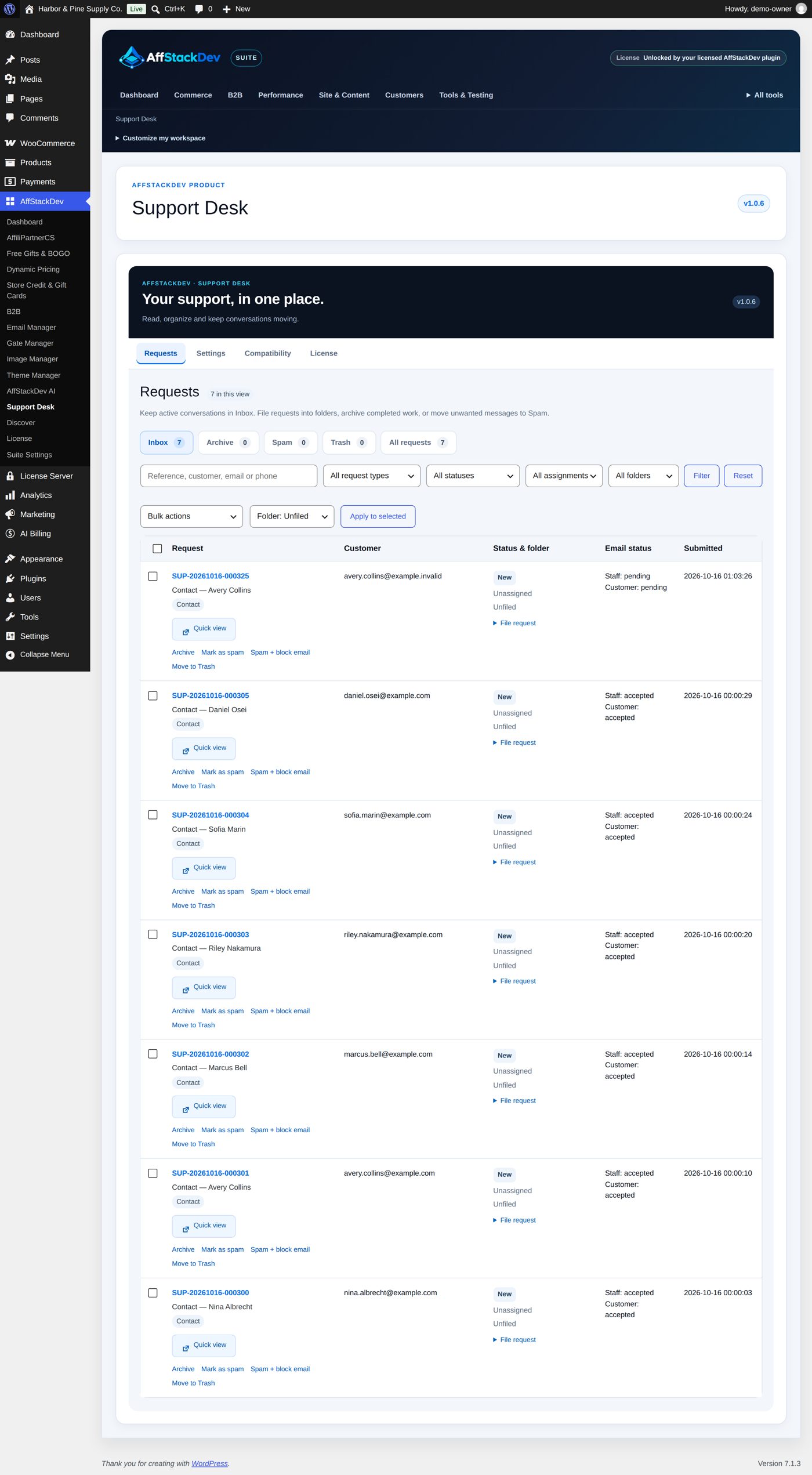
The request arrives at the top of Inbox with its reference (for example SUP-20261016-000325: your prefix, the date, a number), status New and nobody assigned:
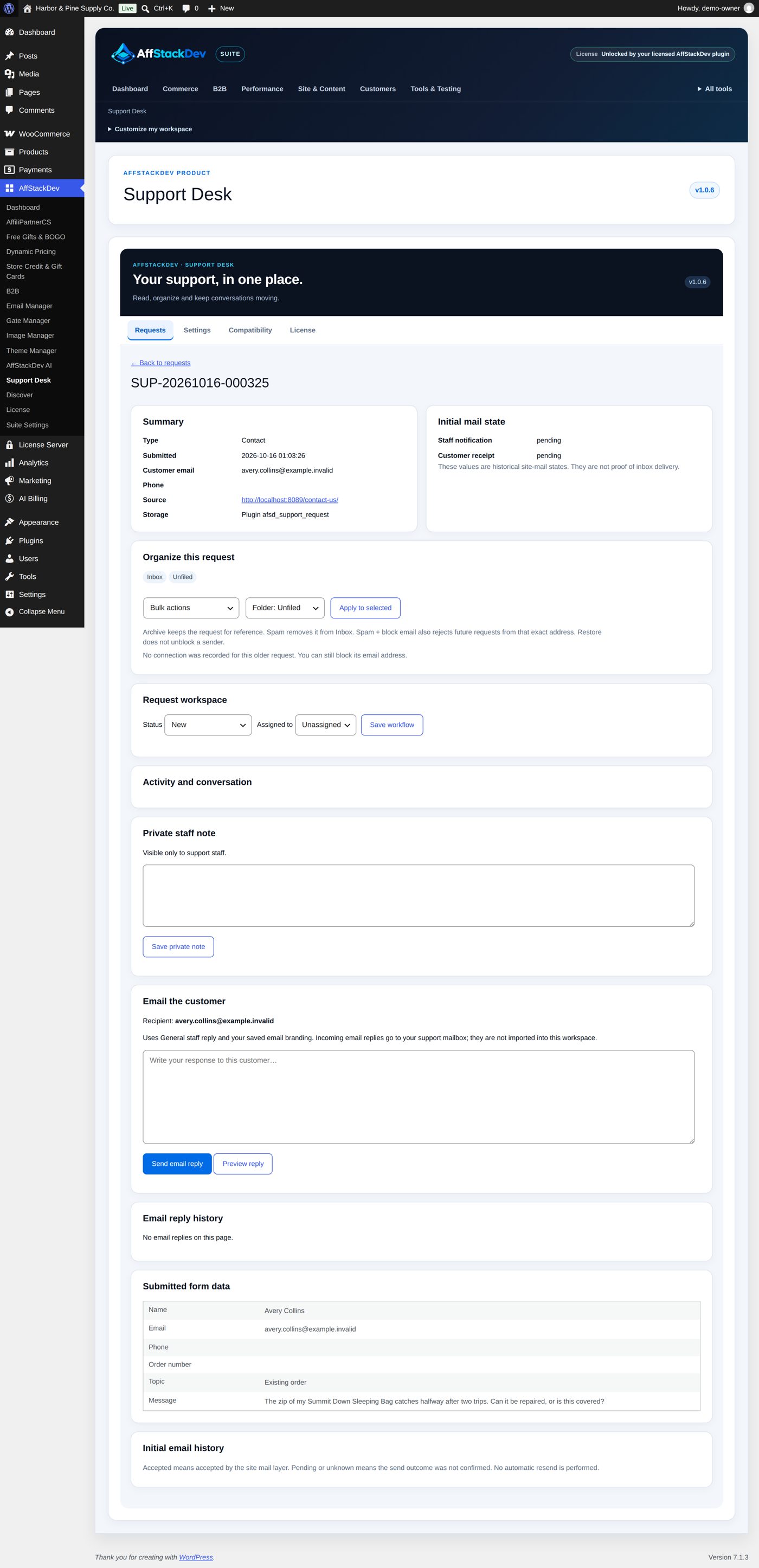
Open it. On one page you have:
- Summary: type, when it was sent, the customer's email, and the page it came from;
- Initial mail state: whether your site's mail system accepted the notice to your team and the receipt to the customer;
- Organize this request: archive it, file it in a folder, mark it as spam;
- Request workspace: Status and Assigned to, saved with Save workflow;
- Private staff note: for your team only (Save private note);
- Email the customer: your reply, Preview reply, Send email reply;
- Email reply history and, at the bottom, Submitted form data: exactly what the customer typed;
- when they apply: Attached files, the Customer portal card, the due dates and the Customer rating in the summary.
What the team does with it:
- Status In progress, Assigned to yourself, Save workflow: everyone sees you have it.
- A Private staff note: "Order of 12 October; zip slider defect, covered. Send a replacement slider." Avery never sees it.
- In Email the customer: "We are sorry about the zip. A replacement slider is on its way; you will have it within a week." Preview reply, then Send email reply.
- Status Resolved, Save workflow. Sending did not change the status, so you set it. Later Archive takes it out of the Inbox; it keeps its whole history.
File it away
Status and filing are two separate things. A closed request can stay in the Inbox; archiving a request does not close it.
| Action | What happens |
|---|---|
| Archive | Out of the Inbox, kept with all its history. |
| File in folder | Puts it in one of your own folders (made under Settings → Folders). |
| Mark as spam | Moves it to Spam. |
| Spam + block email | Moves it to Spam and refuses this email address from now on. |
| Move to Trash | Kept until you restore or delete it. |
| Delete permanently | Only from Trash, after a second confirmation. This cannot be undone. |
Tick several requests to file, archive, mark or trash them together. Blocked addresses are listed under Settings → Blocked senders, where you can also block a whole email domain. Block connection on a request blocks the connection it was sent from (kept only as a code, not as an address), for a sender who keeps changing email addresses. A block stays until you remove it there; restoring a request from Spam does not remove it.
The bubble and live chat
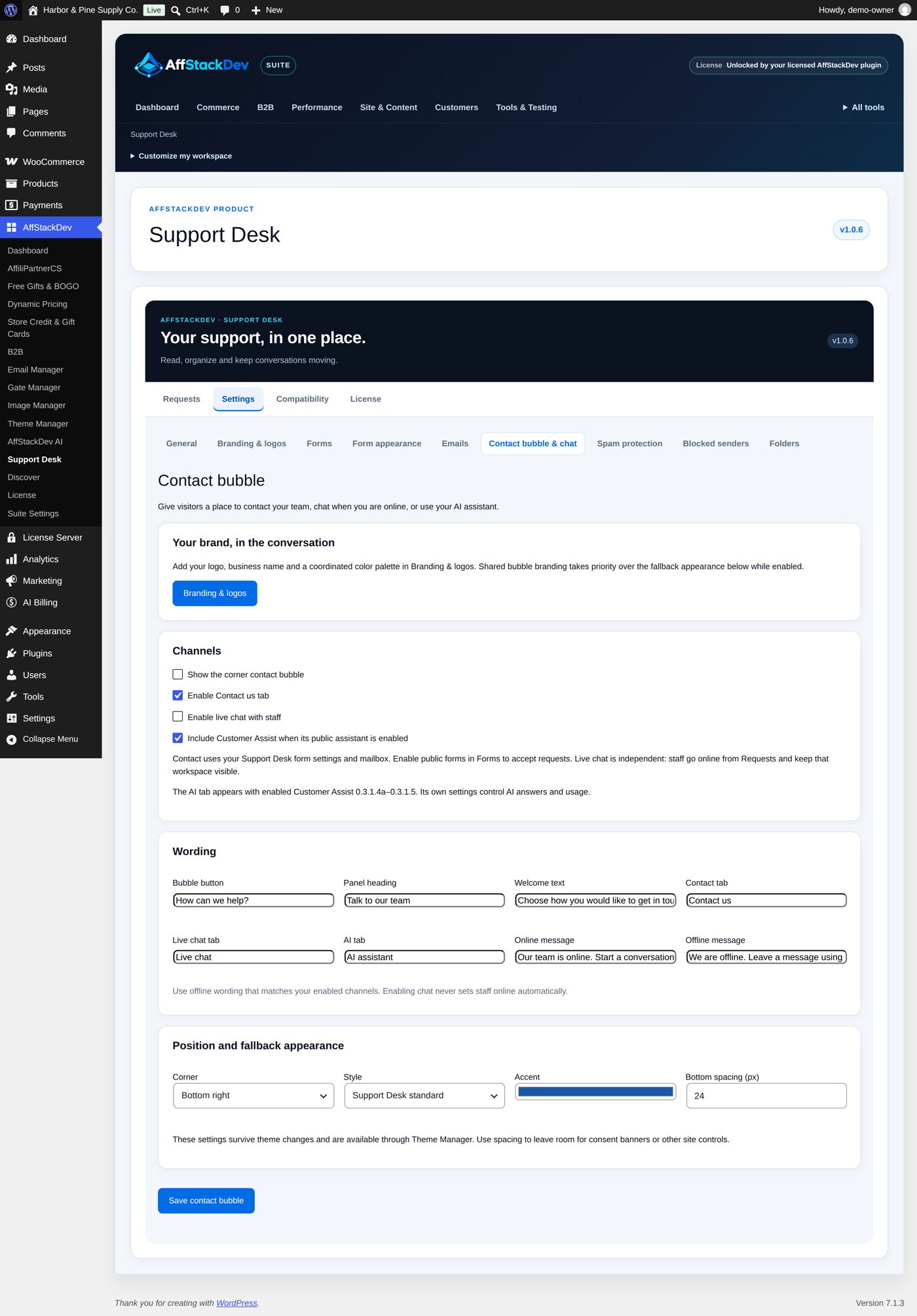
Settings → Contact bubble & chat. Everything here starts off.
- Switch on Show the corner contact bubble. Visitors now see a small bubble that opens your contact form.
- Switch on Enable live chat with staff if you want to chat.
- Set the wording, the corner and the colors.
Live chat only shows as available while someone of your team is online:
- Open Requests and select Go online / renew availability. Keep that page open and visible.
- You stay online while you are active there. After five minutes without touching mouse or keyboard you are set to away; select Go online / renew availability again.
- Go offline when you leave. Being signed in to WordPress is not the same as being online for chat.
To start a chat a visitor gives a name, an email address and a first message, and answers the same "are you human" question as on the forms. When nobody is online, the bubble offers the contact form instead, so a visitor can always leave a message.
Every chat is saved as a Contact request with the topic Live chat, with the same status, assignment and notes as the others. A chat you set to Resolved or Closed accepts no more messages.
Removing Support Desk
Deactivating keeps everything. Updating by uploading a new version keeps your requests, pages, designs, spam settings and email history. Deleting the plugin also keeps all requests and settings in the database, and attached files in the folder afsd-support-files of your uploads directory; there is no "delete everything" choice. To remove a request for good, move it to Trash and delete it permanently: that also deletes its files.