Edit your theme: drafts, preview, save
Change your theme's settings section by section, look at the result before anyone else sees it, save, go back to a checkpoint, or schedule a change for later.
What the tab shows
Custom Theme shows the active theme's settings as sections. A theme with its own Theme Manager support decides its own sections and fields, so another theme shows other sections. Every other theme gets Theme Manager's own sections.
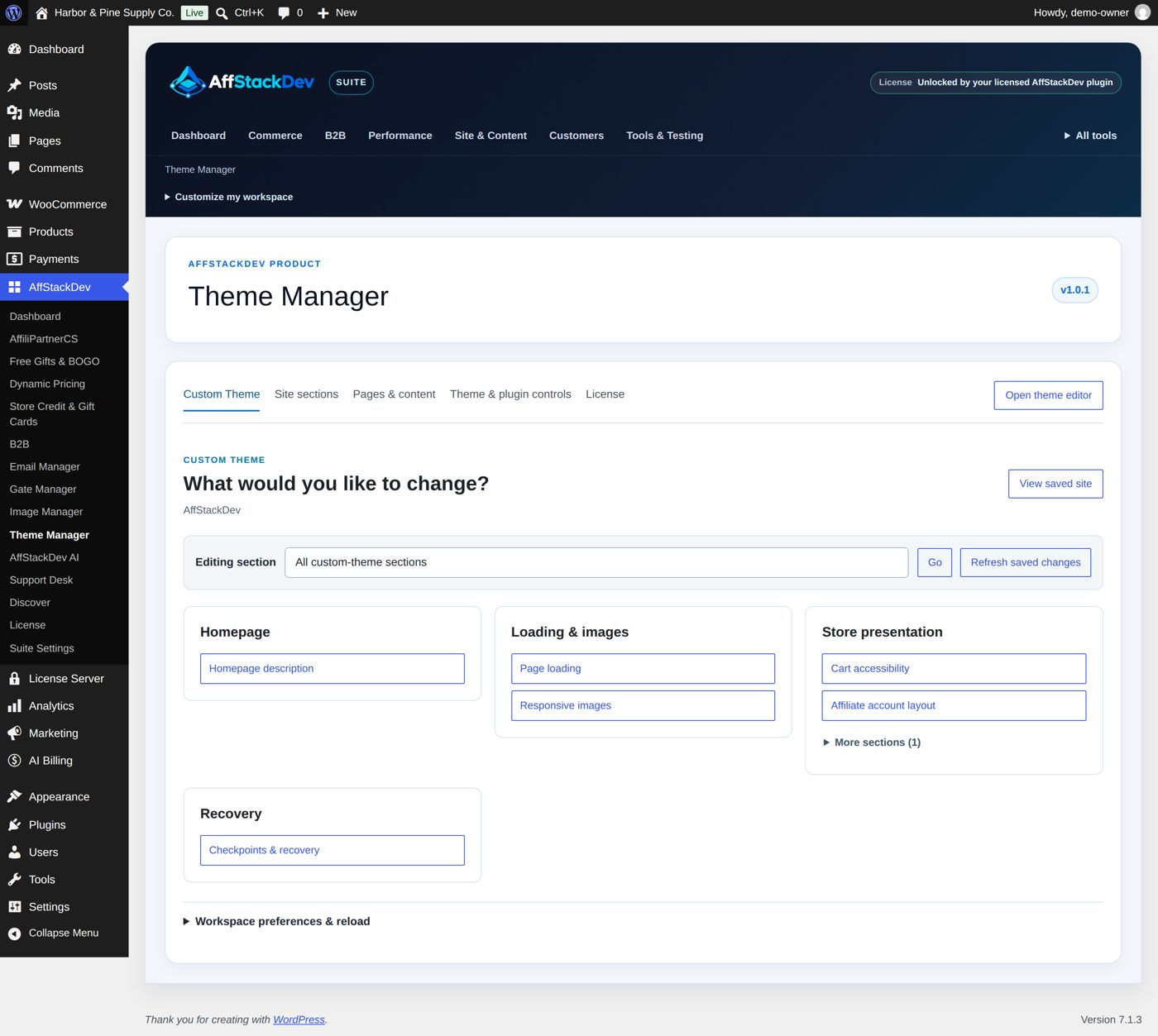
The pictures here show the AffStackDev theme, whose sections include Homepage description (the description search engines show for your home page), page loading, responsive images and cart settings. Your theme decides its own.
Themes without their own Theme Manager support
With any other theme, Custom Theme has these groups:
| Group | What it edits |
|---|---|
| The theme's own groups (its Customizer panels) and Theme settings | The theme's Customizer settings, section by section as in the Customizer: text, text areas, email addresses, links, numbers, tick boxes, choices, a choice of page, colours, and pictures. Each is saved through the theme's own setting, exactly as the Customizer's Publish saves it. A setting with a control only the Customizer shows (the theme's own kind, a picture the Customizer crops, the header or background picture) stays there: the section says how many and links to Open this section in the Customizer. Settings a theme keeps in its own option and plugins' Customizer settings stay there too: the overview says how many and links to Open the Customizer. Some themes create most of their settings only inside the Customizer (Astra does); those are found only there. |
| Colours & fonts | With a block theme (or another theme with a theme.json file): the colours of the theme's palette, the Background colour, Text colour and Link colour, the Font of the text and the Font of the headings. They are saved where the Site Editor saves its styles, and WordPress keeps a styles revision of every save. |
| Logo & site title, Homepage, Menus, Pages, posts & CSS, Store | The WordPress and store sections. Navigation menus appears when the theme has menu places. |
| Recovery | Checkpoints. |
| Scheduled changes | Changes you scheduled. |
Drafts, the preview and two people at once work as described below. Use theme default on save removes the setting, so the theme's own default applies again.
How editing works
The workspace is divided into sections (for example the header, a part of the home page, the footer). Sections are grouped by task; More sections opens the rest of a group, All sections shows everything.
Three words to keep apart:
| Word | Means |
|---|---|
| Draft | What you typed and kept, for you only. The website is unchanged. |
| Preview | Your drafts shown on the real pages, for you only. |
| Saved | Live on the website for everybody. |
Keep, preview, save
- Open a section and change what you want.
- Keep draft, or simply go to another section with the workspace's own buttons: your input is kept as a draft. A star marks sections that have one.
- Preview unsaved theme changes shows the site with all your theme drafts. View saved site shows the site as it is now.
- Save section makes this section live. Drafts in other sections stay drafts until you save them too.
What a section looks like
Choose a section, here Homepage description. Editing section shows which one you are in (All sections goes back). Every field has its label, its current value and its help text, and under it Use theme default on save (remove this override). Under the fields: Save section, Preview unsaved theme changes, Keep draft and Discard section draft.
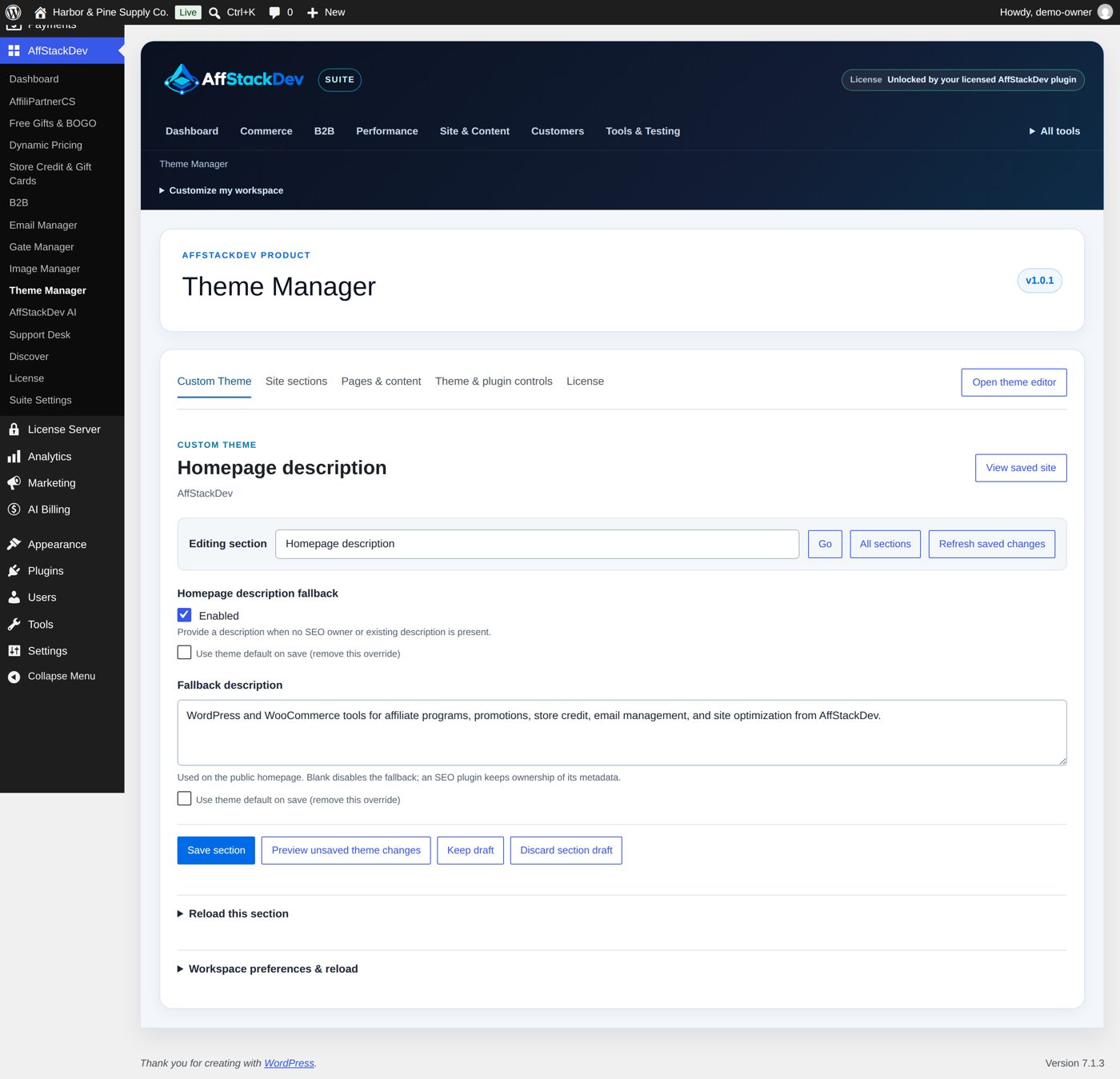
Fields and defaults
To go back to the theme's own value for a field, tick Use theme default on save next to it and save. That is not the same as clearing the field: an empty field is saved as empty. Removing a picture from a field does not delete the file from your Media Library. Lists (for example a row of links) can get new rows, lose rows and be reordered.
The other buttons
| Button | Does |
|---|---|
| Discard section draft | Throws away this section's unsaved changes. |
| Reload this section | Throws away this section's draft and reads the saved values again. |
| Refresh saved changes | Checks whether someone else saved theme settings meanwhile. |
| Reload saved values | Throws away all drafts of the workspace and reads everything again. |
None of them undoes something that was already saved.
Two people at once
If a colleague saved while you were editing, Theme Manager notices before it saves your section.
- You changed different fields: both changes are kept.
- You both changed the same field: Review changes to the same fields shows three values: When you started, Saved now, Your draft. For each field choose Use saved value or Keep my draft, then save.
Go back to an earlier state
Checkpoints & recovery lists earlier saved states of the theme's settings and can restore one: the theme's own history when it has its own Theme Manager support, otherwise Theme Manager's checkpoints. With Theme Manager's own sections, up to 20 checkpoints per theme are kept; one is taken before every save, before every Publish in WordPress's Customizer and before every restore, and you can save named ones (Checkpoint name, Save checkpoint). With a block theme the list also shows WordPress's own styles revisions.
To restore, choose the entry under Saved checkpoint, tick the confirmation and select Restore selected checkpoint; Restore theme defaults removes your changes to the theme's settings. Both discard the workspace's theme drafts. Recovery covers the theme's settings only. It does not cover pages, products, menus or your site title; those have their own history in WordPress.
Schedule a change for later
Prepare a section's change now and have it made at a set time, for example a store notice for a sale that starts at midnight.
- Open the section and change its fields.
- Expand Schedule this section for later under the buttons.
- Enter Date and time in the site's time zone, at least a minute from now and within a year.
- Select Schedule section. The draft becomes a scheduled change; the website is unchanged until then.
Scheduling is offered for Theme Manager's own sections (theme settings, colours and fonts) and for Logo, site title & icon, Homepage & posts page, Additional CSS and Store notice. A theme with its own Theme Manager support takes part when its support declares scheduled saves.
Scheduled changes lists each change with its time, section, author, what changes and its state:
| State | Meaning |
|---|---|
| Waiting | It is made at its time. Cancel this change removes it. |
| Applied | It was made. For theme settings a checkpoint (Before a scheduled change) was taken first. |
| Held for review | It was not made, so nothing is overwritten: someone changed one of its fields meanwhile (they are named), the theme changed, or its author can no longer edit theme settings. |
| Not applied | The save was refused; the message says why. |
The change is made as the person who scheduled it, through the same save as the buttons. WordPress runs it at the first visit to the site after its time, as it does with scheduled posts. Remove from the list clears a finished entry.
WordPress and store content in the same place
Custom Theme also shows some WordPress and WooCommerce settings as sections, so you do not have to leave (with every theme, unless a theme's own Theme Manager support names its own list): logo, site title and icon; which page is the home page; extra CSS; the store notice; the text of pages, posts and products; menus. They are saved with Save native content and go straight into WordPress or WooCommerce. The preview above does not include them, and theme checkpoints do not restore them.
Page & post text and Product names, images & descriptions: under Find content type a word and select Search (20 results a page; Results page for more), pick the item under Content to edit and select Edit selected content. You can change the title or product name, the main text, the summary (for products: the short description) and the main image. Publication status, price and stock are not touched, and product variations are edited in WooCommerce. For pages built with blocks or a page builder, Open the full native editor takes you to the real editor.
Navigation menus: choose a Menu and select Edit menu (menus with up to 100 entries). For each entry you can change the label, the address of a custom link, its Position (lower numbers come first), its parent (Top level or another entry), Open in a new tab, or Remove this menu entry on save (tick Confirm removing any marked menu entries too; the page itself stays). Add a link adds a custom link with a full address (https://, mailto: or tel:). Below the entries you choose which menu shows in each of the theme's menu places; No menu assigned empties a place without deleting the menu. Create a navigation menu makes a new menu at once. Renaming or deleting a whole menu stays in WordPress's own menu editor.
Some themes also let you switch a product flag here (a theme-specific marker, with a warning about its effect on purchases). The AffStackDev theme has none.
Workspace preferences
Workspace preferences & reload has one switch: Use enhanced in-place navigation when the Suite allows it (on at the start). Enhanced navigation changes sections without reloading the page, warns you before you leave with unsaved typing, and checks now and then whether someone else saved. Without it, ordinary page loads do the same jobs, but there is no warning before you leave: use Keep draft first. The Suite's basic mode switches it off for every plugin.
If something does not work
| What you see | Reason |
|---|---|
| A theme setting is not in its section | Its control is one only the Customizer shows. The section says how many and links to the Customizer. |
| A scheduled change was held for review | Someone changed one of its fields after it was scheduled, the theme changed, or its author lost the right to edit theme settings. Review the section and schedule it again. |
| "Open fresh workspace" is asked for | The theme or its settings layout changed since you opened the workspace. Copy the text it shows you, then open a fresh one. |
| A save is stopped | The item was changed elsewhere after you opened it. Your draft is kept: copy what you need, reload the section, apply it again. |
| My draft is gone | It was not kept (typing alone is not), or two hours passed. |
| The preview does not show a change | Only theme fields are previewed; menu, page, CSS and store-notice changes are not. Or a conflict is still waiting for your choice. |