Set up your forms and emails
Install and activate Support Desk, choose the mailbox, put the forms on pages, make them look like your site, check the emails, then switch the forms on.
1. Download and install
- On affstackdev.com open My Account → Downloads and download Support Desk. Keep the ZIP file as it is; do not unpack it.
- In your WordPress admin open Plugins, choose Add Plugin (older WordPress versions call it Add New), then Upload Plugin.
- Choose the ZIP file and select Install Now, then Activate Plugin.
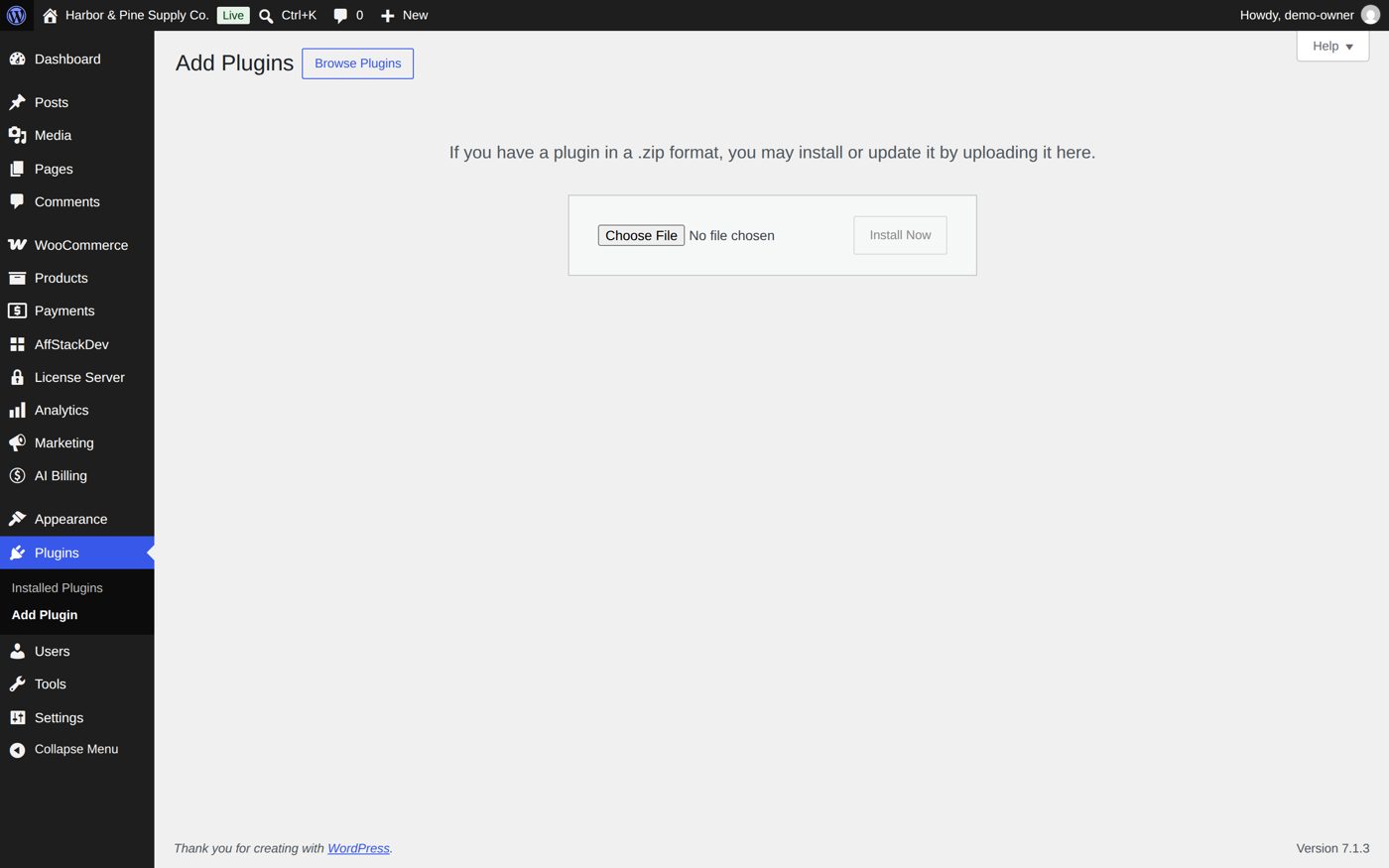
Support Desk now has its place in the WordPress menu: Support Desk. With the AffStackDev Suite installed you also find it in the AffStackDev menu. If WordPress refuses the file, or to install a newer version over an older one, see Install a plugin.
2. Activate the license
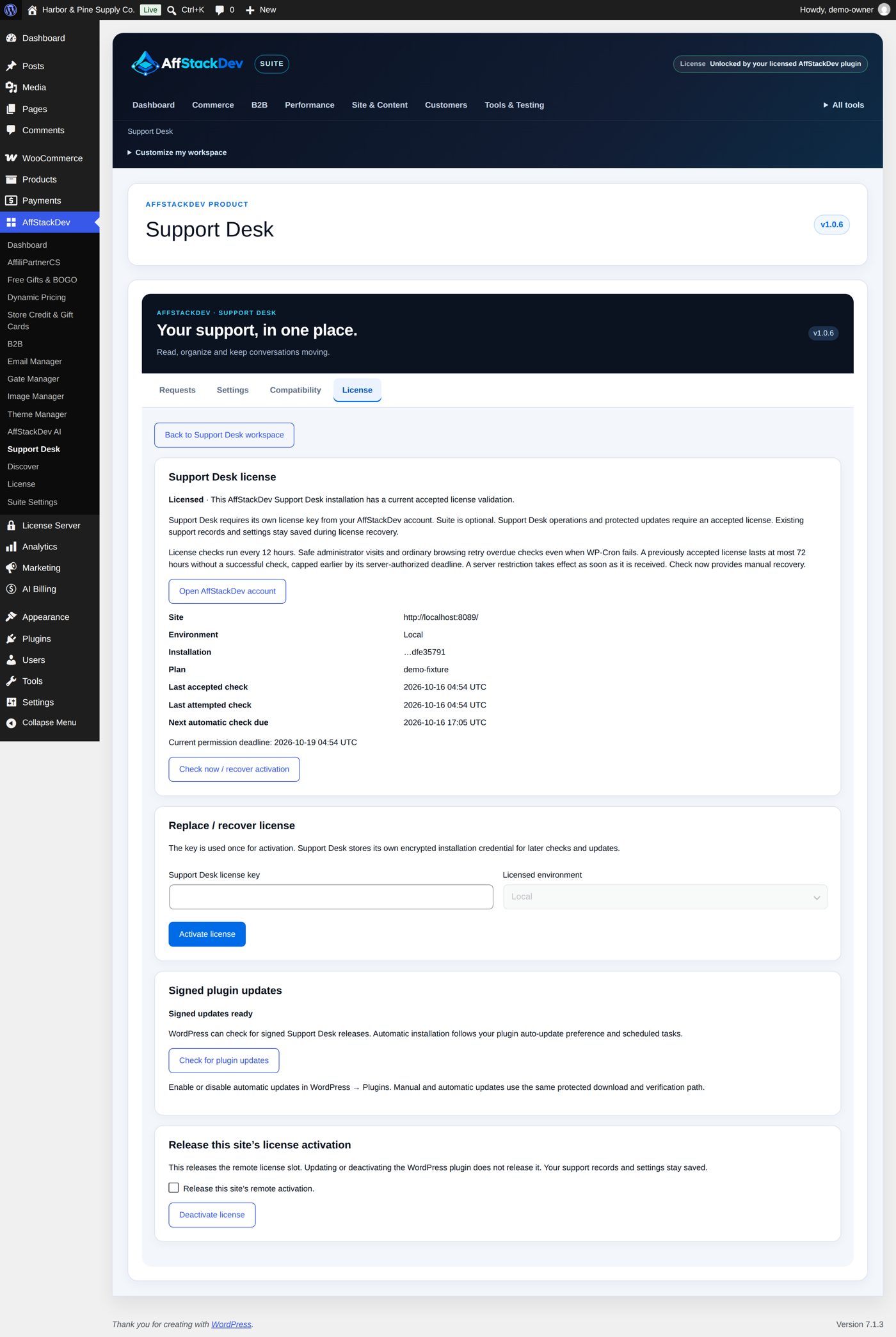
Open Support Desk → License and activate your key (Activate your license).
3. The mailbox and the pages
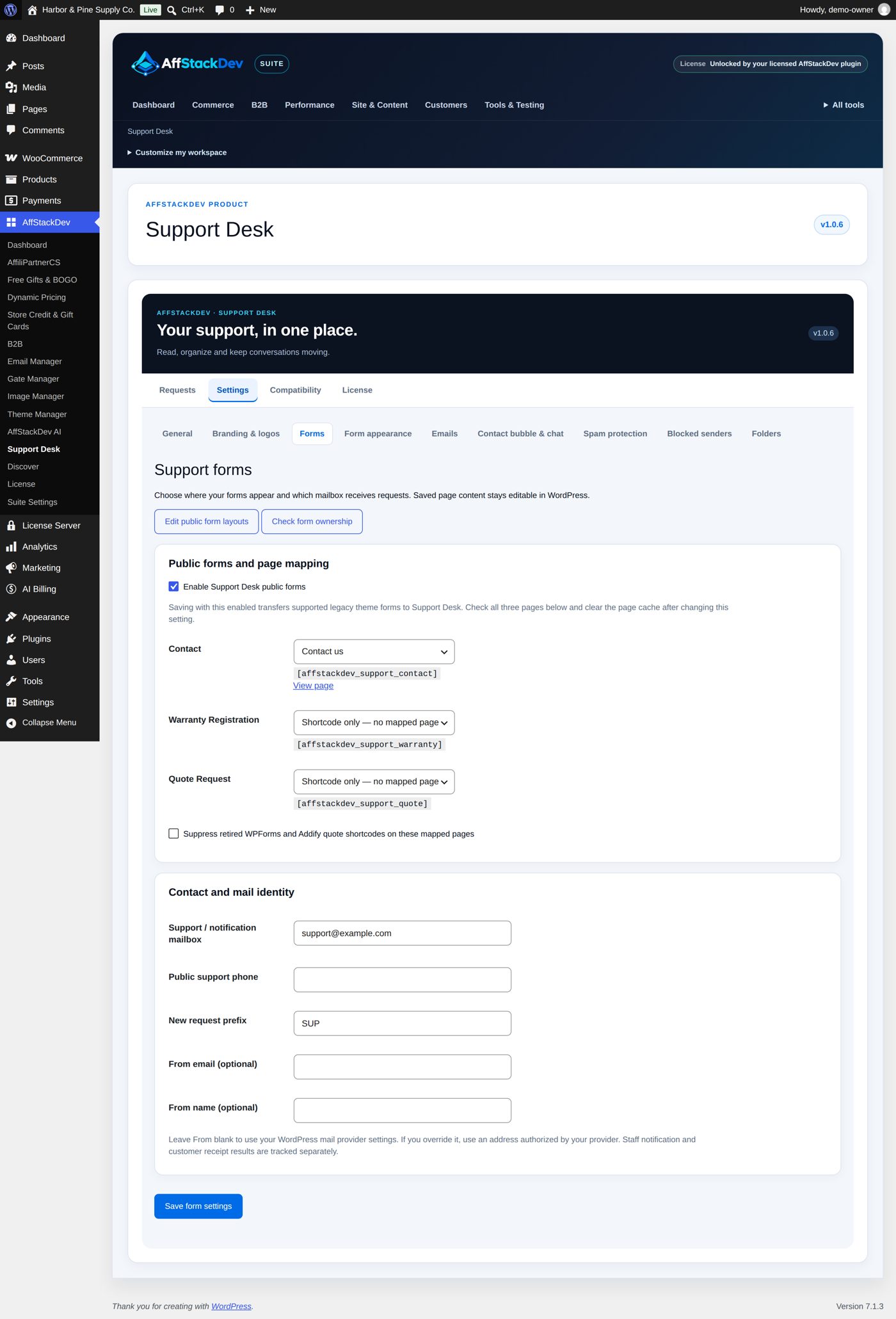
Open Settings → Forms.
- Enter the Support / notification mailbox: the address your team reads. New requests are announced there.
- For each form choose where it lives. There are two ways:
- Page mapping: pick an existing published page for the form. Support Desk adds the form at the end of that page without changing what you wrote there. Use a different page for each form.
- Shortcode: place the form yourself, anywhere in a page, with a Shortcode block:
| Form | Shortcode |
|---|---|
| Contact | [affstackdev_support_contact] |
| Warranty Registration | [affstackdev_support_warranty] |
| Quote Request | [affstackdev_support_quote] |
- Tick Enable Support Desk public forms and save. Until this is ticked the forms are not shown.
4. Make the forms yours
Settings → Form appearance changes headings, labels, help texts, the order and width of fields, spacing and colors. Settings → Branding & logos sets your logo, brand name and colors once for forms, emails and the bubble, with a live preview.
Each field can get its own label, placeholder, help text, order and width. Optional fields can be hidden; required fields cannot.
Your own fields
Settings → Your own fields adds fields to a form, after its own fields: up to 20 per form. For each choose the kind (Short text, Long text, Whole number (0 to 999,999,999), Date, Dropdown with its choices one per line, or Checkbox), the label and whether it is Required (a required checkbox must be ticked, for example "I agree to be contacted"). Their wording, help text, order and width are then set in Form appearance like any field.
A request is saved with each field under its label, so a label is used only once per form. A new label applies to new requests; requests already received keep the label they were saved with. Removing a field takes it off the form; requests already received keep what was entered in it. A ticked checkbox reads Yes on the request, in emails and in the export.
What each form asks
The three forms have these fields, plus any of your own. Required fields must be filled in; you can rename and reorder them, not remove them.
| Form | Required | Optional |
|---|---|---|
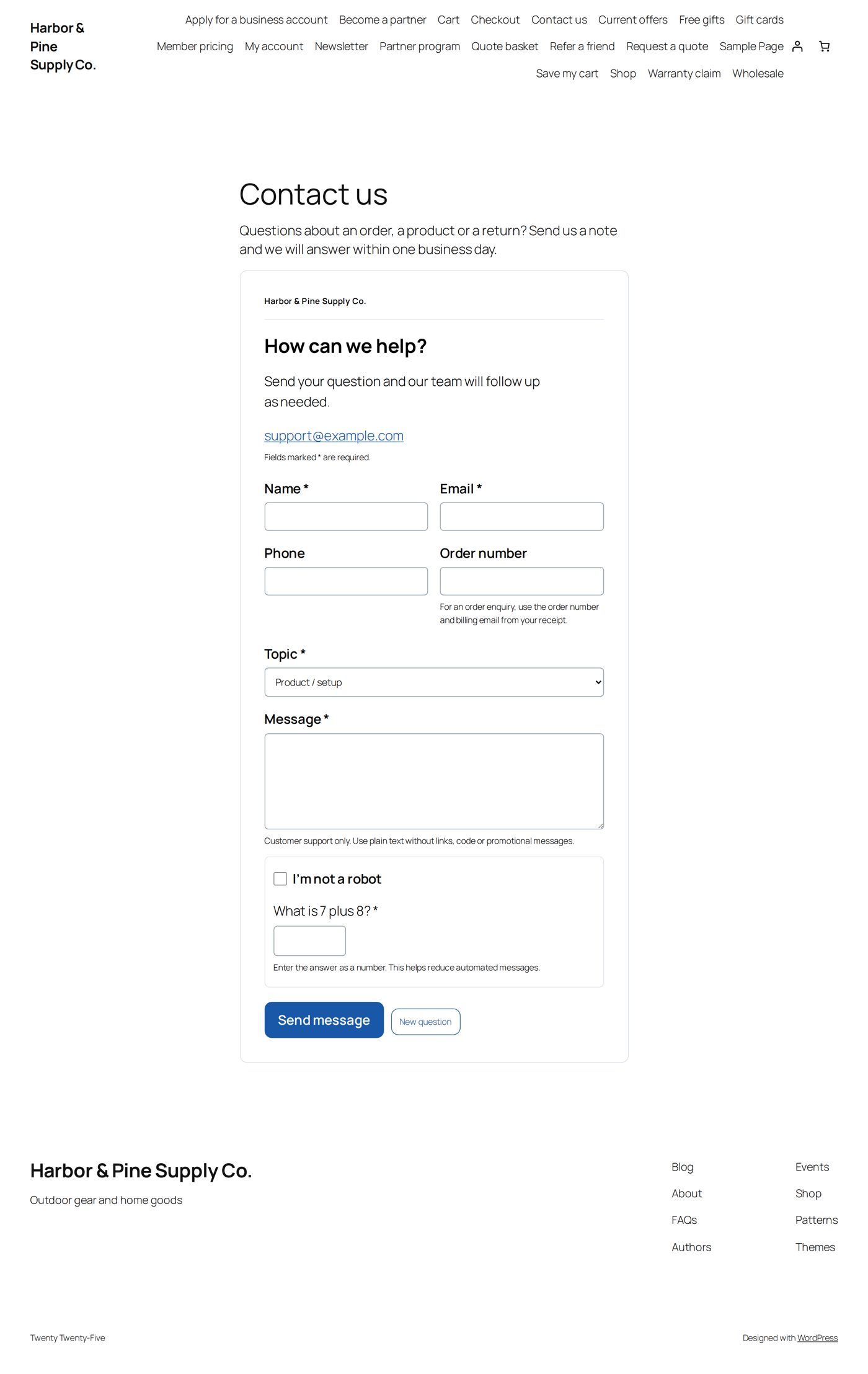
| Contact | Name, Email, Topic (Product / setup, Existing order, Technical support, Commercial project, Other), Message | Phone, Order number (required for an existing order when order checks are on) |
| Warranty Registration | Name, Email, Product, Product model, Serial number, Purchase date (today or earlier), Retailer / website | Phone, Order / receipt (required when order checks are on), Notes |
| Quote Request | Name, Email, Phone, Project location, Products, Quantity (1 to 1,000,000), Timeline (As soon as possible, Within 30 days, 1-3 months, 3-6 months, 6-12 months, 12+ months), Project details | Company / facility |
A warranty registration records what the customer sent; it does not check a serial number or approve a claim. A quote request records an enquiry; it reserves no stock and commits to no price.
Every request gets a reference such as SUP-20261005-000123, shown to the customer on the page after sending and in their receipt.
5. The emails
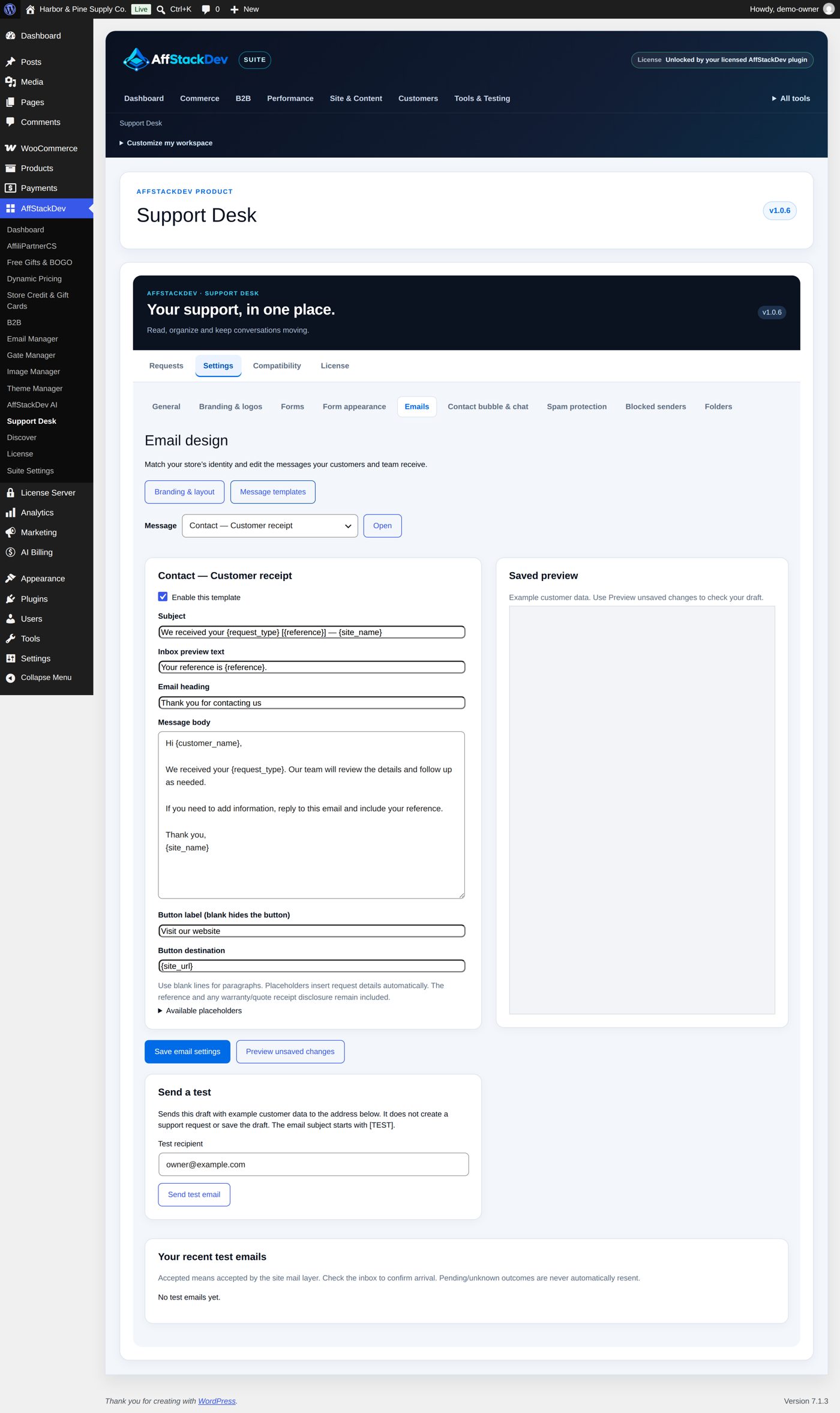
Settings → Emails has two parts:
- Branding & layout: the frame around every email (logo, colors, footer).
- Message templates: the wording of each of the nine messages: for each form (Contact, Warranty, Quote) the Customer receipt and the Staff notification, the General staff reply used when you answer a request, Customer reply in the portal (to your team) and the Satisfaction survey (to the customer). With the customer portal on, the customer's messages carry the private link to their request (placeholder
{request_link}).
For each message: Saved preview shows it with example data, Preview unsaved changes shows your draft without saving, Send test email sends the draft to you with "[TEST]" in the subject.
6. Keep junk out
Settings → Spam protection. At the start a built-in question is asked (a checkbox and a small sum); it needs no account anywhere. You can switch to Cloudflare Turnstile with your own keys, or switch the question off. Content filters, a list of spam phrases you can edit, a timing check and a limit on how often one visitor can submit work in the background.
A submission that is rejected creates no request and sends no email.
With WooCommerce you can let the contact form check an order number: it is compared with the order and its billing email.
7. Try it as a visitor
Open the page in a private browser window, send a test request, and check three things: the request is in Requests, the notice reached your mailbox, the receipt reached the address you typed.
If something does not work
| What you see | Usual cause |
|---|---|
| The form is not on the page | Public forms are not enabled, or the page is not the one chosen in the mapping, or it is not published. |
| The form appears twice | The page has the shortcode and is mapped as well. Remove one. (Support Desk skips the mapping when it finds its own shortcode in the page.) |
| The request is in the inbox but no email came | The request is safe. The site's email is the problem: send a test from Settings → Emails; if that does not arrive either, fix the site's mail setup. |
| Real customers are rejected | A spam phrase or filter is too strict. Loosen it in Settings → Spam protection. |
What else Support Desk can do
| Page | What it covers |
|---|---|
| Work with requests, and live chat | The daily work: read new requests, hand them to the right person, answer, file them away. And how the contact bubble and live chat work. |
| Files, the customer portal and the survey | Attachments on the forms, customers seeing and answering their own requests, "How did we do?". |
| Saved replies, due dates, rules and reports | Faster answers, targets, automatic sorting and closing, figures, the export and personal-data requests. |