Quotes
A business asks for a price, you answer and send an offer, they accept and pay exactly that offer. Quote setup field by field, the quote desk, and two worked examples: preparing an offer, and a buyer accepting one.
What it is for
Some business orders are agreed before they are paid: a large quantity, a special price, delivery to a boathouse. With quotes the buyer asks, you answer with an offer (prices per piece, delivery, an expiry date, your terms), and the buyer accepts and pays exactly that offer. Every offer is a revision of its own, so both sides can see what changed. Have ready: approved business accounts (Business accounts).
How a quote runs
- The buyer puts products in a quote basket (separate from the cart; it reserves no stock) and sends a quote request, with a message and up to two files.
- You answer in the conversation and prepare an offer.
- The buyer accepts the offer, or proposes other quantities or prices (Propose different quantities or prices), or declines.
- The buyer reviews the payable total and checks out that exact offer. One order is created; the quote is done.
Switch quotes on
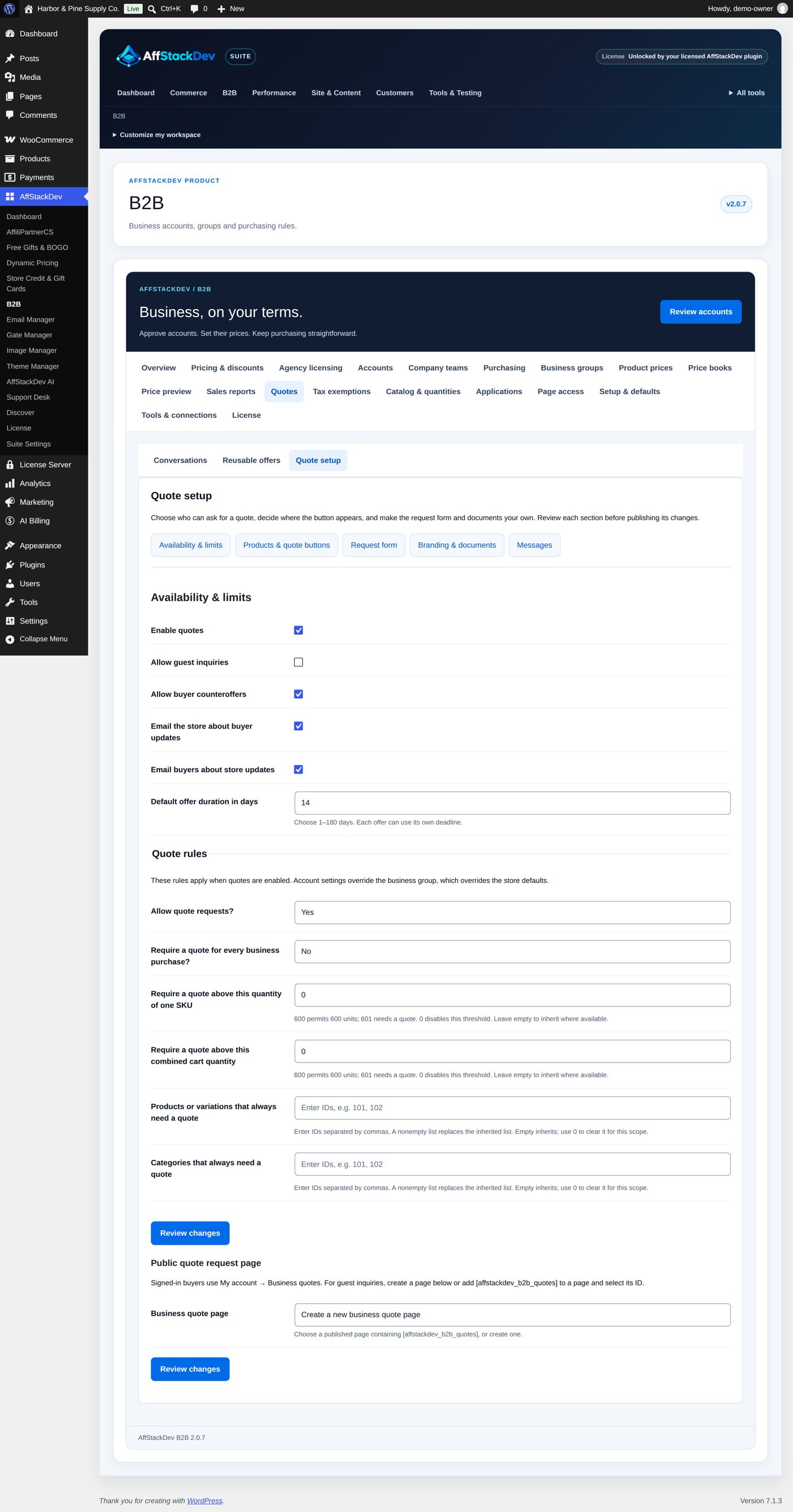
Quotes → Quote setup has five sections, each reviewed and published on its own (Publish this quote setup section): Availability & limits, Products & quote buttons, Request form, Branding & documents, Messages.
Availability & limits
| Field | At the start | What it does |
|---|---|---|
| Enable quotes | not ticked | quotes on or off for the store |
| Allow guest inquiries | not ticked | visitors without a login may ask (needs the public quote page below) |
| Allow buyer counteroffers | ticked | buyers may propose other quantities or prices |
| Email the store about buyer updates | ticked | |
| Email buyers about store updates | ticked | |
| Default offer duration in days | 14 | "Choose 1–180 days. Each offer can use its own deadline." |
| Quote rules: Allow quote requests? | Yes | the store's default; groups and accounts can override it |
| Require a quote for every business purchase? | No | |
| Require a quote above this quantity of one SKU | 0 | "600 permits 600 units; 601 needs a quote. 0 disables this threshold." |
| Require a quote above this combined cart quantity | 0 | the same for the whole cart |
| Products or variations that always need a quote, Categories that always need a quote | empty | IDs separated by commas |
| Business quote page (under Public quote request page) | a published page with [affstackdev_b2b_quotes], or Create a new business quote page. Signed-in buyers use My Account → Business quotes; the public page is for guests. |
"These rules apply when quotes are enabled. Account settings override the business group, which overrides the store defaults." A guest's private quote link works for 30 days.
Products & quote buttons
Default quote button (the button's words, "Request a quote" at the start), Quote basket label ("Quote basket"), Add basket shortcut to these menus, and Quote catalog rules: up to 25 rules that decide, for named products, categories and audiences, whether the product page offers Buy or request a quote, Quote required before purchase, Replace purchase with a custom link or Use normal purchasing; disable quoting. The first matching rule wins.
Request form
Request introduction ("Tell us about the products, quantities and timing you need."), Submission confirmation, and Questions: your own questions to the buyer, in addition to the products, contact and delivery wishes.
Branding & documents
What the quote page and its PDF show: Business / brand name, Quote heading, Quote footer, Brand color, Local logo image (or No logo), PDF layout (Classic - clear business letter, Ledger - compact item detail, Studio - bold brand panel), Show quoted prices and merchandise totals, Show permitted standard reference prices, Quoted-price label, Standard-price label, Tax heading.
Messages
Staff recipients (the site's admin email at the start), a Default email subject and Default email message (with {quote_url}, so the buyer can open their private quote), and for each event whether staff, the buyer, or both get an email:
| Event | Staff | Buyer |
|---|---|---|
| Quote requested | on | on |
| Quote issued | off | on |
| Quote revised | off | on |
| Buyer replied | on | off |
| Store replied | off | on |
| Counteroffer received | on | off |
| Quote accepted | on | on |
| Quote declined | on | on |
| Quote withdrawn | on | on |
| Quote expired | on | on |
| Quote order created | on | on |
| Quote assigned | on | off |
| Quote status updated | on | on |
| Quote follow-up due | on | off |
| Quote expires within two days | off | off |
Placeholders: {brand}, {quote_id}, {title}, {event}, {quote_url}. Preview and test quote email: choose an event, Preview saved message or Send example to my login email (one test a minute; "Accepted by mailer is not proof of inbox delivery").
The buyer's side
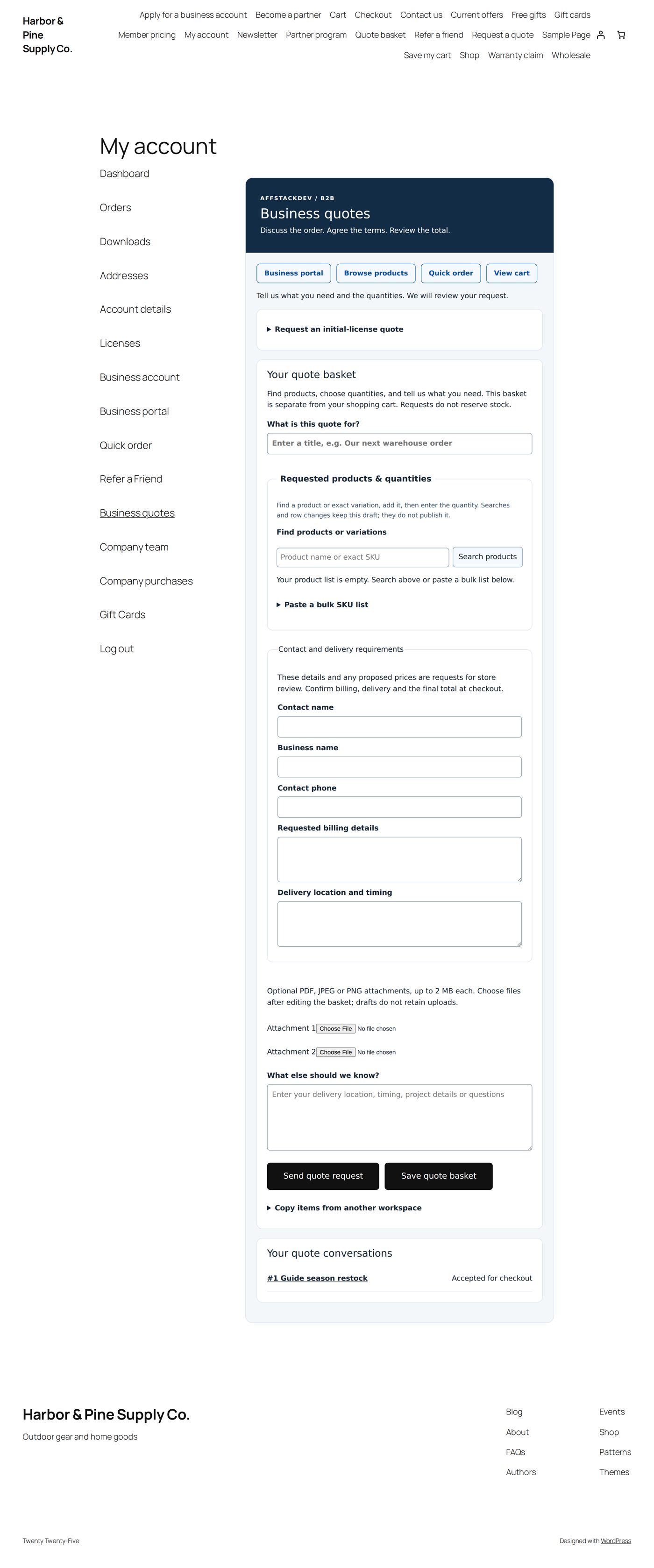
Signed-in buyers use My Account → Business quotes: What is this quote for?, the products (up to 100 different ones, 1 to 10,000 each), contact and delivery wishes, your questions and What else should we know?. Save quote basket keeps a draft; Send quote request starts the conversation. Copy shopping cart to quote basket copies the cart. A buyer can send up to 20 requests an hour; guests share a limit of 50 an hour for the whole store.
Your side: the quote desk
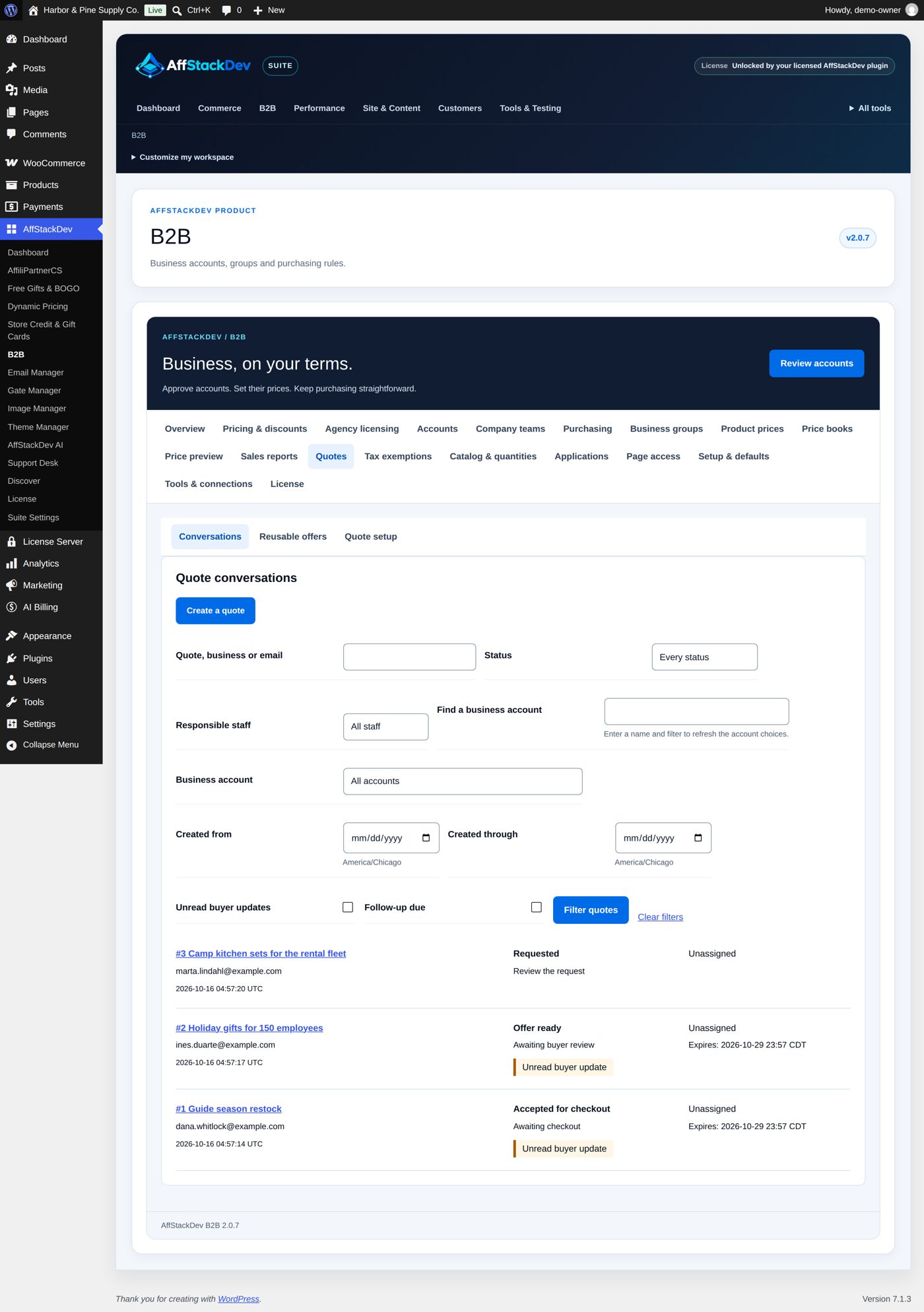
Quotes → Conversations lists every request. Filter by status, responsible staff, business account, dates, unread buyer messages and follow-ups due. In a quote:
- Messages and files: write in Message to buyer or private staff note, attach up to two PDF, JPEG or PNG files (2 MB each, ten per quote) and choose Send message. The buyer sees it on their quote page and gets the Store replied email.
- Private staff note — buyer cannot see this message or its files: tick it for a note that stays with your staff; no email goes out.
- Responsible staff member and Follow up at (UTC): assign the quote and set a reminder.
- Prepare the next offer: the offer form (worked example below). Publishing a new offer replaces the old one; the buyer must accept again.
To start a quote yourself, choose Create a quote, pick a business account (or enter a guest's email), add the products and an opening message, then prepare the offer.
| Status | Means |
|---|---|
| Requested | The buyer sent the request. |
| In progress | You are working on it. |
| Offer ready | Your offer waits for the buyer. |
| Counteroffer | The buyer proposed other quantities or prices. |
| Accepted for checkout | The buyer accepted; checkout is next. |
| Order created | The order exists. |
| Declined, Withdrawn, Expired | Closed. |
Worked example: an offer for Blue Heron Canoe Co.
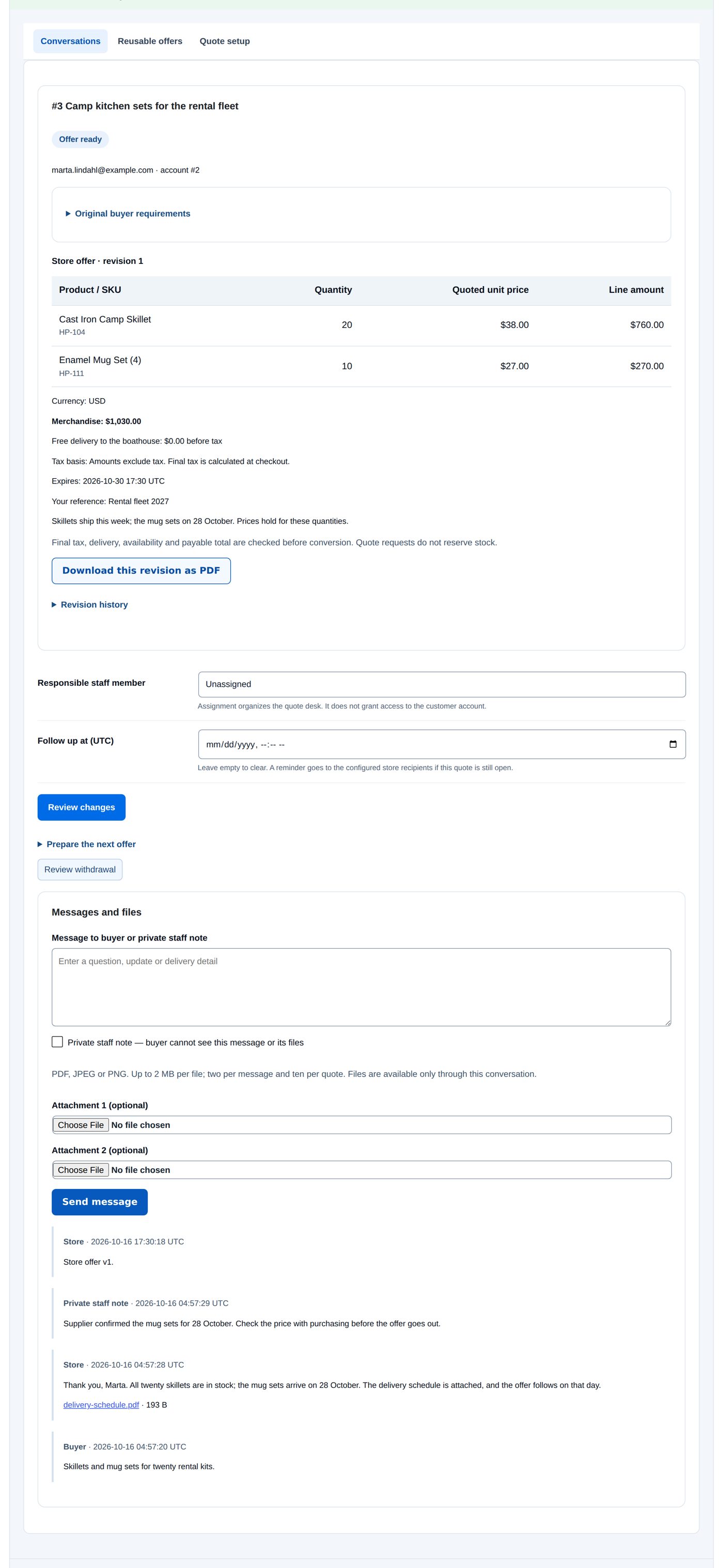
Marta Lindahl of Blue Heron Canoe Co. asked for "Camp kitchen sets for the rental fleet": 20 Cast Iron Camp Skillets and 10 Enamel Mug Sets.
- Open the quote from Quotes → Conversations and go to Prepare the next offer.
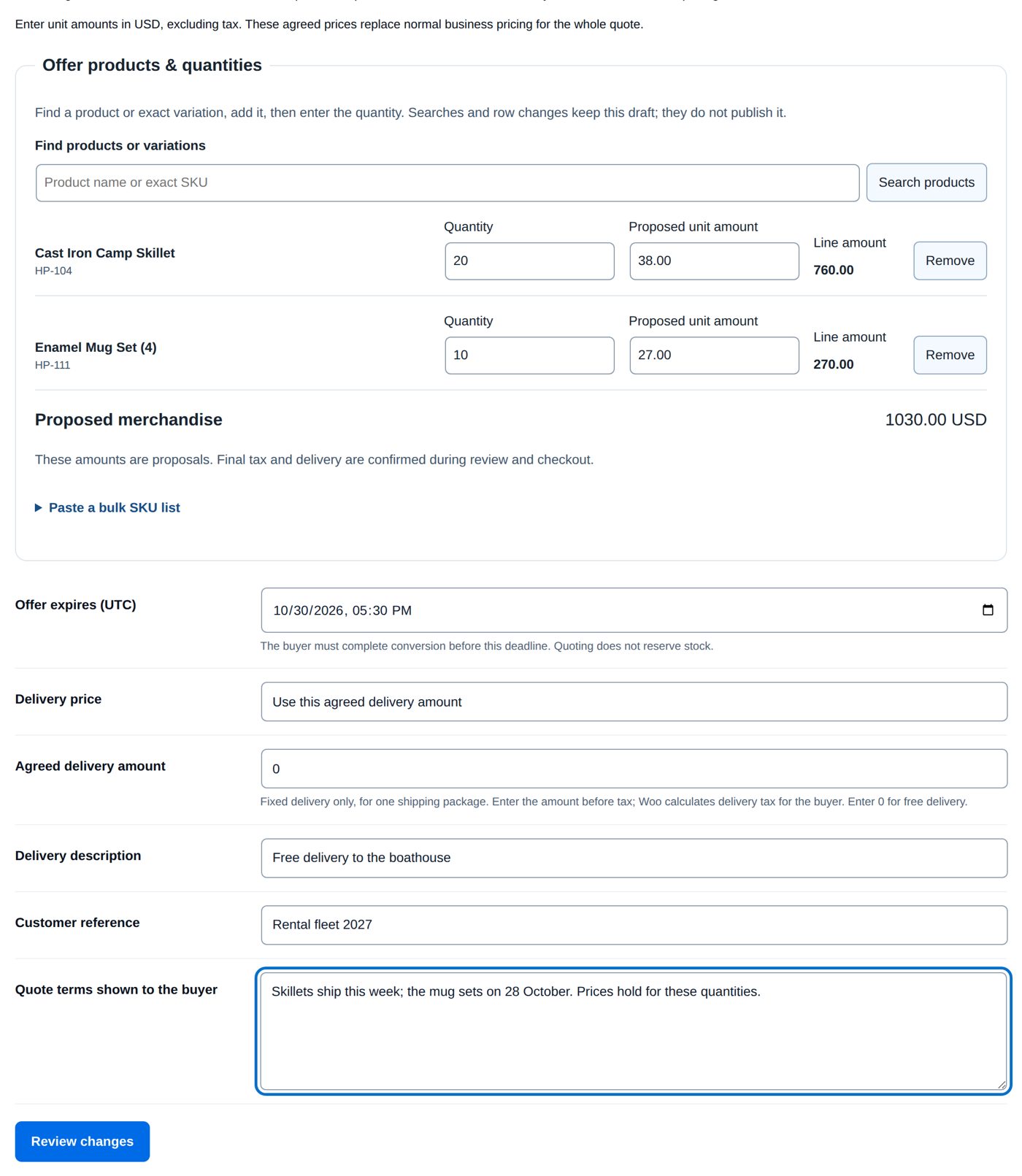
- Under Offer products & quantities the requested rows are listed with Quantity and Proposed unit amount: 38.00 for the skillets and 27.00 for the mug sets. Line amount and Proposed merchandise follow as you type ("Enter unit amounts in USD, excluding tax."). Find products or variations adds a row; Remove takes one away; Paste a bulk SKU list adds many.
- Offer expires (UTC): 14 days from today at the start. Delivery price Use this agreed delivery amount (or Calculate using current store delivery options), Agreed delivery amount 0 (free), Delivery description "Free delivery to the boathouse".
- Customer reference "Rental fleet 2027"; Quote terms shown to the buyer "Skillets ship this week; the mug sets on 28 October. Prices hold for these quantities."
- Review changes: Publish a new offer revision for "This quote buyer", each row with SKU, quantity, unit and line amount ($760.00 and $270.00), Merchandise $1,030.00, "Prices exclude tax", "Free delivery to the boathouse: $0.00 before tax", the expiry, the reference and the terms.
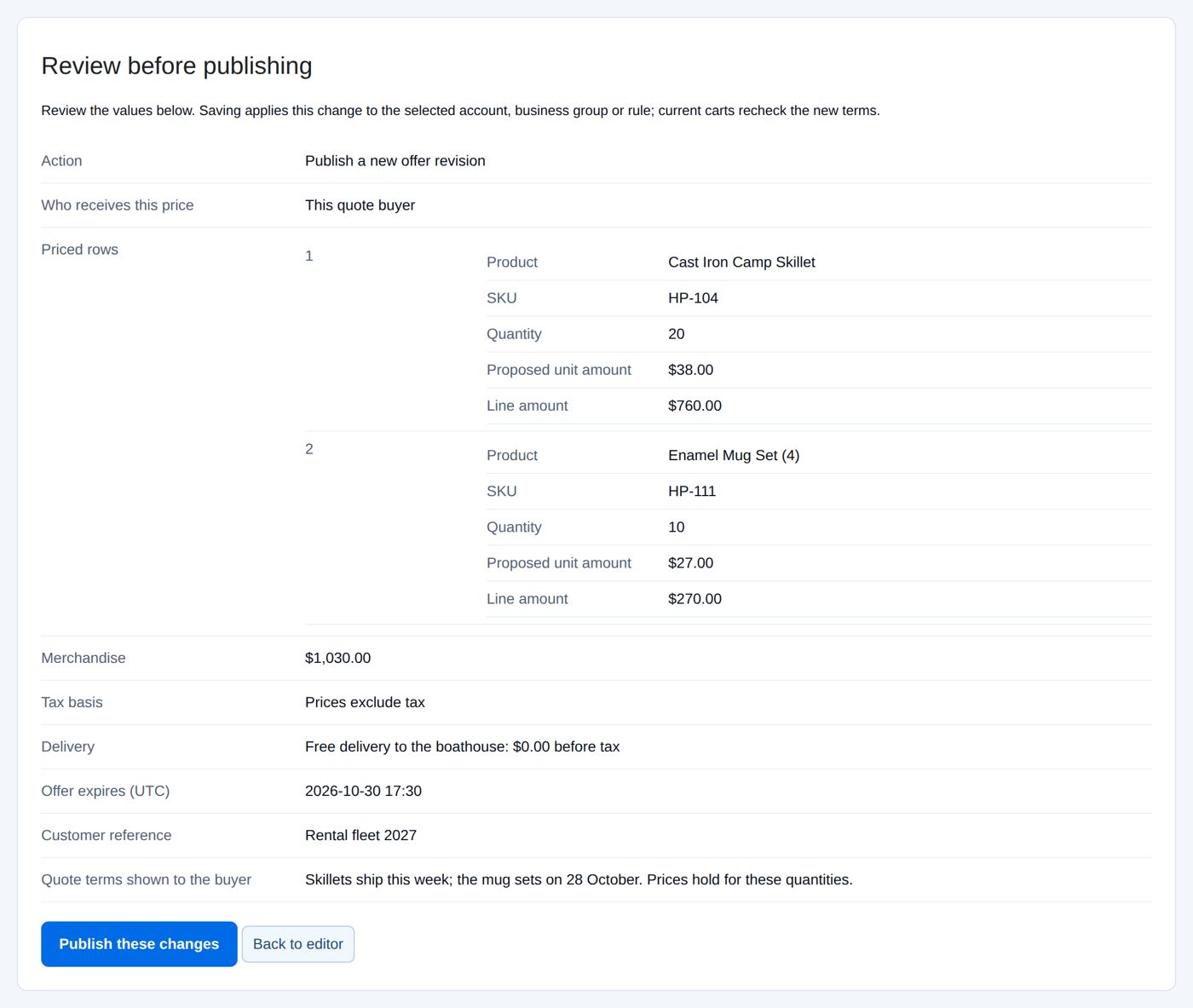
- Publish these changes: the quote shows Offer ready and the buyer gets the Quote issued email.
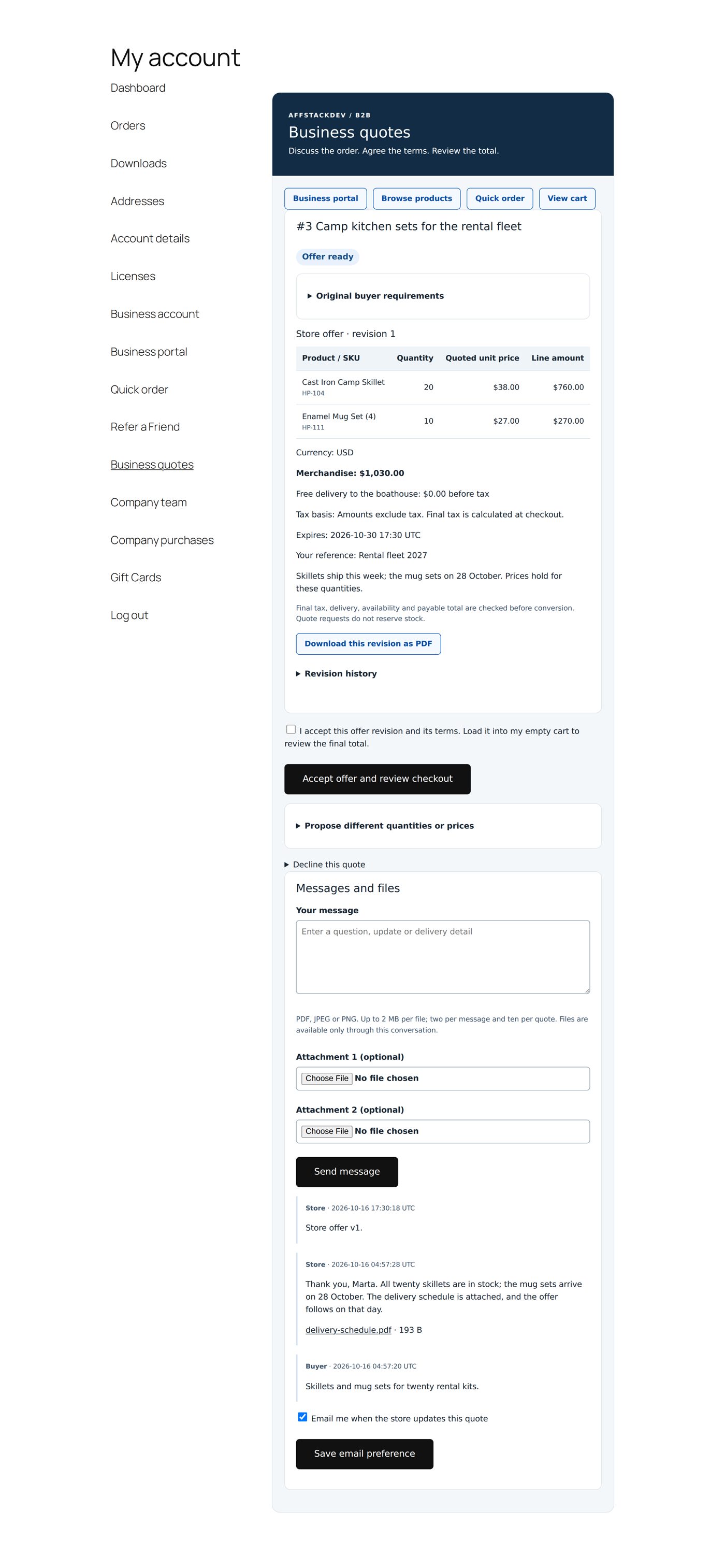
Marta sees the offer under My Account → Business quotes: "Store offer · revision 1", the quoted unit prices and line amounts, "Merchandise: $1,030.00", the delivery, the tax basis, the expiry, her reference and your terms, Download this revision as PDF, and below it I accept this offer revision and its terms. Load it into my empty cart to review the final total. with Accept offer and review checkout, Propose different quantities or prices and Decline this quote.
Worked example: Kestrel Corporate Gifts accepts an offer
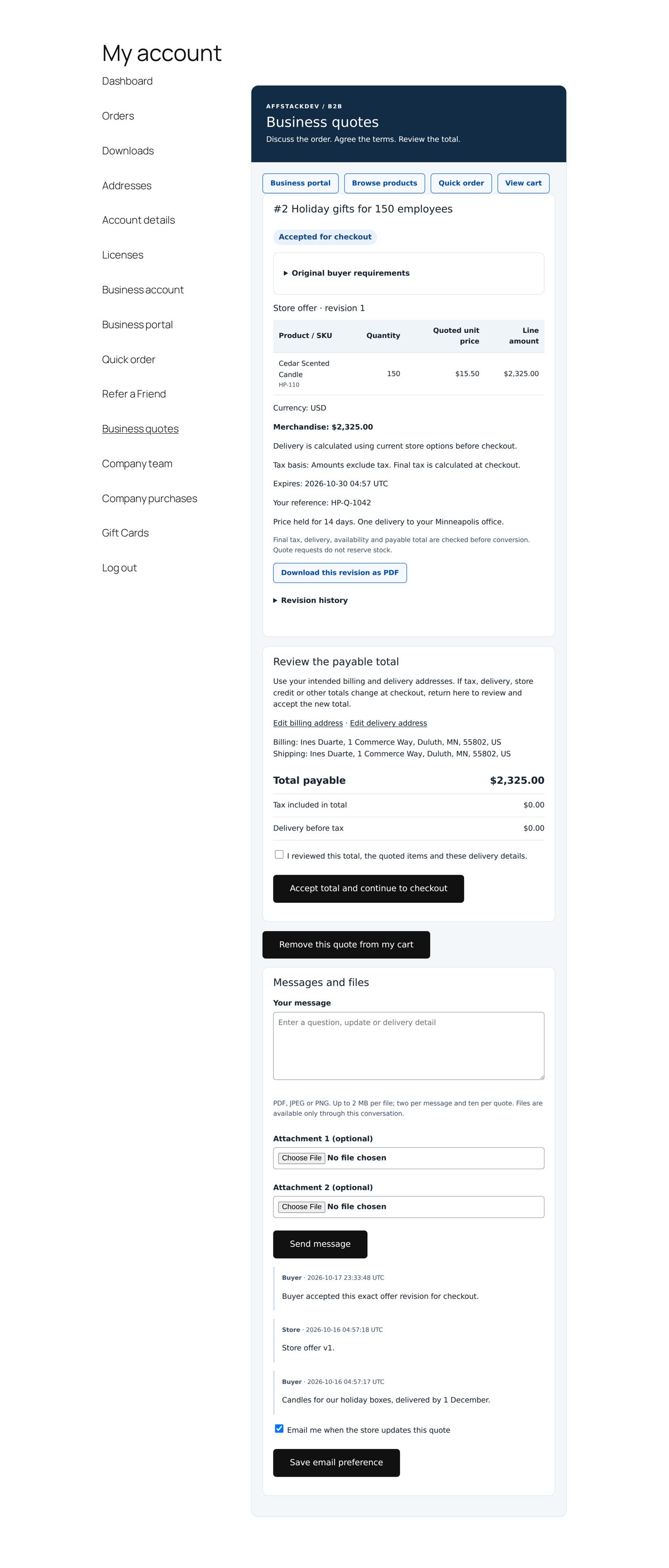
Ines Duarte of Kestrel Corporate Gifts has an offer for 150 Cedar Scented Candles at $15.50 each ($2,325.00).
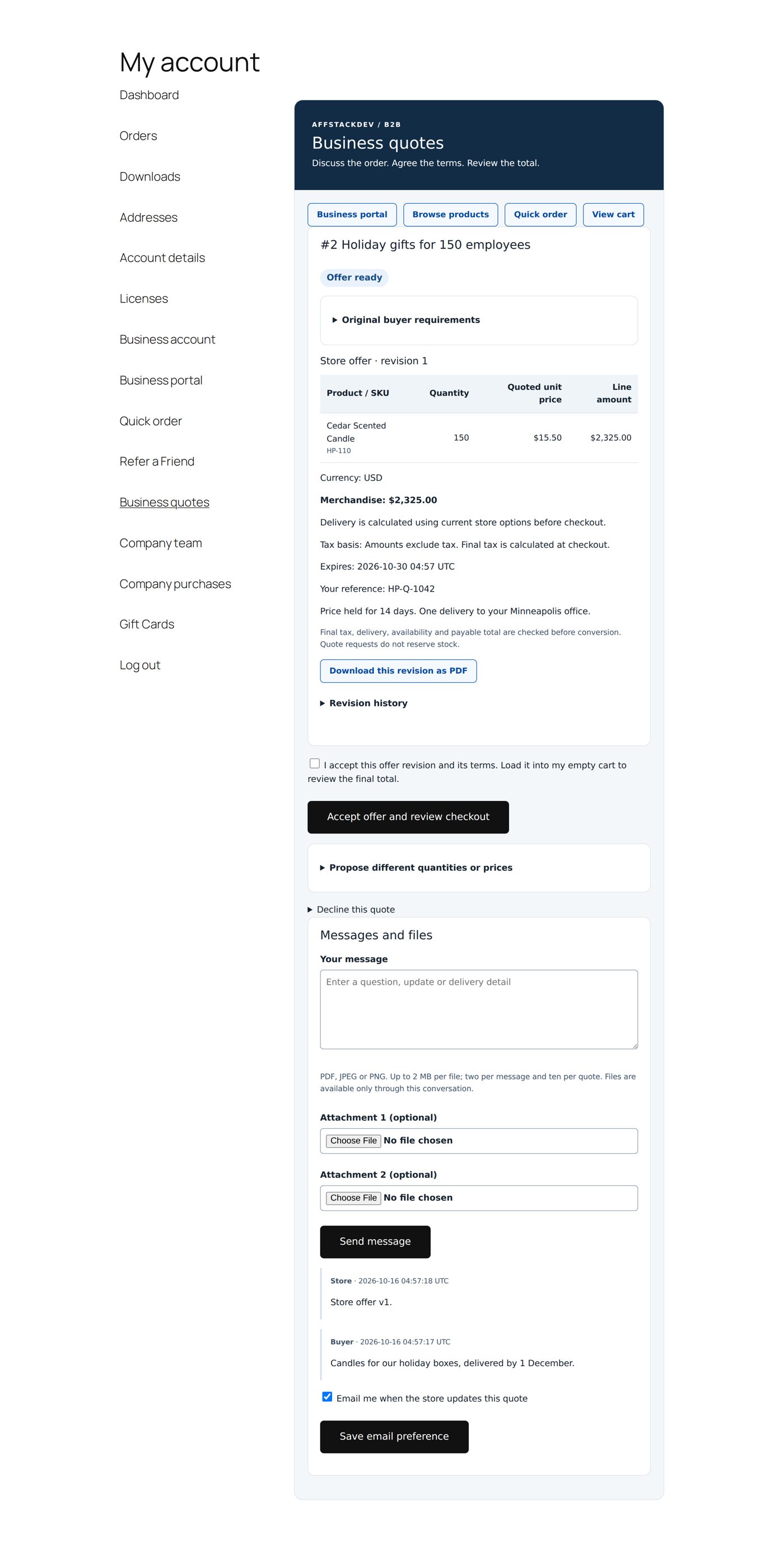
- She ticks "I accept this offer revision and its terms. Load it into my empty cart to review the final total." and chooses Accept offer and review checkout. The quote is now Accepted for checkout and the offer is in her cart.
- Review the payable total shows her billing and delivery addresses ("Billing: Ines Duarte, 1 Commerce Way, Duluth, MN, 55802, US"), Edit billing address / Edit delivery address, the Total payable ($2,325.00), the tax and the delivery. "If tax, delivery, store credit or other totals change at checkout, return here to review and accept the new total."
- She ticks "I reviewed this total, the quoted items and these delivery details." and chooses Accept total and continue to checkout, then pays at checkout as usual. Remove this quote from my cart takes the offer out of the cart again.
The checkout must contain the quoted products only, in the quoted quantities: nothing added, nothing removed. The agreed prices replace all other business prices for these products. Stock and availability are checked again; if something is missing, the cart is put back as it was and the quote stays accepted. Paying the same quote twice is not possible.
Reusable offers
Quotes → Reusable offers: one offer that many accounts (or one group) may claim, from a start date and up to a number of claims. "Claiming holds one available use until this quote expires or is declined." Pausing stops new claims; refunded orders still count as claims.
Messages with business customers
With Allow messages with business customers outside quotes (Quote setup → Availability & limits, off at the start) an approved business's owner, managers and buyers find Message the store on Business quotes and in the business portal, also when quote requests are off: a subject, the message and up to two files. It is a private conversation like a quote, shown as "Message · open"; the company's finance members can read it. On your quote desk, Quotes or messages shows only messages, and Start a message to a company writes to an approved account first. Answer a message with an offer and it becomes a quote.
Worked example: Blue Heron asks about delivery
- Under Quote setup → Availability & limits tick Allow messages with business customers outside quotes, review and publish.
- Blue Heron Canoe Co.'s buyer opens Business quotes → Message the store, subject "Delivery dates for March", asks when the March order can reach their warehouse and attaches their delivery plan (PDF). Send message.
- You get "New message from a business customer". On the quote desk choose Quotes or messages Messages, open it and Reply to the message. The buyer gets "New message from the store".
- When the question is settled, either side closes it: the buyer with Close conversation, you with Review closing the conversation.
When it does not work
| You or the buyer see | It means |
|---|---|
| No Request a quote button | Enable quotes is off, or the product's quote catalog rule says Use normal purchasing; disable quoting, or the account or group has Allow quote requests? No. |
| "Confirm acceptance of the displayed offer revision." | The buyer chose Accept offer and review checkout without ticking the box. |
| "Reopen the product quote settings before saving." / "The quote settings form was incomplete. ..." | Reload Quote setup; a very large form may need the host to raise the form input limit. |
| "Currency or tax input settings changed. Ask the store to issue a reviewed quote." | The store's currency or tax settings changed after the offer; issue a new offer. |
| "Closed quotes cannot schedule another follow-up." | A follow-up on a declined, withdrawn, expired or ordered quote. |
| "Wait one minute between tests and use a valid administrator login email." | Test emails are limited to one a minute. |
| The buyer's checkout refuses the cart | Something was added to or removed from the quoted cart, or an item is out of stock; the quote stays accepted. |
Questions
Does a quote reserve stock?
No. Stock is checked again at checkout. A product with a separate business quantity takes it when the quote's order is placed (Separate business stock).
Can I change an offer after sending it?
Prepare the next offer and publish it: it replaces the old one, and the buyer has to accept again.
Can a buyer pay part of an offer?
No. The checkout is the exact offer.
Can guests ask for quotes?
Yes, with Allow guest inquiries and a public quote page. Their private link works for 30 days.
Where are the files the buyer sent?
In the quote's Messages and files; they are available only through that conversation.
Related pages
| Page | What it covers |
|---|---|
| Business prices | The prices a quote replaces for its products. |
| Who sees and buys what | Products only for approved businesses, minimum quantities. |
| Company buying | Quotes inside a company team: who may ask, accept and see them. |