Your first rule
Install and activate Dynamic Pricing, then "10% off everything in one category" step by step: build it as a draft, try it in the Simulator, switch it on, and see it in a shopper's cart and in the order.
Download and install
- On affstackdev.com open My Account → Downloads and download Dynamic Pricing. Keep the ZIP file as it is; do not unpack it.
- In your WordPress admin open Plugins, choose Add Plugin (older WordPress versions call it Add New), then Upload Plugin.
- Choose the ZIP file and select Install Now, then Activate Plugin.
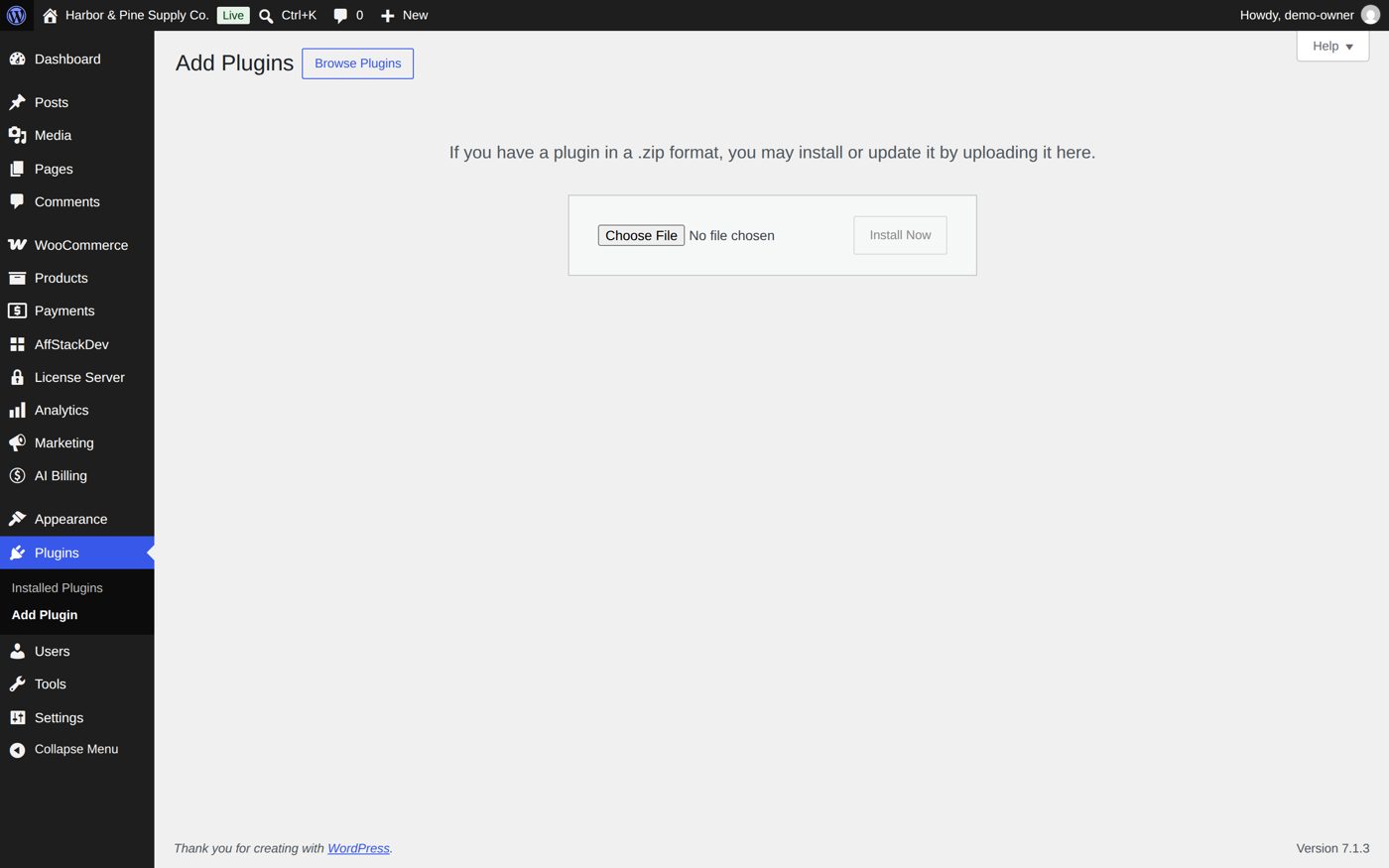
Dynamic Pricing now has its place in the WordPress menu: WooCommerce → Dynamic Pricing. With the AffStackDev Suite installed you also find it in the AffStackDev menu. If WordPress refuses the file, or to install a newer version over an older one, see Install a plugin.
Before you start
Activate the license: open Dynamic Pricing (WooCommerce → Dynamic Pricing, or AffStackDev → Dynamic Pricing with the Suite). Until a license is active it opens on the license form; afterwards the form is under its License tab (Activate your license).
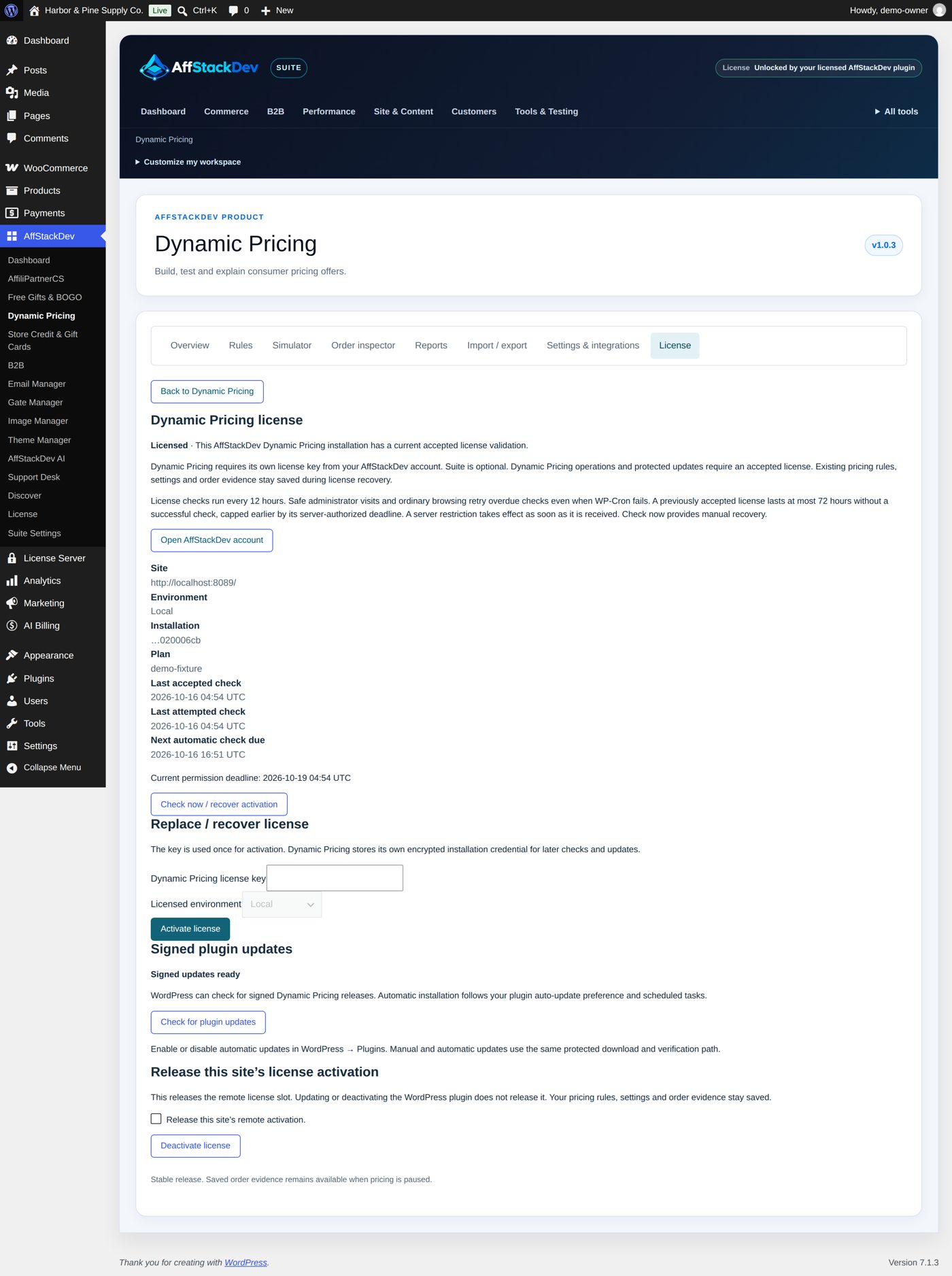
A new installation starts paused: on Settings & integrations, Enable the pricing engine is not ticked. You can build and try rules first; no shopper sees a lower price until the engine and the rule are both switched on.
Worked example: Cabin week, 10% off one category
Harbor & Pine, the sample store of these pages, wants a week of 10% off everything in its Home & Cabin category (candles, mugs, blankets). Here is that rule from the empty editor to the shopper's cart.
1. Open a new rule
Open Rules and select Create rule. Or open Start with an editable template and pick Simple percentage offer, Bulk quantity breaks, Graduated quantity pricing or Fixed price for a complete set: a template opens an unsaved draft with its values filled in, to adjust before saving.
2. The offer and what it applies to
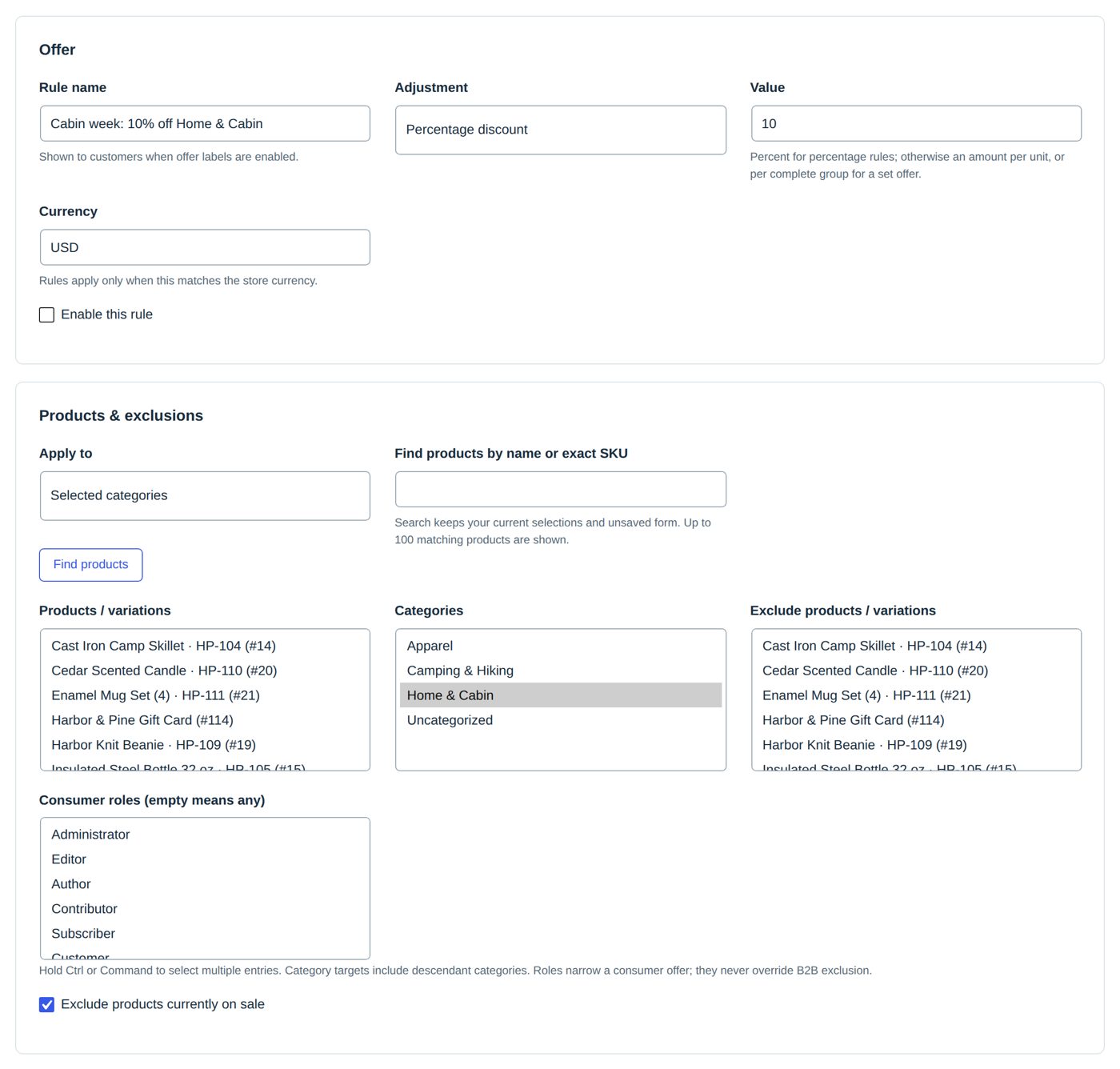
| Field | Value | Notes |
|---|---|---|
| Rule name | Cabin week: 10% off Home & Cabin | "Shown to customers when offer labels are enabled", so write it for them. |
| Adjustment | Percentage discount | see the table below |
| Value | 10 | percent here |
| Currency | USD | must be your store's currency, or the rule does nothing |
| Enable this rule | not ticked | the rule is saved as a draft |
| Apply to | Selected categories | or All eligible purchased products, Selected products / variations, tags, brands or attribute values |
| Categories | Home & Cabin | Hold Ctrl or Command to pick several. Categories below it are included. |
| Exclude products currently on sale | ticked (as at the start) | a product on sale keeps its sale price and gets no rule |
What Value means depends on Adjustment:
| Adjustment | Value 10 means | A product at 50 costs |
|---|---|---|
| Percentage discount | 10% off | 45 |
| Fixed reduction: per unit, or once per cart for an order discount | 10 off each piece | 40 |
| Fixed unit price | each piece costs 10 | 10 |
A fixed price that is higher than the normal price changes nothing: rules only lower prices.
3. The rest of the form
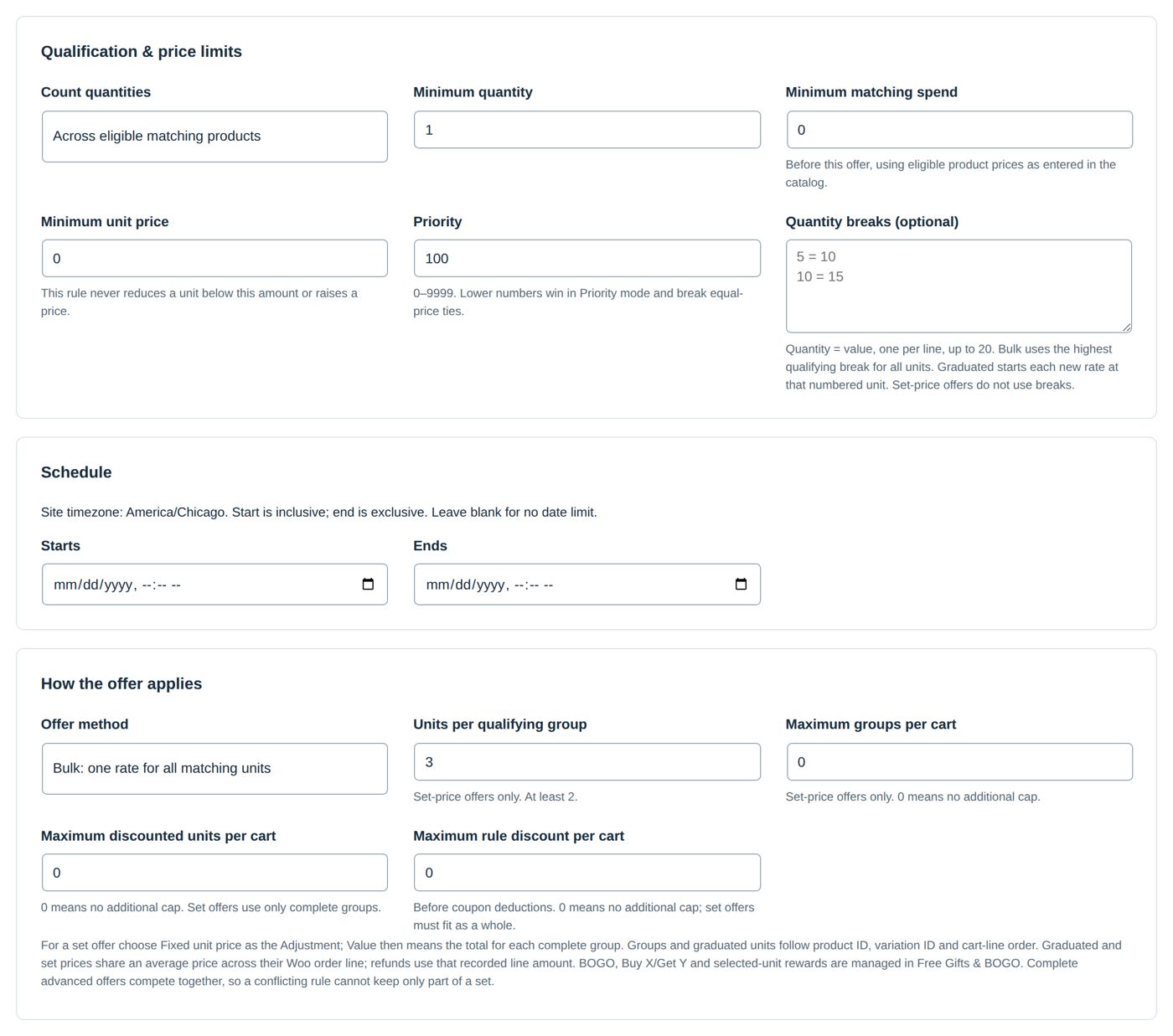
The other boxes start as shown and can stay that way for this rule:
| Box | Fields at the start |
|---|---|
| Qualification & price limits | Count quantities Across eligible matching products, Minimum quantity 1, Minimum matching spend 0, Minimum unit price 0 (the rule never lowers a piece below it), Priority 100, Quantity breaks (optional) empty |
| Schedule | Starts and Ends empty: no date limit. Times are your site's time zone; the start is included, the end is not. |
| How the offer applies | Offer method Bulk: one rate for all matching units; the group and cap fields only matter for set prices and caps (More rules) |
| Additional conditions | none (Conditions) |
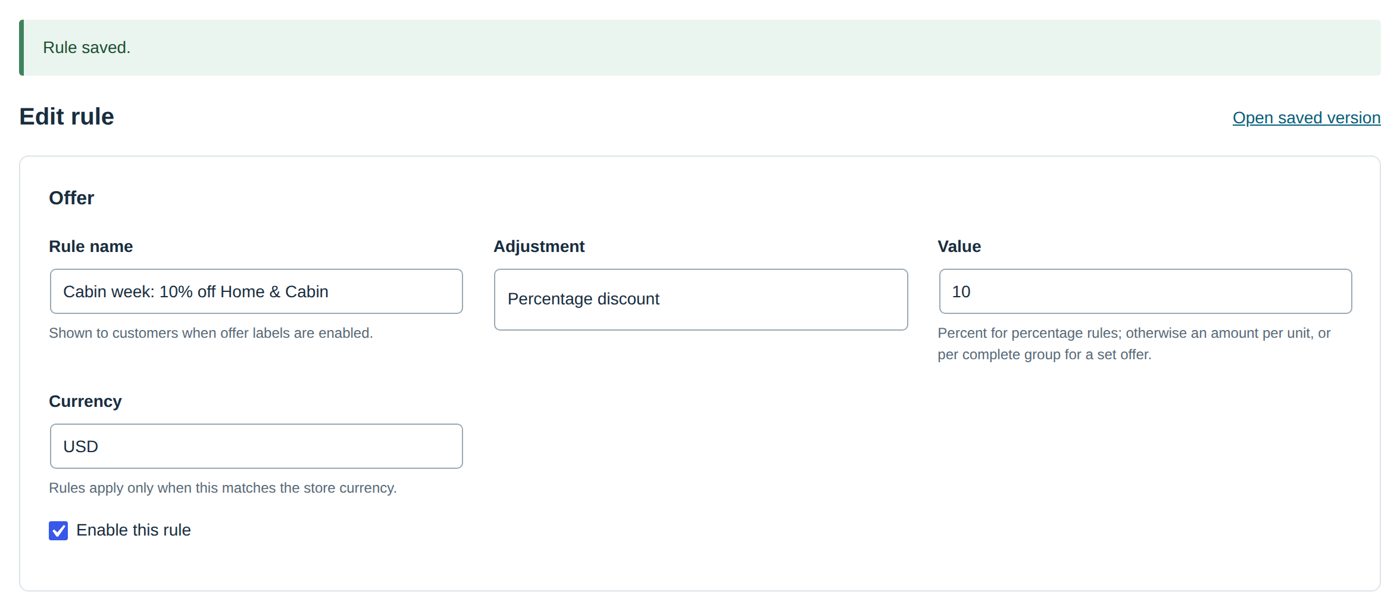
Select Save rule: "Rule saved." The rule is a paused draft; nothing changes for shoppers.
4. Try it in the Simulator
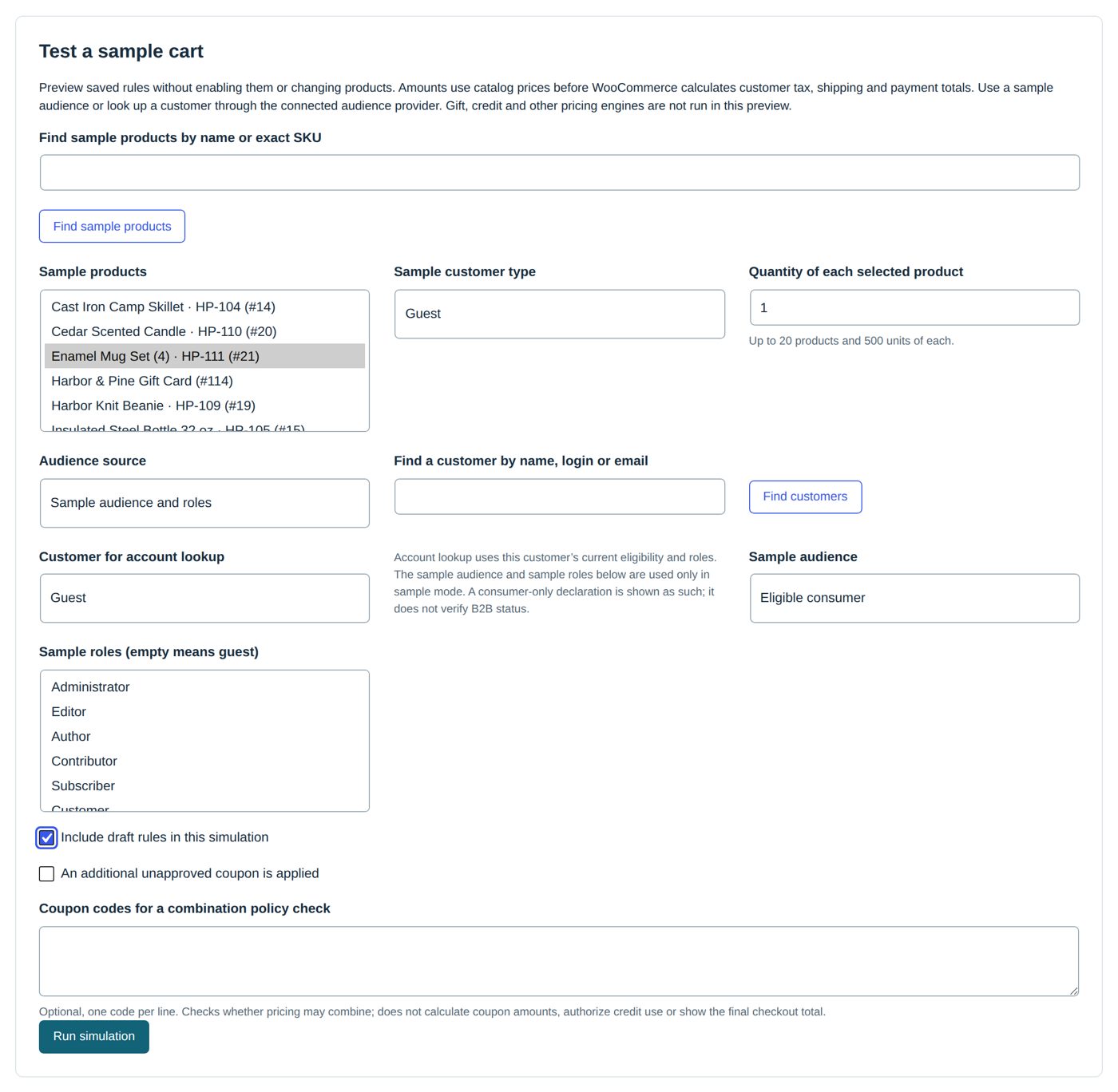
Open Simulator ("Test a sample cart"). It prices a made-up cart with your saved rules and changes nothing: no rule, no product, no real cart.
| Field | Here |
|---|---|
| Find sample products by name or exact SKU, Find sample products | to fill the list below |
| Sample products | the Wool Throw Blanket and the Enamel Mug Set (both Home & Cabin) and the Merino Wool Base Layer (Apparel), up to 20 products |
| Quantity of each selected product | 1 (up to 500, the same for each) |
| Sample customer type | Guest, or Logged in (sample only) |
| Audience source | Sample audience and roles (with Sample audience Eligible consumer and Sample roles), or Current customer eligibility and roles for a real customer you look up with Find a customer by name, login or email |
| Include draft rules in this simulation | ticked: our rule is still a draft |
| An additional unapproved coupon is applied, Coupon codes for a combination policy check | to see what a coupon does to the offer |
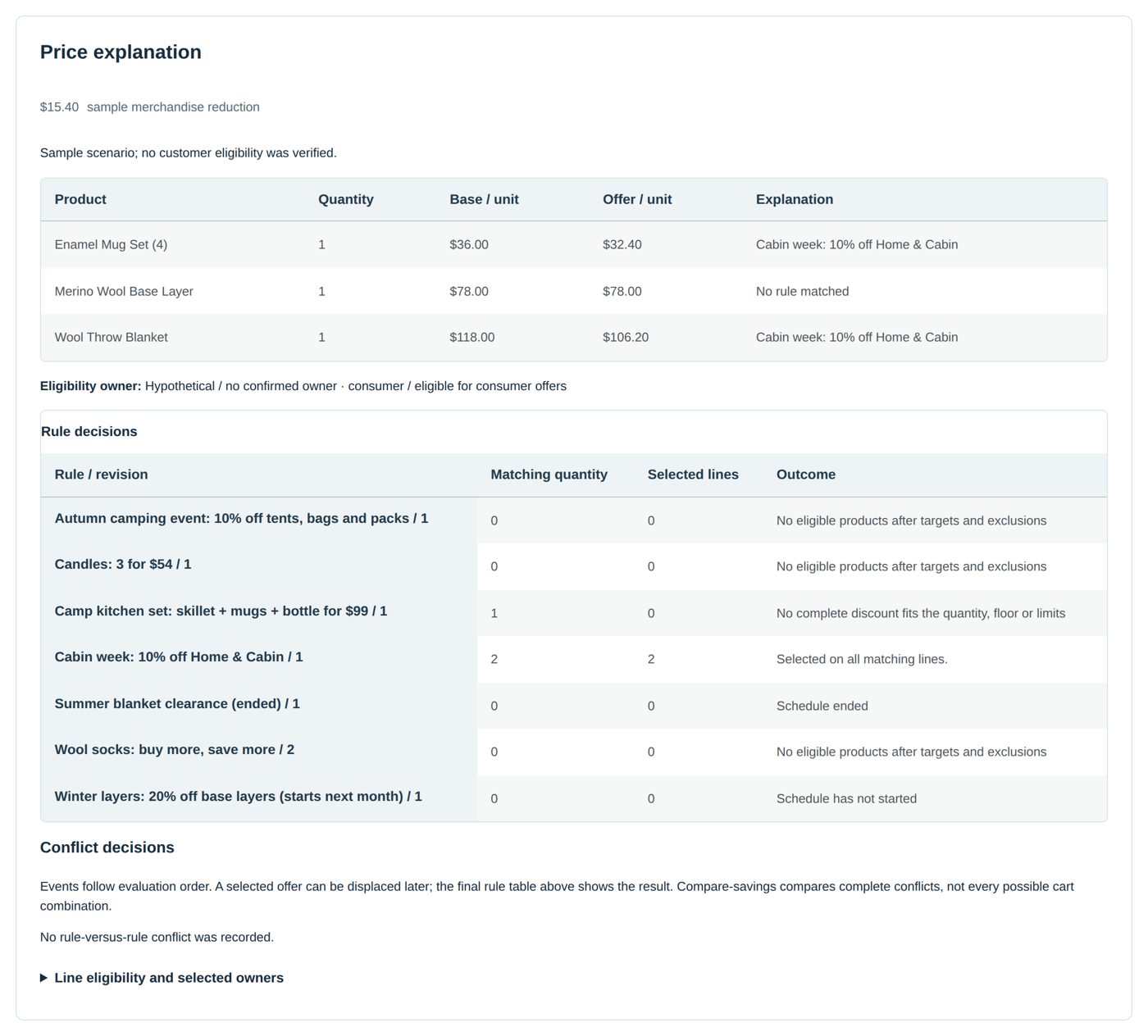
Run simulation shows the Price explanation: "$15.40 sample merchandise reduction"; the blanket $118.00 → $106.20 and the mug set $36.00 → $32.40, each with "Cabin week: 10% off Home & Cabin"; the base layer stays at $78.00, "No rule matched". Below, Rule decisions lists every rule of the store with what it did with this cart ("Selected on all matching lines.", "No eligible products after targets and exclusions", "Schedule ended", "Schedule has not started" ...). Gifts, store credit and other pricing plugins are not run in the Simulator.
5. Switch it on
- In the rule, tick Enable this rule and Save rule: "Rule saved."
- On Settings & integrations, tick Enable the pricing engine and Save settings, if it is still paused.
6. What the shopper sees
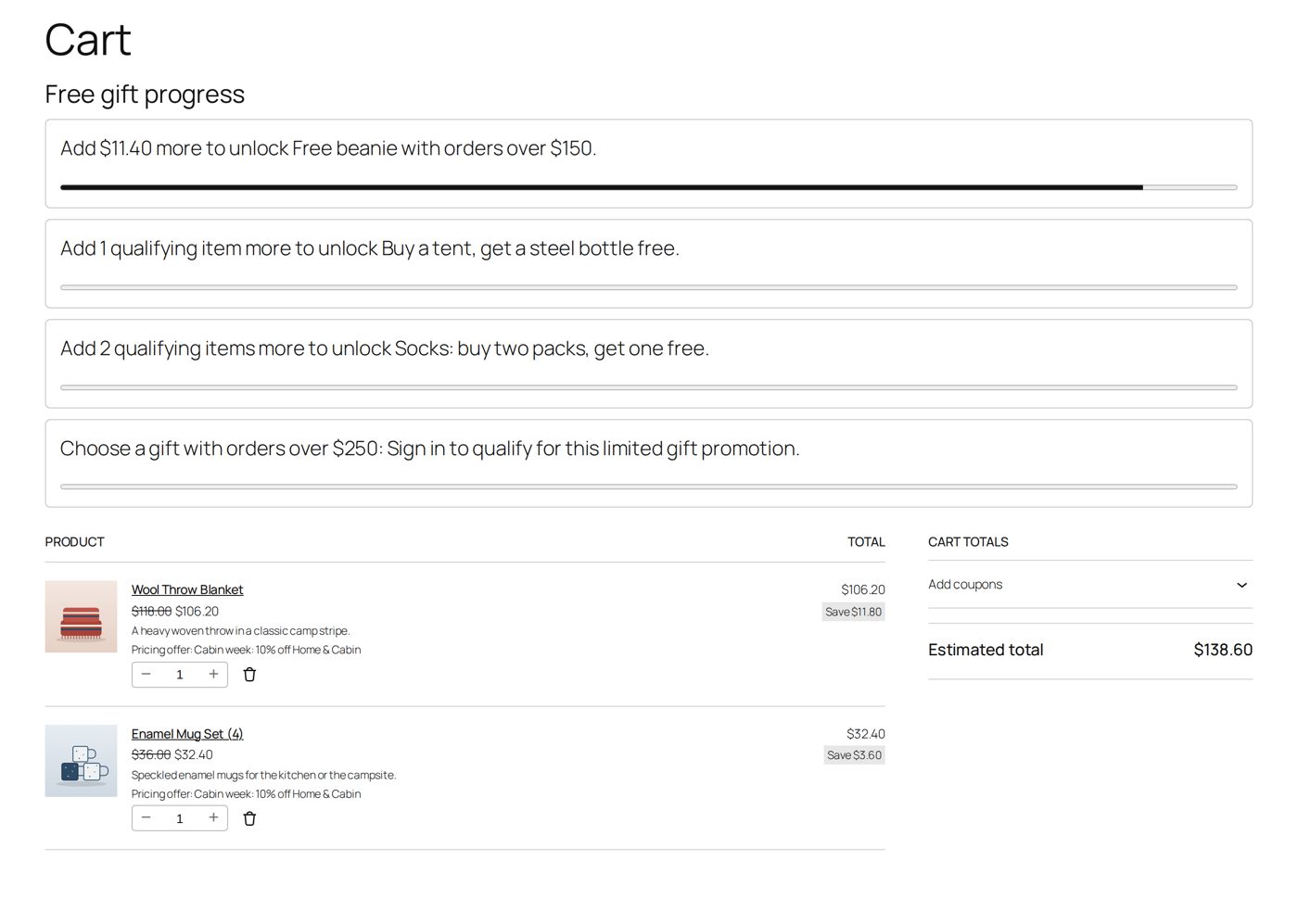
A shopper puts the blanket and the mug set in the cart. Each line shows the old and the new price ($118.00 → $106.20, "Save $11.80"; $36.00 → $32.40) and, with Show the applied offer name in cart item details on (Settings & integrations, on at the start), "Pricing offer: Cabin week: 10% off Home & Cabin". The total is $138.60. The price is checked again at checkout; if the rule ended or changed in the meantime, the shopper is asked to refresh the cart and sees the new total before paying.
Do it once yourself in a private browser window.
Afterwards, in the order
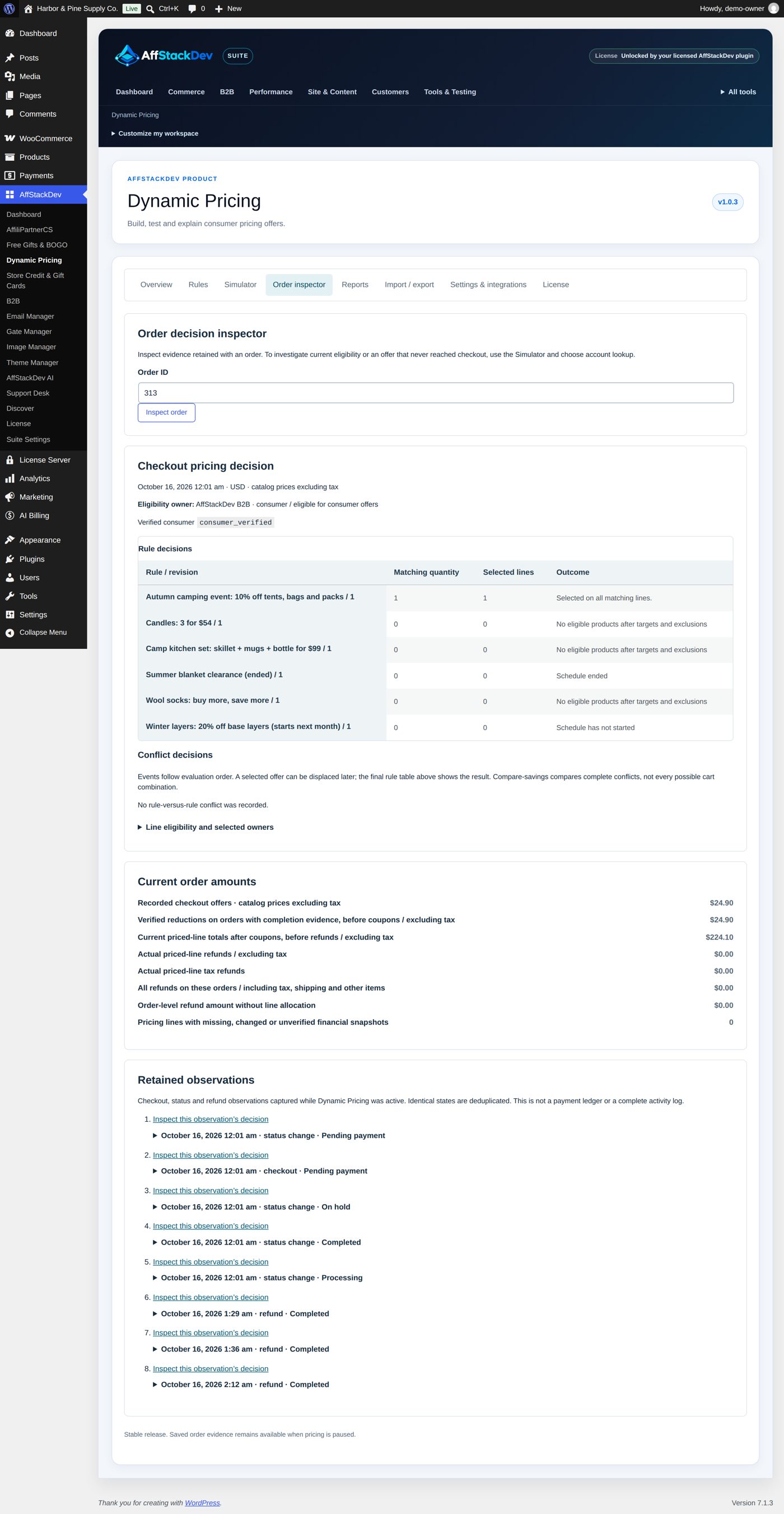
The order keeps, for each priced line, which rule priced it, in which revision, and the price before and after. In the admin order screen the line reads, for example, "Pricing offer: Autumn camping event: 10% off tents, bags and packs (revision 1): $249.00 → $224.10 each", with a link Inspect pricing decisions and refunds. Changing or deleting the rule later does not change old orders.
Order inspector shows the same for any order: enter the Order ID and Inspect order. You see the Checkout pricing decision (when, in which currency, on which prices), who decided whether the customer gets consumer offers (Eligibility owner), every rule's decision for that cart, the Current order amounts (offers recorded at checkout, reductions, refunds) and the Retained observations (checkout, status changes, refunds), each with its full record.
Stop a rule
| You want to | Do |
|---|---|
| stop one rule | untick Enable this rule and Save rule; or in Rules tick Select rule, choose Pause under Action for checked rules and Apply to checked rules |
| put it away | Archive and pause under Action for checked rules. There is no delete: archived rules stay readable and can be restored as drafts. |
| stop every rule at once | untick Enable the pricing engine on Settings & integrations. Rules, order records and reports stay. |
The Rules list shows each rule's state (Enabled, Draft / paused, Scheduled, Expired, Archived), its Priority (editable there, Save entered priorities) and its revision ("· r2"). Status filters it (Working rules, Enabled, Draft / paused, Archived, Retained rewards, Everything); Search name or UUID finds one.
Each save gives the rule a new revision. If a colleague saved the same rule while you had it open, your save is refused so that their work is not overwritten; Open saved version shows what is stored now.
What else Dynamic Pricing can do
| Page | What it covers |
|---|---|
| More: quantity prices, sets, coupons, what shoppers see | Cheaper from 3 pieces, three for $54, caps, conditions, which rule wins, how coupons and store credit fit in, product page tables, history, reports, moving rules, and where to look when a price is not what you expected. |