Make pictures lighter and deliver them
Prepare smaller versions of the pictures on your public pages, compare them with the originals, then let visitors receive them.
The idea in four steps
- Allow it. In Settings you confirm that the pictures on your public pages may be processed.
- Prepare. Image Manager finds the pictures on your public pages and makes lighter copies on your own hosting.
- Look. You compare copy and original.
- Deliver. You switch delivery on; from then on visitors get the lighter copy where your theme supports it.
Originals are never replaced. You can go back to the original for one picture or for all at any time.
Your yes comes first
Image Manager processes only pictures you have confirmed are public. On the Optimize tab that is the tick "These are public website images. I will keep private or member-only media excluded."; on the Settings tab, "I have checked that selected images are public, not private or member-only media." It is off at the start. Until it is on, nothing can be optimized, and a picture says "Public-image approval is required before a copy can be made."
Choose how strong
| Mode | Use it for |
|---|---|
| Lossless | Smaller files with no visible change at all. The safe start. |
| High Quality | Photos: clearly smaller, still looks the same to the eye. Pixels may change, so it asks you to allow that. |
| Maximum Savings | Photos where size matters most. Look at the result at the size it is shown. Pixels may change. |
Graphics and pictures with transparent parts are always treated without loss. No mode resizes, crops, sharpens or edits your original. A copy is only kept when it saves at least 5 percent and at least 1 KB; otherwise the picture is listed as skipped: it was already good.
How large a picture may be is your choice: Largest picture to make lighter on the Settings tab. From the start, pictures up to 2,560 × 2,560 pixels (WordPress's own limit for uploads, so the main file of most photos) are made lighter when your hosting gives WordPress the memory for them. Before each picture Image Manager checks that memory; a picture that is larger than your choice, or does not fit, is not made lighter itself, and its result says why. The smaller sizes WordPress made of it are, and those are what most pages show.
The choices of one run (Optimize tab)
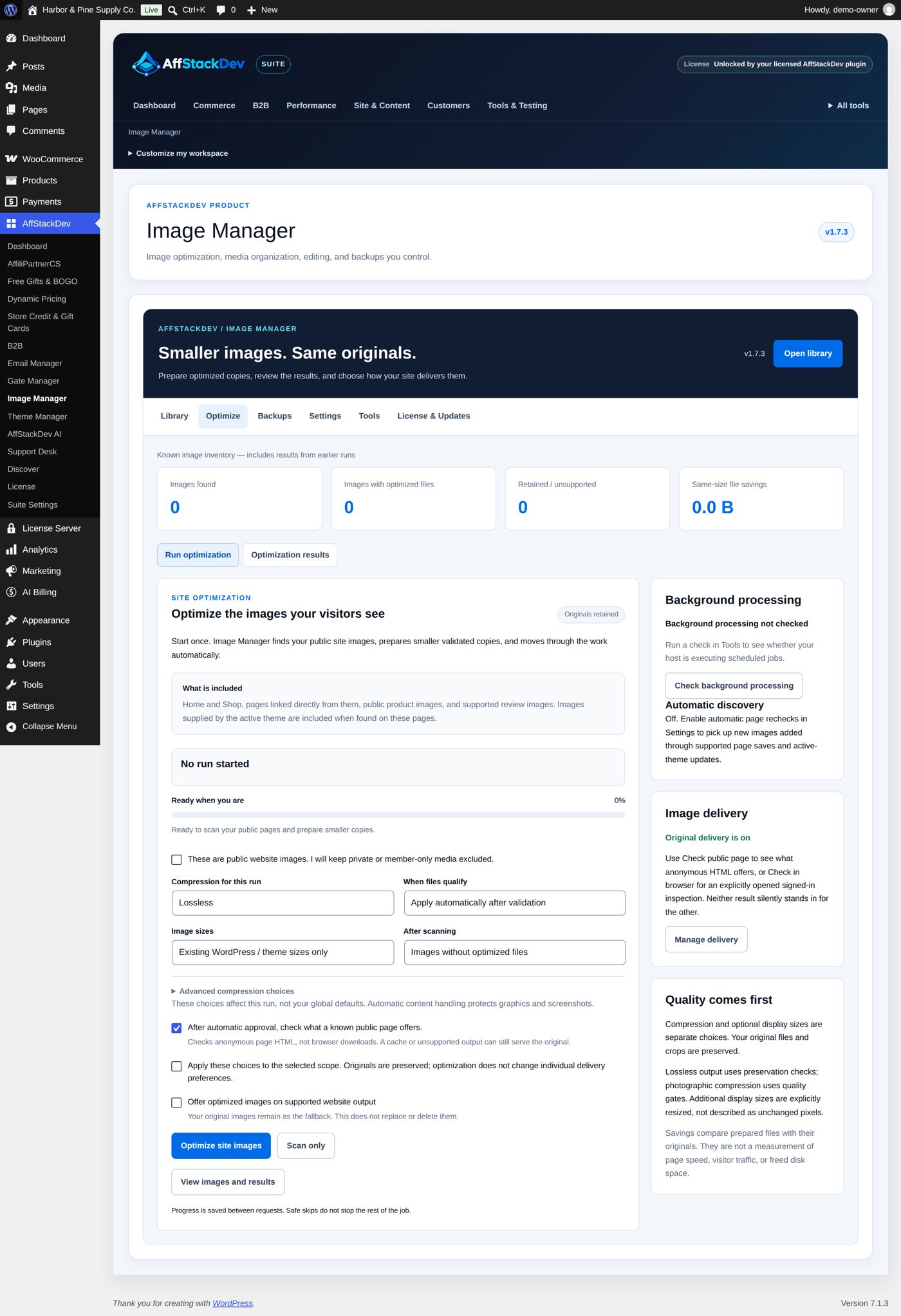
| Field | Choices | At the start |
|---|---|---|
| Compression for this run | Lossless, High Quality, Maximum Savings | your default from Settings (Lossless) |
| When files qualify | Apply automatically after validation: a copy that passes the checks is used at once. Prepare comparisons for review: you look at each one and approve it. | Apply automatically after validation |
| Image sizes | Existing WordPress / theme sizes only, or Add useful missing display sizes: where WordPress has a large gap between sizes, up to four extra widths (320 to 1,600 pixels) are made, never larger than the original and never cropped. Or Sizes measured on your pages: the widths your measured pages need (see Pictures sized to fit the page). | Existing WordPress / theme sizes only |
| After scanning | Images without optimized files, or All eligible images, including previous results | Images without optimized files |
| Advanced compression choices (fold-out) | Content: Automatic — protect graphics, Photography, Graphics / screenshot / logo. Output: Choose supported formats, Original format, WebP, AVIF — photographic compression. Effort: Balanced, Faster processing. Metadata: Preserve supported metadata, Remove supported EXIF GPS from copies. | your defaults from Settings |
| After automatic approval, check what a known public page offers. | After a copy is approved automatically, looks at what a public page offers. | ticked |
| Allow controlled pixel changes when High Quality or Maximum Savings is selected. | Needed for those two modes. | not ticked |
| Allow additional smaller display sizes when selected above. | Needed for Add useful missing display sizes. | not ticked |
| Apply these choices to the selected scope. Originals are preserved; optimization does not change individual delivery preferences. | The confirmation for the run. | not ticked |
| Offer optimized images on supported website output | The delivery switch, also here (see below). | off |
These choices are for this run only; your defaults on the Settings tab stay as they are.
Every setting on the Settings tab
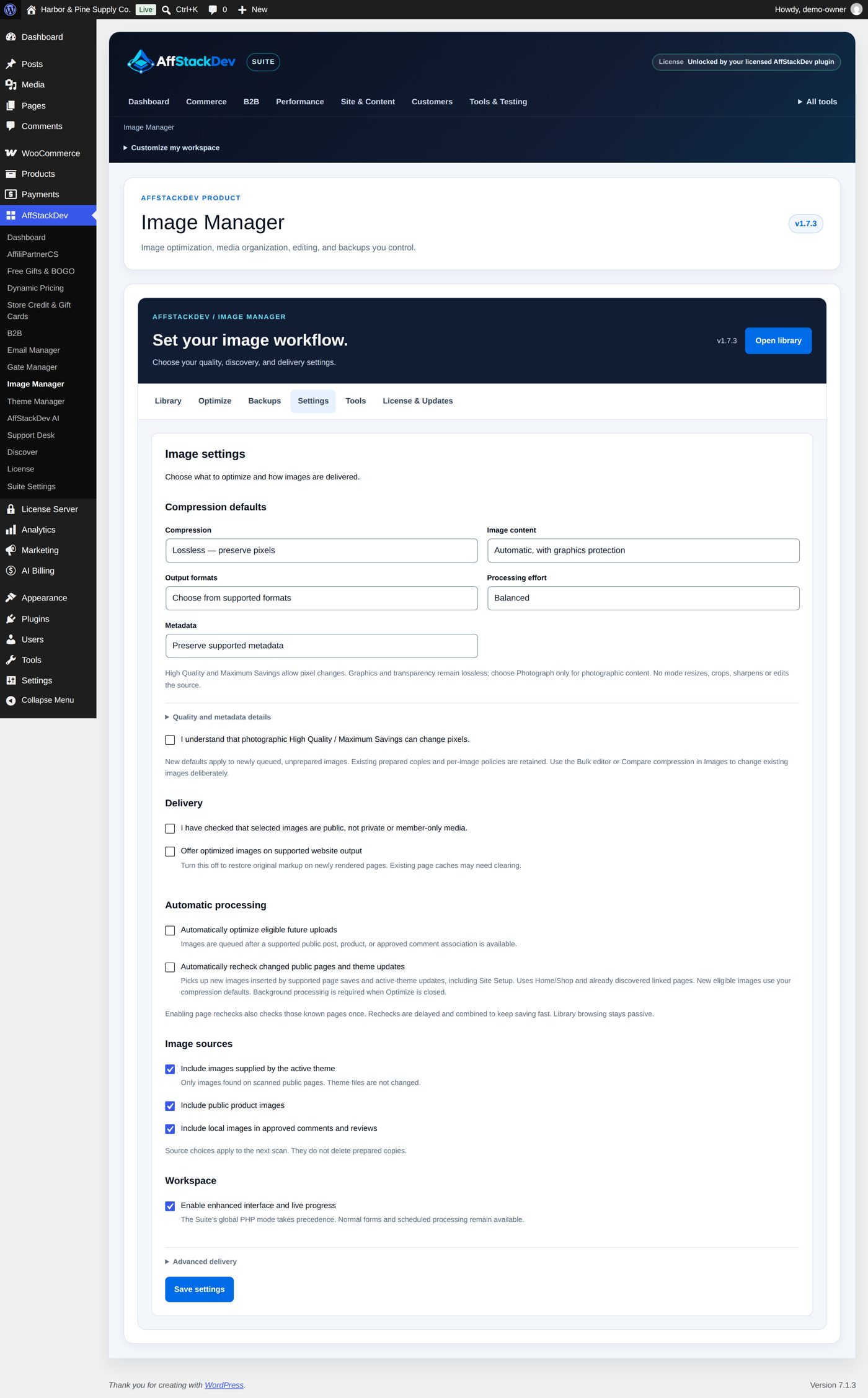
| Part | Setting | What it does | At the start |
|---|---|---|---|
| Compression defaults | Compression: Lossless — preserve pixels, High Quality — controlled compression, Maximum Savings — stronger compression | The mode new work uses unless a run chooses another. Copies already made keep theirs. | Lossless |
| Image content: Automatic, with graphics protection; Photograph; Screenshot, text, logo or graphic | Choose Photograph only for real photos. | Automatic, with graphics protection | |
| Output formats: Choose from supported formats; Keep the original format; WebP; AVIF (photographs, lossy modes) | Besides a smaller file of the same kind, WebP (and AVIF for photos, if your hosting can) are prepared. | Choose from supported formats | |
| Processing effort: Balanced; Faster processing | Balanced | ||
| Metadata: Preserve supported metadata; Remove standard EXIF GPS from copies | Removing GPS means the lighter copies carry no camera location; the original is not changed. | Preserve supported metadata | |
| Delivery | I have checked that selected images are public, not private or member-only media. | Your yes (see above). | off |
| Offer optimized images on supported website output | Visitors get the lighter copies where your theme supports it. Switched off again, newly built pages use the originals; empty your page cache. | off | |
| Lazy-load pictures that WordPress does not reach | WordPress already lazy-loads the pictures it builds. This adds it to the pictures your theme or a plugin prints by itself, after the first ones of the page (see Lazy loading). | off | |
| Fit pictures to the page | On the pages you measured, a picture tells the browser how wide it is really shown, so a smaller file is downloaded (see Pictures sized to fit the page). Needs your yes for public images. | off | |
| Large pictures | Largest picture to make lighter: Up to 2 megapixels (the limit before 1.7.5); Up to 2,560 × 2,560 pixels (WordPress’s own upload limit); Up to 8,192 × 8,192 pixels (camera originals) | The largest picture compression takes. Under the choice: how much memory image work has on this server right now, and about how large a picture that allows. Larger pictures take longer. | Up to 2,560 × 2,560 pixels |
| Folders for pages and posts | One tick per admin list (Posts, Pages, Products ...) | Gives that list folders of its own (see Folders for pages and posts). | none ticked |
| Automatic processing | Automatically optimize eligible future uploads | A new picture is prepared as soon as it belongs to a published post, page, product or approved review. | off |
| Automatically recheck changed public pages and theme updates | Looks again for new pictures after you save a page or the theme changes. Needs background processing. | off | |
| Image sources | Include images supplied by the active theme | Pictures that come from the theme, found on scanned pages. Theme files are not changed. | on |
| Include public product images | WooCommerce product pictures. | on | |
| Include local images in approved comments and reviews | on | ||
| Workspace | Enable enhanced interface and live progress | Screens update in place. The Suite's basic (PHP) mode overrides it. | on |
| Advanced delivery (fold-out) | Allow local copies for exactly matched Jetpack image sizes | Only for sites that use Jetpack's image service. | off |
Select Save settings. Saving changes no original file.
Under the settings, its own card Deliver pictures through your CDN has the CDN address, the switch Deliver pictures through this CDN and Check and save (see Delivery through your own CDN).
After choosing a larger Largest picture to make lighter, the pictures skipped earlier for their size are not tried again by themselves: in the results, use the Bulk editor with Retry using each image's saved policy on all matching results.
Run it
Open Optimize.
- Scan only shows what would be done, without doing it.
- Optimize site images starts, with the choices above.
- The work continues in the background and saves its progress. Pause, Resume and Stop are always there. Closing the browser does not stop it.
Image Manager starts from your home page, your shop page and the pages they link to (one step, up to 30 pages per scan), plus your products. A private or password-protected page is never made public by this.
Look at the results
The Library tab lists every picture with its result (Optimization results on the Optimize tab shows the run's results). Open one to see original and copies side by side at full size. Per picture you can:
- Use original: this picture is delivered as it was, the copies are kept.
- Use optimized: back to the lighter copy.
- Exclude image: leave this picture alone in future runs (Include image takes it back).
- Retry optimization with the current mode.
- Compare compression: try another mode on this one picture. Preparing the comparison changes nothing visitors see; you look at the result and approve it, or leave it.
Many pictures at once
The Bulk editor under the results does the same for many pictures. Choose the Action (Optimize / recompress, Retry using each image's saved policy, Use original images, Allow optimized delivery, Exclude from optimization, Include again, Check public-page delivery) and Apply to (Checked images on this page, All images on this page, or all matching results on every page). For Optimize you choose the same things as for a run. Tick the confirmation and select Run bulk action. The selection is fixed when you start: pictures found later do not join it. Originals are never deleted.
Deliver, then check
Switch on Offer optimized images on supported website output in Settings. Then check a real page:
| Check | Tells you |
|---|---|
| Check public page | Which picture addresses your page offers to a visitor who is not signed in. |
| Check loaded images | Which files a browser really loads, at phone width (390 px) and desktop width (1,280 px). |
A browser chooses among the sizes a page offers, depending on the screen. So "prepared" and "loaded" are two different questions; the two checks answer one each.
Lighter copies are delivered for ordinary pictures in posts and pages, pictures of your theme, and the classic WooCommerce product gallery. Zoom and lightbox keep the original. Custom galleries, some page builders, WooCommerce's block-based product pictures and a CDN or offload plugin may keep delivering the original; check a page that uses them.
Lazy loading
A lazy-loaded picture is fetched only when the visitor scrolls near it, so the first screen of a page comes faster. WordPress does this by itself for the pictures it builds (in posts, pages, products, widgets and galleries) and skips the ones it expects on the first screen. Some themes, page builders and plugins print pictures without WordPress, and those load at once. Lazy-load pictures that WordPress does not reach (Settings tab, off at the start) gives them the same treatment:
- Only pictures WordPress did not already decide about are touched, so WordPress's choices always stand.
- The first three pictures of the page (WordPress's own number) and pictures in the page header always load at once.
- A picture without a width and height is left alone, as WordPress does, so the page does not jump while it loads.
- So is one marked to load first (
fetchpriority="high"), one another lazy-loading tool already handles, and one with the classskip-lazy: add that class to a picture that must always load at once.
Backgrounds set in CSS, videos and embedded frames are not changed. On a site where WordPress builds every picture, this setting changes nothing, which is the expected result.
Pictures sized to fit the page
WordPress gives each picture several files of different widths and lets the browser choose. To choose well, the browser needs to know how wide the picture is shown on the page, and WordPress often cannot tell it: it says "as wide as the file, or the whole screen". So a picture shown small in a grid of three can still download a big file. (For pictures further down the page, WordPress and modern browsers already work this out; the pictures of the first screen are the ones that miss out.)
Image Manager measures your real pages instead:
- On the Optimize tab, the part Pictures sized to fit the page lists the pages it knows (your home page and the pages its scan found). Select Measure pages and keep the screen open. Each page is opened out of sight in that screen, at every width from a small phone (320 pixels) to a large monitor (1,920 pixels), and Image Manager notes how wide every picture is. It takes a few seconds per page; Stop ends it after the current page. Nothing leaves your site and no visitor is measured.
- The report then shows, per page, how many pictures were fitted, how many your theme already sizes itself (those stay as your theme made them) and how many are left as they are (a picture with only one file, a product gallery, or a picture that changes with the screen width).
- On the Settings tab, switch on Fit pictures to the page and save. From then on, each fitted picture on a measured page tells the browser its measured width. The width is never stated smaller than measured, so pictures never turn blurry.
- Optional: Make the sizes these pages need. Where a picture has no file close to a width your pages need on phones, tablets and computer screens, Image Manager can make one: up to six per picture, never larger than the original and never cropped. Tick the confirmation and select the button; it runs like an ordinary optimization. The new files are offered when Offer optimized images on supported website output is on.
Measure again after changing your theme or the layout of a page. Forget the measurements (tick the confirmation) deletes all of them; pictures then go back to what your theme says, and files already made stay. The cart, checkout and account pages and pages you did not measure are never changed. Clear your page cache after switching Fit pictures to the page on or off.
Delivery through your own CDN
A CDN (content delivery network) keeps copies of your pictures on servers close to your visitors. If you already have one with its own address that fetches from your site (a "pull zone", for example at Bunny CDN, KeyCDN or Amazon CloudFront), Image Manager can send your pictures through it. There is no AffStackDev service in between and nothing to sign up for with us. If your whole site already runs through a CDN at your own address (Cloudflare, for example), you need nothing here.
- In your CDN account, set your site's address as the origin and switch off any picture optimizing the CDN offers (Image Manager already makes the lighter files, and the check needs them unchanged).
- On the Settings tab, in Deliver pictures through your CDN, enter the CDN address (it starts with https://), tick Deliver pictures through this CDN and select Check and save.
- Image Manager puts a new small test picture on your site, asks the CDN for it and compares the two. Only if they are identical is the CDN switched on. The test picture is removed again, and the card shows the result of the check.
Then the pictures in your uploads folder (originals, sizes and Image Manager's lighter copies) are loaded from the CDN on your public pages. Your theme's own files, scripts and fonts, download files, and the cart, checkout, account and admin pages stay on your site's address.
Image Manager checks the CDN again every day. If the CDN stops returning the right file, Image Manager switches it off by itself and your site serves the pictures again; the card and Tools say so. Check and save again when the CDN works. After switching on or off, clear your page cache. When you replace a picture, it keeps its address, so purge it in your CDN account to show the new one at once.
If something does not work
| What you see | Usual cause |
|---|---|
| Nothing can be started | Public-image approval is off in Settings. |
| A picture was skipped | Already efficient, larger than Largest picture to make lighter allows or than the memory your hosting gives image work, or the format cannot be written on this hosting. The result says which. |
| The page still shows the original | Delivery is off, or this picture is set to Use original, or this part of the page is not a supported kind, or a cache serves the old page. |
| The run does not move | Background tasks are not running on the site. Tools → Check background processing tells you; a quiet site may need its host's scheduling switched on. |
| Fit pictures to the page changes nothing | The page was not measured, the setting is off, a cache serves the old page, or your theme already sizes those pictures itself. |
| The CDN check fails | The message says why: the CDN did not answer, could not fetch the test picture from your site (check its origin), or changed it (switch off the CDN's own picture optimizing). |
| The CDN switched itself off | The daily check failed. The card shows when and why; select Check and save again once the CDN works. |