Get started
From the download to a working Email Manager: install, license, a test that your site's email arrives, your site's emails in one list, and a newsletter signup form.
1. Download and install
- On affstackdev.com open My Account → Downloads and download Unified Email Manager. Keep the ZIP file as it is; do not unpack it.
- In your WordPress admin open Plugins, choose Add Plugin (older WordPress versions call it Add New), then Upload Plugin.
- Choose the ZIP file and select Install Now, then Activate Plugin.
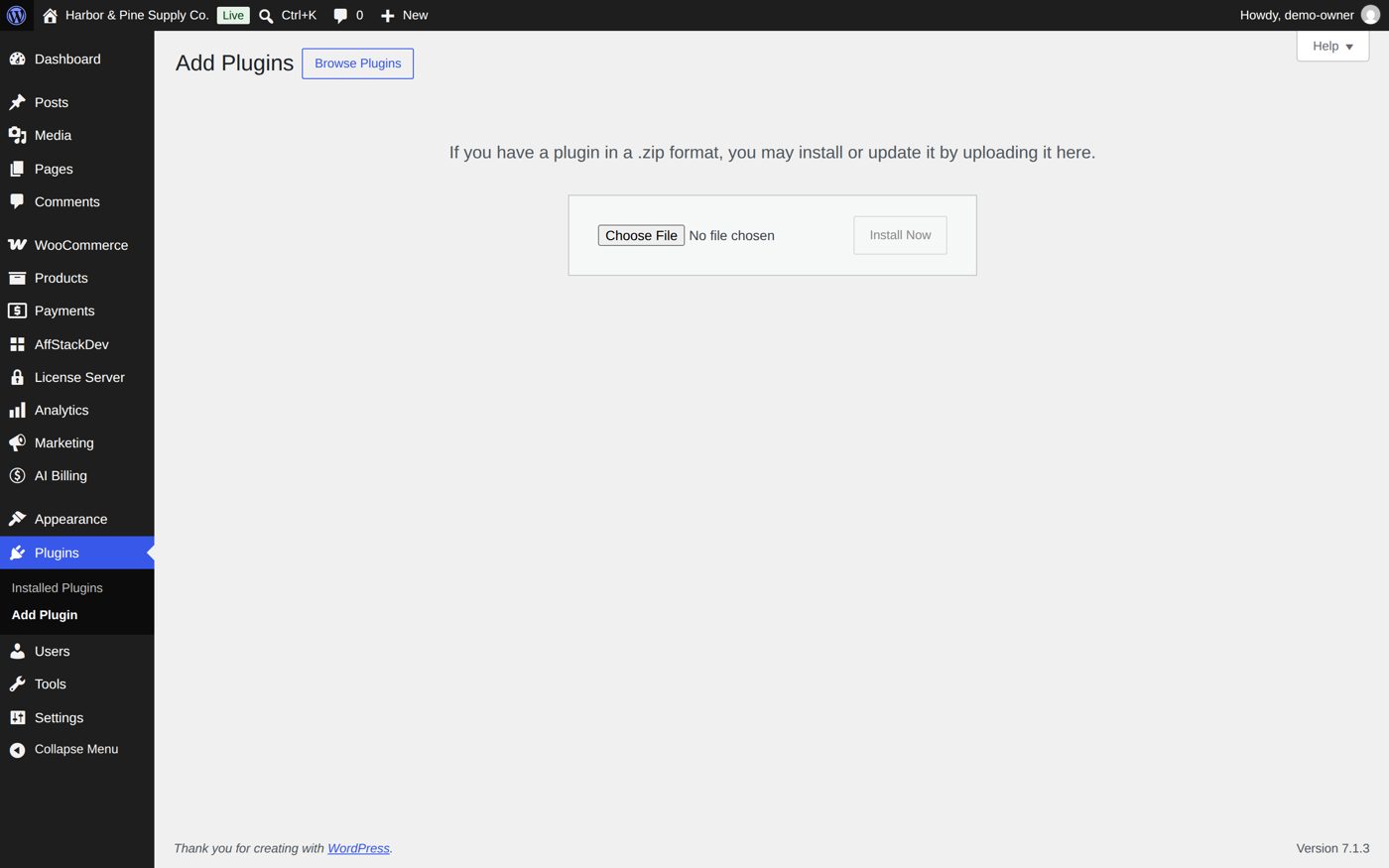
Unified Email Manager now has its place in the WordPress menu: Email Manager. With the AffStackDev Suite installed you also find it in the AffStackDev menu. If WordPress refuses the file, or to install a newer version over an older one, see Install a plugin.
2. Activate the license
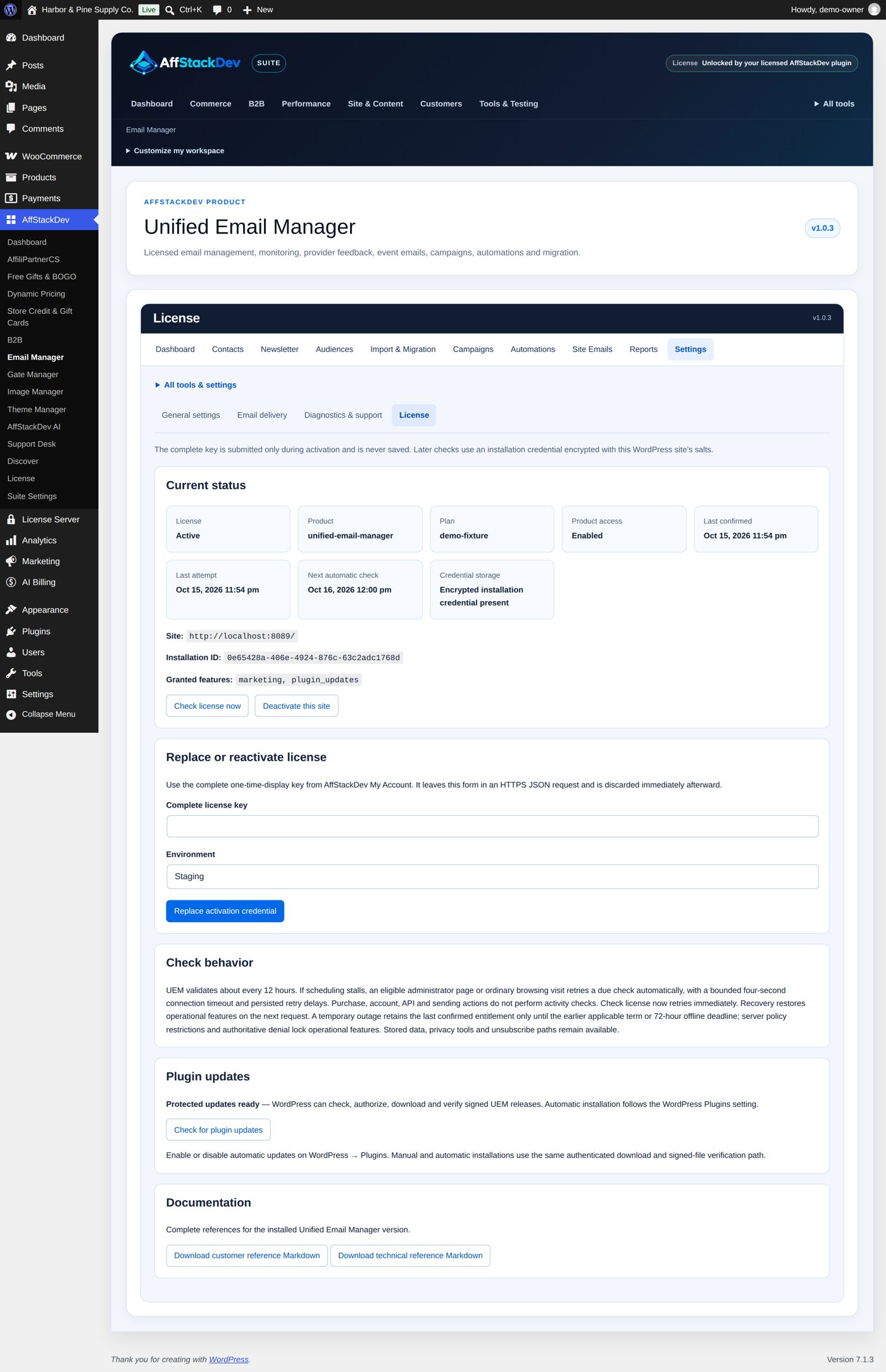
Open Email Manager → License (with the Suite: Settings, then License). Paste the key from My Account → Licenses on affstackdev.com, check the Environment and activate. Both halves of Email Manager, Site Emails and Marketing & Automation, need it. More: Activate your license.
3. Make sure your site's email arrives
Email Manager is not a mail service: it sends through whatever your site already uses (your host's mail, or an SMTP or API plugin). So check that first:
- Open Site Emails, choose an email (for example WooCommerce's order email) and select Manage.
- On Preview & test, select Send test to your own address.
If the test does not arrive, the site's mail connection is the problem, not Email Manager. Fix that first (your host, or a mail plugin), then try again.
4. See the emails your site already sends
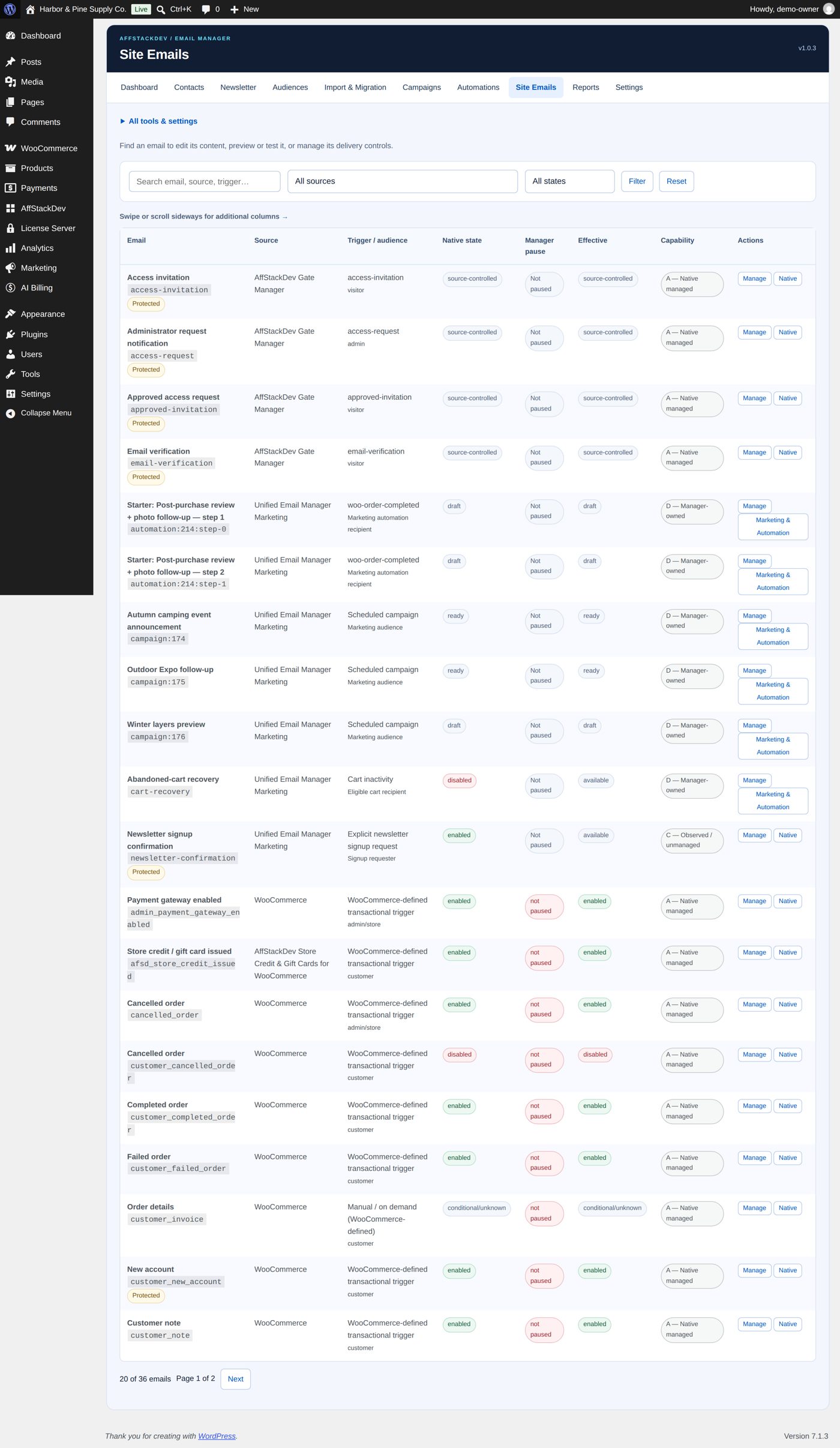
Site Emails lists every email WordPress, WooCommerce and your plugins send, with what triggers it and who gets it. Here you change wording where the source allows it, pause an email for a while, preview and test. Details: The emails your site already sends.
5. A newsletter signup form
- Open Newsletter → Signup form settings.
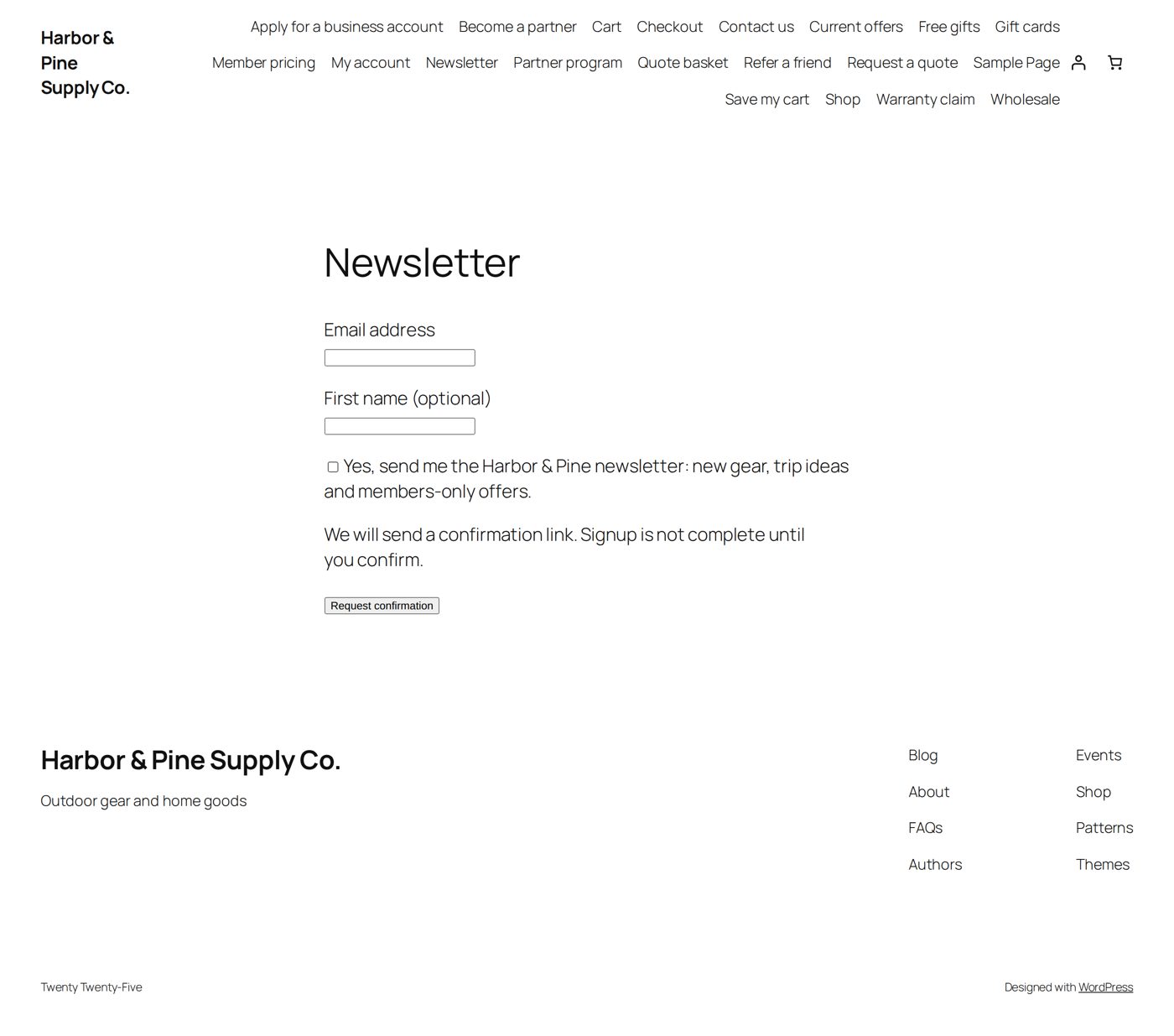
- Tick Enable the newsletter signup form and write the sentence people agree to.
- Put the form on a page with a Shortcode block:
[uem_newsletter_signup]
Then sign up yourself on that page in a private browser window: you get an email with a link, and only after you open it and confirm are you subscribed (double opt-in). Your address then appears under Newsletter. More: Contacts, signup and consent.
6. Your first mailing
When there are subscribers, open Campaigns, write a campaign, preview it and send the test to your own address before anyone else gets it. Follow-ups, event emails and abandoned carts: Campaigns and automations.
What else Email Manager can do
| Page | What it covers |
|---|---|
| The emails your site already sends | One list of every email WordPress, WooCommerce and your plugins send. Change the wording, pause one for a while, preview and test. |
| Contacts, signup and consent | Who you may write to, and how they get on (and off) your list: the signup form, the checkout box, imports, audiences. |
| Newsletters, follow-ups and cart reminders | The emails you add yourself: one message to an audience, a series after a purchase, a single message after an event, a reminder for a cart left behind. |
| Reports, and when something is off | What "sent" really means, how to see what happened to an email, and the usual reasons something did not go out. |