Company buying
What an approved business sees and does: the business portal, colleagues in a company team, quick order from a SKU list, spending caps and purchase approvals. With three worked examples: inviting a buyer, a quick order, and a purchase that needs the owner's approval.
What it is for
An approved business is usually more than one person. The one who applied is the company owner; they invite colleagues with their own logins and roles, buy quickly from SKU lists, and can require approval for purchases above an amount. Everything here happens under the customer's My Account; your staff reach the same screens from Accounts and Company teams.
The business portal
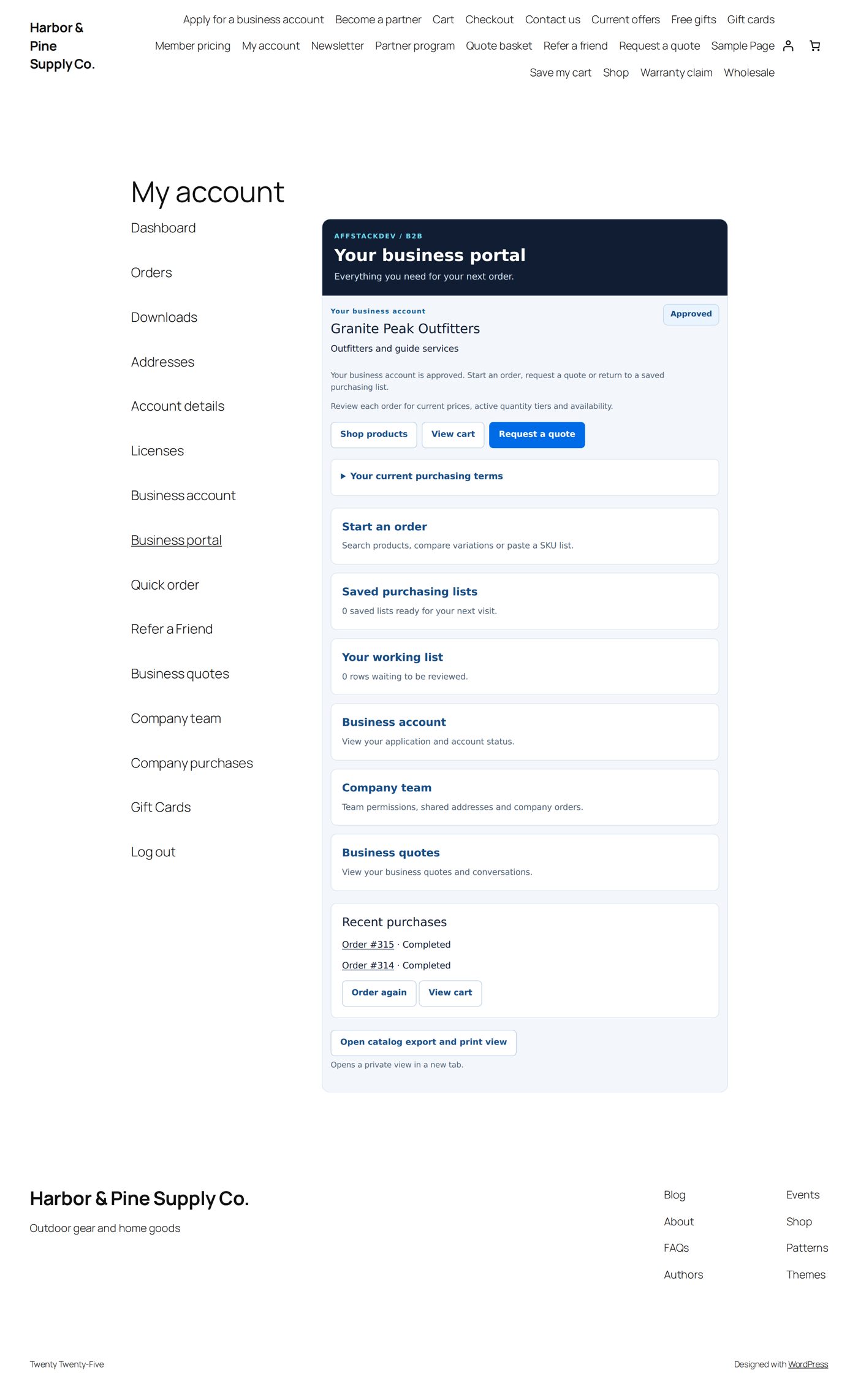
My Account → Business portal brings together Start an order, saved and working lists, the business account, the company team, business quotes, recent purchases with Order again, and View cart. Under Your current purchasing terms the buyer reads their pricing, quantity and order rules, quote requirements, allowed payment and delivery methods and spending limits.
The buyer pages can also be placed on pages of their own:
| Shortcode | Page |
|---|---|
[affstackdev_b2b_portal] |
Business portal |
[affstackdev_b2b_quick_order] |
Quick order |
[affstackdev_b2b_team] |
Company team |
[affstackdev_b2b_purchases] |
Company purchases (spending controls and approvals) |
Company team
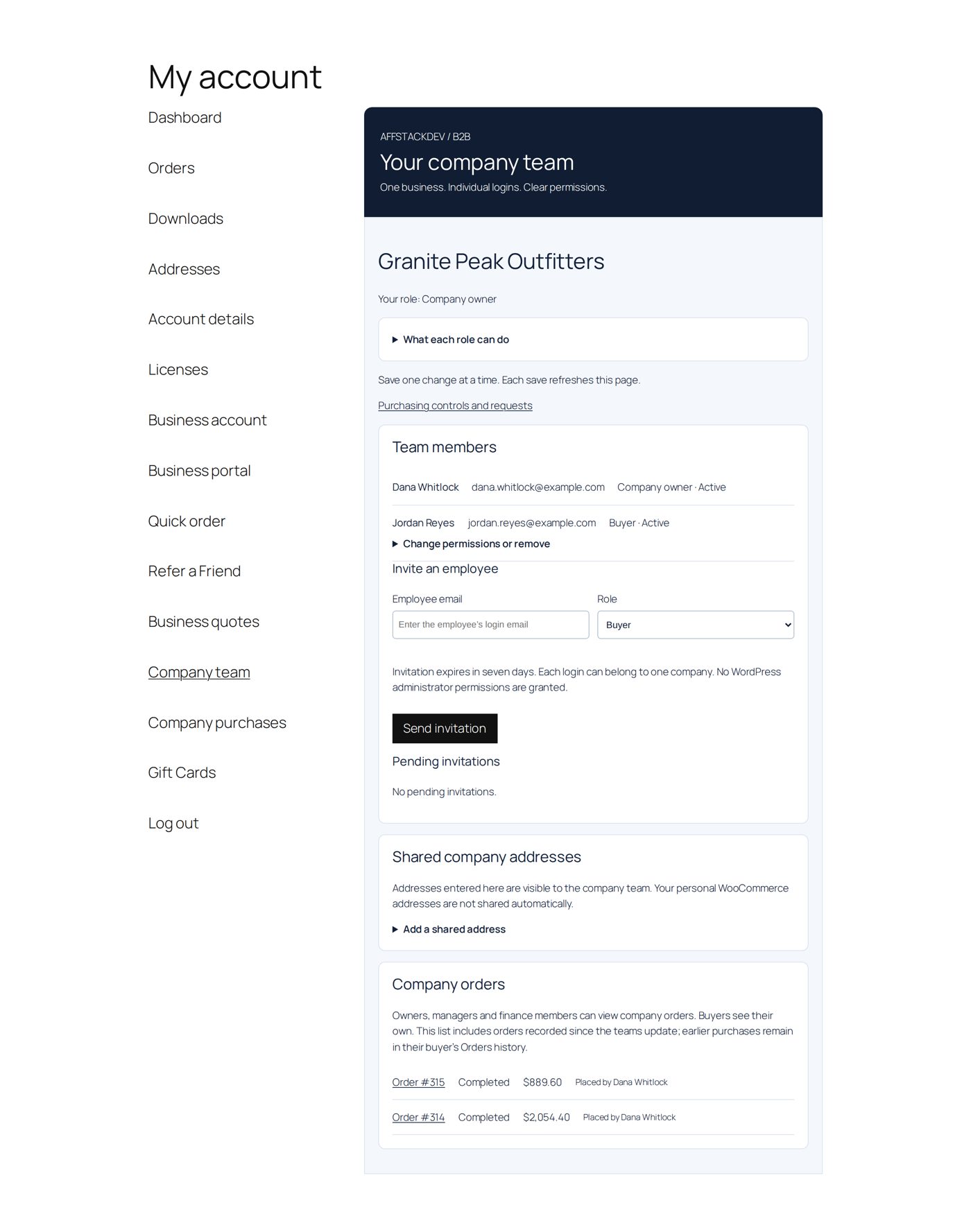
My Account → Company team ("One business. Individual logins. Clear permissions.") lists the Team members, Invite an employee, Pending invitations, Shared company addresses and Company orders. What each role can do explains the roles:
| Role | Can |
|---|---|
| Company owner | "Manage managers and employees, company addresses, orders and quotes. Place purchases." |
| Company manager | "Manage buyers and finance members, shared addresses, company orders and quotes. Place purchases." Not other managers, not spending controls. |
| Buyer | "Buy at company prices, manage personal quotes and lists, and use shared lists and addresses. View own orders." |
| Finance | "View company orders, quote conversations and shared addresses. Cannot order, pay, negotiate or manage employees." |
Inviting: Employee email (the email the colleague signs in with) and Role (Buyer at the start), then Send invitation. "Invitation expires in seven days. Each login can belong to one company. No WordPress administrator permissions are granted." A colleague without a login can set one up from the invitation, then signs in and opens the link again. Only the owner or your staff can invite a manager. A company can have up to 100 members and 50 open invitations.
Changing access: open Change permissions or remove on a member: Role, Access (Active or Suspended, reversible), or remove them; their past orders stay. The owner cannot be removed or changed here.
Shared company addresses: owners, managers and your staff keep up to 25 addresses for the company (Add a shared address, each with an Address label). Every member can read them; a buyer copies one into their own account (Use for → My shipping address or My billing address), which replaces the buyer's saved address, not only this checkout.
Company orders: "Owners, managers and finance members can view company orders. Buyers see their own."
Worked example: Granite Peak invites Jordan as a buyer
Dana Whitlock owns Granite Peak Outfitters. She invites Jordan Reyes, who already has a customer login.
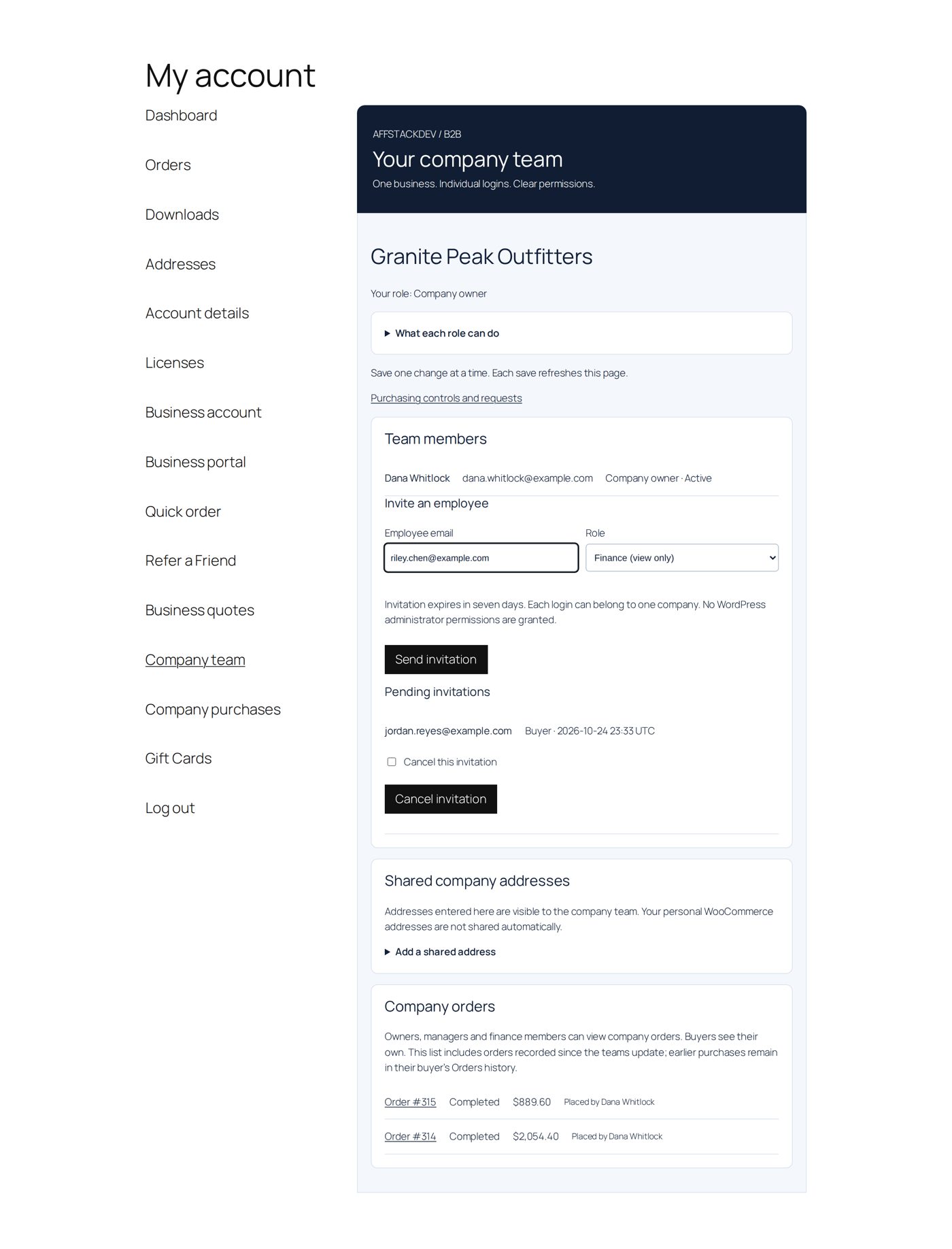
- Dana opens My Account → Company team, enters Jordan's email under Invite an employee, leaves Role on Buyer and chooses Send invitation. The invitation waits under Pending invitations; Jordan gets an email with a private link. (A second invitation is filled in in the picture, not sent.)
- Jordan opens the link while signed in: "You are invited as Buyer." with what each role can do, and the note that consumer promotions do not apply while he belongs to the business.
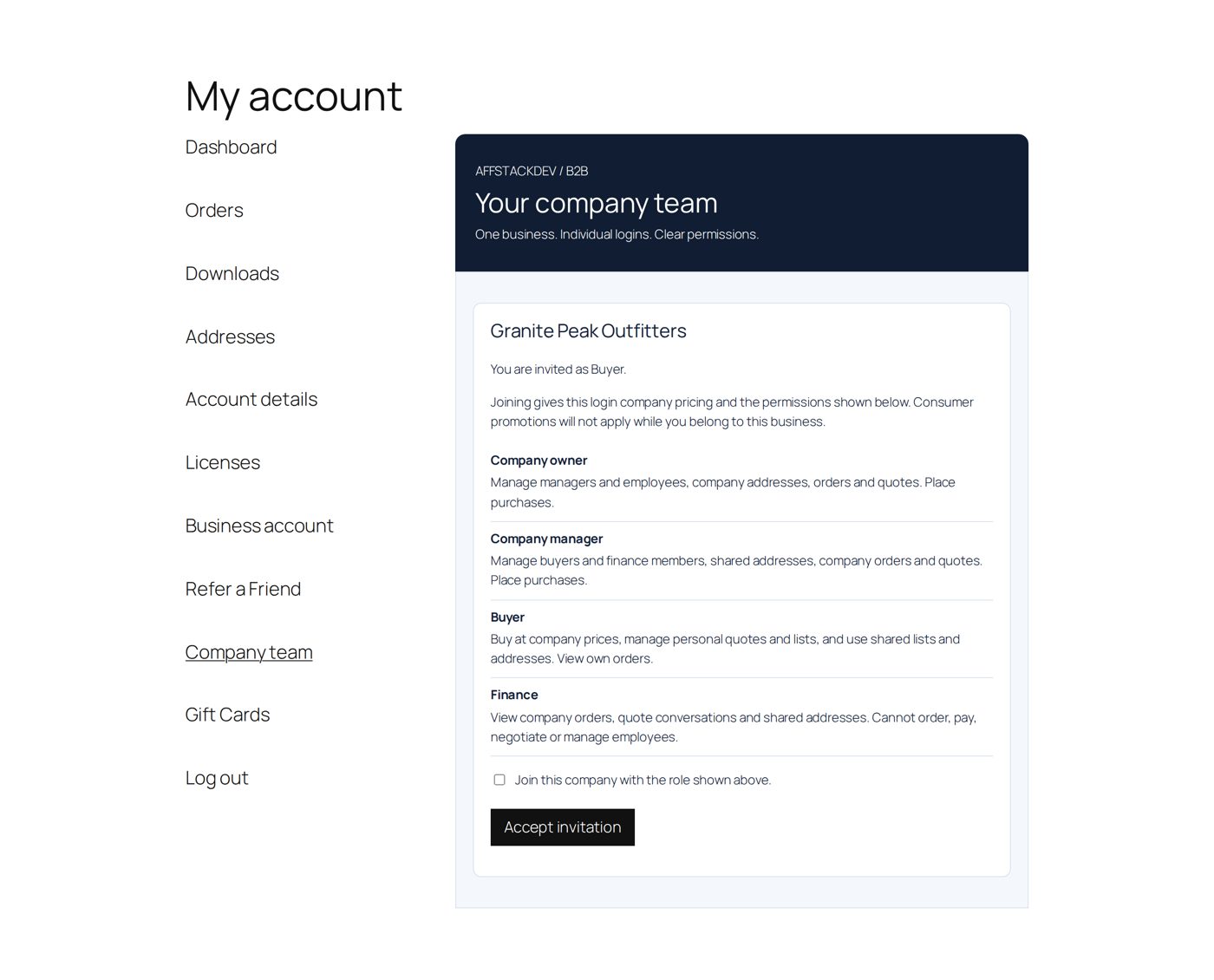
- He ticks Join this company with the role shown above. and chooses Accept invitation.
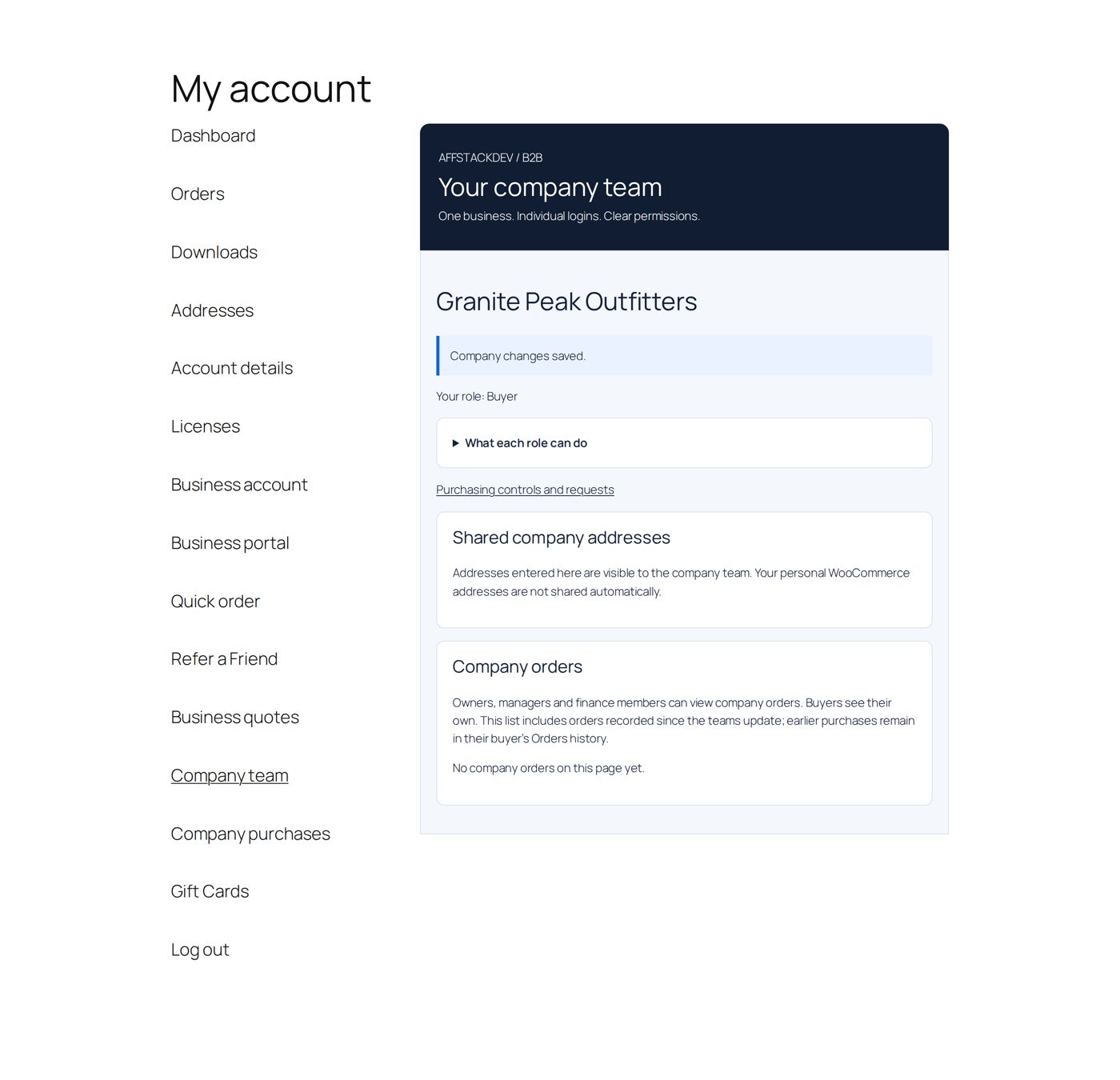
- Dana's team now lists Jordan as "Buyer · Active". Jordan buys at Granite Peak's business prices from now on.
Your staff reach every company's team from Accounts → Manage company team (or Company teams).
Quick order and saved lists
My Account → Quick order is for buyers who know what they want. Its sections: Find products, Paste or upload, Your order list, Saved lists, Order again.
- Find products by name or SKU (optionally by category or tag), enter quantities and Add selected to order list. Variable products show a grid of variations where that works.
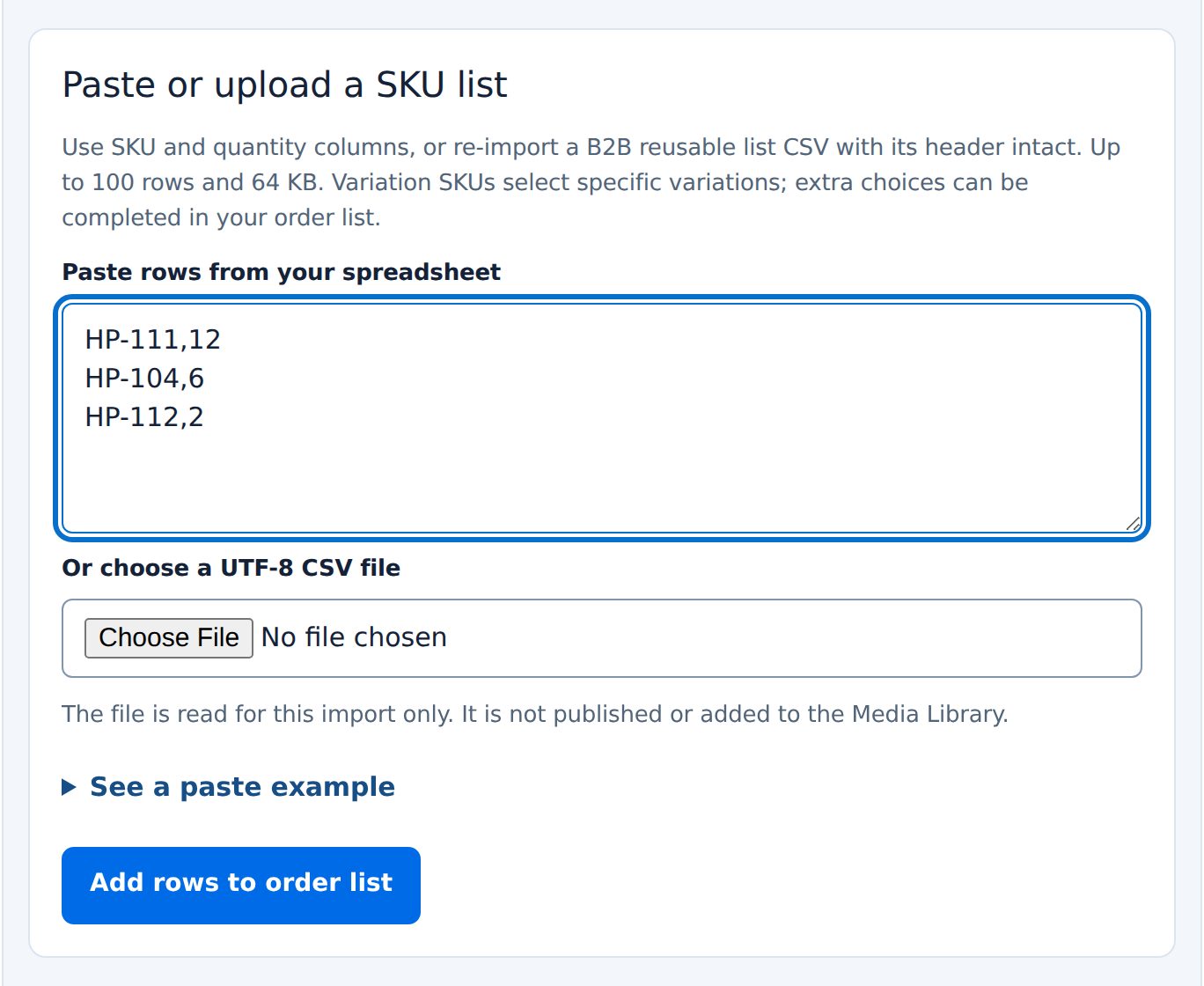
- Or Paste or upload a SKU list: Paste rows from your spreadsheet or Or choose a UTF-8 CSV file, up to 100 rows and 64 KB, a SKU and a quantity per line, separated by commas, tabs or semicolons; then Add rows to order list.
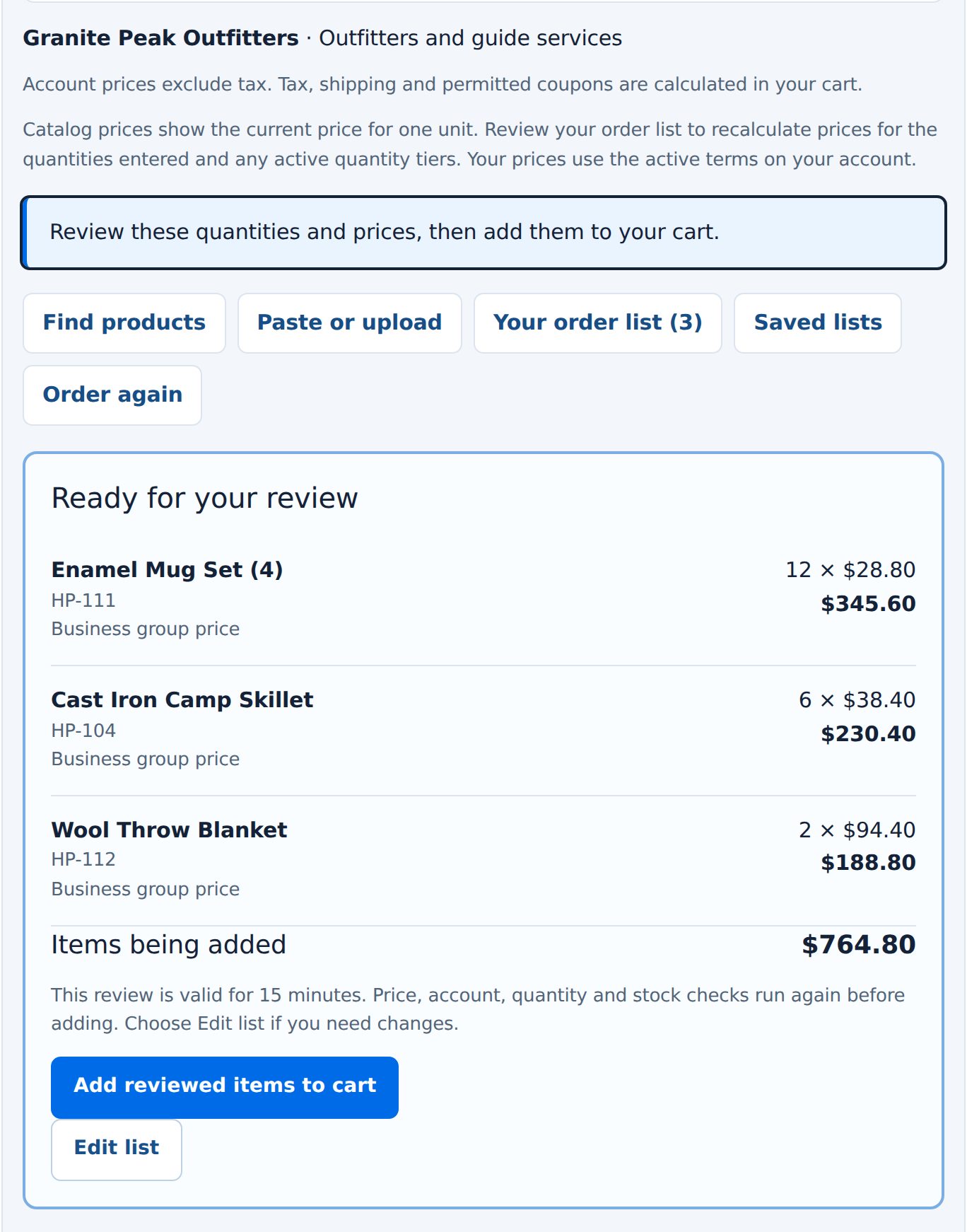
- Review quantities and prices: duplicates are combined, quantity prices and stock are checked, and the lines show their real prices. The review lasts 15 minutes.
- Add reviewed items to cart. Quantities are added to what is already in the cart.
Save this list for next time keeps a named list (private, or shared with the company) with products, quantities and options, not prices. Order again starts from a previous purchase. "An order list does not reserve stock."
How the order form looks is set under Setup & defaults → Buyer order form (Getting started).
Worked example: Dana pastes a SKU list
- Quick order → Paste or upload a SKU list, three lines:
HP-111,12,HP-104,6,HP-112,2.
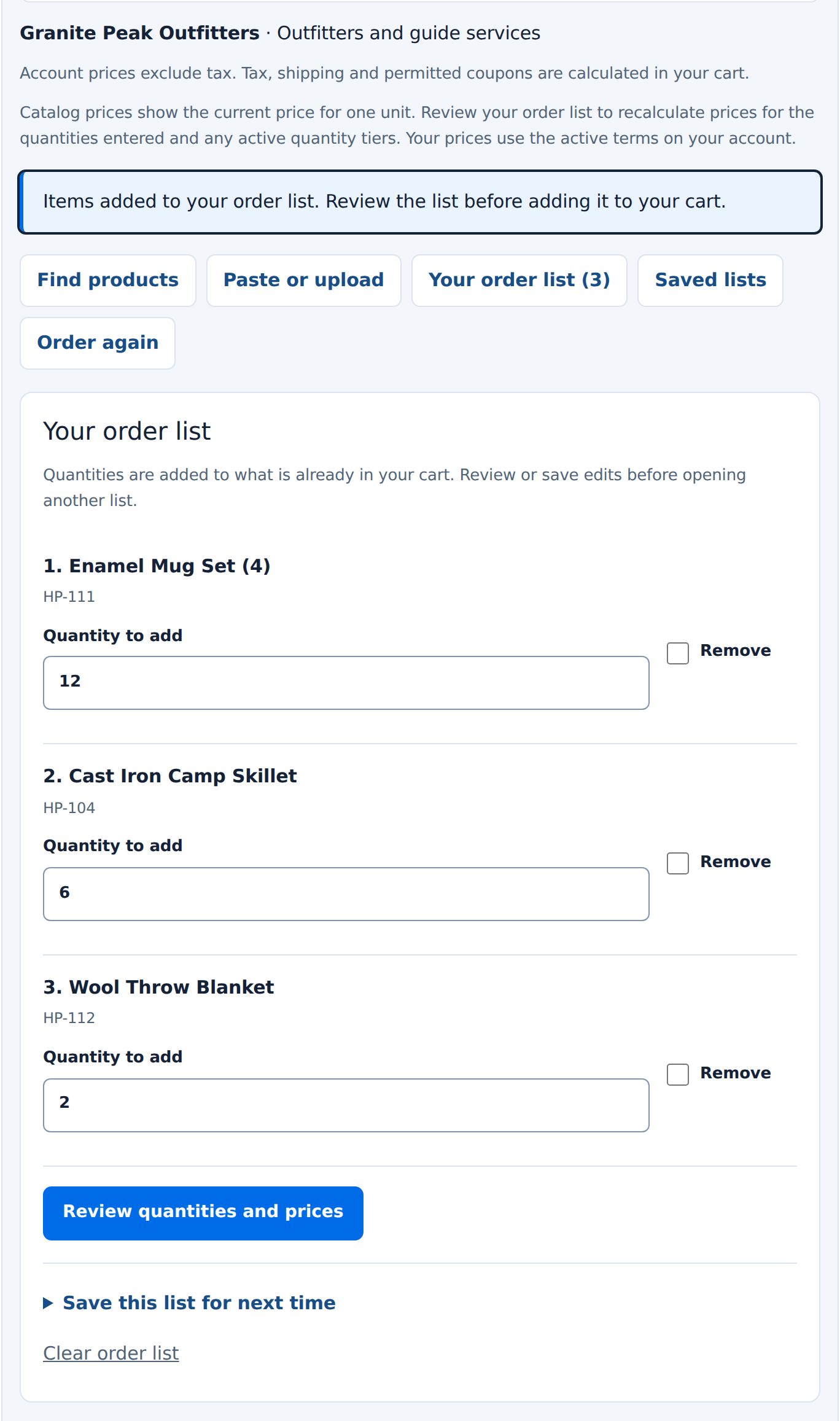
- Add rows to order list: "Your order list (3)" with the Enamel Mug Set × 12, the Cast Iron Camp Skillet × 6 and the Wool Throw Blanket × 2.
- Review quantities and prices: Ready for your review with each line at Granite Peak's price (12 × $28.80 = $345.60, 6 × $38.40 = $230.40, 2 × $94.40 = $188.80), "Items being added" $764.80, Add reviewed items to cart and Edit list.
- Add reviewed items to cart: the items are in the cart.

Spending controls
Under My Account → Company purchases, Purchasing limits shows what is set ("Company controls are enabled." or "Company controls are off."), what the company and the buyer ordered this month, and the caps. The owner (or your staff) opens Edit company controls:
| Field | What it does |
|---|---|
| Controls | On or Off |
| Per-order merchandise cap | the most one order may contain; blank: no cap |
| Monthly merchandise cap | the most per calendar month (UTC); blank: no cap |
| Buyer approval above | orders of a buyer above this amount need approval; "Enter 0 for all buyer purchases"; blank: none |
"Blank caps are unlimited. Zero caps stop positive purchases. A blank approval threshold does not require approval. Changing controls invalidates open approvals; it does not reset counted orders." Tick Apply these purchasing controls in the store currency. and Save company controls.
Employee limits set the same three for one member: they can only be stricter than the company's caps, and an employee's approval amount replaces the company's for that person. Owners and managers need no approval, but their caps still apply.
"Budgets count ordered merchandise at business prices before coupons, excluding tax, delivery and fees. They are not Store Credit. The calendar month uses UTC. Placed orders count even if unpaid, cancelled or refunded; there is no automatic credit-back."
Worked example: a $566.40 cart above a $500 threshold
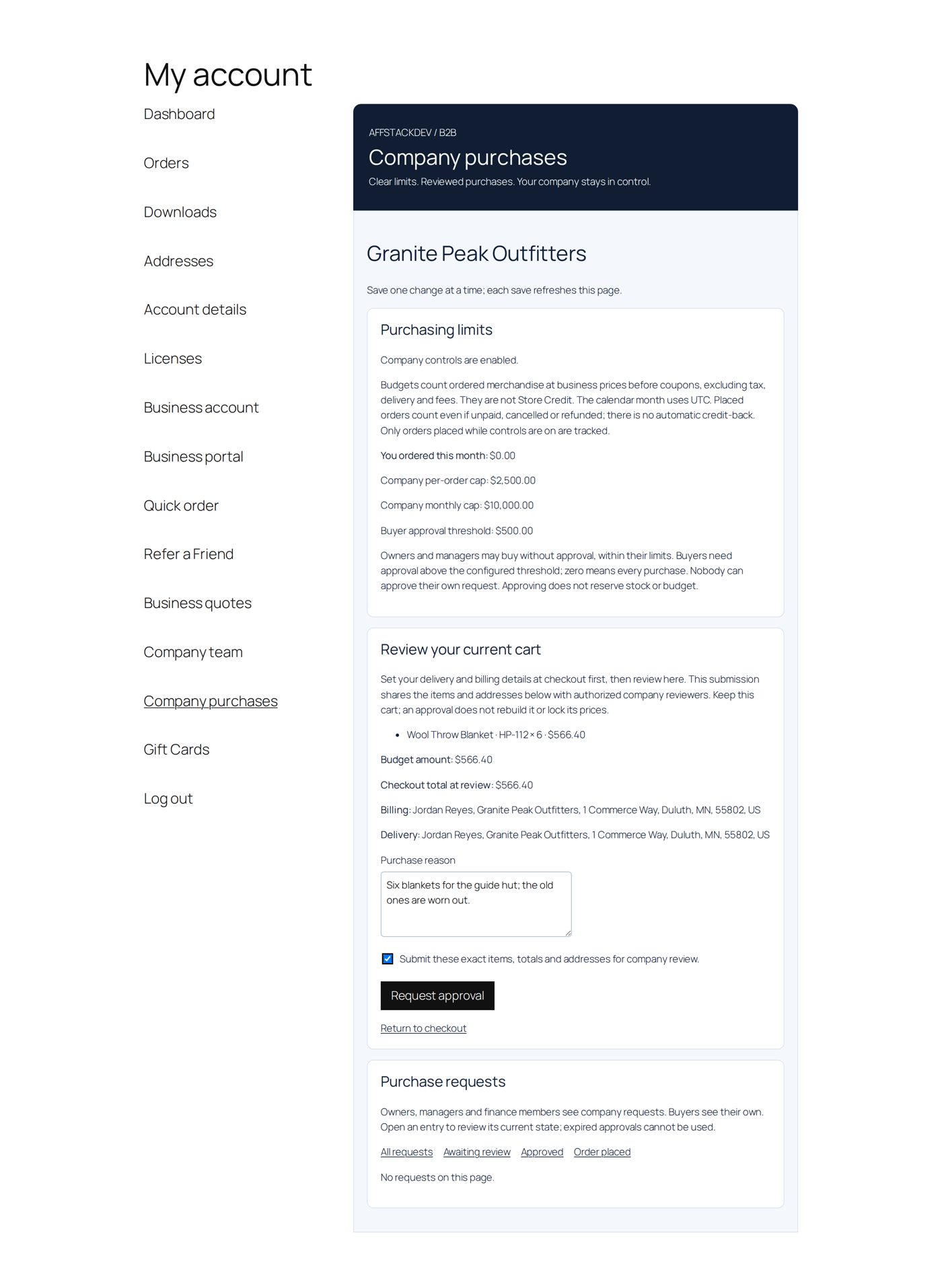
Granite Peak's controls: per-order cap $2,500, monthly cap $10,000, buyer approval above $500. Jordan, a buyer, needs six Wool Throw Blankets for the guide hut: 6 × $94.40 = $566.40.
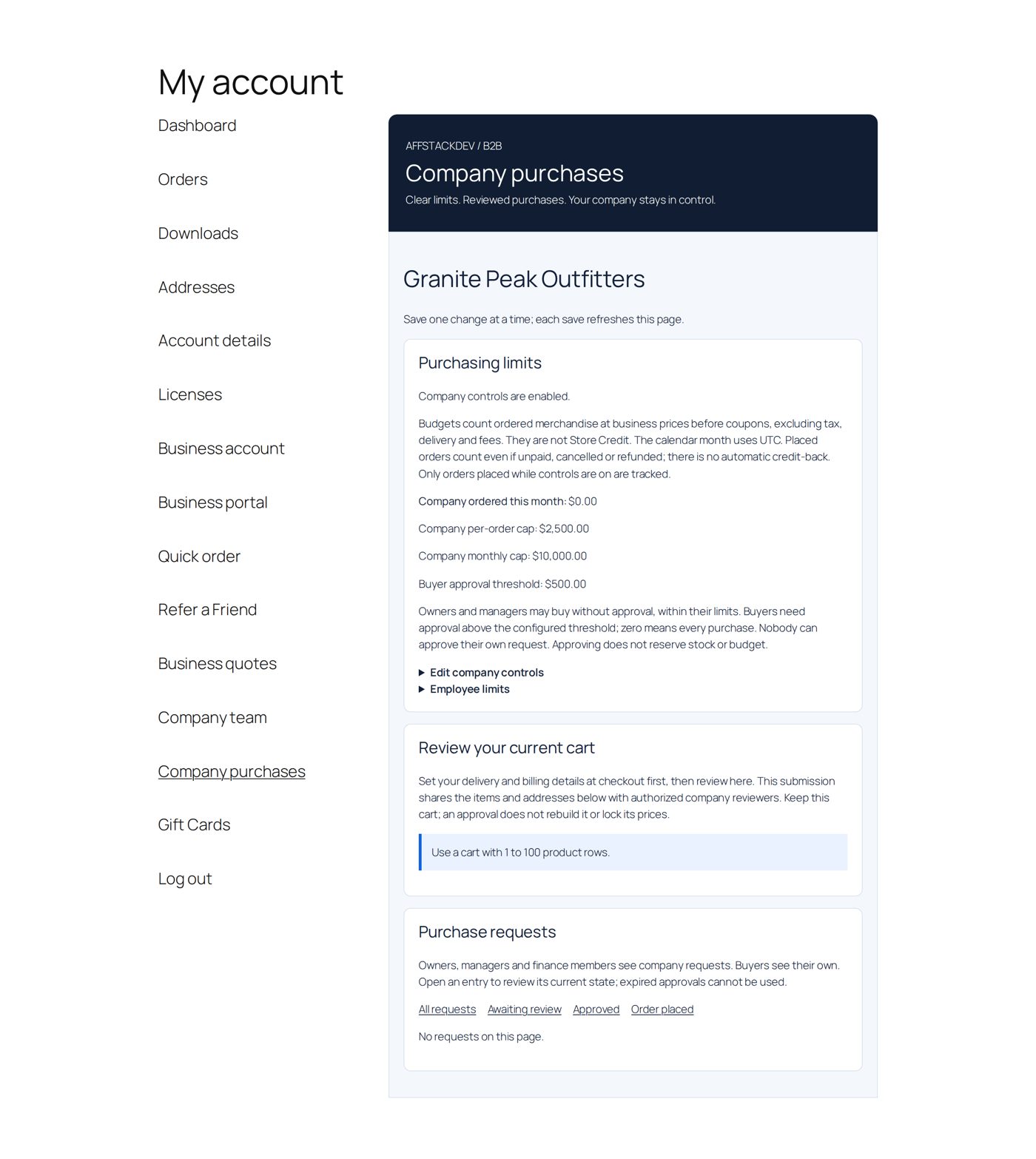
- The page asks buyers to "Set your delivery and billing details at checkout first, then review here."; Jordan's are already in his account. On Company purchases, Review your current cart lists the items, Budget amount and Checkout total at review ($566.40) and both addresses. He enters a Purchase reason ("Six blankets for the guide hut; the old ones are worn out."), ticks Submit these exact items, totals and addresses for company review. and chooses Request approval. Nothing is ordered or reserved yet.
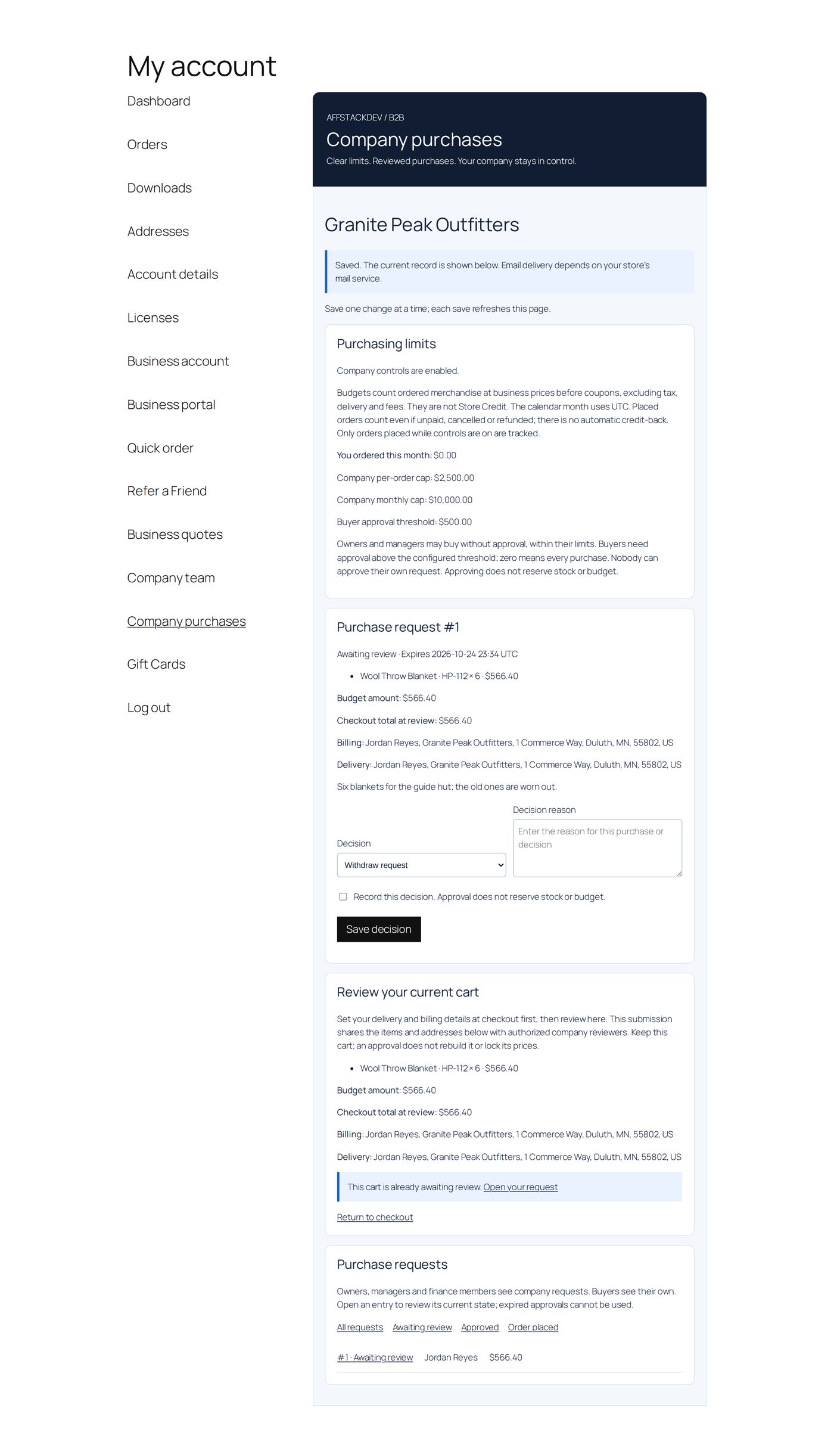
- The page shows Purchase request #1: "Awaiting review · Expires ..." with the items, amounts, addresses and his reason. "This cart is already awaiting review."
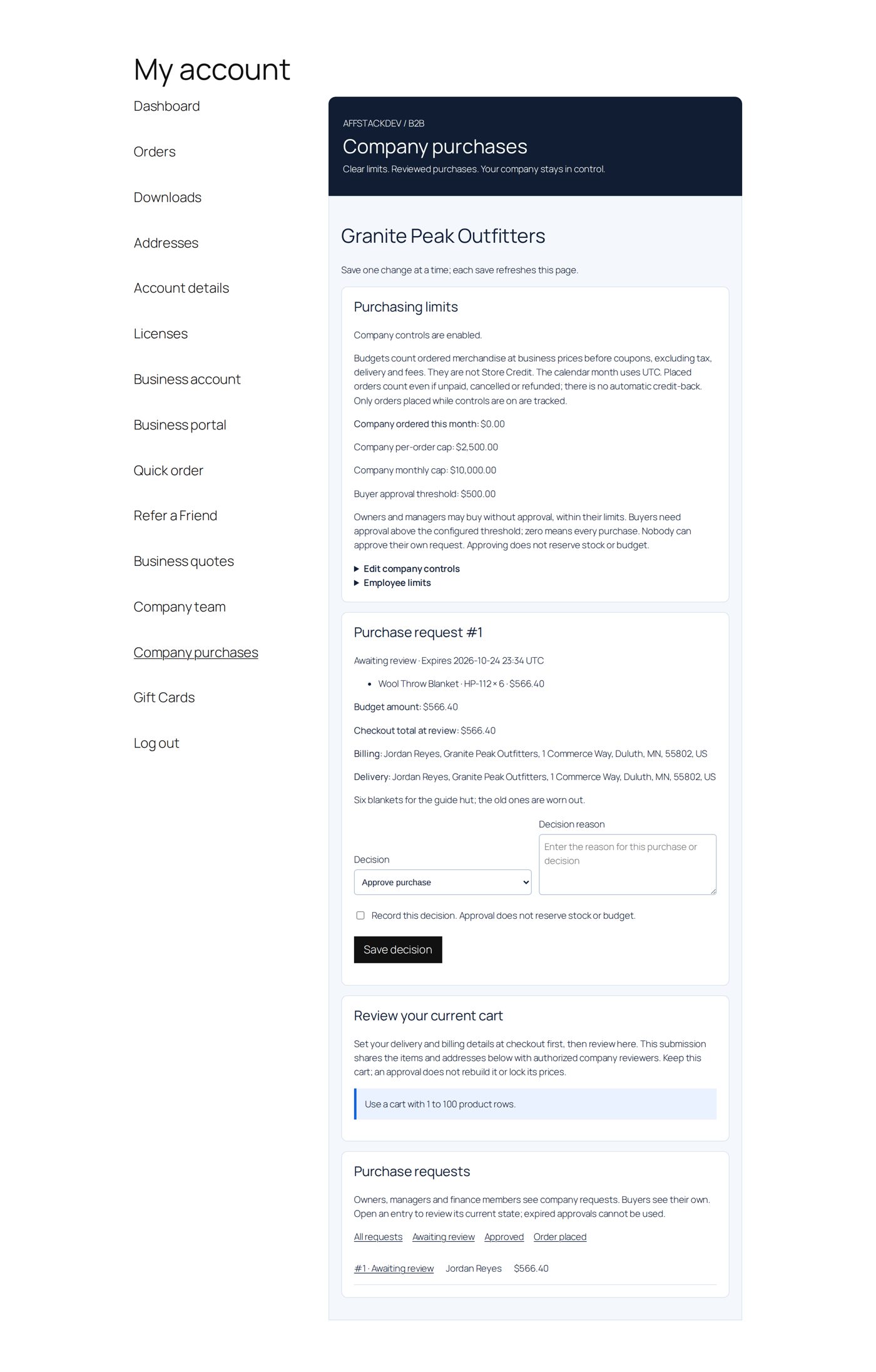
- Dana opens the request (from Purchase requests, or the email link). Decision: Approve purchase, Reject purchase; a Decision reason; she ticks Record this decision. Approval does not reserve stock or budget. and chooses Save decision.
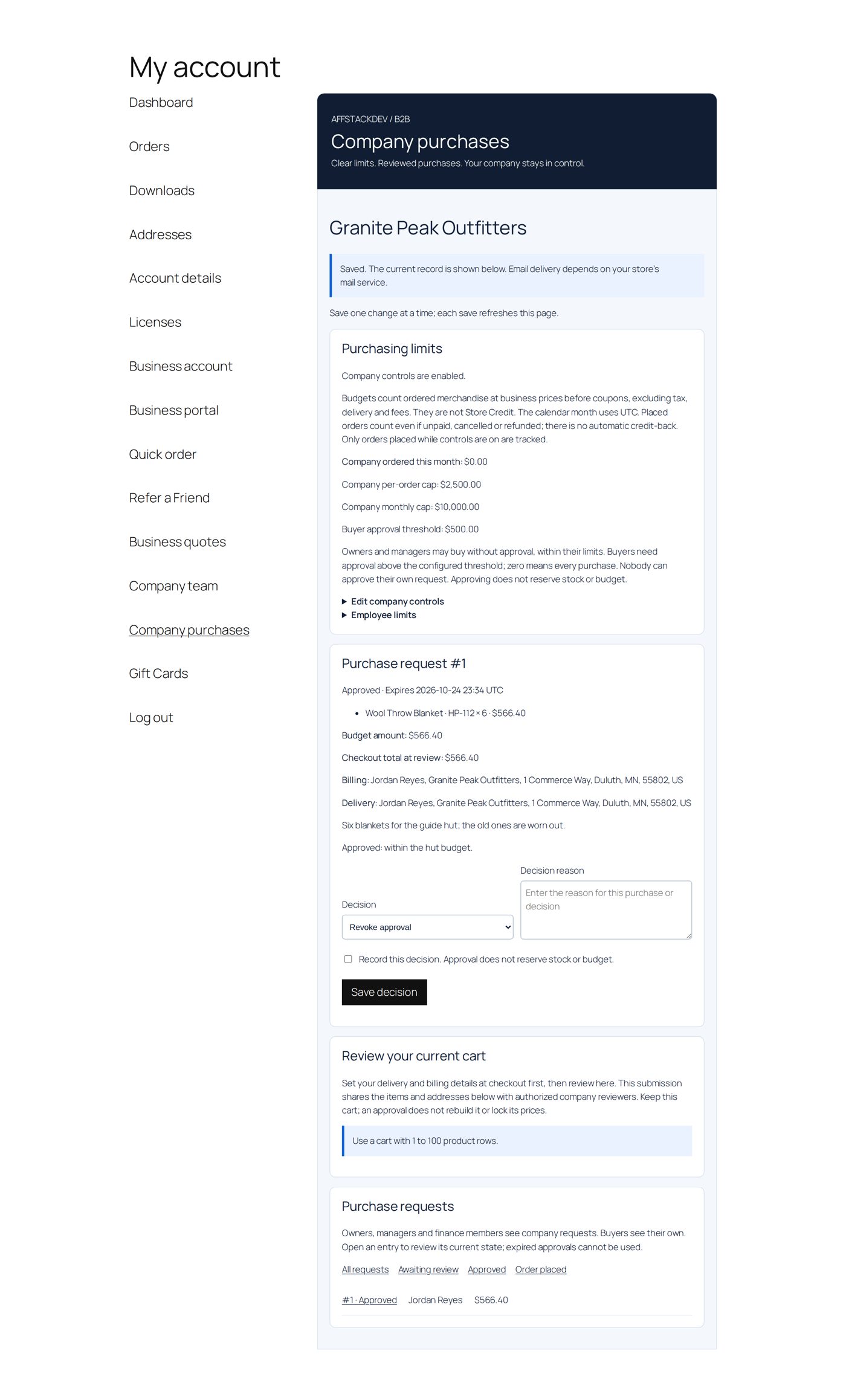
- Jordan's page now says "Approval #1 matches this cart. Checkout will recheck the current limits." and the request is listed as "#1 · Approved". He goes back to checkout with the same cart.
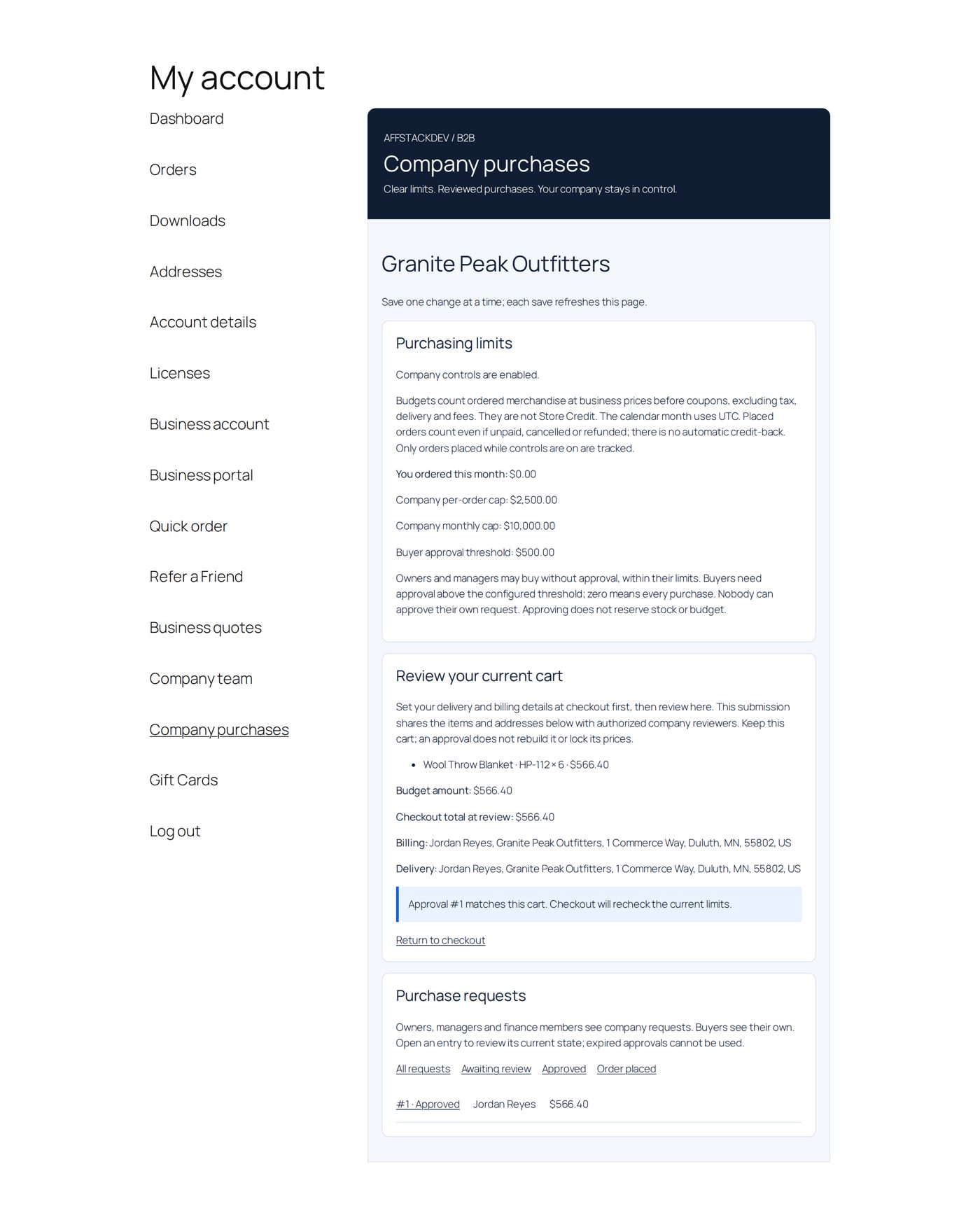
An approval is for that exact cart. It ends after seven days or at the end of the month, whichever is first, and a change of products, quantities, prices or addresses needs a new request. Revoke approval (owner) and Withdraw request (buyer) are there until the order is placed. Nobody can approve their own request; a manager cannot approve another manager's or the owner's.
Pay on account
With Pay on account a business orders now and pays later by invoice: the order takes no payment, gets a due date from the company's payment terms, can carry the company's purchase order number, and counts against its credit limit until you record the payment. No money passes through B2B; you are paid your usual way (bank transfer, cheque).
Switch it on in two places: WooCommerce → Settings → Payments → Pay on account (B2B) (title, description, your payment instructions such as bank details, the order status after ordering and the purchase order field), and B2B → Accounts receivable → Who may pay on account for all approved businesses, a group or one account. Until you allow it there, nobody sees it.
Worked example: Outfitters pay Net 30 with a $5,000 limit
- In WooCommerce → Settings → Payments → Pay on account (B2B) tick Offer Pay on account to the business accounts allowed in B2B; under Instructions write "Pay by bank transfer to Harbor & Pine, account 0123-4567, quoting the order number"; leave Order status after ordering at On hold and Purchase order number at Ask, optional. Save.
- In B2B → Accounts receivable, under Who may pay on account, choose Outfitters and guide services and Open these terms. Choose Allow Pay on account, Payment terms (days) 30, Credit limit 5000. Review changes, then Publish these changes.
- Jordan, a buyer at Granite Peak (an outfitter), checks out $1,240.00 of gear. Pay on account shows "Payment terms: 30 days. An order placed today is due by November 21, 2026. Credit available to your company: $5,000.00." Jordan enters the purchase order GP-7781 and places the order. It is On hold, and the order page and emails show "Payment due November 21, 2026", "Purchase order GP-7781" and "Still owed $1,240.00", with your instructions.
- Granite Peak can now order another $3,760.00 on account. An order that would take it past $5,000 is refused, naming what is still available, and Jordan can pay another way.
- When the transfer arrives, open Accounts receivable → What companies owe → Granite Peak, choose Record payment under the order, keep $1,240.00, enter the date and the bank reference, Review changes and Publish these changes. The order moves on to Processing and the $1,240.00 is available again.
| Good to know | |
|---|---|
| Who sees it | Approved accounts whose terms allow it; company owners, managers and buyers (finance members see what the company owes, but do not order). |
| Credit limit | What the company owes on all its unpaid orders on account plus the new order. Two buyers ordering at the same moment cannot pass it together. Blank means no limit. |
| Payments | Part payments are fine; record the rest later. Marking an order Completed yourself is not a payment: record it on Accounts receivable. |
| Reminders | Payment reminders: one email some days before the due date and one some days after, to the order's billing address. Off at the start. |
| Cancelled or refunded | A cancelled order no longer counts; a refund lowers what is owed. |
| Payment methods | If Purchasing limits a group to selected payment methods, add Pay on account to them. |
When it does not work
| The buyer sees | It means |
|---|---|
| "The cart or company terms changed. Review the current purchase again." | The cart, the addresses or the controls changed after the page was shown; reload Company purchases and request again. (Before 2.0.7: see the note above.) |
| "This purchase does not need manager approval. Continue to checkout." | The cart is at or below the approval threshold. |
| "This cart is already awaiting review." | A request for this exact cart is open: Open your request. |
| "Company purchasing controls are not enabled." | Controls is Off. |
| "Use a cart with 1 to 100 product rows." | The cart is empty or too large for a request. |
| "Review and confirm this change." | The confirmation box was not ticked. |
| "Company terms changed — submit a fresh request" | The controls changed after the approval; approvals end when controls change. |
| "Your company owner manages the business application." | A team member opened Business account; only the owner can change the application. |
| "An item or its price changed during this request. Check your cart and review a new list." | Quick order: a price or stock changed between review and adding; review again. |
| "This order is more than the credit available to your company on account ($…)." | Pay on account: the company's unpaid orders on account plus this one pass its credit limit. Pay another way, or record the payments you received on Accounts receivable. |
| Pay on account is not offered | The method is off in WooCommerce, the account's terms do not allow it, the buyer's role is finance, or Purchasing limits the payment methods and Pay on account is not among them. |
Questions
Can a buyer see the company's other orders?
No: buyers see their own; owners, managers and finance members see company orders.
Does an approval reserve stock or budget?
No. "Approval does not reserve stock or budget." Checkout checks the current limits again.
Can someone belong to two companies?
No, one login belongs to one business account.
Does leaving a company change a person's past orders?
No. Past orders stay with their records.
Can my staff approve a purchase?
Yes: "Choose a company under Accounts, open its team, then choose Purchasing controls and requests." Staff see the same requests and decisions as the owner.
Related pages
| Page | What it covers |
|---|---|
| Business accounts | The owner's application and approval. |
| Business prices | The prices team members buy at. |
| Who sees and buys what | Order limits per account or group, payment and delivery methods. |
| Quotes | Quotes for a company. |