Get started
From the download to finding any page of your site: install, your first search, the shortcut cards, your theme's sections, and the optional free license.
1. Download and install
- On affstackdev.com open My Account → Downloads and download Theme Manager. Keep the ZIP file as it is; do not unpack it.
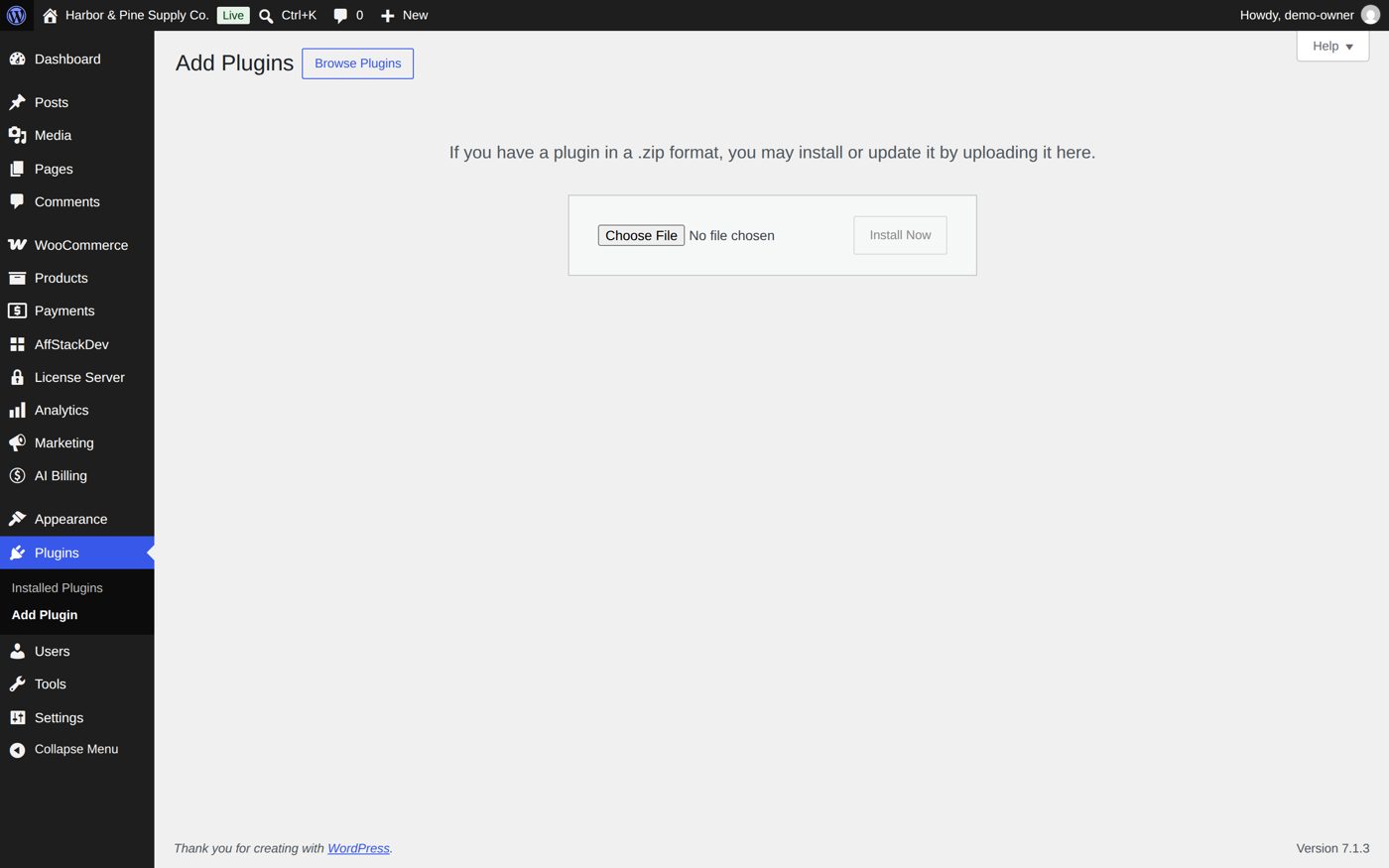
- In your WordPress admin open Plugins, choose Add Plugin (older WordPress versions call it Add New), then Upload Plugin.
- Choose the ZIP file and select Install Now, then Activate Plugin.
Theme Manager now has its place in the WordPress menu: Appearance → Theme Manager. With the AffStackDev Suite installed you also find it in the AffStackDev menu. If WordPress refuses the file, or to install a newer version over an older one, see Install a plugin.
2. The free license is optional
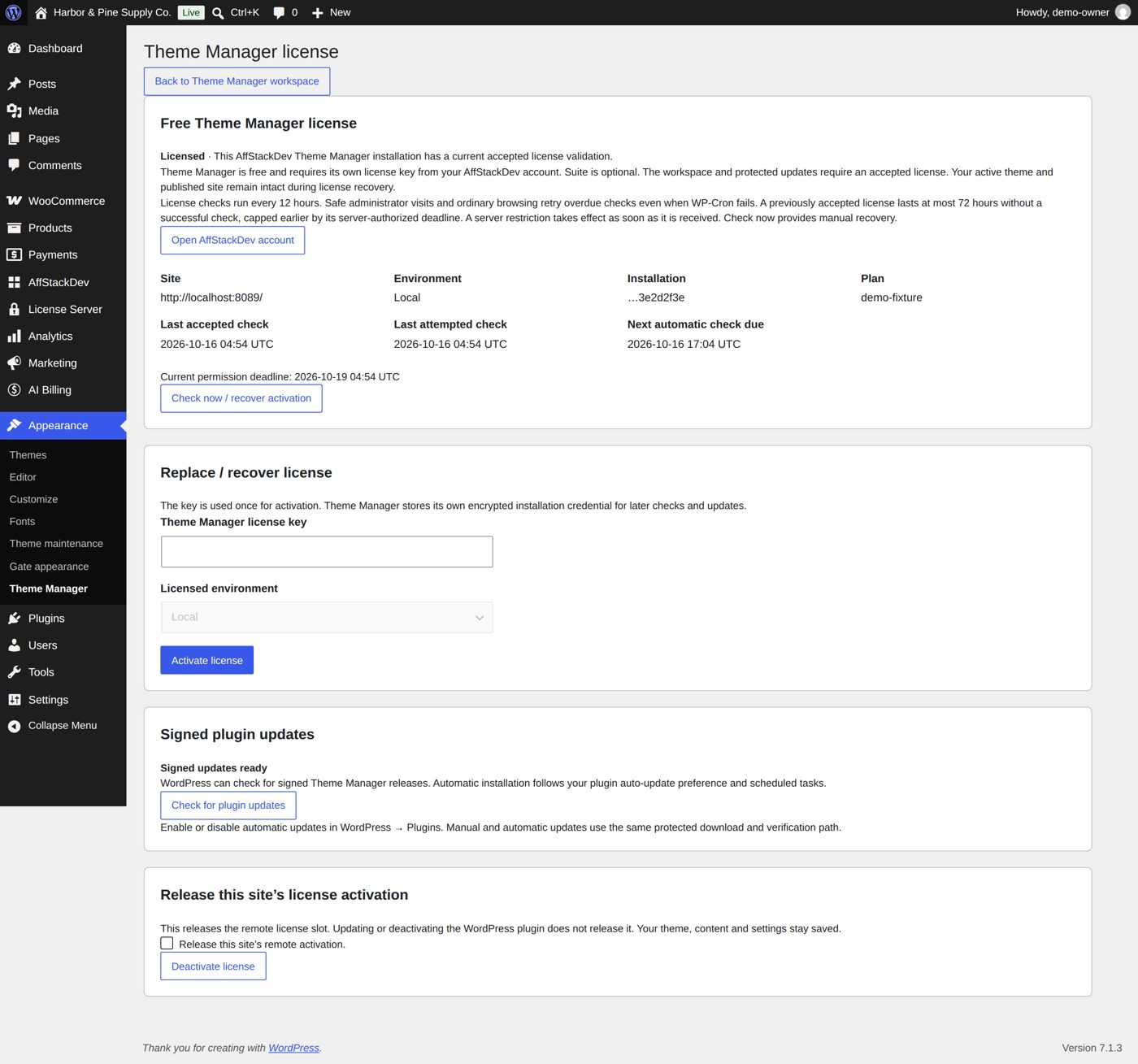
Theme Manager is free and works fully without a license. The free license from your AffStackDev account adds signed updates from affstackdev.com and counts for the full mode of AffStackDev Suite. To connect it, open Appearance → Theme Manager → License, paste the free key from My Account → Licenses on affstackdev.com, check the Environment and activate. More: Activate your license.
3. Find a page and open its editor
- Open the tab Pages & content.
- Type the title of a page, or a part of it, and select Find.
- Edit opens the page's editor; View opens the page itself in a new tab.
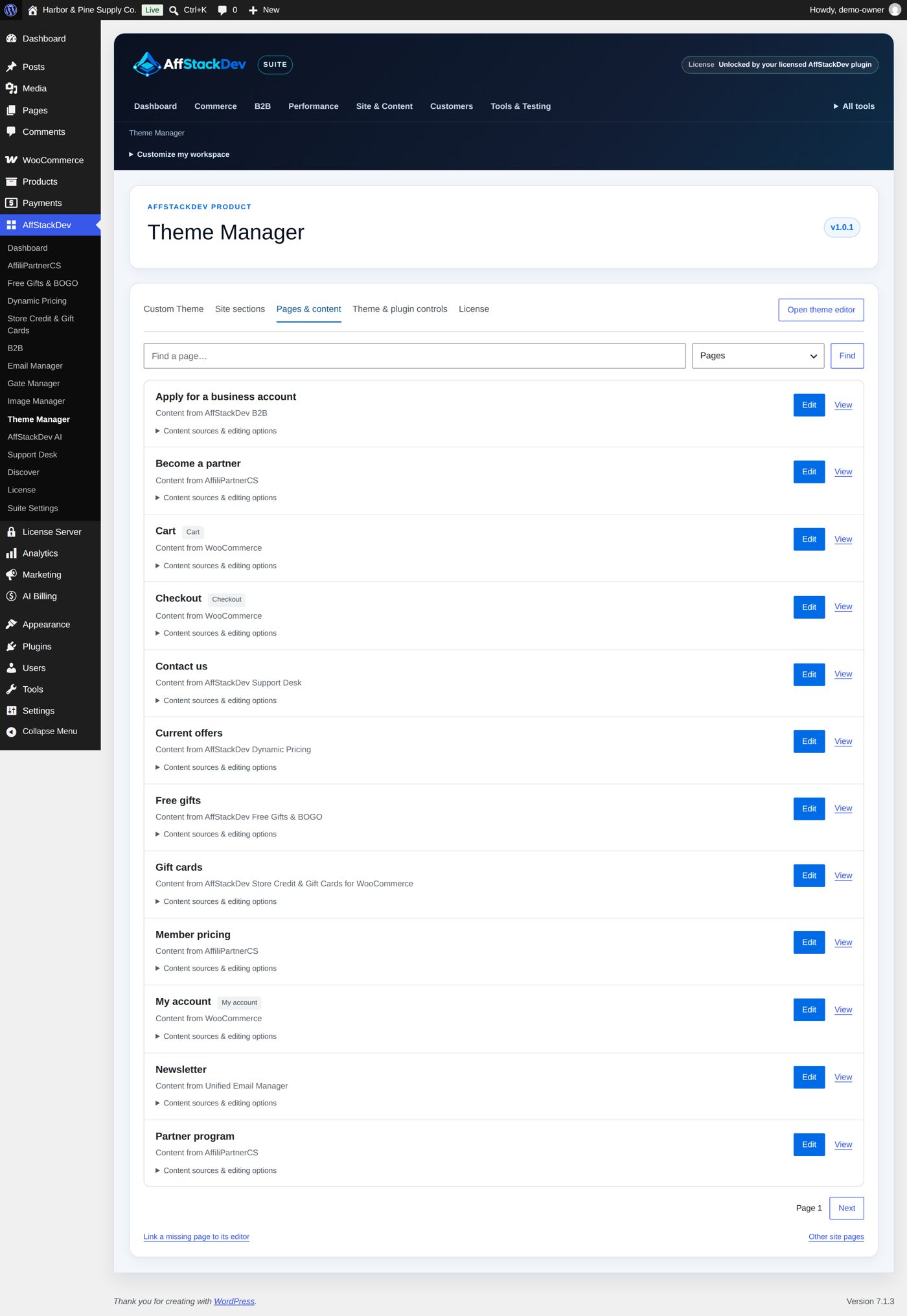
Open Content sources & editing options on a result to see where the parts of that page come from (a plugin, a pattern, the theme, its template) and the editor for each. Under Theme design in the same list you find templates, template parts and patterns. More: Find a page and open its editor.
4. Your shortcut cards
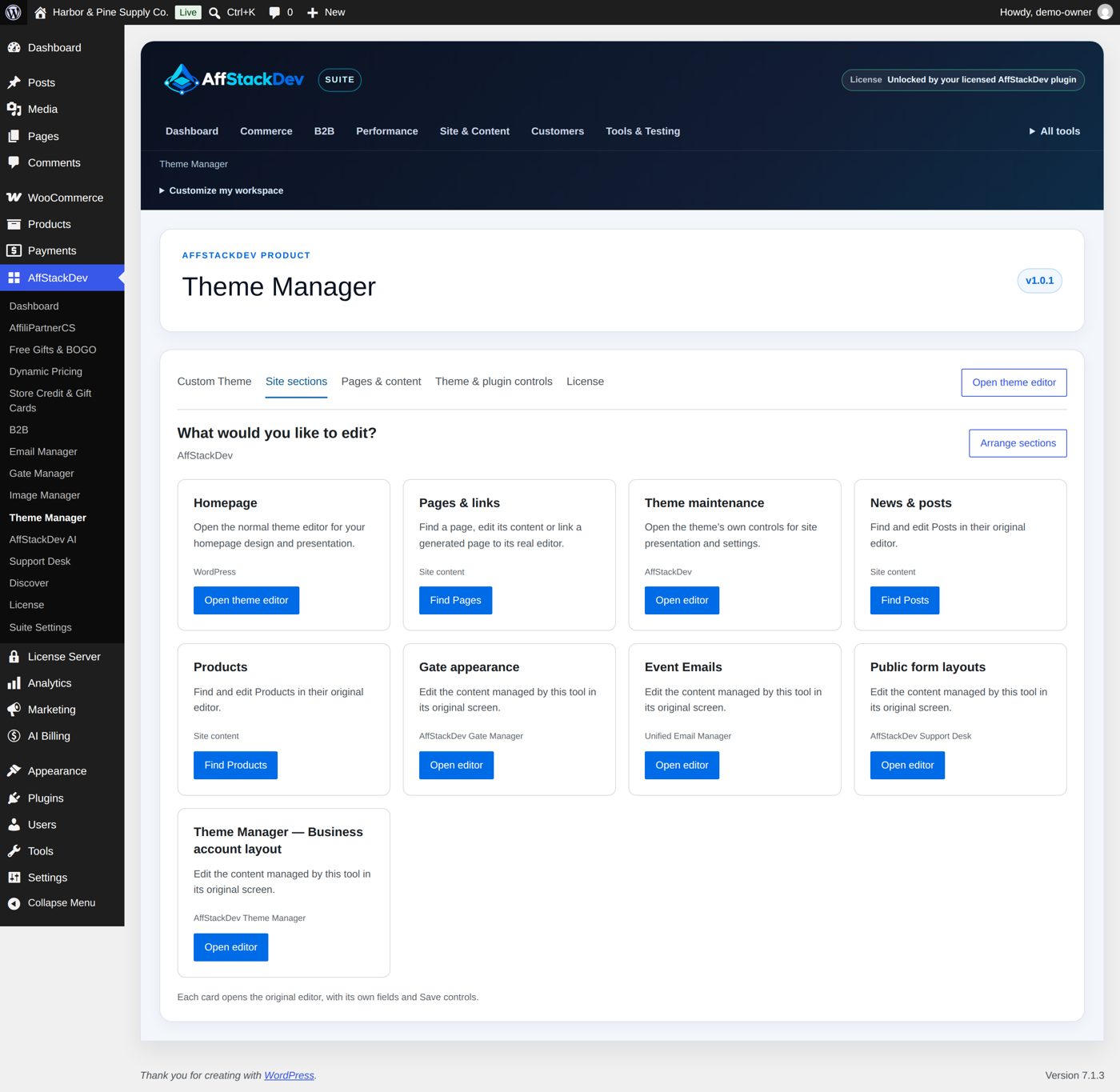
Site sections shows cards for the things people edit most: the home page, pages and links, the theme's editors, menus, widgets. Arrange sections renames, reorders, hides and adds cards; Save section layout keeps the arrangement for everyone who uses Theme Manager on this site.
5. Your theme's sections
The tab Custom Theme shows your theme's settings as task sections you can edit, preview and save, with drafts. A theme with its own Theme Manager support (the AffStackDev theme is one) brings its own sections; with any other theme you get its Customizer settings and a block theme's colours and fonts. The WordPress sections (logo, home page, menus, Additional CSS, store notice, page and product text) come with every theme. See Edit your theme.
What else Theme Manager can do
| Page | What it covers |
|---|---|
| Find a page and open its editor | "Where do I change that?" Search for the page, see what it is made of, and go to the editor that owns it. |
| Edit your theme: drafts, preview, save | Change your theme's settings section by section, look at the result before anyone else sees it, save, go back to a checkpoint, or schedule a change for later. |