Getting started
Download and install, license, every program setting field by field, the public program page and a first test, step by step with pictures: what to do before the first partner applies.
What to have ready
- Your AffiliPartnerCS license key from affstackdev.com (My Account → Licenses).
- WordPress 6.9, WooCommerce 10.0 and PHP 7.4 or newer (what AffiliPartnerCS needs).
- A rough idea of your terms: what a partner's customers save (a coupon of 10 or 15%, or none) and what the partner earns (a percentage of the sale, or a fixed amount per order), how long you wait before a commission is final, how often you pay and from which amount.
Harbor & Pine, the sample store of these pages, gives partner readers 15% off with the partner's coupon and pays the partner 8% of the merchandise; partners with an affiliate link earn 10%.
1. Download and install
- On affstackdev.com open My Account → Downloads and download AffiliPartnerCS. Keep the ZIP file as it is; do not unpack it.
- In your WordPress admin open Plugins, choose Add Plugin (older WordPress versions call it Add New), then Upload Plugin.
- Choose the ZIP file and select Install Now, then Activate Plugin.
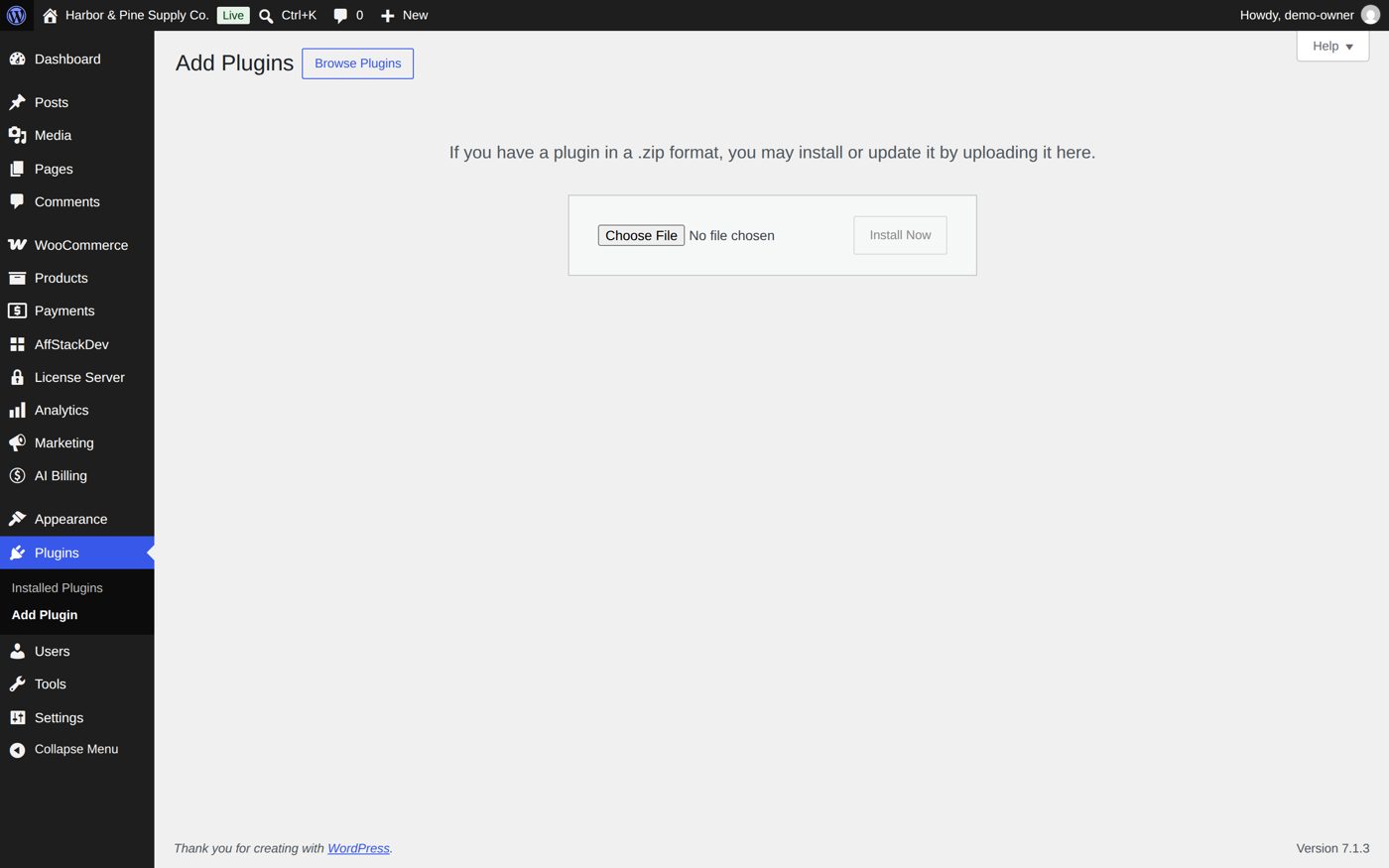
AffiliPartnerCS now has its place in the WordPress menu: AffiliPartnerCS. With the AffStackDev Suite installed you find it in the AffStackDev menu instead. If WordPress refuses the file, or to install a newer version over an older one, see Install a plugin.
Activating creates AffiliPartnerCS's tables and staff roles. It adds no partners, plans or pages: sample entries are a separate choice (step 6).
2. Activate the license
Open the License tab (the Plugins list also has a License link next to AffiliPartnerCS):
- Enter the Complete AffiliPartnerCS license key.
- Choose the Environment: Production for your live store; Staging, Development or Local for a test copy. One license covers one live site and one test copy of it.
- Choose Activate license and read the Product license status at the top.
The screen also shows the installation, the last and next automatic check, Check now, Verify critical files now and Release this site activation (for a move to another site). More in Activate your license.
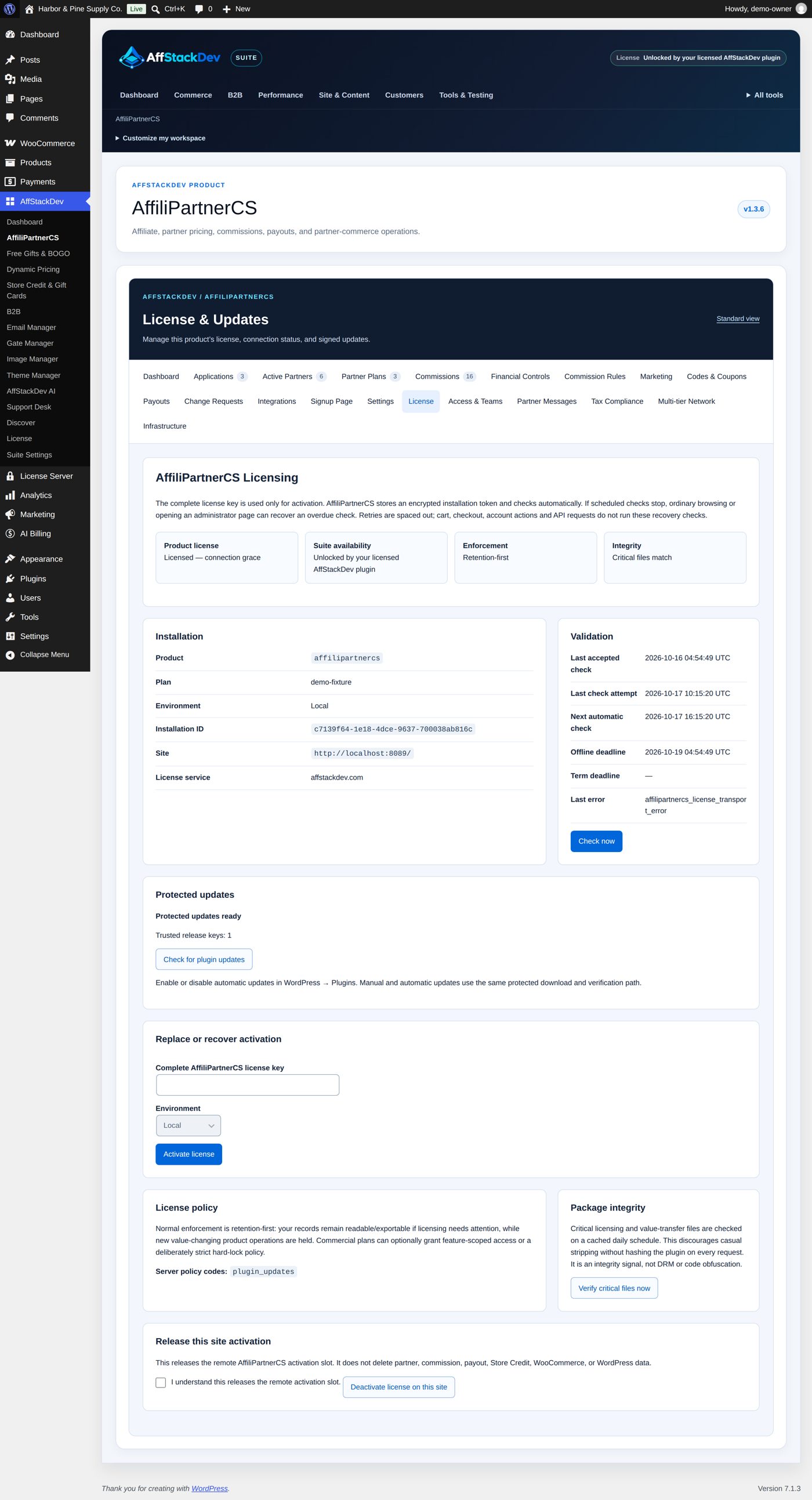
Without a license (after the first 72 hours) your records stay readable and exportable and new changes wait. Sales through partners' links still keep their partner; their commissions appear once the license is active again (Which partner gets the sale).
Subdomains
A license covers one live site and one test copy of it. To run AffiliPartnerCS on subdomains of that site as well (for example partners.example.com next to example.com), buy subdomain places with the license: on the AffiliPartnerCS product page, choose how many under Subdomain add-ons for each license unit.
- The purchase then has a second key, the subdomain key: one key for all its subdomains. Generate it under My Account → Licenses, in the purchase's Subdomain key panel, which also shows how many places are in use.
- Activate the main license on the main site first. Then enter the subdomain key in the same Complete AffiliPartnerCS license key field on each subdomain; each active subdomain takes one place. When every place is in use, the next subdomain is refused until you deactivate one or buy another place. The main key does not activate a subdomain.
- A subdomain place is for a live subdomain; a test copy of a subdomain is not covered.
3. Program settings
Open Settings. The screen is one form in three parts, saved together with Save Partner Program Settings at the bottom. Review the whole form before saving.
General Program Settings
| Field | At the start | What it does | Example |
|---|---|---|---|
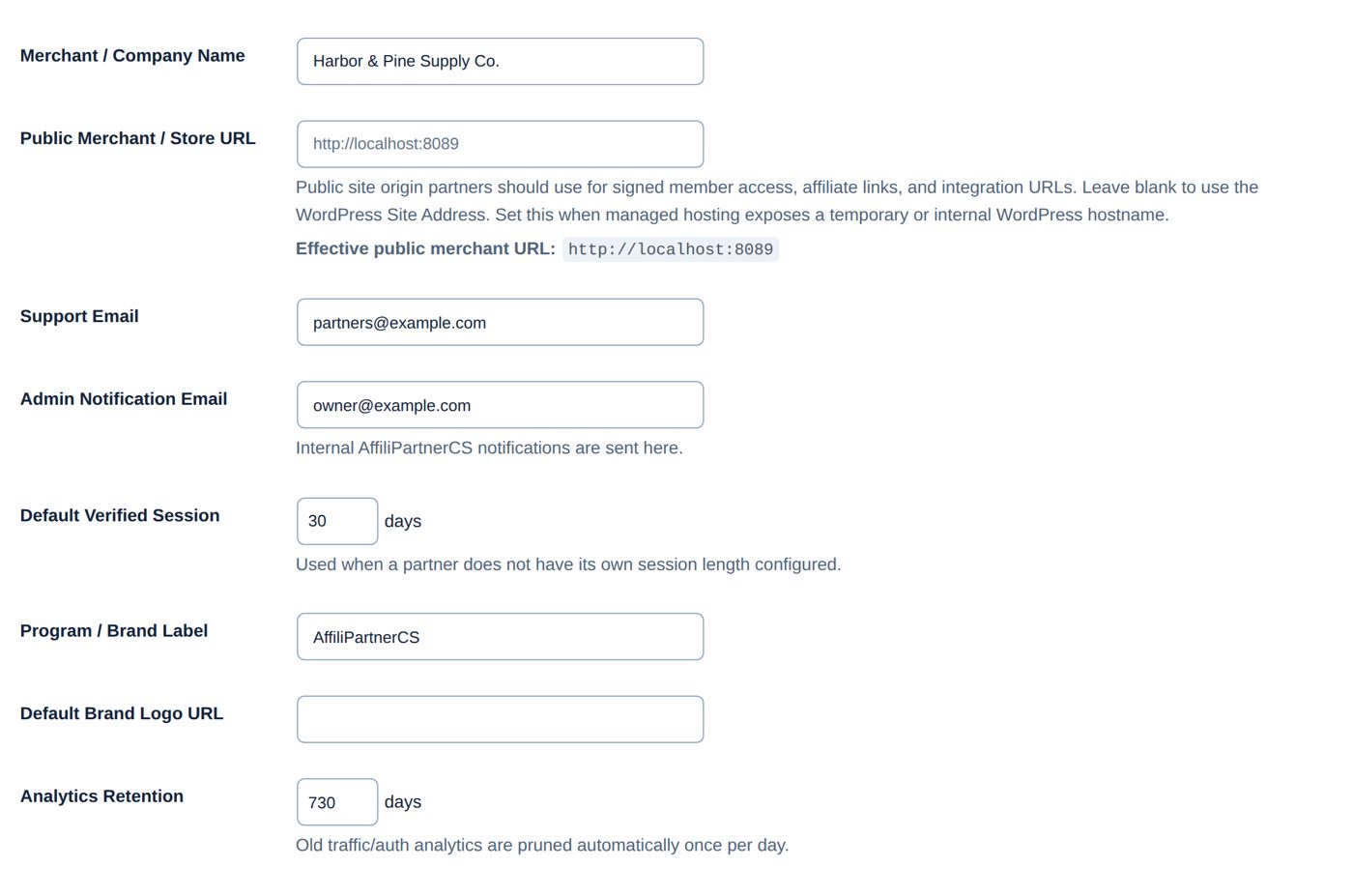
| Merchant / Company Name | your site's name | The store name partners see in emails and on the program page. | Harbor & Pine Supply Co. |
| Public Merchant / Store URL | empty: the WordPress Site Address | Only when partners must link to another public address than WordPress's own (some managed hosts show WordPress under a temporary name). Protocol, host and an optional port; nothing else. The line Effective public merchant URL under the field shows the address actually used for links: check it before you hand out links. | empty |
| Support Email | the site administrator's email | Where partners write to (Contact Support in their workspace). | partners@example.com |
| Admin Notification Email | the support address | "Internal AffiliPartnerCS notifications are sent here": new applications, change requests, new partner messages, team seat requests and other staff notices. | owner@example.com |
| Default Verified Session | 30 days (1 to 365) | Member pricing only: how long a verified community member keeps the member price in that browser, when the partner has no length of its own. | 30 |
| Program / Brand Label | AffiliPartnerCS | Your program's name in emails and on the partner pages ({program_name}). |
Harbor & Pine Partners |
| Default Brand Logo URL | empty | The full address of a logo image. | empty |
| Analytics Retention | 730 days (30 to 3,650) | How long visit and click records are kept; older ones are removed once a day. Removed records do not come back if you raise the number later. Orders and commissions are not affected. | 730 |
| Admin Interface: Enhanced Admin Workspace | On | Faster screens that switch tabs without reloading. Off gives plain server pages; every action works either way. | On |
| Partner Dashboard: Enhanced Partner Dashboard | On | The partner workspace's own look with section tabs. Off lets your theme style it; partners keep every action. | On |
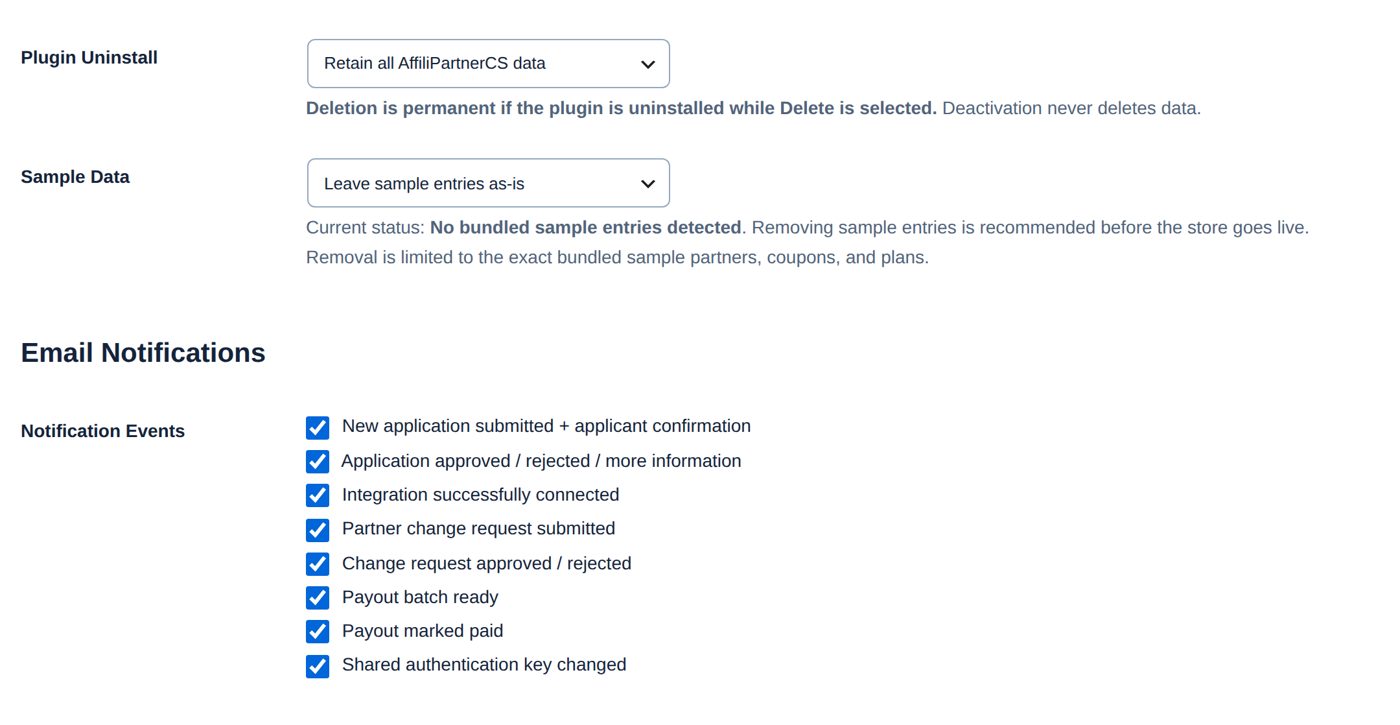
| Plugin Uninstall | Retain all AffiliPartnerCS data | Delete AffiliPartnerCS data on uninstall deletes the program's records for good when the plugin is later deleted. Deactivating never deletes. | Retain all AffiliPartnerCS data |
| Sample Data | Leave sample entries as-is | Load or restore bundled samples adds example partners, coupons and plans; Remove bundled sample entries removes exactly those. Current status says whether they are there. See step 6. | Leave sample entries as-is |
Email Notifications
Notification Events has nine switches. Eight are on at the start: New application submitted + applicant confirmation, Application approved / rejected / more information, Integration successfully connected, Partner change request submitted, Change request approved / rejected, Payout batch ready, Payout marked paid, Shared authentication key changed. The ninth, New commission (email to the partner), is off at the start: when ticked, partners get one email for each commission a sale earns them. Who gets which email is in Applications and Payouts. The wording of the application emails is on Signup Page.
Commission, Refund & Payout Settings
| Field | At the start | What it does |
|---|---|---|
| Commission Adjustment Hold | 30 days (0 to 365) | Counts from the day WooCommerce marks the order Completed. During the hold a refund reduces or voids the commission; afterwards the commission is final and ready for payout. "Customer refunds are always allowed": after the hold you can still refund the customer, but the partner keeps the commission. |
| Payout Frequency | Monthly | Weekly, Every 2 Weeks, Monthly, Twice Monthly or Custom Days Each Month. Only commissions already Pending Payout go into a batch on a payout day. |
| Weekly / Every 2 Weeks | Payout weekday: Friday; Biweekly anchor: empty | The weekday for weekly payouts. For every two weeks also a real payout date as the anchor, so AffiliPartnerCS knows which weeks. |
| Monthly | Schedule: Nth weekday, Nth: 3rd, Weekday: Friday, Day: 15 | Nth weekday pays for example on the third Friday; Specific day of month on Day (1 to 28). |
| Twice Monthly | Day 1: 1, Day 2: 15 | Two days of the month, 1 to 28. |
| Custom Monthly Days | 1,15 | Days separated by commas, 1 to 28, used only with Custom Days Each Month. |
| Minimum Payout | 200, Pay at or above this amount | A partner's balance is paid only when it reaches this amount; Pay only above this amount needs a higher balance. Smaller balances stay Pending Payout and carry forward to a later payout day. In your store currency; the minimum applies to each currency a partner earns in. |
| Partner Change Requests | Enable partner change requests ticked | Partners can ask for changes to their public profile; you approve each (Change requests). Unticked, Request Changes is hidden from partners. |
| Change Request Frequency | 90 days after an approved change | How long a partner waits after an approved change before asking again. Rejected requests do not start the wait; 0 means no wait. |
Below the form, Open Database Maintenance leads to Infrastructure → Maintenance (Exports, privacy and maintenance).
Worked example: a 14-day hold and payouts on the 1st from $50
Harbor & Pine wants commissions to be final two weeks after delivery and pays partners once a month, on the 1st, when they have earned at least $50.
- Open Settings. Under Commission, Refund & Payout Settings enter 14 in Commission Adjustment Hold.
- Payout Frequency: Monthly. In the Monthly row choose Schedule: Specific day of month and Day: 1.
- Minimum Payout: 50, Pay at or above this amount.
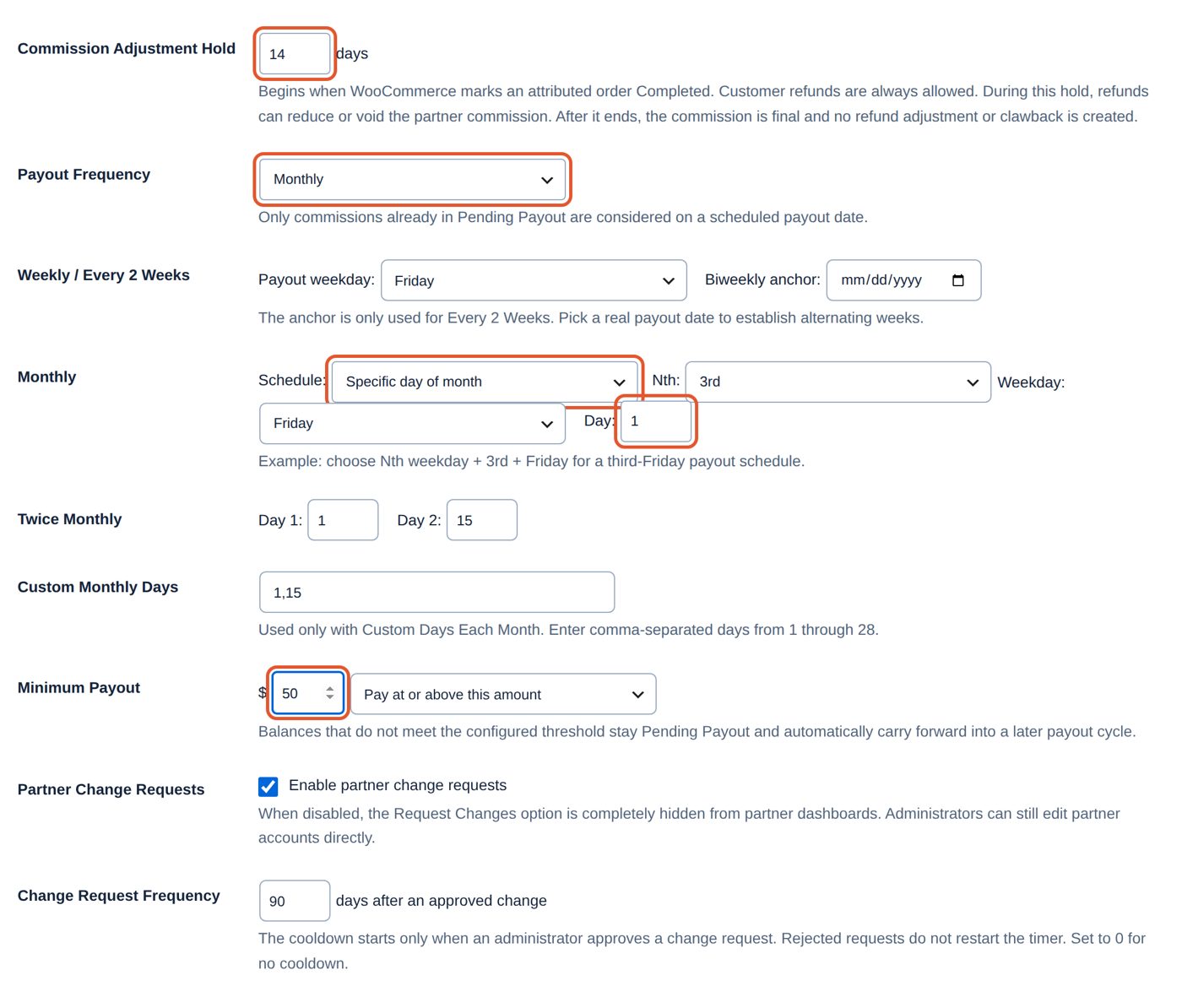
- Choose Save Partner Program Settings. The answer: "Commission settings saved. Open commission adjustment holds were recalculated using the new hold period."

Commissions that are already in their hold are recalculated: their payout date moves to 14 days after their order's completion. Commissions that are already final, paid or voided do not change. The Payouts tab now shows the schedule and the next payout day:

4. The public program page
Partners apply on a page of your store. AffiliPartnerCS needs to know which page that is: the partner login's Create an account link, /affiliate-signup/ and the workspace's "Apply to the Partner Program" lead there.
Open Signup Page. The box Public Page Setup at the top has two choices:
- Create Missing Plugin Pages creates and publishes the Partner Program page (address
/partner-program/) and the Partner Member Pricing page (/member-pricing/), each with its block, if they do not exist. A page that already uses one of those addresses is left alone: assign it instead. - Or choose your own pages under Partner Program and Partner Member Pricing and Save Page Assignments. Assigning does not change the page: place the block or shortcode on it yourself.
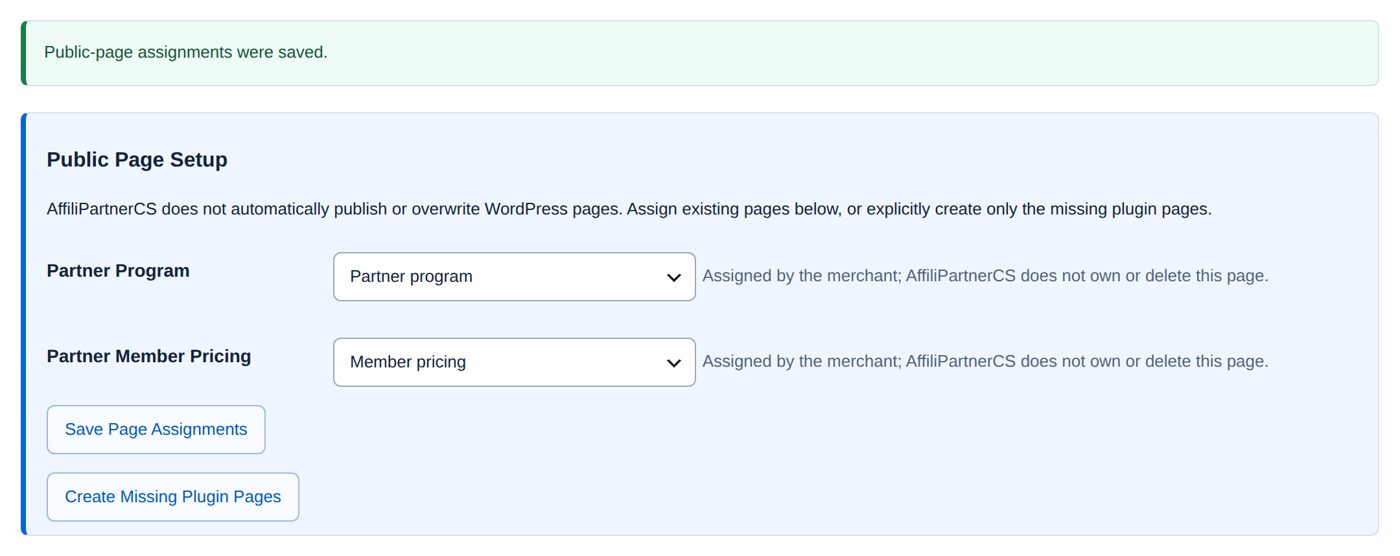
Next to each page the box says Created and tracked by AffiliPartnerCS or Assigned by the merchant; AffiliPartnerCS does not own or delete this page.
| Block | Shows | Shortcode |
|---|---|---|
| Partner Program | The whole program page: introduction, benefits, programs, how it works, the application. | [mos_partner_program] |
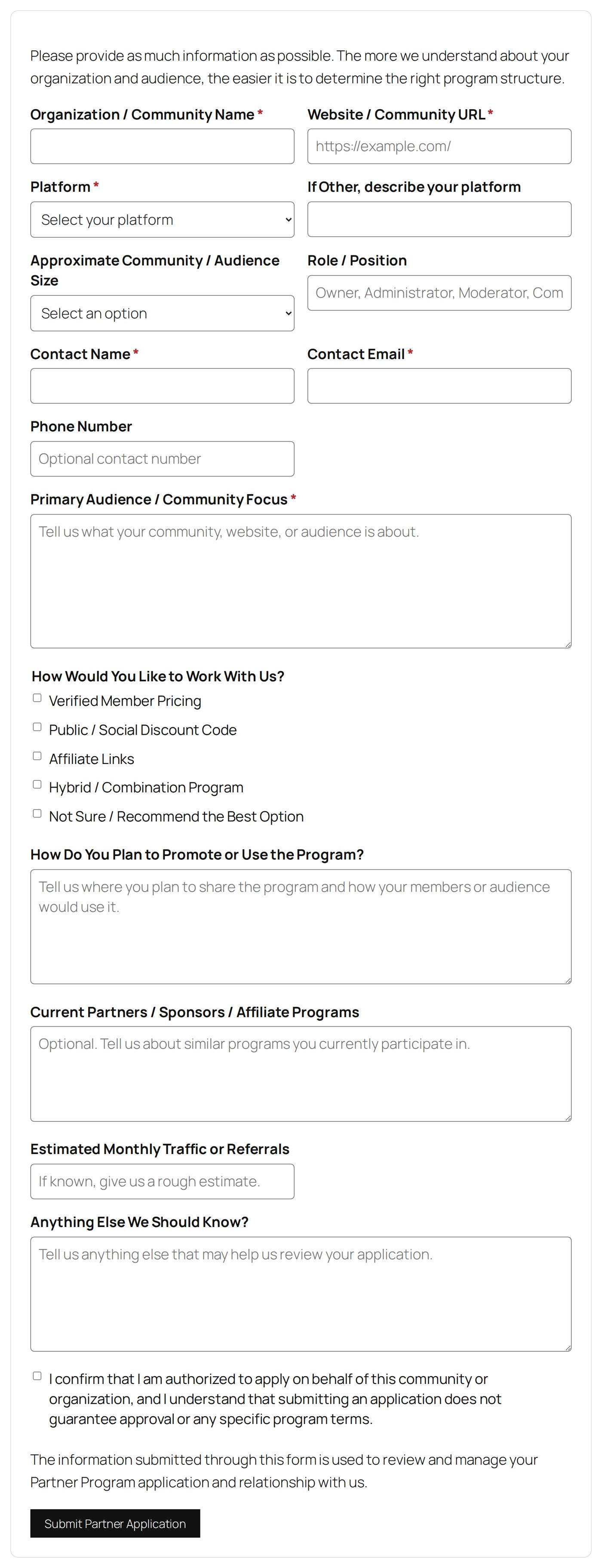
| Partner Application | The application form only. | [mos_partner_application] |
| Partner Member Pricing | Member pricing: what a community member sees after verification, or how to get it. | [mos_partner_pricing] |
The wording of the page, its choices and which questions the form asks are set further down on Signup Page (Applications).
Worked example: assigning the pages the store already has
Harbor & Pine already had a page Partner program with the Partner Program shortcode and a page Member pricing, but nothing was assigned:
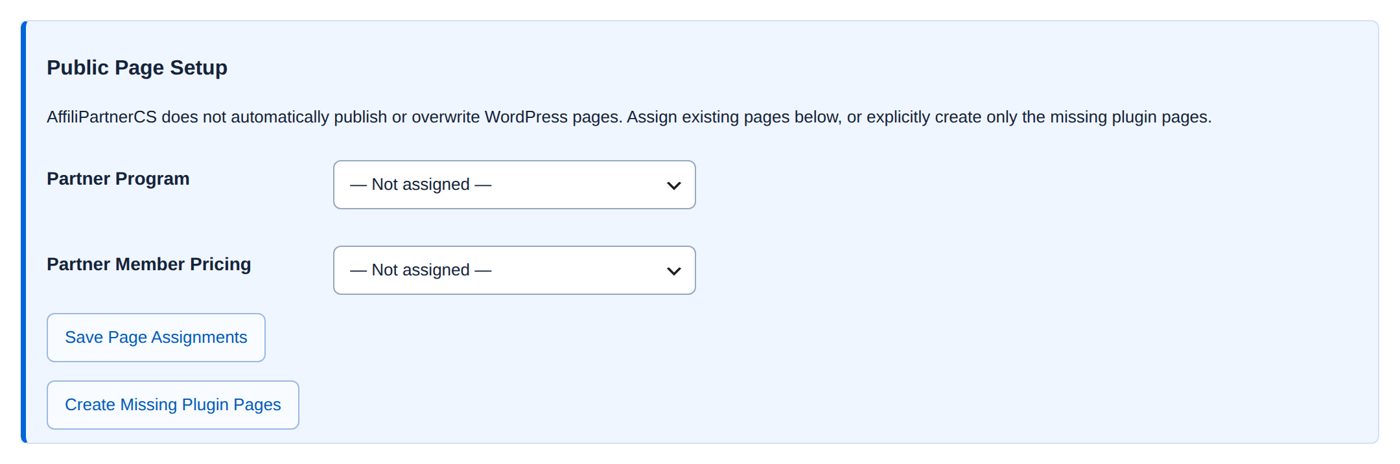
- Under Partner Program choose Partner program, under Partner Member Pricing Member pricing.
- Choose Save Page Assignments: "Public-page assignments were saved."
A visitor sees the page with its introduction, the benefit cards, the programs, how verified member pricing works, the steps, and the application at the bottom (Apply to Become a Partner at the top jumps there):

5. Payout methods
Open Payouts → Payout Methods and switch off what you do not want to offer. At the start Venmo, Cash App, Zelle, PayPal, Bank Wire, Visa / Mastercard Prepaid Card, Check and Store Credit are on and Stripe Connect is off. PayPal and Stripe Connect are offered to partners only once you have connected your own PayPal Payouts or Stripe account under Reviewed Provider Payouts; Store Credit only while AffStackDev Store Credit & Gift Cards is active. Fees, minimums and currencies per method: Payouts.
6. Sample entries
Settings → Sample Data → Load or restore bundled samples adds two example partners (sample-verified-clickback and sample-hybrid-all-three), their coupons (samplemember10, samplehybrid10, samplepublic7) and four example plans. They start suspended and their coupons cannot be used, so they never give a real discount. Look at them to see how a setup looks; then choose Remove bundled sample entries before you go live. Removal touches only those exact entries and stops at any that have been changed or used.
7. Try it once
- Create a Partner Plan (Partners, plans and coupons).
- In a private browser window apply on your program page. Approve the application, link an account, give the partner the plan and a coupon (Applications, Partners, plans and coupons).
- In another private window buy something with the coupon, then mark the order Completed. The commission appears under Commissions, first Pending Order Delivery, after completion Commission Pending - Return Hold with its payout date.
- Sign in as the partner and look at My Account → AffiliPartnerCS.
When it does not work
| You see | It means |
|---|---|
| "Enter a valid support email address." / "Enter a valid notification email address." | The address is not a valid email. Leaving the field empty keeps the saved address. |
| "Public Merchant / Store URL must contain only the site origin, without credentials, a path, query string, or fragment." | Enter only https:// and the host, for example https://shop.example.com. |
| "The AffiliPartnerCS settings could not be saved completely." | Part of the form was saved. Open Settings again and check every value before saving once more. |
| "A WordPress page already uses the slug %s. It was not modified; assign that page explicitly or choose a different slug." (with the address) | Create Missing Plugin Pages found a page at that address. Assign it, or rename it under Pages. |
| "Another public-page setup request is already running. No page was changed; retry after it finishes." | Wait a moment and choose the button again. |
| "You do not have permission to create AffiliPartnerCS public pages." | Your role may not change program settings; ask an administrator. |
| The license form instead of the tabs, or a License policy hold note | No active license, or it needs attention: see License. |
| A link under My Account answers "page not found" | Open Settings → Permalinks and save once. |
Questions
Does AffiliPartnerCS change my prices or my coupons?
No. Discounts come only from WooCommerce coupons that you create or attach for a partner. AffiliPartnerCS never changes a product price, and changing a plan later does not rewrite a coupon.
Do I need the program page?
Only if partners should apply themselves. You can also add partners by hand (Add Partner Manually).
Can I start without paying out money?
Yes: commissions are recorded from the first sale, and nothing is paid until you pay a batch yourself. You decide the payout day and minimum, and you can pay in store credit.
What happens to commissions when I change the hold later?
Saving a new hold recalculates the commissions that are still in their hold. Final, paid and voided commissions keep their state.
Where do the program's emails come from?
From WordPress's normal mail, with your Merchant / Company Name and Program / Brand Label. Each event can be switched off under Email Notifications.
Related pages
| Page | What it covers |
|---|---|
| Applications | The program page and its application form, reviewing, approving, asking for more information, the application emails. |
| Partners, plans and coupons | Partner records section by section, adding a partner by hand, plans, coupons, suspending and deleting. |
| Links, attribution and commissions | Which partner gets a sale, affiliate links, how much a partner earns, holds and refunds, rules, corrections, bonuses and tiers. |
| Payouts | Payout methods, the schedule, batches, paying and recording, store credit, PayPal and Stripe, currencies, tax. |
| The partner's workspace and more | What partners see and do under My Account, change requests, messages, teams, member pricing, staff roles, exports and maintenance. |