The partner's workspace and more
What partners see and do in their workspace under My Account, payout details, profile change requests, messages and disputes, partner teams, member pricing for online communities, store staff roles, and exports, privacy and maintenance, with worked examples.
The partner's workspace
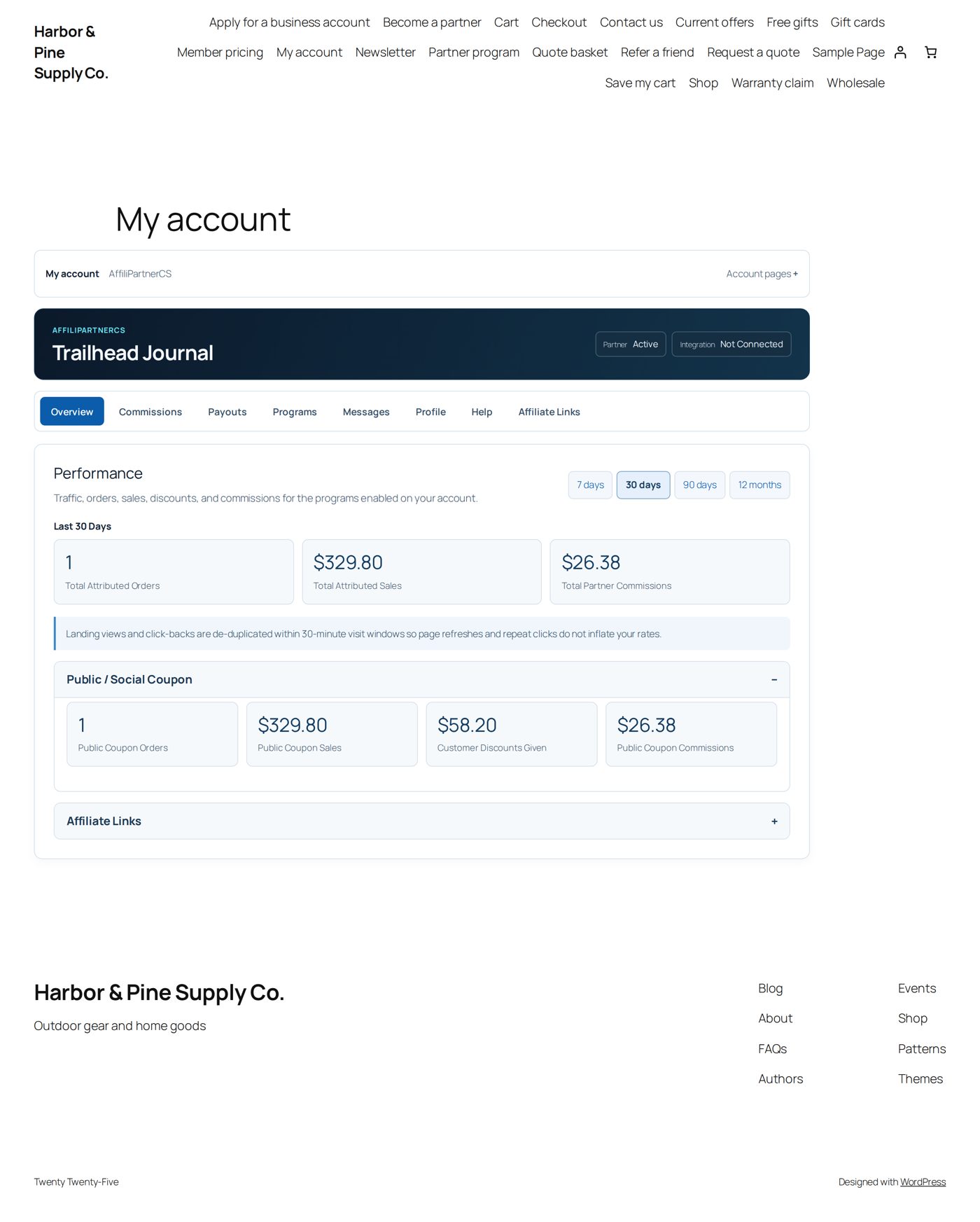
A partner signs in to your store with the login linked to its partner record (Account and invitation) and opens My Account → AffiliPartnerCS. At the top are the partner's name and two badges: Partner (its status, such as Active) and Integration (the member pricing connection, Not Connected when there is none). Below are the sections as tabs; on a narrow screen a Workspace section list takes their place.
| Section | What the partner finds there |
|---|---|
| Overview | Performance for 7 days, 30 days (at the start), 90 days or 12 months: attributed orders, sales and partner commissions, then the figures of each of its programs, such as Public / Social Coupon (orders, sales, discounts given, commissions) and Affiliate Links (clicks, visitors, orders, sales, commissions). |
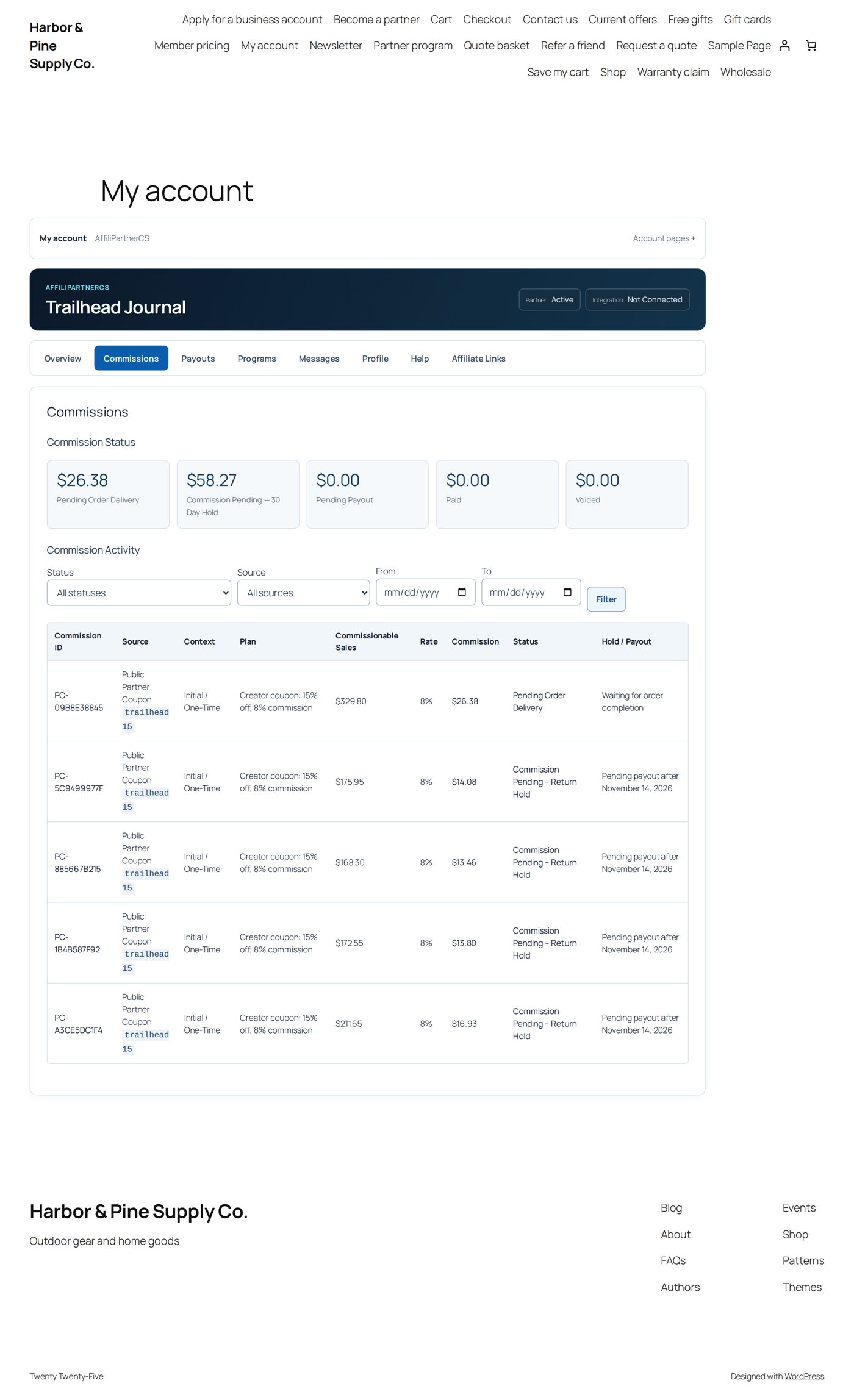
| Commissions | Commission Status with the totals per status, and Commission Activity: every commission with its plan, rate, amount, status and when it becomes payable, filtered by Status, Source, From and To, 25 per page. Customer names and order numbers are not shown. |
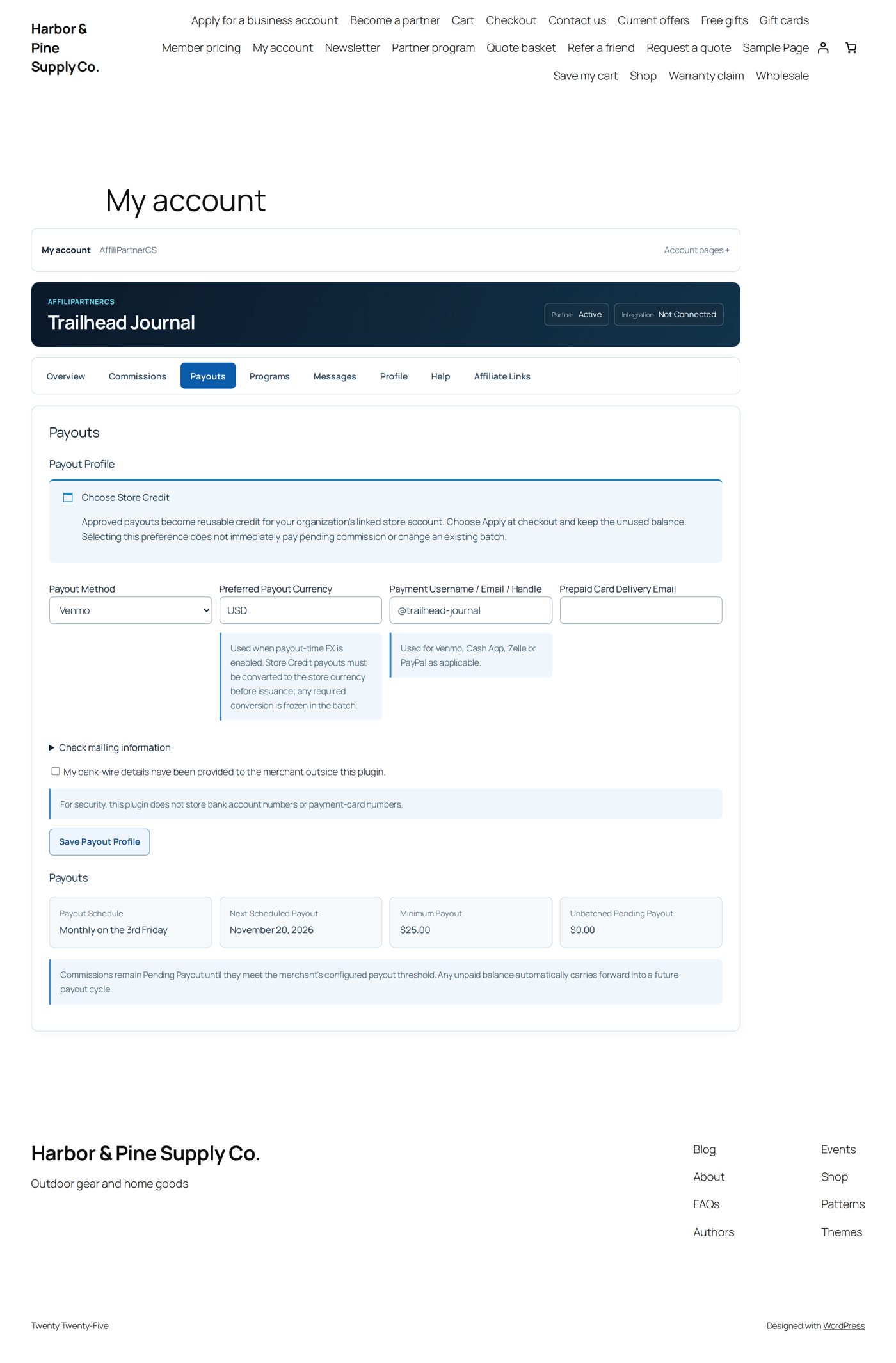
| Payouts | Payout Profile (how it is paid, below), an estimate of the next payout when a balance waits, the schedule (Payout Schedule, Next Scheduled Payout, Minimum Payout, Unbatched Pending Payout) and its last 100 payouts. |
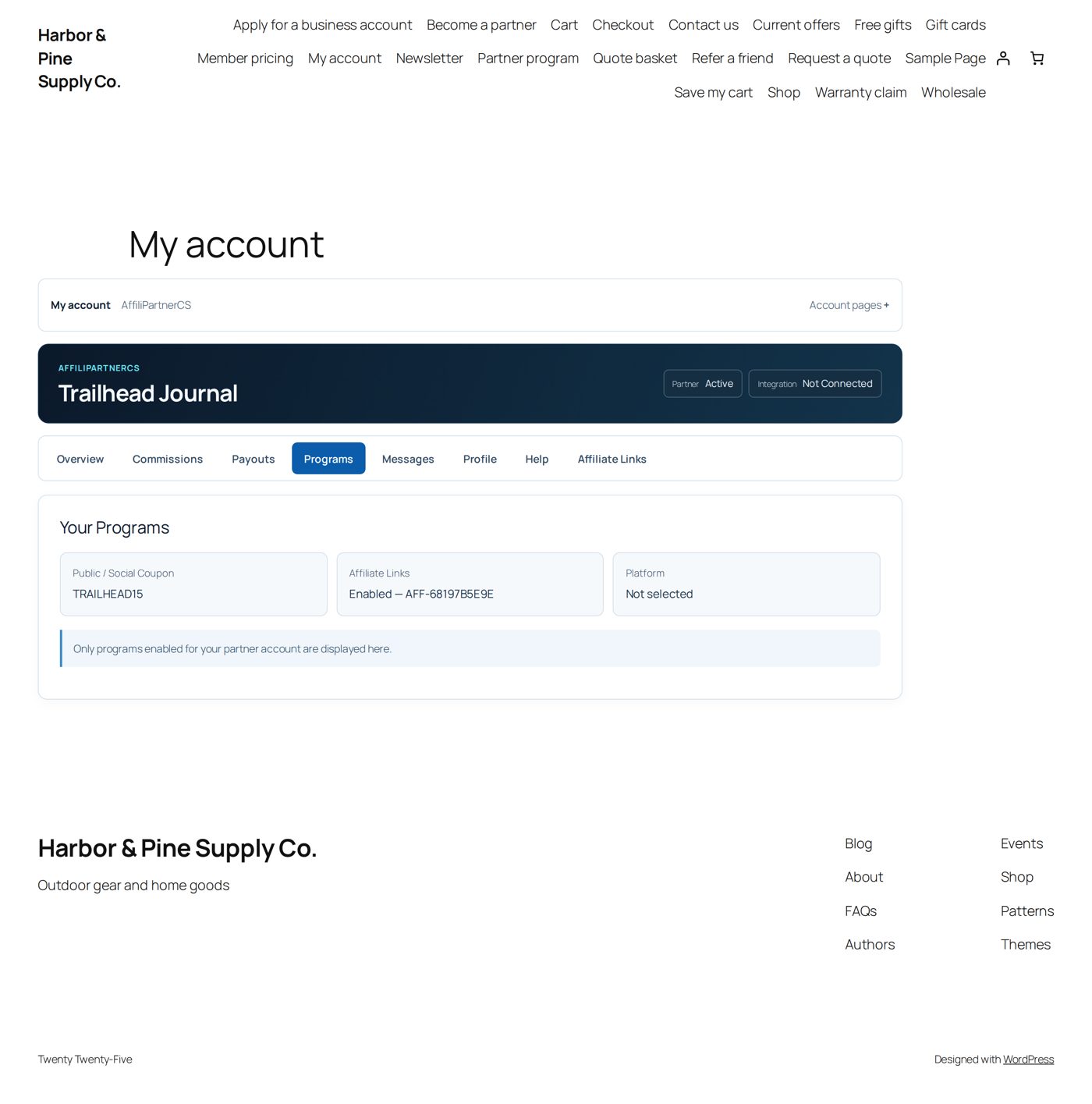
| Programs | Your Programs: its coupon codes, its affiliate code and its platform. |
| Messages | Messages & Disputes: conversations with you (Messages). |
| Profile | Your Community Profile and Request Changes (Change requests). |
| Help | Need Help? with Contact Support, an email to your Support Email (Settings). |
| Affiliate Links | With an affiliate plan: its link maker, saved short links and your promotional material (Links, attribution and commissions); Your Landing Pages with their addresses (Landing pages); and, when you have switched them on, Your Coupon Through Your Links and the number of its Lifetime Customers (Lifetime customers). |
Some sections appear only when they apply: the member pricing connection, Team (Teams), the partner network and tax status. What a team member may change depends on its role; a suspended or terminated partner can still look at everything but change nothing.
Payout profile
Under Payouts → Payout Profile the partner chooses its Payout Method among the methods you offer and gives what that method needs (Payouts): Payment Username / Email / Handle for Venmo, Cash App, Zelle and PayPal, Prepaid Card Delivery Email, the address under Check mailing information, or the tick that its bank details were given to you outside the plugin. Preferred Payout Currency is used only with payout-time currency conversion. Your instructions for each method are shown with the choice. Save Payout Profile answers "Payout profile saved."
A new choice applies from the next batch; batches already made keep their method.
Worked example: Lakeshore Guide Service switches to check
Maya Fontaine (Lakeshore Guide Service) was paid by Venmo and wants checks.
- My Account → AffiliPartnerCS → Payouts. Payout Method: Check.
- Open Check mailing information and fill in Mailing Name Lakeshore Guide Service, Address 1 12 Harbor Road, City Grand Marais, State / Province MN, Postal Code 55604, Country US.
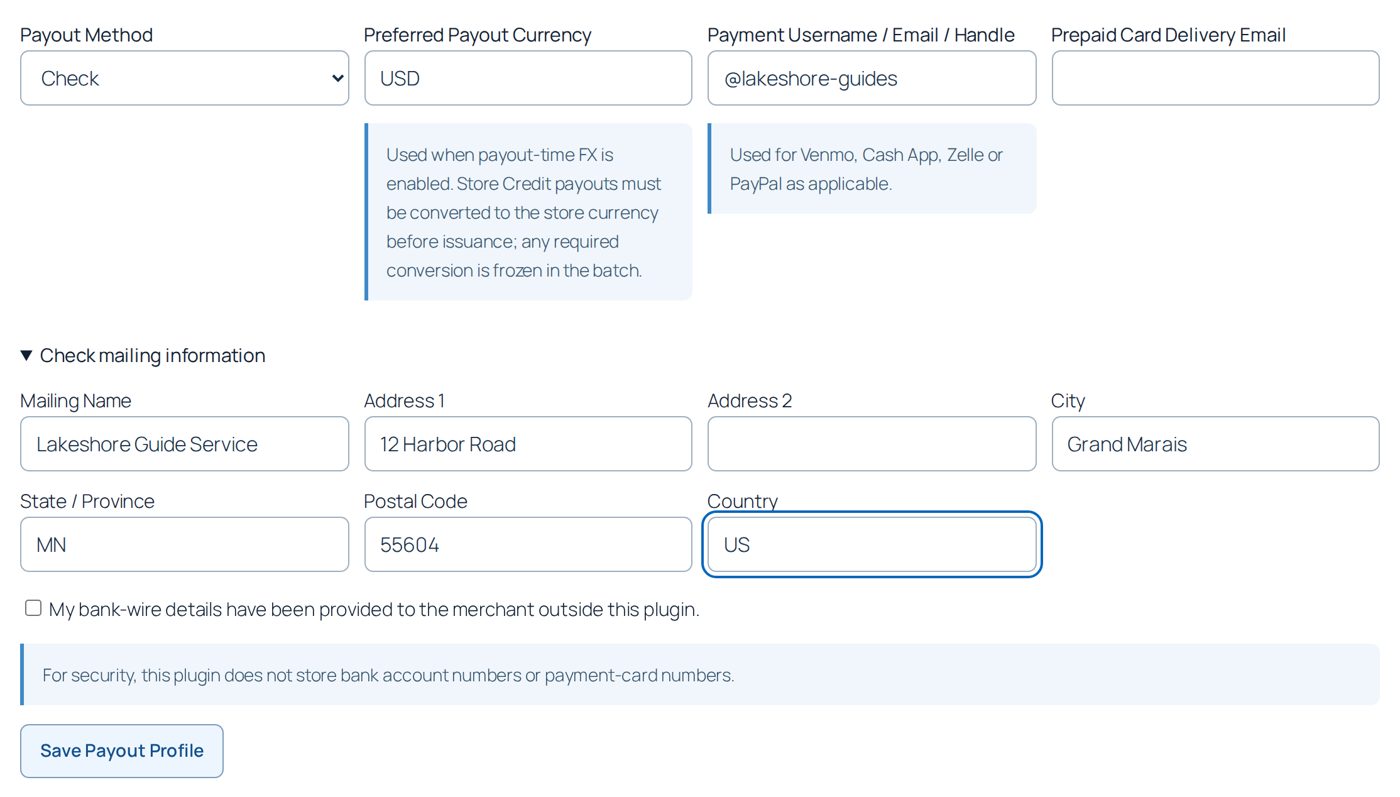
- Save Payout Profile: "Payout profile saved."
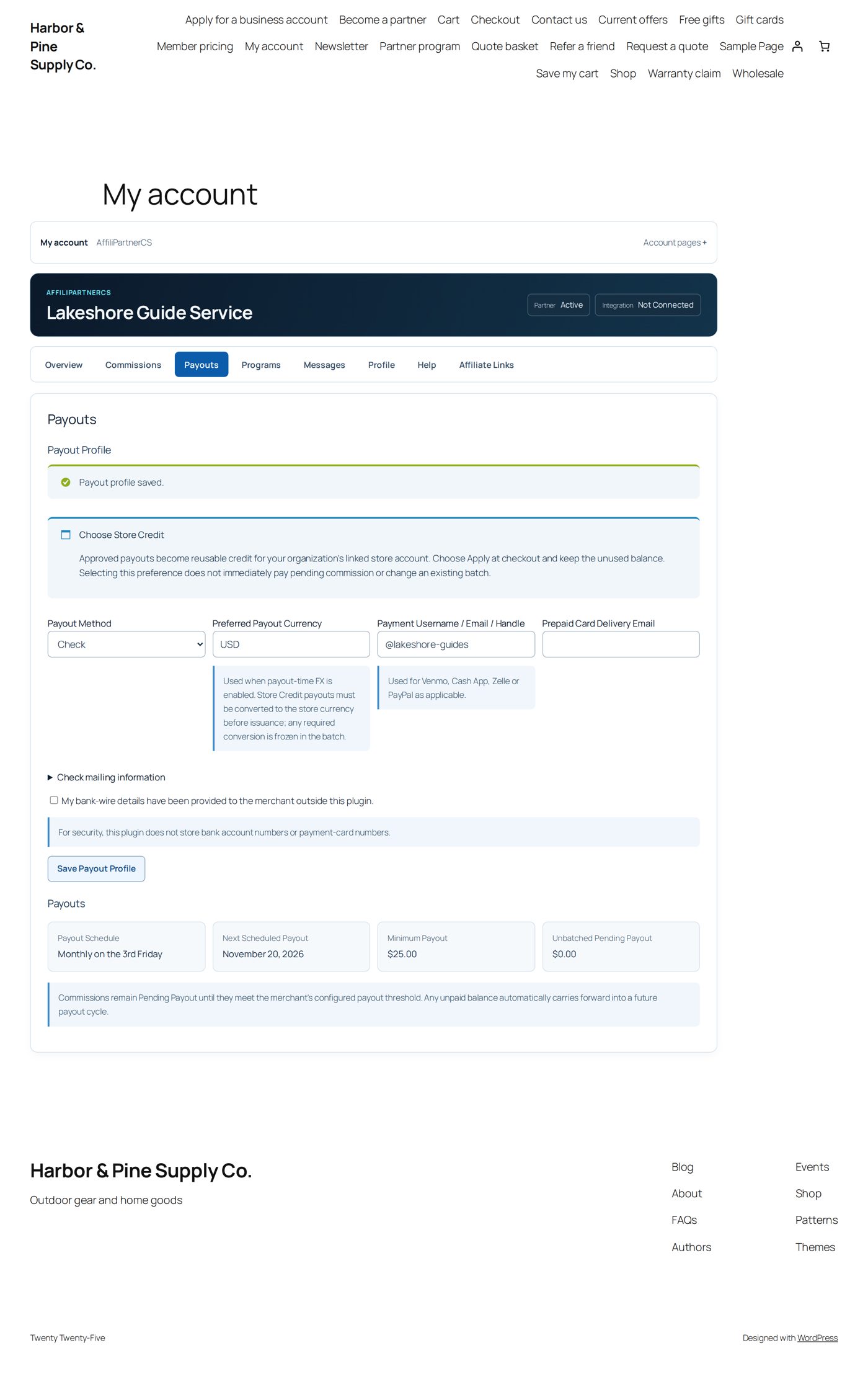
Lakeshore's next batch is a check to that address. With the $50 check minimum of the payout methods example, its $8.70 carries forward until it reaches $50.
Change requests
A partner's public profile (name, home address, login address, logo and description, shown on your member pricing page) is changed by you, or by the partner through a request you approve. Under Profile → Request Changes the partner sees Change request status and the fields Partner Name, Partner Home URL, Login URL, Logo URL, Description and Message / explanation, filled with today's values, and sends them with Submit Change Request. Only the owner and team administrators can ask.
One request waits at a time. After an approved change the partner waits 90 days before the next one; you set the wait under Settings → Change Request Frequency (0 for none) and switch requests off with Partner Change Requests (Getting started). A rejected request starts no wait.
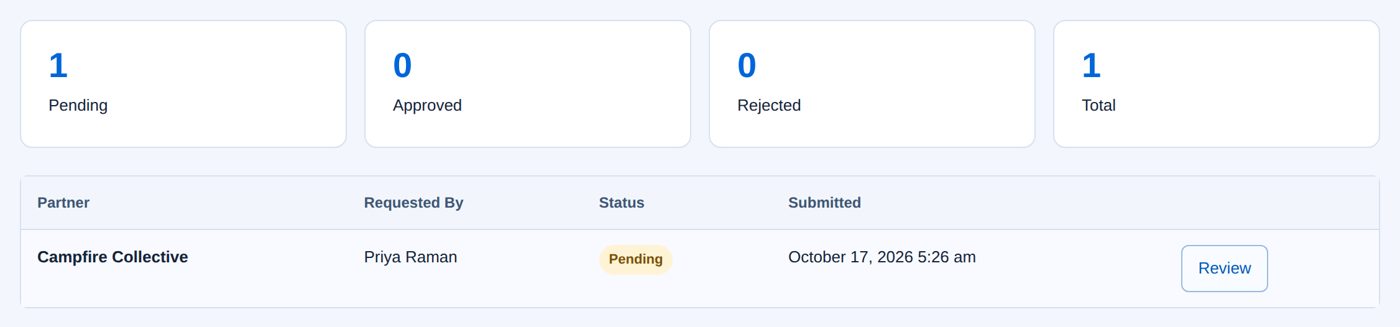
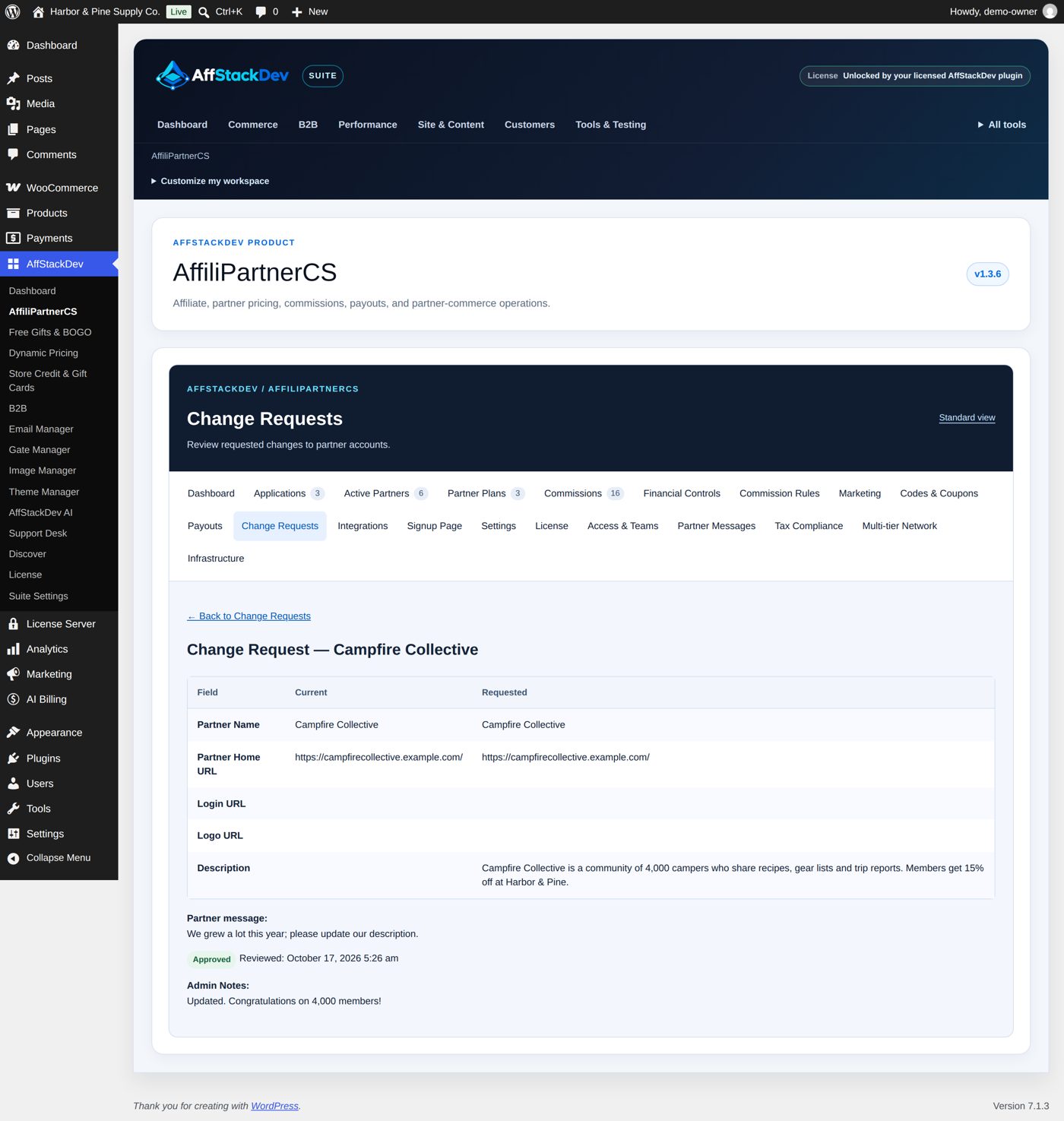
You find requests under Change Requests: counts, then each request with partner, requester, status, date and Review. The review shows Current and Requested for each field and the partner's message. Admin Notes go into the email to the partner. Approve & Apply Changes writes the requested values into the partner record; Reject leaves the profile as it is. "Current" is the profile when the request was sent: if you changed the partner since, compare before you approve.
Worked example: Campfire Collective's new description
- Priya Raman opens Profile → Request Changes, writes the new Description ("Campfire Collective is a community of 4,000 campers who share recipes, gear lists and trip reports. Members get 15% off at Harbor & Pine.") and in Message / explanation "We grew a lot this year; please update our description."
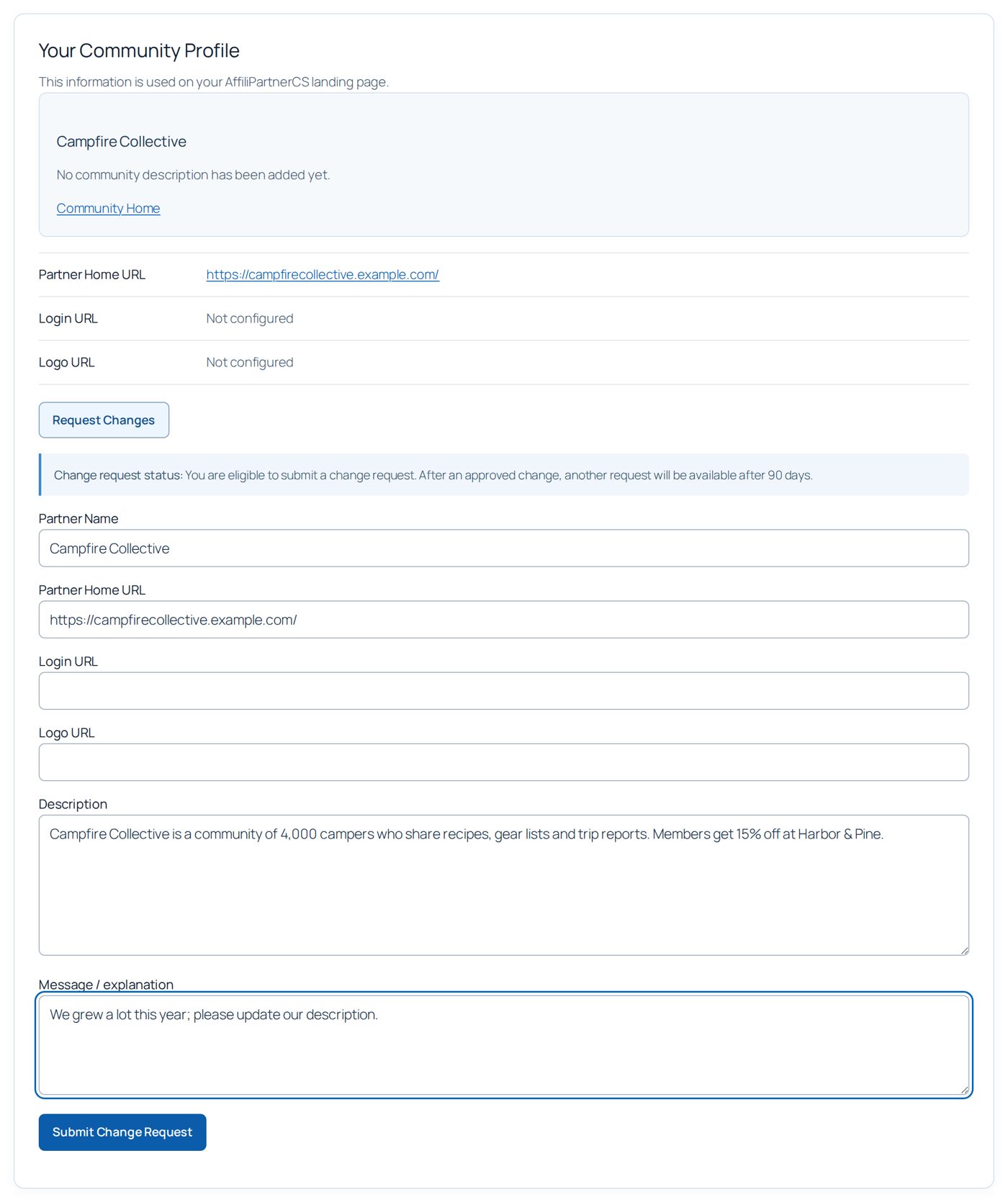
- Submit Change Request: "Your change request was submitted for review."
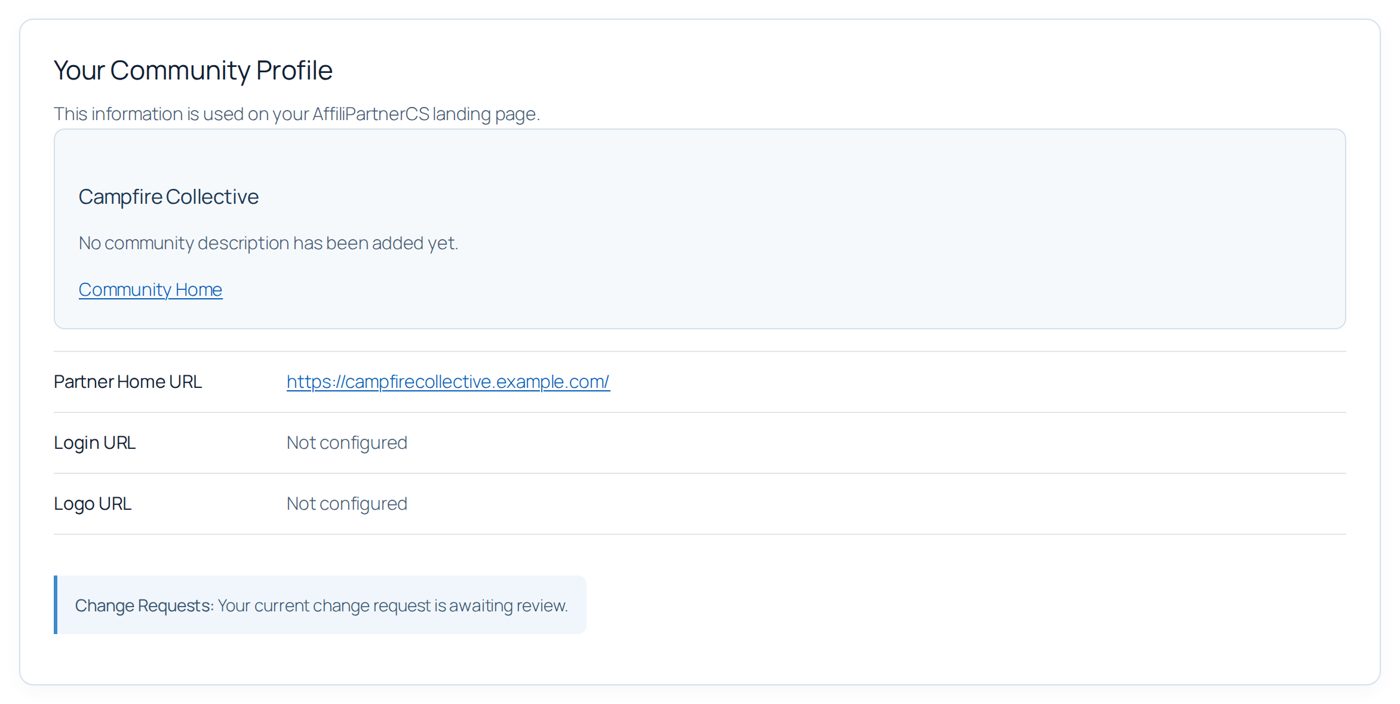
- In WordPress, Change Requests lists it as pending. Review shows the description as the only change.
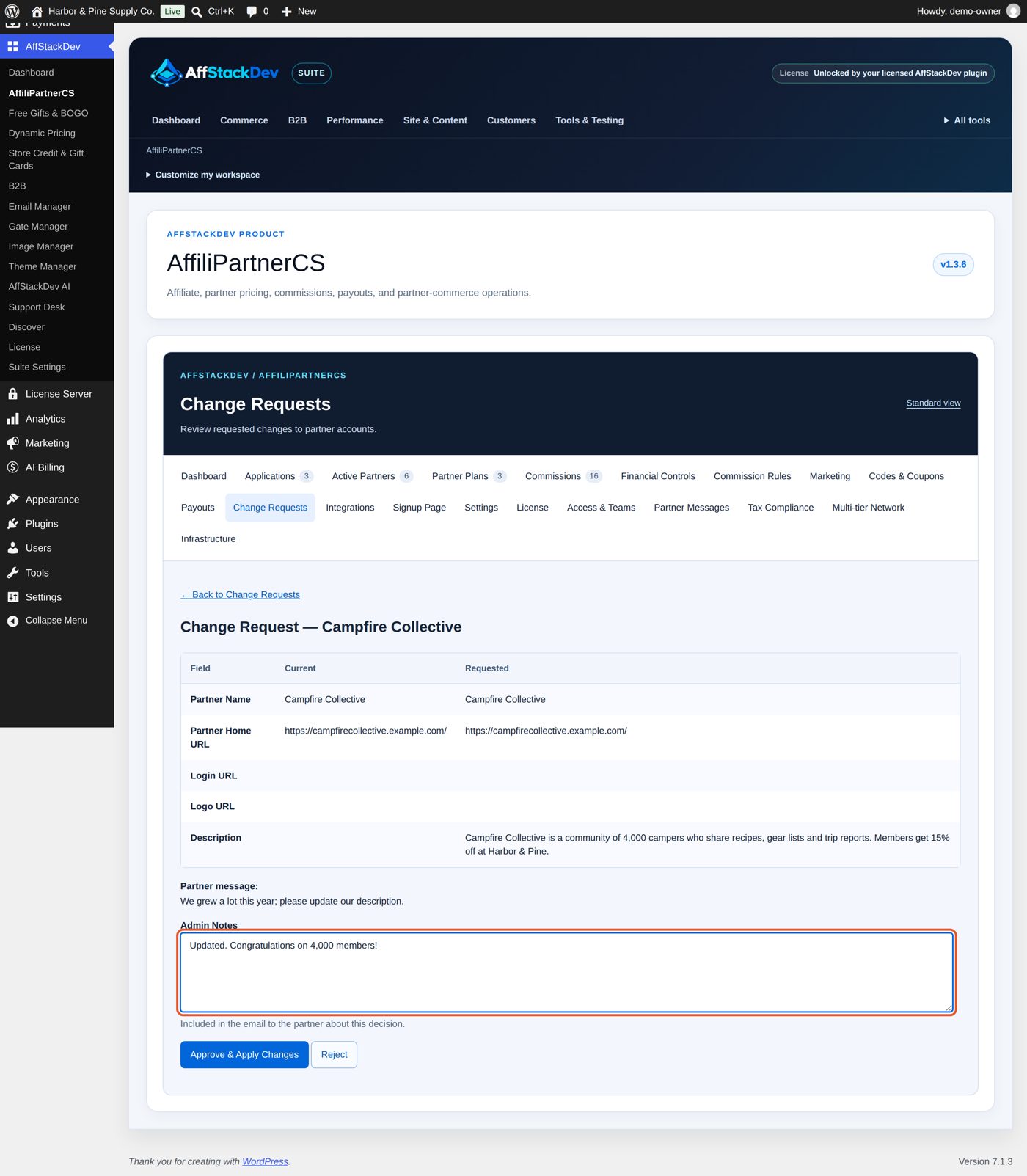
- Admin Notes: "Updated. Congratulations on 4,000 members!", then Approve & Apply Changes. The request is Approved, the description is on the partner record, and Priya gets an email with your note. Her next request is possible in 90 days.
Messages
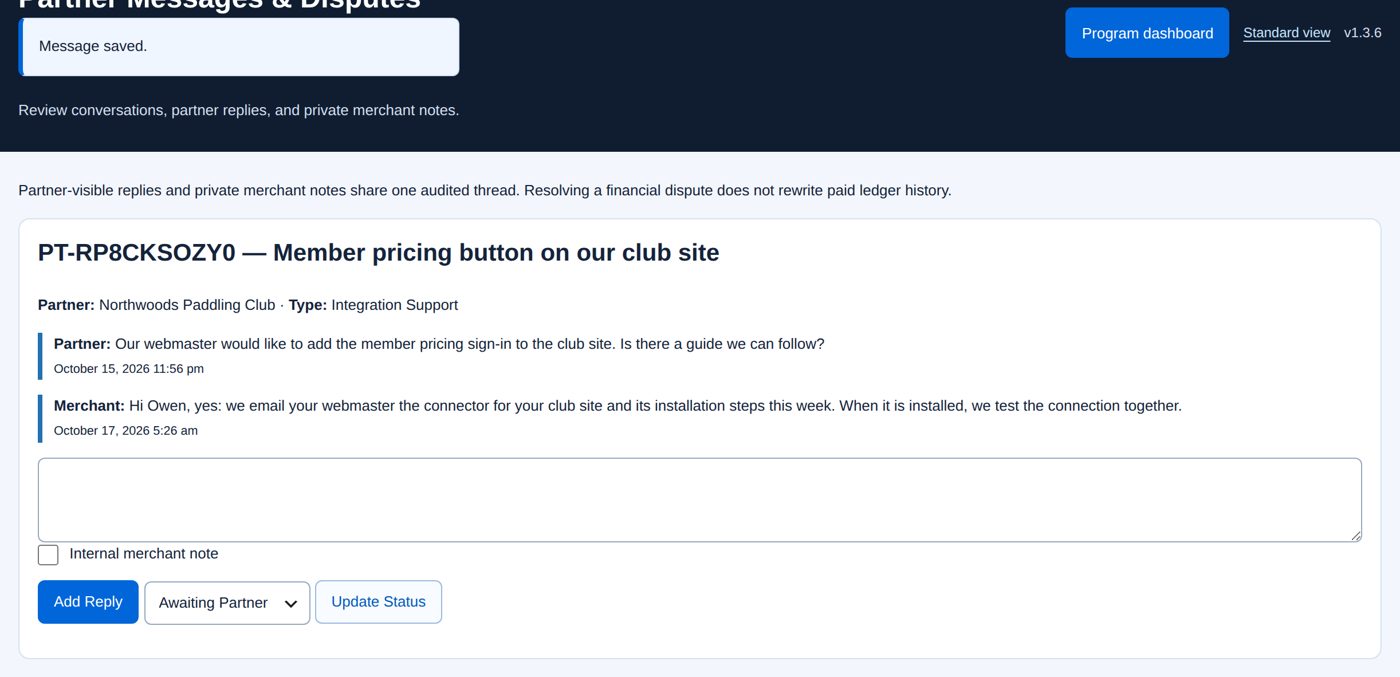
Partners write to you from Messages → Open Conversation: Type (General Question, Commission Dispute, Payout Dispute or Integration Support), Subject, Message, and for a dispute the commission or payout reference, then Send. Each conversation gets a reference such as PT-RP8CKSOZY0.
You answer in WordPress under Partner Messages (20 conversations per page). Write in the box of a conversation and choose Add Reply; the partner's team members who may send messages get an email that you replied. Tick Internal merchant note for a note only your staff see. The status (Open, Awaiting Merchant, Awaiting Partner, Resolved, Closed) changes by itself with each message and by hand with Update Status. A new conversation is announced to your WordPress administration email.
Closing a dispute changes no money: correct a commission under Financial Controls (Links, attribution and commissions).
Worked example: a question from Northwoods Paddling Club
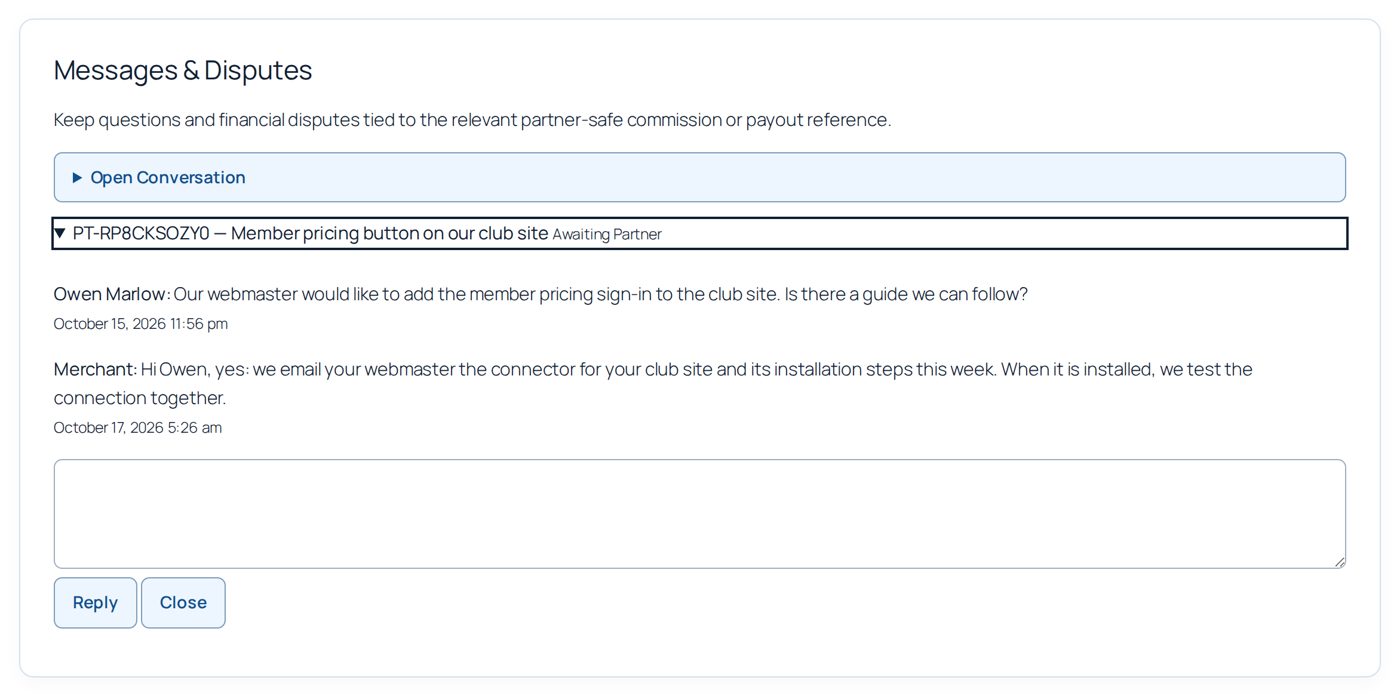
Owen Marlow asked (Integration Support, "Member pricing button on our club site"): "Our webmaster would like to add the member pricing sign-in to the club site. Is there a guide we can follow?"
- Partner Messages: in Owen's conversation write the answer.
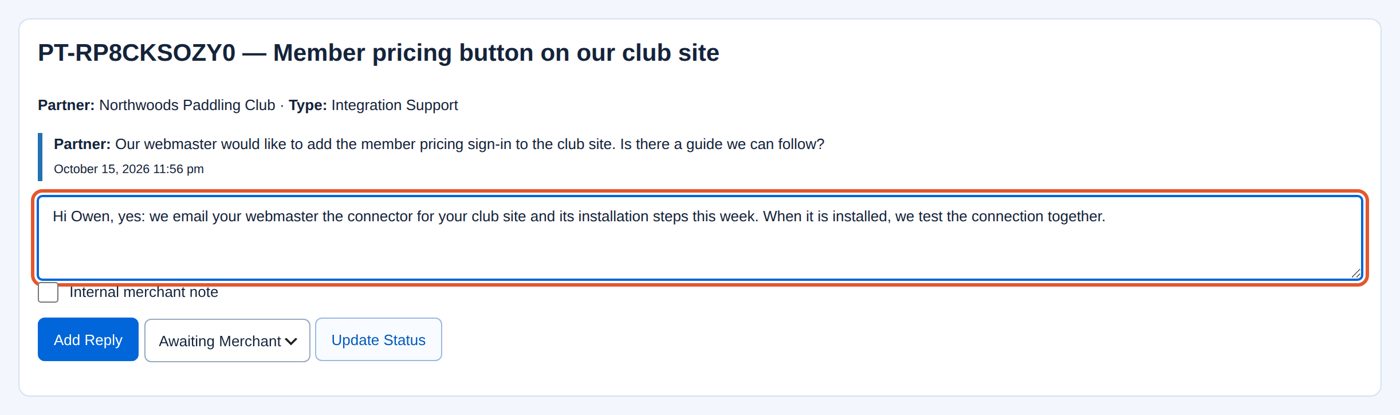
- Add Reply: "Message saved." The conversation is Awaiting Partner.
Owen gets an email that you replied and reads the answer under Messages, where he can reply or close the conversation:
Teams
At the start each partner has one login, the owner. A partner that needs more logins (a club with a treasurer, a blog with an editor) gets additional seats: Access & Teams → Partner Organization Seats, tick Enabled for the partner, Save.
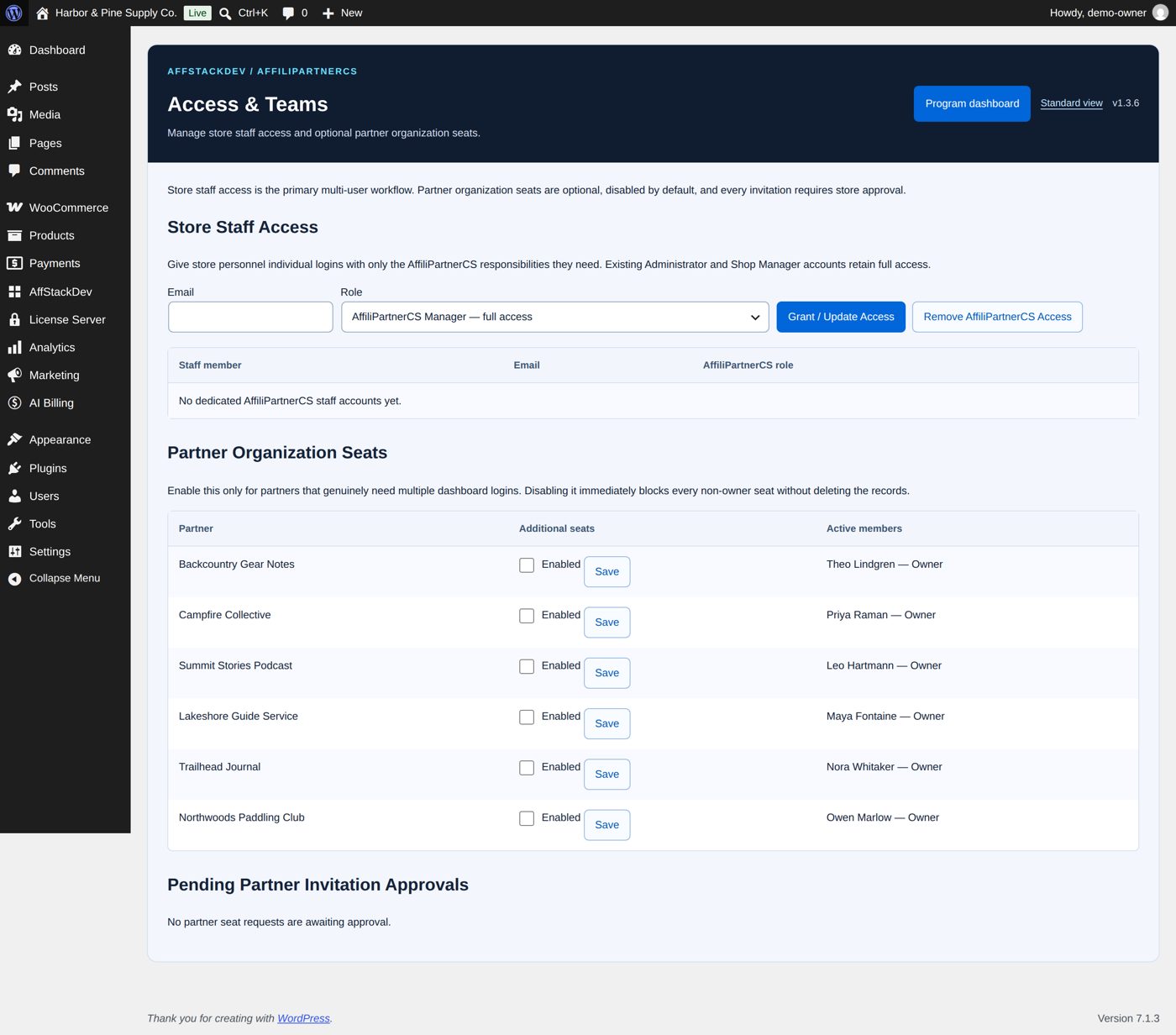
The partner then has the section Team (Organization Team): the owner or a team administrator enters an Email, chooses a Role and chooses Request Invitation. You approve or reject each request under Pending Partner Invitation Approvals; approval creates the login if needed and sends the access email.
| Team role | May |
|---|---|
| Owner | Everything: reports, team, profile, payouts, tax, marketing, messages and disputes. |
| Administrator | The same, except replacing the owner. |
| Finance | Reports, payouts and tax, messages and disputes. |
| Marketing | Reports, affiliate links and material, messages. |
| Analyst | Reports and messages. |
The owner and team administrators change roles (Update) or remove members (Remove). Switching seats off blocks all members except the owner at once and keeps their records. The owner's login itself is changed by you on the partner record (Account and invitation).
Member pricing for communities
Member pricing gives the members of a partner's online community (a club forum, for example) a protected discount: a member signed in to the forum who follows a link to your store gets the member price; nobody else does, also not with the coupon code. The forum confirms only that the visitor is signed in; no member names or emails reach your store. It needs your store on HTTPS and a forum on Discourse (self-hosted, or hosted) or XenForo (self-hosted, or XenForo Cloud where add-ons are allowed).
How a member gets the price:
- The member, signed in to the forum, clicks a link to your store. The forum's connector signs the click.
- Your store checks the signature and opens a member session in that browser for the partner's Session Length (30 days at the start).
- The partner's protected coupon is applied to the cart. A small note says "partner member discount applied."
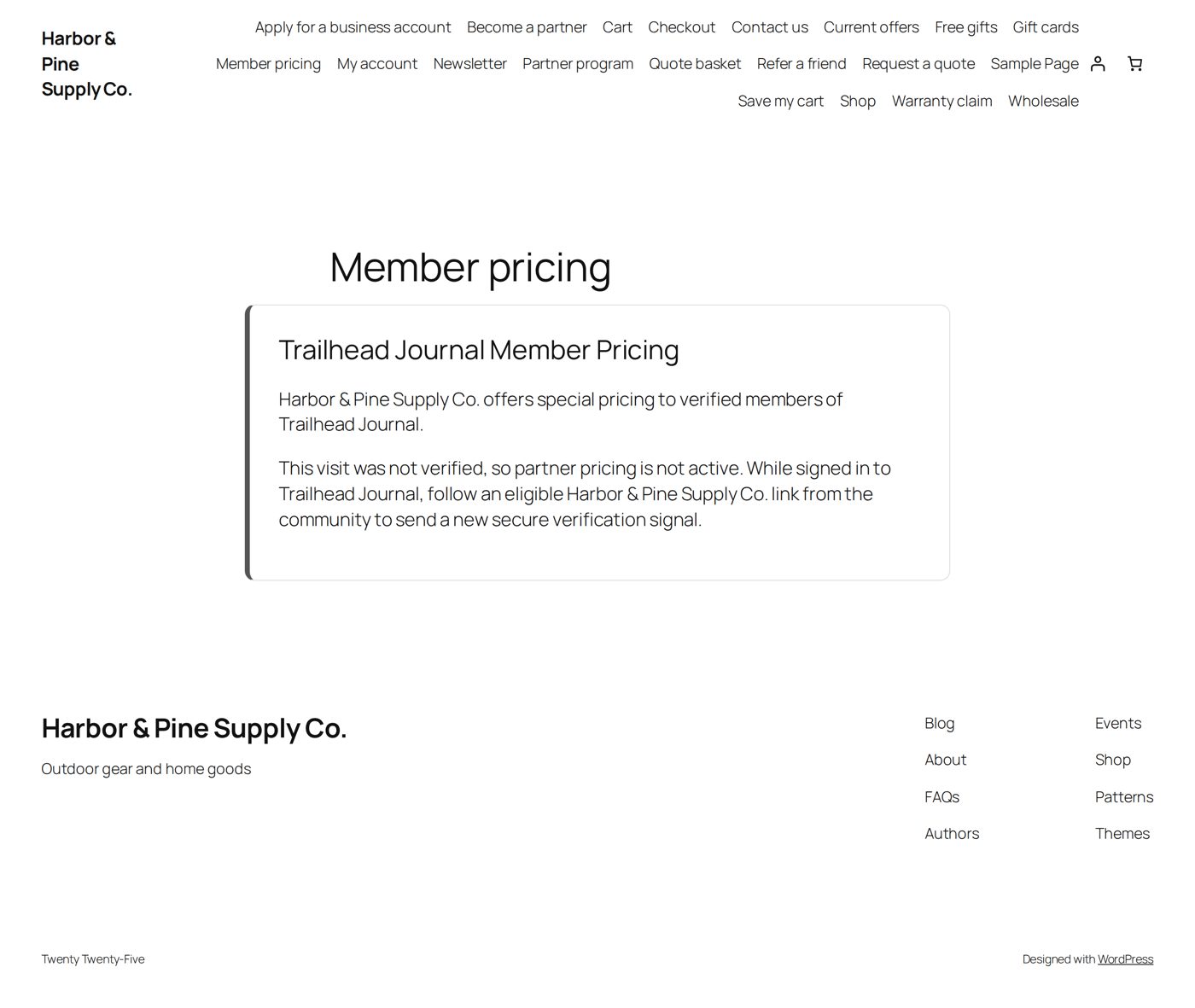
A visitor who is not signed in to the forum, or whose link cannot be checked, gets no member price and lands on your Member pricing page, which explains how to get it:
Setting it up for a partner:
- A plan of the type Verified Member Pricing with the member discount and the commission (Partner Plans). With Click-Back ticked, unverified visitors get buttons back to the forum's login and home page.
- On the partner record: Programs → Verified Member Plan, and under Pricing the Direct Member Coupon (made on Codes & Coupons) and the Session Length.
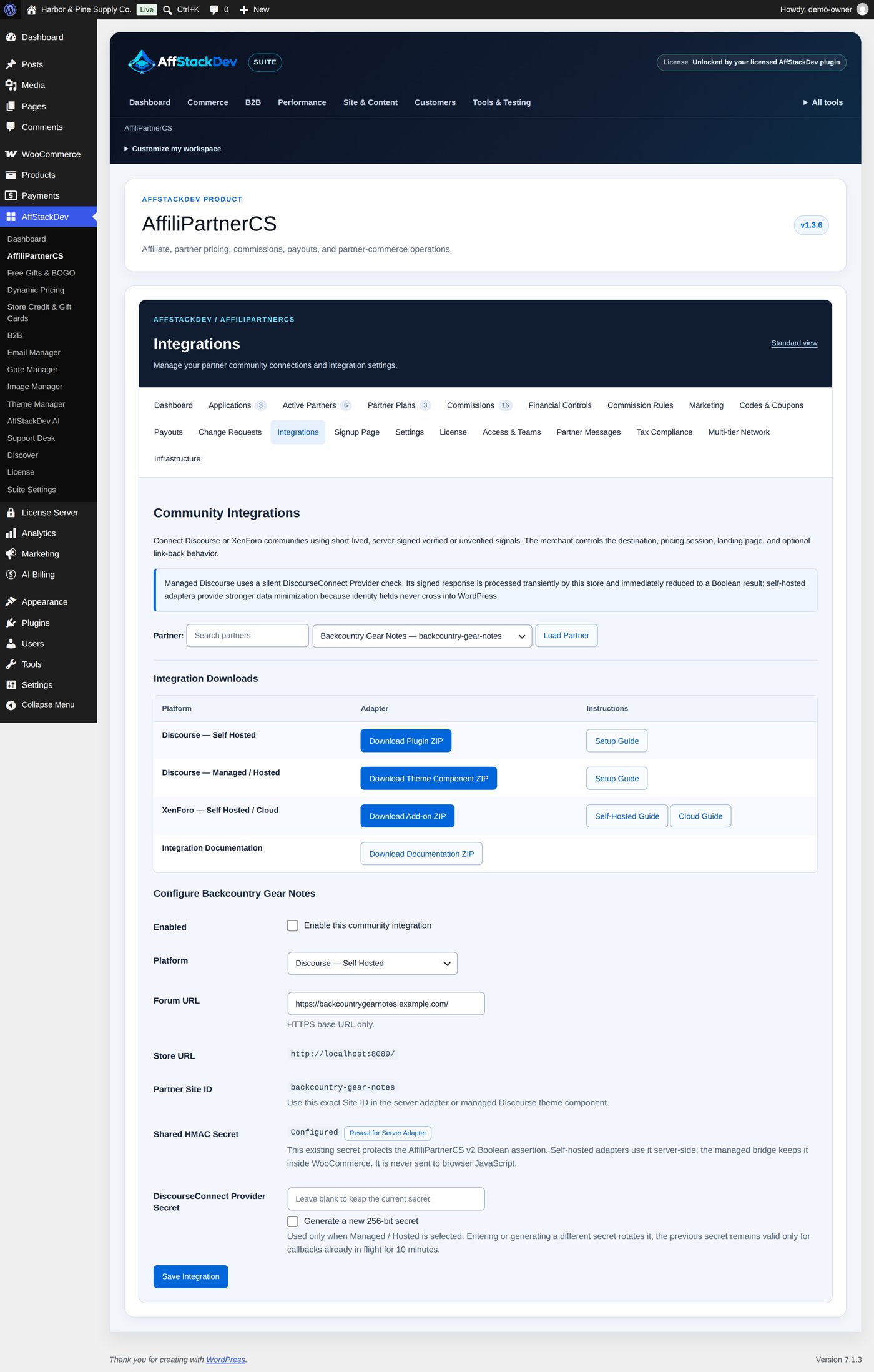
- Integrations: choose the partner, Load Partner, choose the platform (Discourse — Self Hosted, Discourse — Managed / Hosted or XenForo — Self Hosted / XenForo Cloud), enter the Forum URL, tick Enable this community integration and Save Integration.
- Under Integration Downloads download the connector for the platform and its setup guide, and give them to the forum's administrator together with the Store URL, the Partner Site ID and, for a self-hosted forum, the partner's key (from Authentication, Partners). The key goes only into the forum's server settings.
- When the connector is installed: Test Configuration. Then follow a store link from the forum once signed in and once signed out.
Staff roles
Administrators and shop managers have every AffiliPartnerCS permission. For other staff, Access & Teams → Store Staff Access: Email, Role, Grant / Update Access. A missing account is created and gets an email to set its password. Remove AffiliPartnerCS Access takes the AffiliPartnerCS roles away (the account and its other WordPress roles stay). Only a WordPress administrator who may manage user roles can grant or remove them.
| Role | May |
|---|---|
| AffiliPartnerCS Manager | Everything in AffiliPartnerCS. |
| AffiliPartnerCS Finance | See the program; financial controls, payouts, partner messages, exports and the audit log. |
| AffiliPartnerCS Support | See the program; partner messages and disputes. |
| AffiliPartnerCS Analyst | See the program; exports and the audit log. |
| AffiliPartnerCS Integrations | See the program; community connections, webhooks, authentication keys and the audit log. |
Infrastructure → Staff Access describes the roles; they are given on Access & Teams.
Exports, privacy and maintenance
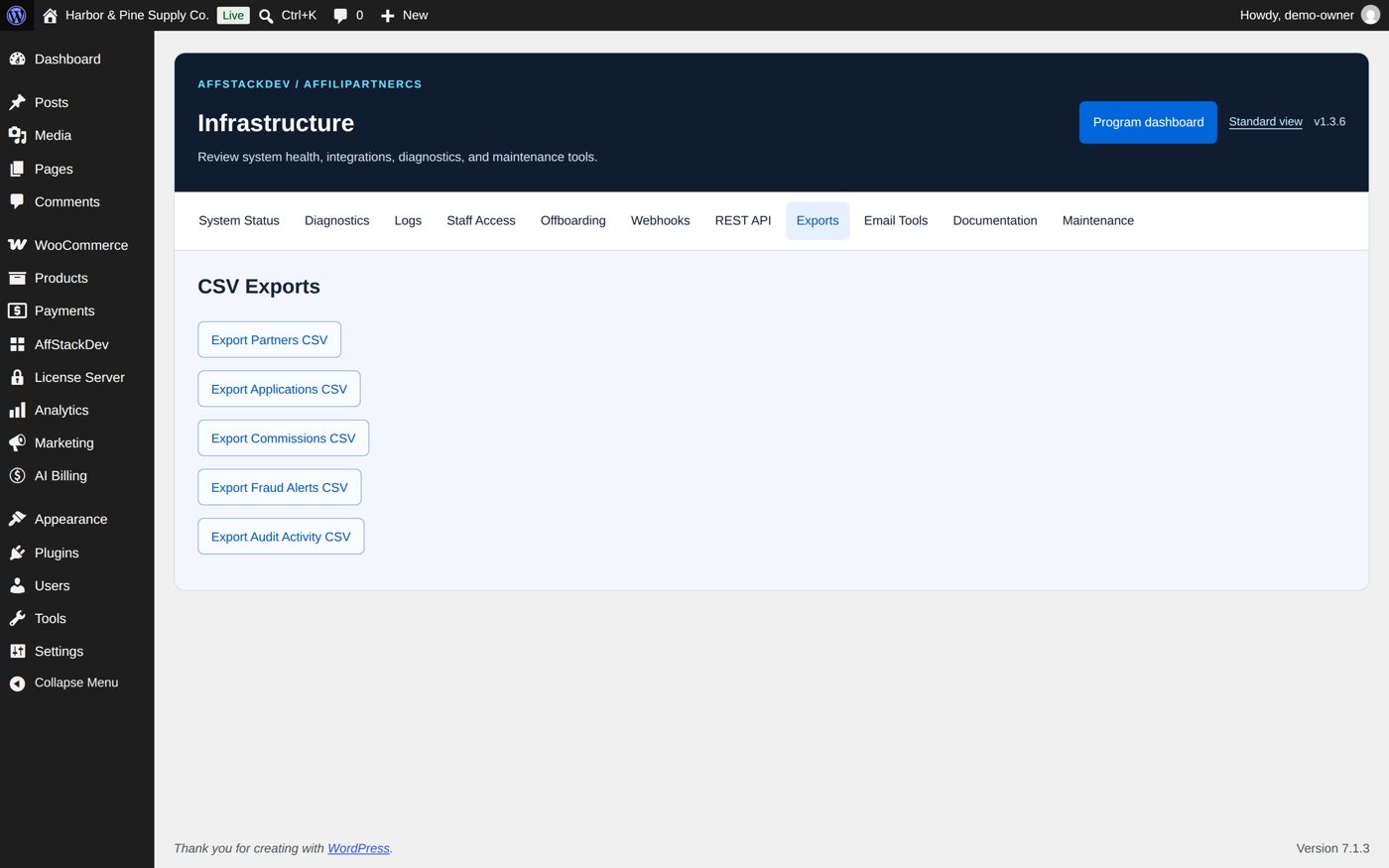
Infrastructure holds the tools you rarely need, as tabs: System Status, Diagnostics, Logs, Staff Access, Offboarding, Webhooks, REST API, Exports, Email Tools, Documentation and Maintenance.
| Tab | For |
|---|---|
| Exports | Export Partners CSV, Export Applications CSV, Export Commissions CSV, Export Fraud Alerts CSV, Export Audit Activity CSV: each the whole list. Keys and secrets are never in them. |
| System Status, Diagnostics | Versions, database, schedules; a read-only check of the records with Run Scan Again. |
| Logs | Detailed logging for a problem you investigate (off at the start), read under WooCommerce's logs with the source affilipartnercs. |
| Offboarding | Suspend, reactivate or terminate a partner with a reason (also on the partner record, Partners). |
| Webhooks, REST API | Sending AffiliPartnerCS events to other systems, and its WordPress REST interface. |
| Email Tools | Send Test Email, Resend Partner Invitation, and resending a batch's payout email. |
| Documentation | The complete customer reference and the technical reference, to download. |
| Maintenance | Repairs for specific problems (database tables, scheduled tasks, paused background work, partner addresses, missing commission IDs, old operational data), Run Complete Safe Repair Bundle, Optimize AffiliPartnerCS Tables, and Factory Reset AffiliPartnerCS. |
WordPress's own Tools → Export Personal Data and Erase Personal Data include AffiliPartnerCS's records of a person. Erasing removes contact details, invitations, team seats and message texts, and a customer's lifetime customer link; commissions, payouts and tax records stay, as they are business records. The partner record itself stays until you terminate or delete it.
Your own AI
You can ask your own AI (Claude, ChatGPT or another app that supports MCP) about your partner program, let it prepare changes that you approve, have it read applications for you, and let partners connect their own AI to their own figures. It works through WordPress's own Abilities API and WordPress's free MCP Adapter plugin, without any AffStackDev service. AffiliPartnerCS charges nothing for it; your AI company bills its own use. All of it is off until you switch it on in Settings, section AI & MCP, below the program settings.
Switch it on
Tick AI Abilities and choose Save AI Settings. With only this tick, an AI can read and cannot change anything. The other choices in the same section:
| Choice | What it does |
|---|---|
| Proposed Changes | An AI may prepare changes. Each one waits for your approval; nothing changes by itself. |
| Ability Groups | One tick per group: results, applications and partner records, orders, payouts overview, steps from the guide, and five groups of changes. Untick a group and no AI is offered it. |
| Partners' Own AI | Partners may connect their own AI to their own workspace. |
| Review with AI: Your Criteria | What a good partner looks like for your store, for the reviews described below. |
The table at the top of the section shows what is ready: WordPress 6.9 or later for the abilities, the MCP Adapter, application passwords (WordPress offers them on HTTPS sites), a connector plugin for claude.ai or ChatGPT, and WordPress 7's AI key for reviews.
Connect Claude Desktop, Claude Code or Codex
- Install WordPress's MCP Adapter plugin and activate it. With WooCommerce 11.2, which includes the adapter, you can instead switch on WooCommerce MCP under WooCommerce → Settings → Advanced → Features (experimental features).
- Make an application password for the account the AI will act as (Users → Profile → Application Passwords). The AI may do only what that account may do; for an AI that only reads, give it an account with the role AffiliPartnerCS Analyst.
- Under Connect Your AI, copy the setup for your app, put the application password where it says your-application-password, and add it to the app. The setup needs Node.js on your computer.
claude.ai and ChatGPT sign in differently (OAuth). For them, a free connector plugin from WordPress.org adds the sign-in; by their own descriptions, Royal MCP, Easy MCP AI, Enable Abilities for MCP, StoreAgent and WPVibe pass AffiliPartnerCS's abilities on.
Easy MCP AI (tested with version 2.2.2):
- Under Easy MCP AI → Tools, check that the Affilipartnercs abilities are on. It switches on what it finds when it is first activated, so check again if you turned AffiliPartnerCS's AI on later.
- Connect your app from Easy MCP AI → Connections and sign in as an account with AffiliPartnerCS permission. On the sign-in page, keep Full access, or keep Abilities — Affilipartnercs ticked under Custom.
- If that row is greyed out, your app did not ask for those abilities; use Easy MCP AI's Token in URL connection with a token for AffiliPartnerCS's tools instead.
Whichever app you use, a change the AI proposes waits for your approval, even with WPVibe's Dangerously bypass approvals switched on.
What to ask
Your AI can answer questions such as these from your own records, for any dates:
- "How did the program do last month compared with the month before?"
- "Who were my five best partners this quarter by sales?"
- "How is the coupon LAKESHORE15 doing, and which partner owns it?"
- "Which campaigns of Northwoods Paddling Club's links brought orders?"
- "Which applications are waiting, and what do they say?"
- "Which partner is order 1234 credited to, and when can its commission be paid?"
- "What payouts are open?"
- "How do I set up a payout by check?" (the steps from this guide)
It never gets keys, secrets, IP addresses or your customers' contact details, and it sees only what its account may see.
Changes your AI proposes
With Proposed Changes ticked, you can say for example "suspend Campfire Collective, they closed" or "add a note to Summit Stories Podcast: asked about a higher rate". The AI prepares the change and it appears under Waiting for Your Approval, with who asked, the AI's reason, the record as it is now and as it will be after approval.
- Approve applies it, but only if nothing it depends on changed in the meantime; otherwise it is listed under Not Applied and your AI can prepare it again.
- Reject drops it.
- A change nobody decides on within 7 days expires.
Under Applied AI Changes, a change that can be set back has Undo: partner settings and suspensions, plans, rules, bonuses, tiers, creatives, marketing and program settings, and partner coupons attached or detached. Undo prepares the earlier values as a new change that waits for your approval. A change that created or deleted something, sent an email, paid or changed money owed has no Undo.
Review with AI
On an application's page, Review with AI asks your AI for a recommendation: approve, decline or ask for more information, with reasons and questions you could ask the applicant. It uses the AI key you saved under WordPress's Settings → Connectors (WordPress 7) and your criteria. The AI gets the application's answers, including those to your own questions, never the applicant's email address, phone number or name. The recommendation stays with the application (it is in the applicant's data export and goes with an erasure request), never in the notes that are emailed to the applicant. You still decide with the usual buttons.
Partners' own AI
With Partners' Own AI ticked and the MCP Adapter running, partners find Connect Your AI in their workspace: their server address, Create an AI Password (shown once) and a ready setup. Their AI sees only what their workspace shows them: their results, commissions without customer details, payouts, coupons and links, and it can make a tracked link. Team members see what their role allows.
What the AI did
Recent AI Activity lists the latest 30 things AI did: questions its account was allowed to ask (only what about, never the question or the answer), proposals, approvals, rejections, undos and reviews, with who, how it came and whether it worked. It keeps 90 days; Clear Activity empties it.
When it does not work
| You see | It means |
|---|---|
| A partner does not see Payouts or Commissions | It has no plan yet that brings commissions, or its team role does not include them. |
| "Partner change requests are currently disabled." | Settings → Partner Change Requests is off. |
| "You can submit your next change request on ..." | The wait after its last approved change is not over. |
| "Your current change request is awaiting review." | A request is still open: review it under Change Requests. |
| A partner cannot add team members | Seats are not enabled for it under Access & Teams, or the user is not owner or team administrator. |
| Members do not get the member price | The forum's connector is not installed or not enabled, Site ID or key differ, the link does not lead to your store's own address, the coupon is not usable for the cart, or the store is not on HTTPS. Test Configuration on Integrations names the mismatch. |
| A staff member cannot open a screen | Its AffiliPartnerCS role does not include it (Staff roles). |
Questions
Can a partner see other partners or my customers?
No. A partner sees its own figures, commissions without customer names, its payouts and its conversations with you.
Do partners get access to my WordPress admin?
No. Partners and their team members work only in My Account.
Can a partner change its plan or commission rate?
No. Plans are given by you; a change request covers only the public profile.
Who answers partner messages when I am away?
Give a staff member the role AffiliPartnerCS Support; it can read the program and answer messages and nothing else.
Related pages
| Page | What it covers |
|---|---|
| Partners, plans and coupons | Partner records section by section, adding a partner by hand, plans, coupons, suspending and deleting. |
| Payouts | Payout methods, the schedule, batches, paying and recording, store credit, PayPal and Stripe, currencies, tax. |
| Getting started | Install, license, every program setting, the public program page and a first test. |