Your first promotion
Install and activate Free Gifts & BOGO, then build "Spend $75, choose a free gift worth up to $25" step by step: set it up, try it on the Preview screen without touching your store, switch it on and see it in a shopper's cart.
Download and install
- On affstackdev.com open My Account → Downloads and download Free Gifts & BOGO. Keep the ZIP file as it is; do not unpack it.
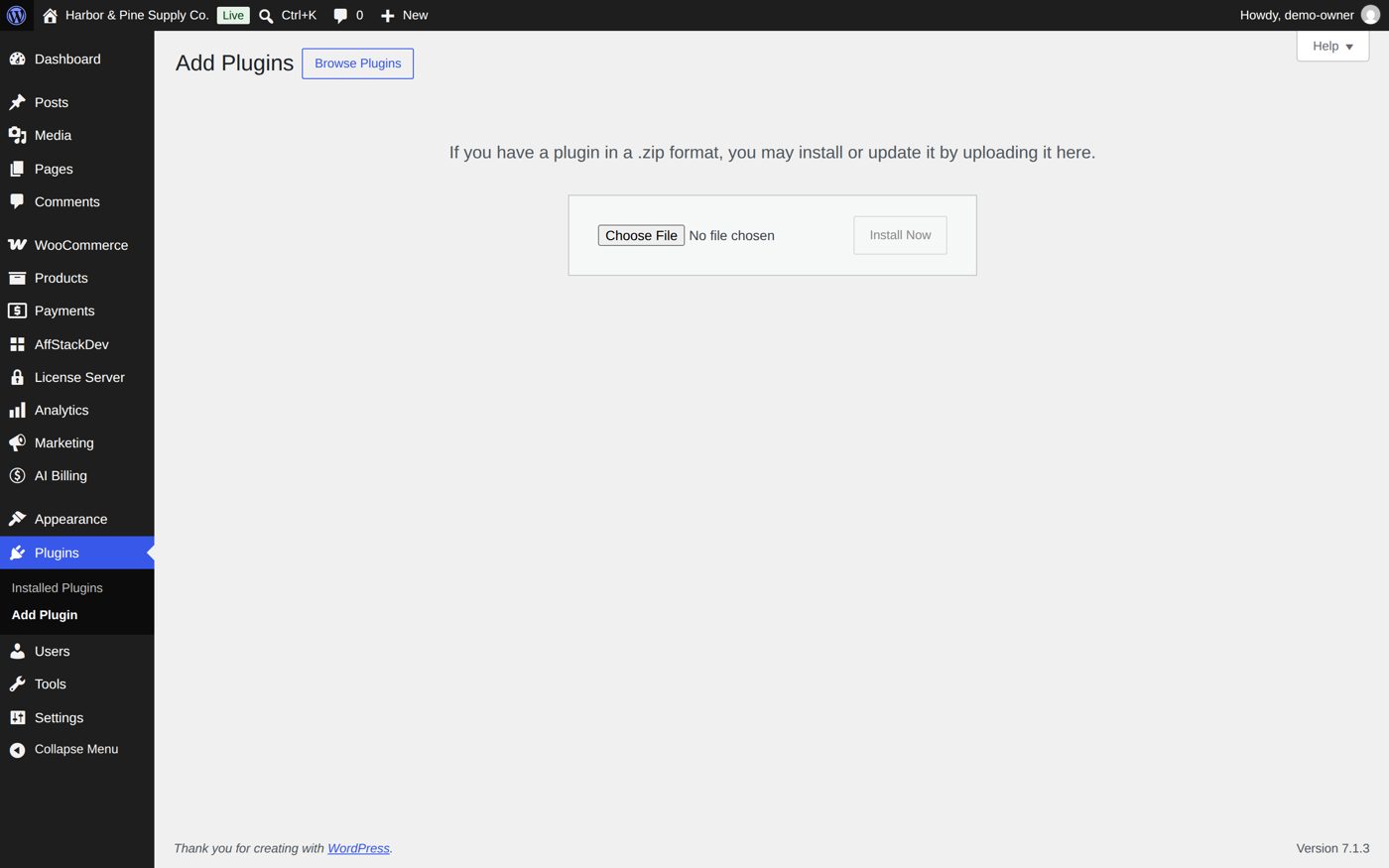
- In your WordPress admin open Plugins, choose Add Plugin (older WordPress versions call it Add New), then Upload Plugin.
- Choose the ZIP file and select Install Now, then Activate Plugin.
Free Gifts & BOGO now has its place in the WordPress menu: Free Gifts & BOGO. With the AffStackDev Suite installed you also find it in the AffStackDev menu. If WordPress refuses the file, or to install a newer version over an older one, see Install a plugin.
Before you start
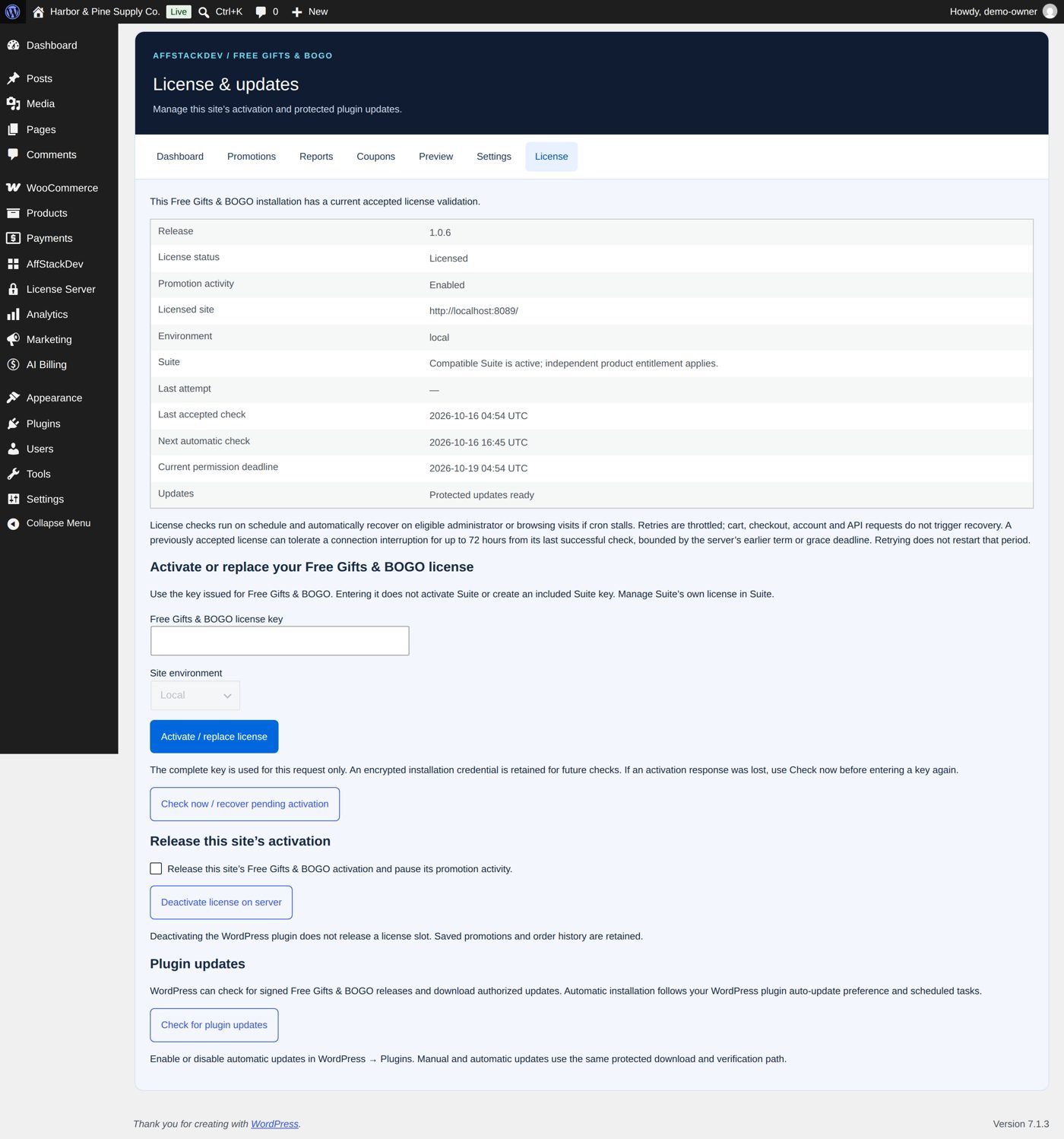
- Activate the license: Free Gifts & BOGO's License tab (Free Gifts & BOGO → License, or AffStackDev → Free Gifts & BOGO → License with the Suite) (Activate your license). Without an active license no offer is shown to shoppers.
- Open the Settings tab once. It holds what every promotion starts from: products that never count and are never given, whether coupons may be used together with gifts, which price a gift's maximum value is measured against, and the heading shoppers see on the gift box (Customer-facing label, Free Gifts at the start). Every setting is listed in Fine-tune.
- Admin display mode (also on Settings) chooses between Enhanced AffStackDev workspace (live summaries and in-page navigation) and Performance / PHP pages (ordinary page loads with fewer scripts). Both save the same promotions; the pictures below show the enhanced mode.
Worked example: Spend $75, choose a free gift worth up to $25
Harbor & Pine, the sample store of these pages, sells outdoor gear and home goods. Its owner wants every order of $75 or more to come with one free gift the shopper picks, as long as the gift costs no more than $25. Here is that promotion from start to finish.
1. Open a new promotion
Open Promotions and select Add promotion. An empty promotion opens. On the left: Promotion details and the three parts of every promotion, 1. Customer must…, 2. Customer gets… and 3. Exclusions and limits. On the right: Promotion summary, Save and schedule and Storefront display.
2. Name and describe it
Under Promotion details:
| Field | Value | Who sees it |
|---|---|---|
| Promotion name | Spend $75, choose a free gift | Shoppers: in the cart, the gift box, the offer box on product pages, the promotions page, the order |
| Short description | Spend $75 and choose a free gift worth up to $25. | Shoppers: the offer box on product pages and the promotions page |
| Full description | Spend $75 or more and choose one free gift worth up to $25. Shipping and tax do not count toward the $75. | Shoppers: the promotions page |
Descriptions may use simple HTML (bold, links).
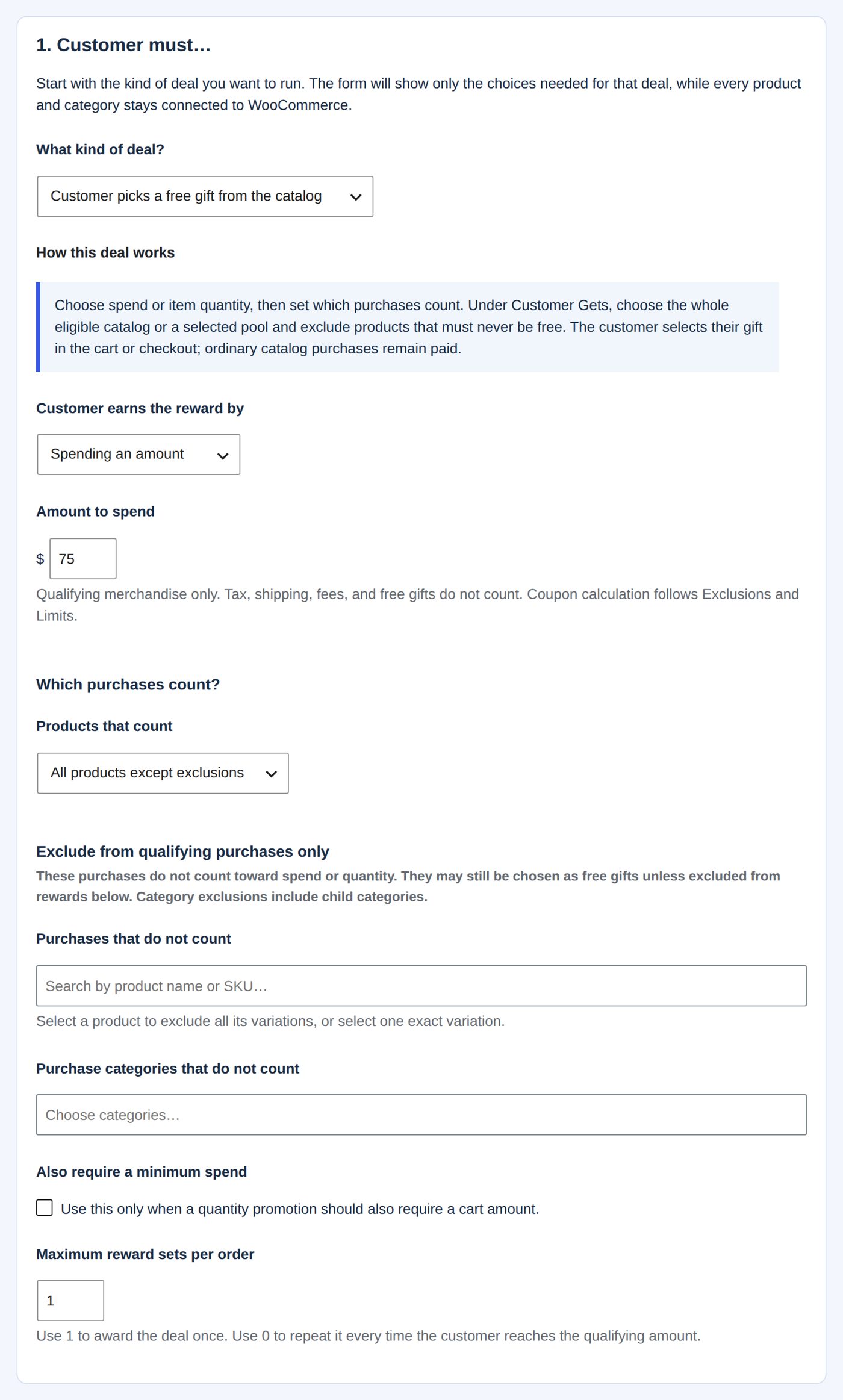
3. Customer must…
| Field | Value |
|---|---|
| What kind of deal? | Customer picks a free gift from the catalog. The box How this deal works below it explains the kind you picked; the form shows only the fields that kind needs. |
| Customer earns the reward by | Spending an amount |
| Amount to spend | 75 |
| Products that count | All products except exclusions |
| Maximum reward sets per order | 1: the gift is given once per order, however much is bought |
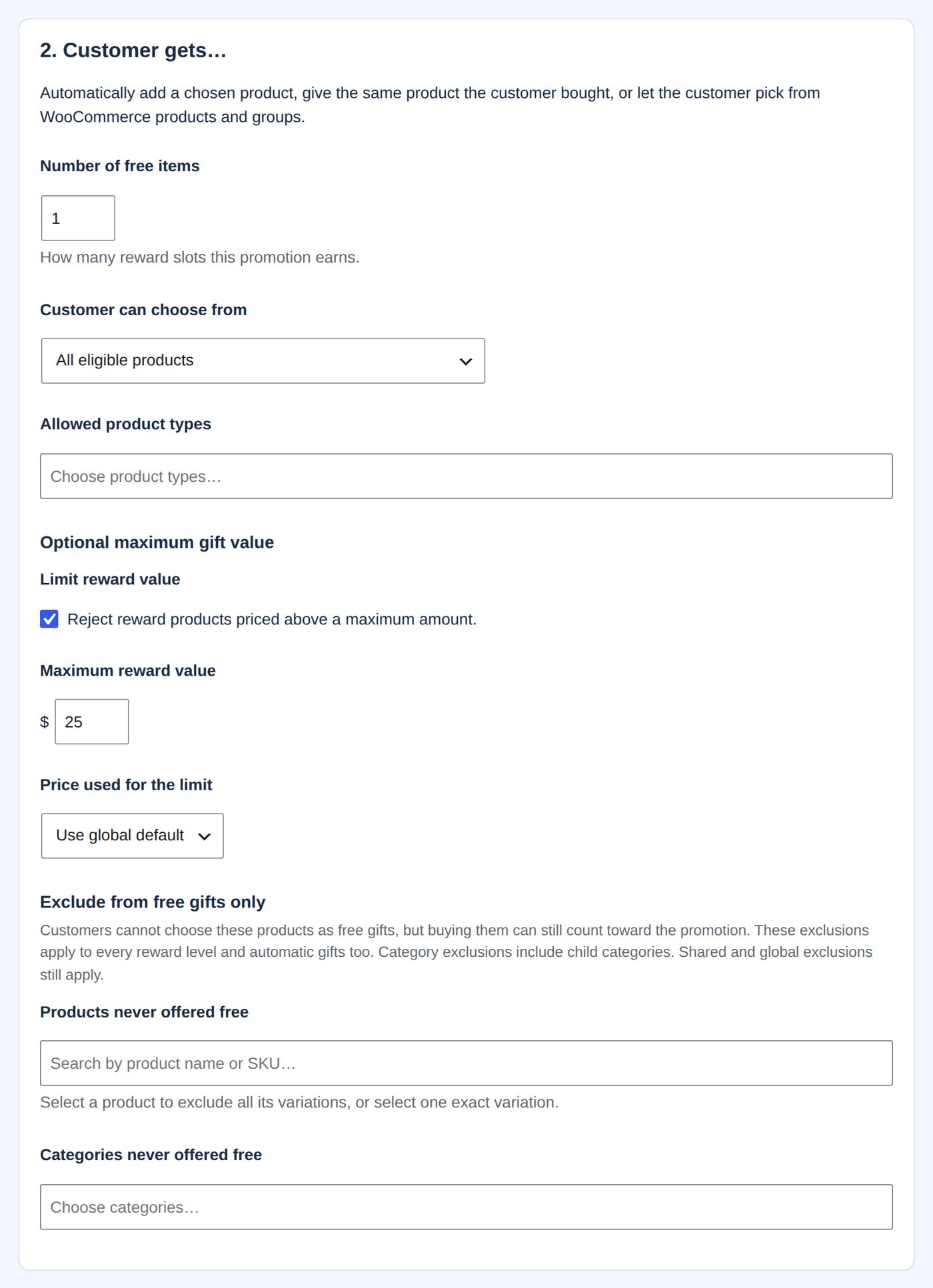
4. Customer gets…
| Field | Value |
|---|---|
| Number of gifts | 1 |
| Customer can choose from | All eligible products |
| Limit reward value (under Optional maximum gift value) | ticked: "Reject reward products priced above a maximum amount." |
| Maximum reward value | 25 |
| Price used for the limit | Use global default: the setting on Settings (at the start the current price, so a product on sale is measured at its sale price) |
Leave 3. Exclusions and limits as it is for now.
5. Save it as a draft
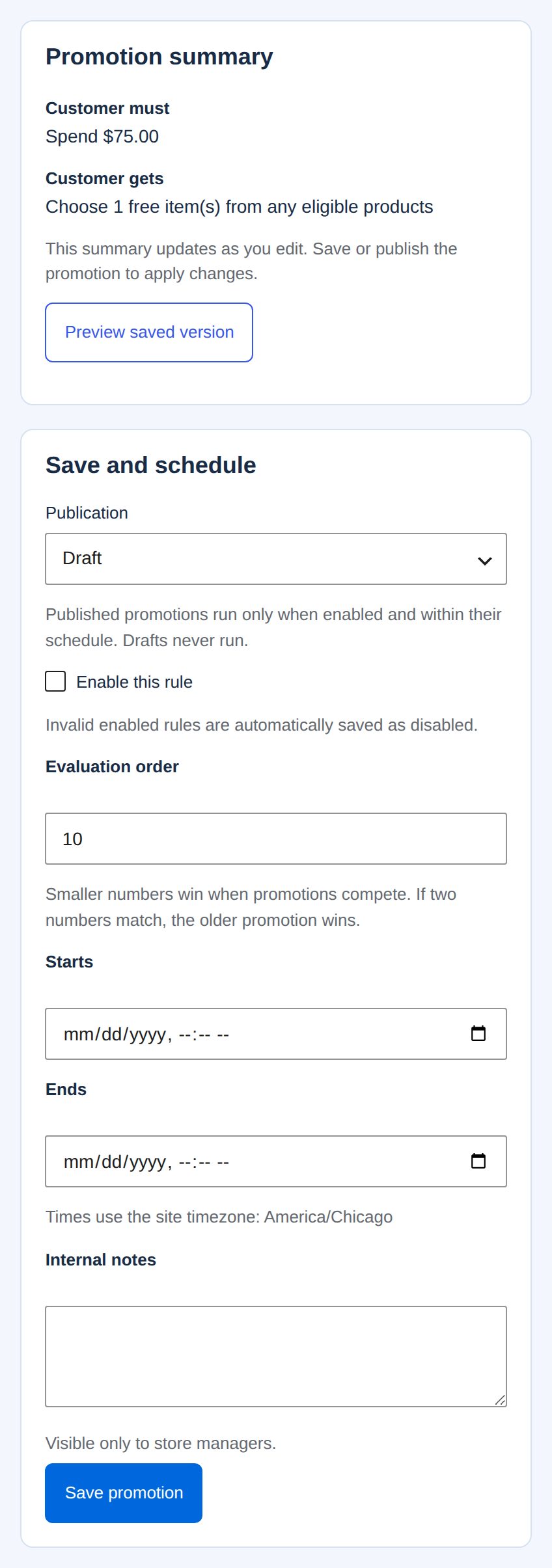
Under Save and schedule, Publication stays Draft and Enable this rule stays unticked. Evaluation order (10) only matters when promotions compete (When two promotions match the same cart). Starts and Ends stay empty: the promotion then runs from the moment it is switched on, without an end; times are your site's time zone. Internal notes are for you and your staff ("Visible only to store managers.").
Select Save promotion. The Promotion summary repeats in plain words what you built: Customer must Spend $75.00; Customer gets Choose 1 free item(s) from any eligible products. Nothing has changed for shoppers: a draft never runs.
6. Try it on the Preview screen
Select Preview saved version. The Preview tab opens with your promotion chosen under Promotion to test. Describe one product line of a sample cart:
| Field | Meaning |
|---|---|
| Product in the sample cart | Type a name or SKU and pick the product (for a variable product, the exact variation) |
| Cart value before discounts | The line's total before coupons |
| Cart value after discounts | The line's total after coupons (never more than the value before) |
| Quantity in cart | How many |
| Date and time to test | At the start, now; use another time to test a promotion that starts or ends later (your site's time zone) |
| A coupon is applied | Tick it to see what a coupon in the cart does |
Then Evaluate Promotion. Two tries at Harbor & Pine:
- One Merino Wool Base Layer, $78 before and after discounts, quantity 1: Reward earned in this preview, "The sample cart qualifies for the configured reward." Qualifying spend $78.00, Reward Choose 1 free item.
- Two Cedar Scented Candles, $44, quantity 2: No reward in this preview, "The sample cart has not reached the required spend or quantity yet." Qualifying spend $44.00.
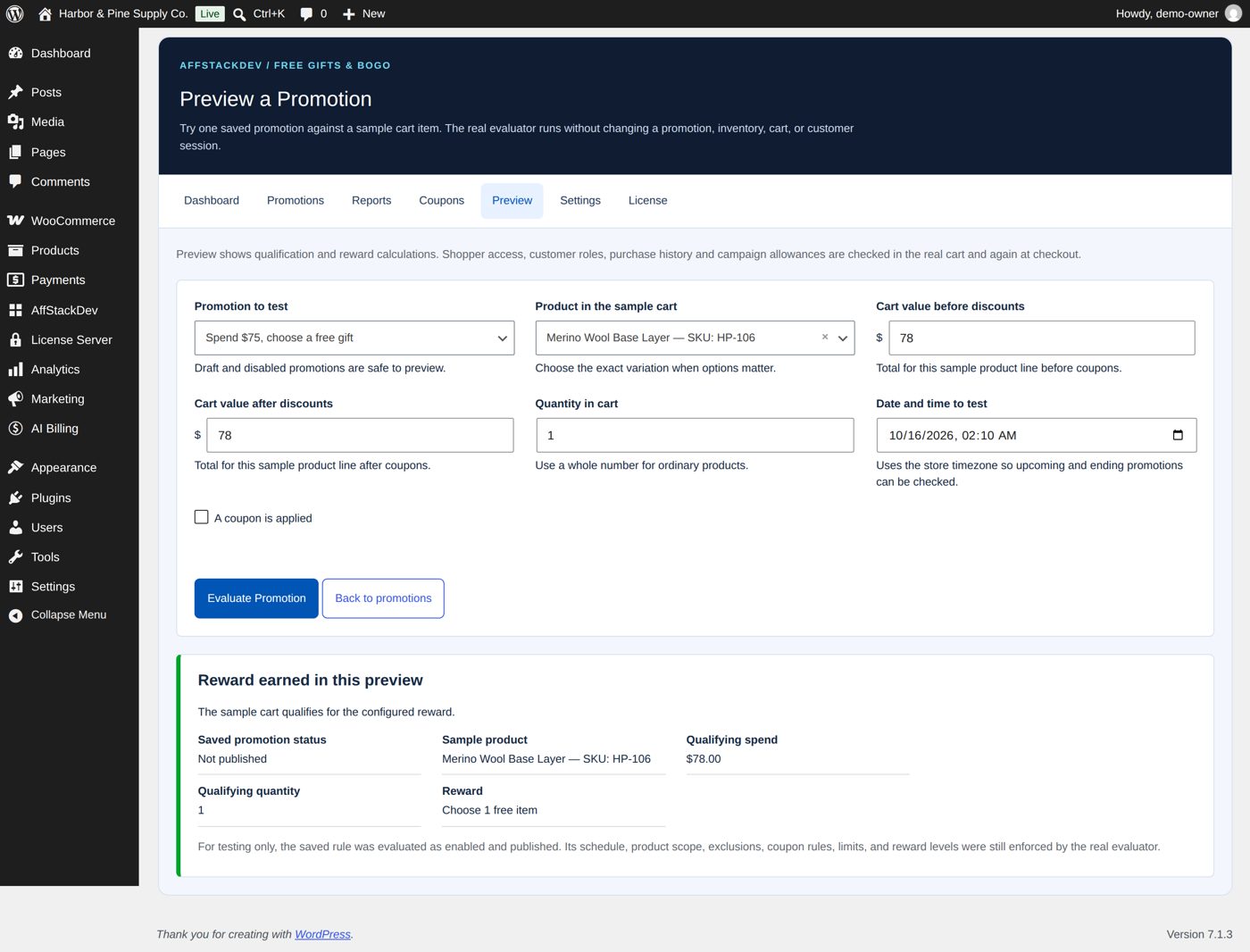
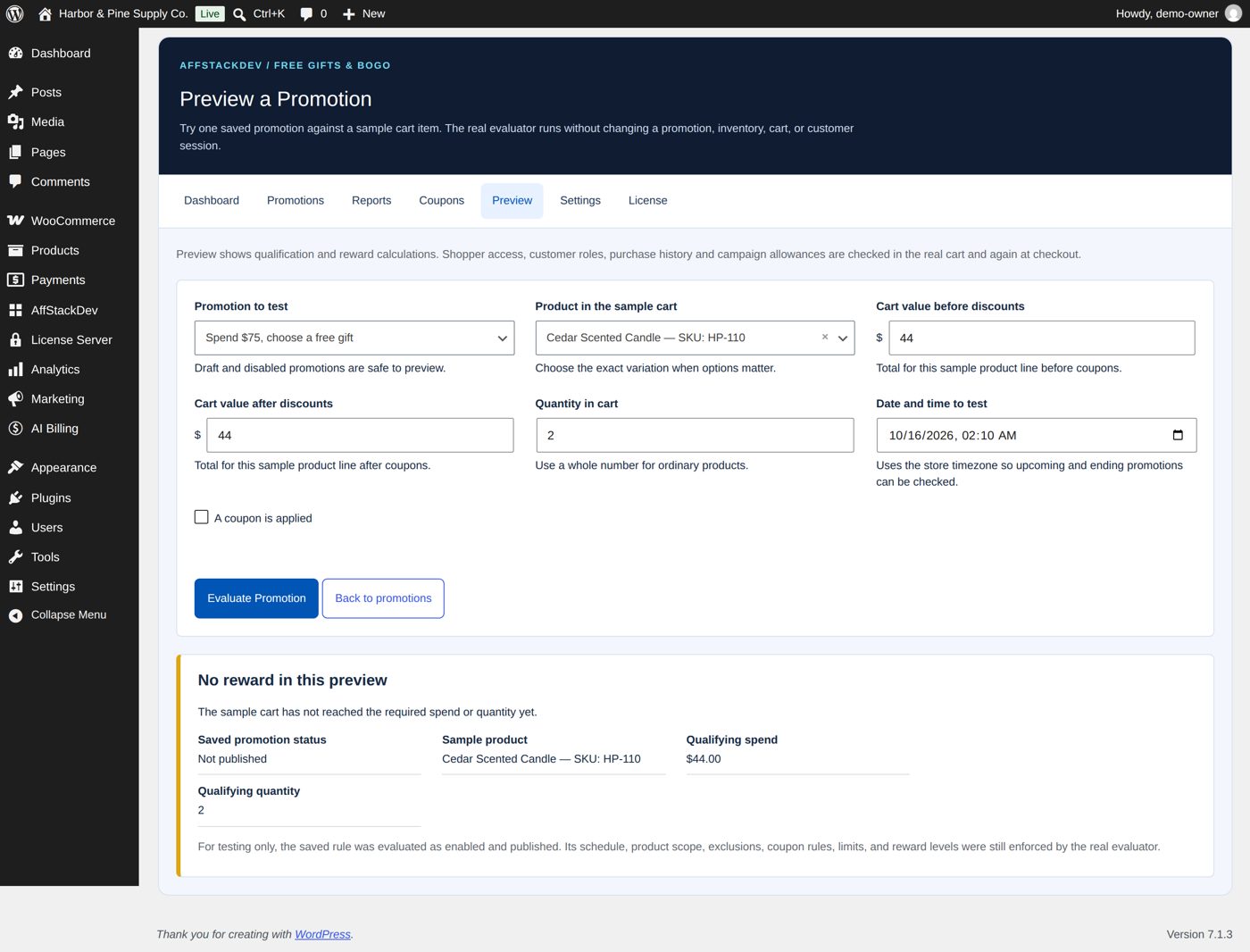
Saved promotion status says Not published: the preview works on drafts and disabled promotions too, and treats the promotion as switched on for the test. It changes nothing: no cart, no stock, no order. It checks the amount, which products count, exclusions, coupons and the dates; who the shopper is (Shopper access, roles, purchase history) and campaign limits are checked in the real cart and again at checkout, as the screen says.
Other answers the preview can give:
| Answer | Meaning |
|---|---|
| The selected product does not count toward this promotion. | The product is excluded, or not among the products that count |
| This promotion is not available when a coupon is applied. | The promotion does not allow coupons and you ticked A coupon is applied |
| The sample cart has not reached the additional minimum spend. | A quantity deal with Also require a minimum spend |
| The chosen test time is before the promotion starts. / … after the promotion ends. | Outside Starts and Ends |
| The saved promotion has fields that need attention. | Open the promotion: the fields to fix are marked |
7. Switch it on
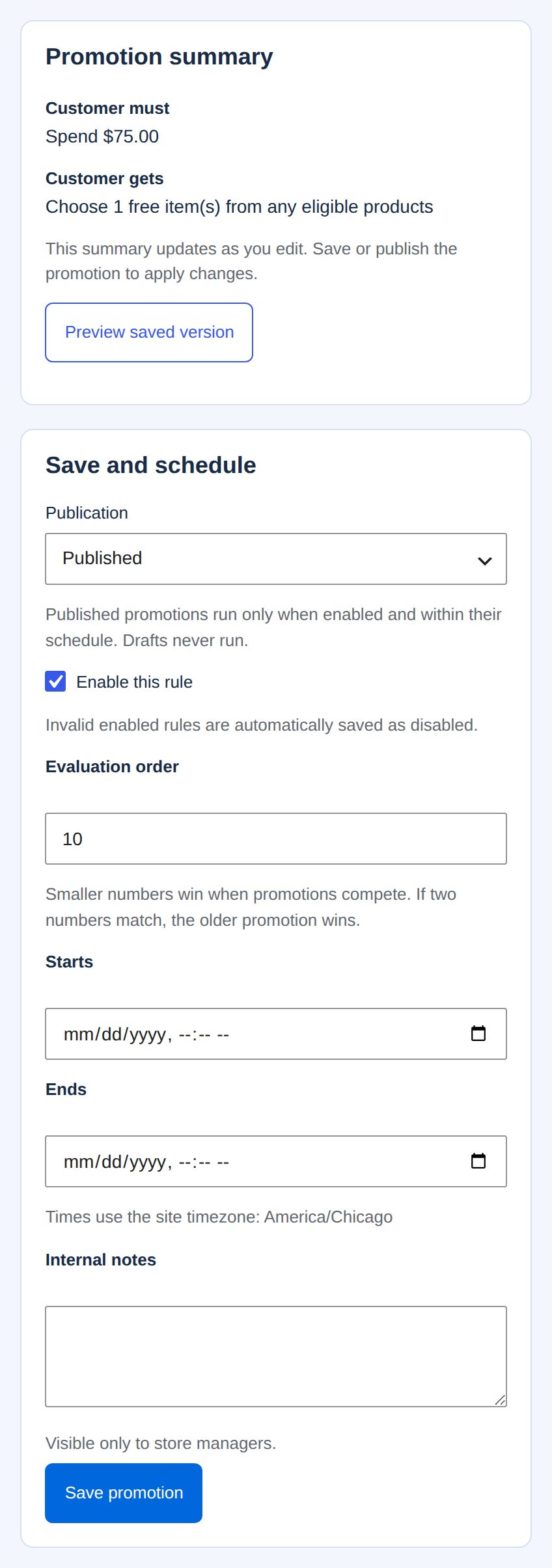
Back in the promotion: Publication Published, tick Enable this rule, Save promotion. From the start date on (or at once, without one) the promotion is live. A promotion with a field that needs attention cannot be enabled: "Invalid enabled rules are automatically saved as disabled."
8. What the shopper sees
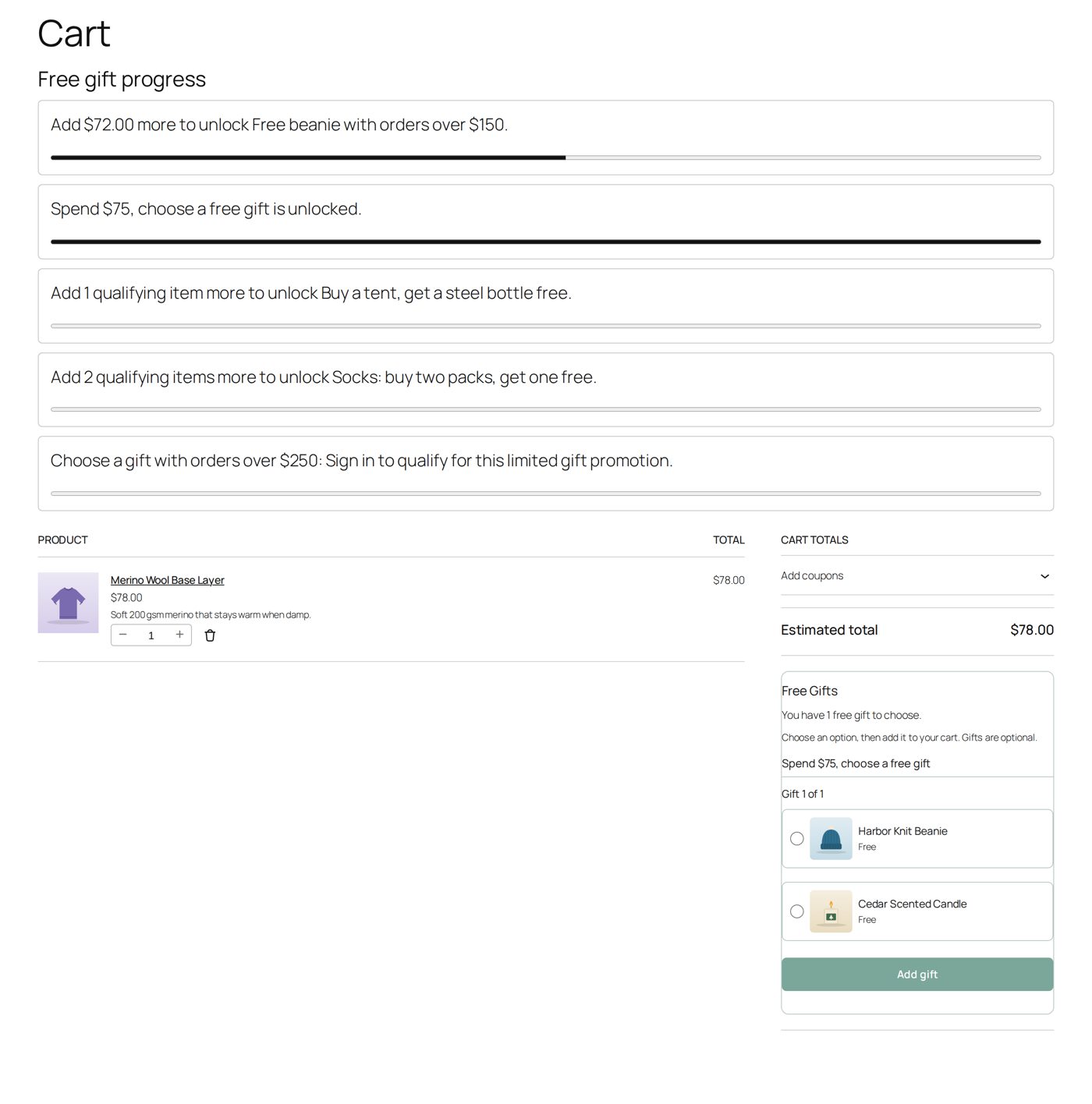
A shopper puts the base layer ($78) in the cart. Under Free gift progress the cart says "Spend $75, choose a free gift is unlocked." (with the other running promotions of the store and how far the cart is from each). Next to the totals, the Free Gifts box says "You have 1 free gift to choose." and offers the gifts this promotion allows: here the Harbor Knit Beanie ($24) and the Cedar Scented Candle ($22). Every other product of the store costs more than $25, and the $25 gift card is never a free gift. "Gifts are optional": a shopper may also check out without one.
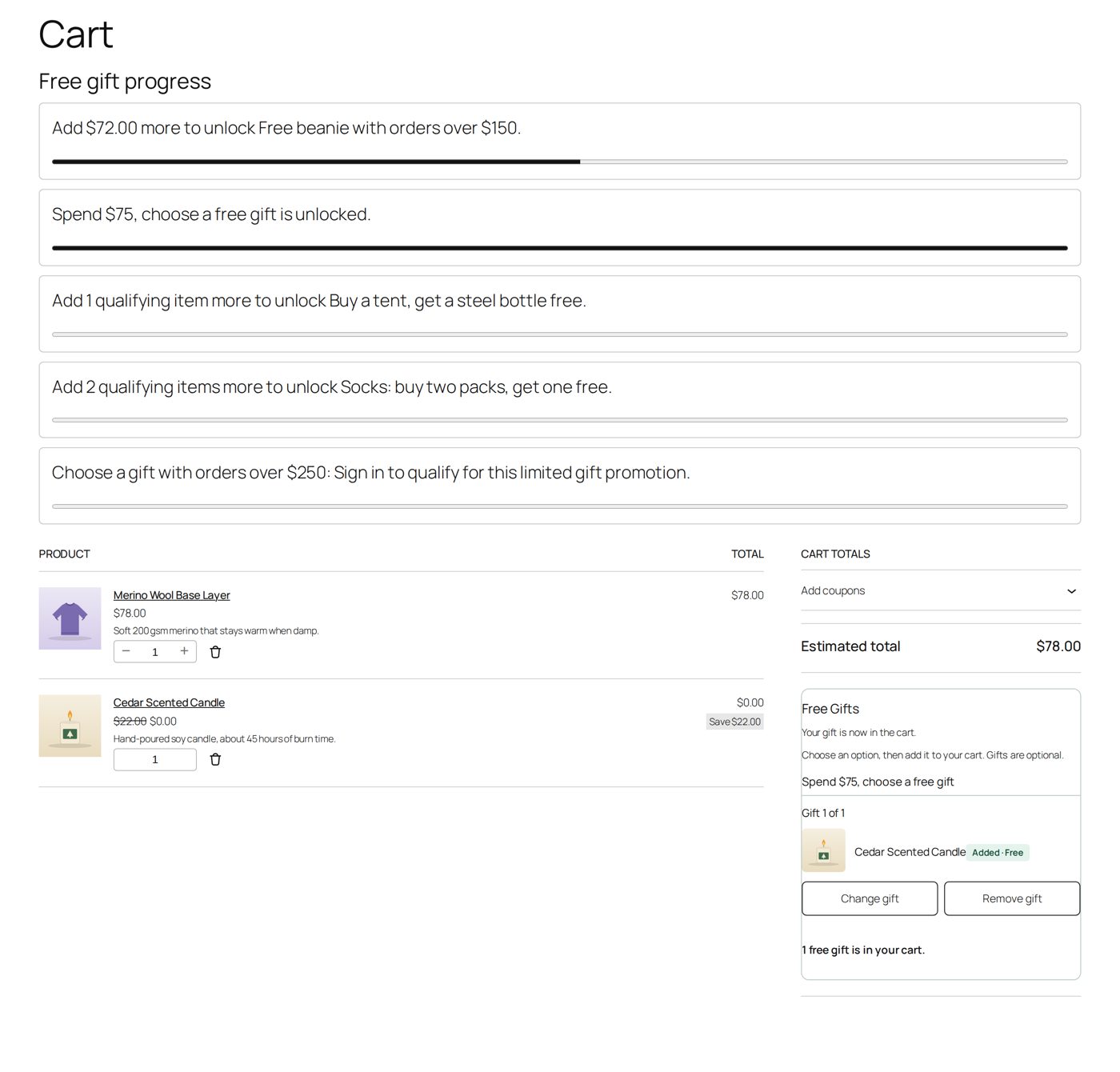
The shopper picks the candle and selects Add gift: "Your gift is now in the cart." The candle is a line of its own at $0.00 ("Save $22.00"); the total stays $78.00. Change gift swaps it for the beanie, Remove gift takes it out.
Do the same once yourself in a private browser window, and also take the base layer out again: below $75 the gift leaves the cart. How gifts look in orders and on refunds: What customers see, orders and reports.
What "$75" counts
The line under Amount to spend says it: "Qualifying merchandise only. Tax, shipping, fees, and free gifts do not count." Products count at the price the cart charges: a product with a lower price from a sale or from Dynamic Pricing counts at that lower price. Whether a coupon lowers the amount is Coupon spend basis (under Advanced behavior and limits; at the start After coupon discounts, from Settings). Store credit and gift cards are payment, not discounts: they never lower the amount.
Stop, copy, remove
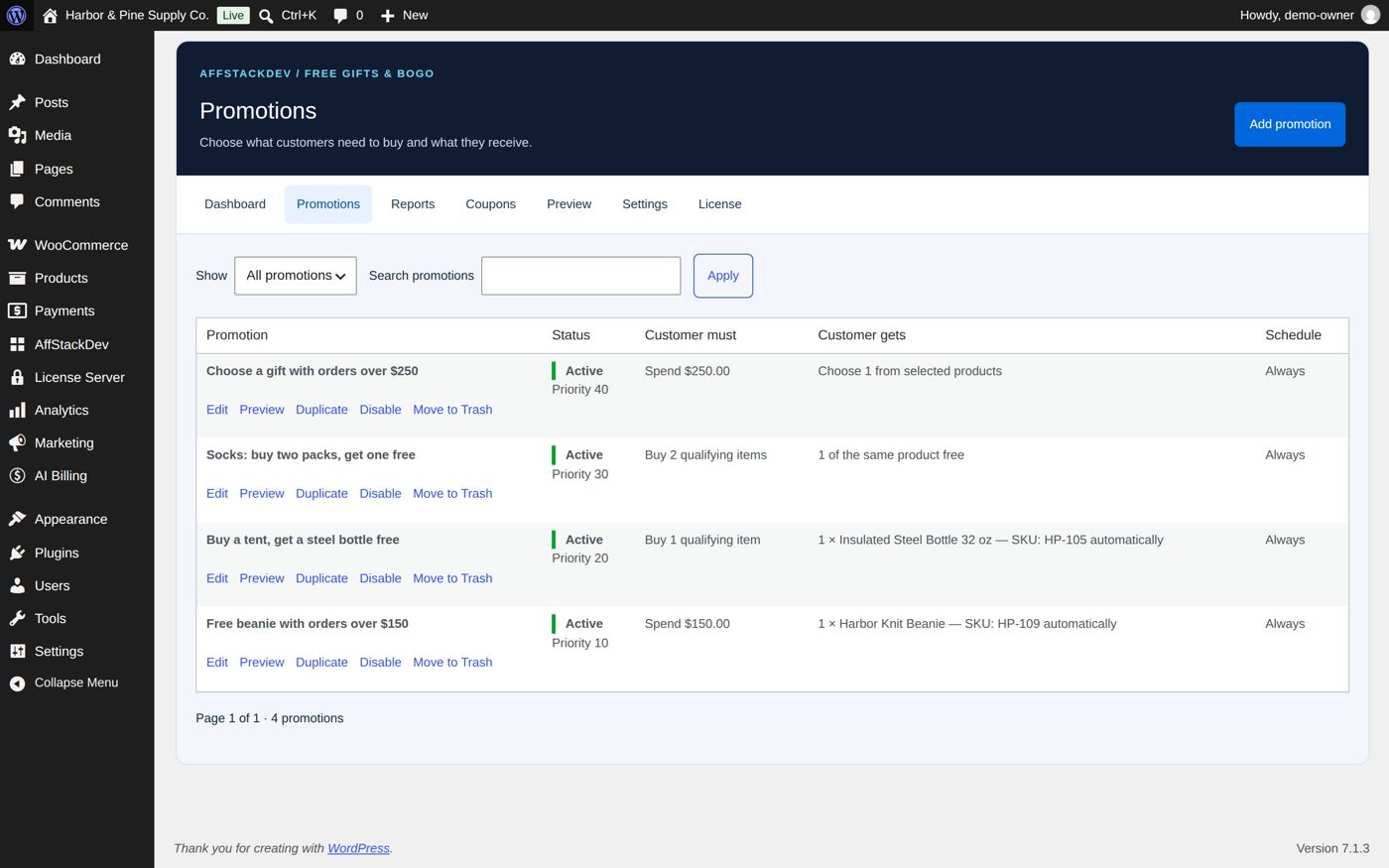
The Promotions list shows every promotion with Status (and its evaluation order as Priority), Customer must, Customer gets and Schedule. Show filters it (All promotions, Drafts, the statuses, Trash); Search promotions finds one by name.
| Status | Means |
|---|---|
| Active | Published, enabled and within its dates: it runs |
| Upcoming | Its start date is still ahead |
| Expired | Its end date has passed |
| Disabled | Published but Enable this rule is off |
| Not published | A draft |
| Needs attention | A field must be fixed before it can run |
| You want to | Do |
|---|---|
| stop it for now | Disable in the list, or untick Enable this rule |
| run a similar one | Duplicate: you get a new disabled draft |
| retire it | Move to Trash. Orders that got a gift from it keep that information. A promotion you restore from the trash comes back as a disabled draft. |
What else Free Gifts & BOGO can do
| Page | What it covers |
|---|---|
| Fine-tune: what counts, what can be given, limits | Which purchases count, which products may be gifts, buy-two-get-one repeated, a ladder of rewards, who may get a gift and how often, coupons, competing promotions, and every setting of the Settings tab. |
| What customers see, orders and reports | Where shoppers learn about an offer, the cart messages, the order with its gifts, what happens on a refund, and the reports. |