Get started
From the download to lighter pictures on your pages: install, the free license, what your hosting can do, your yes to processing, a first run, and a first media backup.
1. Download and install
- On affstackdev.com open My Account → Downloads and download Image Manager. Keep the ZIP file as it is; do not unpack it.
- In your WordPress admin open Plugins, choose Add Plugin (older WordPress versions call it Add New), then Upload Plugin.
- Choose the ZIP file and select Install Now, then Activate Plugin.
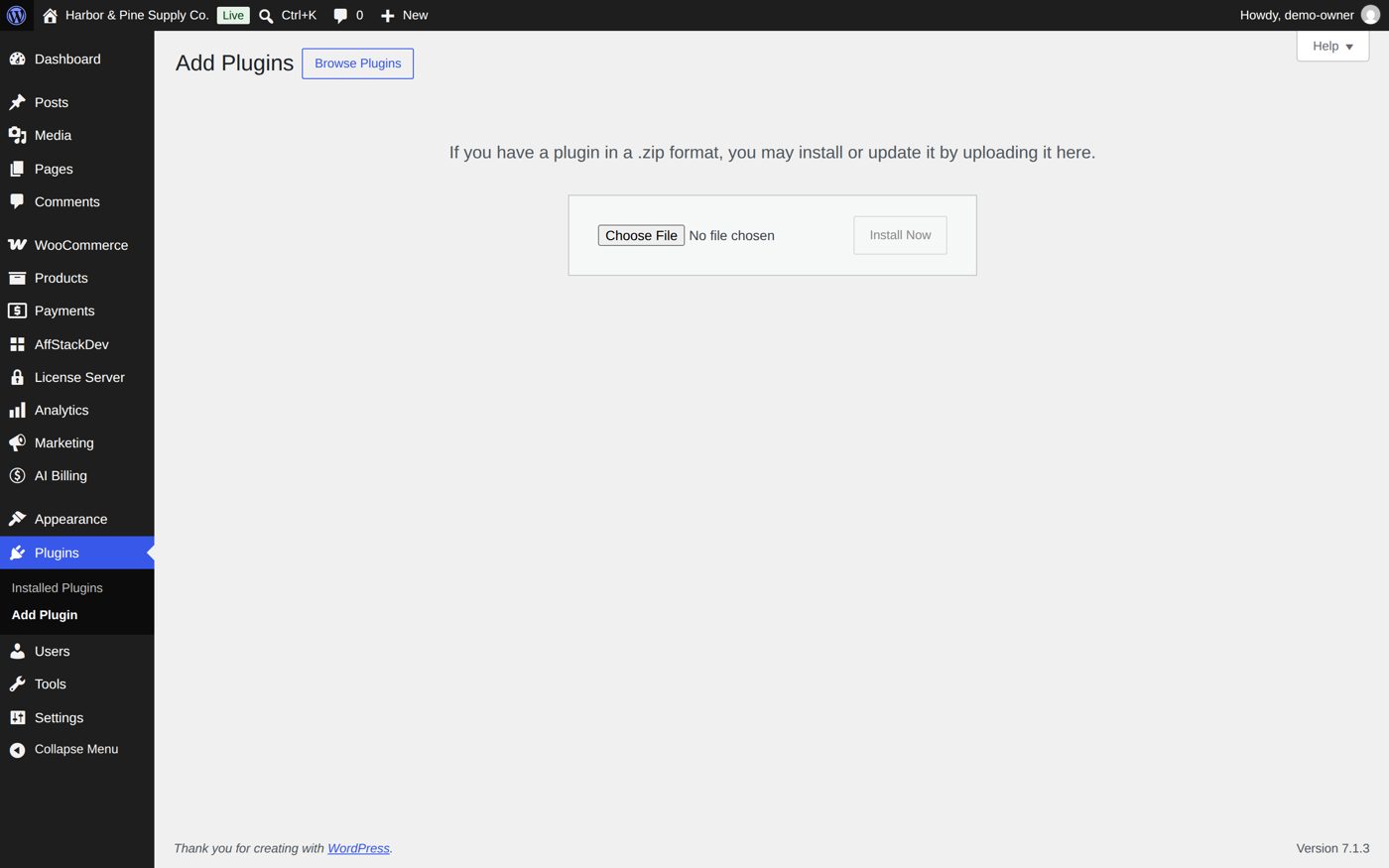
Image Manager now has its place in the WordPress menu: Media → Image Manager. With the AffStackDev Suite installed you also find it in the AffStackDev menu. If WordPress refuses the file, or to install a newer version over an older one, see Install a plugin.
2. Activate the free license
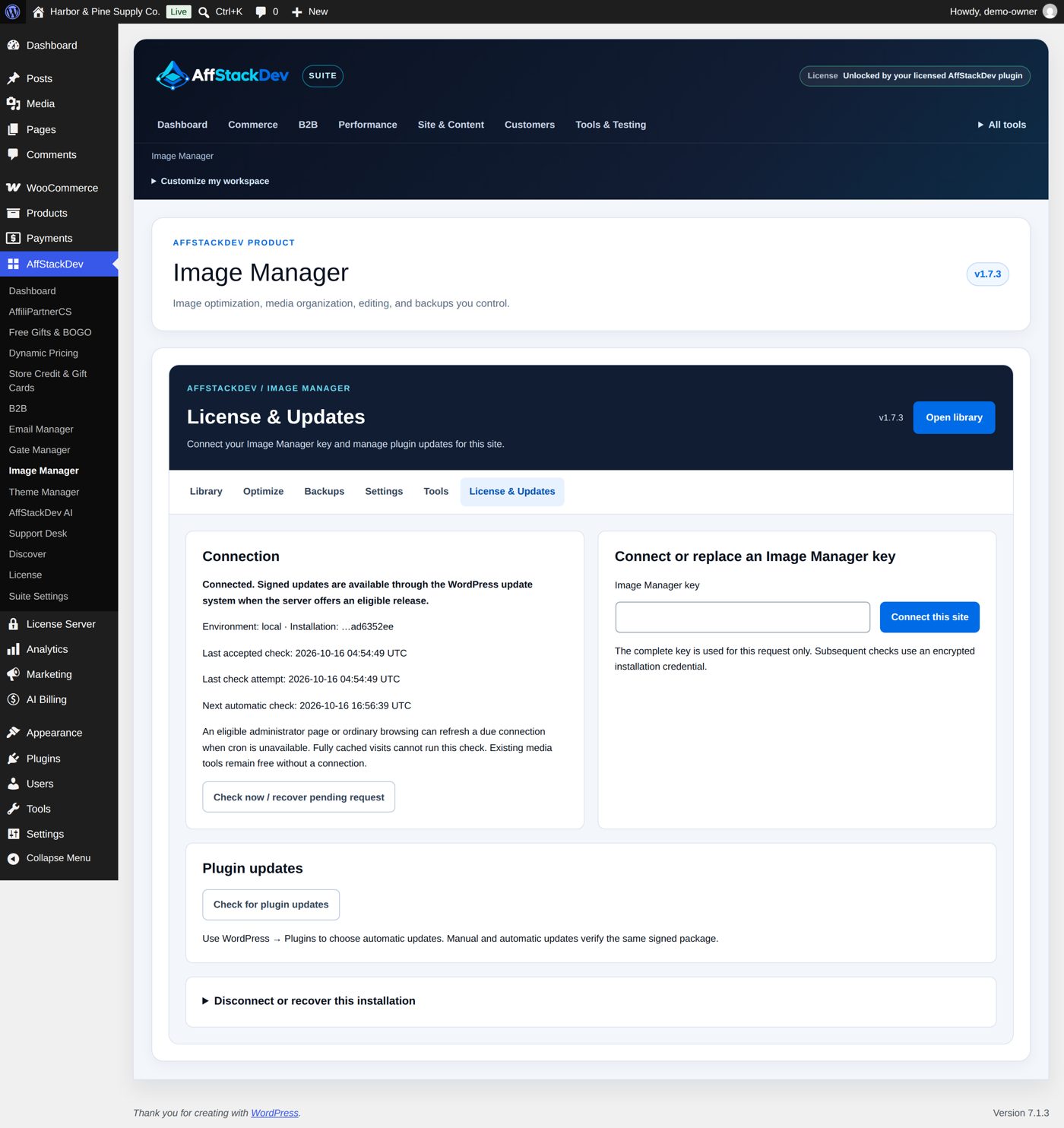
This step is optional: Image Manager works fully without a license. The free license adds signed updates from affstackdev.com and counts for the full mode of AffStackDev Suite (its enhanced screens and layout choices). To connect it, open Image Manager's License & Updates tab (Media → Image Manager, or AffStackDev → Image Manager with the Suite), paste the free key from My Account → Licenses on affstackdev.com and connect the site. More: Activate your license.
3. See what your hosting can do
Open Tools. It tells you which picture formats your hosting can write, whether it can turn a PDF page into a picture and whether it has a private folder for backups. What it says decides some of the choices further on.
4. Give your yes, then a first run
- Open Optimize. Tick "These are public website images. I will keep private or member-only media excluded.": your yes to processing the pictures of your public pages (the Settings tab has the same yes: "I have checked that selected images are public, not private or member-only media."). Without it nothing can be optimized.
- Under Compression for this run choose Lossless (smaller files with no visible change). Select Scan only first: it finds the pictures and shows what would be done, without doing it.
- Then choose Prepare comparisons for review under When files qualify, so you approve each result, tick "Apply these choices to the selected scope. Originals are preserved; optimization does not change individual delivery preferences." and select Optimize site images.
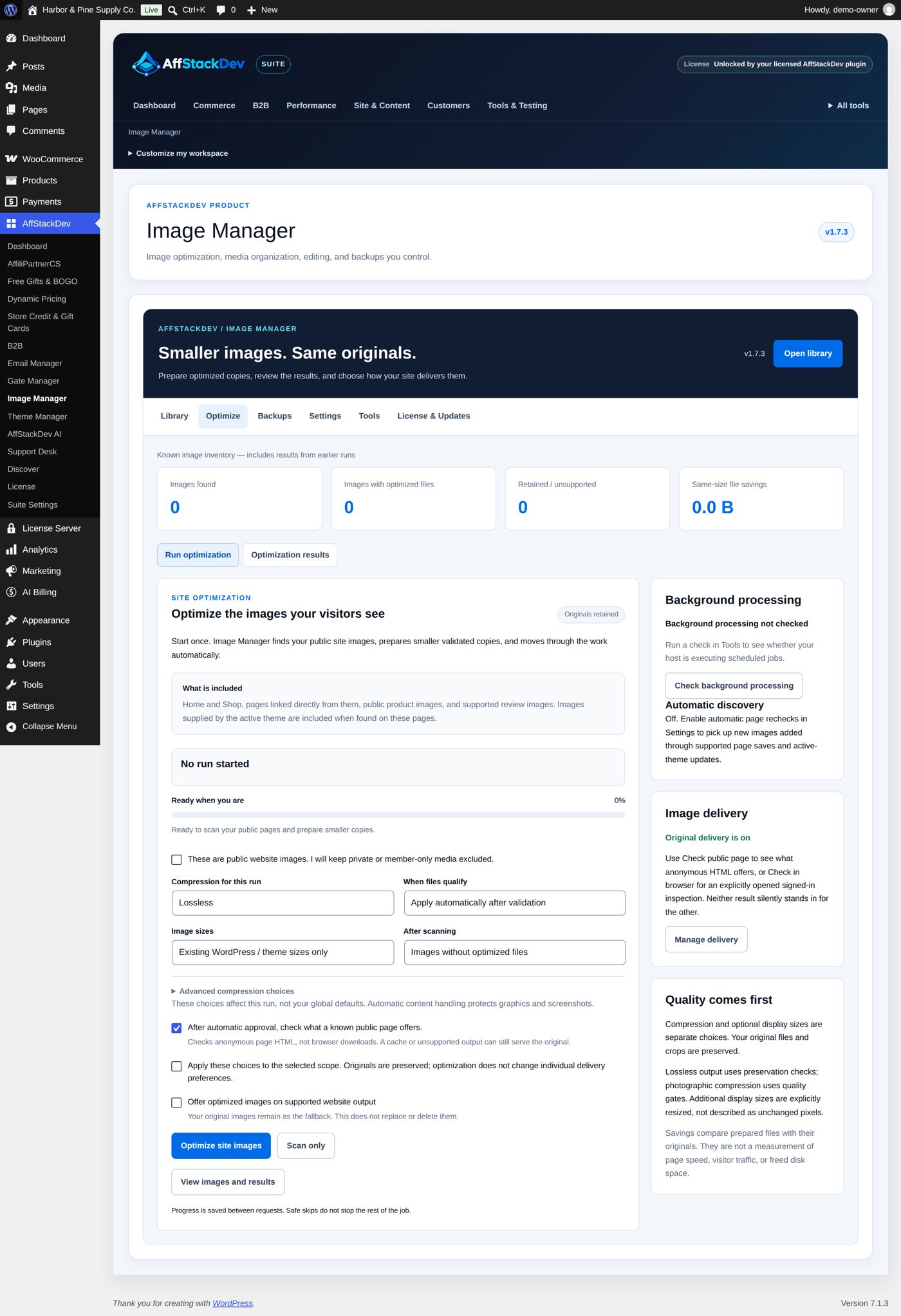
The work runs in the background and can be paused. Originals are never replaced.
5. Look, then deliver
The Library tab shows each picture with its result; open one to compare original and copy. When you are happy, switch on Offer optimized images on supported website output in Settings, clear your page cache once, and check a real page with Check public page. Everything about this: Make pictures lighter and deliver them.
6. A first media backup
Open Backups, choose all media and the profile Essential recovery, select Create media backup, then Download the ZIP and keep it somewhere safe. It holds your media and their details, not your whole website. See Backups and restore.
7. Put order into the library
Folders and collections are labels: nothing moves on the server and no web address changes. See Organize and edit.
What else Image Manager can do
| Page | What it covers |
|---|---|
| Organize and edit | Find a file fast, put order into the library, see where a picture is used, and change a picture without losing the original. |
| Make pictures lighter and deliver them | Prepare smaller versions of the pictures on your public pages, compare them with the originals, then let visitors receive them. |
| Backups and restore | A ZIP of your media with titles, folders and collections: download it, or send it to storage of your own. Bring single items back when you need them. |