Find a page and open its editor
"Where do I change that?" Search for the page, template or pattern, see what it is made of, and go to the editor that owns it.
Find a page, post or product
- Open the tab Pages & content.
- Choose the kind: Pages (preselected), Posts, Products, and other kinds your account may edit.
- Type the title or a part of it and select Find. The search looks at titles.
- Previous and Next move through the results, twelve at a time.
- Edit opens the item's editor. View opens the page itself in a new tab.
You see published items and also drafts, private, pending and scheduled ones, as far as your account may edit them.
See where the content comes from
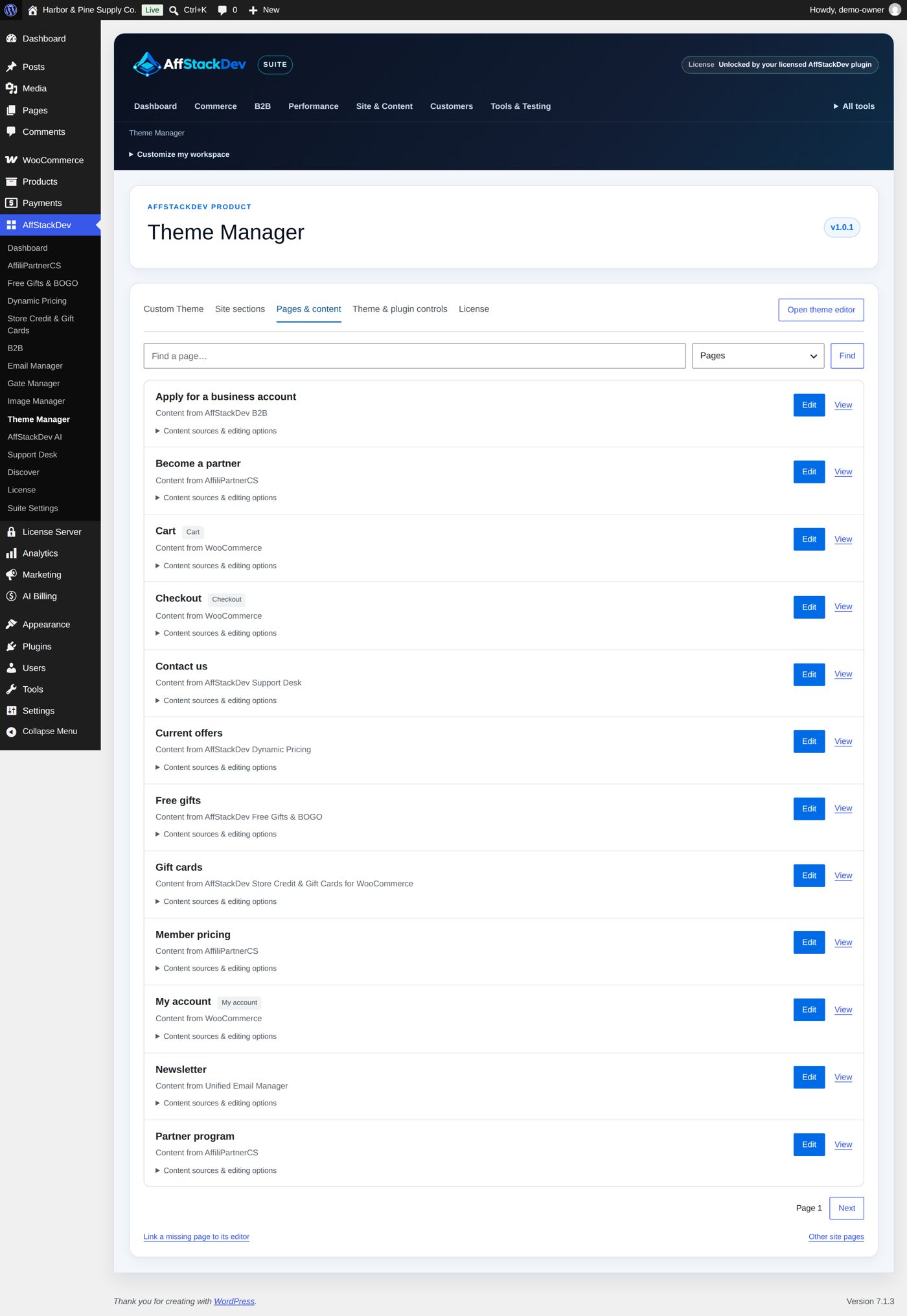
A page is often more than its own text: a part may come from a shortcode of a plugin, a reusable pattern, or the theme. Each result says in one line what its content is, and has a fold-out with the editors:
- Content sources & editing options when Theme Manager recognized a source besides the page's own text: one entry per source, each with a link to its editor.
- Editing options when the page has only its own text, pictures and blocks: then it offers Page content with Open page editor.
- A page built with Elementor says Built with Elementor: Elementor keeps its layout and text, and Edit with Elementor opens Elementor's editor.
Both end with Link a specific content editor.
With a block theme (or a classic theme that uses block templates) the result also names the template WordPress shows it with, for example "Template: Pages", with Edit template: the header, footer and layout around the page's own text are changed there, in the Site Editor.
Worked example: the tent's product page
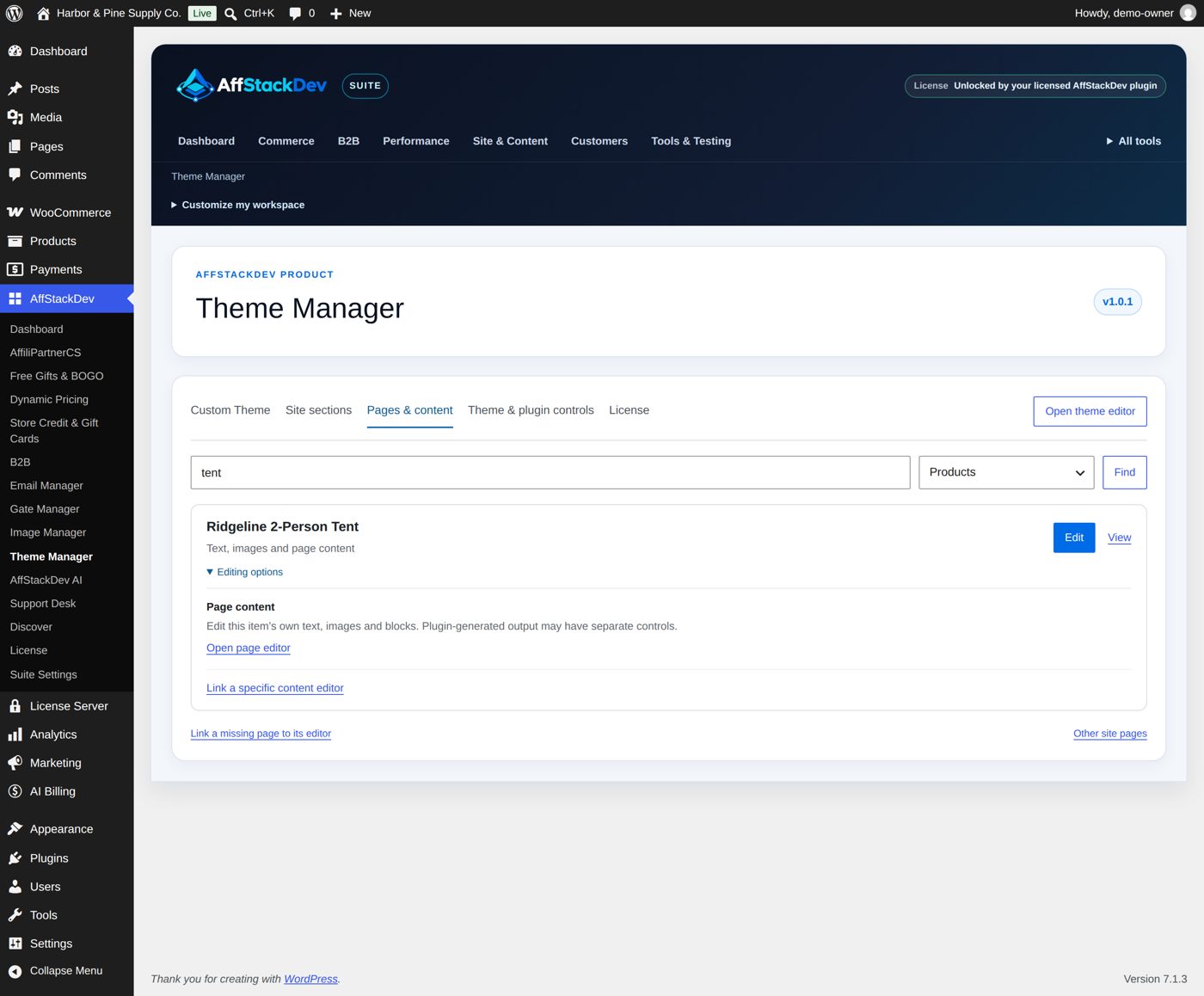
Choose Products, type tent, Find. One result: Ridgeline 2-Person Tent, "Text, images and page content". Its Editing options offer Page content, "Edit this item's own text, images and blocks", with Open page editor: everything on this page is changed in the product's own editor.
Worked example: a page partly made by a plugin
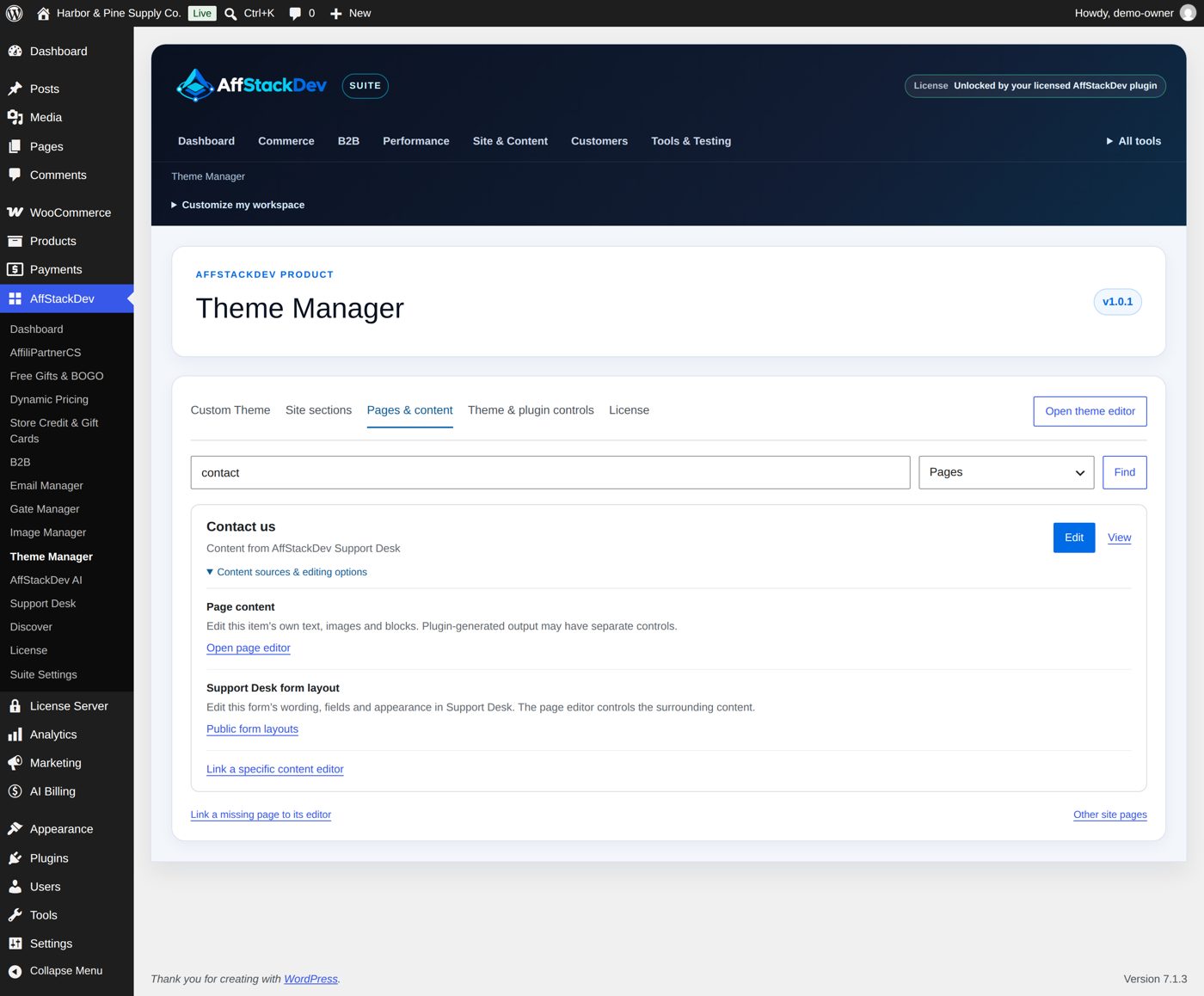
Choose Pages, type contact, Find. The result Contact us says "Content from AffStackDev Support Desk". Open Content sources & editing options: Page content (Open page editor) is the text around the form, and Support Desk form layout (Public form layouts) is where the form's own wording, fields and appearance are changed. So "where do I change the form's button text?" has its answer: in Support Desk, not in the page.
It cannot recognize everything. Text that a plugin builds on the fly may have no recognizable source. For those cases you can tell Theme Manager yourself (see below).
Find a template, template part or pattern
The kind list of Pages & content has a group Theme design:
- Templates and Template parts (with a block theme, or a classic theme that uses block templates). Each result says where it comes from: From the theme, Changed in the Site Editor, Made in the Site Editor or From a plugin (for example WooCommerce's store templates). Edit in the Site Editor opens it there.
- Patterns (with every theme). Your own patterns say whether they are synced (a change changes every place that uses it) and open with Edit pattern. Patterns of the theme, WordPress or a plugin are Kept in code: Open the Patterns screen takes you to WordPress's Patterns screen, where you can duplicate one and change the copy.
Type a part of the name or slug in Find a template, part or pattern… and select Find; twelve results show on a page. Theme Manager only finds them and opens WordPress's own editor; designing templates and layouts stays in the Site Editor.
Tell it which editor belongs to a page
A link you set once, so the next person does not have to search.
- For a page in the results: Content sources & editing options → Link a specific content editor (or Change linked editor).
- For a page that is not in the list at all (a generated page, for example): Link a missing page to its editor, below the results.
This only creates a shortcut inside Theme Manager. It does not create, copy or change any page.
Site sections: your shortcut cards
Site sections shows cards for the things people edit most: the home page, pages and links, the theme's editors, menus, widgets, content of plugins. Theme Manager builds the cards from what your site has: up to 36, the first twelve in view and the rest under More editing sections.
Arrange sections lets you rename, reorder, hide, remove and add cards; Save section layout keeps it. The arrangement is shared by everyone who may use Theme Manager on this site. It does not move anything on your public home page. Restore automatic cards brings the automatic set back.
Find a settings screen
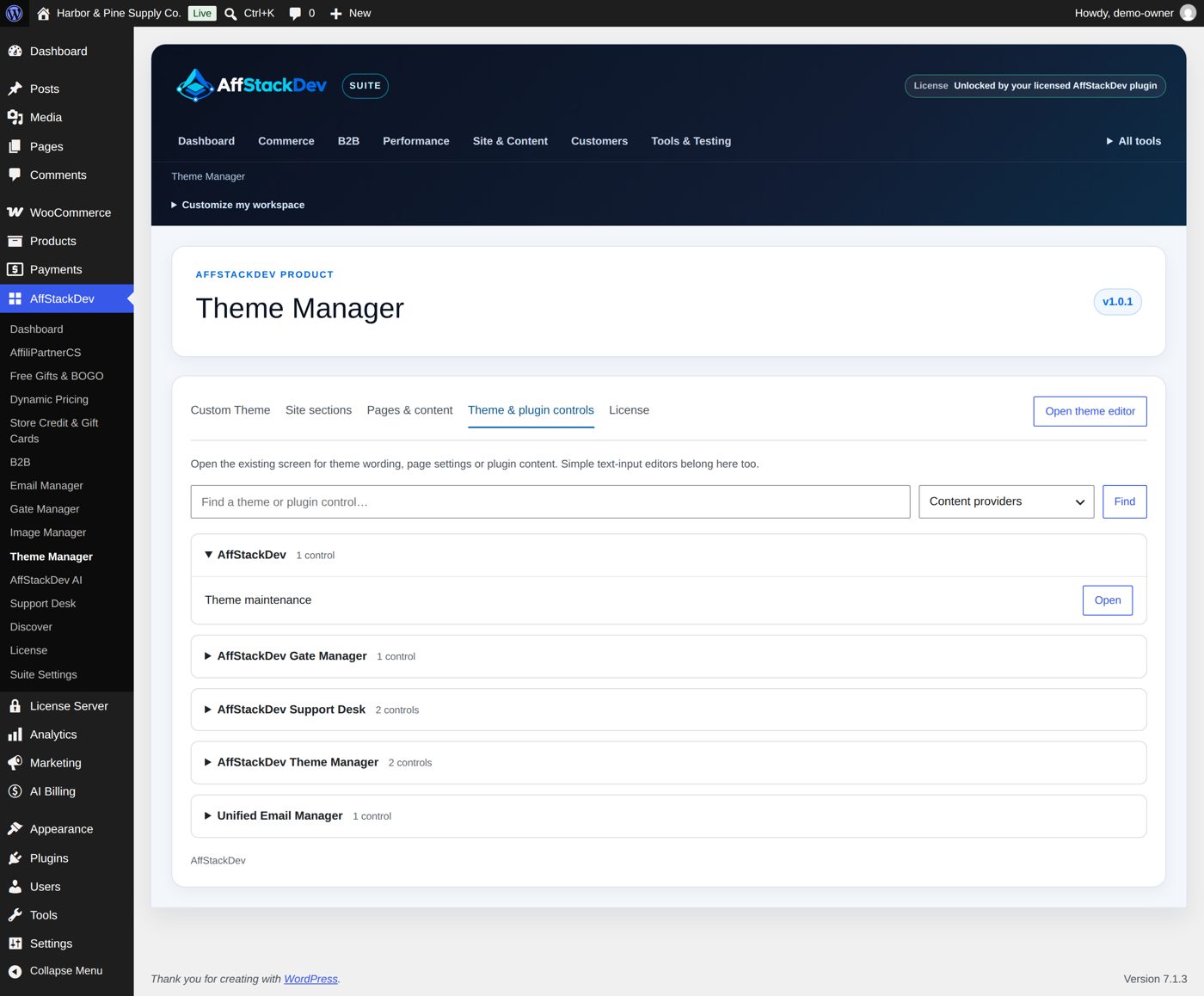
Open Theme & plugin controls, type a name and select Find. The list starts with the screens that have to do with content and appearance; More registered controls widens it. Open takes you to the original screen, where you change and save as always.
If a plugin does not show up, it keeps its settings inside its own screens. Open it from the WordPress menu.
If something is missing
| What you see | Reason |
|---|---|
| A page is not in the results | Your account may not edit it, or it is not a page, post or product (orders, coupons and media are not searched). |
| No source is named for a part of a page | It is built by a plugin in a way that cannot be recognized. Use "Link a specific content editor". |
| A card or a control disappeared | The plugin or theme it belongs to was switched off, or your rights changed. Reload the Theme Manager page. |
| No Templates or Template parts in the kind list | The theme is a classic theme that does not use block templates; only Patterns is offered. |