Install a plugin
Download the ZIP from your account, upload it in WordPress, activate it. The same four steps for every AffStackDev plugin.
Before you start
- You need a WordPress user who may install plugins (an administrator).
- For the store plugins, WooCommerce must be installed and active first.
- Make a backup of your site, or use a test copy, the first time.
The four steps
- On affstackdev.com open My Account → Downloads and download the plugin's ZIP file. Do not unpack it.
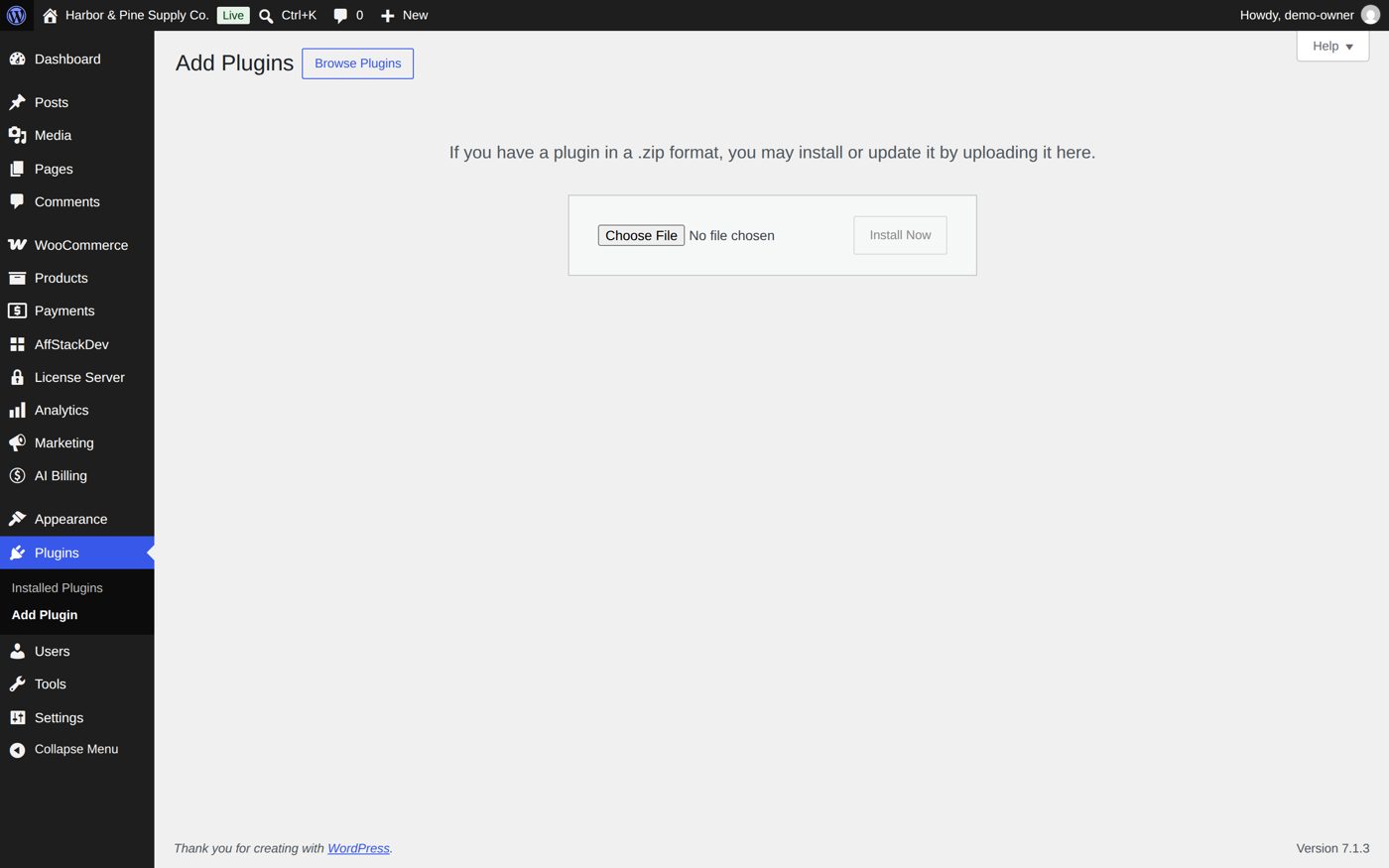
- In your WordPress admin open Plugins, choose Add Plugin (older WordPress versions call it Add New), then Upload Plugin.
- Choose the ZIP file and select Install Now.
- Select Activate Plugin.
After Activate Plugin the plugin is in the list under Plugins, with its version and its links (for many: Settings and License):
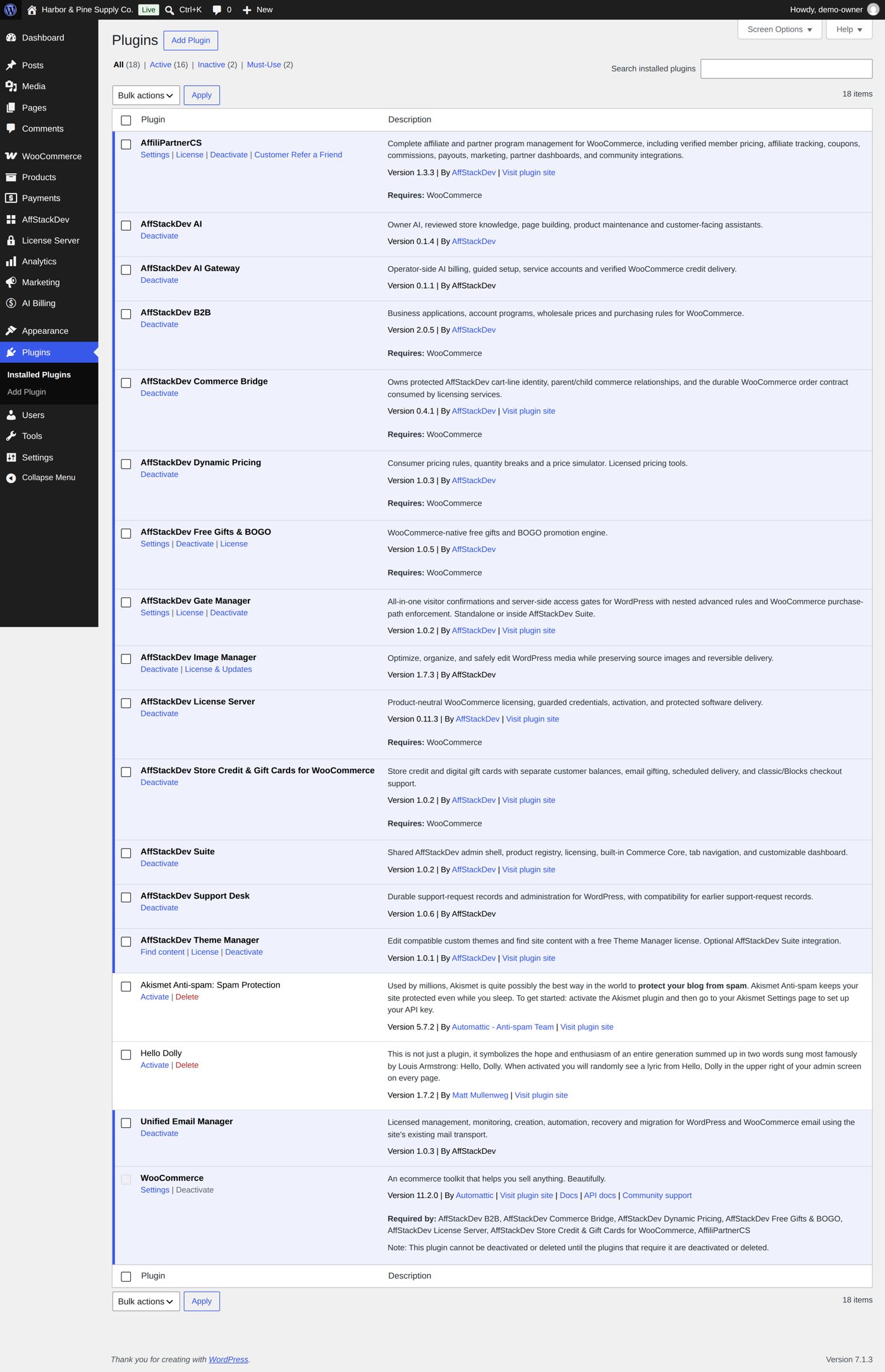
The plugin now has its own menu entry. Where it appears is on each plugin's setup page. If the Suite is installed, the plugin also appears inside the Suite's menu.
If WordPress refuses to activate it
WordPress shows the reason. The usual ones:
| Message says | What to do |
|---|---|
| WooCommerce is required | Install and activate WooCommerce, then activate the plugin again. |
| A newer WordPress or PHP is required | Update WordPress, or ask your host to switch the site to a newer PHP version. |
| The file is not a valid plugin | You uploaded the wrong file, or an unpacked folder. Download the ZIP again from your account and upload it as it is. |
Installing a newer version over an older one
Upload the new ZIP the same way. WordPress asks whether to replace the current version; confirm. Your settings and records stay. Do not delete the plugin first: deleting can remove its data, replacing never does.
After the first activation of your license you normally do not upload at all: WordPress offers new releases itself. See Updates.