Business accounts: applying and approving
How a business applies, how you decide (with three worked examples: approve into a group, not approved, a new question), and every setting of the Applications screen: account types, questions, approval and billing, messages, the customer preview and customer roles.
What it is for
A business account is a customer's business status, tied to their WordPress login. The customer applies; you read the application and decide. Only an approved account gets business prices and the business tools. Have ready: your default terms and at least one business group (Getting started), and an idea of what you want to know about an applicant.
How a business applies
- On the signup page or under My Account → Business account, as a visitor: they create a login, choose a business account type (B2B starts with one, Business) and answer your questions. Login and application are saved together.
- Signed in, they open My Account → Business account, fill in the business name, contact name and your questions, and choose Submit business application.
- At checkout (only if you switch it on, and only on the Classic checkout): they choose a business type under Your account type. The order attempt then stops with "Your business account and application are saved. No order has been placed. ..." so that they check their status first. The block checkout shows a link to the signup page instead.
An application can carry up to three private documents (PDF, JPEG or PNG, 2 MB each), for example a resale certificate, when you add a Private document question.
After sending, the customer's Business account page shows the status and the text of the matching message ("Hello {contact}, we received the application for {business}. ..."), so what you write under Messages is also what the customer reads there.
| Status | The customer reads | What it means |
|---|---|---|
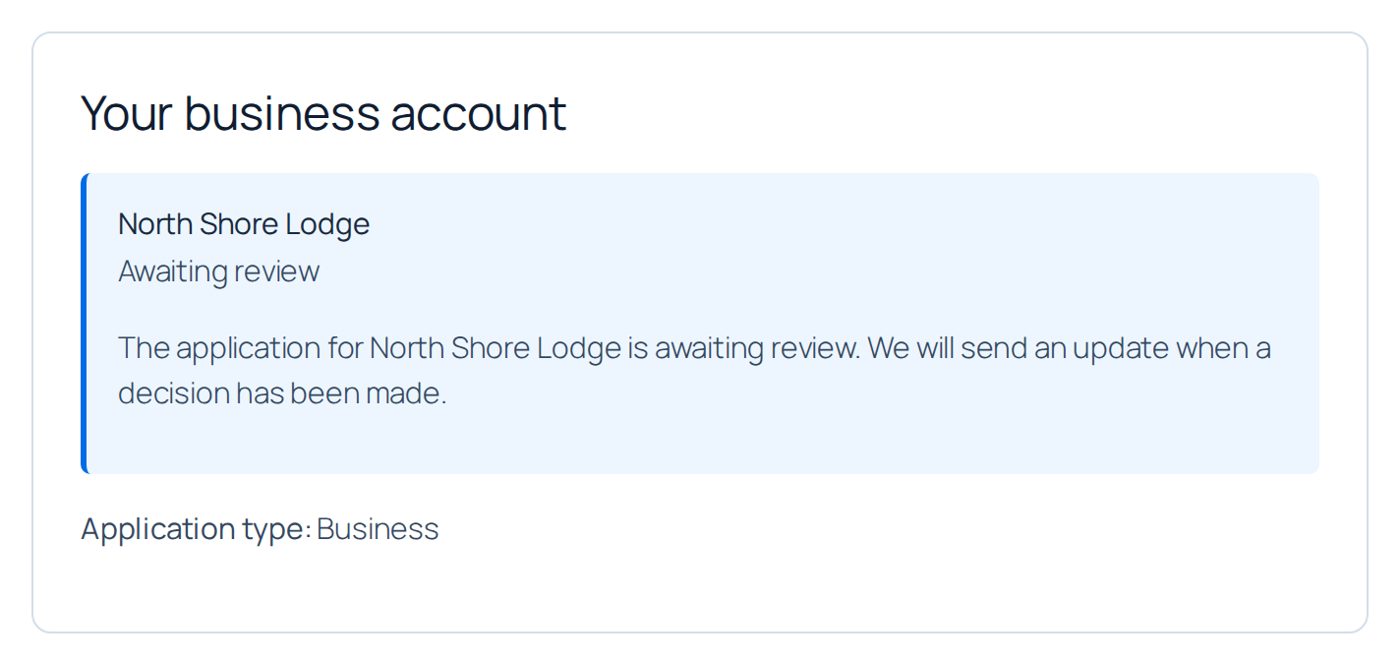
| Awaiting review | "The application for {business} is awaiting review. We will send an update when a decision has been made." | You have the application and have not decided. No business prices and no consumer promotions. |
| Approved | "The business account for {business} is approved. ...", the business group, Open business portal, Build a quick order | Business prices and tools are open. |
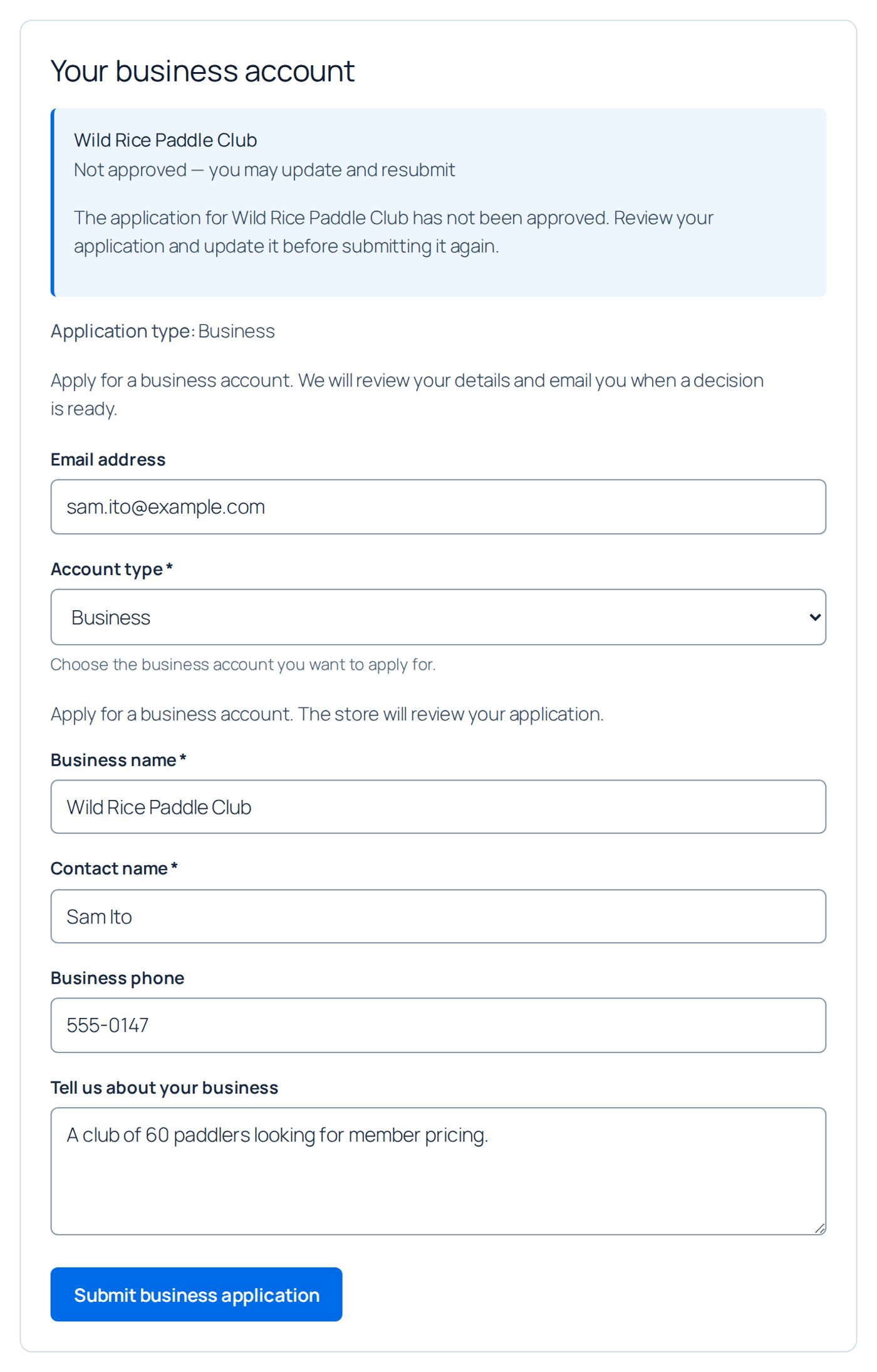
| Not approved — you may update and resubmit | "The application for {business} has not been approved. Review your application and update it before submitting it again." and the form again | They can correct the application and send it again. |
| Account on hold — please contact the store | "The business account for {business} is on hold. Please contact the store before placing a business order." | No business ordering and no consumer promotions. |
| Application withdrawn | "The application for {business} has been withdrawn. You can submit a new application from your business account." | An ordinary customer again; they can apply again. |
Decide on an application
- Open Accounts. Accounts waiting for you show Awaiting review. Open the business.
- Read the application: the answers, the private documents (only the account owner and your staff can download them; they are never attached to emails) and, when the owner changed answers that need your review, Profile changes awaiting review with Accept profile changes and Reject profile changes.
- Set Approval status.
- Choose the Business group. Left on business defaults, an approval puts the account in the group of its account type (Business group on approval, see below), if that type names one.
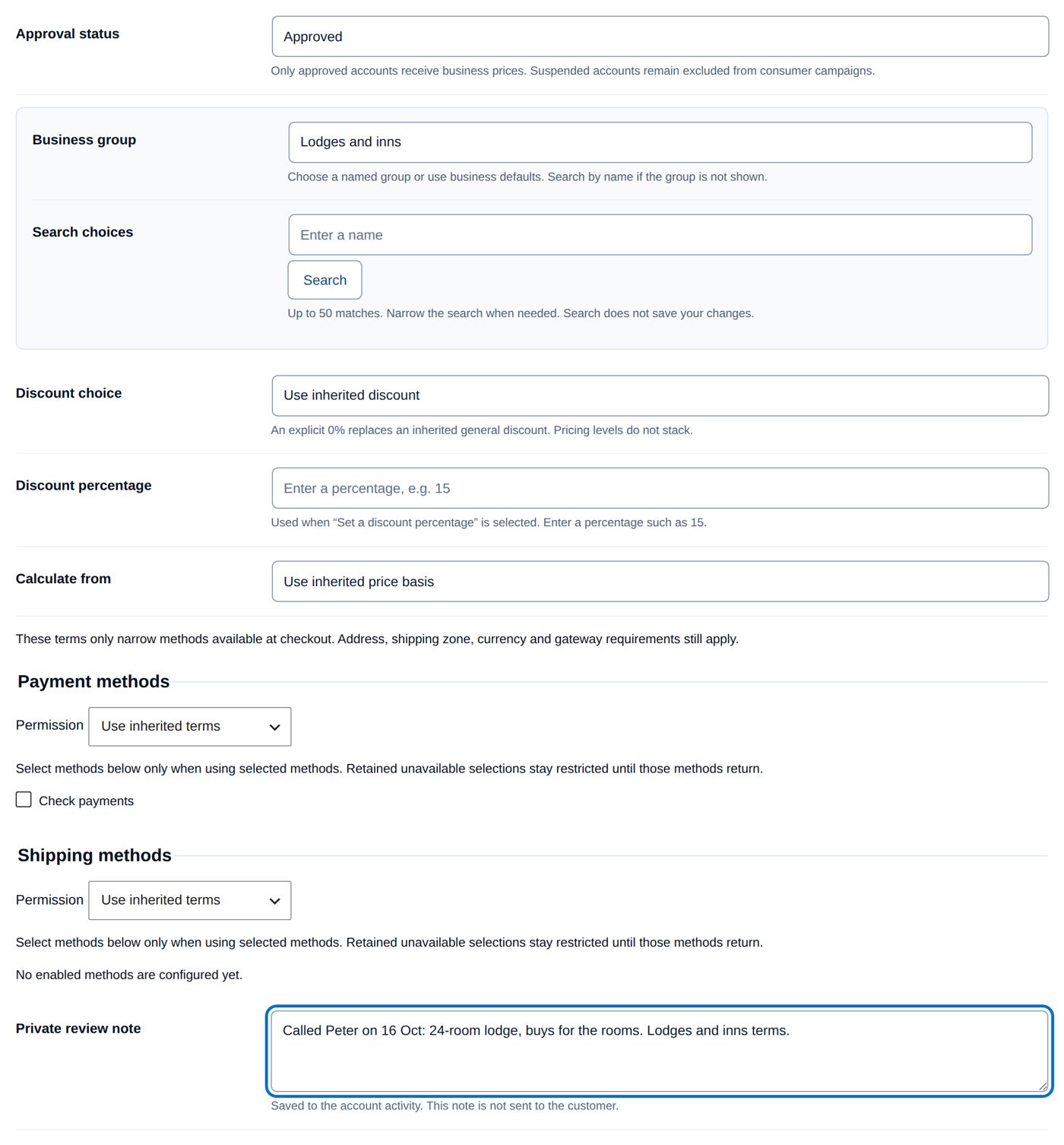
- Leave the discount, payment and shipping fields on their inherited values unless this one account gets its own terms.
- Add a Private review note ("Saved to the account activity. This note is not sent to the customer.").
- Choose Review changes, check, and Publish these changes.
Approving also applies the account type's Customer role on approval, if one is set. Saving prices for an account does not approve it.
Every field of an account
| Field | What it does |
|---|---|
| Approval status | Awaiting review, Approved, Not approved — you may update and resubmit, Account on hold — please contact the store, Application withdrawn. "Only approved accounts receive business prices. Suspended accounts remain excluded from consumer campaigns." |
| Business group | the group whose terms the account gets, or business defaults |
| Discount choice, Discount percentage, Calculate from | this account's own discount; Use inherited discount lets the group (or the defaults) decide |
| Payment methods, Shipping methods | Use inherited terms, or this account's own permission |
| Quote rules | as for a group (Getting started); empty or Use inherited setting inherits |
| Private review note | written to the account's activity, never sent to the customer |
From the account you also reach Manage company team (Company buying).
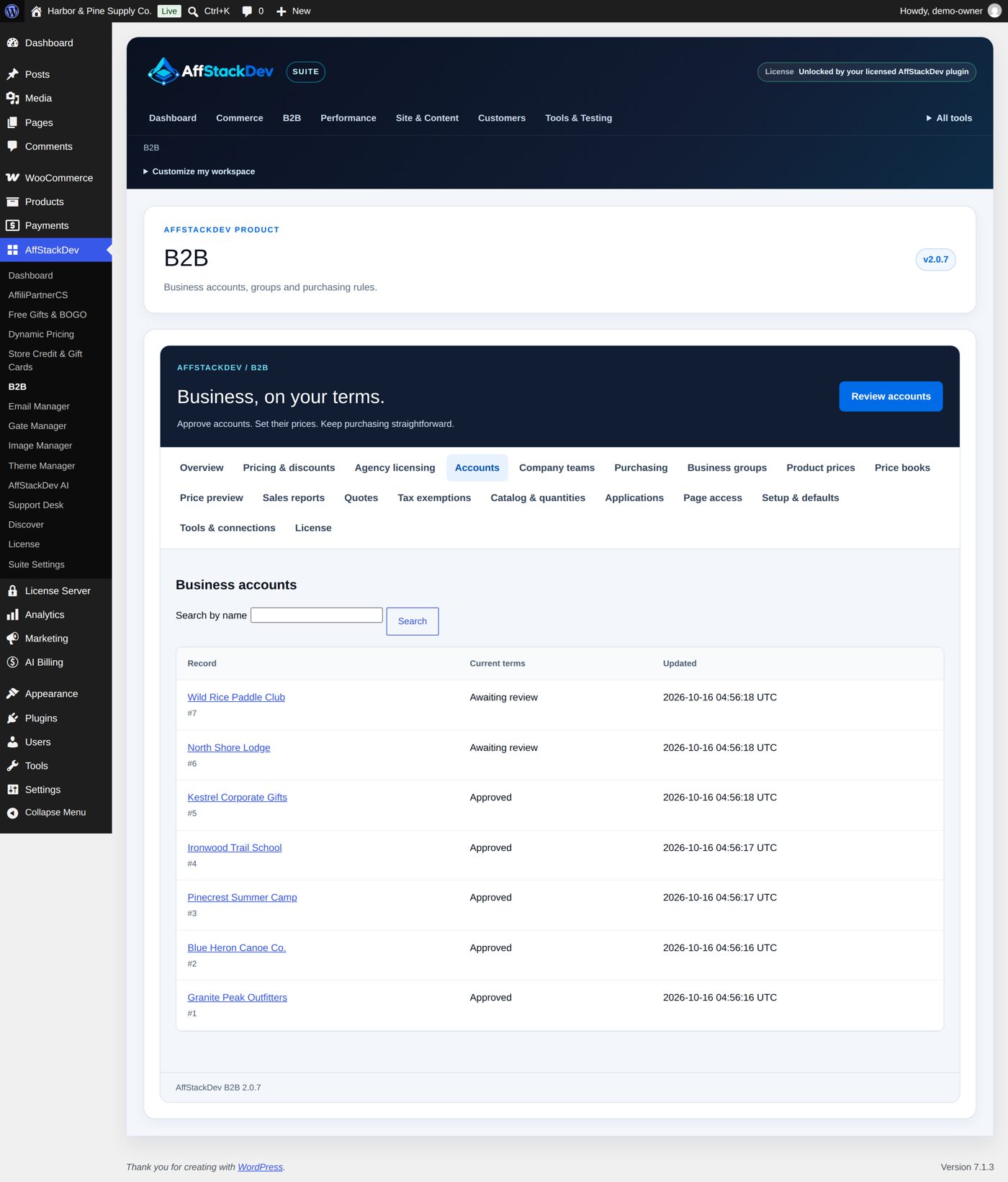
Worked example: approve North Shore Lodge into "Lodges and inns"
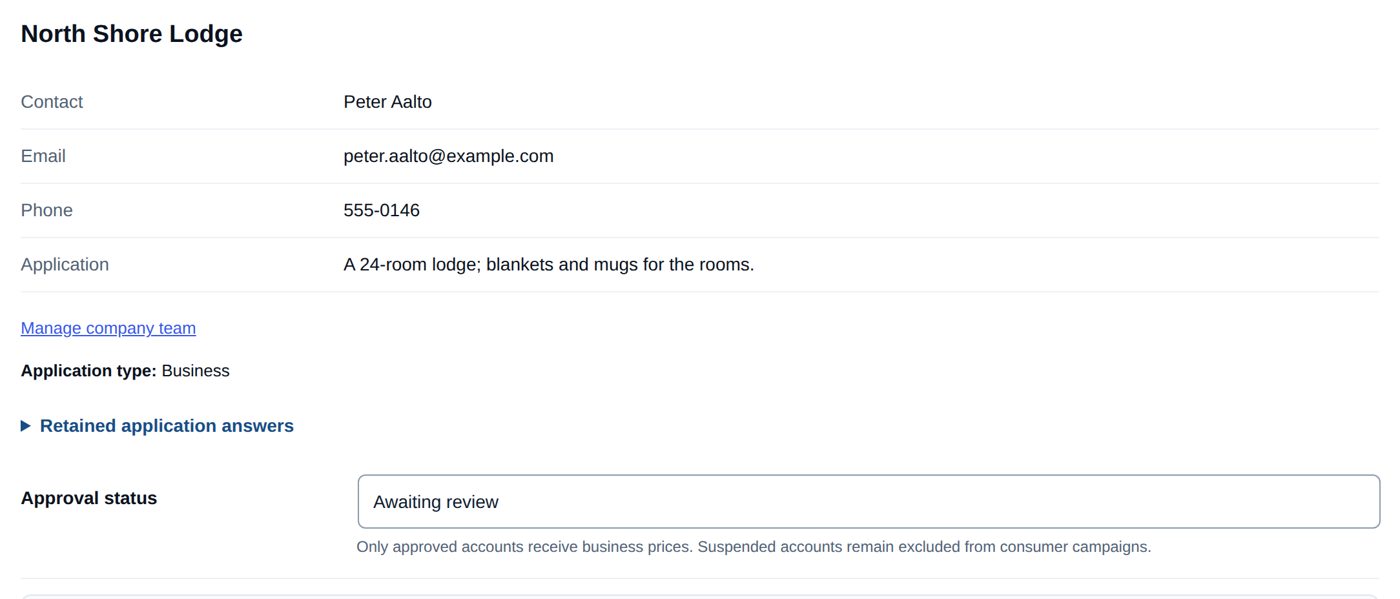
Peter Aalto applied for North Shore Lodge, a 24-room lodge. Harbor & Pine has just created the group Lodges and inns with 15% off the regular price (Getting started).
- Accounts → North Shore Lodge shows the application, waiting for review.
While he waits, Peter's My Account → Business account shows the status and that message:
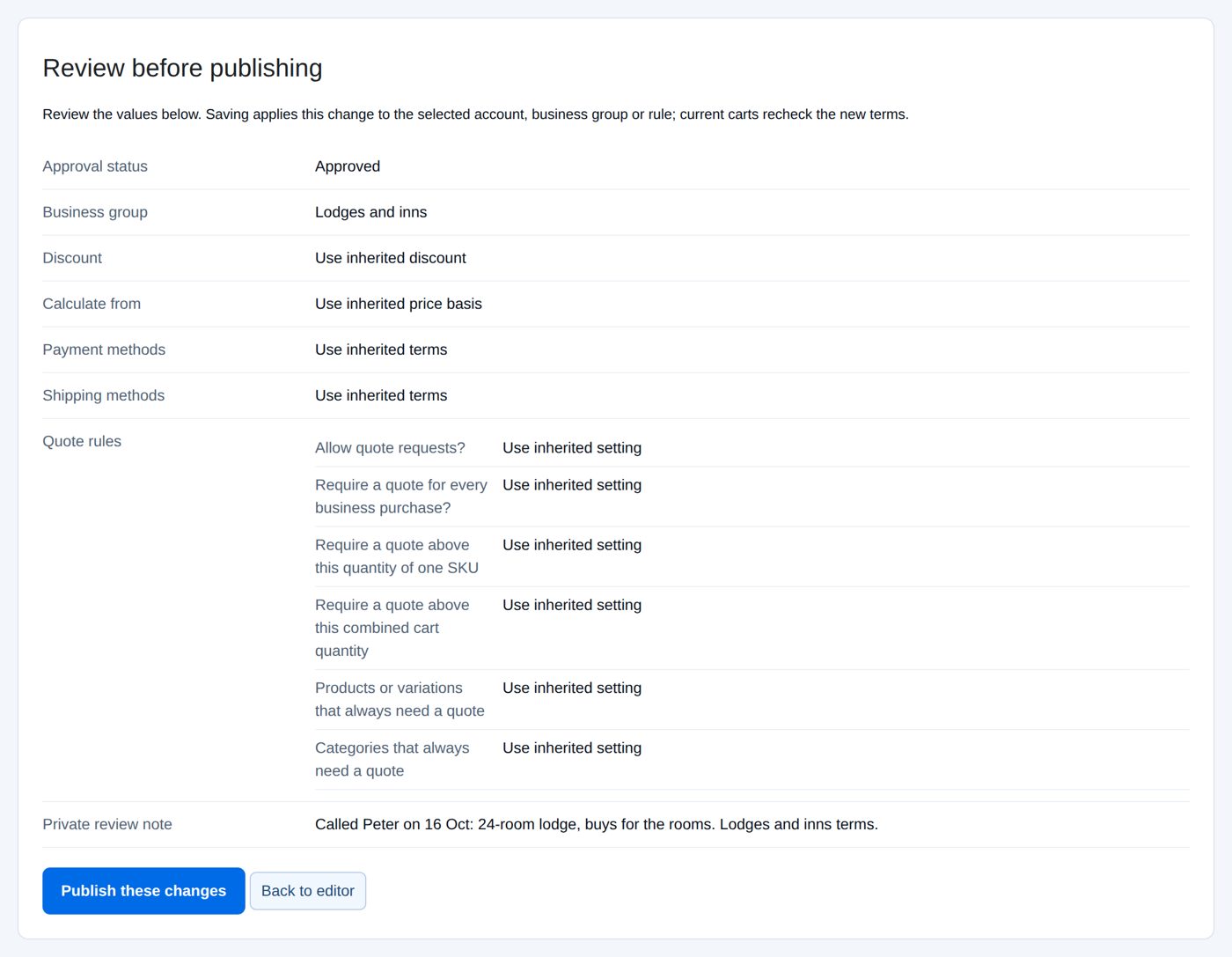
- Approval status Approved, Business group Lodges and inns, and a Private review note: "Called Peter on 16 Oct: 24-room lodge, buys for the rooms. Lodges and inns terms."
- Review changes lists the decision in words: the status, the group, the inherited discount, methods and quote rules, and the note.
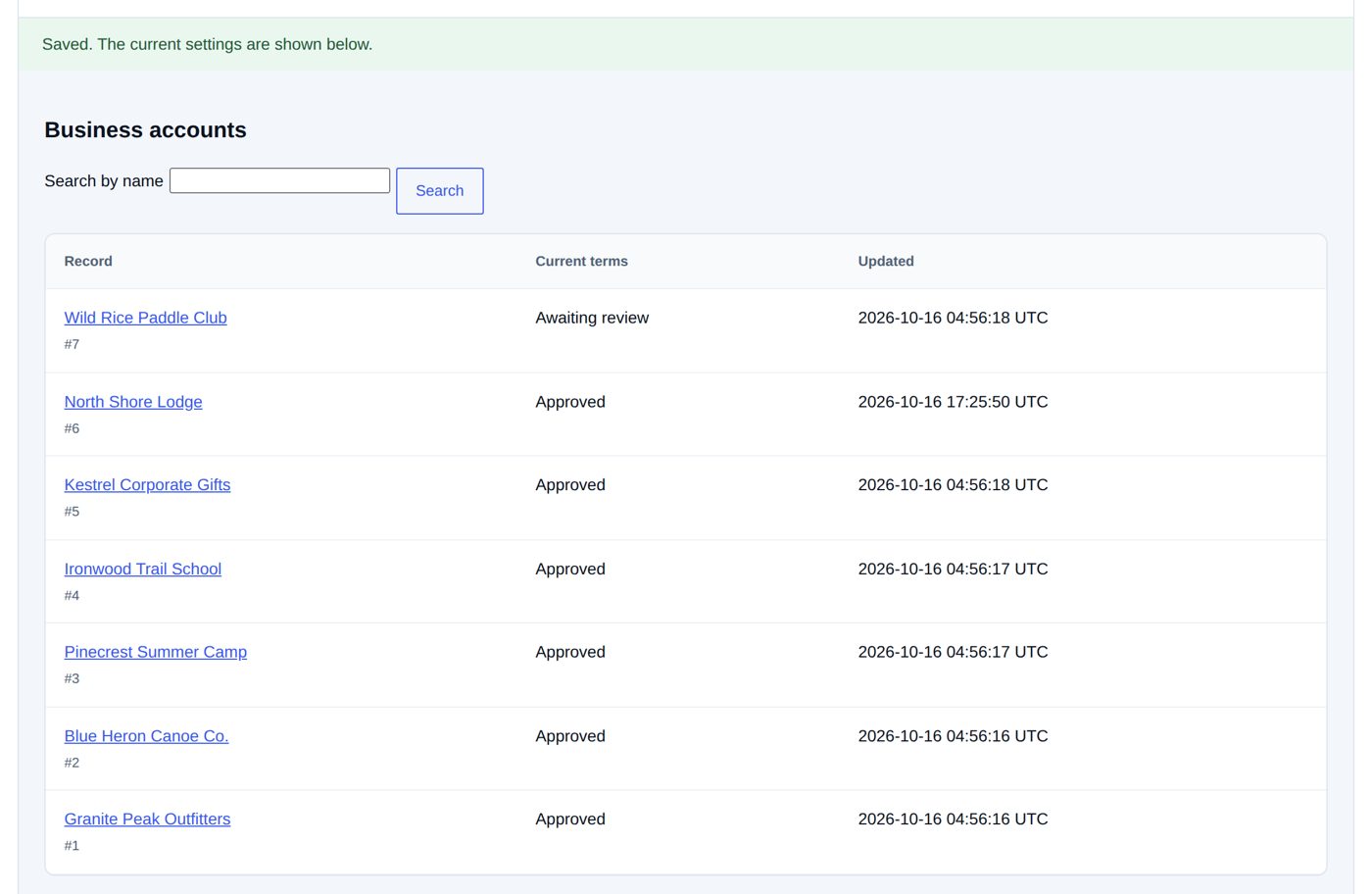
- Publish these changes: "Saved. The current settings are shown below." The list of Business accounts shows North Shore Lodge with Approved under Current terms.
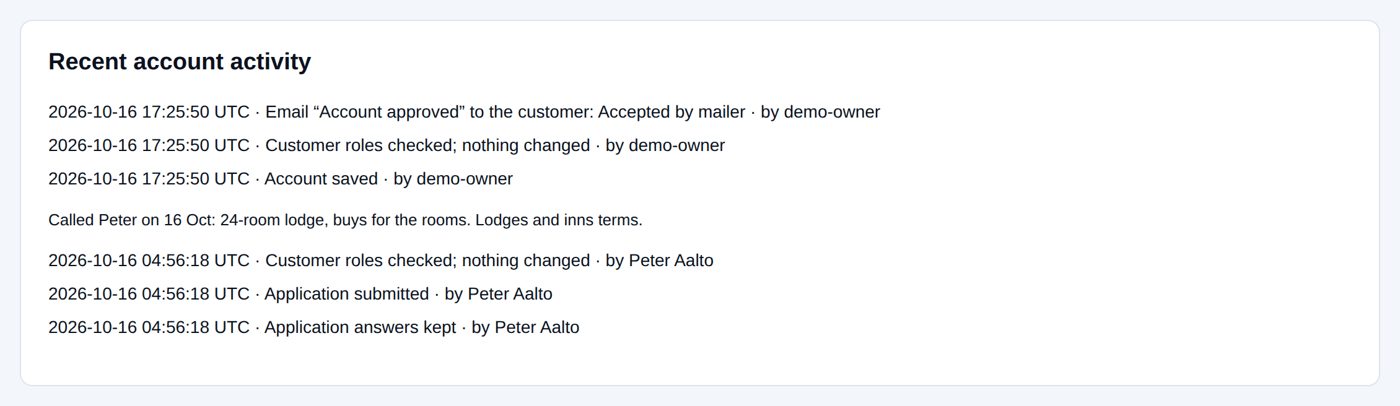
- The account's Recent account activity records the decision with your name and the note.
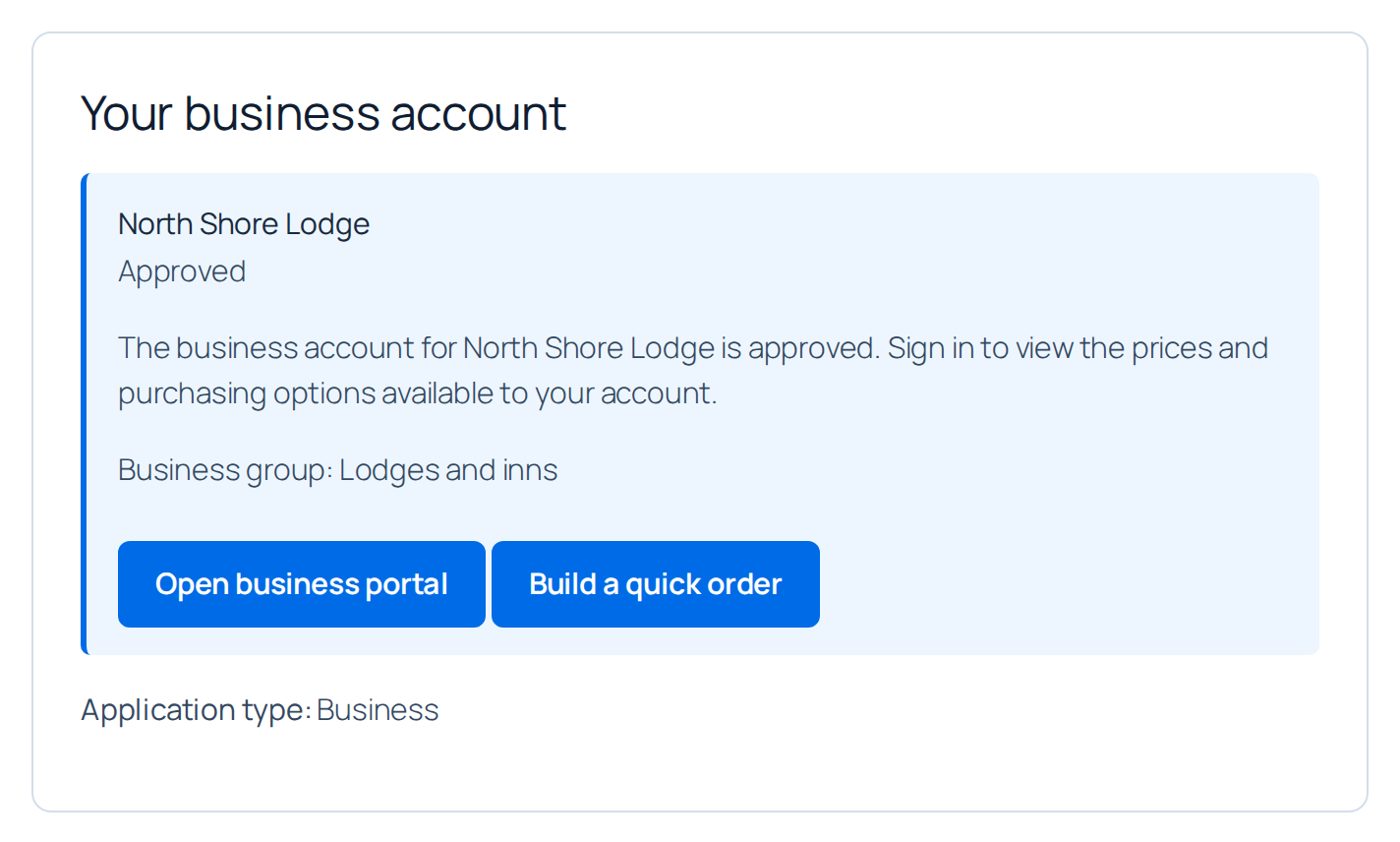
Peter now sees "Business group: Lodges and inns" and the buttons to the business portal and quick order. The customer email Account approved goes out (if switched on under Messages, as at the start).
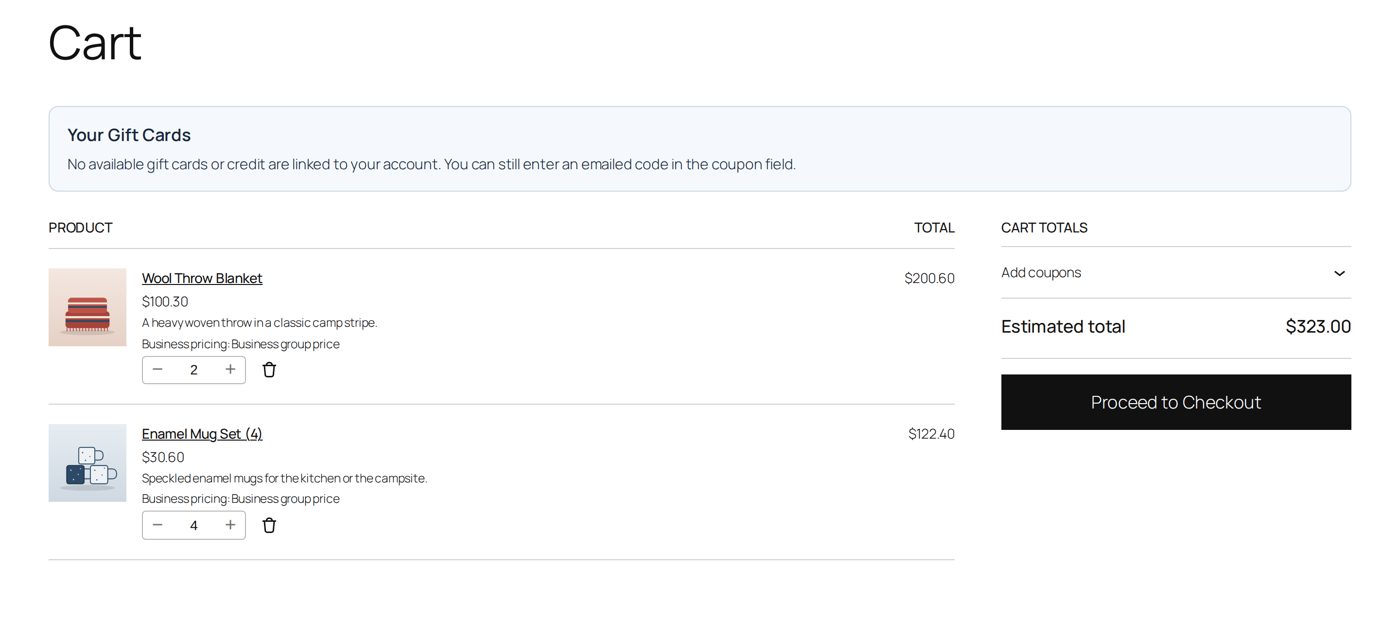
In his cart the Wool Throw Blanket costs $100.30 instead of $118.00 and the Enamel Mug Set $30.60 instead of $36.00 (15% off the regular price), each line marked "Business pricing: Business group price": two blankets and four mug sets make $323.00. On product pages and in the shop his prices carry the note "Your business group price".
Worked example: not approved, with a reason
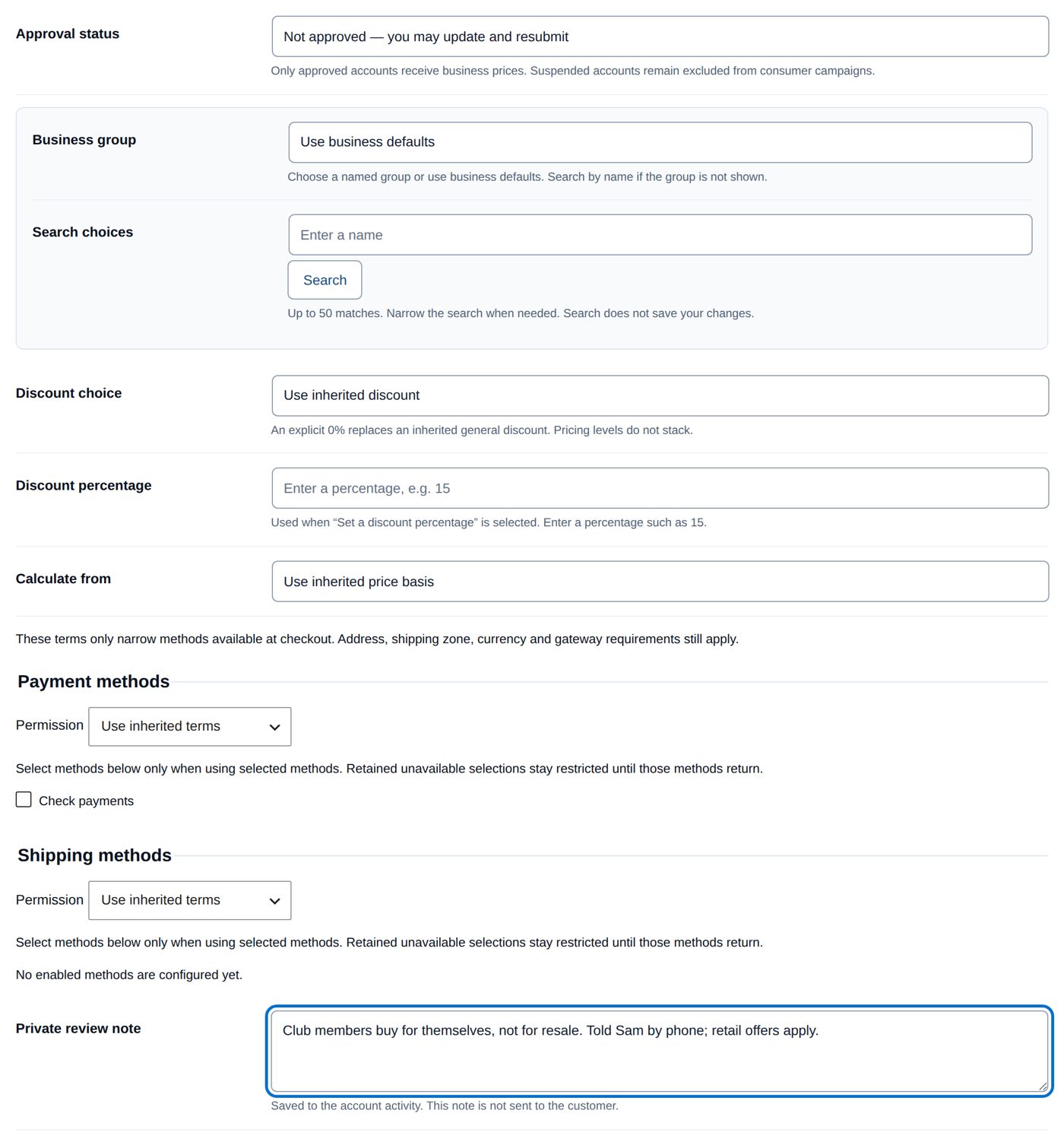
Sam Ito applied for Wild Rice Paddle Club. Its members buy for themselves, not for resale, so Harbor & Pine does not approve it.
- Accounts → Wild Rice Paddle Club: Approval status Not approved — you may update and resubmit, Private review note "Club members buy for themselves, not for resale. Told Sam by phone; retail offers apply."
- Review changes, Publish these changes.
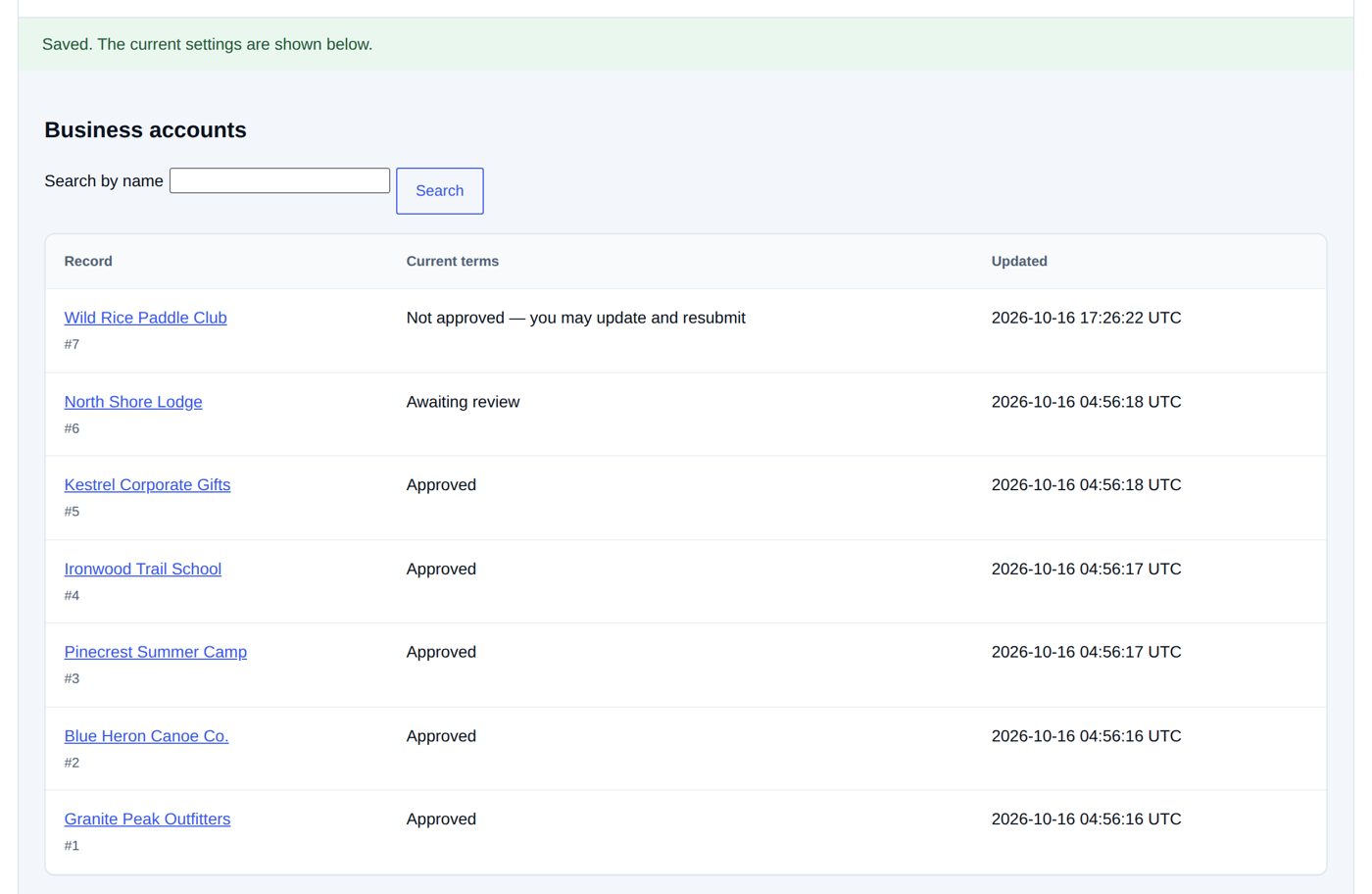
Sam reads the status, the Application not approved message and the form to update and resubmit. The private note is not shown to him; tell the customer the reason yourself, or write it into the message text under Messages. As an ordinary customer again, Sam gets your retail offers.
The Applications screen
Applications has six steps: Account types → Questions & fields → Approval & billing → Messages → Customer preview → Customer roles. Each change is reviewed and published.
1. Account types
B2B starts with Customer (regular registration, managed by WooCommerce) and one business type, Business. Add others with Add a business account type when different businesses should answer different questions or get different terms, for example Farm, Resale or Contractor.
| Field | At the start (type Business) | What it does |
|---|---|---|
| Account type key | business |
"A stable lowercase key such as farm or resale. This cannot be renamed after creation." |
| Customer-facing name | Business | what the applicant chooses |
| Help with choosing this type | "Apply for a business account. The store will review your application." | who should choose this type |
| Accept applications for this type | ticked | "Turn off to stop new applications. Existing accounts, pending applications and question references remain intact." |
| Approval policy (under After a valid application) | Review each application | or Approve valid applications automatically: "Automatic approval grants business access after server validation. Use manual approval when evidence must be checked first." Automatic approval checks the answers, not the documents. |
| Business group on approval | empty (business defaults) | the group an account of this type gets when it is approved (automatically, or by you with the group left on business defaults) |
| Customer role on approval | Keep existing customer roles | a limited customer role added on approval, for example to open a trade area with Gate Manager. "Only safe customer roles are offered." |
Up to 20 business types. The step's card Who gets access, and when? on Approval & billing lists each type with its policy and group, with Edit this approval policy.
2. Questions & fields
Your own questions, in addition to business name, contact name, phone and description (whose wording is on Setup & defaults). Up to 200 questions, of which up to three private documents.
| Field | What it does |
|---|---|
| Field key | "A stable name such as business_type. It cannot be renamed after creation." |
| Answer type | Short answer, Long answer, Email, Phone, Number, Website URL, Choose one, Radio choices, Choose several, Checkbox, Terms consent, Country, Date, Time, Date and time, Color, Private document, and Section heading and Description to structure the form |
| Question label, Example / placeholder, Help below the question | what the applicant reads; the placeholder is "An example, never a stored customer answer." |
| Require an answer when shown | the question must be answered |
| Show this question on new applications | switch a question off; "Submitted answers remain available." |
| Display order | 0 to 10,000, lower first; "A conditional question must follow its parent." |
| Who sees this question? | All business types or Selected business types below (tick them under Business account types). "Customer registration never shows business questions." |
| Choices, one per line | for Choose one, Radio choices and Choose several, up to 30 |
| Show when this earlier answer matches, Matching answer | a question that only appears after a certain answer to an earlier choice question |
| Use answer for | copy the answer into a billing field (with Reuse application details for billing on) |
| Starting answer, Field width | a suggested answer; Full width or Half width |
| Customer profile changes | Read-only after submission, Customer can update, or Staff review before applying |
| Contains sensitive information | "Keep this answer out of registration emails, order emails and order details." |
| Show this answer in | Customer business account, Registration emails, Staff order details, Order emails |
| Remove this question from future applications | on an existing question; "Submitted answers and documents are retained." |
Search questions finds a question by its label or key.
Worked example: ask for the resale certificate number
Harbor & Pine wants every business applicant's Minnesota resale certificate number.
- Applications → Questions & fields → Add a question.
- Field key
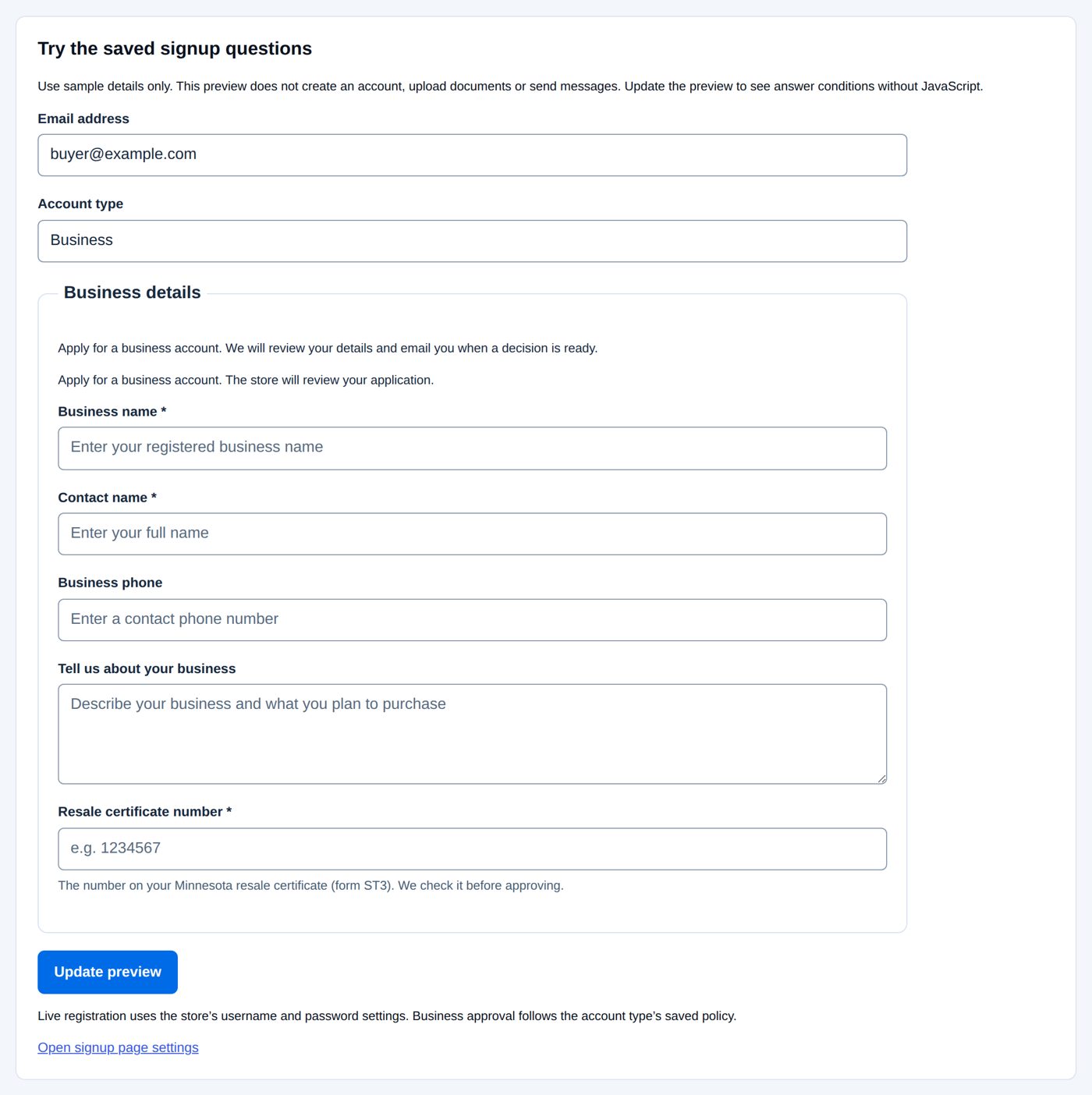
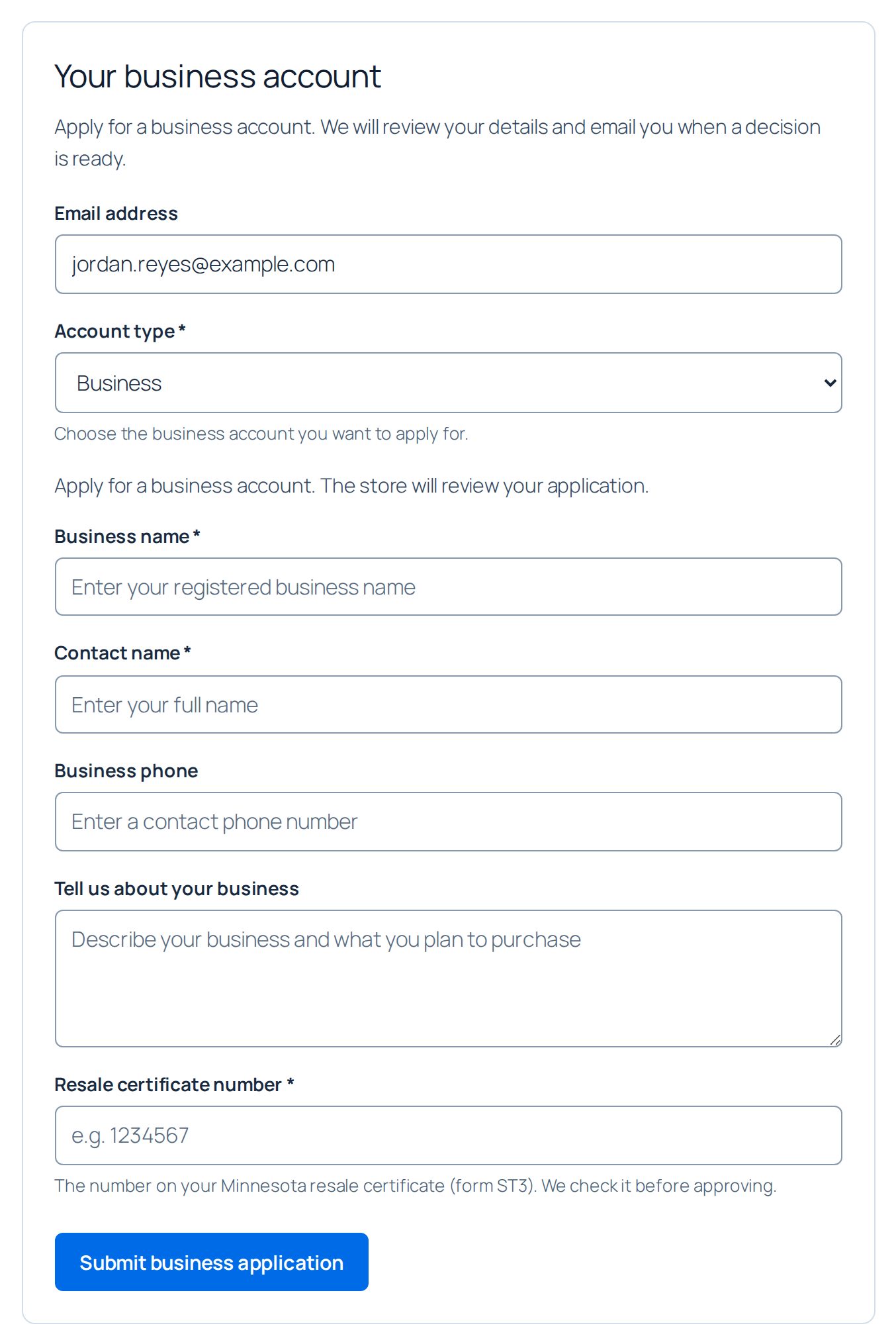
resale_number, Answer type Short answer, Question label "Resale certificate number", Example / placeholder "e.g. 1234567", Help below the question "The number on your Minnesota resale certificate (form ST3). We check it before approving.", Require an answer when shown ticked.
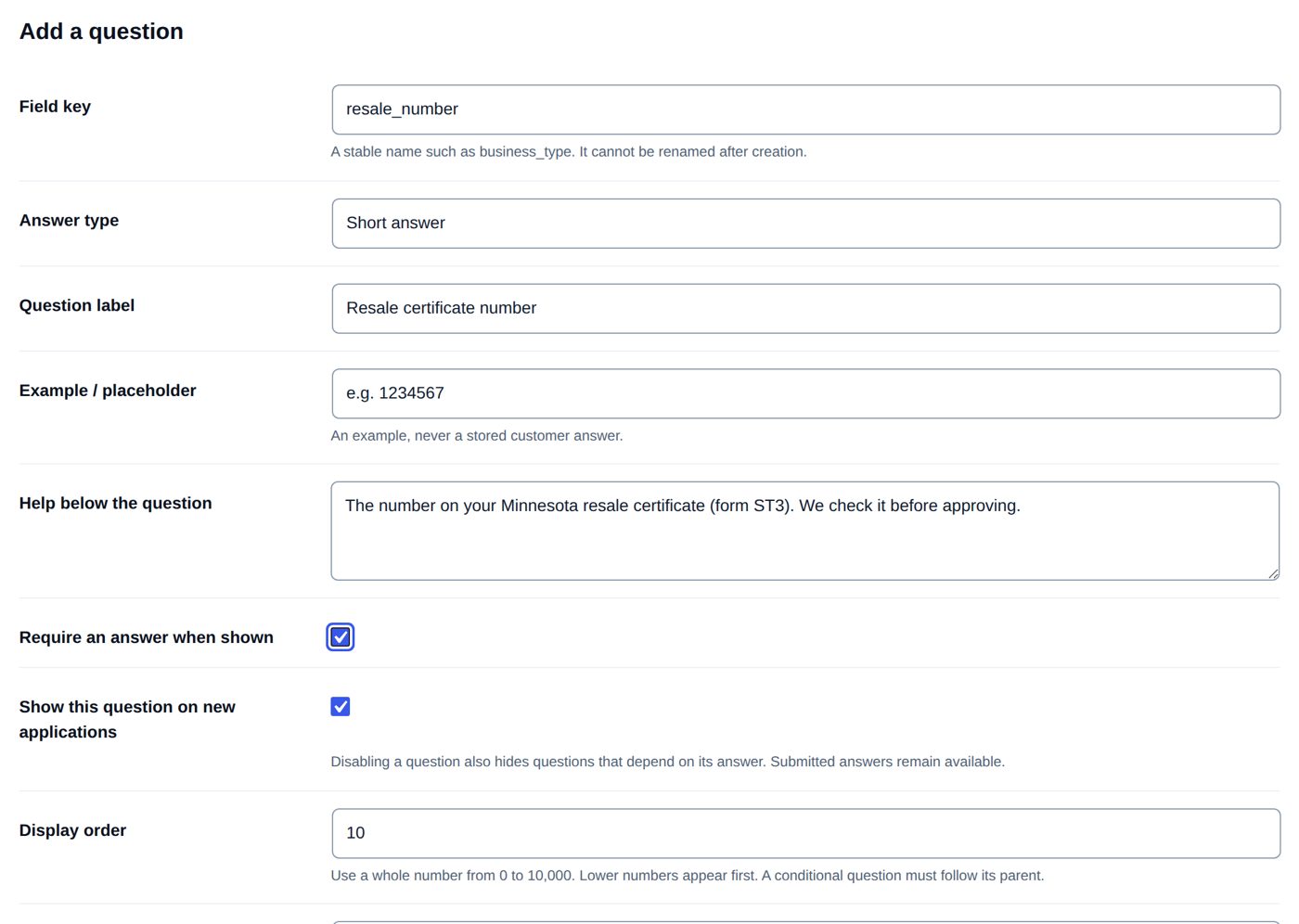
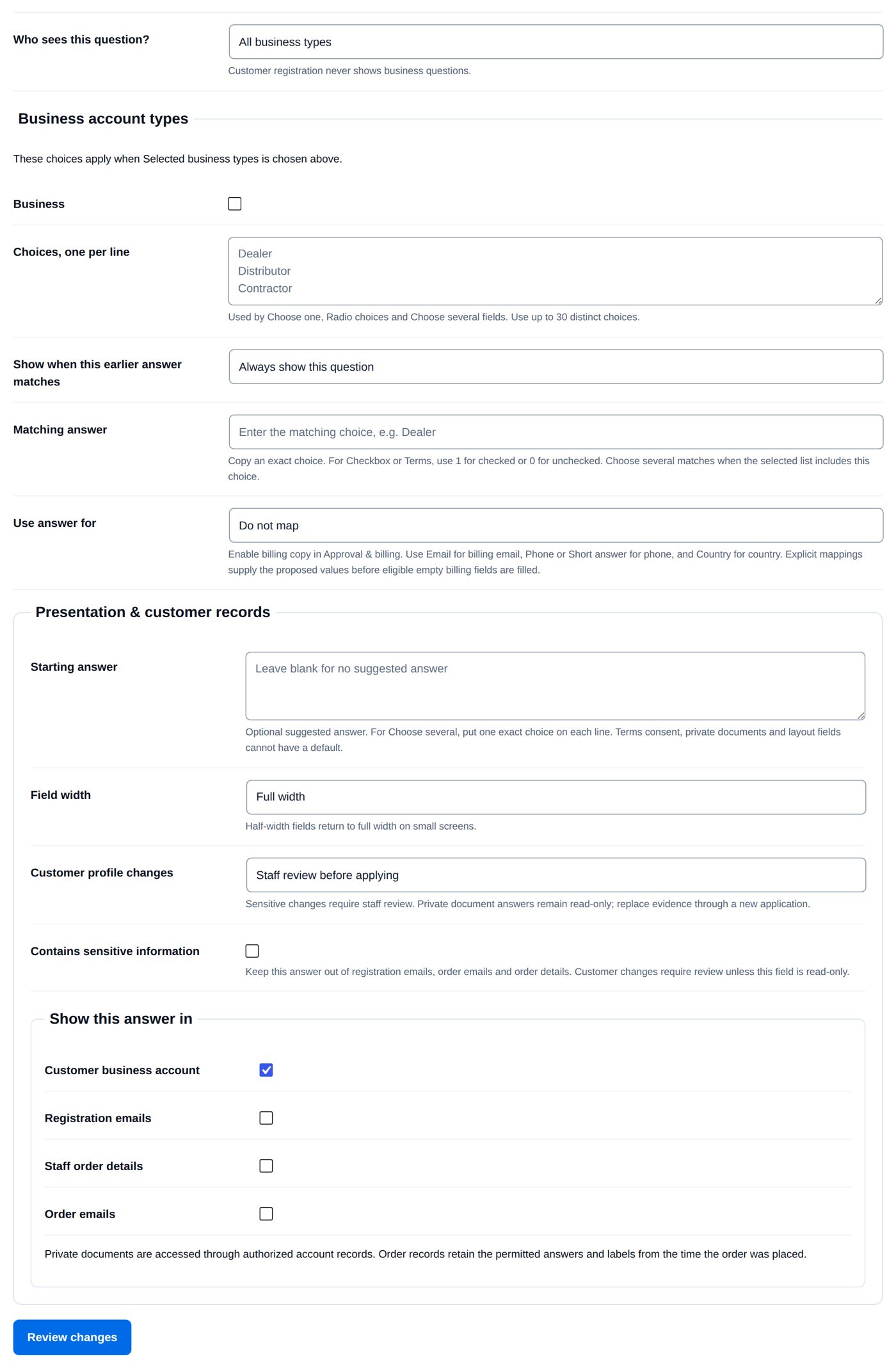
- Who sees this question? All business types; Customer profile changes Staff review before applying, so that a later change of the number waits for you.
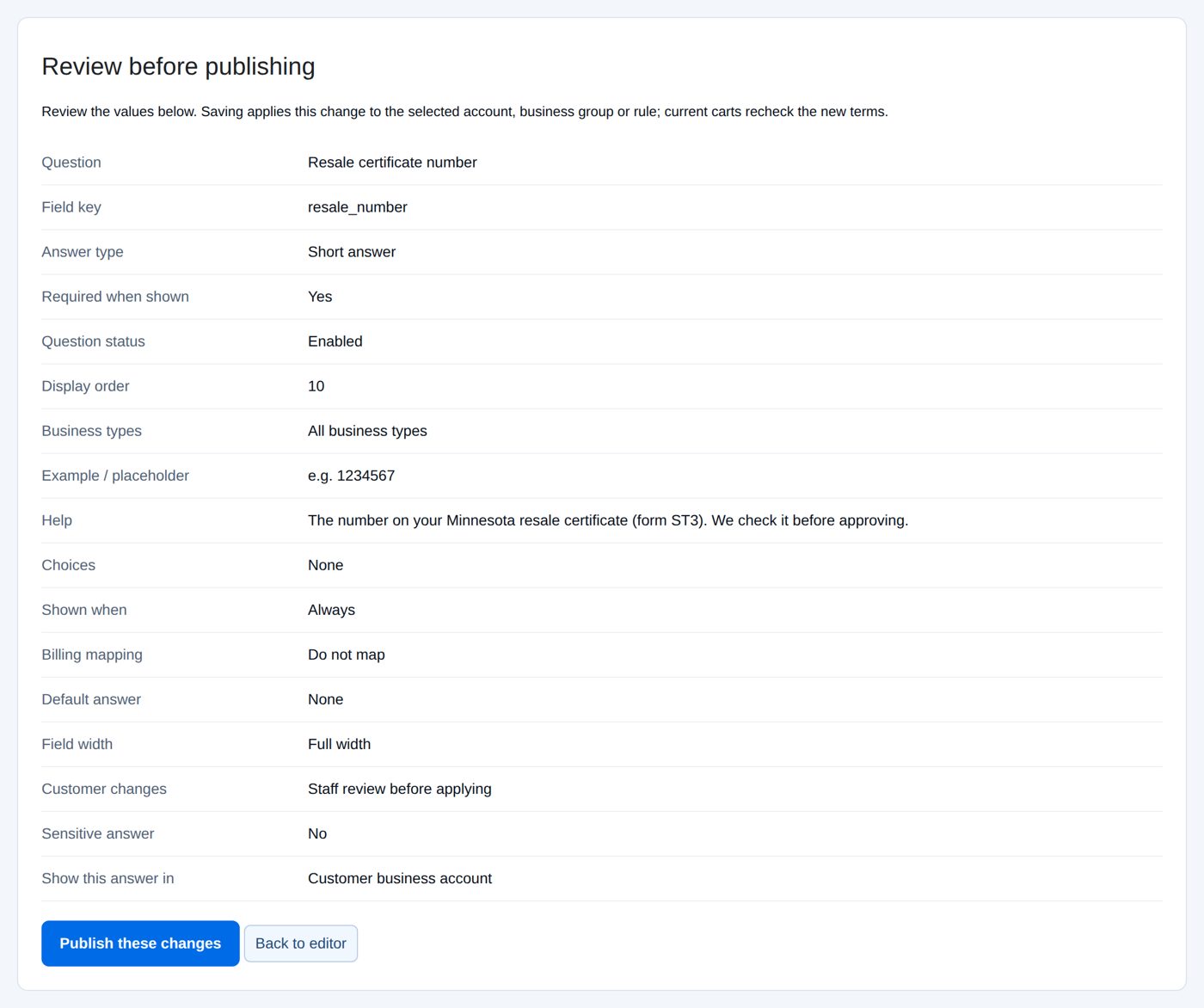
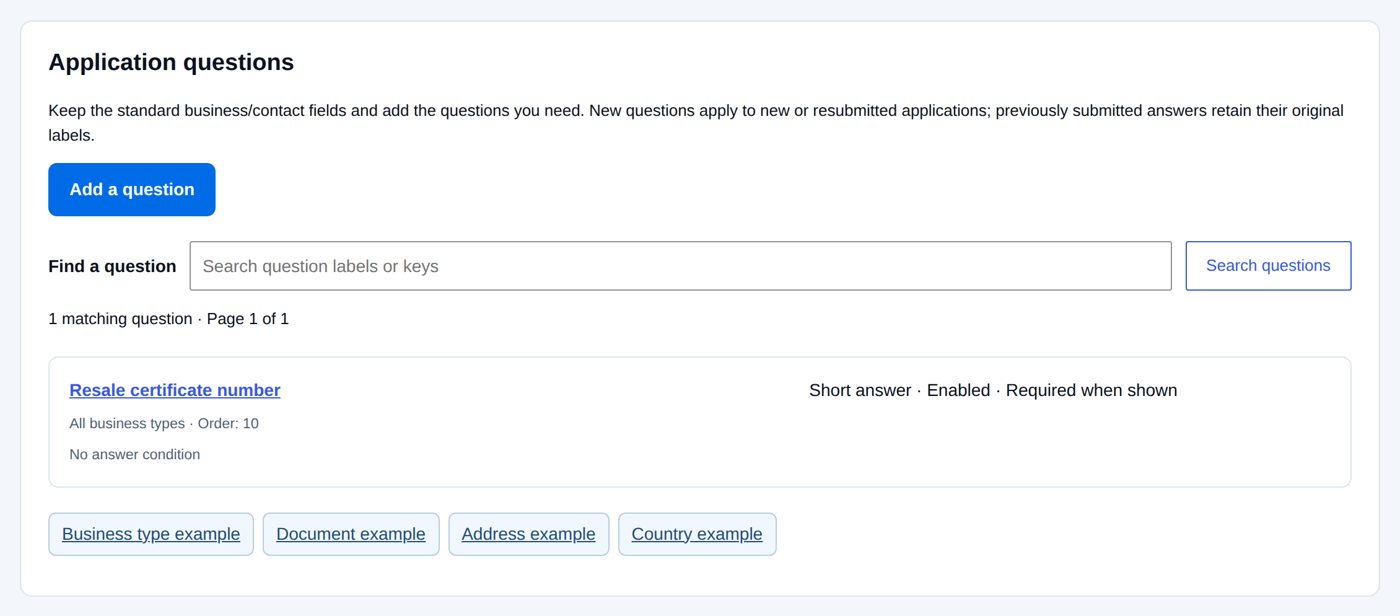
- Review changes, then Publish these changes: the question is in the list.
- Customer preview: choose the account type Business and Update preview to see the form as an applicant will, without creating a login or sending anything. Publish question changes before previewing them.
A signed-in customer who has not applied yet sees the new question on the signup page:
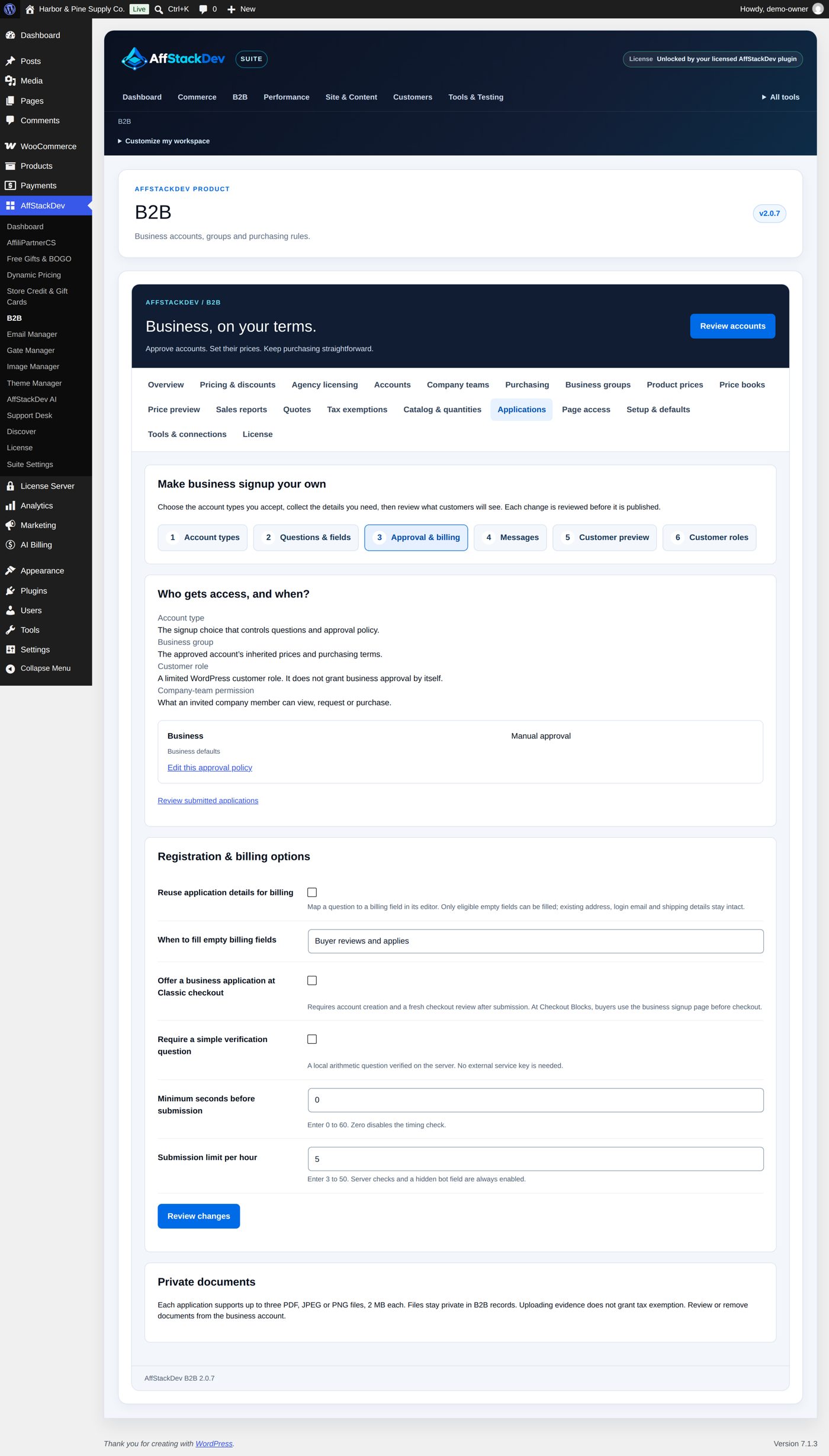
3. Approval & billing
| Field | At the start | What it does |
|---|---|---|
| Reuse application details for billing | not ticked | fill empty billing fields from the answers you mapped with Use answer for; "existing address, login email and shipping details stay intact" |
| When to fill empty billing fields | Buyer reviews and applies | or After a valid application, After business approval |
| Offer a business application at Classic checkout | not ticked | "Requires account creation and a fresh checkout review after submission. At Checkout Blocks, buyers use the business signup page before checkout." |
| Require a simple verification question | not ticked | "A local arithmetic question verified on the server. No external service key is needed." |
| Minimum seconds before submission | 0 | 0 to 60; "Zero disables the timing check." |
| Submission limit per hour | 5 | 3 to 50; "Server checks and a hidden bot field are always enabled." |
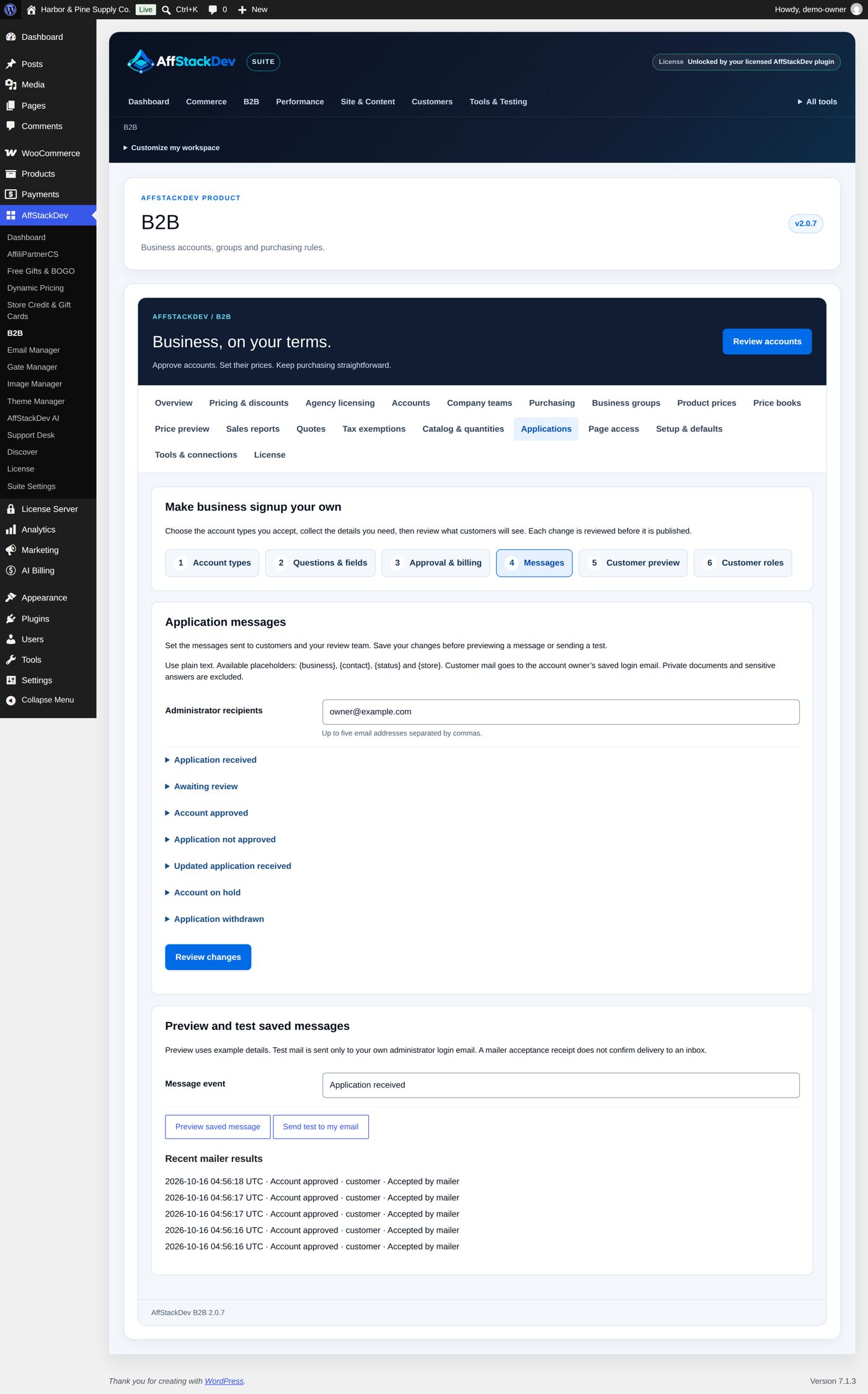
4. Messages
Administrator recipients: one to five email addresses separated by commas (the site's admin email at the start). Then one fold-out per event, each with Send to customer, Send to administrator recipients, Subject and Message:
| Event | To the customer at the start | To the administrators at the start |
|---|---|---|
| Application received | yes | yes |
| Awaiting review | no | no |
| Account approved | yes | no |
| Application not approved | yes | no |
| Updated application received | yes | yes |
| Account on hold | yes | no |
| Application withdrawn | yes | no |
"Use plain text. Available placeholders: {business}, {contact}, {status} and {store}. Customer mail goes to the account owner's saved login email. Private documents and sensitive answers are excluded." Each message can be up to 4,000 bytes.
Under Preview and test saved messages choose a Message event, then Preview saved message (with example details) or Send test to my email (to your own login email only; one test a minute). Recent mailer results lists the last messages with "Accepted by mailer" or "Not accepted by mailer"; acceptance by the mailer does not prove delivery to an inbox.
5. Customer preview
Try the saved signup questions as a visitor would, for each account type, without creating a login or sending anything.
6. Customer roles
Create limited customer roles that an approval can add (Create a customer role: Customer-role name, Stable customer-role key, Copy limited access from). They only allow reading the site, never staff rights: "Only the customer read capability can be copied." Preview customer-role assignment shows for one customer which roles an approval would give, without changing anything. A role on its own is not a business approval. Managing roles needs a store administrator who can change user roles.
When the business changes its details
The owner sees Update business details on their Business account page, with the questions you made changeable. "Some changes need store review. Until they are accepted, your current details remain in use." Answers set to Customer can update apply when saved; answers set to Staff review before applying wait for you under Profile changes awaiting review on the account. Accepting them does not change the approval, the group or the prices.
When it does not work
| You or the customer see | It means |
|---|---|
| "This account already has a business application. Check its current status." | The login already has an application that is not rejected or withdrawn. |
| "Business applications are currently closed. Please contact the store." | No account type accepts applications (Accept applications for this type is off everywhere). |
| "Sign in before applying for a business account." | The form was sent without a login. |
| "Registration has been updated. Choose your account type and complete the current form." | You changed the questions while the customer had the form open. |
| "Account type keys cannot be renamed. Reload the type or create a new one." | A key is fixed once saved; create a new type instead. |
| "That question no longer exists." | A colleague removed it; reload the list. |
| "Enter between one and five administrator email addresses." / "Each administrator recipient must be a valid email address without a display name." | Fix Administrator recipients: plain addresses, commas between them. |
| "The mailer did not accept the test. Check the store mail configuration." | Your site's mail setup refused the message. |
| "Application questions changed after this proposal. Ask the owner to submit their profile changes again." | The questions changed after the customer proposed new answers. |
| An approved customer gets no business price | Check the group and the account's own terms with Price preview (Business prices). |
Questions
Can I approve without reading each application?
Yes: Approval policy Approve valid applications automatically on the account type. B2B checks the answers; nobody looks at the documents. Use it only where that is enough.
Does a rejected customer lose their customer account?
No. Their login, orders and retail shopping stay; only the business status changes.
Can staff see the documents?
Yes, from the account. Downloads are for the account owner and your staff only and are never attached to emails.
Can I move an approved account to another group?
Yes: change Business group on the account, review and publish. The next cart uses the new terms.
Who in the company can change the application?
Only the account owner (the person who applied). Team members are told: "Your company owner manages the business application."
Related pages
| Page | What it covers |
|---|---|
| Getting started | The default terms, the signup page and your first business group. |
| Business prices | What an approved account pays, and how to check it before the customer buys. |
| Who sees and buys what | Products, prices and pages for approved businesses only. |
| Company buying | The approved business's portal, team, quick order and purchase approvals. |
| Gate Manager | A trade area for a customer role that approval adds. |