Applications
The program page and its application form: what applicants are asked and what they see, the Signup Page settings, and how you review, approve, ask for more information or reject an application, with the emails that go with each step.
What it is for
Clubs, blogs and creators apply on your program page. Each application waits under Applications until you decide. Approving it creates the partner record; plans, coupons, the account link and member pricing are set up next (Partners, plans and coupons). You can also skip the form and add a partner by hand (Add a partner by hand).
The application form
The form is on your Partner Program page (block Partner Program or Partner Application, shortcode [mos_partner_program] or [mos_partner_application]). Visitors can apply signed in or as guests; a signed-in visitor starts with their name and email filled in.
| Question | At the start | Notes |
|---|---|---|
| Organization / Community Name | required | Up to 255 characters. |
| Website / Community URL | required | A full address such as https://example.com/. WordPress checks that the address exists on the internet; local and private network addresses are refused. |
| Platform | required | The choices from Signup Page → Platform Options. |
| If Other, describe your platform | optional | Always shown. |
| Approximate Community / Audience Size | optional | The choices from Audience Size Options. |
| Role / Position | optional | |
| Contact Name | required | |
| Contact Email | required | Decisions are emailed here. |
| Phone Number | optional | |
| Primary Audience / Community Focus | required | Becomes the partner's description when you approve. |
| How Would You Like to Work With Us? | optional | Tick boxes from Partnership Interest Options. |
| How Do You Plan to Promote or Use the Program? | optional | |
| Current Partners / Sponsors / Affiliate Programs | optional | |
| Estimated Monthly Traffic or Referrals | optional | |
| Anything Else We Should Know? | optional | |
| The confirmation box | required | The text of Required Acknowledgement: "I confirm that I am authorized to apply on behalf of this community or organization, ..." |
Under the confirmation the Privacy Notice is shown, then the button (Submit Partner Application at the start). Which of the questions marked optional are asked, required or hidden, you choose on Signup Page (below).
What protects the form against mistakes and spam:
- A form sent less than two seconds after the page opened is refused ("The application was submitted too quickly. Please try again.").
- After an application, the same visitor waits five minutes before the next one (Submission Rate Limit).
- The same application again within 30 minutes is refused, and a second application for an email address whose application is still open (waiting or more information) is refused: "There is already an open Partner Program application associated with this email address."
- After an error the answers stay in the form for ten minutes, so nothing has to be typed again.
Worked example: Ridgeline Trail Runners applies
Sofia Brandt, president of a trail running club, opens Harbor & Pine's Partner program page and fills in the form: the club's name and website, WordPress, Under 1,000, her role and contact details, what the club is about, Public / Social Discount Code and Affiliate Links under How Would You Like to Work With Us?, and how the club would promote the store. She ticks the confirmation.
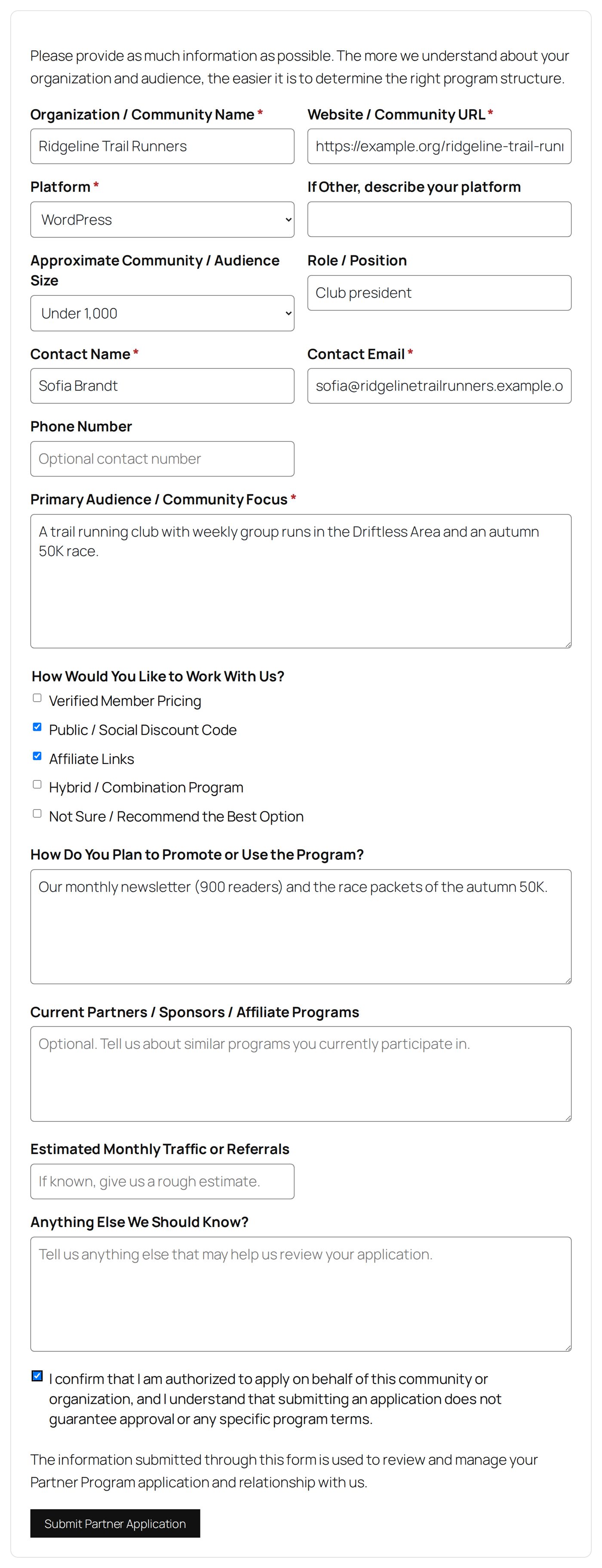
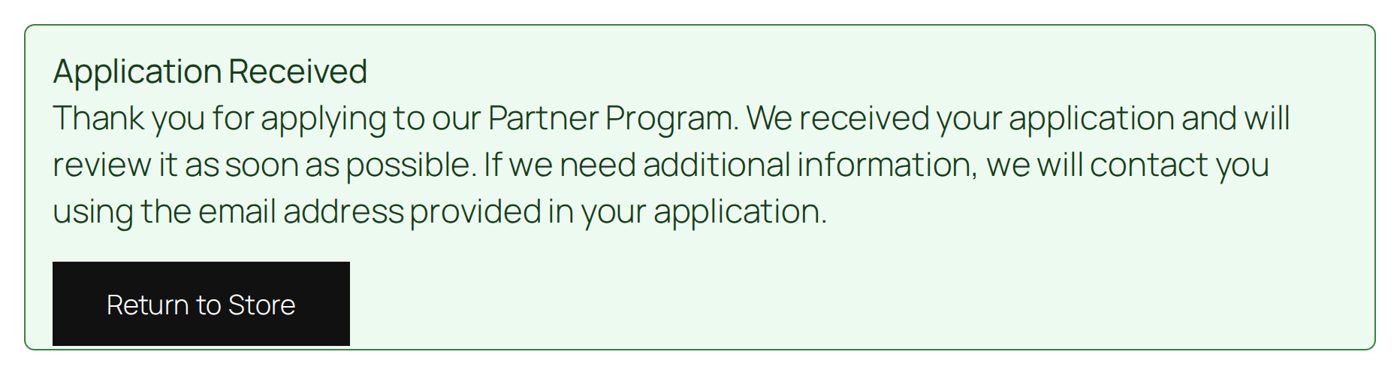
She chooses Submit Partner Application. The page answers with the Success Heading and Success Message of Signup Page (at the start "Application Received" and "Thank you for applying to our Partner Program. ...") and the Success CTA Text button, Return to Store:
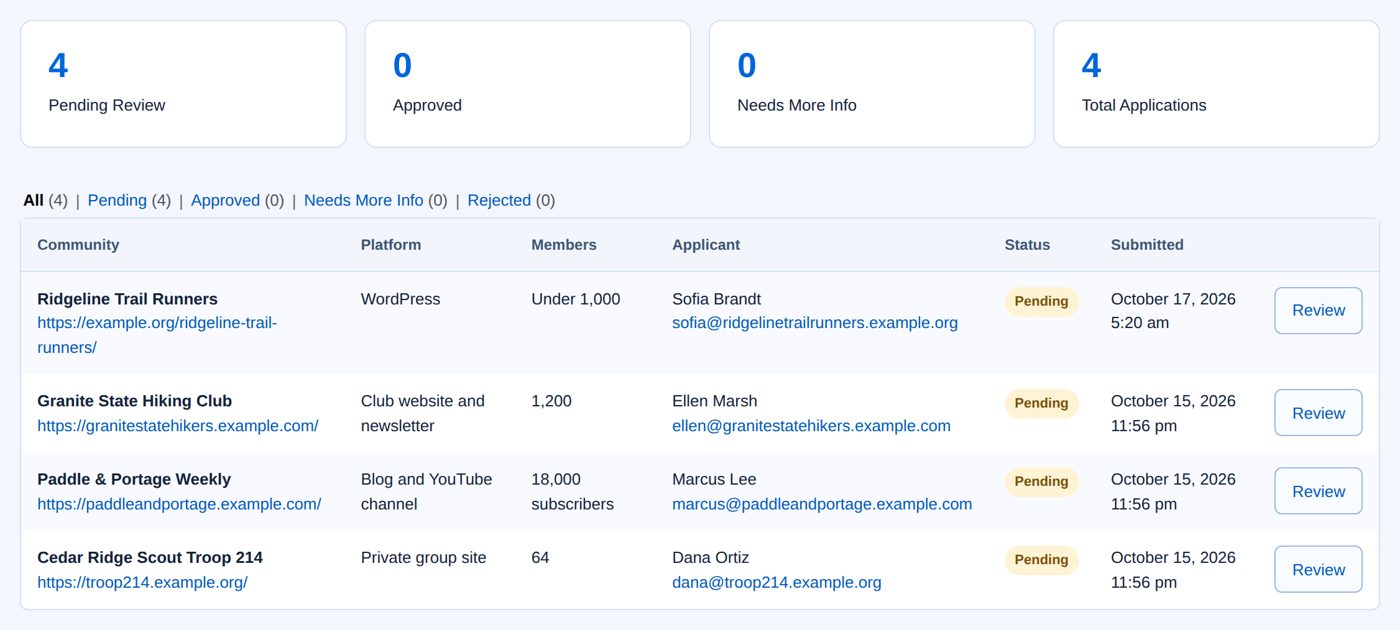
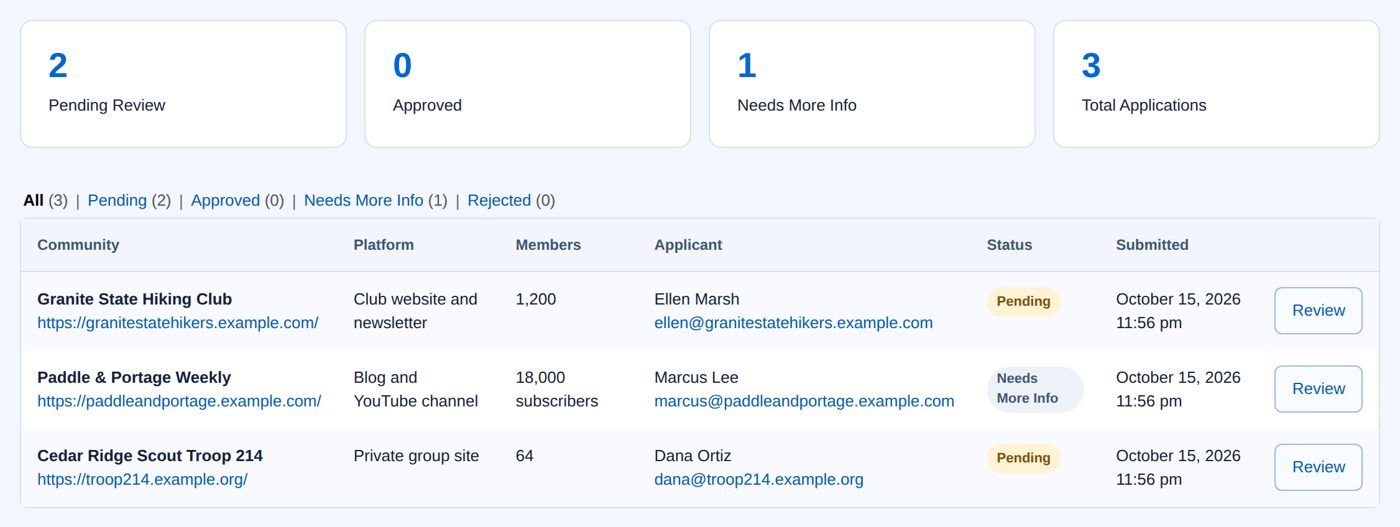
Sofia gets the applicant confirmation email and the store the admin notification (The application emails). Under Applications the club now waits as Pending Review:
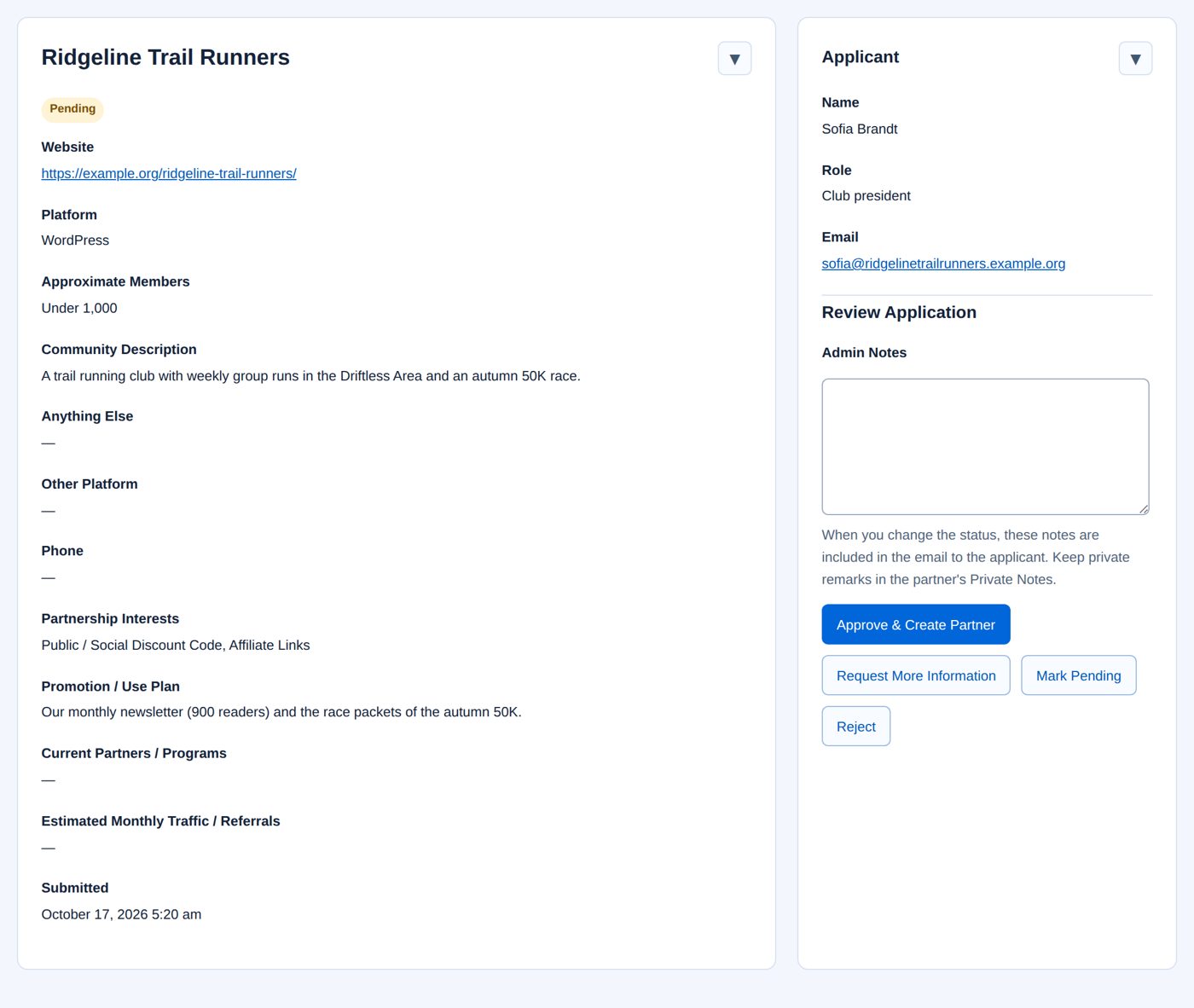
Review shows everything Sofia sent:
The Signup Page settings
Below Public Page Setup (Getting started) the Signup Page tab holds the wording of the program page and the form, in eight parts, saved together with Save Signup Page & Application Settings. View Public Partner Program Page opens the assigned page.
| Part | Fields | Notes |
|---|---|---|
| Hero | Page Kicker, Hero Heading, Hero Copy, Primary CTA | The top of the page. The button (Apply to Become a Partner) jumps to the form. |
| Why Partner With Us? | Section Heading, and Title and Copy for Verified Member Pricing, Partner Commissions, Affiliate Links, Public Coupons, Partner Dashboard, Flexible Programs | Six benefit cards. |
| Program Options | Section Heading, Section Intro, and for Verified Member Pricing, Public / Social Coupon, Affiliate Links and Hybrid Programs each Show this program on the signup page, a Title and a Copy | All four are shown at the start. Hiding a card changes only this page; it switches nothing off for partners. |
| Verified Integration, Security & Privacy | Integration Heading, Integration Intro, Integration Steps (one step per line), No-PII Explanation, Security Heading, Security Copy, Privacy Heading, Privacy Copy | How member pricing works, for communities. If you do not offer member pricing, hide the Verified Member Pricing card and reword this part. |
| How It Works | Section Heading, Steps | One step per line as Title|Description. |
| Application Form | Application Heading, Application Intro, Platform Options, Audience Size Options, Partnership Interest Options (one choice per line), then Hidden, Optional or Required for Audience Size, Role / Position, Phone Number, Audience / Community Focus, Partnership Interests, Promotion / Use Plan, Current Partners / Programs, Estimated Traffic / Referrals and Anything Else, and the Submission Rate Limit | Audience / Community Focus starts Required, the others Optional. The rate limit is 5 minutes per visitor at the start (1 to 1,440). |
| Your Own Questions | Up to 10 questions of your own | See Your own questions. |
| Terms, Privacy & Success Message | Required Acknowledgement, Privacy Notice, Privacy Policy URL, Submit Button, Success Heading, Success Message, Success CTA Text, Success CTA URL | The privacy link starts as WordPress's privacy policy page; the success button returns to the store. |
| Application Emails | Subject and Body of Admin Notification, Applicant Confirmation, Approval, Rejection, More Information and Partner Invitation | See The application emails. |
The default texts describe individual review and promise no rate, discount, payout threshold or approval. Change them to the program you actually run.

Your own questions
Under Application Form comes Your Own Questions: up to 10 questions of your own, asked after the built-in ones. For each, write the Question, an optional Help Text, choose the Answer Type (Short text, Long text, One choice from a list or Yes or no), for a list the Choices (one per line), whether to Show it Optional, Required or Hidden, and its Order. Save with Save Signup Page & Application Settings.
For example, Harbor & Pine asks "Which trail regions do you cover?" (short text, required) and "Main channel" (one choice of Blog, Newsletter, Video). An applicant who leaves the first one empty or sends another channel is told which question to fix, and their other answers stay in the form.
An application keeps each question as it was asked, so rewording a question later does not change applications you already have. You find the answers on the application's page, in the Applications CSV (column Your Own Questions), in the admin email if you add {custom_answers} to it, and in Review with AI.
Worked example: ask for the applicant's role, not the phone number
Harbor & Pine wants to know who in a club is applying, and does not call applicants.
- Open Signup Page. Under Application Form set Role / Position to Required and Phone Number to Hidden.
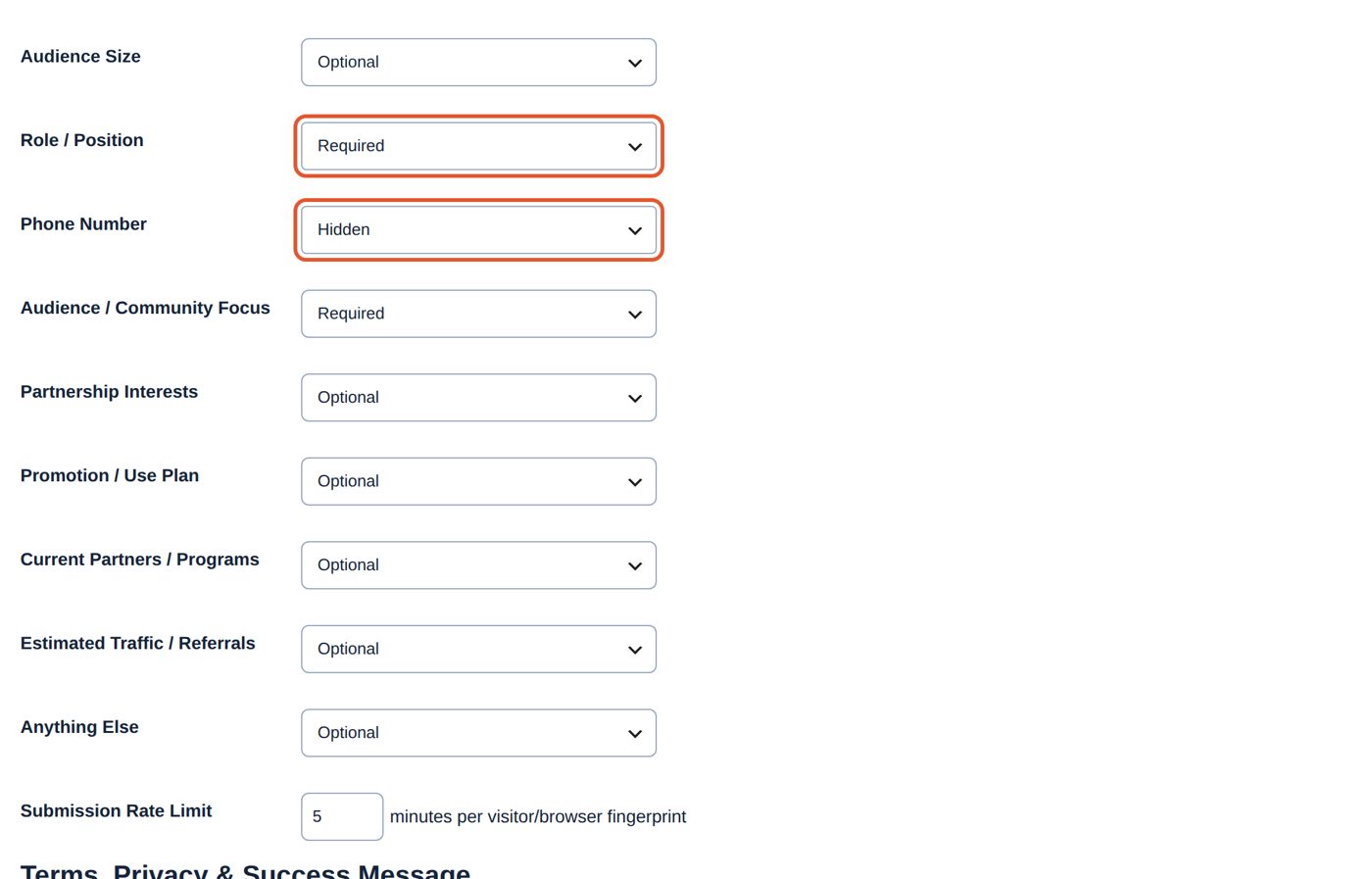
- Choose Save Signup Page & Application Settings: "Partner signup page settings saved."

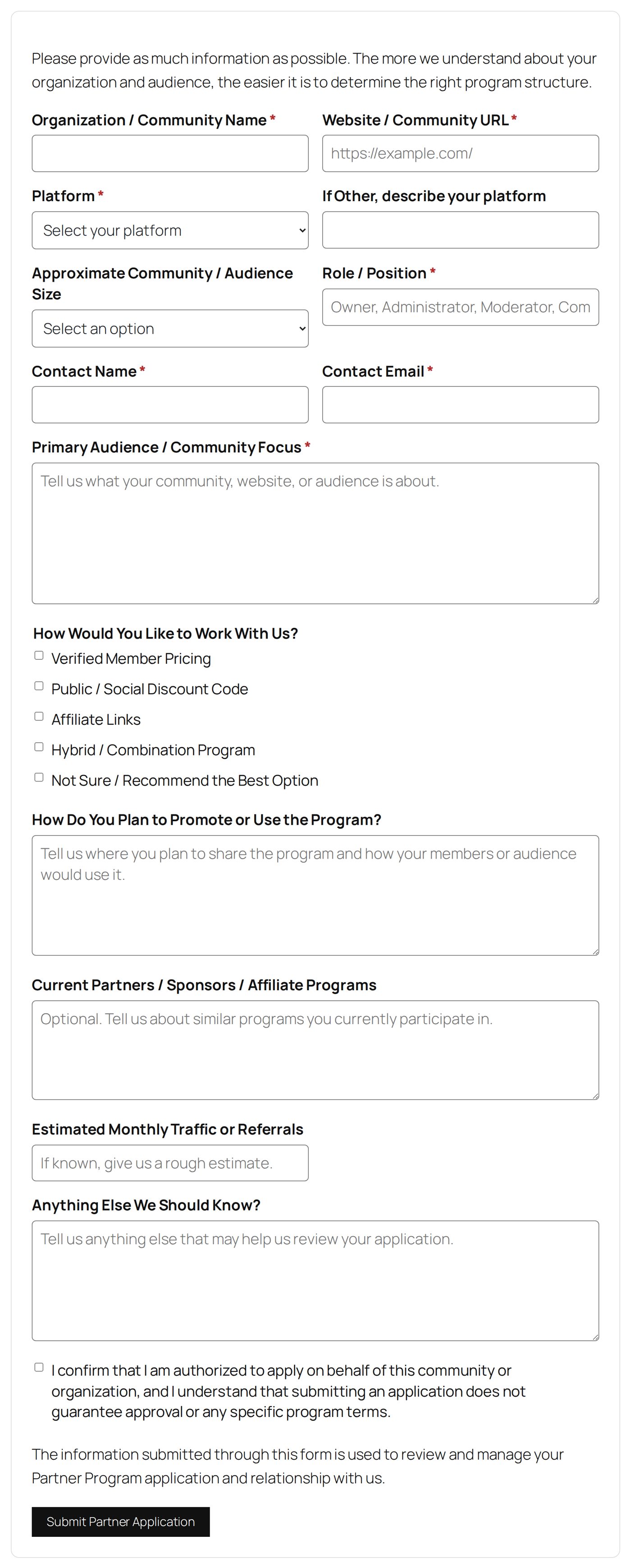
The form now marks Role / Position as required and has no phone question:
The Applications screen
Applications shows four counts (Pending Review, Approved, Needs More Info, Total Applications), the filters All, Pending, Approved, Needs More Info and Rejected, and 50 applications per page with Community, Platform, Members, Applicant, Status and Submitted. Review opens one.
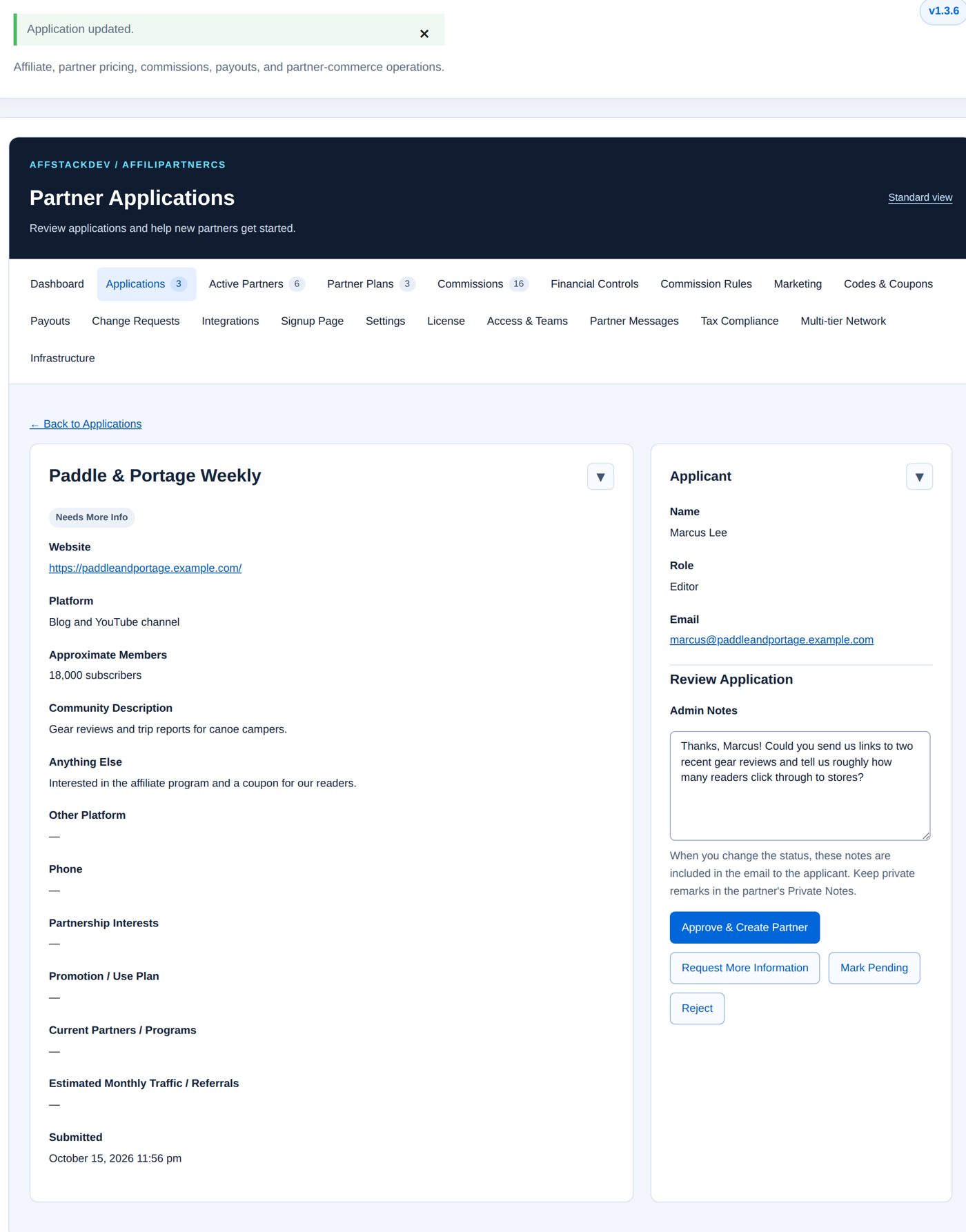
The review page shows the application on the left (Website, Platform, Approximate Members, Community Description, Anything Else, Other Platform, Phone, Partnership Interests, Promotion / Use Plan, Current Partners / Programs, Estimated Monthly Traffic / Referrals, Submitted) and the applicant with the decision on the right.
Two warnings can appear above Submitted:
- Possible duplicate / existing partner warning: saved with the application, for example "This domain already appears on partner record #3 (...)" or "An earlier application uses the same website/domain: ...".
- Related applications / partner records: other applications with the same email or website, a partner with the same domain ("Same domain is already used by partner:"), or a partner already linked to the applicant's login.
Check them before you approve, so one club does not get two partner records. No warning is not proof that the club is new: also look at the email and the partner list.
| Control | What it does |
|---|---|
| Admin Notes | Your notes on the application. "When you change the status, these notes are included in the email to the applicant. Keep private remarks in the partner's Private Notes." |
| Approve & Create Partner | Sets Approved and creates the partner record. Shown to staff who may manage authentication keys; others read "Creating the partner record also creates its authentication secret and requires the partner-authentication permission." |
| Create Partner Record | Instead of the above for an application that is already approved but has no partner. |
| Manage Partner | Once a partner exists: opens it. |
| Request More Information | Sets Needs More Info and emails the applicant your notes. |
| Mark Pending | Back to Pending for more review. |
| Reject | After "Reject this partner application?", sets Rejected and emails the applicant. |
Changing only the notes, without a new status, sends no email. Changing an application's status never suspends or deletes a partner that exists already.
Worked example: approve Granite State Hiking Club
Ellen Marsh applied for her hiking club; she wants a member discount and a link for the newsletter.
- Open Applications and choose Review for Granite State Hiking Club.
- Write Admin Notes for Ellen: "Welcome to the program, Ellen! Next we set up a member coupon for the club and send you an invitation to your partner dashboard."
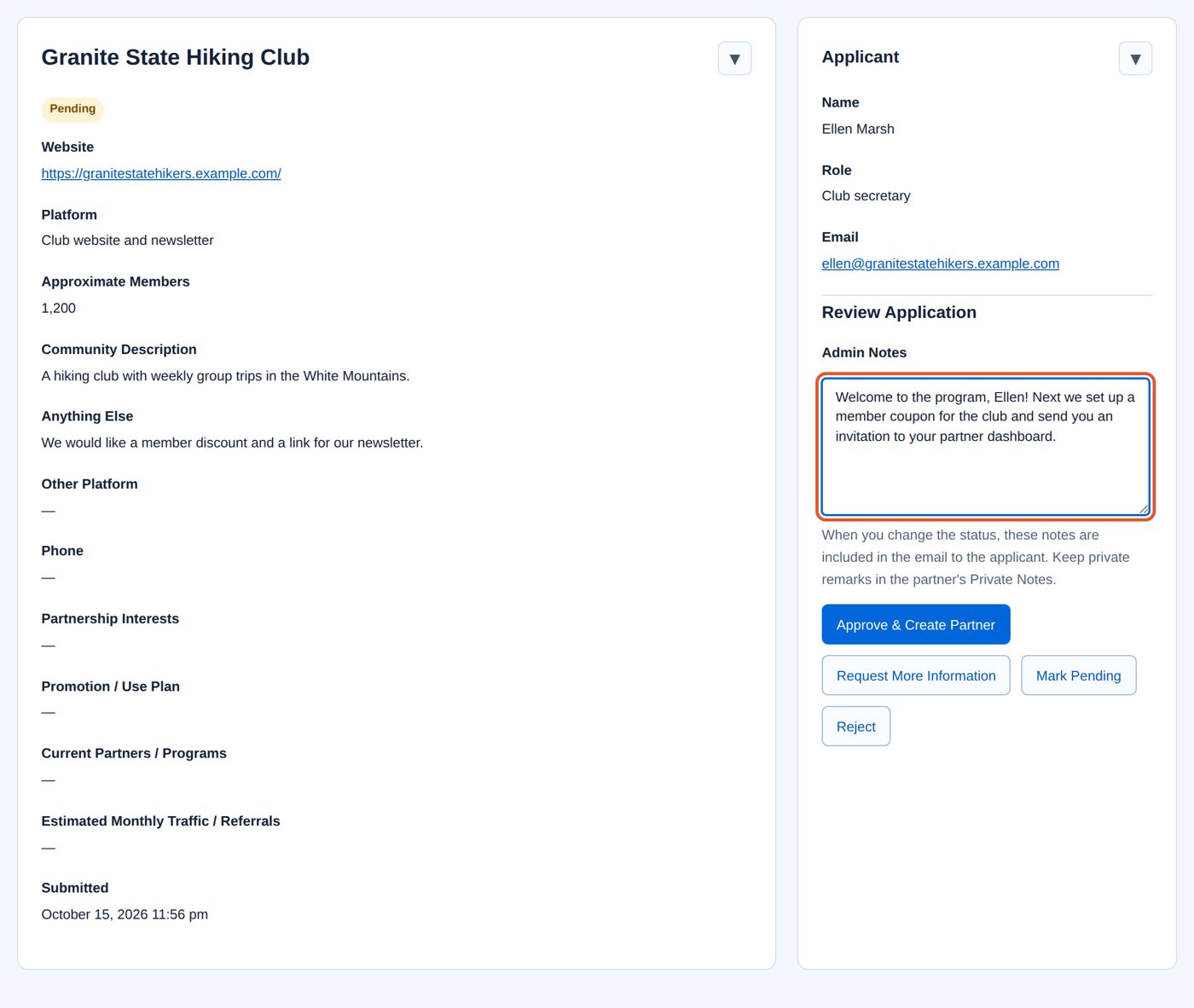
- Choose Approve & Create Partner. The page answers "Partner created. The application was approved and an AffiliPartnerCS partner record was created." and shows Partner Record Created with the new Partner ID
granite-state-hiking-club. Ellen gets the approval email with your note.
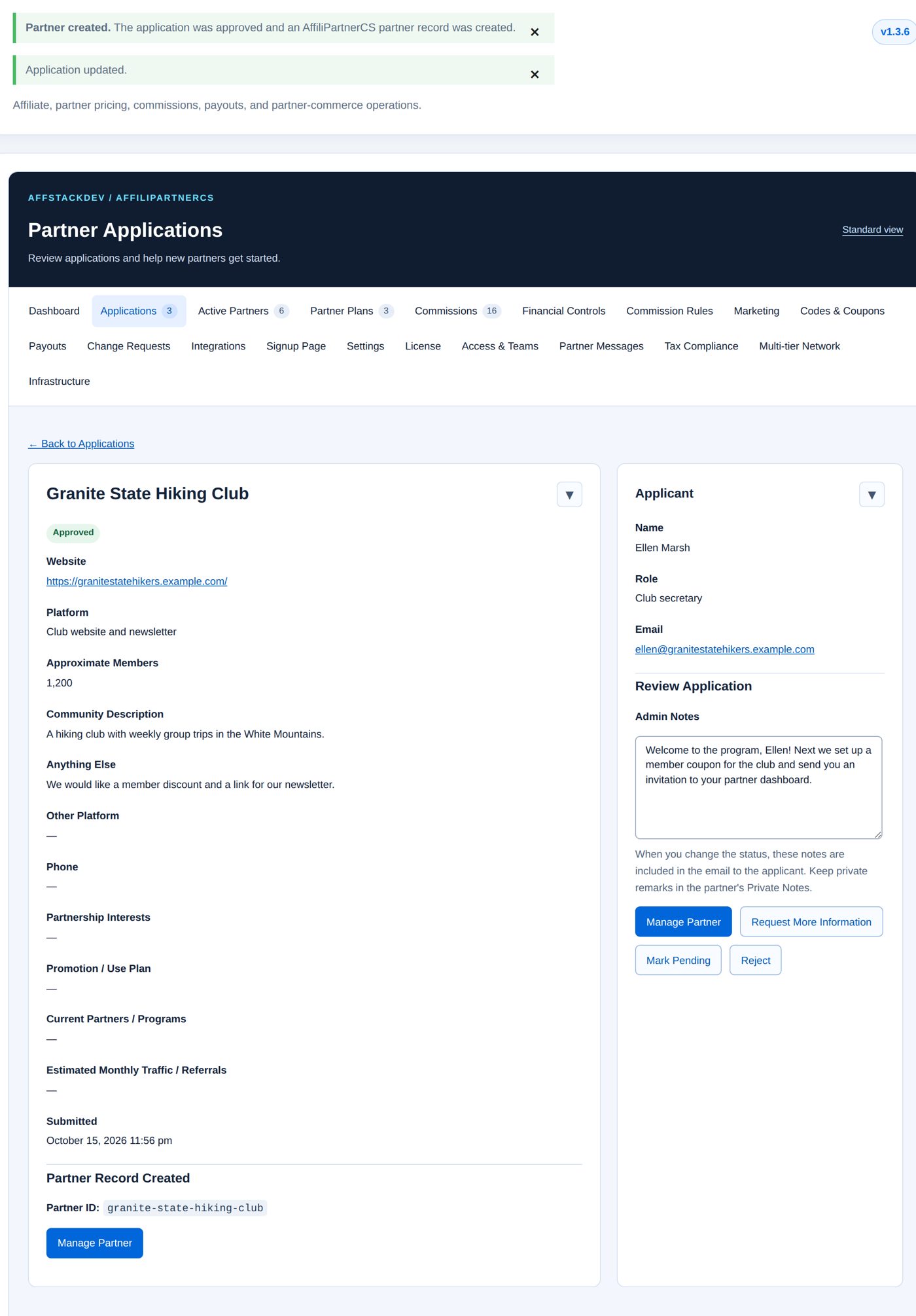
- Manage Partner opens the record. Its Onboarding Status lists what is still missing: Ellen applied without a store login, so Partner account linked is open; no plan or coupon yet, so Program configured is open, and the partner is not active yet.
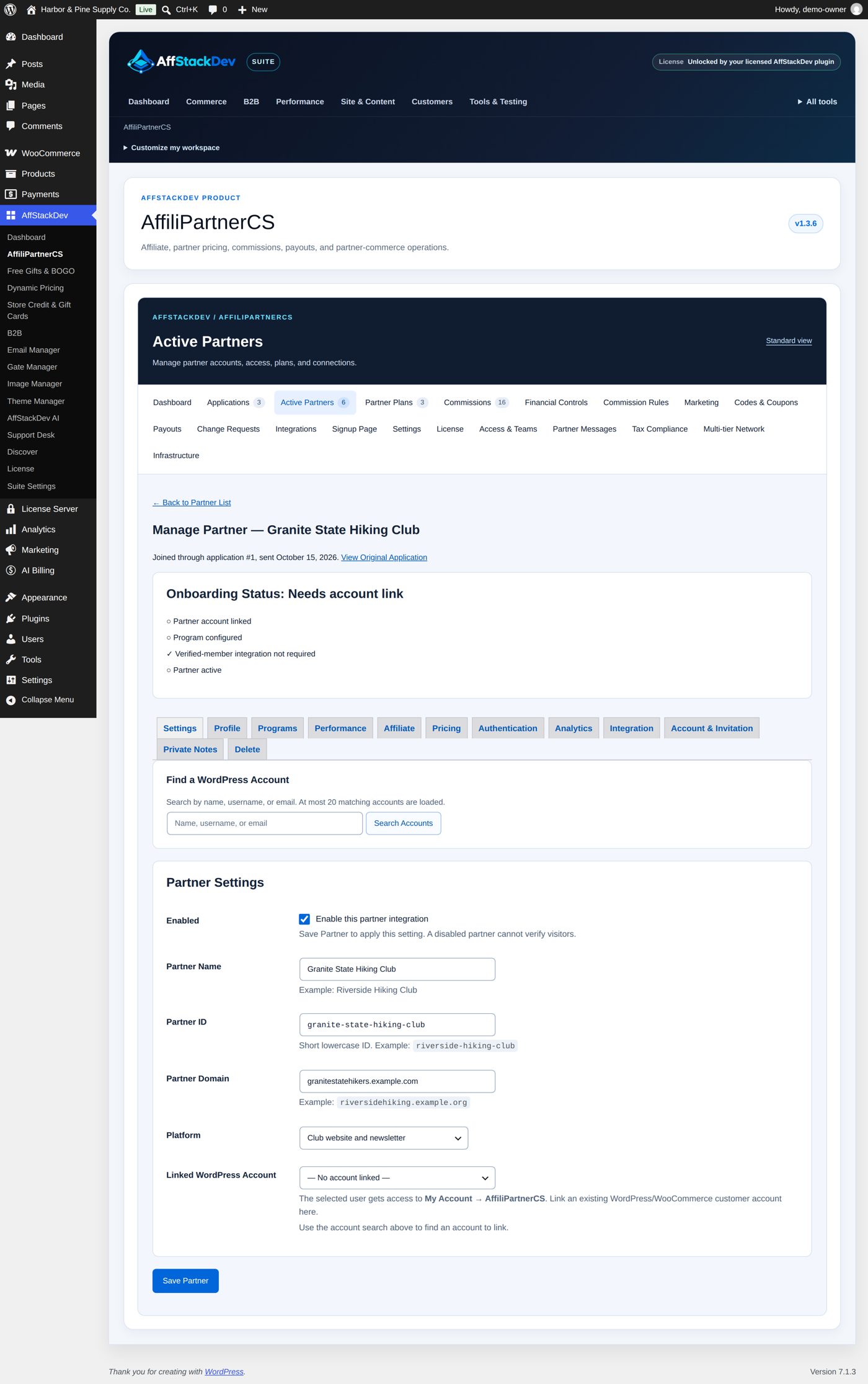
Under the club's name the record says "Joined through application #1, sent October 15, 2026." View Original Application leads back here. In Active Partners the club's row has Application next to Manage:

The record takes the club's name, website (as Home URL, with the domain), platform and description from the application, and gets its own Partner ID, affiliate code and authentication key. Its status is Pending Setup until a plan, coupon or affiliate link makes it ready. Next: link an account and send the invitation, give it plans and a coupon.
Worked example: ask Paddle & Portage Weekly for more information
Marcus Lee's gear blog wants the affiliate program. Before deciding, Harbor & Pine wants to see the blog's reviews.
- Review the application, write in Admin Notes: "Thanks, Marcus! Could you send us links to two recent gear reviews and tell us roughly how many readers click through to stores?"
- Choose Request More Information. The status is Needs More Info, and Marcus gets the email with your question.
Marcus answers by email (the application form refuses a second application while his is open). When you have what you need, approve or reject the same application.
The application emails
| Goes to | When | Switch under Settings → Email Notifications | |
|---|---|---|---|
| Admin Notification ("New Partner Application — {organization_name}") | the Admin Notification Email | an application arrives | New application submitted + applicant confirmation |
| Applicant Confirmation ("{program_name} Application Received") | the applicant | an application arrives | the same |
| Approval ("{program_name} Application Approved") | the applicant | you approve | Application approved / rejected / more information |
| Rejection ("{program_name} Application Update") | the applicant | you reject | the same |
| More Information ("More Information Requested — {program_name}") | the applicant | you request more information | the same |
| Partner Invitation ("Your {program_name} Partner Account Is Ready") | the partner's contact | you choose Link/Create Account & Send Invitation, or create a partner by hand with Invitation ticked | none: sent when you ask for it |
Subjects and bodies are set under Signup Page → Application Emails. Placeholders: {store_name} (your Merchant / Company Name), {program_name} (Program / Brand Label), {application_id}, {organization_name}, {website_url}, {platform}, {contact_name}, {contact_email}, {partnership_interests}, {custom_answers} (the answers to your own questions), {review_url} (the review page, for the admin email), {message} (your Admin Notes, in the decision emails), and for the invitation {partner_id}, {dashboard_url} and {account_note}. A placeholder that is misspelled stays in the email as written.
{message}, your Admin Notes, in their default bodies. Write notes as you would write to the applicant; keep private remarks in the partner's Private Notes.When it does not work
What an applicant can see:
| Message | It means |
|---|---|
| "Please enter a valid website URL." | The website address is not a full https:// address, or its name cannot be found on the internet. |
| "Please enter a valid contact email address." | The email is not valid. |
| "Please select your platform." / "... is required." | A required question is empty. |
| "Please confirm that you are authorized to submit the application." | The confirmation box is not ticked. |
| "Your application session expired. Please refresh the page and try again." | The page was open too long. Reload it; the answers are kept for ten minutes after an error. |
| "The application was submitted too quickly. Please try again." | Sent less than two seconds after the page opened. |
| "Please wait a few minutes before submitting another application." | The Submission Rate Limit after an earlier application from this browser. |
| "This application appears to have already been submitted recently." | The same application was sent within 30 minutes. |
| "There is already an open Partner Program application associated with this email address." | An application of this email still waits or needs more information. |
| "We could not save your application. Please try again or contact us if the problem continues." | The store could not save it; nothing was sent. |
What you can see:
| Message | It means |
|---|---|
| "Creating the partner record also creates its authentication secret and requires the partner-authentication permission." instead of Approve & Create Partner | Your role may not manage authentication keys. An administrator or an AffiliPartnerCS Manager approves. |
| "Application not found." | The application was deleted, or the address is wrong. |
| No emails arrive | Check the switches under Settings → Email Notifications and that your site sends mail at all. The application is saved even when an email fails. |
Questions
Can I approve without the applicant having a store account?
Yes. The partner record is created without a login; you create or link one afterwards with Account & Invitation (Partners, plans and coupons). If the applicant was signed in when applying, that login is linked at once.
Can an applicant withdraw an application?
Not from the store. They write to you, and you reject it or mark it as you wish.
Does approving give the partner a discount or commission?
No. A new partner has no plan, coupon or affiliate link until you give it one (Partners, plans and coupons).
Can I delete an application?
No; applications stay as the record of how a partnership started. Rejected ones stay under Rejected.
The program page is in my theme's style, not like the pictures. Why?
The page uses your theme's fonts and colors; the pictures of this page are taken in a plain WordPress theme.
Where do I find the application of an existing partner?
On the partner record, under its name: View Original Application; or Application in its row of Active Partners. Applications → Approved lists every approved application, each with Manage Partner. A partner added by hand has no application.
Related pages
| Page | What it covers |
|---|---|
| Getting started | Install, license, every program setting, the public program page and a first test. |
| Partners, plans and coupons | Partner records section by section, adding a partner by hand, plans, coupons, suspending and deleting. |
| The partner's workspace and more | What partners see and do under My Account, change requests, messages, teams, member pricing, staff roles, exports and maintenance. |