Image Manager
Keep your media in order, make pictures lighter without losing the originals, and keep a backup you can take with you. Free.
What it does
| Job | In one sentence |
|---|---|
| Organize | Folders and collections for the Media Library, without moving a single file; folders for your pages, posts and products too. |
| Edit a copy | Crop, rotate, flip or resize into a new picture; the original stays as it is. |
| Make pictures lighter | Prepares smaller versions on your own hosting, lets you compare, and offers them to visitors when you say so; measures how wide each picture is shown so phones get small files; can send pictures through your own CDN. |
| Check | Shows where a picture is used and what a visitor's browser really loads. |
| Back up and restore | A ZIP of your media with its details, to download or to send to your own Google Drive or S3-compatible storage. |
WordPress stays the owner of your media. Image Manager never deletes an original to save space.
What you need
- WordPress 6.5 or newer and PHP 8.1 or newer.
- One WordPress site (not a multisite network).
- Optional: a free Image Manager license from your AffStackDev account (it does not end). Image Manager works fully without it; the license adds signed updates from affstackdev.com and counts for the full mode of AffStackDev Suite.
- What your hosting can do decides the details: which picture formats it can write, whether it can turn a PDF page into a picture, whether it has a private folder for backups. Tools tells you.
Where it is
Media → Image Manager in the WordPress menu. With the Suite installed, Image Manager moves into the AffStackDev menu (AffStackDev → Image Manager) and the Media entry is no longer shown. Its tabs:
| Workspace | For |
|---|---|
| Library | Your media with folders and collections, and the results per picture. Open library at the top leads there too. |
| Optimize | Start and follow the work that makes pictures lighter. |
| Backups | Create, download, import and restore media backups. |
| Settings | What may happen by itself, and what visitors are offered. |
| Tools | What your hosting supports, and the checks for when something does not run. |
The license is on Image Manager's License & Updates tab.
The Media menu also shows Image Manager AI inputs. It is only used together with the AffStackDev AI assistant (to hand it a file or a password without typing it into a chat); you can leave it alone.
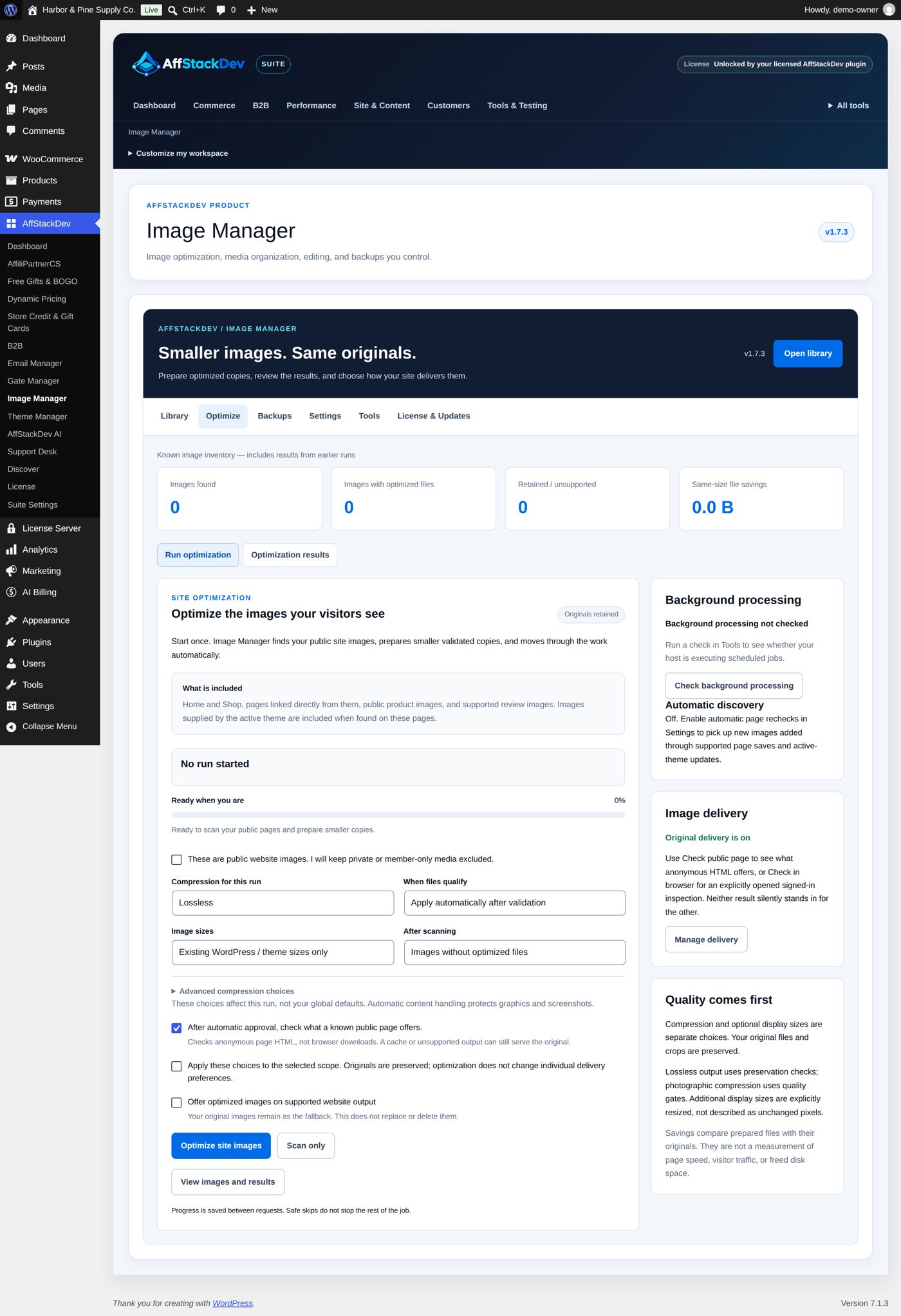
Nothing starts by itself
Installing Image Manager changes nothing on your site. It does not scan, compress, replace or publish anything until you tell it to. Everything that could change what visitors see is switched off at the start.
Switching it off or removing it
Deactivating Image Manager stops its background work and switches off four settings: Offer optimized images on supported website output, Automatically optimize eligible future uploads, Automatically recheck changed public pages and theme updates and Deliver pictures through this CDN. Visitors then get the original pictures again. Originals, lighter copies, folders, collections and backups all stay, so pages still cached with the lighter copies keep working. After you activate it again, switch those settings back on in Settings (the CDN with Check and save).
Deleting the plugin keeps all of this as well; there is no "delete everything" choice. To remove the lighter copies on purpose, keep delivery off and use the clean-up action for selected pictures before you delete the plugin.