More: quantity prices, sets, coupons, what shoppers see
Cheaper from 3 pieces, three for $54, $10 off an order of $100, caps, conditions, which rule wins, rules that add to other offers, how coupons and store credit fit in, shoppers in another currency, offer prices in the shop, product page tables, history, reports, moving rules, and where to look when a price is not what you expected. With worked examples.
Cheaper in quantity
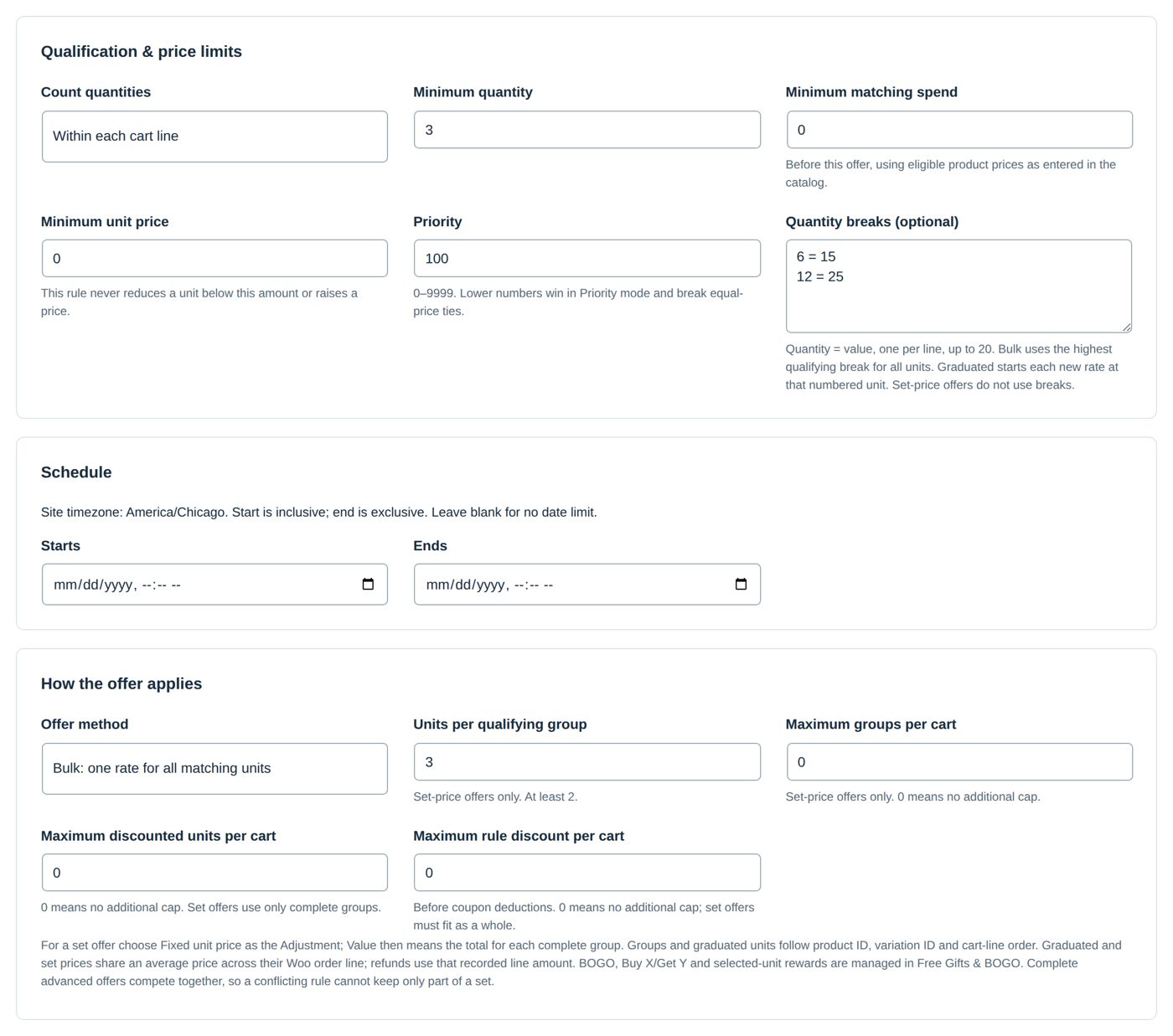
Quantity breaks (optional) (in Qualification & price limits) are lines like 6 = 15: from 6 pieces the value is 15. One per line, up to 20. A break's value means what the rule's Adjustment means: percent, amount off, or price.
Offer method (in How the offer applies) decides what a break does:
| Offer method | From 10 pieces at "5 = 10, 10 = 20" (percent) |
|---|---|
| Bulk: one rate for all matching units (the start) | All 10 pieces get 20% off: the highest break reached counts for every piece. |
| Graduated: breaks apply from their numbered unit | Pieces 1 to 4 get the rule's base value, pieces 5 to 9 get 10%, piece 10 gets 20%: each rate starts at its piece. |
Count quantities says how pieces are counted: Across eligible matching products (3 of one and 2 of another make 5) or Within each cart line.
Below the first break the rule's own Value applies. If there should be no discount below 5, set Minimum quantity to 5.
Worked example: wool socks, cheaper by the pack
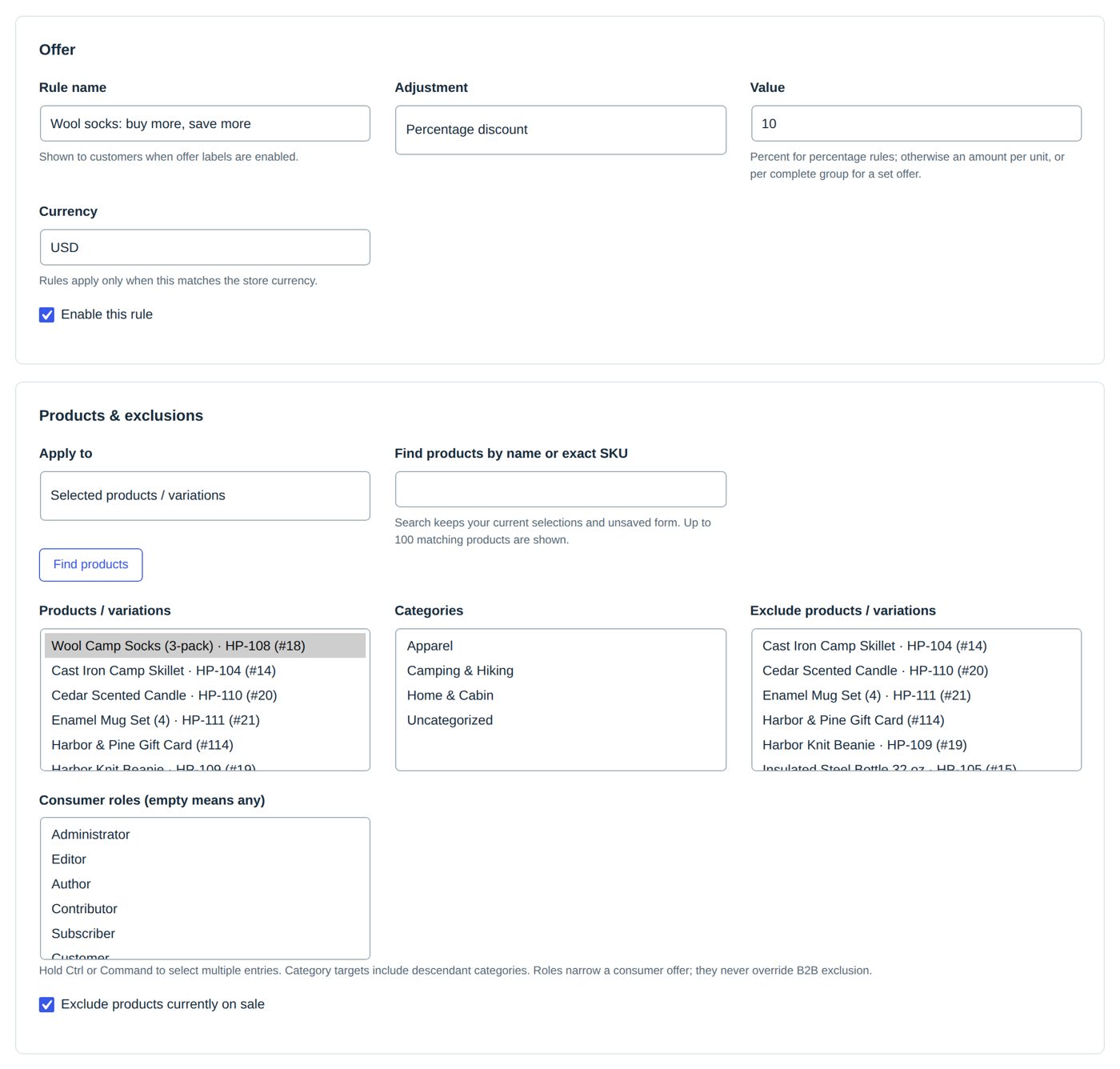
Harbor & Pine's "Wool socks: buy more, save more":
| Field | Value |
|---|---|
| Adjustment, Value | Percentage discount, 10 |
| Apply to | Selected products / variations: Wool Camp Socks (3-pack), $28 |
| Count quantities | Within each cart line |
| Minimum quantity | 3 |
| Quantity breaks (optional) | 6 = 15 and 12 = 25 |
| Offer method | Bulk: one rate for all matching units |
So: 3 to 5 packs, 10% off each; 6 to 11 packs, 15%; 12 or more, 25%.
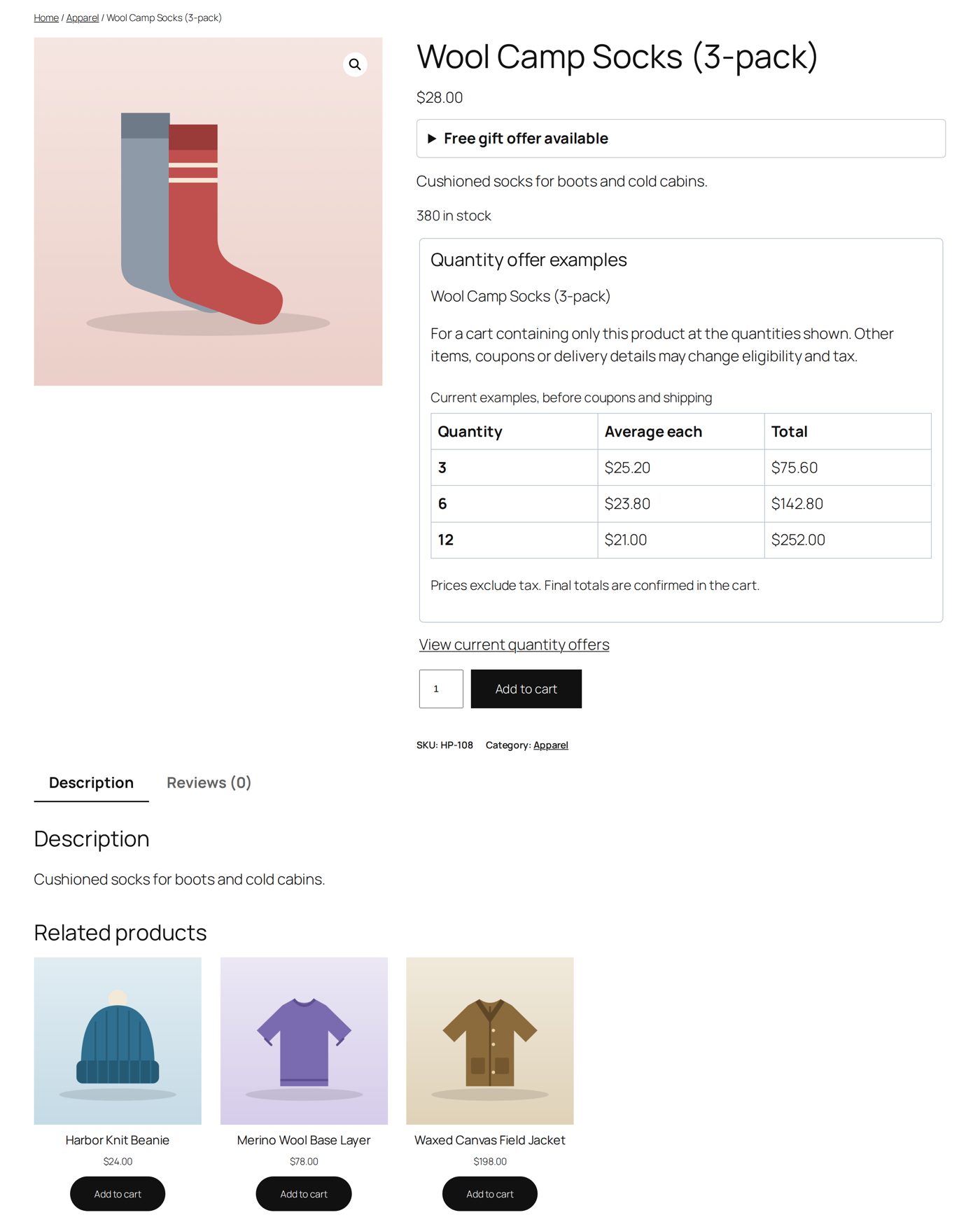
With Show quantity offer examples on product pages on (Settings & integrations → Shopper displays), the product page shows Quantity offer examples: 3 packs $25.20 each ($75.60), 6 packs $23.80 each ($142.80), 12 packs $21.00 each ($252.00), "before coupons and shipping"; "Final totals are confirmed in the cart."
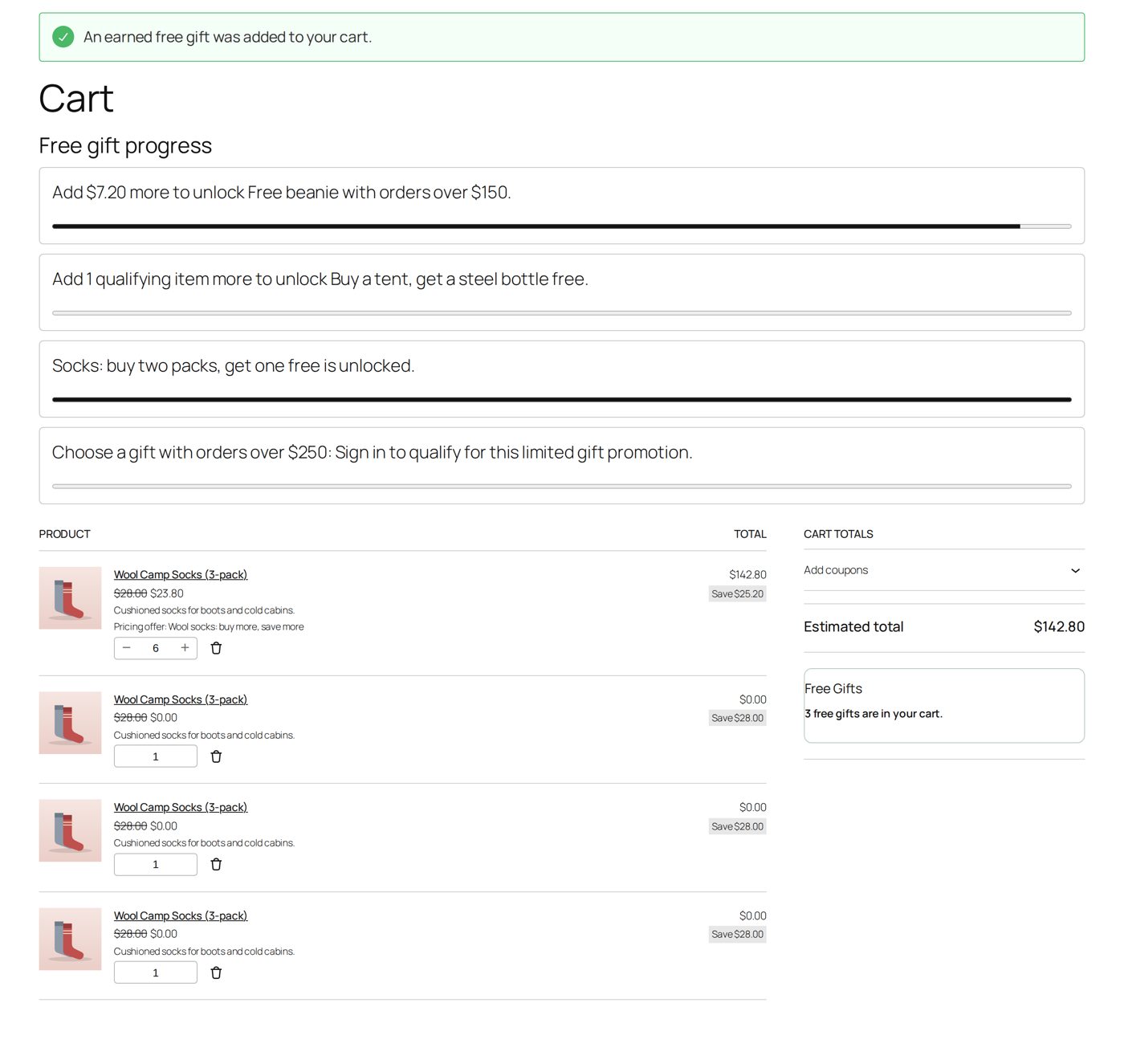
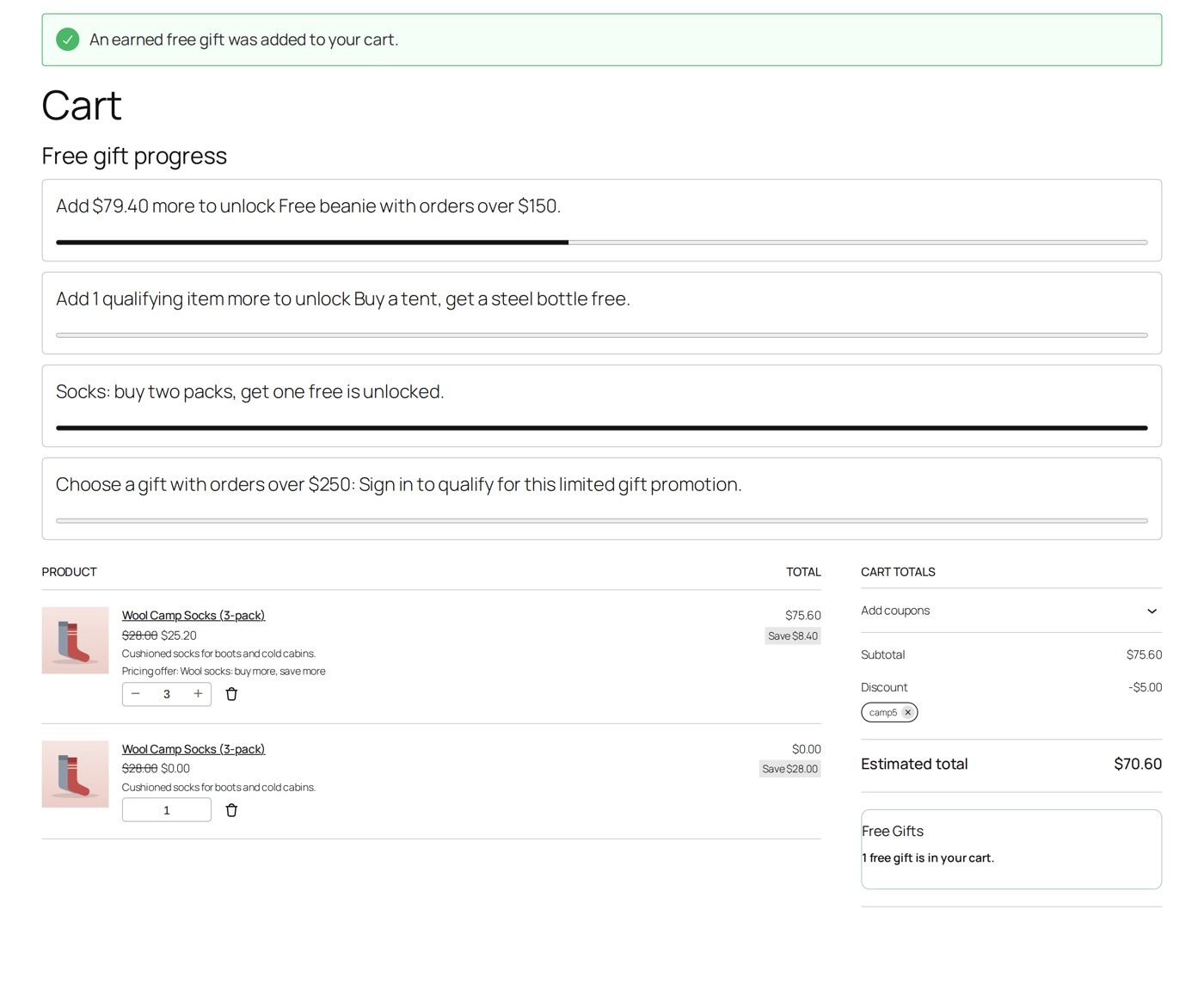
Six packs in the cart cost $23.80 each, $142.80 together ("Save $25.20"), with "Pricing offer: Wool socks: buy more, save more" under the line. The store's own Free Gifts & BOGO promotion "buy two packs, get one free" adds three more packs at $0.00; they are gifts and get no price from Dynamic Pricing.
A price for a set
"Any 3 for 30": Adjustment Fixed unit price, Value 30, Offer method Mix and match: any complete group for a set price, and Units per qualifying group 3. Every complete group of three matching pieces costs 30 together. Pieces that do not fill a group keep their normal price. A set price does not use quantity breaks.
Worked example: candles, 3 for $54
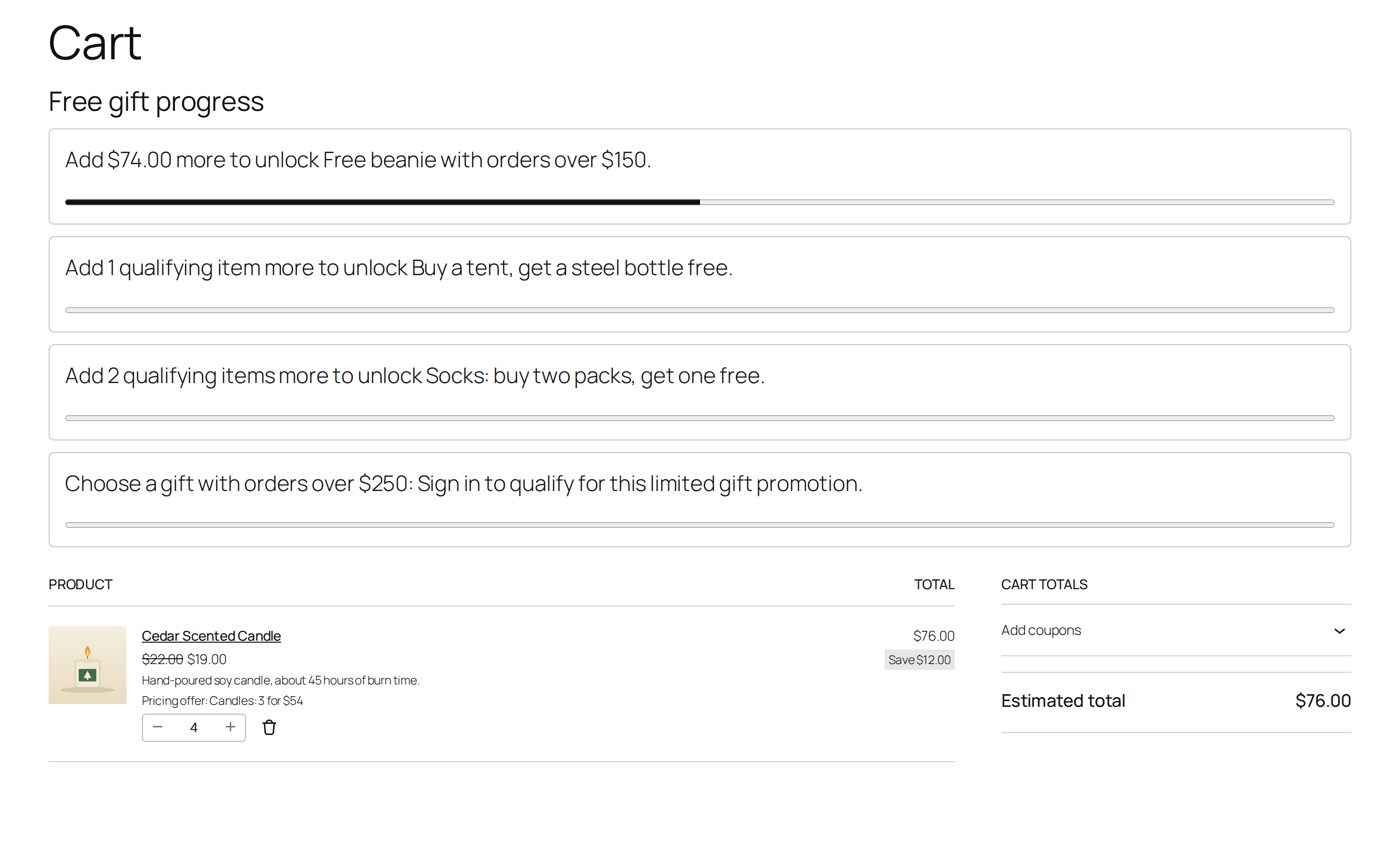
Harbor & Pine's "Candles: 3 for $54" (the Cedar Scented Candle costs $22): Fixed unit price, Value 54, Mix and match: any complete group for a set price, Units per qualifying group 3.
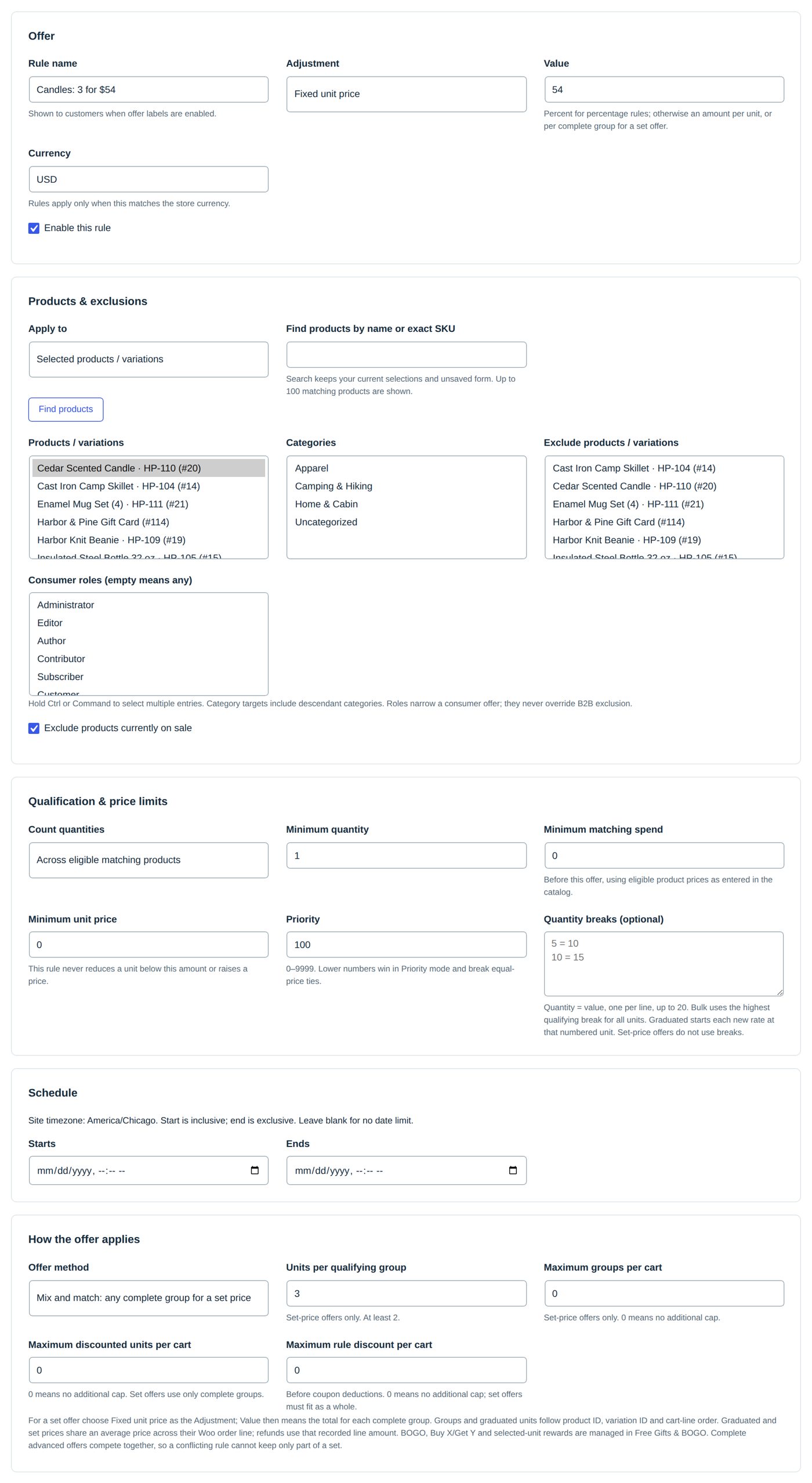
Four candles cost $76.00: three for $54 and the fourth for $22. The cart line shows the average, $19.00 each ("Save $12.00"); the order keeps the same average for the line, and refunds follow that line amount.
An amount off the order
"$10 off orders of $100 or more": Offer method Order discount: an amount or a percentage off the matching products together, Adjustment Fixed reduction: per unit, or once per cart for an order discount, Value 10, and Minimum matching spend 100. With Percentage discount the value is that percentage of the matching products together; Maximum rule discount per cart caps it ("15% off from $50, at most $12").
Apply to decides which products count towards the spend and share the discount: All eligible purchased products for the whole order, or chosen products, categories, tags, brands or attribute values. Roles, dates, the exclusions and Additional conditions work as in any rule.
The discount is shared out over the matching cart lines in proportion to their prices, to the cent, so the cart and the order come out exactly $10 lower: each line shows its new price, and a refund of one line gives back that line's share. If the whole discount does not fit above the rule's Minimum unit price, the order discount does not apply at all, never half of it. An order discount does not use quantity breaks, Maximum groups per cart or Maximum discounted units per cart; for a ladder ("$10 off from $100, $25 off from $200") make two rules: with Compare offer savings the larger one wins.
An order discount is one offer over all its lines: where another rule also fits a line, the two compete as in When two rules fit the same product, and the order discount wins or loses as a whole.
Worked example: $10 off orders of $100
Harbor & Pine's "$10 off orders of $100": Order discount, Fixed reduction: per unit, or once per cart for an order discount, Value 10, Minimum matching spend 100, All eligible purchased products. A shopper buys two packs of Wool Camp Socks ($28 each, $56) and two Cedar Scented Candles ($22 each, $44): $100 together. The socks' line carries $5.60 of the discount ($25.20 each), the candles' line $4.40 ($19.80 each): $90.00, exactly $10 less. With $99 in the cart nothing changes; the cart hint (Show next quantity / spend target in the cart) names a piece to add to reach it.
Caps
Three optional limits per cart in How the offer applies, each 0 (no limit) at the start: Maximum groups per cart (set prices only), Maximum discounted units per cart, and Maximum rule discount per cart (before coupons; the only one an order discount uses). Minimum unit price (in Qualification & price limits) is the lowest price per piece the rule may give.
Conditions
Additional conditions let a rule ask for more. A Condition group matches ALL conditions in this group or ANY condition in this group (Match); Add condition and Add group build it, up to 12 per group. A Condition compares (At least, At most, Equals / includes, Does not equal / excludes, More than, Less than) one of: Eligible cart quantity, Eligible cart catalog amount, Matching quantity, Matching catalog amount, Customer role, Customer type (guest or registered), Retained paid order count, Net paid order amount, Previously purchased product / variation. History conditions take History lookback days (0 = all time). Purchases paid with store credit count as purchases.
When two rules fit the same product
On Settings & integrations, When rules overlap decides once for all rules:
| Choice | Wins |
|---|---|
| Compare offer savings | Offers are compared in priority order; a later offer replaces the ones it conflicts with only when it saves more in total. Sets stay whole. It does not try every possible combination: the Simulator shows the result. |
| First rule by priority wins | The rule with the lowest Priority number that lowers the price at all, even if another would be cheaper. |
Among these rules, discounts are never added on top of each other; different lines of one cart can have different winners. An order discount and a set price stay whole: they win or lose all their lines together. The Simulator's Rule decisions and the Order inspector show which rule won and why.
Rules that add to other offers
Tick Adds to other offers (in How the offer applies) on a rule that should come on top of the others instead of competing with them. Every rule starts with the box empty, so nothing changes until you tick it.
Such a rule waits until the competing rules have priced the cart, then lowers what they left: "20% off shirts" wins the shirts' lines, and "$10 off orders of $100" with Adds to other offers then takes $10 off the order at the shirts' new price. Several rules that add to other offers apply one after the other, by Priority (lowest number first), each on the price the earlier ones left. Each still never goes below its own Minimum unit price and keeps its own caps; a line no competing rule priced gets it alone. Its minimum quantity, Minimum matching spend and Additional conditions count the catalog prices, as for any rule.
The cart line names all the rules that priced it ("Pricing offer: 10% off shirts + $10 off orders of $100"), the order keeps them in that order, and Reports lists such lines under the rules together.
Worked example: 10% off socks, then $5 off the order
The socks rule (10% off) competes as usual; "$5 off orders of $50" (Order discount, Fixed reduction: per unit, or once per cart for an order discount, Value 5, Minimum matching spend 50) has Adds to other offers ticked. Two packs of socks ($28 each) and a candle ($22), $78 at catalog prices: the socks go to $25.20 each, then the $5 is shared over $72.40: $67.40.
Coupons and store credit
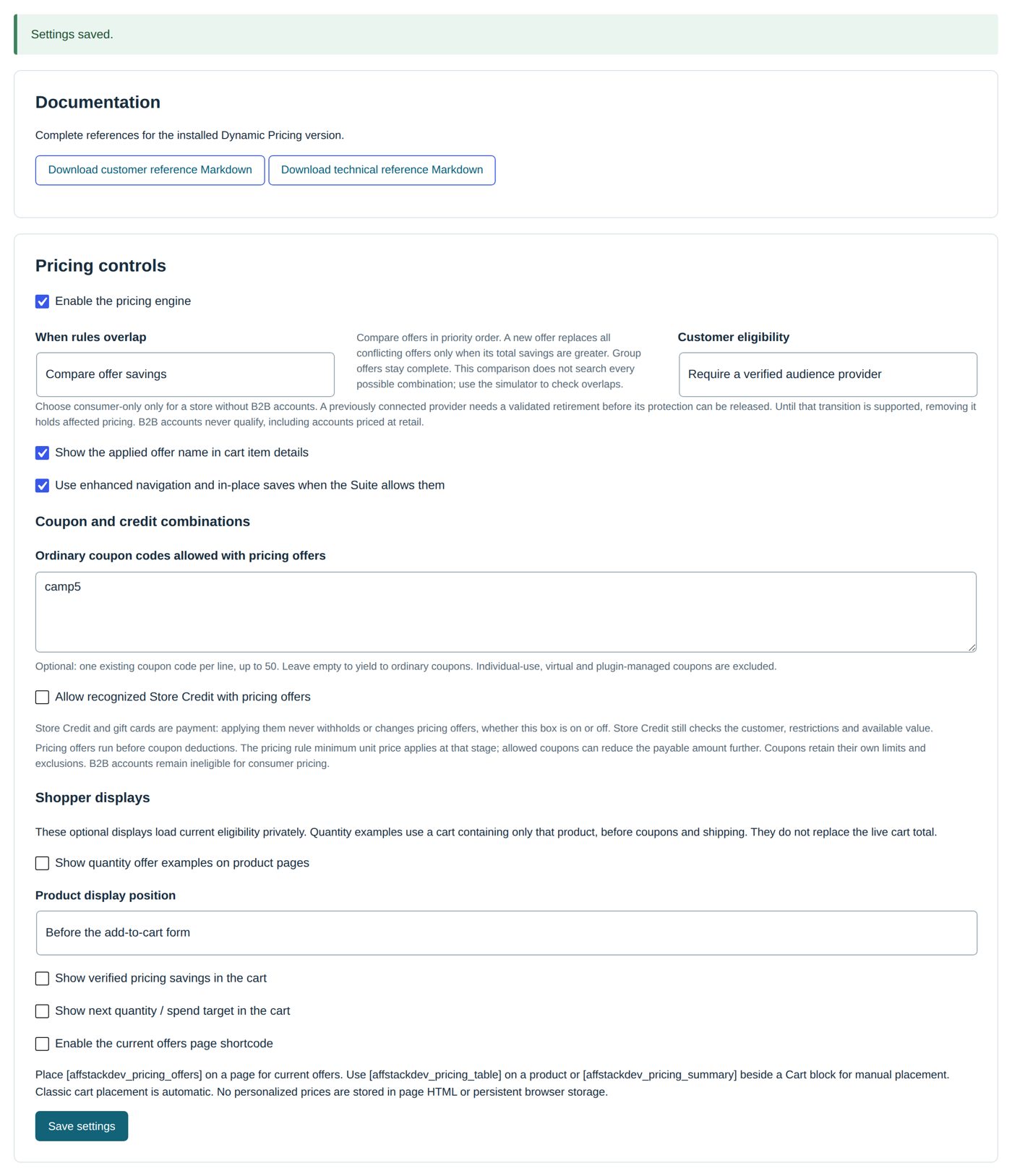
- Coupons. At the start no coupon combines with a Dynamic Pricing offer: if the shopper applies a coupon, the offer is withheld for that cart; the coupon stays and works. To allow a combination, list the coupon codes under Ordinary coupon codes allowed with pricing offers on Settings & integrations, one per line (up to 50). Individual-use, virtual and plugin-managed coupons cannot be listed.
- Store credit and gift cards (AffStackDev Store Credit & Gift Cards) are payment, not a discount: they never withhold or change an offer, whether Allow recognized Store Credit with pricing offers is ticked or not. First the offer price, then permitted coupons, then the credit.
- Gifts (Free Gifts & BOGO, for buy one get one free and gifts): a gift line gets no price from Dynamic Pricing, and an order discount is shared only over the paid lines. Free Gifts & BOGO counts what the shopper really pays: if your rule lowers a cart from 100 to 75, a "spend 90" gift is not reached.
Worked example: a $5 coupon
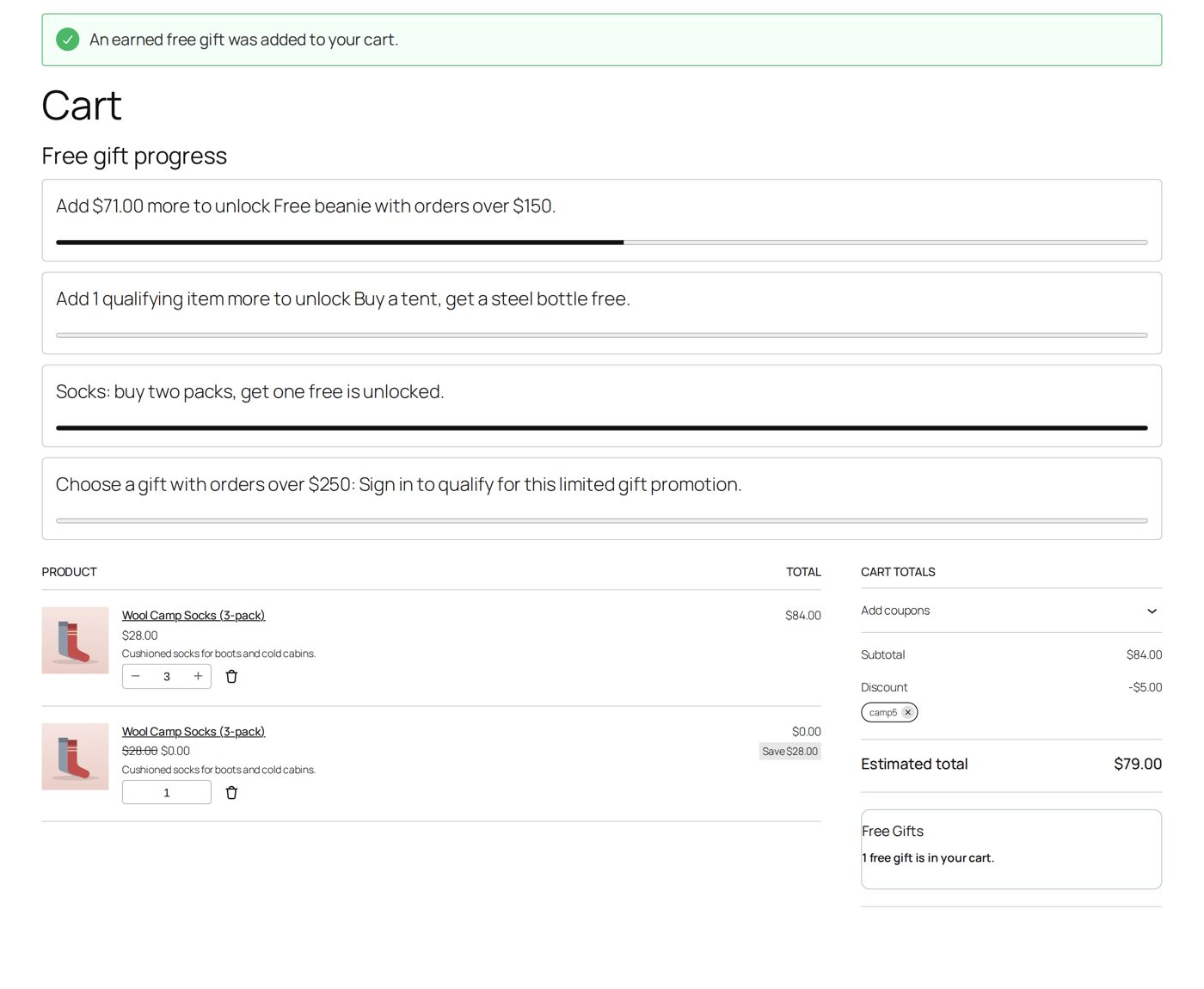
Harbor & Pine makes an ordinary $5-off-the-cart coupon, camp5. A shopper with three packs of socks (10% off by the socks' rule) applies it: the socks go back to $28.00 each, the coupon takes $5 off, and the total is $79.00. The offer is withheld because camp5 is not on the list.
The owner enters camp5 under Ordinary coupon codes allowed with pricing offers and selects Save settings: "Settings saved."
The same cart afterwards: the socks at $25.20 each ($75.60), the coupon −$5.00, total $70.60.
Shoppers in another currency
Your rules are in your store's currency. When a shopper switches the shop to another currency with WPML Multilingual & Multicurrency for WooCommerce or FOX - Currency Switcher (with its "multiple allowed" setting, where the order is paid in the shopper's currency), the shopper gets the same offers in that currency, at the switcher's own exchange rate: percentages stay as they are; amounts, set prices, minimum spends, lowest unit prices, caps and cart-amount conditions are converted ("$10 off from $50" is €9 off from €45 at 0.9). The base price is what the switcher charges for the product, also a price you set for that currency in the switcher.
Each order line keeps the rule as it was used in that currency and the conversion (your currency, the rate, the switcher), and the order keeps the rate, so a Net paid order amount condition later counts that order in your currency. Purchase-history amounts are always in your store's currency. A currency the switcher has no rate for, or another switcher, gets no offers, as without a switcher.
Who gets consumer offers
Ordinary customers and guests. Not business accounts when you run B2B: they have their own prices, also when their business discount is zero. Customer eligibility on Settings & integrations: Require a verified audience provider (the start; with B2B, B2B tells Dynamic Pricing who is a business account) or This store serves consumers only (the screen: choose it only for a store without B2B accounts).
Consumer roles (empty means any) in a rule narrows it further ("only subscribers"). A role never makes a business account eligible.
Show offers before the cart
Settings & integrations → Shopper displays: five switches, all off at the start. They only show and explain prices; the cart still decides the total.
| Switch | Shows |
|---|---|
| Show quantity offer examples on product pages | The Quantity offer examples table (as in the socks example), placed by Product display position: Before the add-to-cart form (the start), After the add-to-cart form, or Shortcode placement only ([affstackdev_pricing_table], or [affstackdev_pricing_table id="123"] for one product). |
| Show verified pricing savings in the cart | The saving on a cart line, when the cart's real prices confirm it. |
| Show next quantity / spend target in the cart | One hint such as "add 2 more for a lower price". With the block cart, put [affstackdev_pricing_summary] next to the Cart block; the classic cart places it by itself. |
| Enable the current offers page shortcode | Lets [affstackdev_pricing_offers] list current offers on a page of your own. |
| Show the offer price in the shop and on product pages, with the old price crossed out | Where a rule lowers a product's price, the shop, category pages, product grids and the product page show the normal price crossed out and the offer price, as WooCommerce shows a sale. It is the price one more piece would cost in that shopper's cart, so a role, a cart amount already reached or a quantity already in the cart counts. A rule that starts at 5 pieces changes nothing here (the quantity table shows it). For a product with options, the price of the chosen option. |
If your theme does not show the table by itself, use the shortcode.
The pages themselves keep WooCommerce's own price for every visitor, so a page cache or a caching plugin keeps working: the offer price is filled in afterwards for each shopper from your store, privately. With JavaScript off, shoppers see the normal price and the offer in the cart.
In the cart, a line a rule priced shows its normal price crossed out before the new one, in the block cart and in the classic cart.
Go back to an earlier version of a rule
History / restore on a rule in Rules lists its earlier revisions (the latest 50), with who replaced each and when. Restore this revision as a draft brings one back as a new, paused revision: look at it and try it in the Simulator before you enable it again. Newer history stays.
Reports
Reports → Pricing evidence report: choose Created from (UTC), Created through (UTC) and Currency, then Load report. It lists the orders your rules priced, 25 orders a page, with the rule, its revision and the reduction on completed orders. Totals cover the page shown; currencies are never added together.
Move rules between sites
Import / export → Export configuration saves your rules and settings as a file. On another site, paste or upload it under Preview a JSON export, choose what happens When a UUID already exists (Keep the local rule, Replace and pause the local rule after review, Create copies with new UUIDs), Validate and preview, then Apply this preview as drafts: the rules arrive paused for you to check, because product and category numbers differ between sites.
"Why did the price not change?"
Run the case in the Simulator first; it names the reason. The usual ones:
| Reason | Look at |
|---|---|
| Pricing is paused, or the rule is a draft | Enable the pricing engine and Enable this rule. |
| The date | Starts and Ends of the rule. |
| The license | The License tab. |
| The product is on sale | Exclude products currently on sale is ticked at the start. |
| Not enough pieces or spend | Minimum quantity, Minimum matching spend, Count quantities. |
| A coupon is in the cart | It is not under Ordinary coupon codes allowed with pricing offers. |
| The customer is a business account | Intended. |
| Another rule won | When rules overlap, and the priorities; or tick Adds to other offers on the rule that should come on top. |
| The shopper switched currency | Only WPML Multilingual & Multicurrency and FOX (with "multiple allowed") convert offers; the switcher needs a rate for that currency. |
| The lowest price | Minimum unit price: the rule never goes lower; at or above the normal price there is no discount. |
Removing Dynamic Pricing
Deactivating or deleting keeps your rules, settings, revision history and the pricing records on orders.