AffStackDev / Videos
Watch the software at work.
Full walkthroughs recorded from the real screens, on a demonstration store with made-up data. Pick a video, or jump straight to the part you need.
Watch it work
Gate Manager, step by step
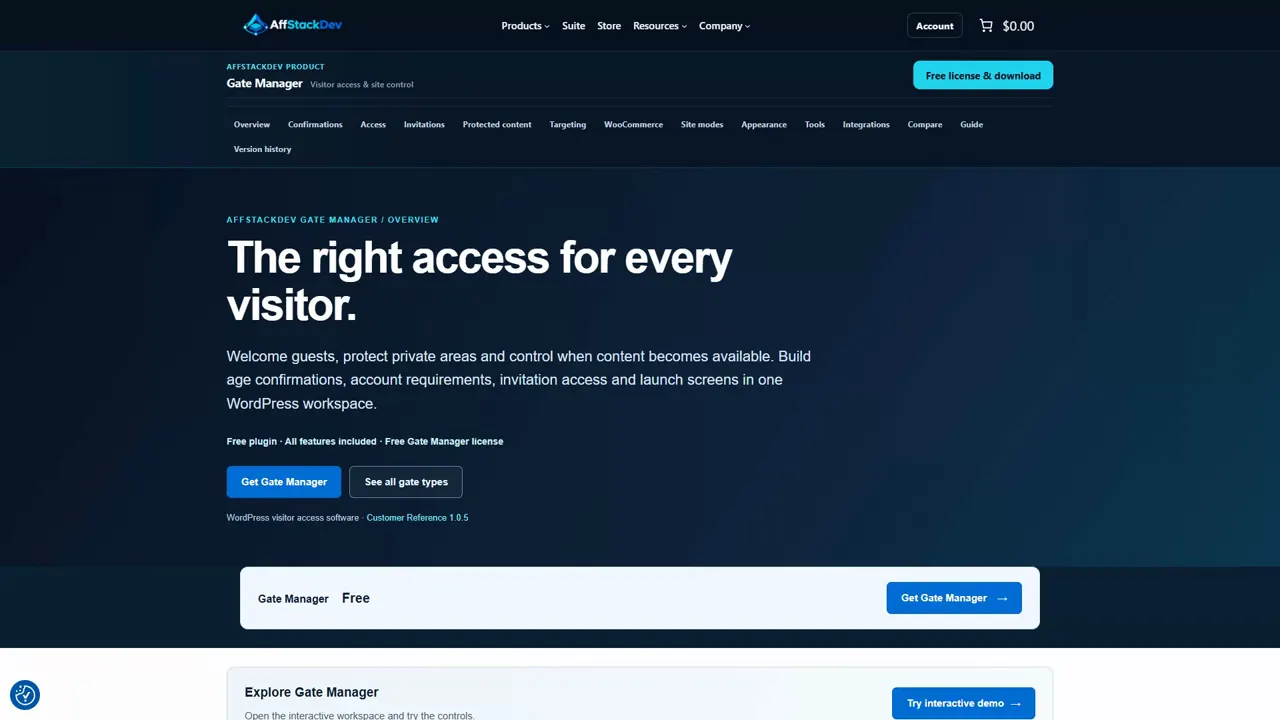
See the AffStackDev website and the WordPress admin controls for confirmations, private access, site modes, WooCommerce rules, appearance and testing.
Jump to a part of this video
- 0:00 Welcome
- 0:19 The Gate Manager mini-site
- 0:47 Gate Manager inside WordPress
- 1:12 An age confirmation
- 2:09 What the visitor sees
- 2:33 A dealer portal by role
- 3:00 Codes and invitation links
- 3:26 Coming Soon and Maintenance
- 3:53 WooCommerce purchase rules
- 4:20 Test with the Simulator
- 4:46 Appearance
- 5:11 Find it in the store
- 6:12 Where to start next
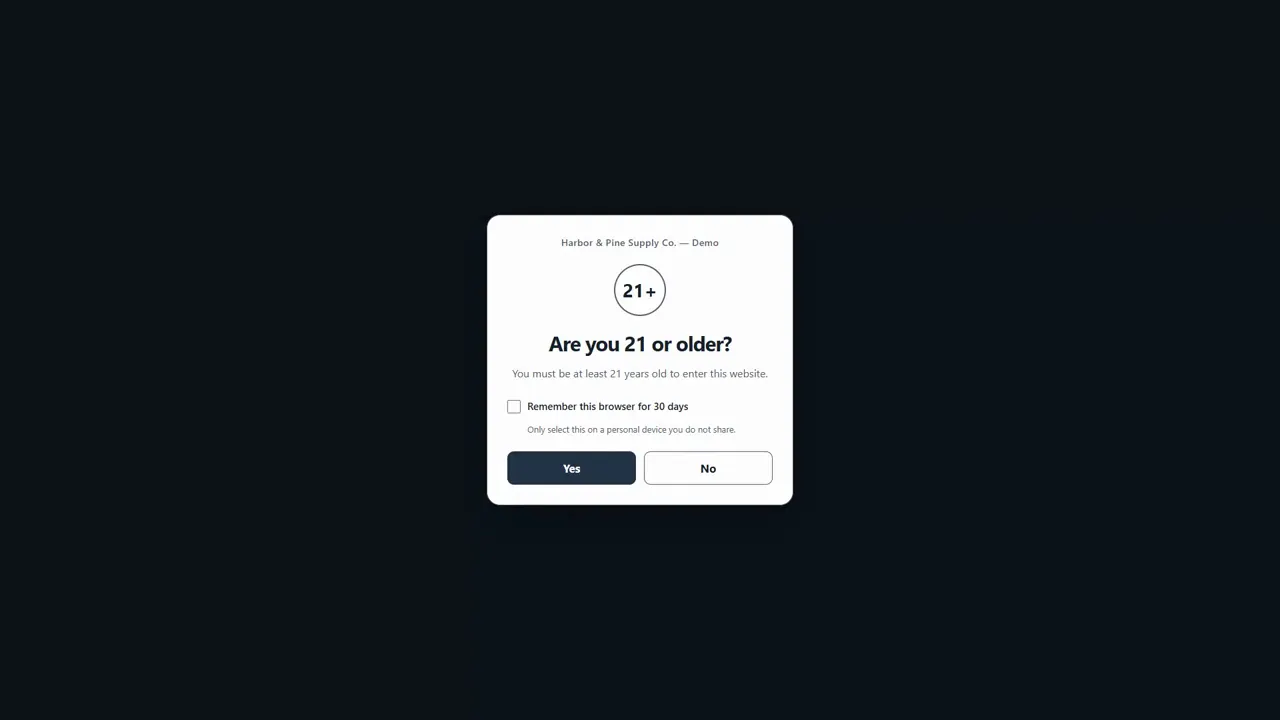
Set up a 21+ age question, then see what signed-out visitors experience when they answer Yes or No. Also content warnings, policy acknowledgements, custom questions and retail/wholesale routing.
Jump to a part of this video
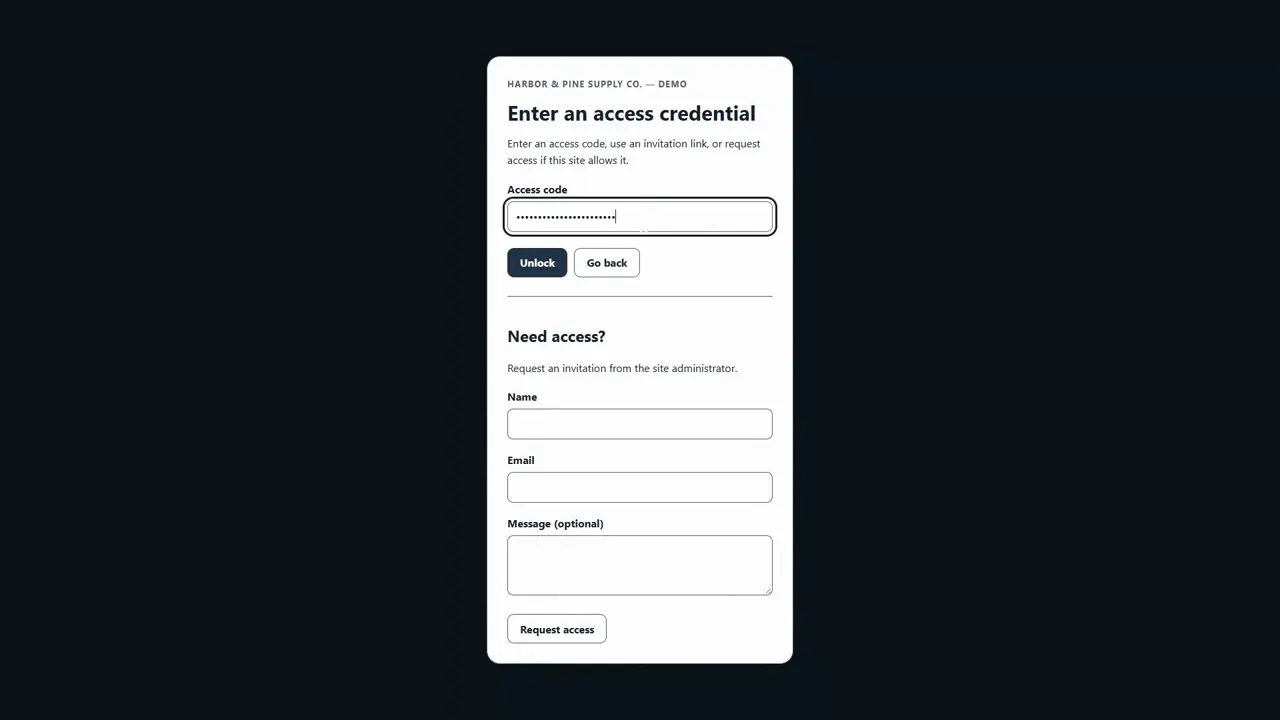
Keep a page private until a visitor enters an access code, follows an invitation or verifies an email address. Setup, visitor flows, access requests, approval, email verification and revoking access.
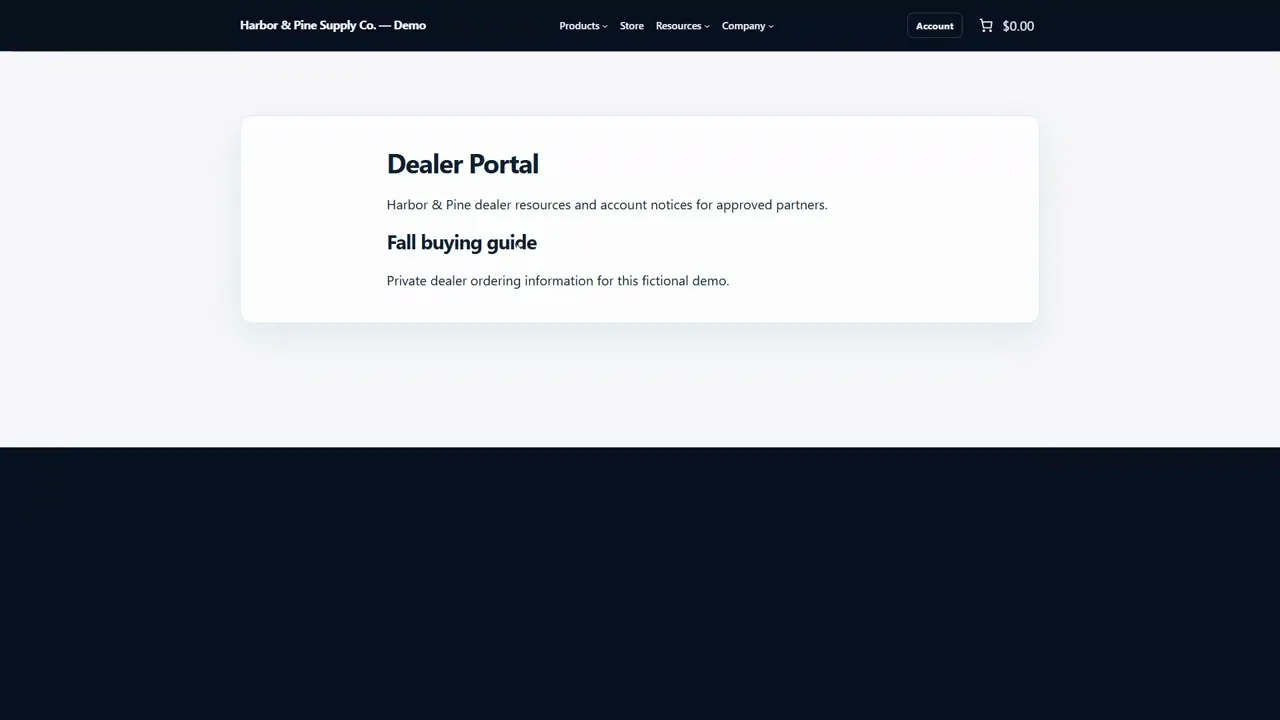
Require a sign-in or a WordPress role for a page or part of a page. Create a dealer or staff area, show a teaser, keep refused pages out of lists and search, and protect selected content with a block or shortcode.
Jump to a part of this video
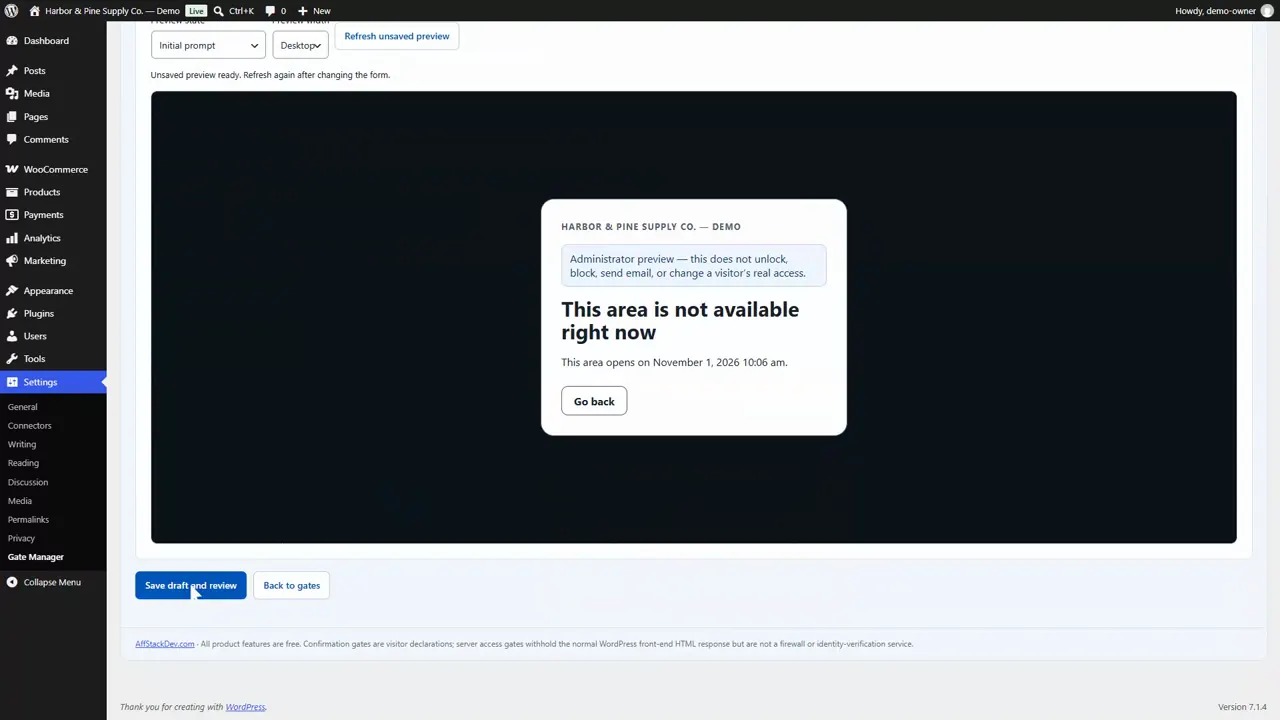
Set opening and closing times, record policy acceptance and choose how an access gate handles location: scheduled gates, visitor acceptance, policy receipts, version changes and geography settings.
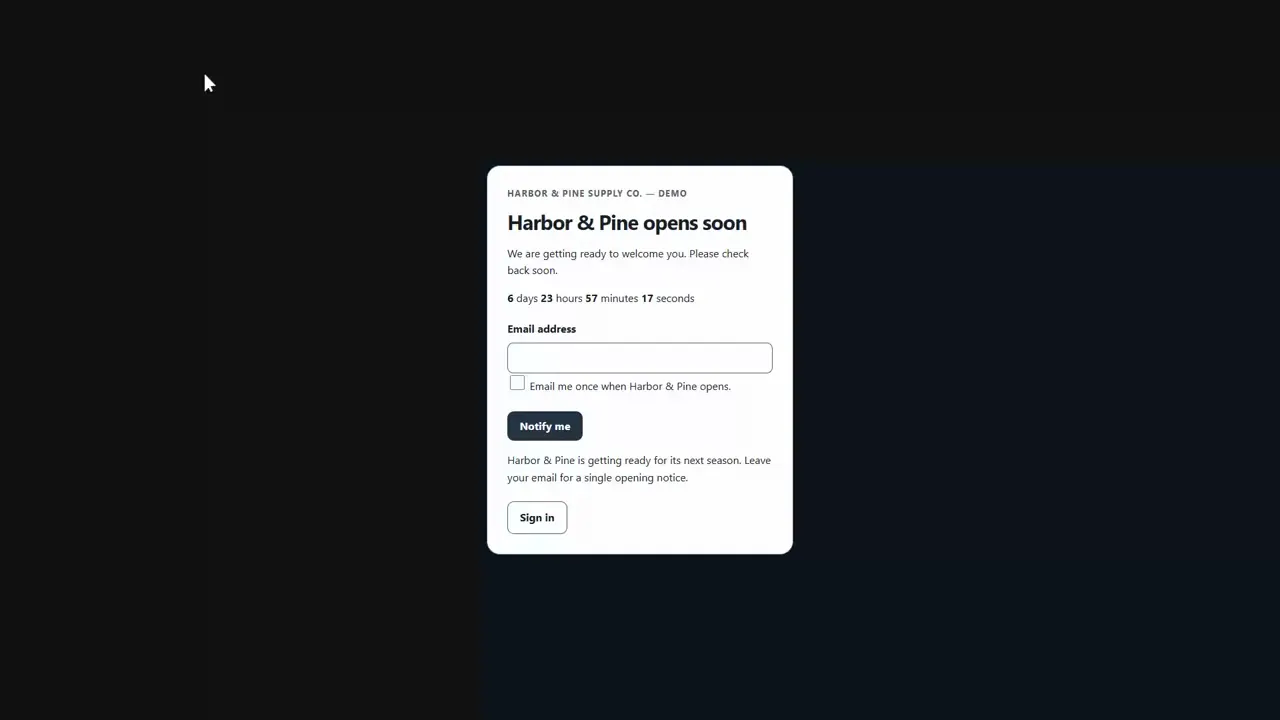
Build a Coming Soon screen, collect optional email sign-ups, grant a limited preview link and switch to a Maintenance screen for short work: setup, layouts, countdown, staff access and sign-up privacy tools.
Jump to a part of this video
- 0:00 Two site modes
- 0:12 Make the page visitors see
- 0:33 Add the Coming Soon gate
- 1:11 An end time and a countdown
- 1:30 Collect email sign-ups
- 2:02 Review and enable
- 2:15 What visitors and search engines get
- 2:39 The sign-ups list
- 2:57 A preview link for a client
- 3:26 Maintenance mode
- 3:55 What these screens don't stop
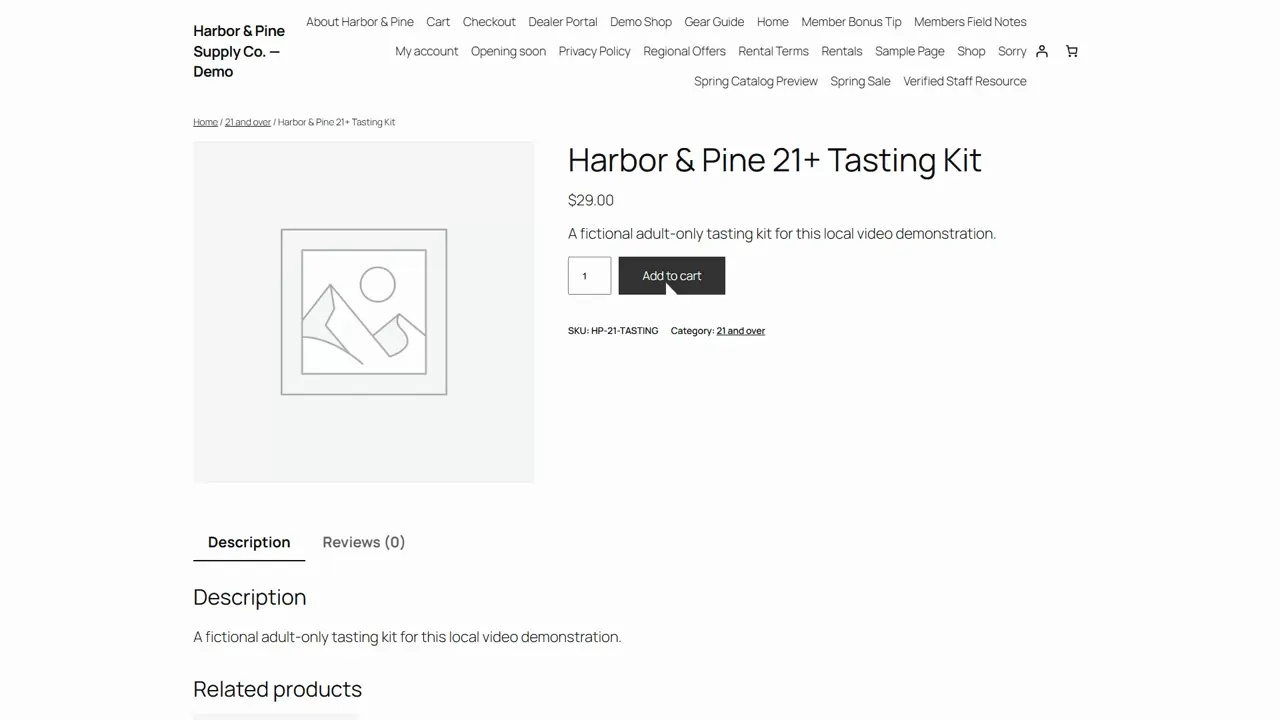
Apply gate rules at Add to cart, in the cart and at checkout. Set up a category-based age confirmation and a dealer-only product rule, then test the shopper experience.
Jump to a part of this video
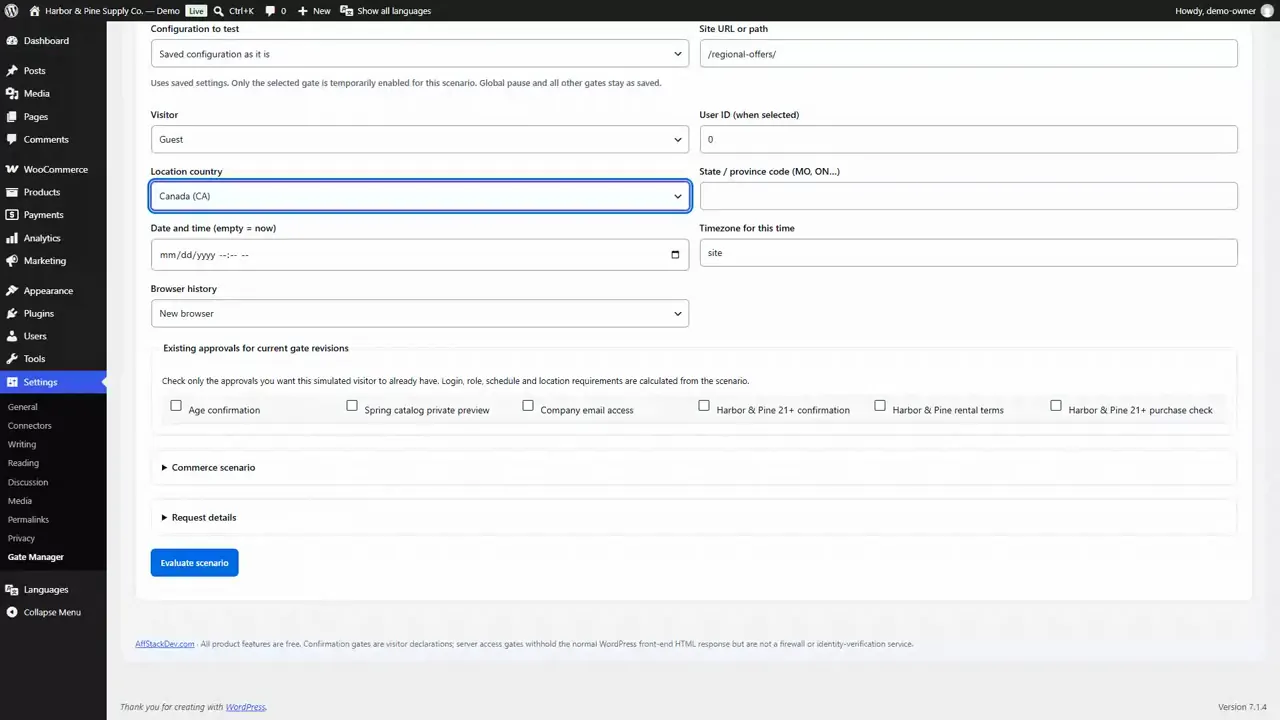
The tools around every gate: rule groups and conditions, gate order, bulk controls, the Simulator, cache Diagnostics, shared appearance, change history, import and export, activity counts, translation and AI assistants.
Jump to a part of this video
 Introduction · 6:47Introduction: Gate Manager on the website and in WordPress
 Part 1 · 4:22Age questions, warnings and visitor routing
 Part 2 · 3:52Private pages, codes, invitations and email
 Part 3 · 4:36Members-only pages, dealer portals and roles
 Part 4 · 3:34Scheduled access, policies and location
 Part 5 · 4:30Coming Soon and Maintenance screens
 Part 6 · 3:45WooCommerce purchase checks and dealer-only products
 Part 7 · 5:00Rules, Simulator, Diagnostics and settings
Watch it work
Image Manager, step by step
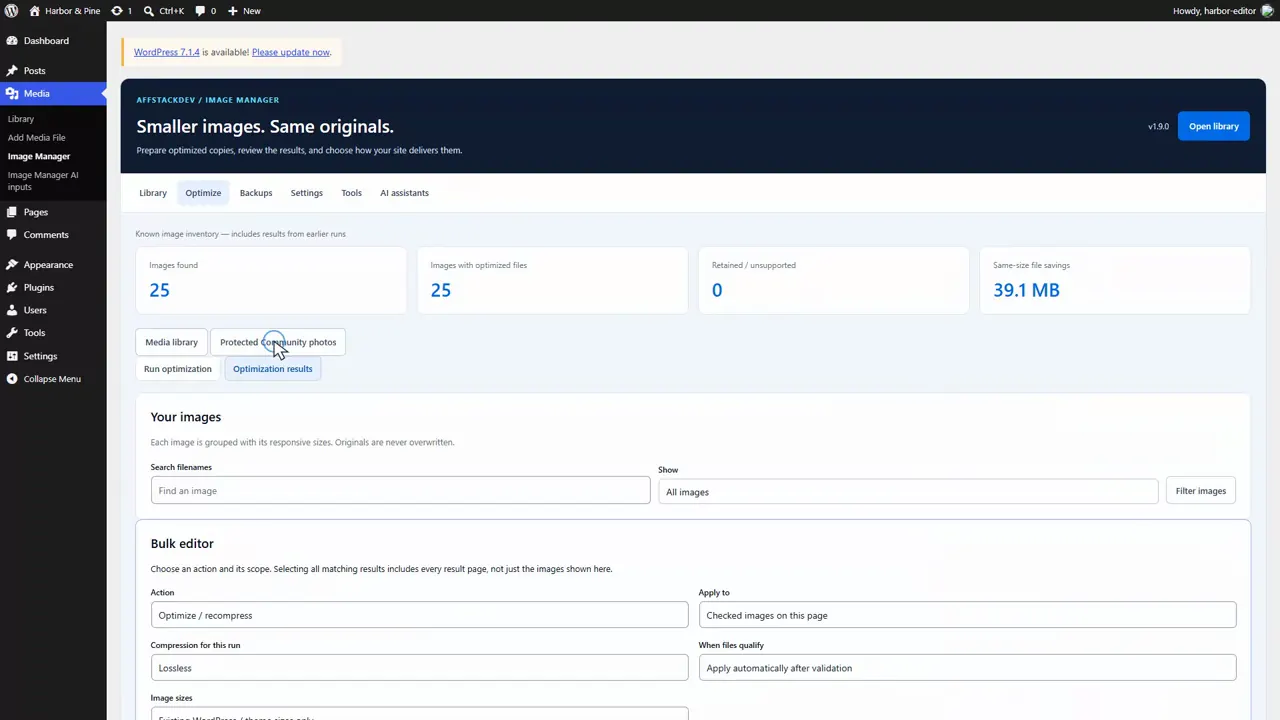
Run a first image optimization: review host capabilities, choose the image scope and compression options, start and pause a run, inspect results, and switch between original and optimized copies.
Jump to a part of this video
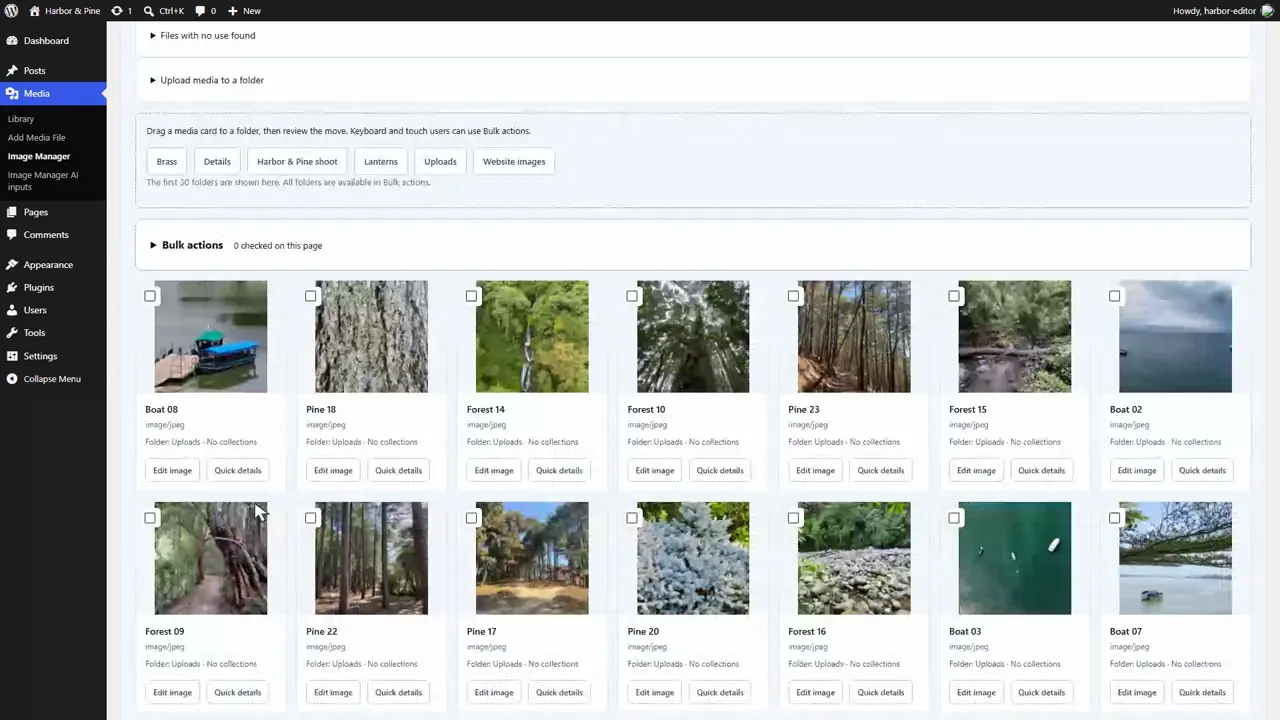
Searches, filters, nested folders, file and directory uploads, drag-and-drop organization, collection assignment, alt text and media usage checks.
Jump to a part of this video
- 0:00 Folders that never move a file
- 0:20 Search and views
- 1:02 Create folders and collections
- 1:34 Upload into a folder
- 2:10 Upload a whole folder
- 2:39 Drag and drop
- 3:04 Bulk actions
- 3:40 Alt text for many files
- 4:18 Fill empty alt text from file names
- 4:49 Where a file is used
- 5:18 Files with no use found
- 5:54 Check the uploads folder
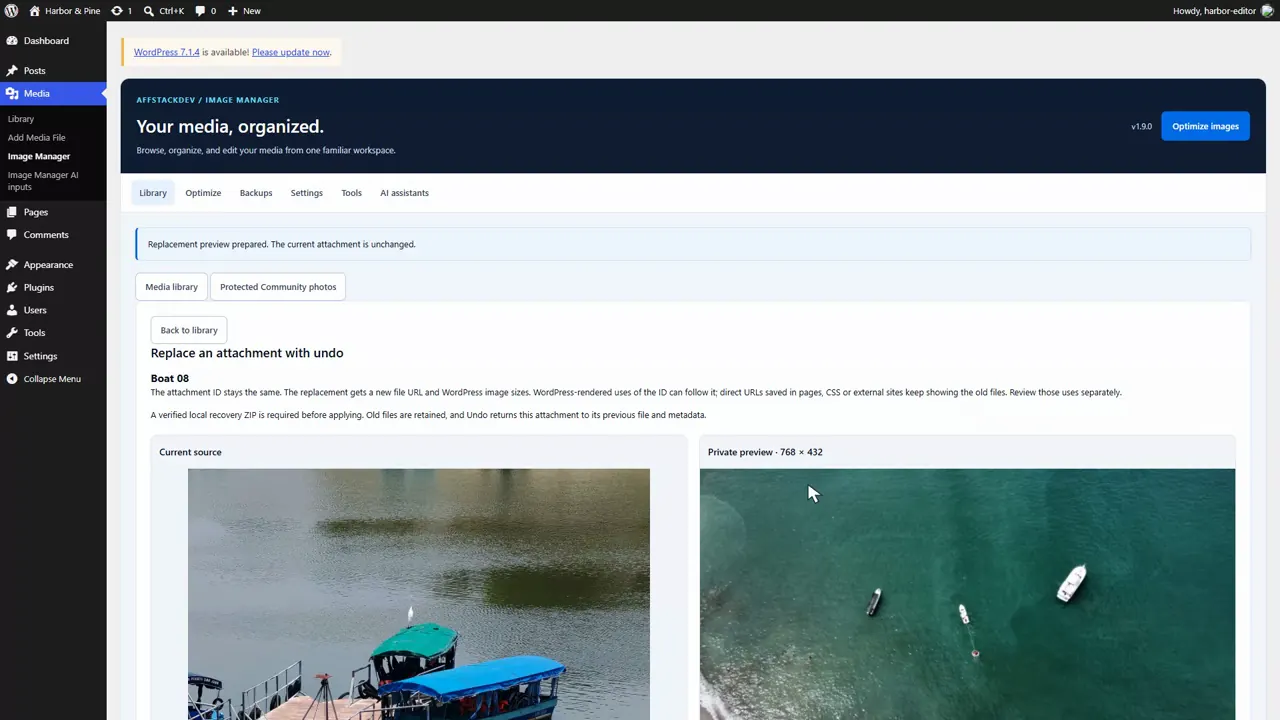
Crop and resize a picture into a new attachment, replace an image while keeping its attachment ID, download a recovery copy and undo the replacement. Also preview a PDF page as an image and save a smaller PDF copy.
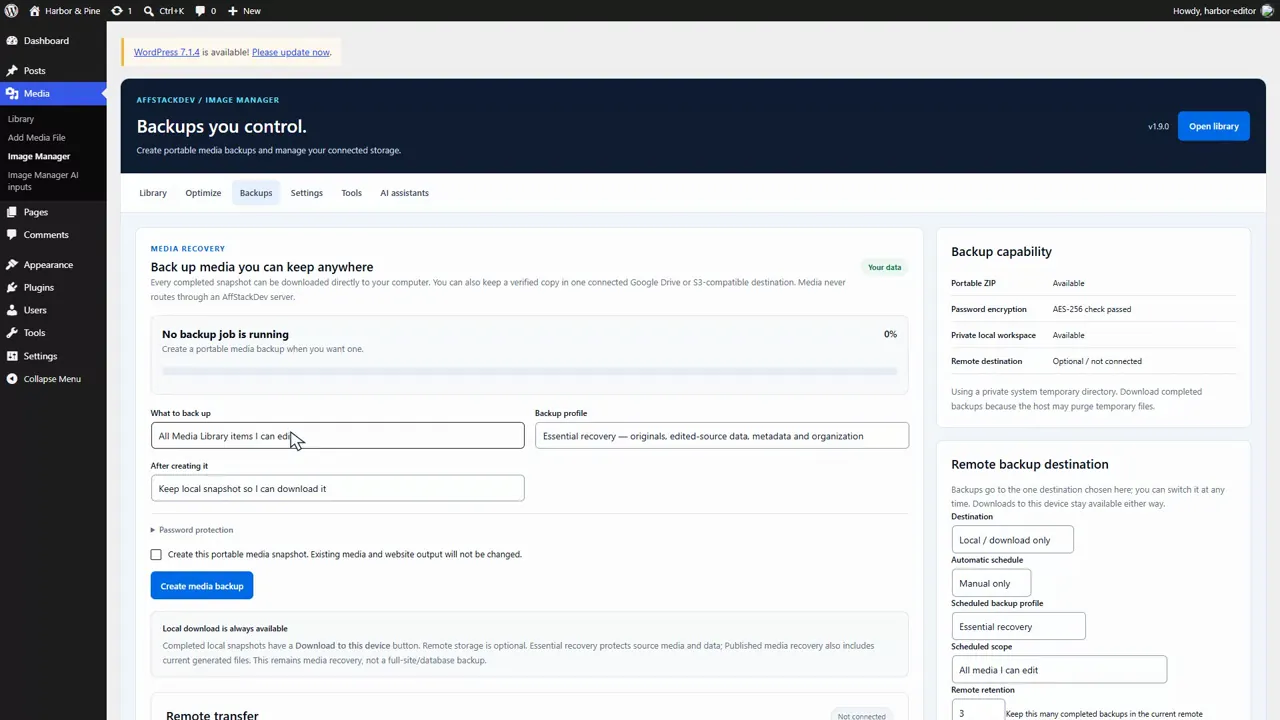
Create an encrypted media backup, download and inspect it, and restore selected media as new items. Follow a portable backup into a separate WordPress installation and explore backup profiles, remote destinations and scheduling.
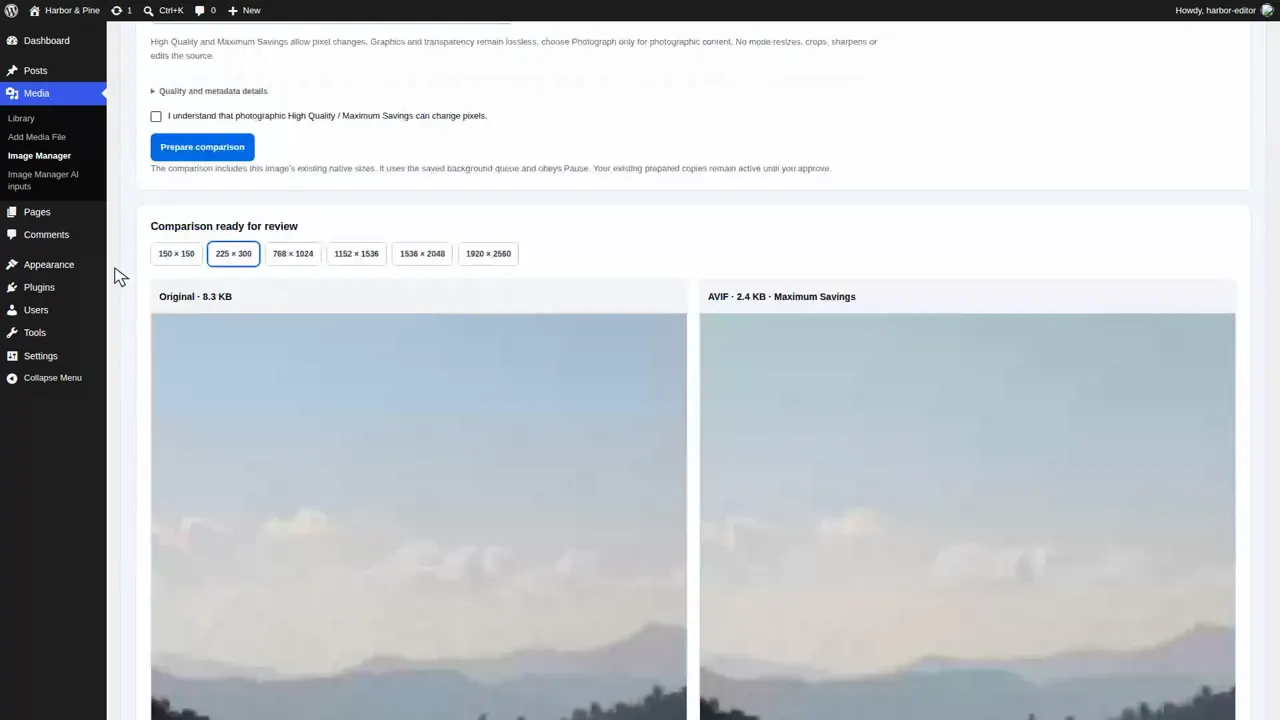
Measure how images fit your pages, make the display sizes they need, and configure fitting, dimensions, lazy-loading and automatic processing. Compare compression before approving copies, then inspect what the browser loads at phone and desktop widths.
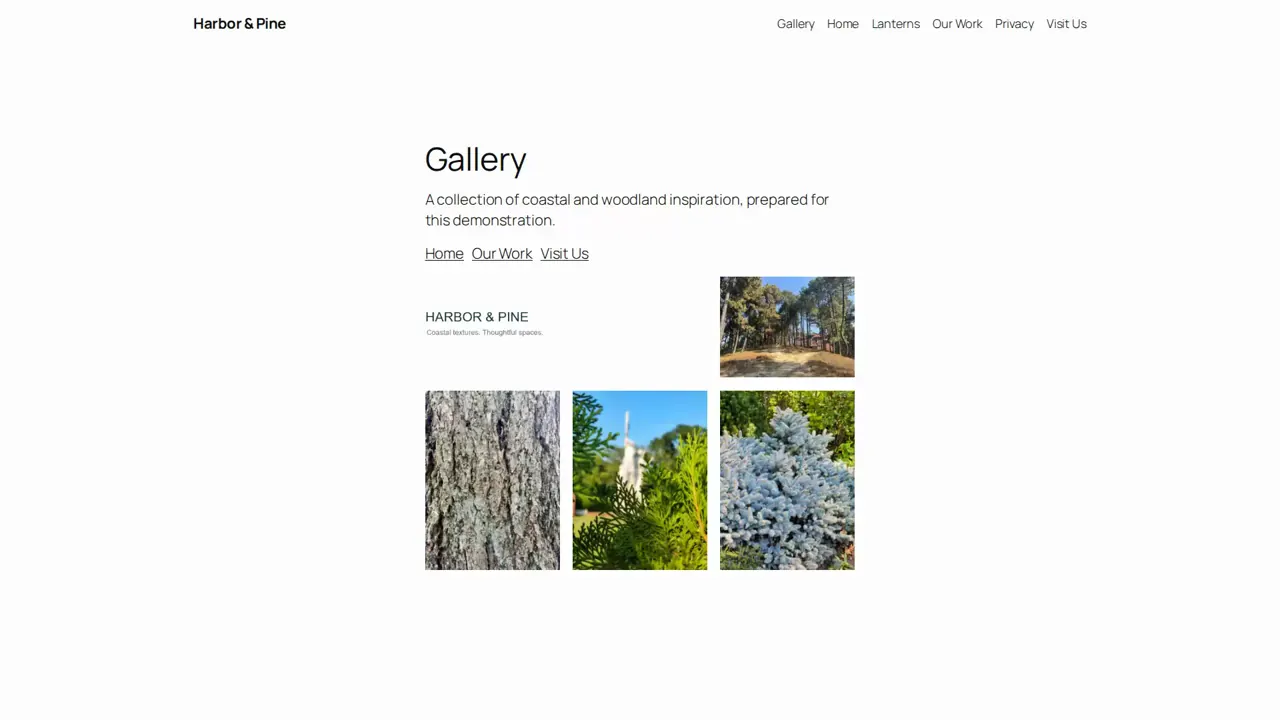
Set up a watermark for optimized copies, review large-image and WordPress size controls, make missing sizes, upload an SVG with role-based permissions, build a folder gallery and organize the Pages list with folders.
 Part 1 · 6:46Optimize images and keep the originals
 Part 2 · 6:38Organize media with folders and collections
 Part 3 · 6:20Edit, replace and undo images safely
 Part 4 · 5:37Back up and restore your media
 Part 5 · 6:12Fit images to pages and check delivery
 Part 6 · 6:51Watermarks, image sizes and folder galleries