AffStackDev / Videos
Watch the software at work.
Full walkthroughs recorded from the real screens, on a demonstration store with made-up data. Pick a video, or jump straight to the part you need.
Watch it work
Gate Manager, step by step
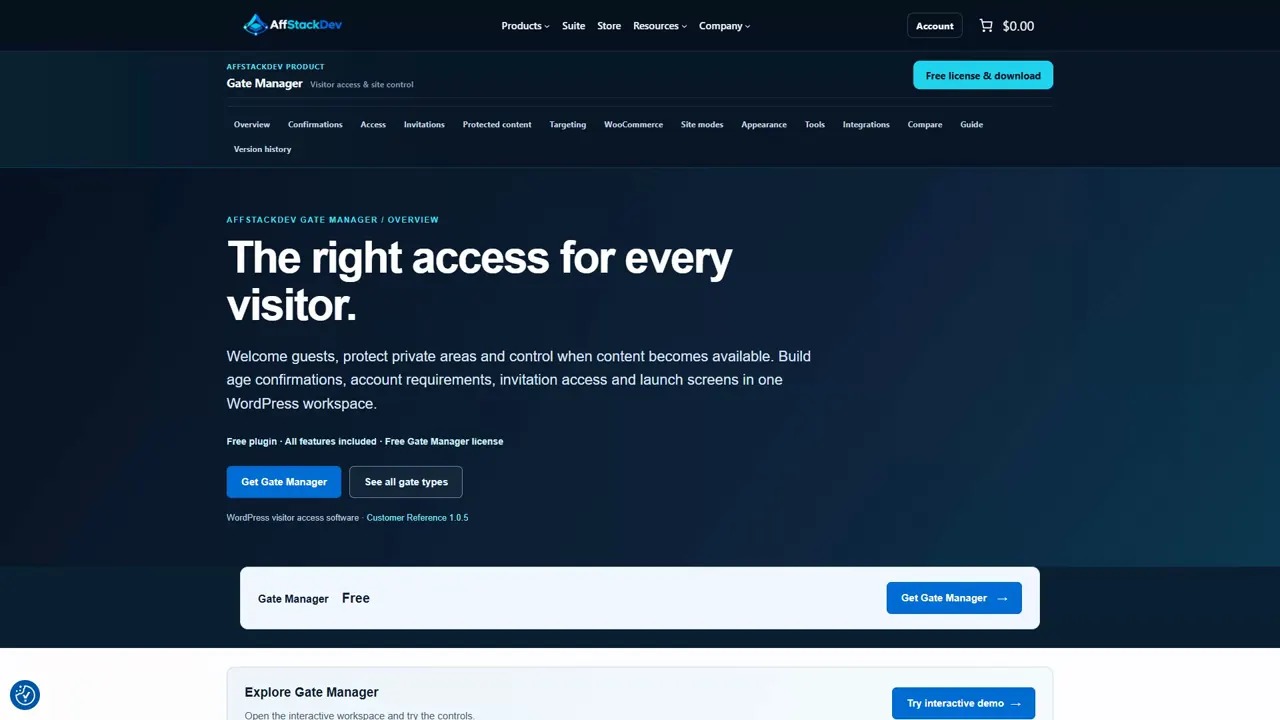
See the AffStackDev website and the WordPress admin controls for confirmations, private access, site modes, WooCommerce rules, appearance and testing.
Jump to a part of this video
- 0:00 Welcome
- 0:19 The Gate Manager mini-site
- 0:47 Gate Manager inside WordPress
- 1:12 An age confirmation
- 2:09 What the visitor sees
- 2:33 A dealer portal by role
- 3:00 Codes and invitation links
- 3:26 Coming Soon and Maintenance
- 3:53 WooCommerce purchase rules
- 4:20 Test with the Simulator
- 4:46 Appearance
- 5:11 Find it in the store
- 6:12 Where to start next
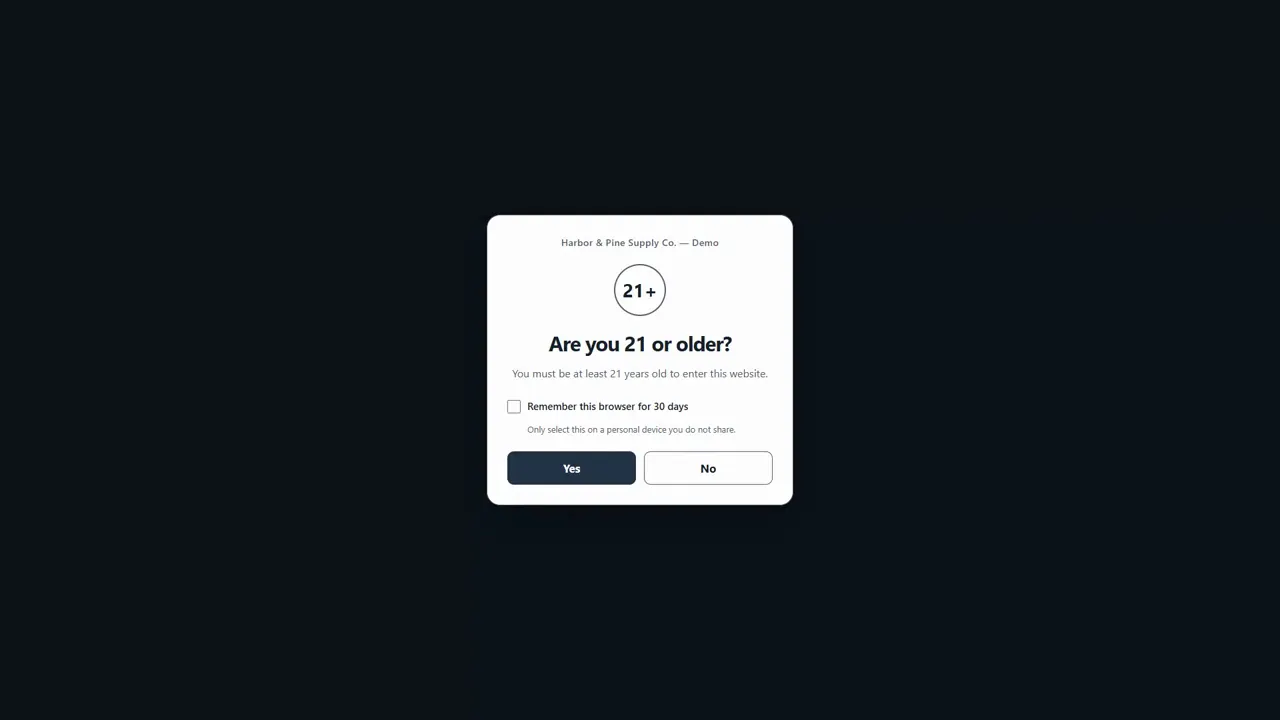
Set up a 21+ age question, then see what signed-out visitors experience when they answer Yes or No. Also content warnings, policy acknowledgements, custom questions and retail/wholesale routing.
Jump to a part of this video
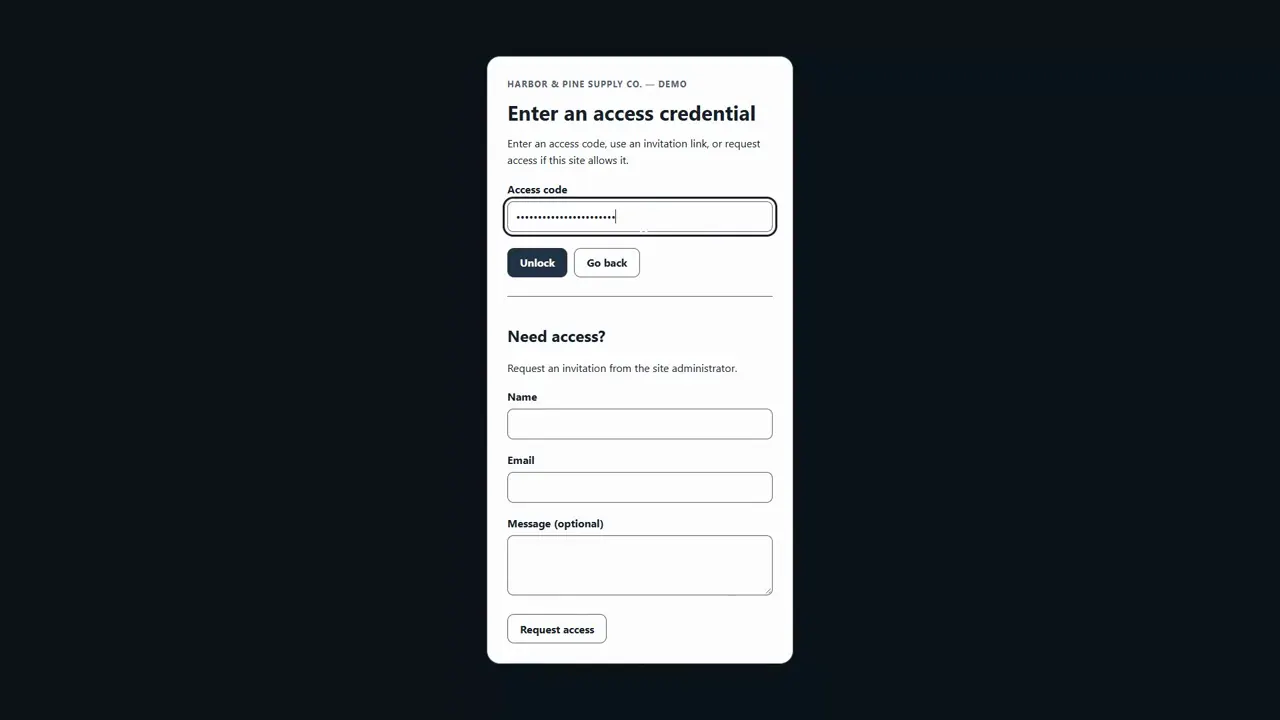
Keep a page private until a visitor enters an access code, follows an invitation or verifies an email address. Setup, visitor flows, access requests, approval, email verification and revoking access.
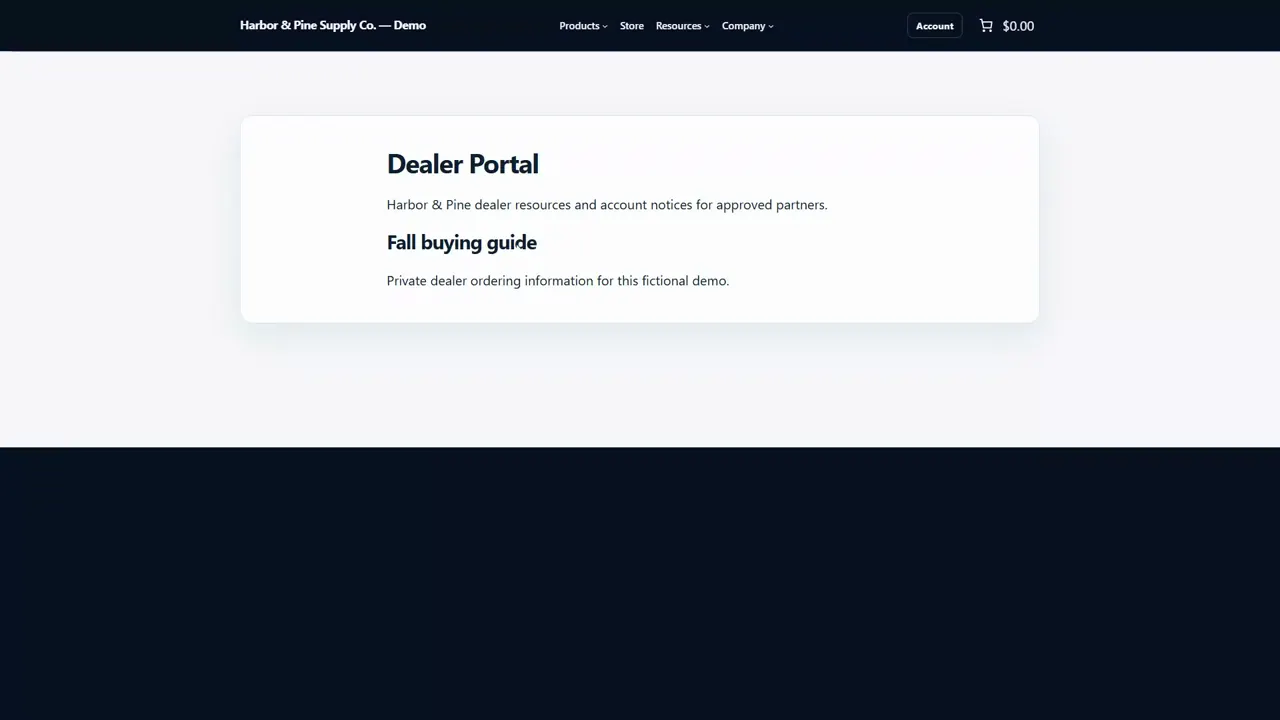
Require a sign-in or a WordPress role for a page or part of a page. Create a dealer or staff area, show a teaser, keep refused pages out of lists and search, and protect selected content with a block or shortcode.
Jump to a part of this video
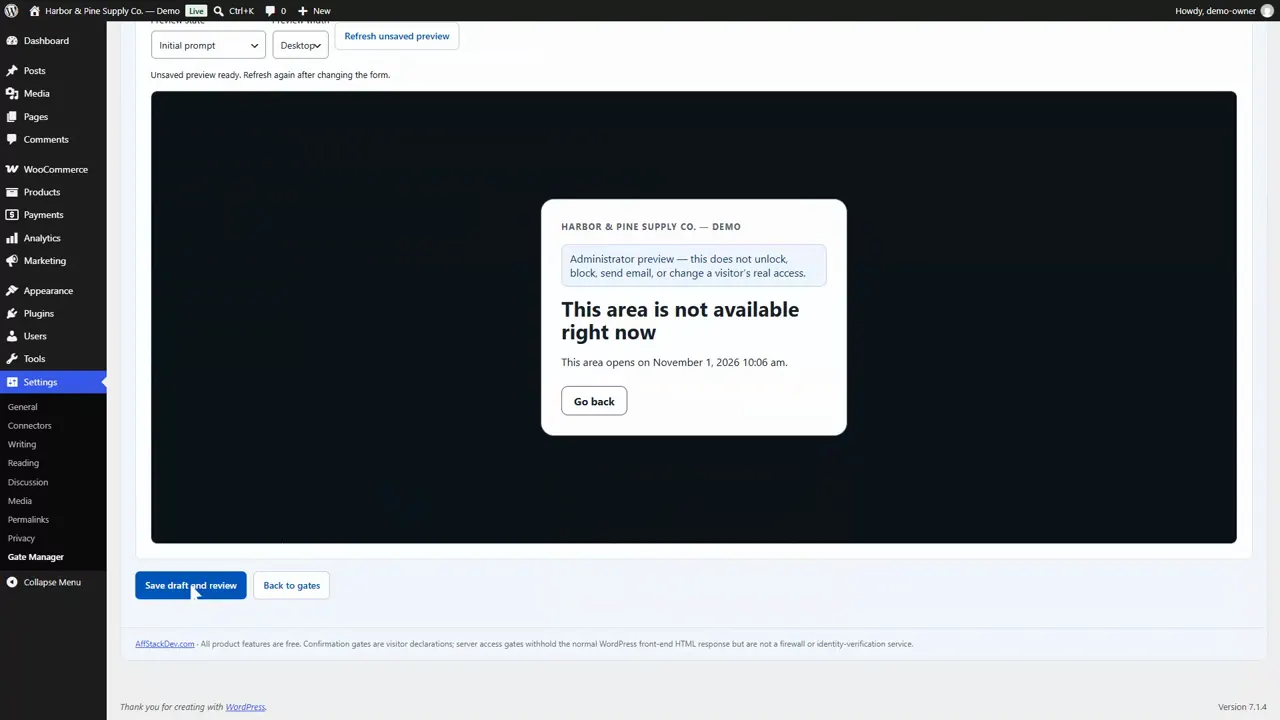
Set opening and closing times, record policy acceptance and choose how an access gate handles location: scheduled gates, visitor acceptance, policy receipts, version changes and geography settings.
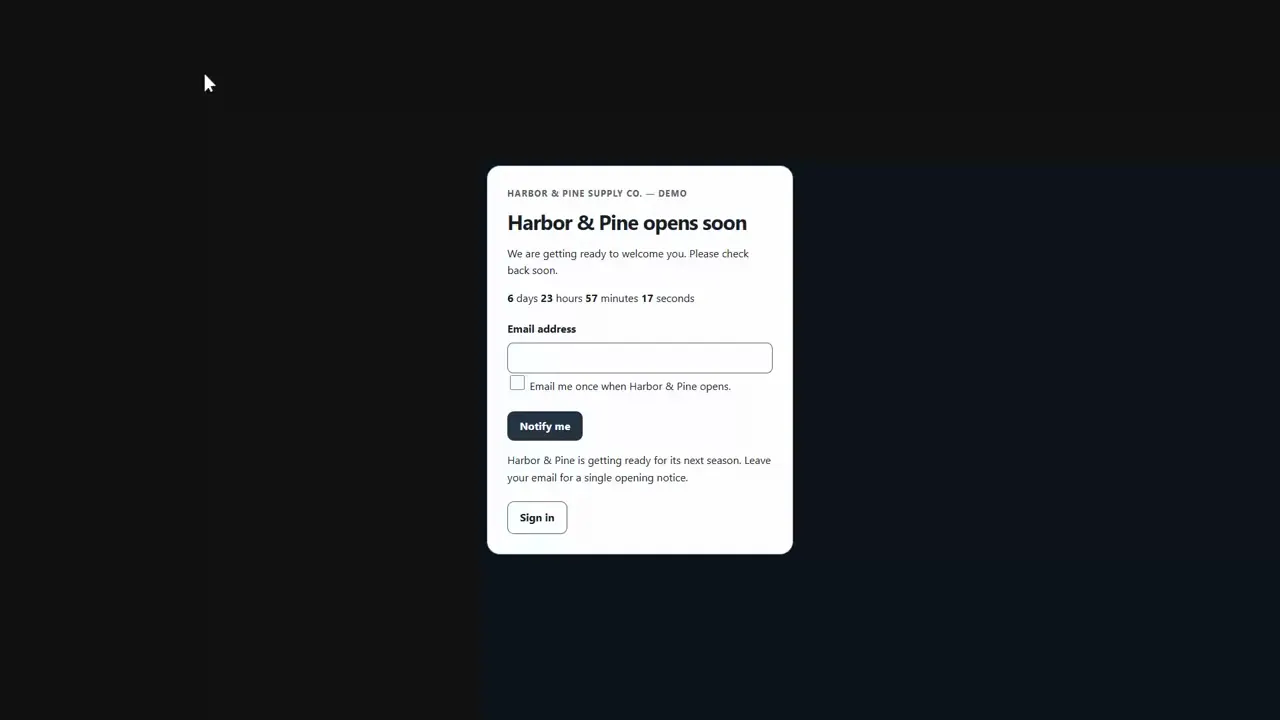
Build a Coming Soon screen, collect optional email sign-ups, grant a limited preview link and switch to a Maintenance screen for short work: setup, layouts, countdown, staff access and sign-up privacy tools.
Jump to a part of this video
- 0:00 Two site modes
- 0:12 Make the page visitors see
- 0:33 Add the Coming Soon gate
- 1:11 An end time and a countdown
- 1:30 Collect email sign-ups
- 2:02 Review and enable
- 2:15 What visitors and search engines get
- 2:39 The sign-ups list
- 2:57 A preview link for a client
- 3:26 Maintenance mode
- 3:55 What these screens don't stop
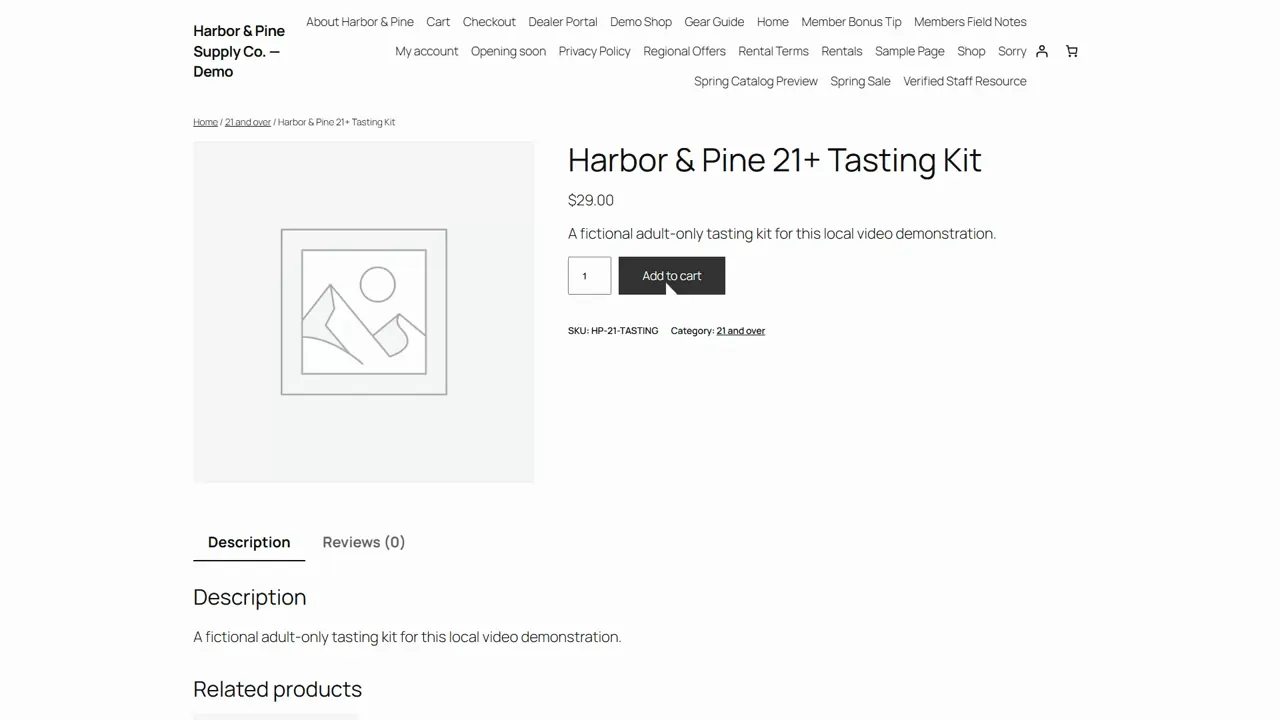
Apply gate rules at Add to cart, in the cart and at checkout. Set up a category-based age confirmation and a dealer-only product rule, then test the shopper experience.
Jump to a part of this video
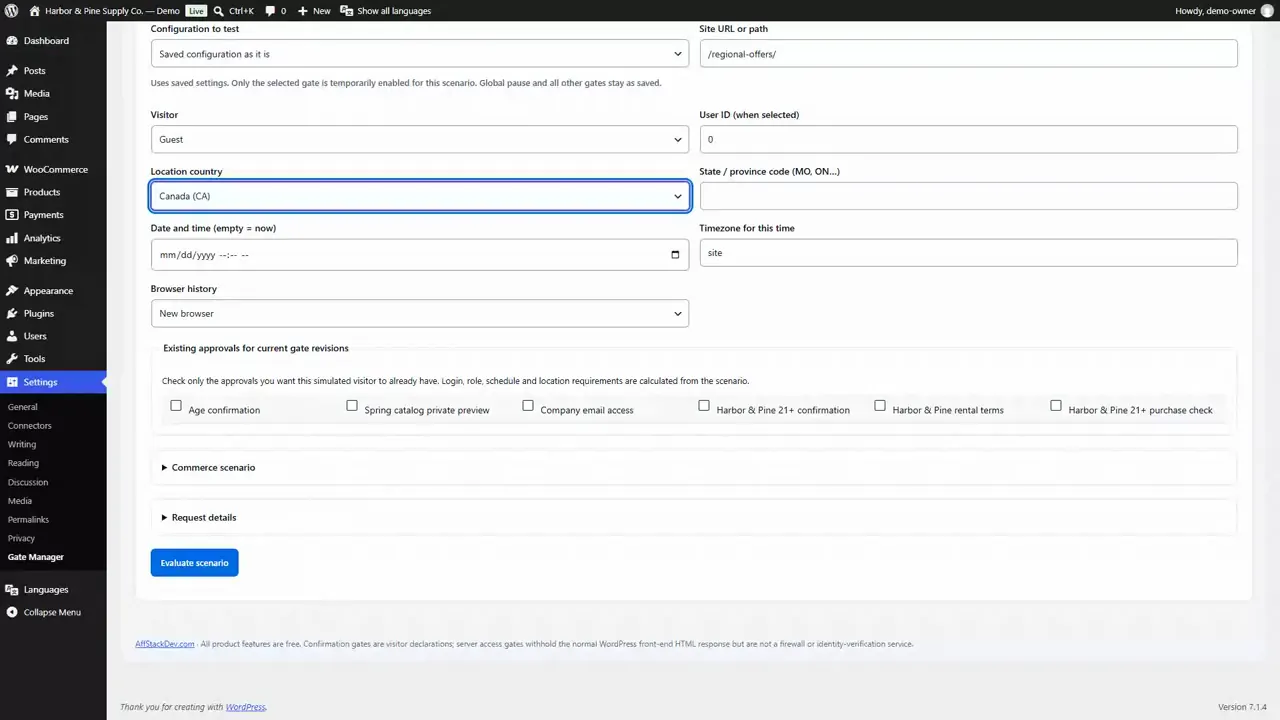
The tools around every gate: rule groups and conditions, gate order, bulk controls, the Simulator, cache Diagnostics, shared appearance, change history, import and export, activity counts, translation and AI assistants.
Jump to a part of this video
 Introduction · 6:47Introduction: Gate Manager on the website and in WordPress
 Part 1 · 4:22Age questions, warnings and visitor routing
 Part 2 · 3:52Private pages, codes, invitations and email
 Part 3 · 4:36Members-only pages, dealer portals and roles
 Part 4 · 3:34Scheduled access, policies and location
 Part 5 · 4:30Coming Soon and Maintenance screens
 Part 6 · 3:45WooCommerce purchase checks and dealer-only products
 Part 7 · 5:00Rules, Simulator, Diagnostics and settings
Watch it work
Image Manager, step by step
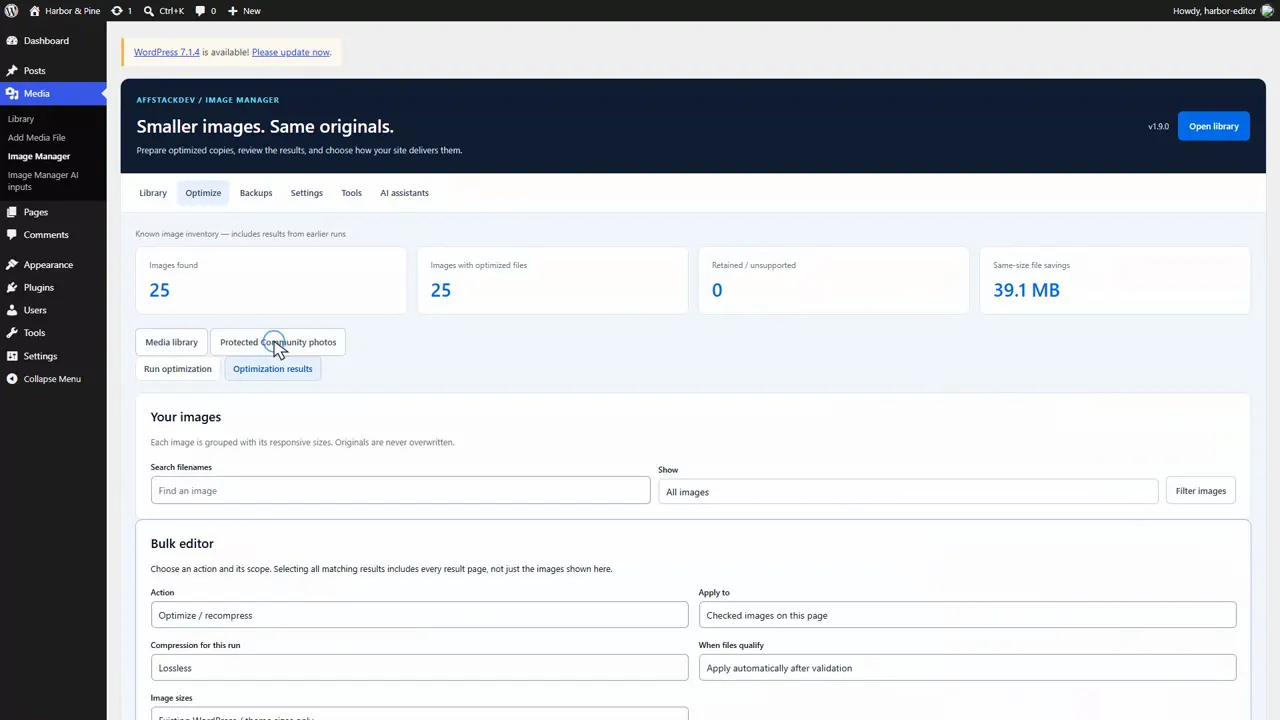
Run a first image optimization: review host capabilities, choose the image scope and compression options, start and pause a run, inspect results, and switch between original and optimized copies.
Jump to a part of this video
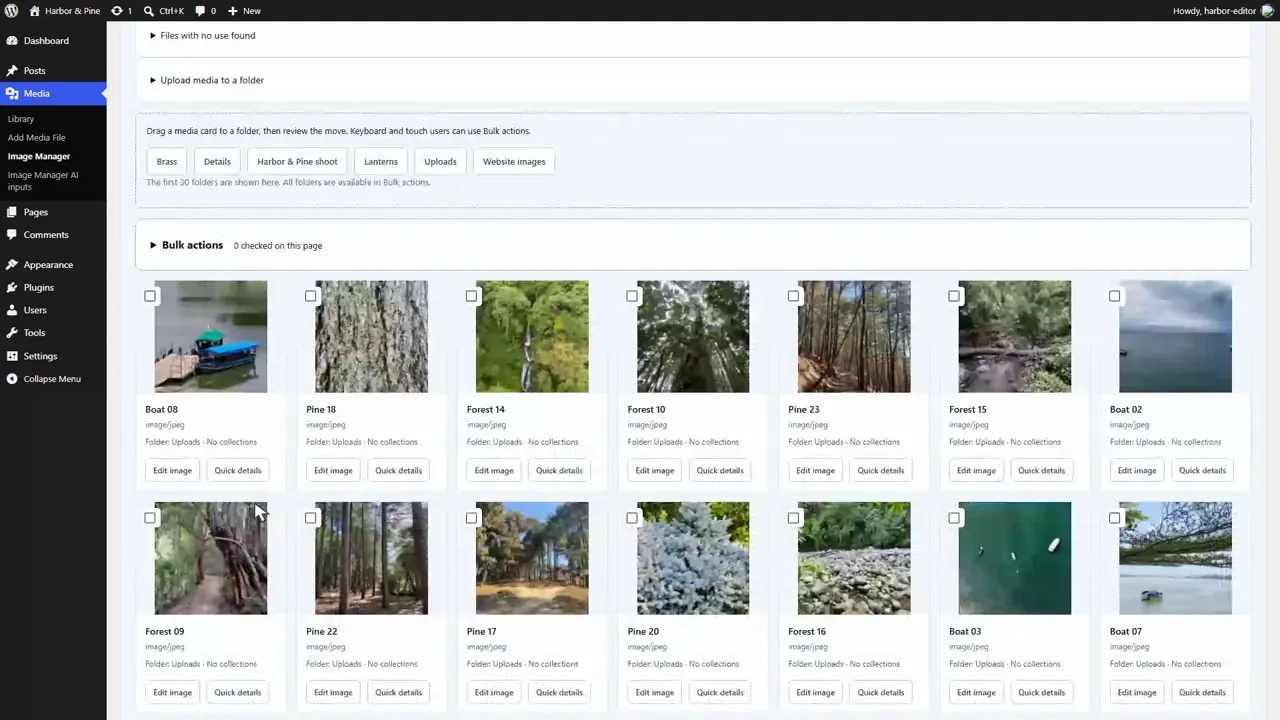
Searches, filters, nested folders, file and directory uploads, drag-and-drop organization, collection assignment, alt text and media usage checks.
Jump to a part of this video
- 0:00 Folders that never move a file
- 0:20 Search and views
- 1:02 Create folders and collections
- 1:34 Upload into a folder
- 2:10 Upload a whole folder
- 2:39 Drag and drop
- 3:04 Bulk actions
- 3:40 Alt text for many files
- 4:18 Fill empty alt text from file names
- 4:49 Where a file is used
- 5:18 Files with no use found
- 5:54 Check the uploads folder
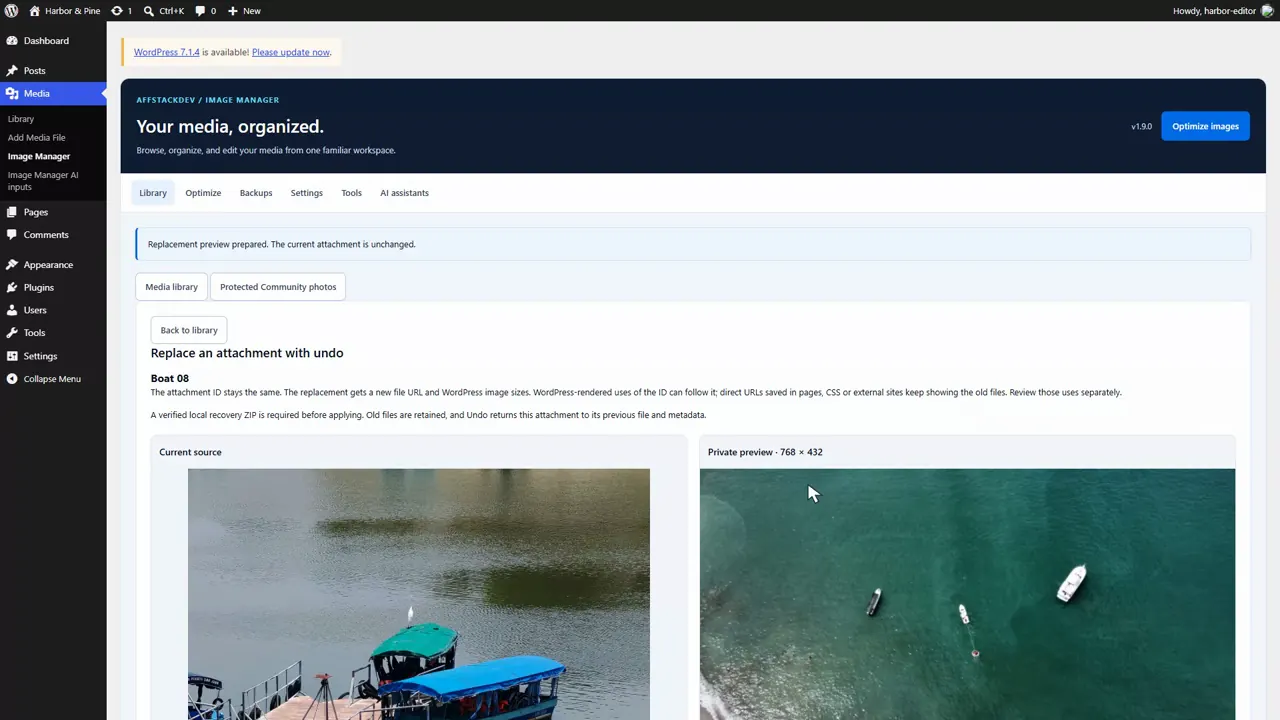
Crop and resize a picture into a new attachment, replace an image while keeping its attachment ID, download a recovery copy and undo the replacement. Also preview a PDF page as an image and save a smaller PDF copy.
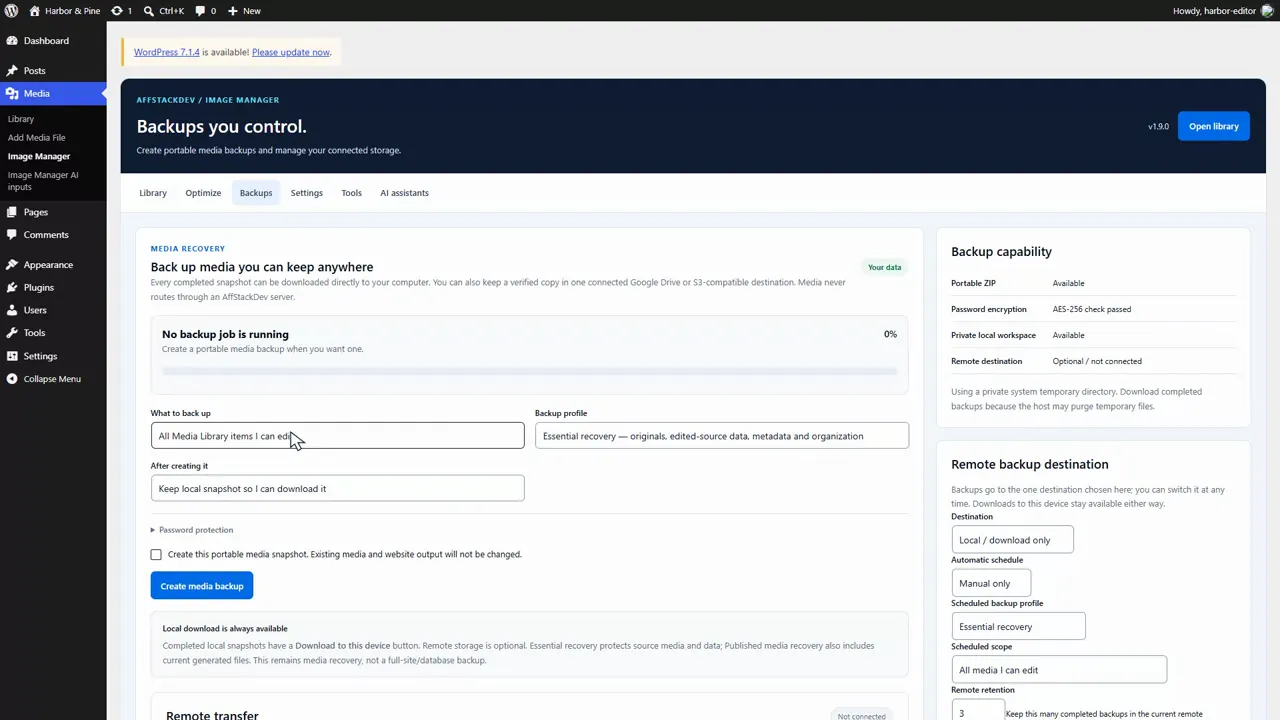
Create an encrypted media backup, download and inspect it, and restore selected media as new items. Follow a portable backup into a separate WordPress installation and explore backup profiles, remote destinations and scheduling.
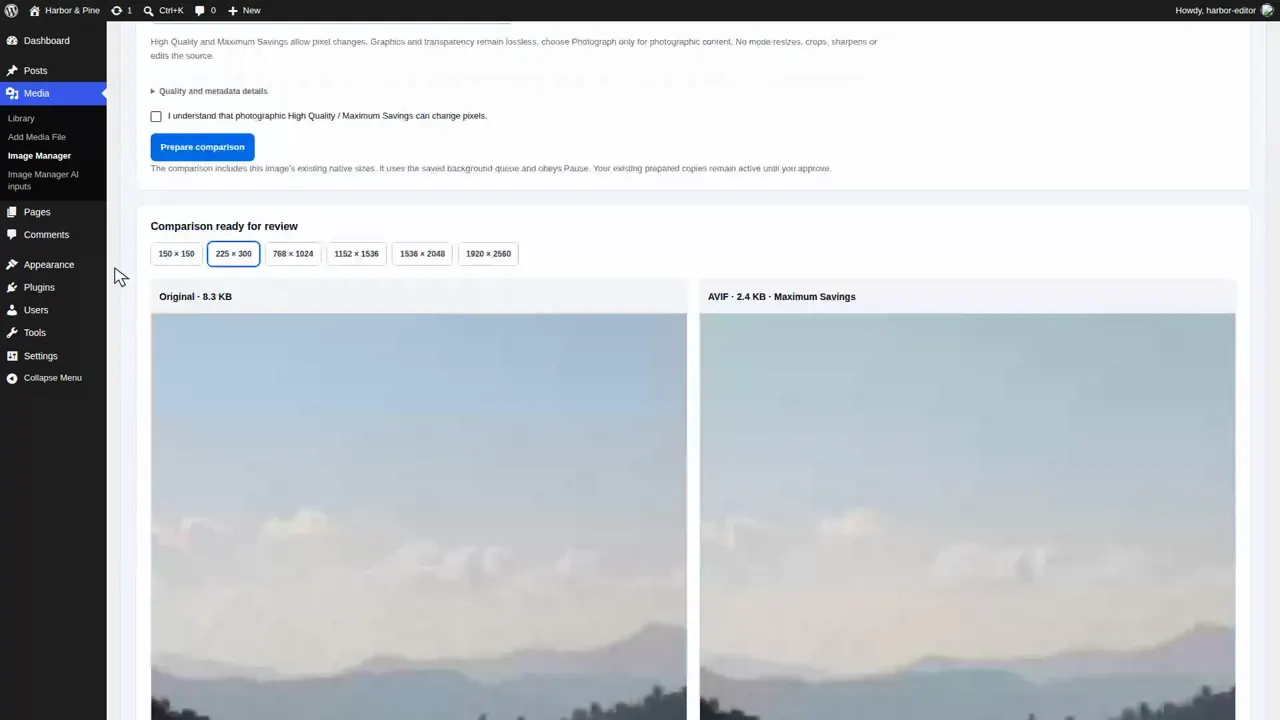
Measure how images fit your pages, make the display sizes they need, and configure fitting, dimensions, lazy-loading and automatic processing. Compare compression before approving copies, then inspect what the browser loads at phone and desktop widths.
Set up a watermark for optimized copies, review large-image and WordPress size controls, make missing sizes, upload an SVG with role-based permissions, build a folder gallery and organize the Pages list with folders.
 Part 1 · 6:46Optimize images and keep the originals
 Part 2 · 6:38Organize media with folders and collections
 Part 3 · 6:20Edit, replace and undo images safely
 Part 4 · 5:37Back up and restore your media
 Part 5 · 6:12Fit images to pages and check delivery
 Part 6 · 6:51Watermarks, image sizes and folder galleries
Watch it work
Store Credit, step by step
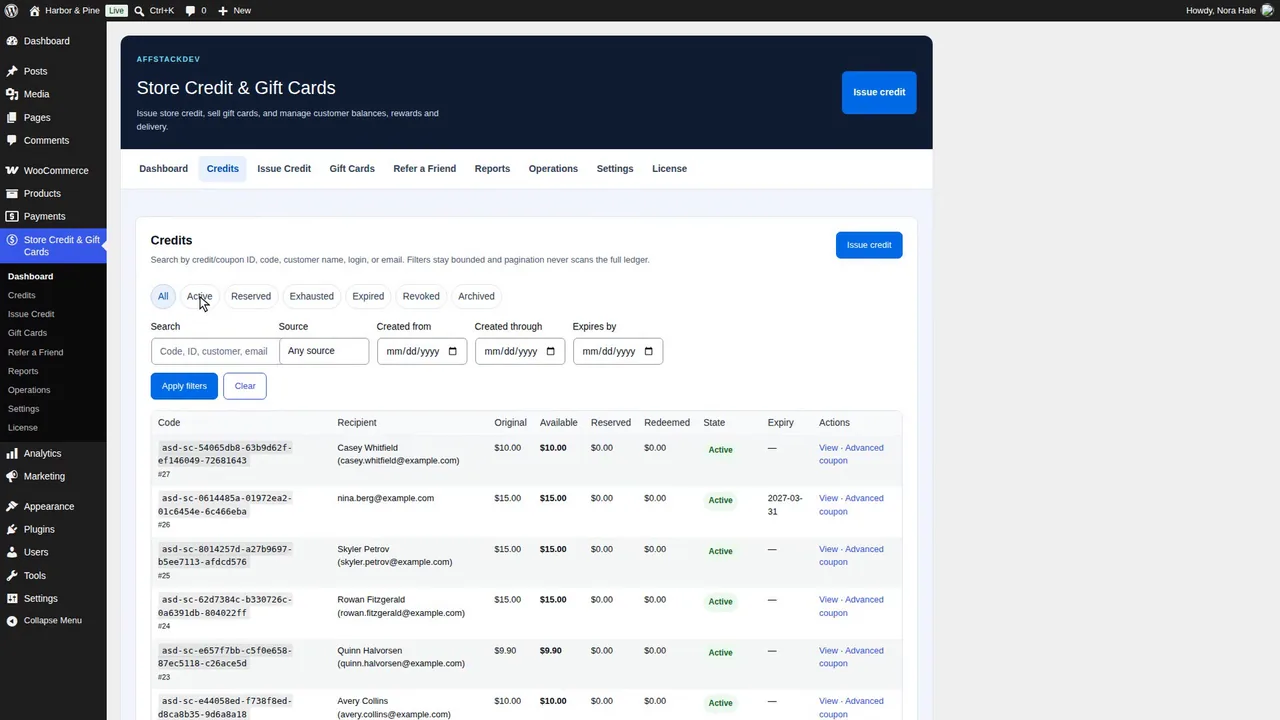
See Store Credit on our website, then inside WordPress: giving credit, the Credits list, the customer's side, gift cards on screen and on paper, Refer a Friend and how credit follows each order.
Jump to a part of this video
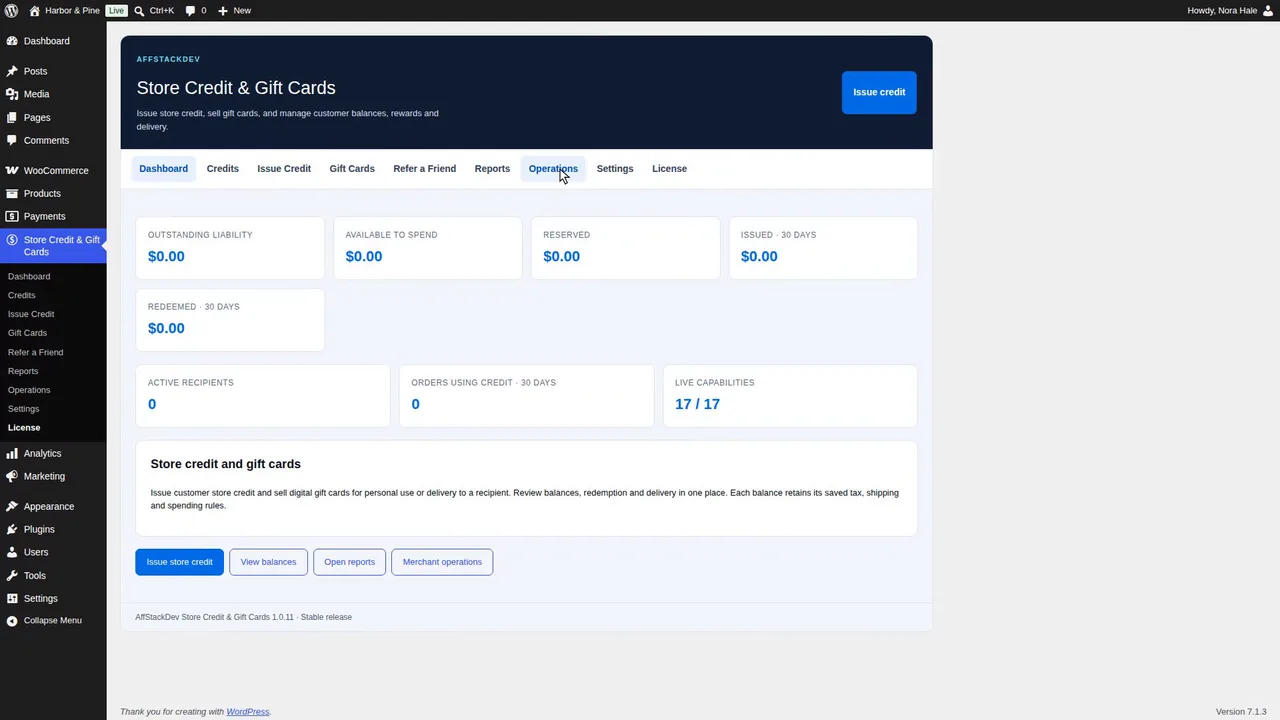
Install and activate Store Credit and Gift Cards, look through the dashboard, the license and the settings, then give a customer a first store credit and see it in their account and cart.
Jump to a part of this video
- 0:00 What this video covers
- 0:17 Four things it does
- 0:40 Download and install
- 1:08 Its menu and the first 72 hours
- 1:26 The dashboard
- 2:02 Activate the license
- 2:35 When the license is active
- 3:18 The nine sections
- 3:37 Settings, once
- 4:15 Give a first store credit
- 4:48 Review, issue and open it
- 5:47 In the customer's account
- 6:17 Apply it in the cart
- 7:01 The customer's email
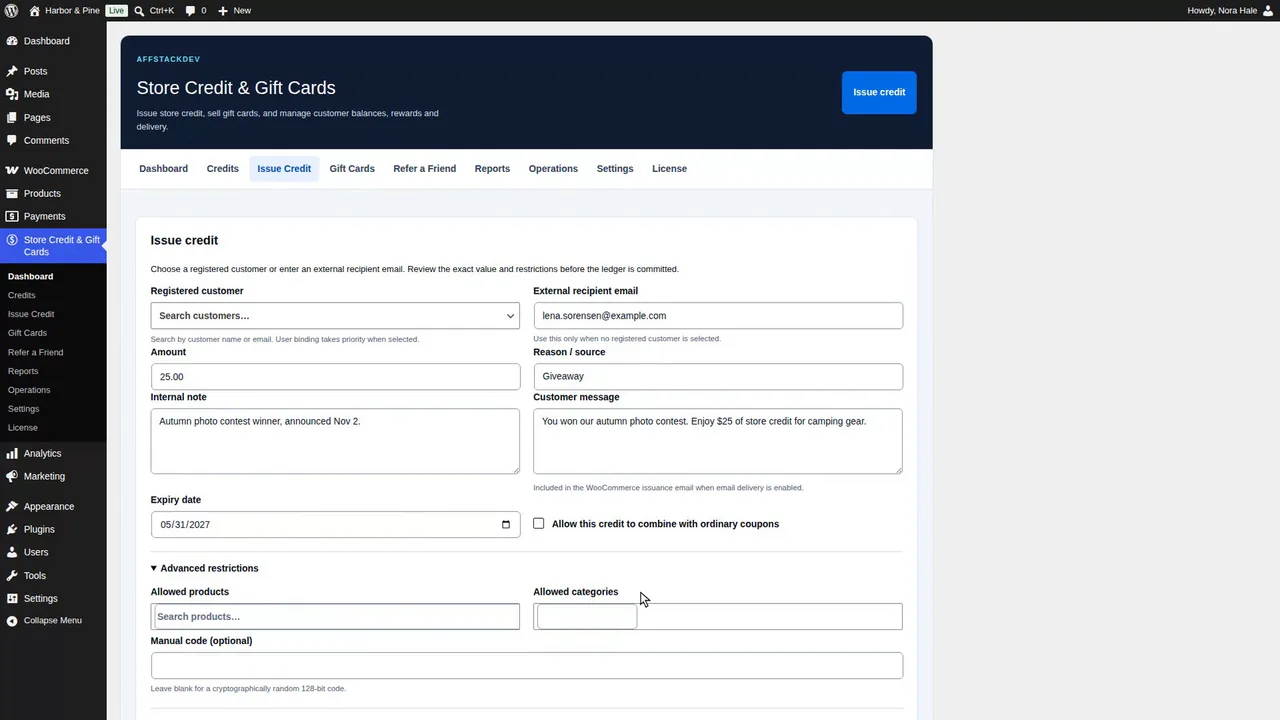
Every choice when you give store credit, the email the customer gets, finding any credit later, and each control on a credit: adjusting it, resending its email, printing, expiring, revoking and archiving it.
Jump to a part of this video
- 0:00 What this video covers
- 0:15 Credit for a customer or an email address
- 0:45 Amount, reason and message
- 1:24 Expiry and coupons
- 1:43 Restrictions and a manual code
- 2:02 Tax and shipping
- 2:37 Review and issue
- 3:06 The customer's email
- 3:31 Find any credit
- 4:24 Adjust a balance
- 5:22 Resend the email, print the card
- 6:03 Expire a credit
- 6:24 Revoke a credit
- 6:55 Archive a credit
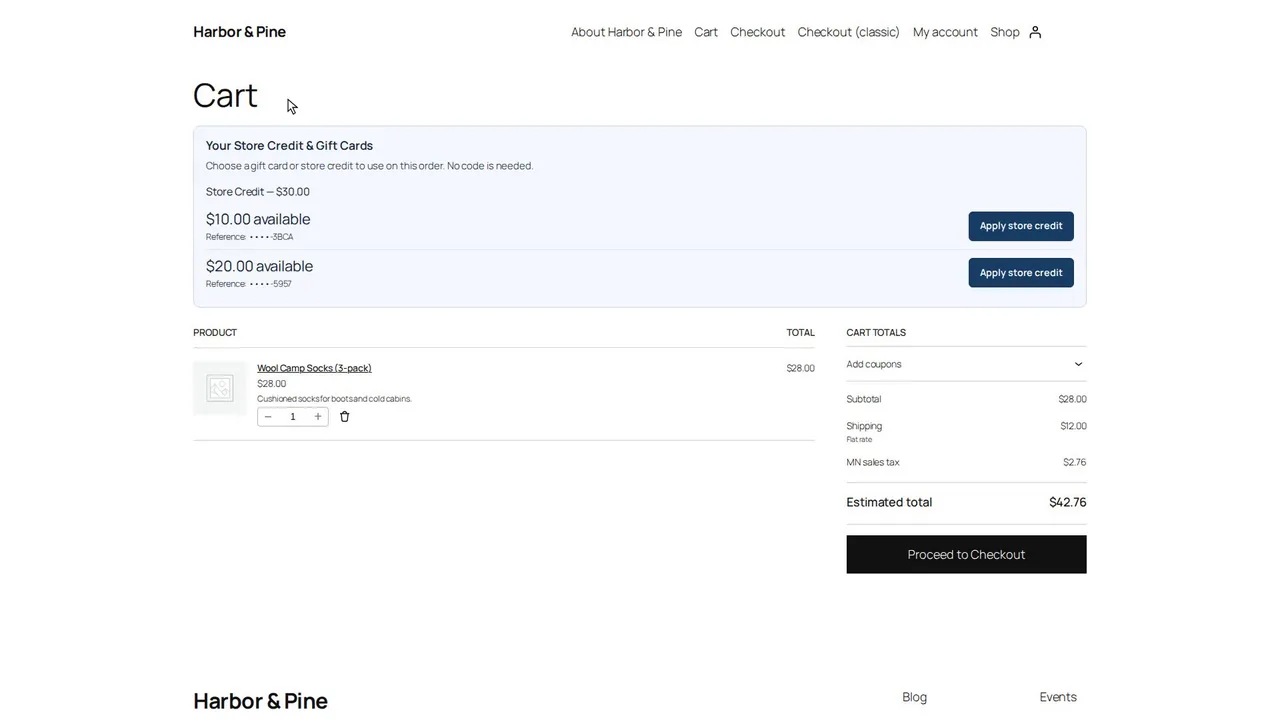
How customers use one or several credits in the cart and at checkout, what credit can pay for, what happens to it while an order is unpaid, paid or cancelled, the classic checkout, and a guest paying with an emailed code.
Jump to a part of this video
- 0:00 What this video covers
- 0:17 Two credits, each with its own rules
- 0:35 Apply credit in the cart
- 1:11 Checkout and placing the order
- 1:46 Reserved while unpaid
- 2:11 Cancelled: the credit comes back
- 2:41 The classic checkout
- 3:25 Paid orders use the credit
- 4:02 What credit can pay for
- 4:31 Gift cards, fees, tax and shipping
- 5:00 A guest pays with an emailed code
- 5:29 Other currencies
- 5:48 An order's life in short
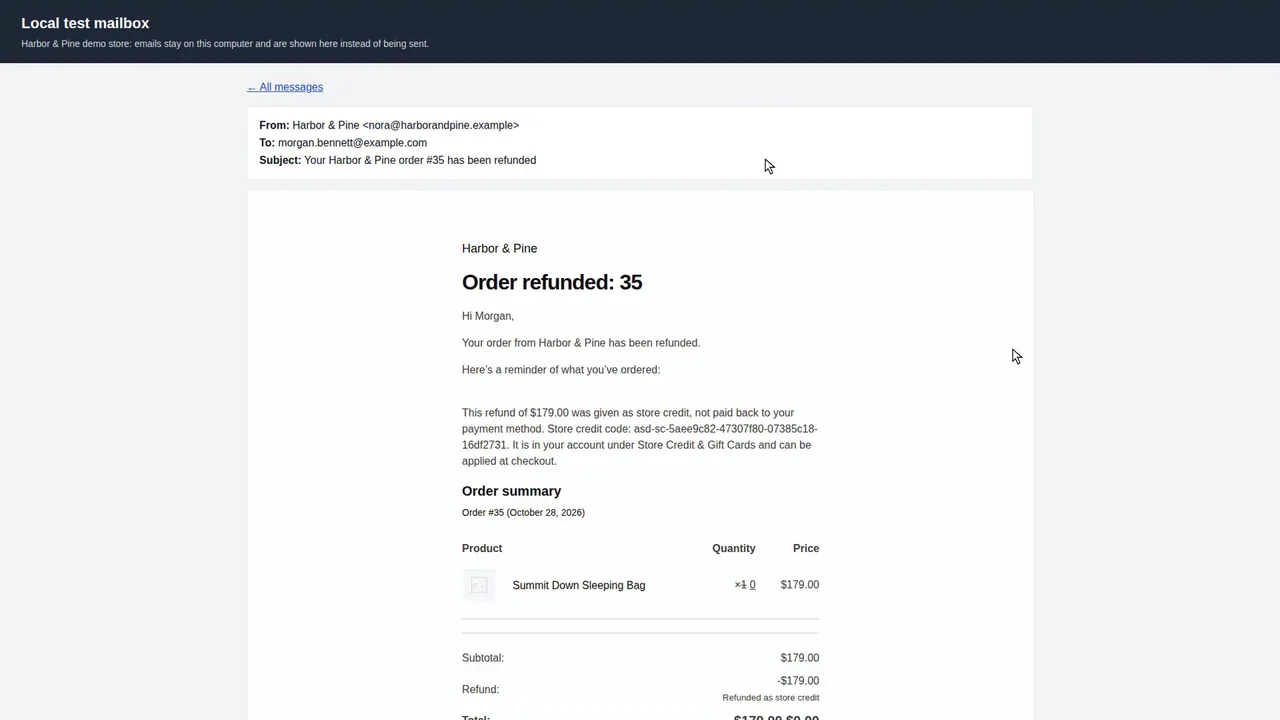
What happens to the credit an order used when you refund it in full or in part, refunding an order as store credit instead of money, orders paid entirely with credit, and guests.
Jump to a part of this video
- 0:00 What this video covers
- 0:16 A full refund
- 1:02 The credit comes back
- 1:37 A partial refund
- 2:03 Restore credit after a partial refund
- 3:08 Refund an order as store credit
- 3:52 What WooCommerce records
- 4:09 The new credit
- 4:50 The customer's emails
- 5:14 An order paid entirely with credit
- 5:37 Guests refunded as store credit
- 6:01 When it is not offered
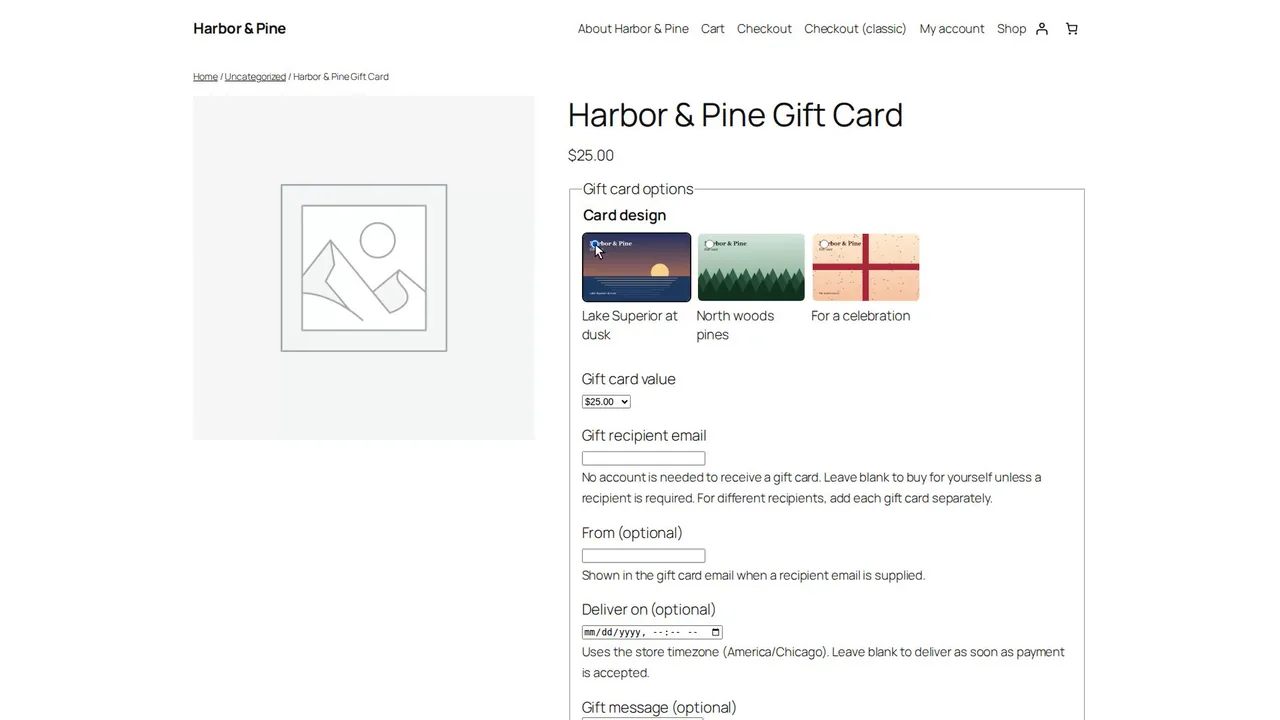
Create a gift card product and set what the card is worth, who it goes to, when it is delivered, the card designs buyers choose from and what the card may pay for, then see the product page.
Jump to a part of this video
- 0:00 What this video covers
- 0:15 The Gift Cards screen
- 0:41 Create a draft gift card
- 1:20 Make an existing product a gift card
- 1:41 What the card is worth
- 2:29 Recipients and delivery
- 2:55 Units, expiry and scheduled delivery
- 3:19 Card designs
- 4:07 What the card pays for
- 4:40 Publish
- 4:53 The product page
- 5:25 The other value choices
- 6:03 Ready to sell
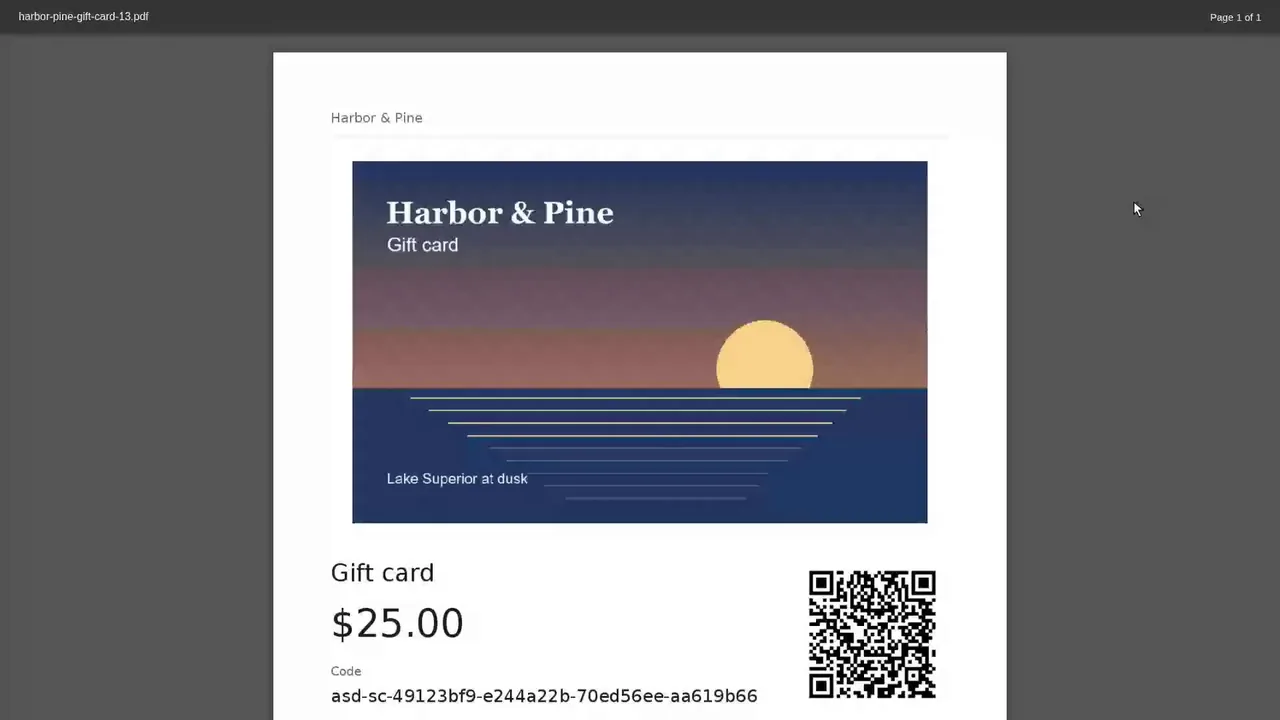
Buy gift cards for two people, see when cards are issued and what recipients get, spend a card with or without an account, add money to a card, send balance to someone, schedule delivery and refund a gift card order safely.
Jump to a part of this video
- 0:00 What this video covers
- 0:21 Buy two gift cards
- 0:57 When cards are issued
- 1:45 The recipient's email
- 2:07 Attach the printable card
- 2:17 Spend a card without an account
- 2:43 Link a card to an account
- 3:19 The printable card
- 3:39 Top-ups
- 4:34 No gift cards bought with credit
- 4:49 Send balance to someone
- 5:50 Scheduled delivery
- 6:09 Before refunding a gift card order
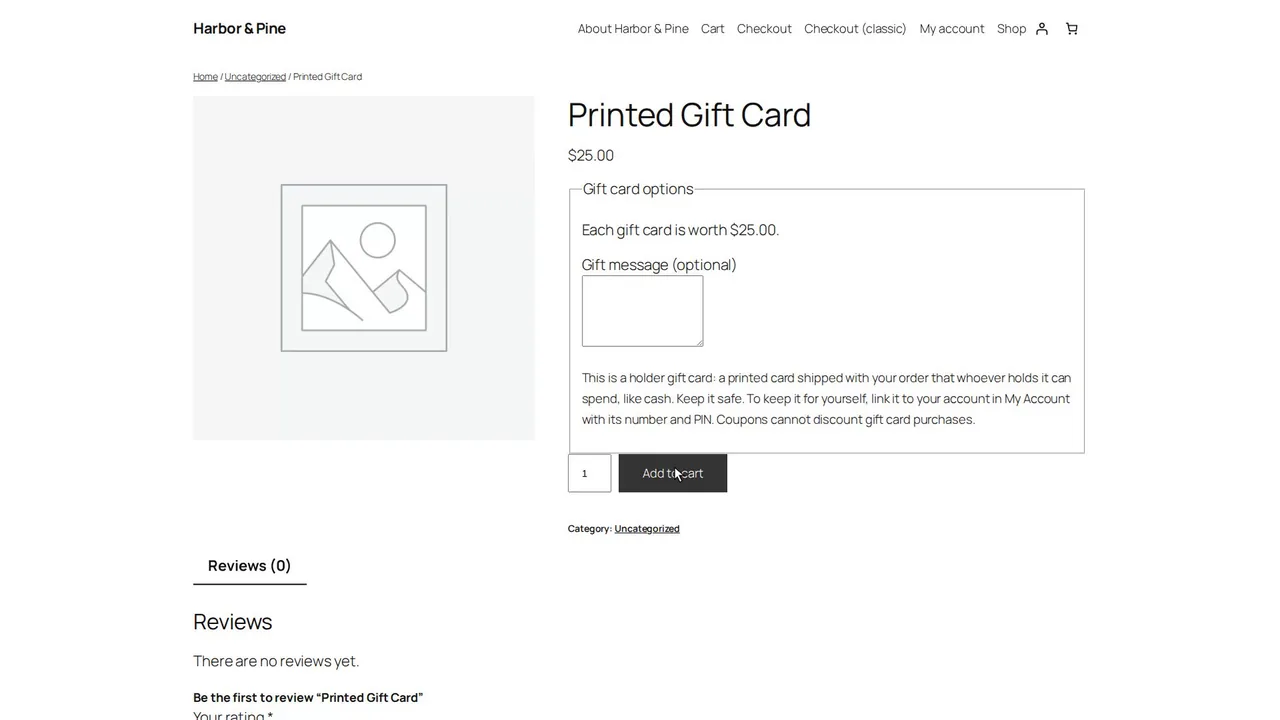
Gift cards on paper: a printed card shipped with the order, holder cards that whoever holds them can spend, and batches of cards for a card printer or your shop counter, with activation, PINs and voiding.
Jump to a part of this video
- 0:00 What this video covers
- 0:12 A printed gift card
- 0:53 Switch on holder cards
- 1:05 A holder card product
- 1:26 Buying one
- 1:42 Issued and printed
- 2:12 Make a batch
- 2:39 The batch list and its files
- 3:26 Activate a card when it is sold
- 3:46 Spend it with the PIN
- 4:00 Link it to an account
- 4:22 Activate a range of cards
- 4:39 Void unused cards
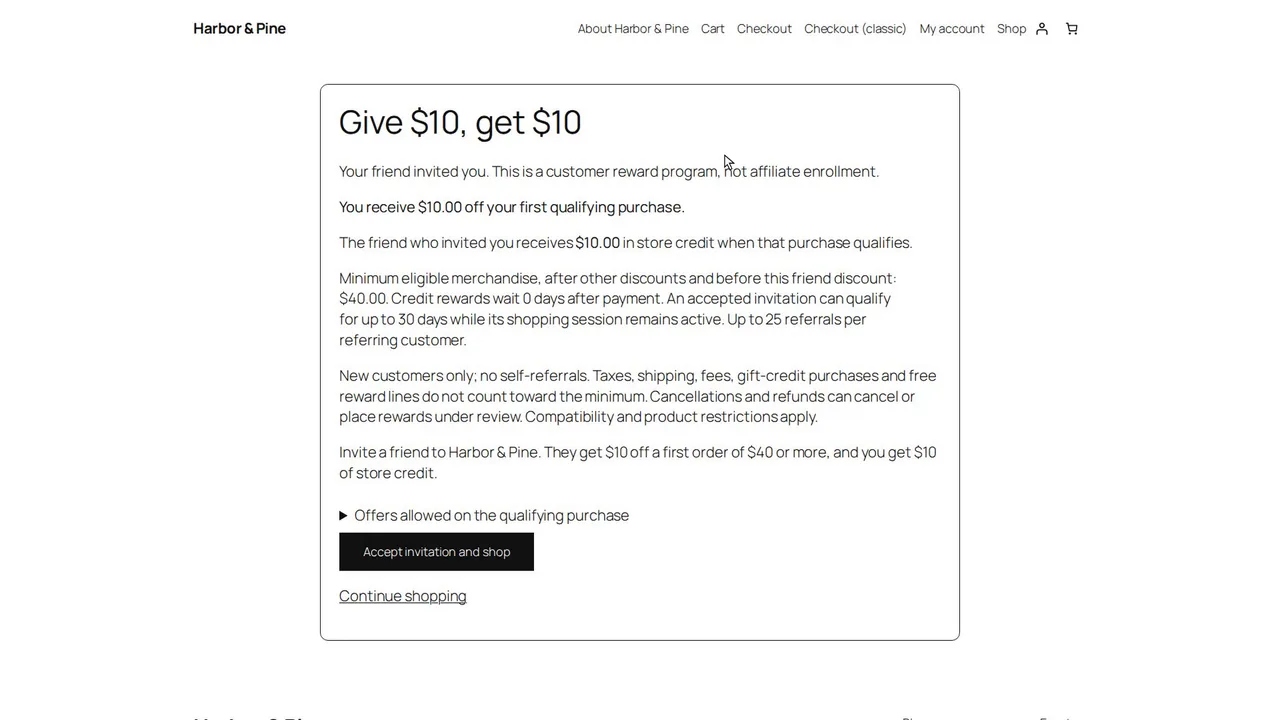
Set up Refer a Friend, see what the customer and the invited friend see, how a first purchase earns both rewards, which offers may be combined, and how you watch referrals and handle refunds.
Jump to a part of this video
- 0:00 What this video covers
- 0:14 What Refer a Friend is
- 0:42 Program and rewards
- 1:36 Limits and eligible products
- 2:20 Which offers may be combined
- 2:59 Switch it on
- 3:19 The customer's page and link
- 3:57 The friend's invitation
- 4:30 The friend's first order
- 4:46 The reward is issued
- 5:32 Both sides' rewards
- 5:53 Refunds and switching it off
- 6:12 Shortcode and business accounts
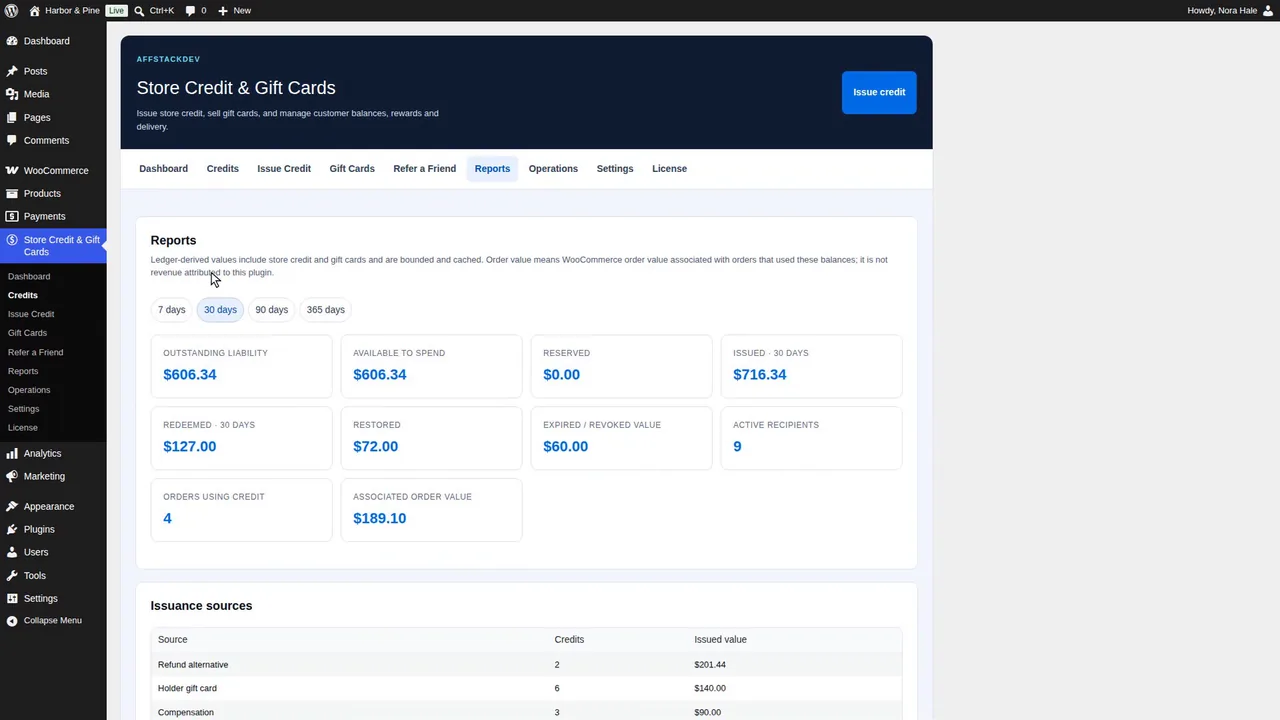
Cashback as store credit, the reports and reconciliation, merchant operations with CSV exports and bulk issuing from a file, the remaining settings, the customer email, privacy requests and the license checks.
Jump to a part of this video
- 0:00 What this video covers
- 0:13 Cashback settings
- 1:13 A cashback order and its credit
- 2:03 Reports
- 2:50 Reconciliation
- 3:11 Operations
- 3:35 CSV exports
- 4:11 Bulk issue from a file
- 5:10 Documentation and subscriptions
- 5:48 Enhanced UI off
- 6:11 The customer email's settings
- 6:33 Privacy requests
- 7:22 License checks
 Introduction · 5:17Introduction on the website and in WordPress
 Part 1 · 7:25Install it and give your first store credit
 Part 2 · 7:29Give credit and manage every balance
 Part 3 · 6:10At checkout: what customers do and what happens to the credit
 Part 4 · 6:26Refunds, and refunding an order as store credit
 Part 5 · 6:21Create and set up a gift card product
 Part 6 · 7:17Gift cards in use: buying, delivery, the recipient's side and top-ups
 Part 7 · 5:02Printed gift cards and holder cards
 Part 8 · 6:30Refer a Friend
 Part 9 · 7:58Cashback, reports and store tools
Watch it work
Support Desk, step by step
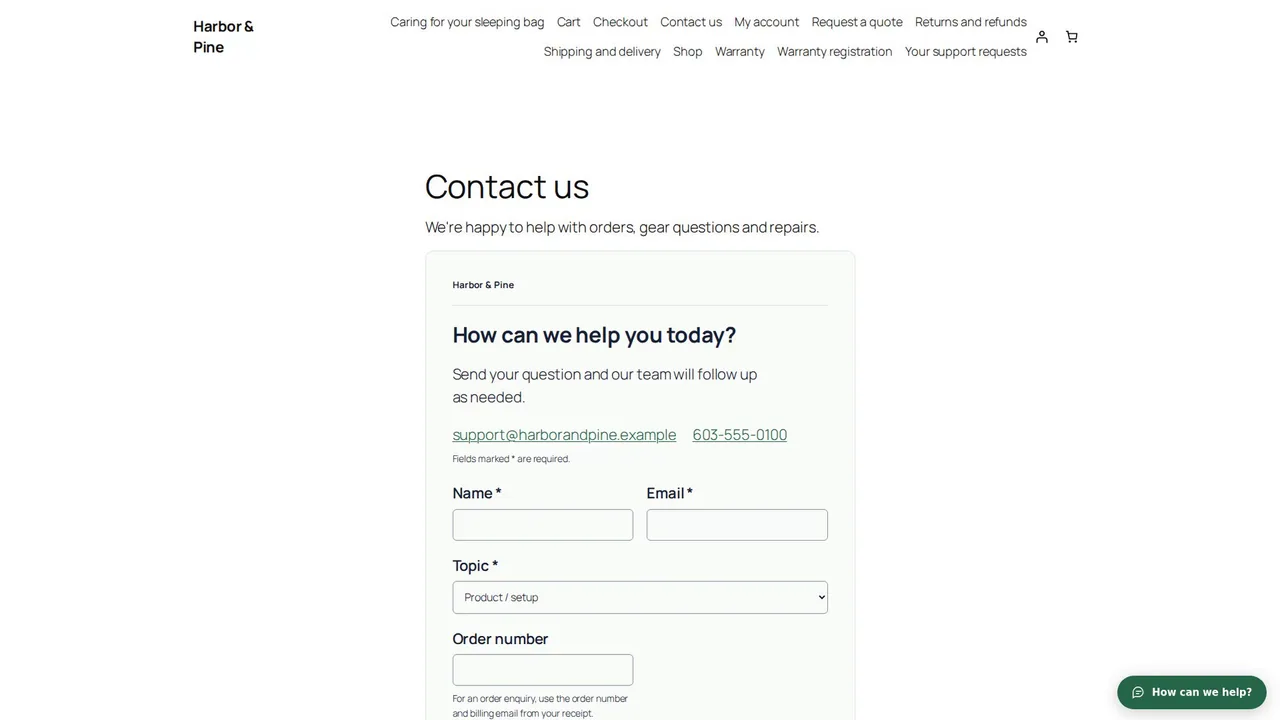
See Support Desk on our website, then inside WordPress: the inbox, Quick view and the request page, spam protection, forms, the contact bubble, the customer portal, team tools and reports.
Jump to a part of this video
- 0:00 What Support Desk does
- 0:23 Its page on our website
- 0:55 What it does and how it fits
- 1:13 Store listing
- 1:40 The inbox and Quick view
- 2:25 The request page
- 2:46 Junk stays out
- 2:57 Forms on your pages
- 3:19 The contact bubble
- 3:30 The customer portal
- 3:50 Due dates, rules and AI
- 4:09 Reports and export
- 4:26 Where to start
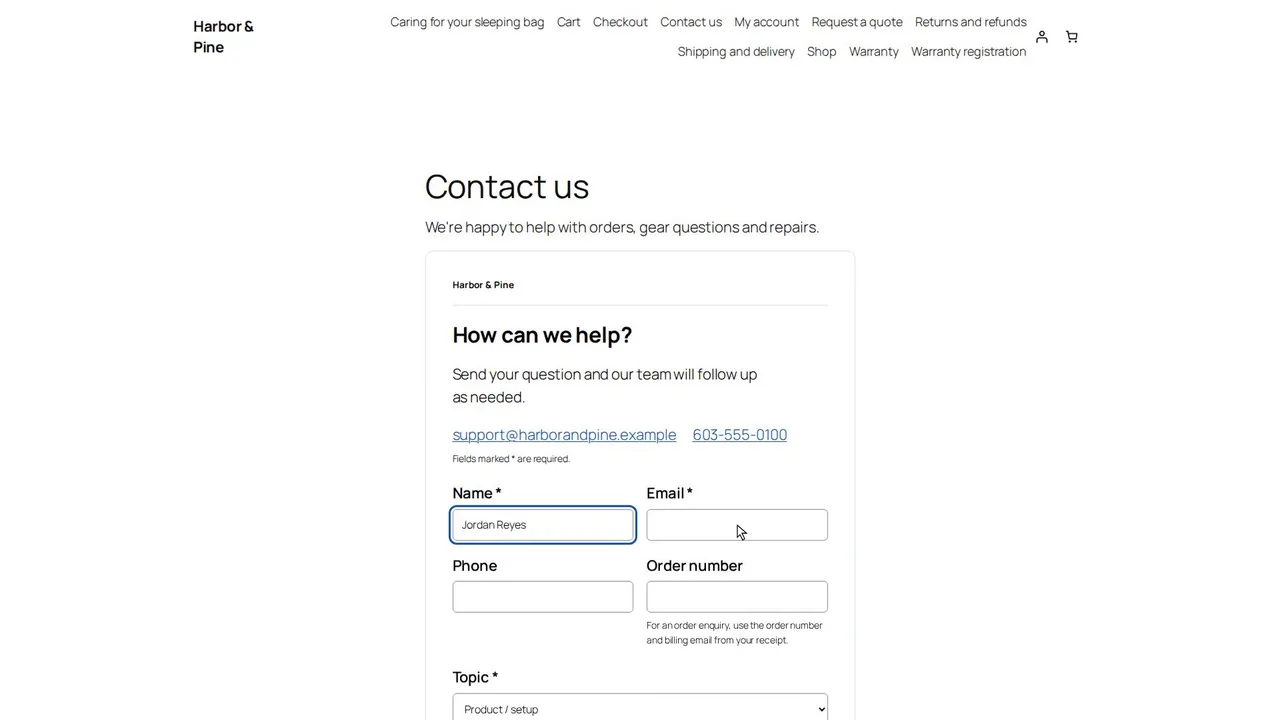
See Support Desk on our website, then install it, read the license and settings, set up the support mailbox, put the contact, warranty and quote forms on your pages, and send a test request.
Jump to a part of this video
- 0:00 What this video covers
- 0:17 Support Desk on our website
- 1:25 Download and install
- 1:52 Its menu, and everything off
- 2:15 The license
- 2:52 Settings and General
- 4:01 The mailbox and references
- 4:35 A form on a mapped page
- 4:56 Or a block or shortcode
- 5:31 Switch on the forms
- 5:58 The forms as visitors see them
- 6:36 Send a test request
- 7:05 The request and its emails
- 7:33 Compatibility and troubleshooting
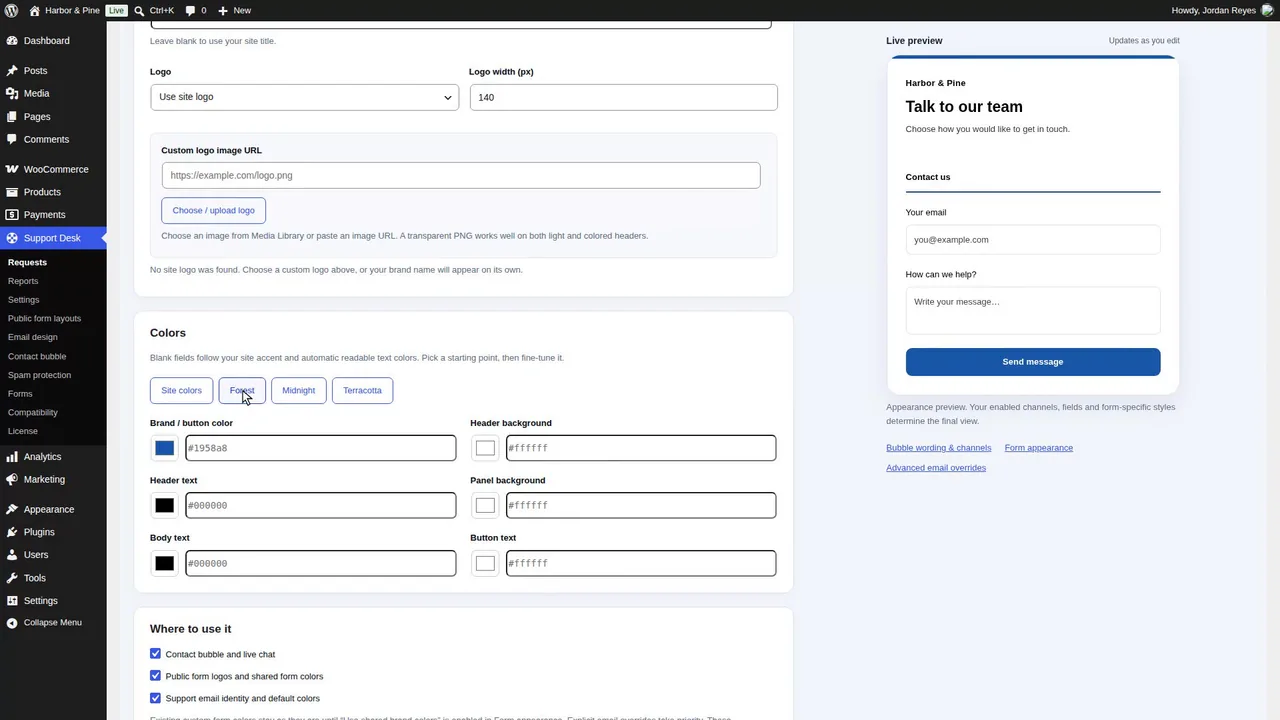
Make Support Desk look like your store: shared branding, form layouts and fields, your own fields, file attachments, and the design and wording of every email, with previews and a test email.
Jump to a part of this video
- 0:00 What this video covers
- 0:19 Brand name and logo
- 0:45 Colors and where they apply
- 1:32 Form appearance
- 1:54 Layout and appearance
- 2:16 Fields, order and preview
- 2:52 Each form's own layout
- 3:14 Your own fields
- 4:11 File attachments
- 4:38 The result on the store
- 4:56 Email branding and layout
- 5:41 Message templates
- 6:25 Preview and test an email
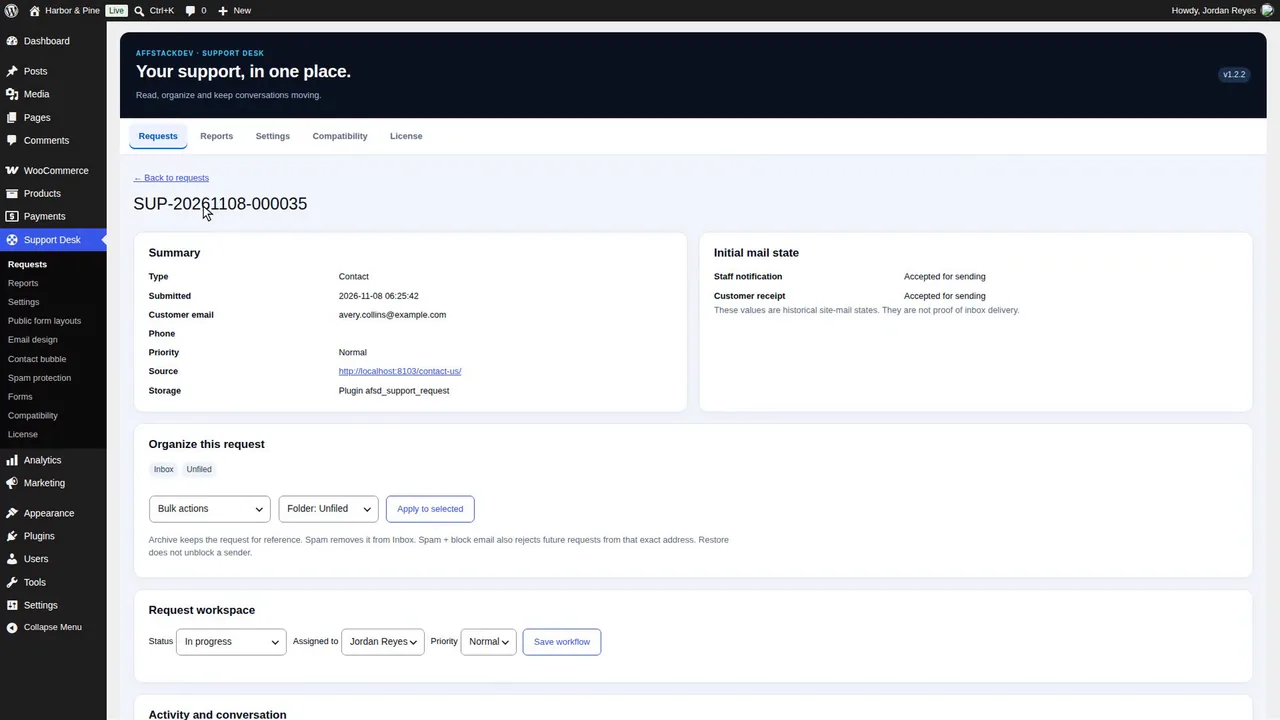
Follow one customer question from the contact form to a resolved request: the inbox, Quick view, status, notes, saved replies, email replies, time spent, and requests you open yourself for phone calls.
Jump to a part of this video
- 0:00 What this video covers
- 0:24 Saved replies
- 0:48 A customer asks about an order
- 1:34 The Inbox and Quick view
- 2:16 The request page
- 2:49 Status and priority
- 3:16 A private note
- 3:38 Reply with a saved reply
- 4:03 Reply history and the conversation
- 4:38 Time spent
- 4:59 Earlier requests
- 5:20 Resolve it
- 5:53 Open a request yourself
- 6:55 Change saved replies
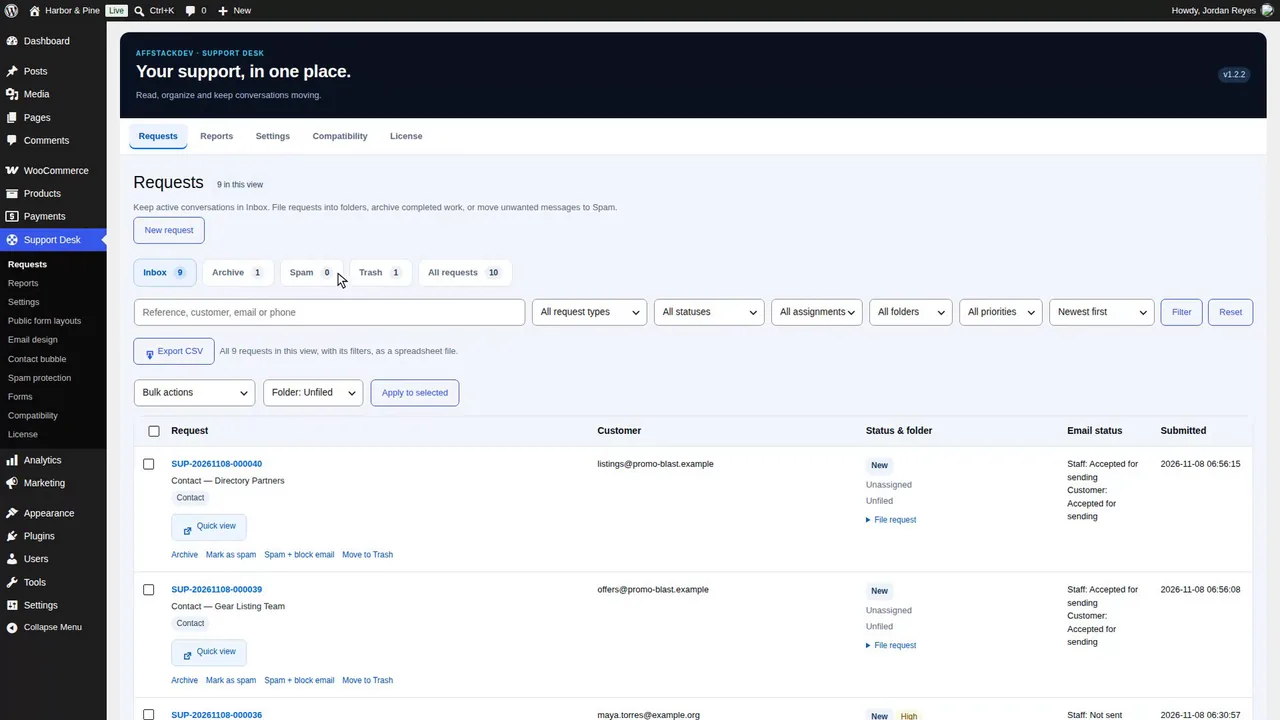
Find and file requests with views, search, filters and folders, archive and restore them, and keep junk out with spam protection, order checks, sender blocks, Trash and Clean-up.
Jump to a part of this video
- 0:00 What this video covers
- 0:19 The five views
- 0:36 Search, filters and list settings
- 1:24 Folders
- 1:47 File requests
- 2:12 Archive and restore
- 2:32 Spam protection
- 3:00 Order checks
- 3:20 Speed checks and blocked phrases
- 3:50 Mark as spam and block senders
- 4:45 The blocked senders list
- 5:15 Trash
- 5:41 Clean-up
- 6:28 Who else has it open
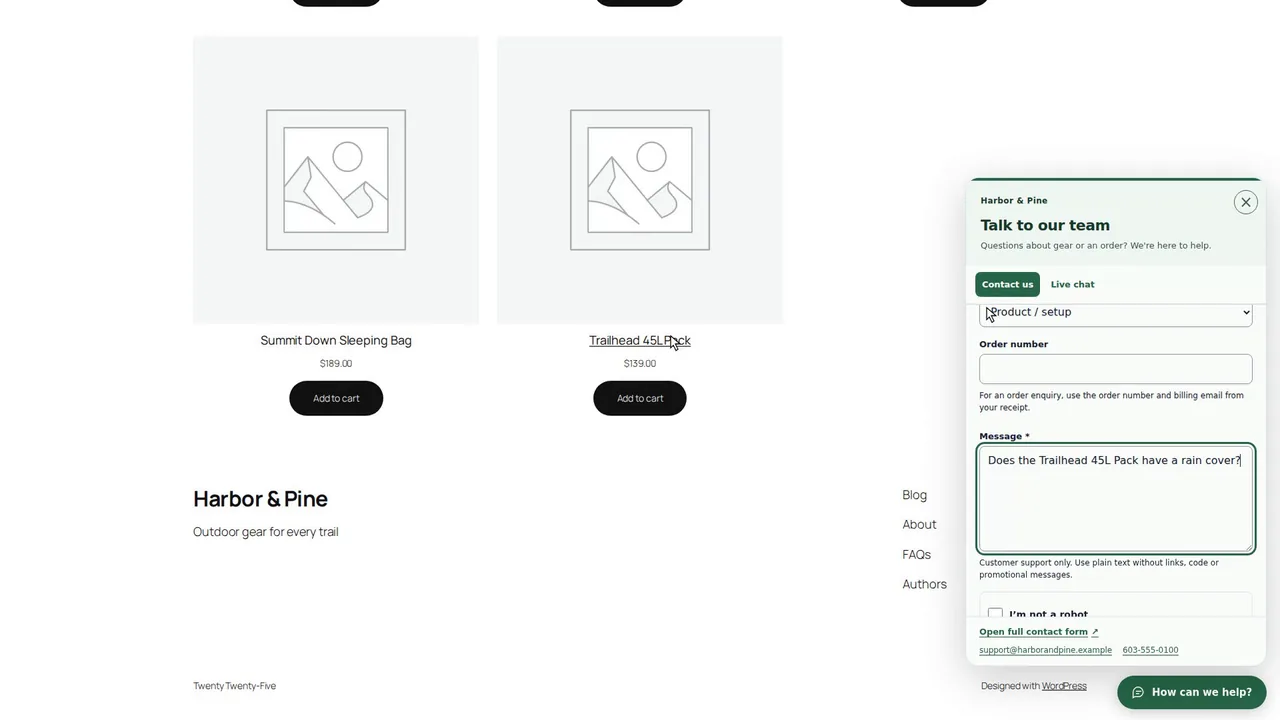
Switch on the contact bubble and live chat, answer a visitor in chat with saved replies, and file customers' email answers under their requests from your support mailbox.
Jump to a part of this video
- 0:00 What this video covers
- 0:17 The license and its activation
- 1:29 Contact bubble settings
- 2:03 Wording and position
- 2:40 The bubble on the store
- 3:00 A message from the bubble
- 3:15 Go online
- 3:38 A live chat
- 4:08 Answer in chat
- 4:41 End the chat and go offline
- 5:08 Connect your support mailbox
- 6:18 A customer's email reply is filed
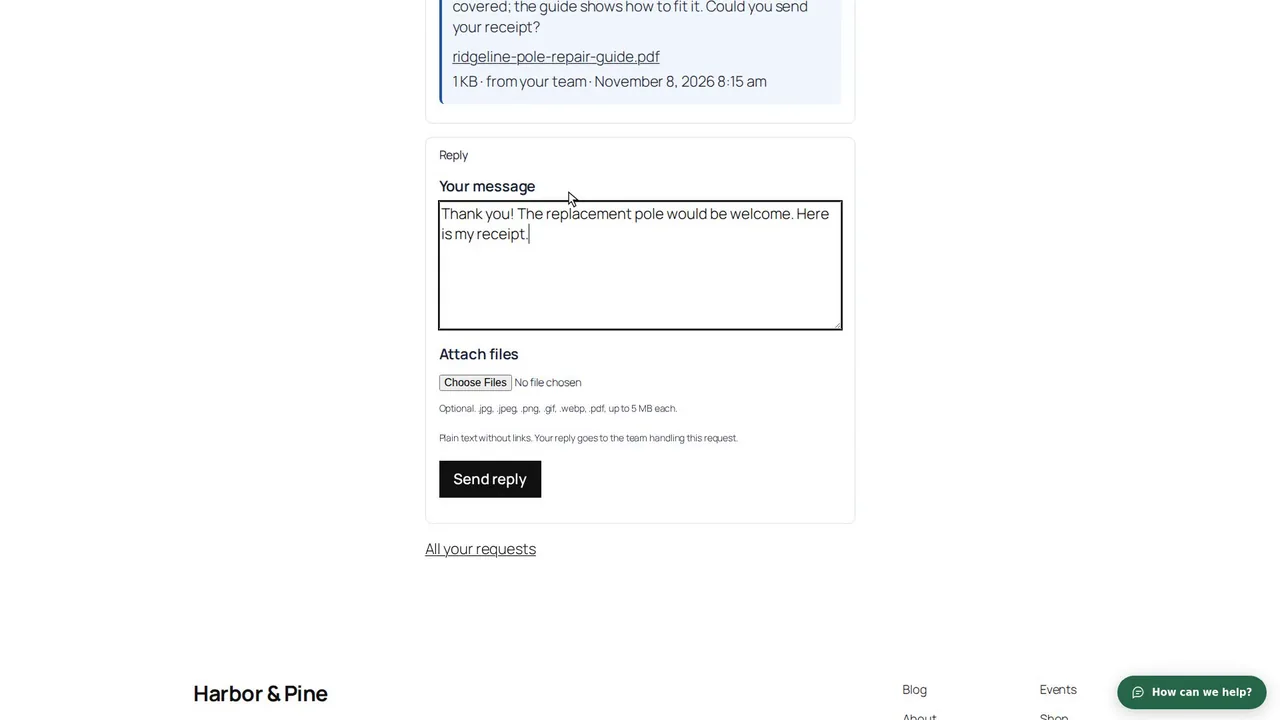
What customers see and send: file attachments and the checks on them, the customer portal and private links where they follow and answer their requests, and the satisfaction survey.
Jump to a part of this video
- 0:00 What this video covers
- 0:15 A warranty form with files
- 0:33 Files that are refused
- 0:59 Files on the request
- 1:14 Switch on the customer portal
- 1:46 A portal page
- 2:21 Send files to the customer
- 2:38 The customer's view
- 2:55 The customer replies
- 3:22 Private links
- 3:57 The satisfaction survey
- 4:27 Answering the survey
- 5:14 Resolved or Closed
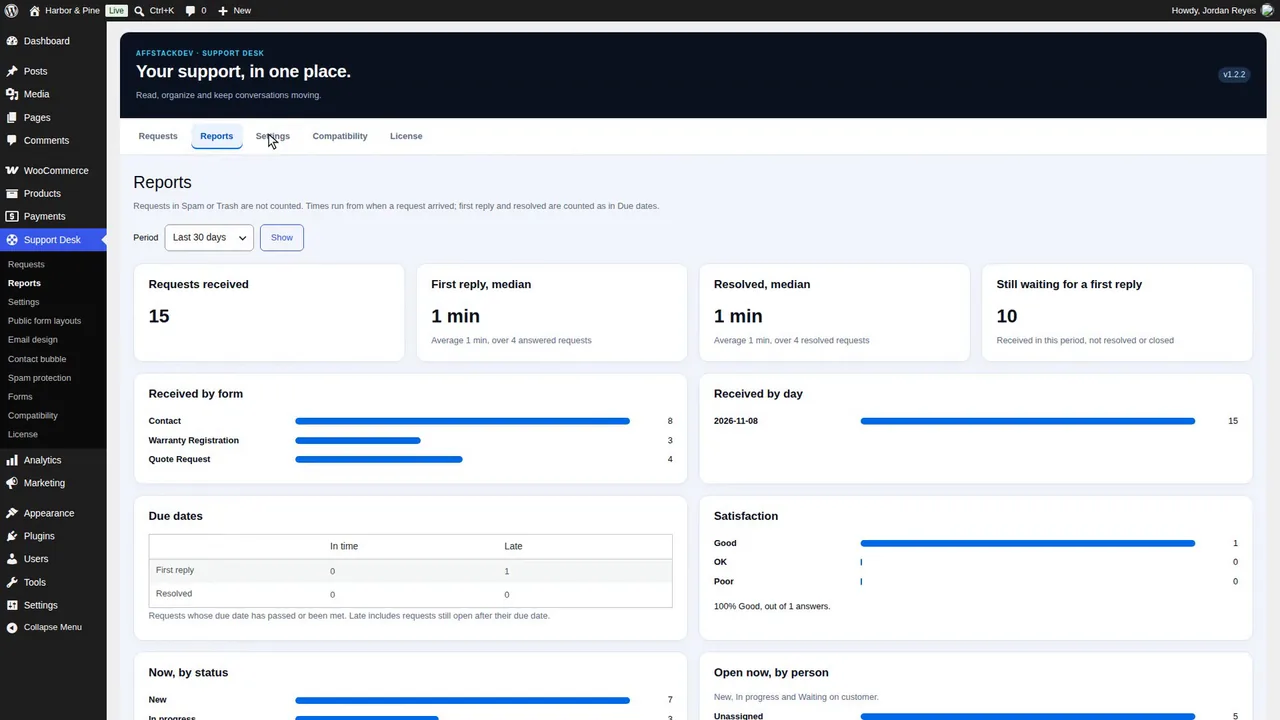
The tools that keep a team on time and run the desk: due dates, automatic rules, automatic closing, suggested answers, Reports, Export CSV, AI assistants with approvals, personal data requests and team permissions.
Jump to a part of this video
- 0:00 What this video covers
- 0:20 Due dates
- 1:03 Overdue requests
- 1:41 Automatic rules
- 2:56 Closing requests automatically
- 3:13 Rules at work
- 3:58 Pause or remove a rule
- 4:21 Suggested answers
- 5:06 Reports
- 5:38 Export CSV
- 6:05 AI assistants
- 6:34 Approve or reject a proposal
- 7:46 Personal data requests
- 8:33 Who can do what
 Introduction · 4:45Introduction on the website and in WordPress
 Part 1 · 8:26Install and set up
 Part 2 · 7:15Make Support Desk look like your store
 Part 3 · 7:23Answer a customer request
 Part 4 · 6:59Organize requests and keep junk out
 Part 5 · 6:56Contact bubble, live chat and email replies
 Part 6 · 5:51Attachments, the customer portal and the survey
 Part 7 · 9:02Team tools and running the desk
Watch it work
B2B, step by step
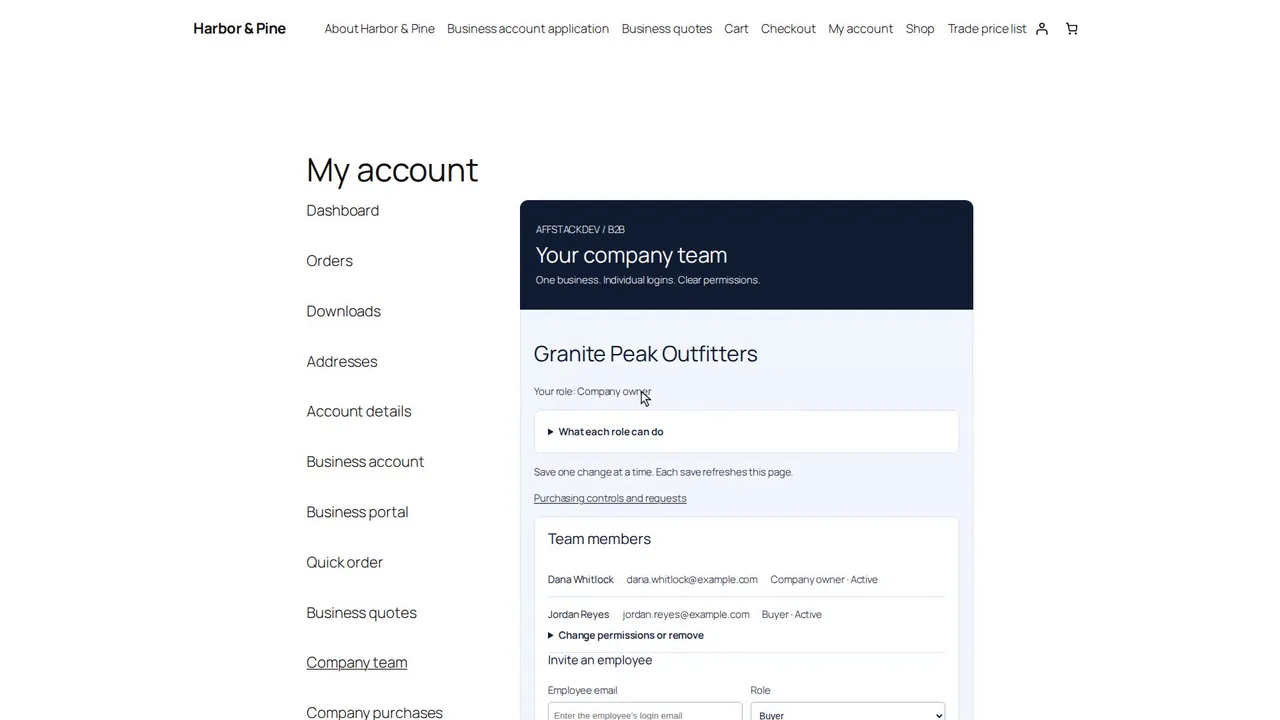
See B2B on our website, then inside WordPress: setup and defaults, accounts, catalog rules, price preview, quotes and your own AI, then the business buyer's portal, team and pay on account.
Jump to a part of this video
- 0:00 What B2B does
- 0:23 The B2B mini-site
- 0:44 From approval to the next order
- 1:17 Which price wins
- 1:33 Setup guide, demo and requirements
- 1:56 Inside WordPress
- 2:24 Setup and defaults
- 2:53 Accounts
- 3:15 Catalog and quantities
- 3:32 Price preview
- 3:48 Quotes
- 4:05 Your own AI
- 4:25 The buyer's side
- 4:48 Company team and pay on account
- 5:08 Store listing and where to start
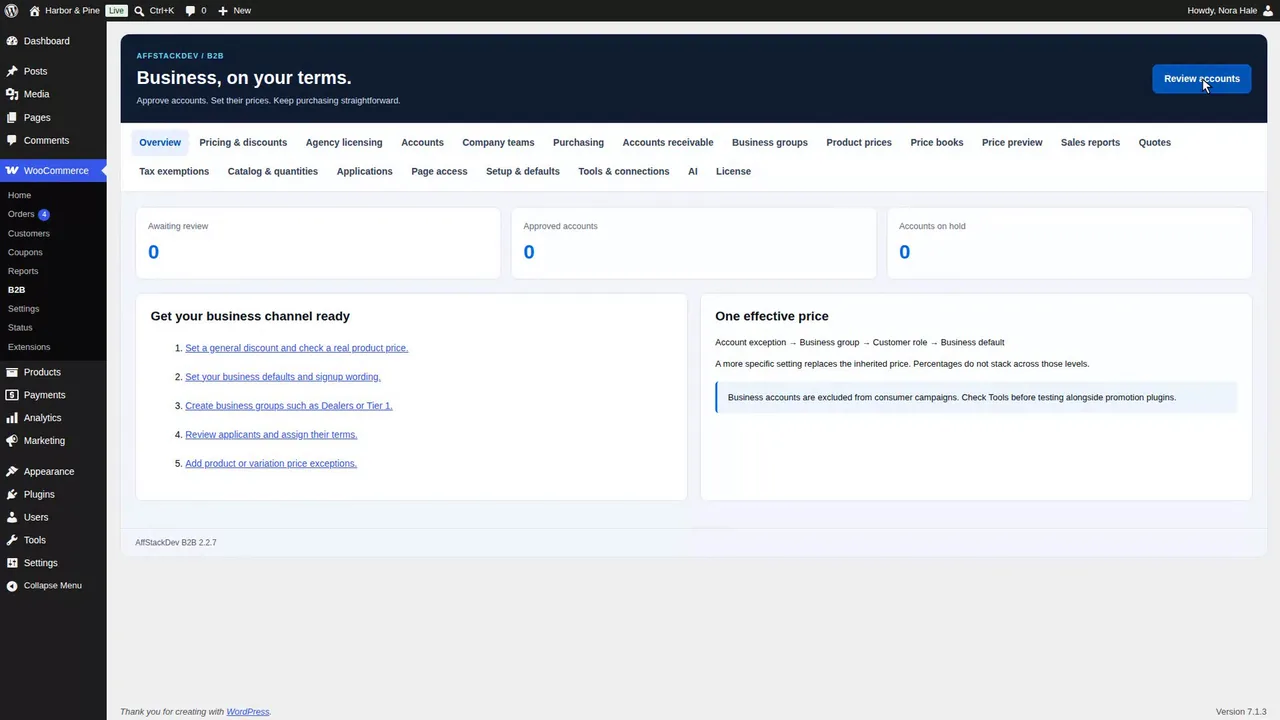
See B2B for WooCommerce on our website, then install and activate it, set the default business terms, create the signup page and a first business group, and approve the first business customer.
Jump to a part of this video
- 0:00 What this video covers
- 0:17 B2B on our website
- 1:16 Download and install
- 1:47 Where it lives and the license
- 3:38 The workspace and Overview
- 4:43 Setup and defaults
- 5:04 Default business terms
- 6:33 Review, then publish
- 6:53 The signup page
- 7:14 A first business group
- 8:07 A business applies
- 8:30 Approve the account
- 8:53 Price preview
- 9:12 Shopping as the business
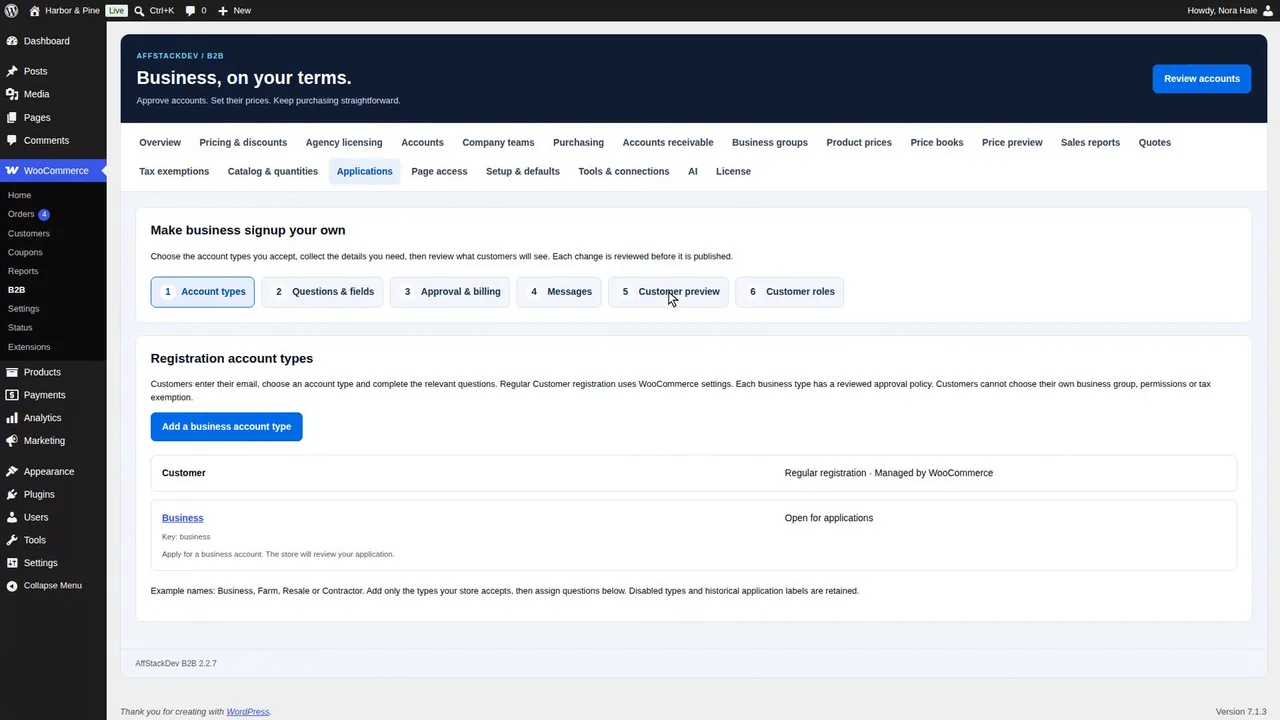
Build the business application form: account types and the approval policy, your own questions with conditions and private documents, billing copy, spam checks, the emails applicants get, a customer preview and customer roles.
Jump to a part of this video
- 0:00 What this video covers
- 0:24 The six steps and account types
- 1:03 Add a business account type
- 1:27 What happens after applying
- 2:10 Questions and fields
- 2:35 Add a question
- 3:25 Order, audience and conditions
- 4:14 Sensitive answers and the examples
- 5:04 Approval, billing and checks
- 6:23 Messages
- 6:55 Preview and test messages
- 7:26 Customer preview
- 7:46 Customer roles
- 8:41 Account creation in WooCommerce
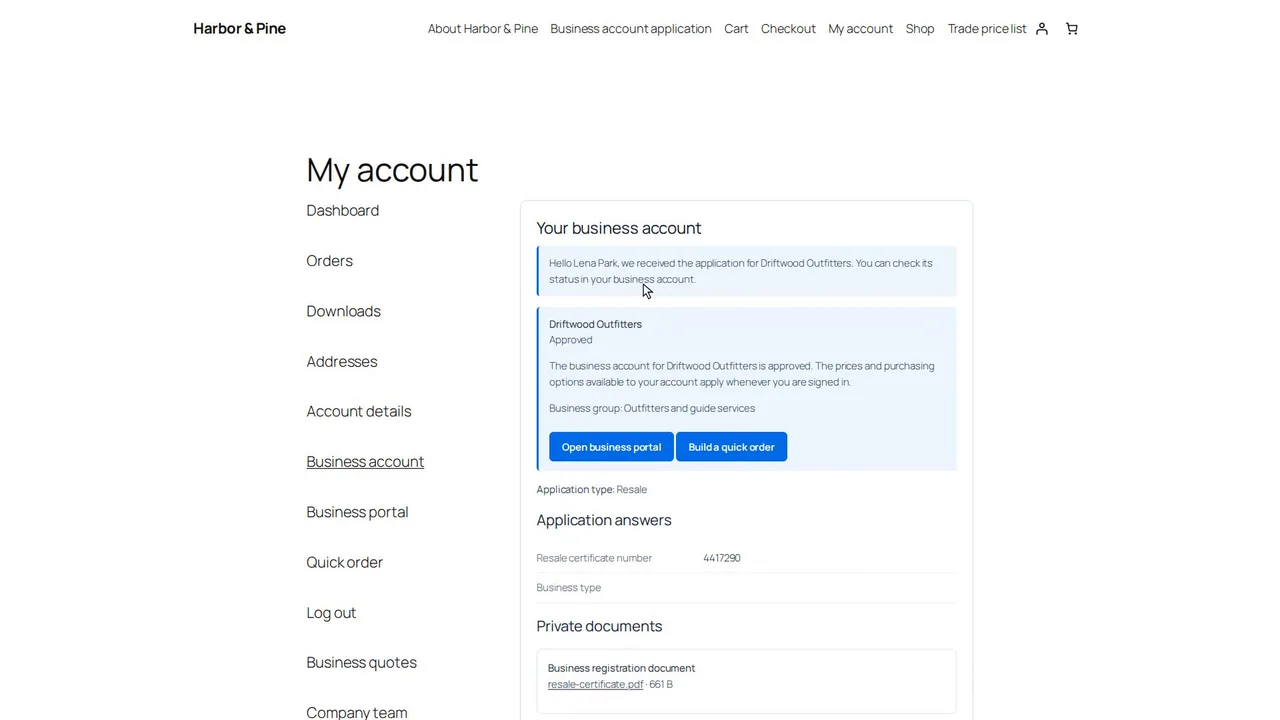
Follow business applications from the signup page to your decision: an automatic approval, the emails, the account record with its private document, not approved, on hold, withdrawn, and profile changes that need review.
Jump to a part of this video
- 0:00 What this video covers
- 0:18 The signup page
- 0:39 A reseller applies
- 1:19 Approved at once
- 1:38 The emails sent
- 1:55 The Accounts list
- 2:20 An account record
- 2:42 The five decisions
- 3:12 Not approved, then resubmitted
- 4:07 On hold, and approved again
- 4:47 Application withdrawn
- 5:03 A profile change to review
- 6:05 Kept out of retail promotions
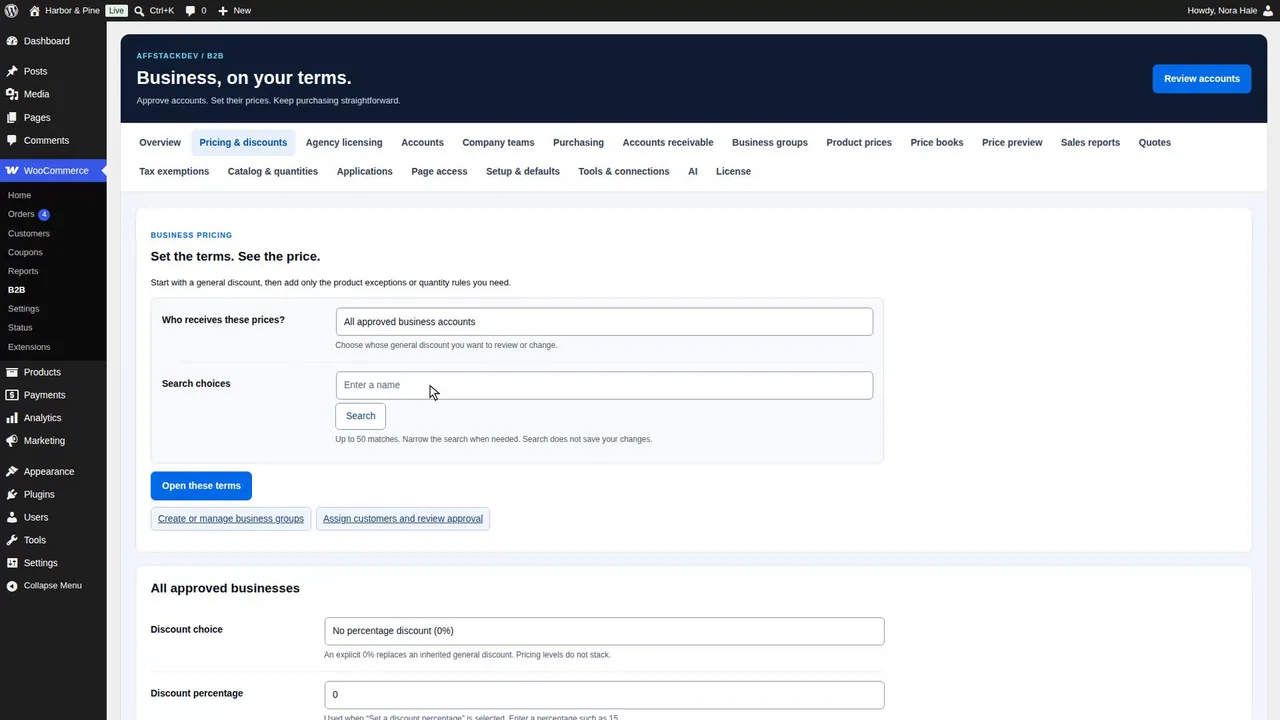
Set business prices: general discounts for groups and accounts, exact prices for products and variations, customer role prices, what business buyers see in the shop and cart, and automatic moves between groups.
Jump to a part of this video
- 0:00 What this video covers
- 0:19 Which price wins
- 0:55 A group discount, checked first
- 2:12 An account's own terms
- 2:34 An exact product price
- 3:22 A variation price
- 3:35 In the product editor
- 4:01 Remove a price
- 4:15 Customer role prices
- 5:29 What the buyer sees
- 5:48 Automatic moves between groups
- 7:07 An account moves up
- 7:37 Other currencies
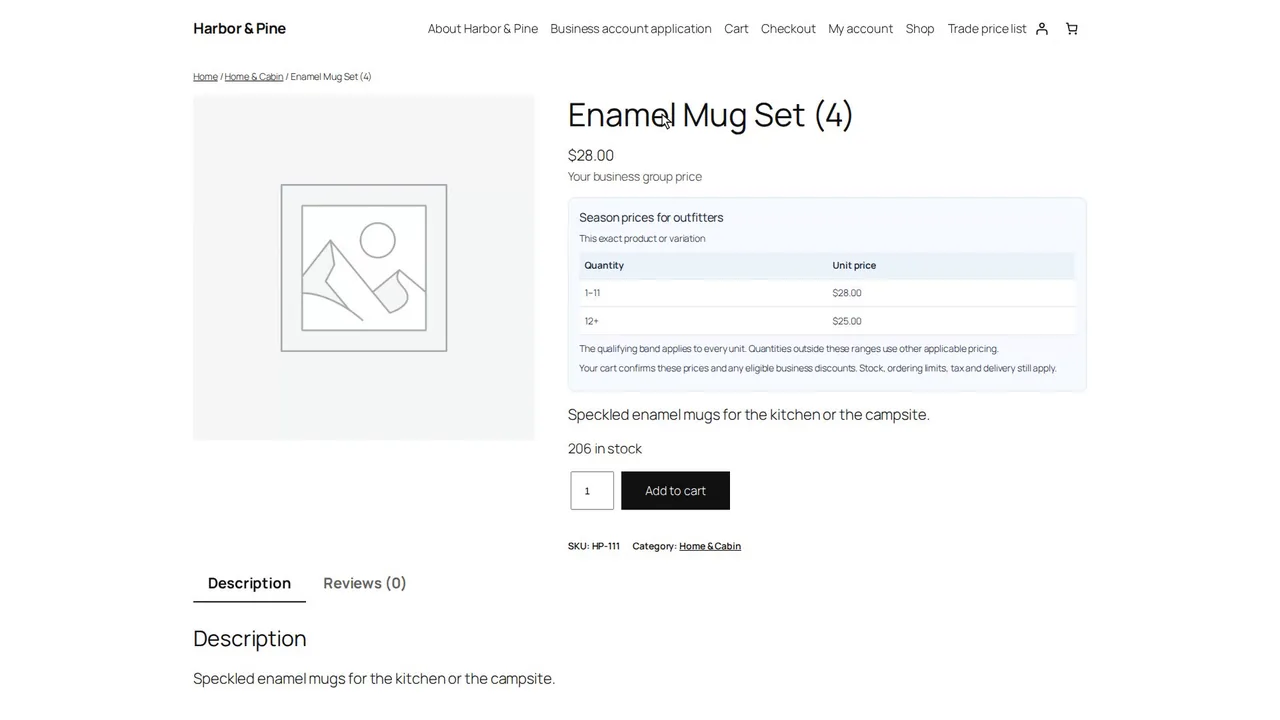
Build a price book with a schedule, quantity bands, a graduated rule, a cart discount, coupon amounts and the table customers see, with CSV import and export and version history, then check a whole basket in Price preview.
Jump to a part of this video
- 0:00 What this video covers
- 0:18 Create a price book
- 0:39 Status, schedule and the first version
- 1:42 Add a price rule
- 1:59 Price methods and bands
- 2:39 Quantity bands
- 3:04 A graduated rule
- 3:19 Cart discount
- 3:40 Coupon amounts and the price table
- 4:25 Import and export
- 4:46 Version history
- 5:10 Price preview for a basket
- 5:44 What the buyer sees
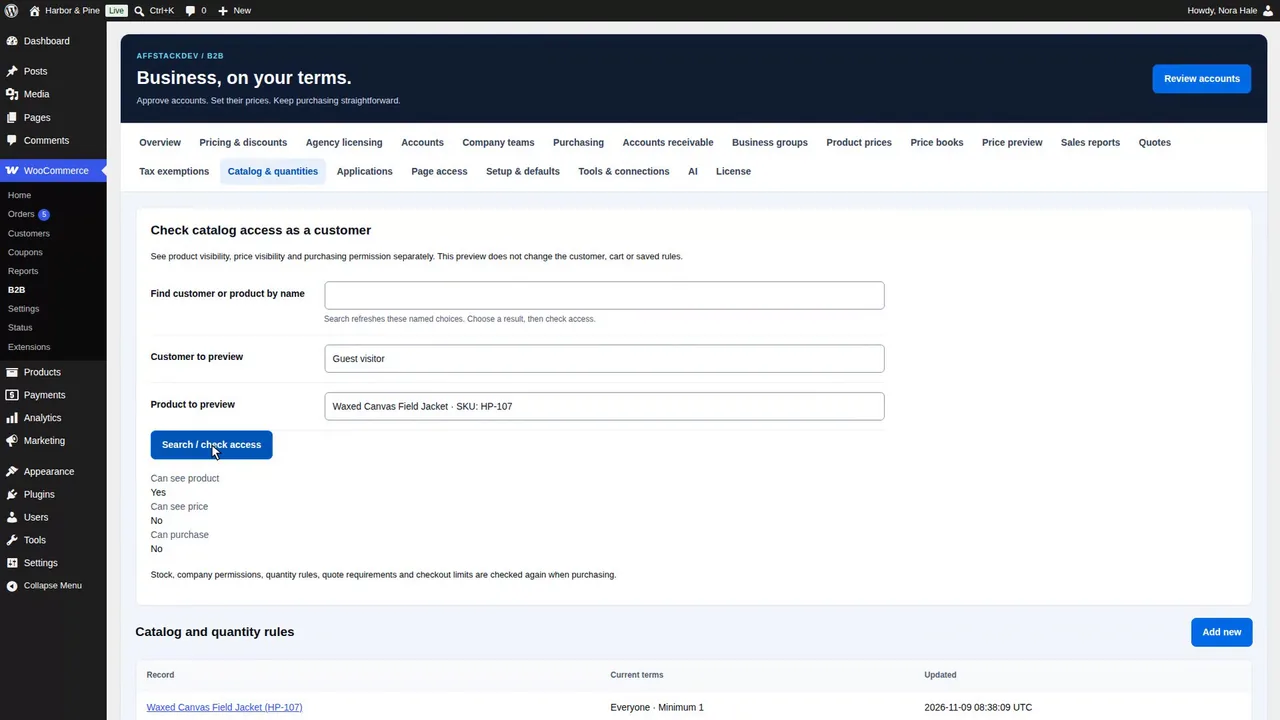
Decide who sees, prices and buys what: the three store experiences, catalog and quantity rules with the access check, a trade-only product, page access, order limits, payment and delivery methods, and separate business stock.
Jump to a part of this video
- 0:00 What this video covers
- 0:17 Three store experiences
- 1:09 Catalog and quantity rules
- 1:27 Sold in cases of 12
- 1:47 Check access as a customer
- 2:21 A trade-only product
- 2:44 Audiences and recovery
- 3:05 A guest and a business see it
- 3:23 Page access
- 4:22 Order limits
- 5:20 Payment and delivery methods
- 6:03 Separate business stock
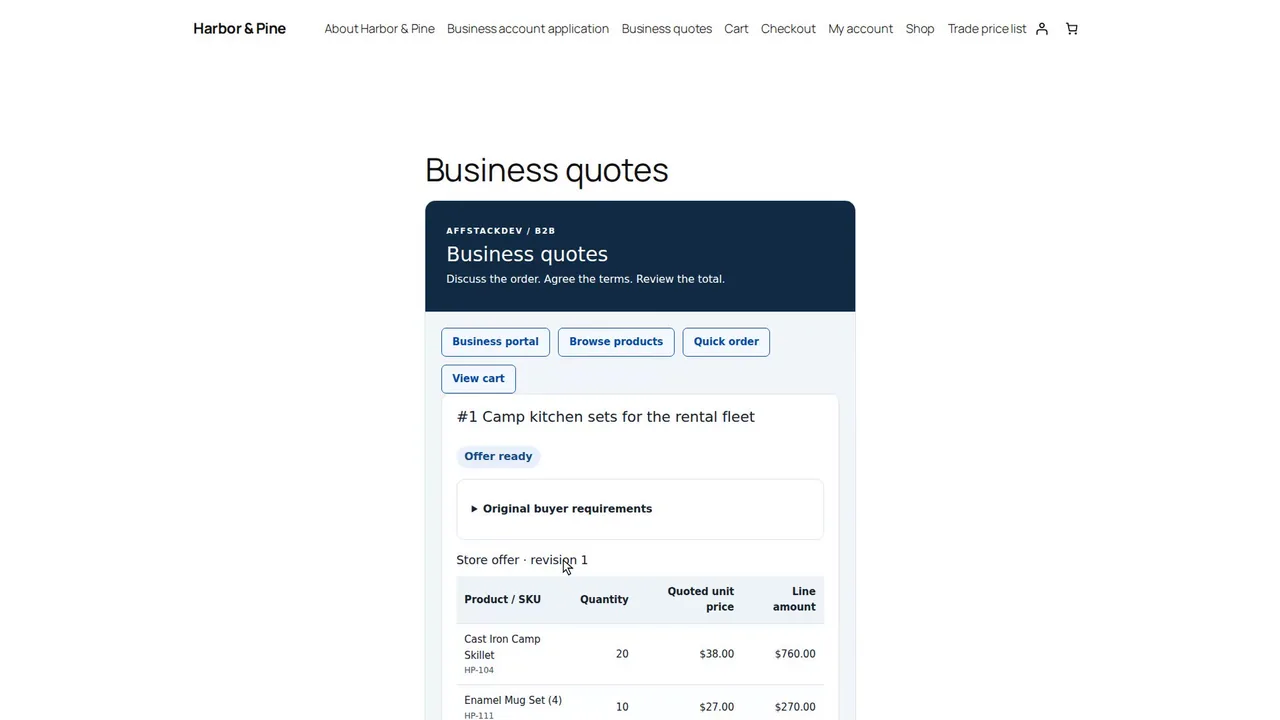
Set up quotes and follow one from the buyer's request to a paid order: the five parts of Quote setup, a request with pasted SKUs, the quote desk, an offer, and the buyer accepting it and checking out.
Jump to a part of this video
- 0:00 What this video covers
- 0:16 Quote setup
- 0:39 Availability, limits and rules
- 1:46 Products and quote buttons
- 2:10 The request form
- 2:36 Branding and PDF offers
- 3:12 Quote messages
- 3:37 The buyer asks for a quote
- 4:15 Delivery details and sending
- 4:54 The quote desk
- 5:39 Prepare and publish the offer
- 6:39 The buyer's offer
- 7:01 Accept it and review the total
- 7:34 Checkout and the order
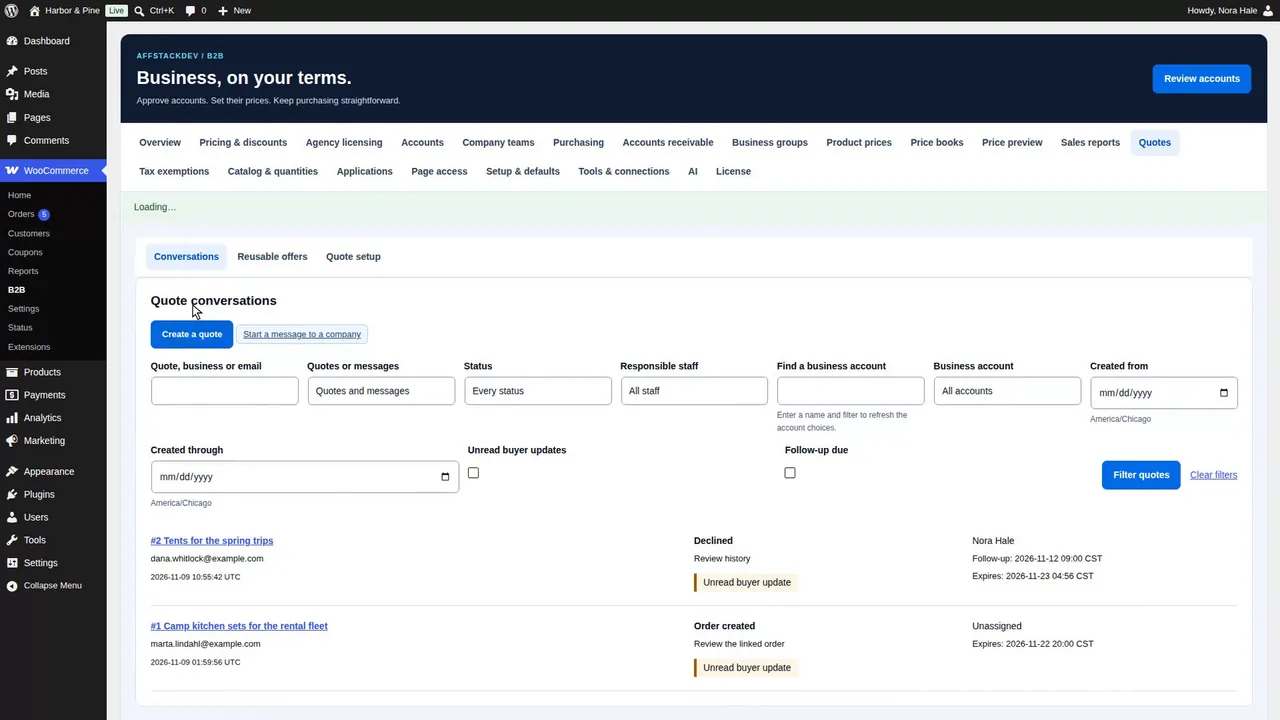
The rest of quotes: the quote desk's tools, a counteroffer and a decline, a quote you start yourself, reusable offers, quote rules for products, guest inquiries, and messages with business customers.
Jump to a part of this video
- 0:00 What this video covers
- 0:17 Assignment and follow-up
- 0:47 Reminders
- 1:04 Status updates and private notes
- 1:29 An offer and a counteroffer
- 2:00 A new revision, then a decline
- 2:24 A quote you start yourself
- 3:07 Reusable offers
- 3:56 Quote rules for products
- 5:01 Guest inquiries
- 5:26 Messages outside quotes
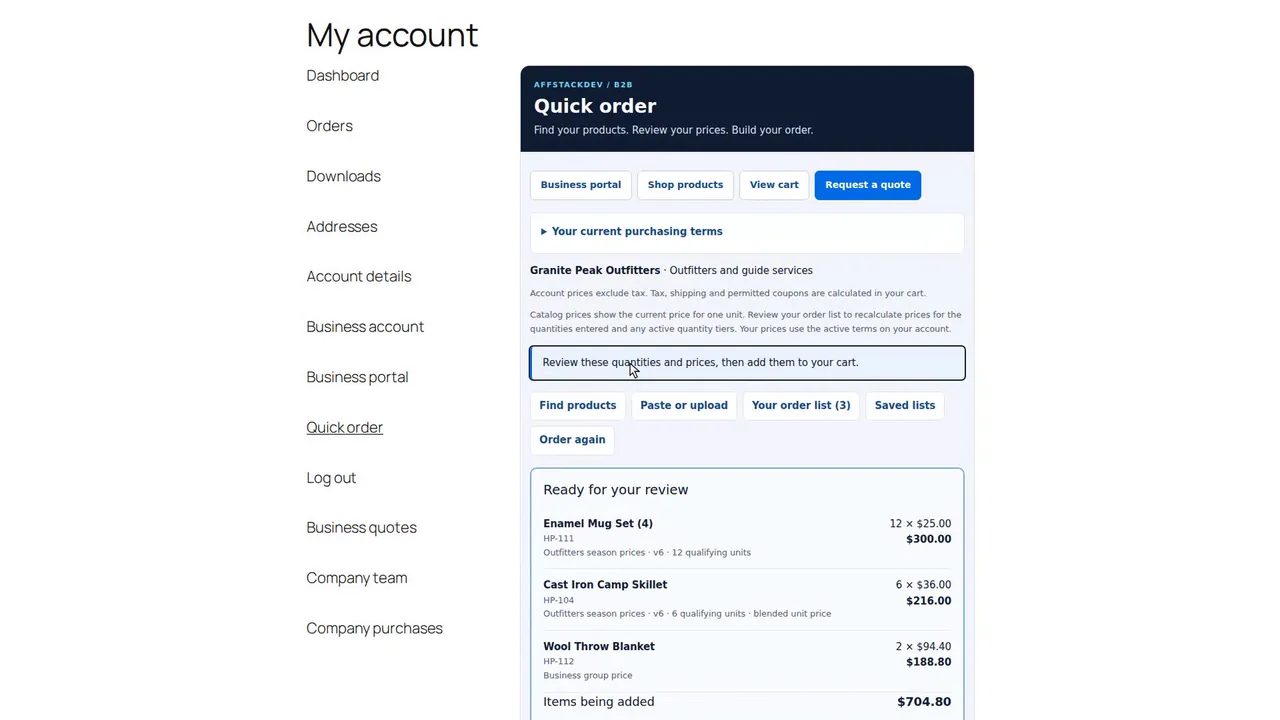
Buying as a company: the business portal, company team roles and invitations, shared addresses and orders, quick order with pasted lists, saved lists and order again, spending controls, purchase approvals and pay on account.
Jump to a part of this video
- 0:00 What this video covers
- 0:27 The business portal
- 1:23 Company team and roles
- 1:55 Invite an employee
- 2:56 Shared addresses and company orders
- 3:40 Quick order
- 4:18 Paste a list and save it
- 4:53 Review quantities and prices
- 5:26 Saved lists and order again
- 6:06 Company spending controls
- 7:18 A purchase needs approval
- 8:04 Approve, then check out
- 9:01 Pay on account
- 9:39 Who may pay on account
- 10:28 Pay on account at checkout
- 10:49 What companies owe
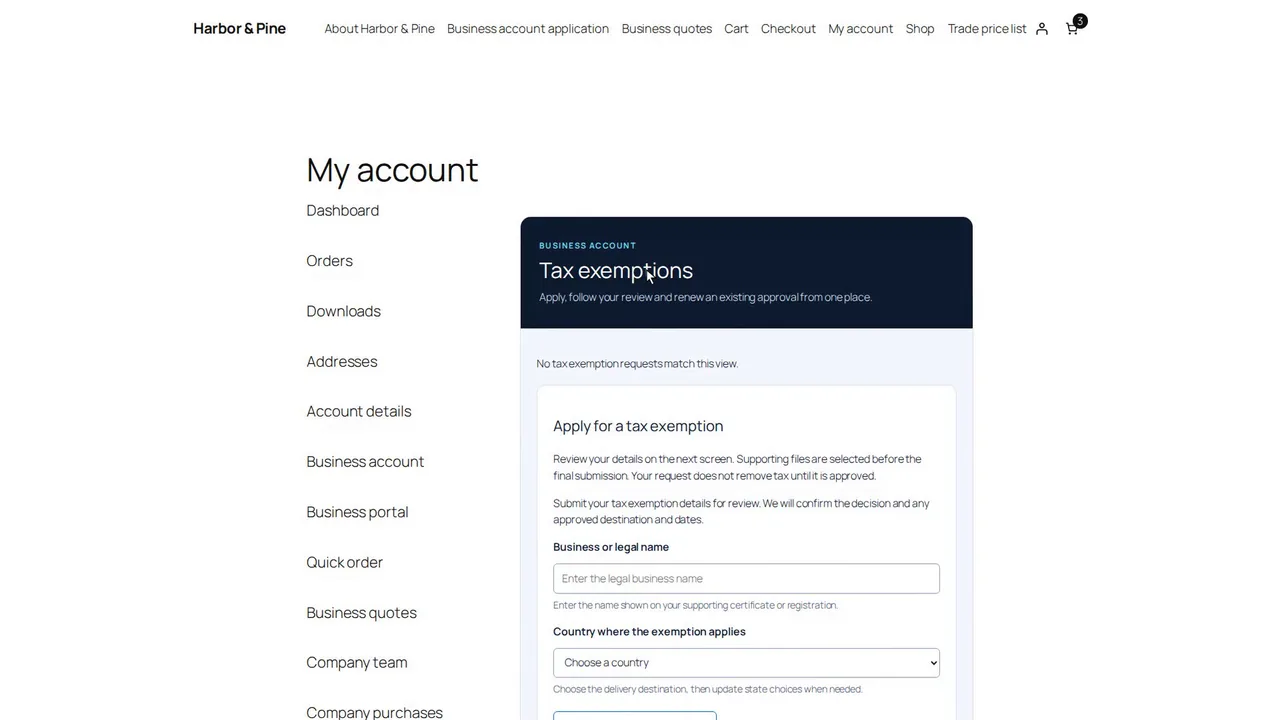
Tax exemptions from setup to an untaxed checkout, the sales reports, Tools and connections, agency licensing, and your own AI with B2B: connecting an AI app, approving, undoing and limiting its changes, and B2B's chats.
Jump to a part of this video
- 0:00 What this video covers
- 0:21 Tax exemption setup
- 2:01 A customer applies
- 2:38 Approve, then an untaxed checkout
- 3:19 Grant an exemption yourself
- 3:41 Sales reports
- 4:45 Tools, exports and removal
- 6:10 Agency licensing
- 7:04 Your own AI
- 7:40 Connect Claude, Claude Code or Codex
- 8:26 A change waits for approval
- 9:19 Approve and save
- 9:44 The activity log and undo
- 10:31 What AI may do
- 11:47 Automatic approval
- 12:15 B2B's own chats
 Introduction · 5:59Introduction on the website and in WordPress
 Part 1 · 9:53Install, activate and your first business customer
 Part 2 · 9:15Build your business application form
 Part 3 · 6:33Business applications from signup to decision
 Part 4 · 8:11Business prices for groups, accounts, products and roles
 Part 5 · 6:33Price books, quantity prices and Price preview
 Part 6 · 6:50Who sees, prices and buys what
 Part 7 · 8:06Quotes from request to paid order
 Part 8 · 6:24More quote tools and messages
 Part 9 · 11:46Company buying: portal, teams, quick order, approvals and pay on account
 Part 10 · 13:16Tax exemptions, reports, tools and your own AI
Watch it work
Free Gifts & BOGO, step by step
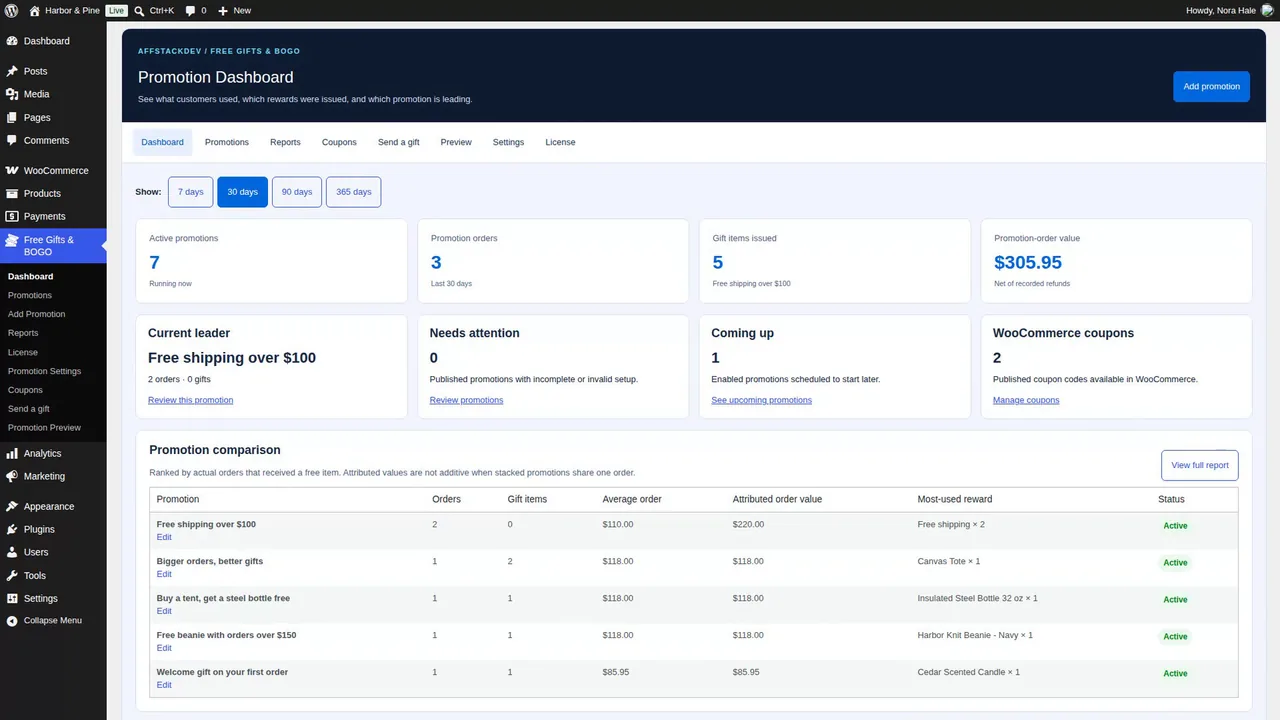
See Free Gifts & BOGO on our website, then inside a WordPress store: the promotions list, the three parts of every promotion, the Preview, orders and reports, and what shoppers see in the cart.
Jump to a part of this video
- 0:00 What Free Gifts & BOGO does
- 0:22 The overview page
- 1:05 Gifts in the normal cart
- 1:20 The product pages and offers
- 1:46 Product and download
- 2:03 Inside WordPress
- 2:51 A promotion's three parts
- 3:22 Preview
- 3:44 Orders and reports
- 4:04 The shopper's side
- 4:53 Store listing and compare
- 5:25 The guide and the videos
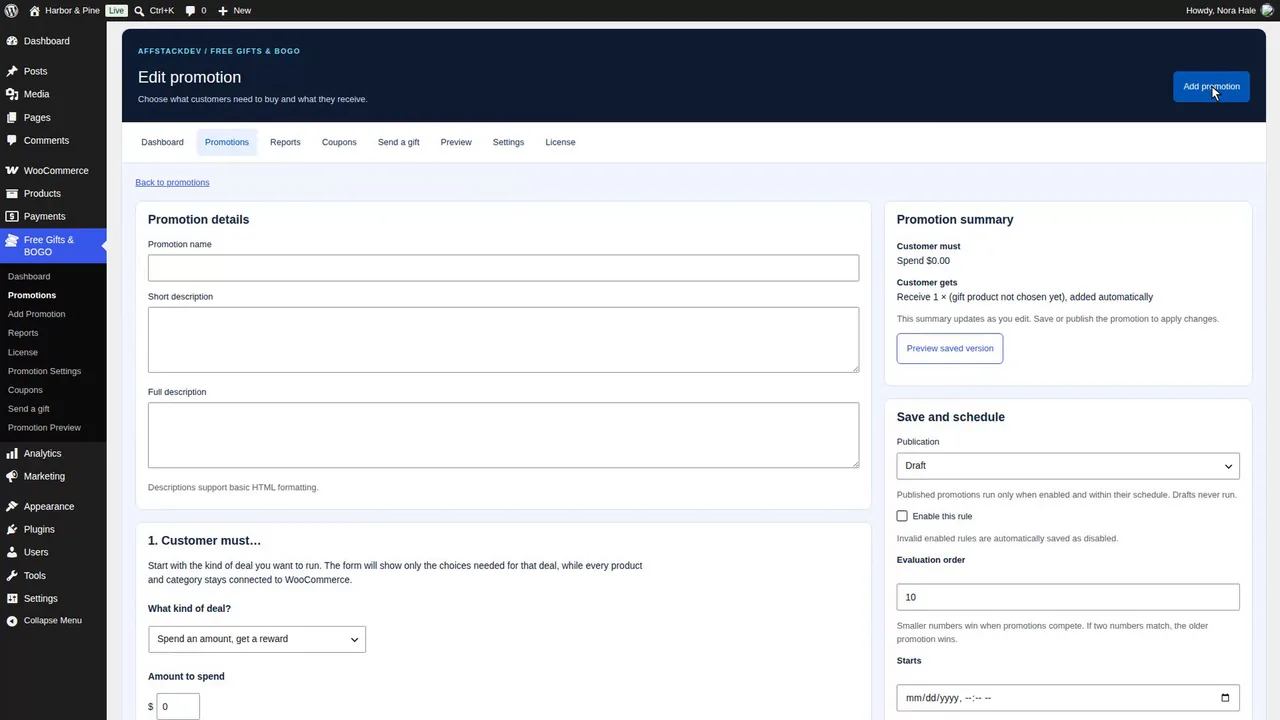
Install and license Free Gifts & BOGO, take a short tour, and build a first promotion, spend 75 dollars and choose a gift, previewed first and then tried in a shopper's cart.
Jump to a part of this video
- 0:00 What this video covers
- 0:18 A gift is a real product
- 0:34 Download and install
- 1:10 The license
- 2:16 A short tour
- 2:47 Settings every promotion starts from
- 3:22 A first promotion
- 4:04 The kind of deal and the amount
- 4:52 The gift and its value limit
- 5:16 Save and schedule
- 5:55 Preview, then publish
- 7:00 The shopper's cart
- 7:31 Add, change or remove the gift
- 8:03 Below the amount again
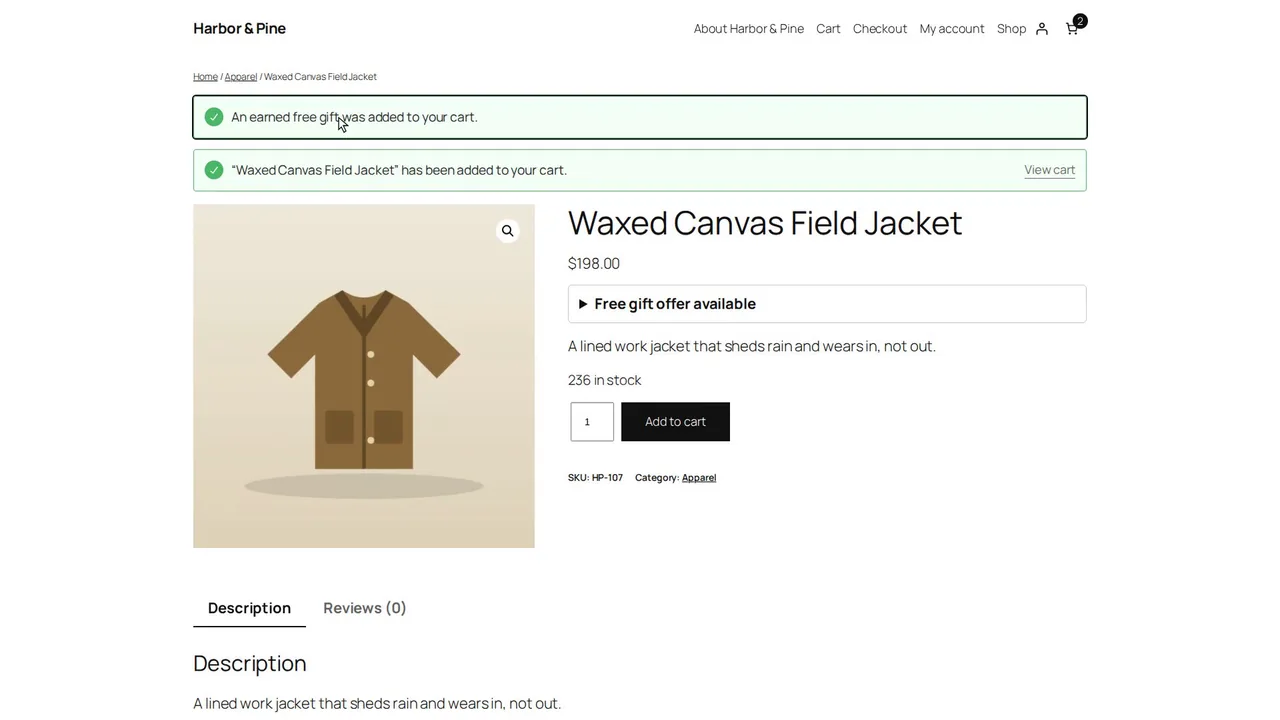
Gifts that go into the cart by themselves, buy-one-get-one deals, a choice from a short list, and mix and match, each tried in a shopper's cart.
Jump to a part of this video
- 0:00 What this video covers
- 0:12 Seven kinds of deal
- 0:42 A gift added automatically
- 1:19 It appears in the cart
- 1:57 Buy a tent, get a bottle
- 2:37 Gifts from several promotions
- 2:54 Buy two, get one
- 3:33 Four packs in the cart
- 3:50 Limit the sets per order
- 4:05 Also require a minimum spend
- 4:43 Choose from a short list
- 5:23 Pick the gift in the cart
- 5:45 Mix and match
- 6:22 Three cabin goods in the cart
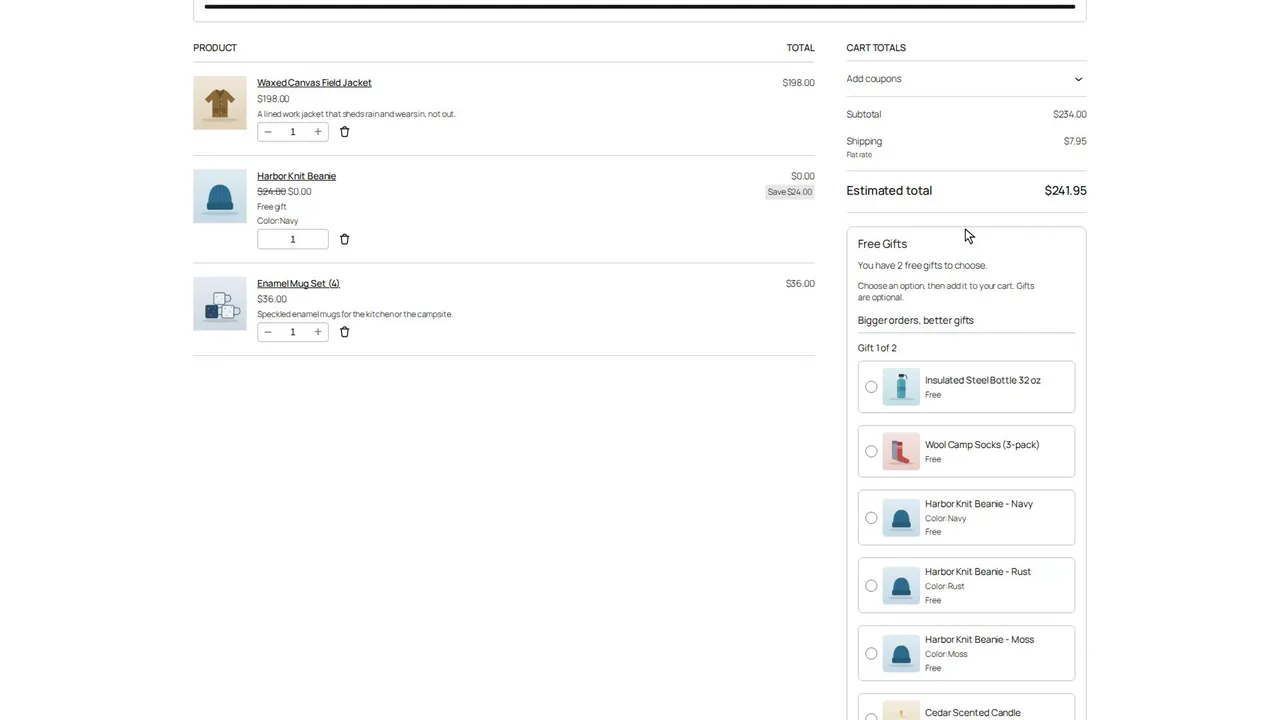
A reward ladder where bigger orders earn better gifts, a gift at a discount, and free shipping as the reward, tried in the cart and all the way through checkout.
Jump to a part of this video
- 0:00 What this video covers
- 0:14 Disable a few promotions
- 0:34 A reward ladder
- 1:01 Three reward levels
- 1:54 Level 1 in the cart
- 2:20 Which price counts
- 2:42 Level 2
- 3:15 A gift at a discount
- 3:57 Half-price socks in the cart
- 4:20 Coupons and discounted gifts
- 4:41 An amount off instead
- 5:00 Free shipping as the reward
- 6:05 Free shipping at checkout
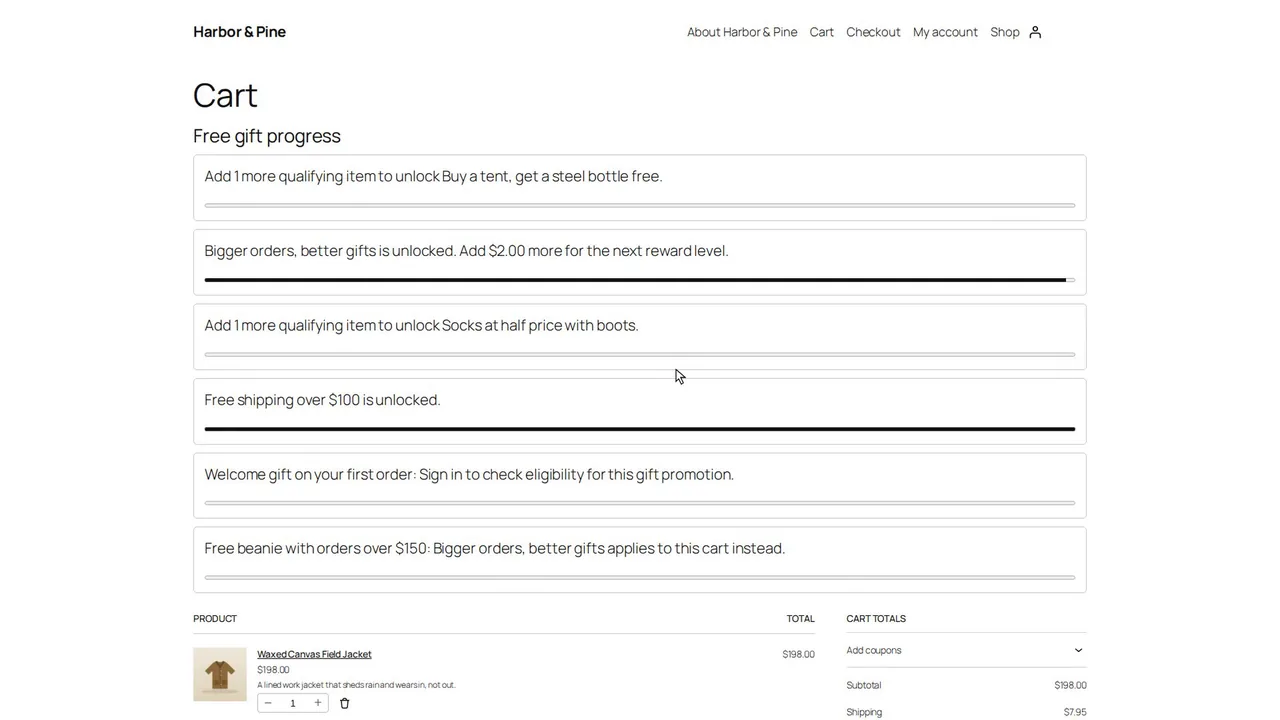
Who may get a gift and how often: a welcome gift for first orders, campaign and customer limits, two promotions competing for one cart, and how coupons fit in.
Jump to a part of this video
- 0:00 What this video covers
- 0:28 Who may get a gift
- 1:02 A welcome gift for first orders
- 1:38 Campaign limits
- 2:13 Guests, returning and new customers
- 2:53 What the limits count
- 3:30 Signed-in customers only
- 4:04 Two promotions in one cart
- 4:35 Make them compete
- 5:25 Which one wins
- 6:06 The Coupon Center
- 6:53 A promotion that needs a code
- 8:40 The code in the cart
- 9:26 Coupons in the Preview
- 9:49 How coupons and promotions meet
- 10:49 Edit or disable a coupon
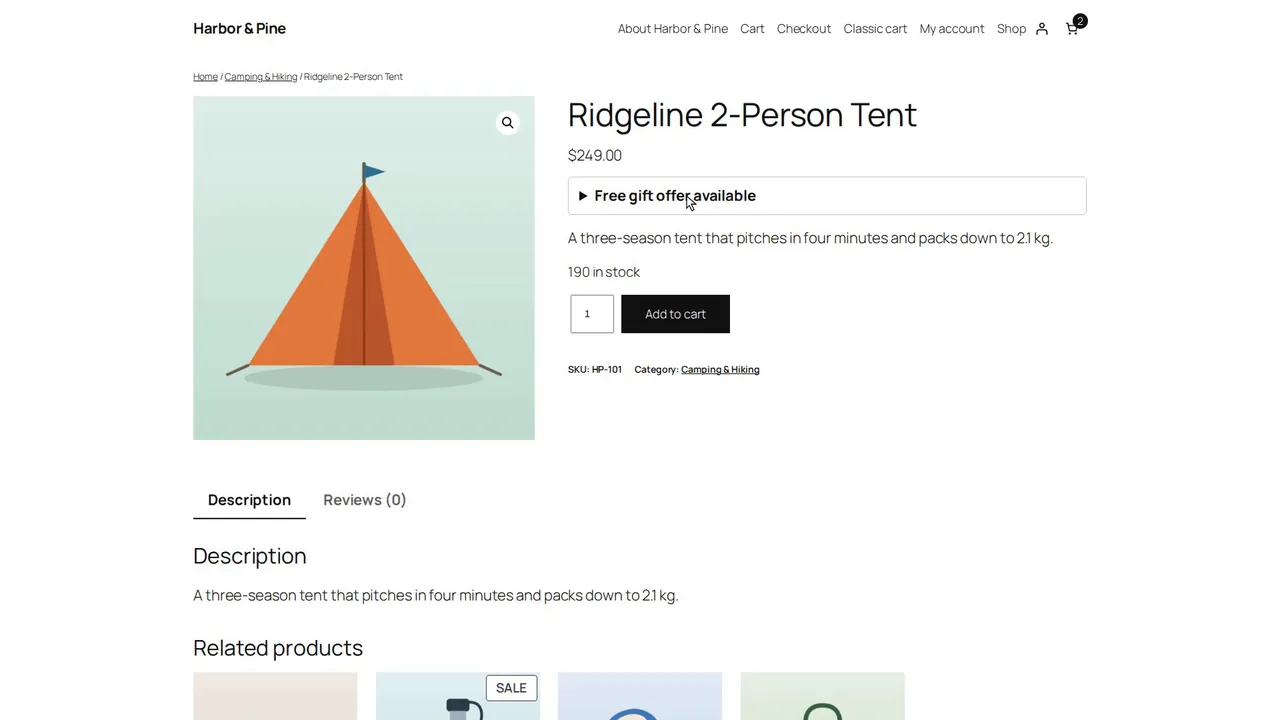
Run your promotions: statuses, copies, schedules, a promotion that needs attention, the Trash and three kinds of exclusion, then everything shoppers see from the product page to the promotions page.
Jump to a part of this video
- 0:00 What this video covers
- 0:33 Promotion statuses
- 1:06 Duplicate and schedule
- 1:50 Test a date in the Preview
- 2:12 A promotion that needs attention
- 2:58 Trash and restore
- 3:19 Exclude from gifts only
- 3:49 Exclude from qualifying purchases
- 4:21 Shared exclusions
- 5:11 Sale, virtual and downloadable products
- 6:04 Where each promotion is shown
- 6:27 Product pages and shop cards
- 7:19 In the cart
- 8:23 Checkout and sold-out gifts
- 8:59 The classic cart
- 9:21 A promotions page
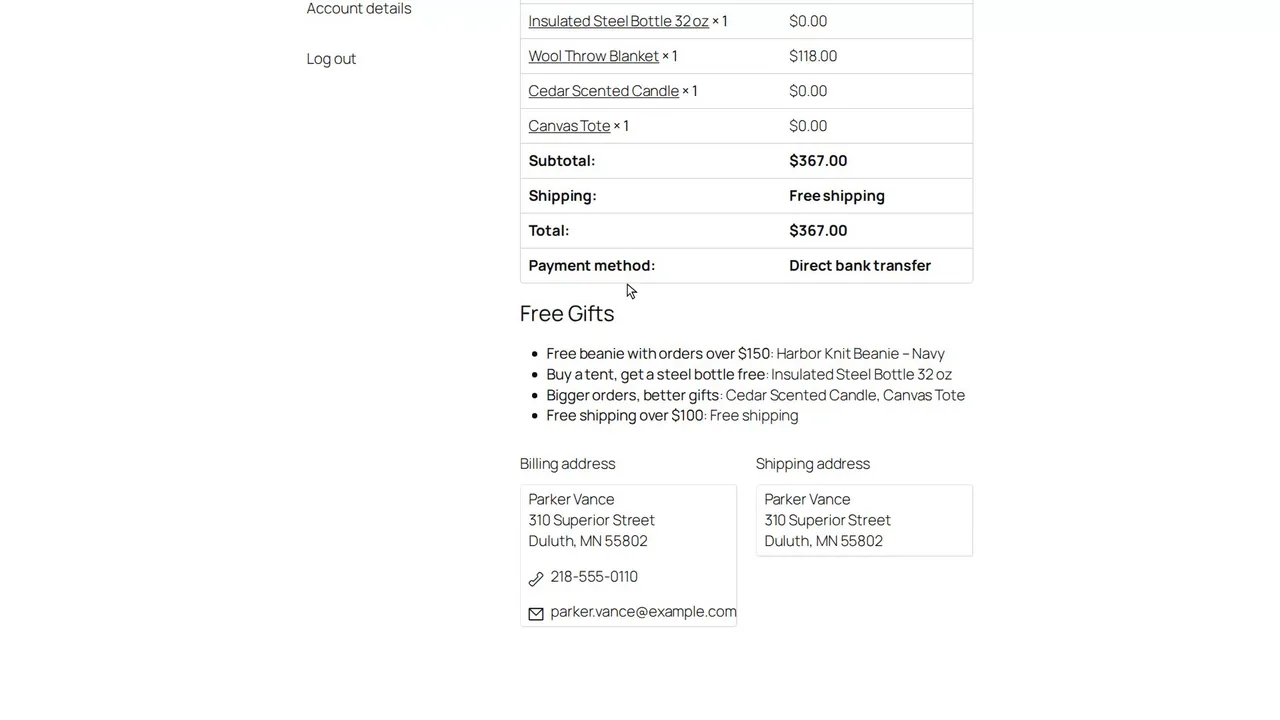
Follow an order with gifts through WooCommerce, a refund that needs review and a gift sent by hand, then the reports, the Dashboard, the rest of Settings and the License tab.
Jump to a part of this video
- 0:00 What this video covers
- 0:13 An order with four gifts
- 0:40 Checkout and the order received page
- 0:59 Gifts on the order
- 1:37 The customer's account and emails
- 1:57 A refund
- 2:26 Refund review
- 3:00 Send a gift by hand
- 3:37 The gift order
- 4:10 Reports
- 4:54 The Dashboard
- 5:24 The rest of Settings
- 6:36 The License tab
 Introduction · 5:57Introduction on the website and in WordPress
 Part 1 · 8:32Install, license and your first free gift
 Part 2 · 7:04Gifts added automatically and buy one, get one
 Part 3 · 7:11Reward ladders, gifts at a discount and free shipping
 Part 4 · 11:30Who gets a gift, how often, which promotion wins, and coupons
 Part 5 · 10:27Running your promotions and what shoppers see
 Part 6 · 7:35Orders, refunds, gifts sent by hand, reports and settings
Watch it work
Theme Manager, step by step
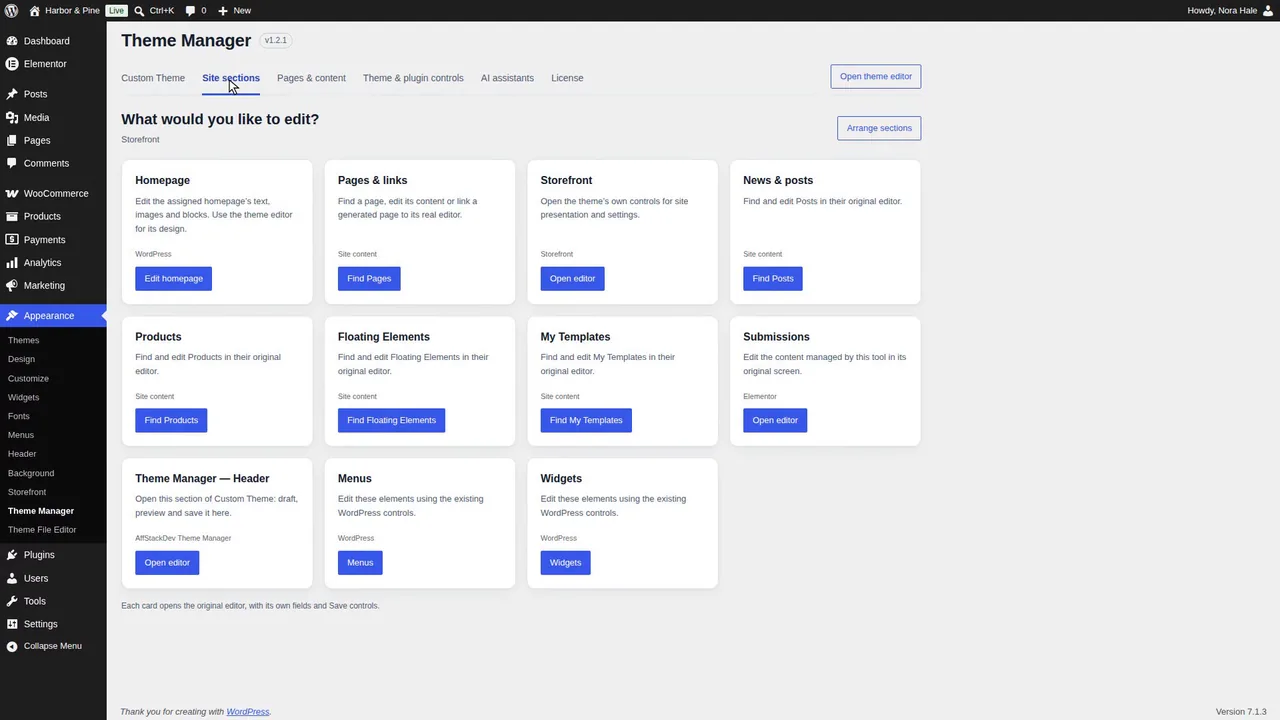
See Theme Manager on our website, then inside WordPress: finding where anything is edited, shortcut cards, theme drafts with a private preview and share links, checkpoints, schedules, block themes and AI assistants.
Jump to a part of this video
- 0:00 What Theme Manager does
- 0:21 Its page on our website
- 1:14 Inside WordPress
- 1:39 Pages and content
- 2:00 Theme and plugin controls
- 2:15 Site sections
- 2:35 Custom Theme and drafts
- 3:07 Read-only preview links
- 3:22 WordPress's own settings
- 3:43 Checkpoints and history
- 4:09 Scheduled changes, export and import
- 4:42 Block themes and AI assistants
- 5:14 Listing, license and guide
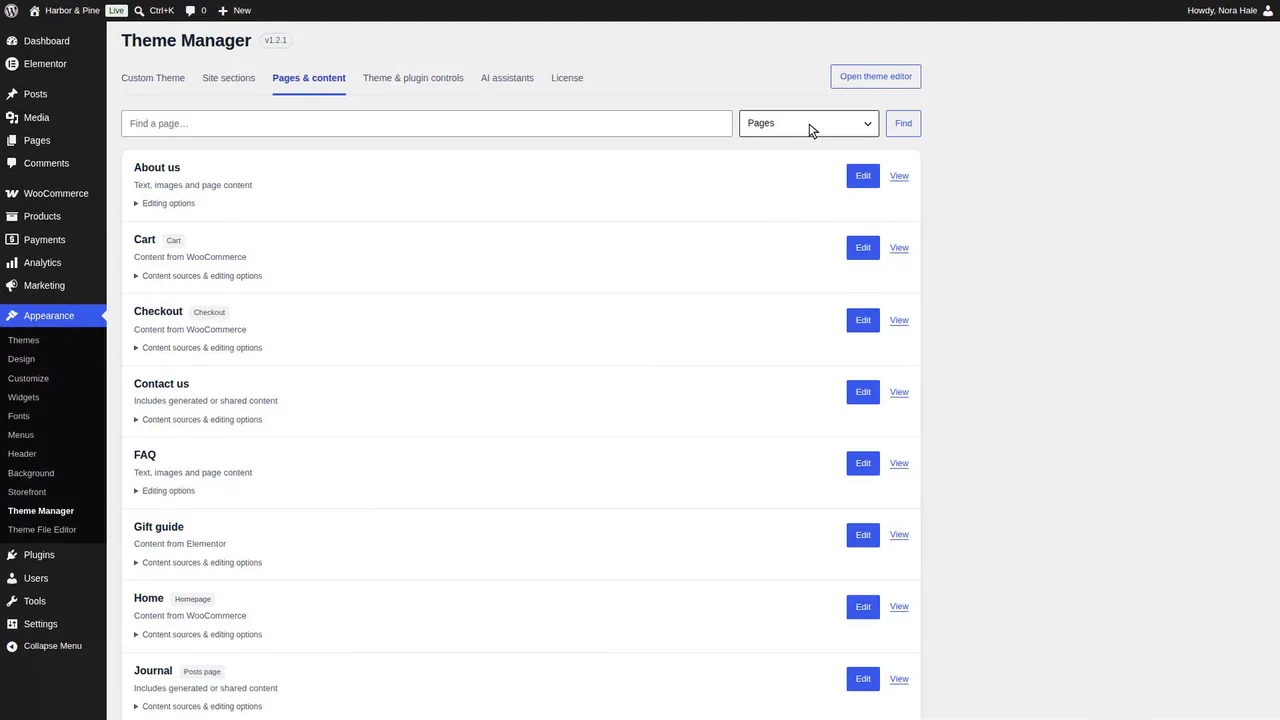
Install Theme Manager, find where any page, product, post or pattern is edited, link pages to their real editor, find theme and plugin controls, arrange the shortcut cards and read the License tab.
Jump to a part of this video
- 0:00 What Theme Manager does
- 0:41 Download and install
- 1:07 Where it lives and its tabs
- 1:54 Pages and content
- 2:33 Who edits each part
- 3:12 Store pages and unknown sources
- 4:16 More results, products and posts
- 4:51 Elementor pages
- 5:14 Link a page to its editor
- 6:13 Pages not in the list
- 6:39 Patterns
- 7:25 Theme and plugin controls
- 8:33 Site sections
- 9:11 Arrange the cards
- 10:12 The License tab
- 11:09 Multisite
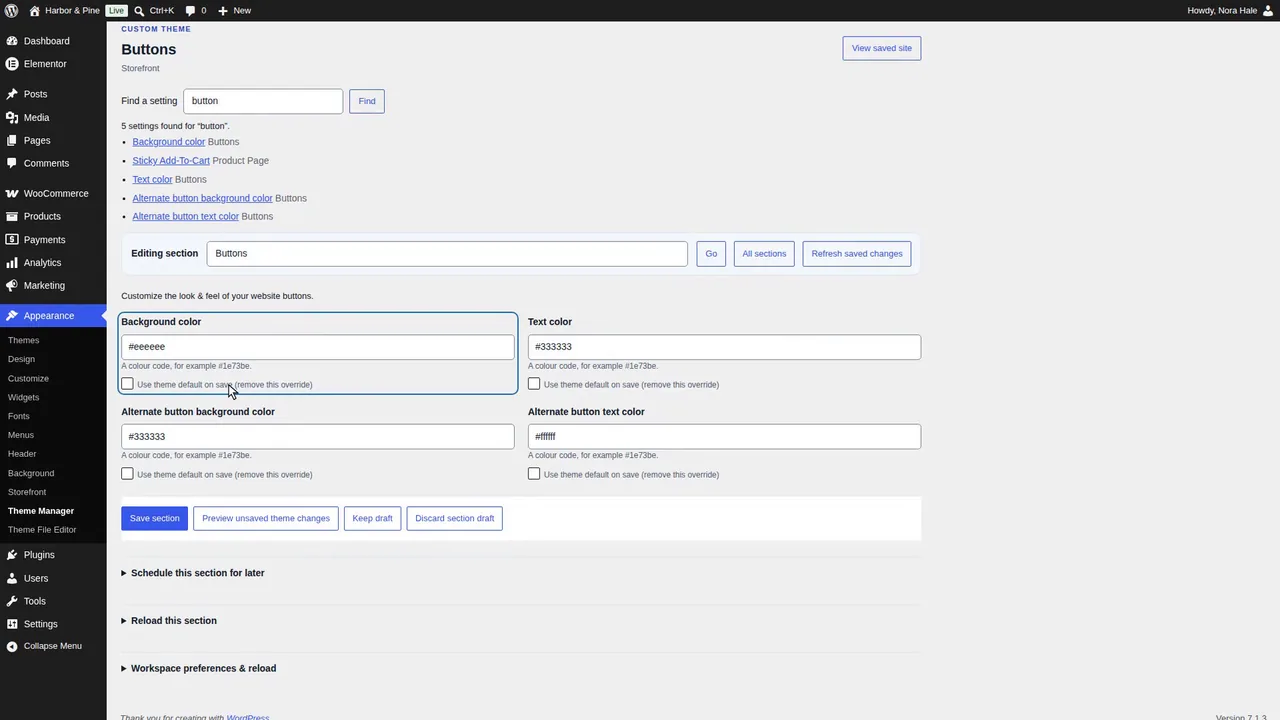
Edit the theme in Custom Theme: find a setting, keep drafts, preview them privately, share a read-only link, save one section at a time, then WordPress's and WooCommerce's own settings in the same place.
Jump to a part of this video
- 0:00 What this video covers
- 0:53 Settings only the Customizer has
- 1:25 Find a setting
- 1:43 Keep a draft
- 2:32 Preview your drafts
- 3:05 A read-only preview link
- 4:09 Save one section
- 4:25 Defaults, discards and reloads
- 5:23 WordPress's own settings
- 5:55 Logo, title and icon
- 6:26 Homepage and posts page
- 6:47 Navigation menus
- 7:59 Additional CSS and the store notice
- 8:30 Page and post text
- 9:22 Product text
- 9:44 Original editors and conflicts
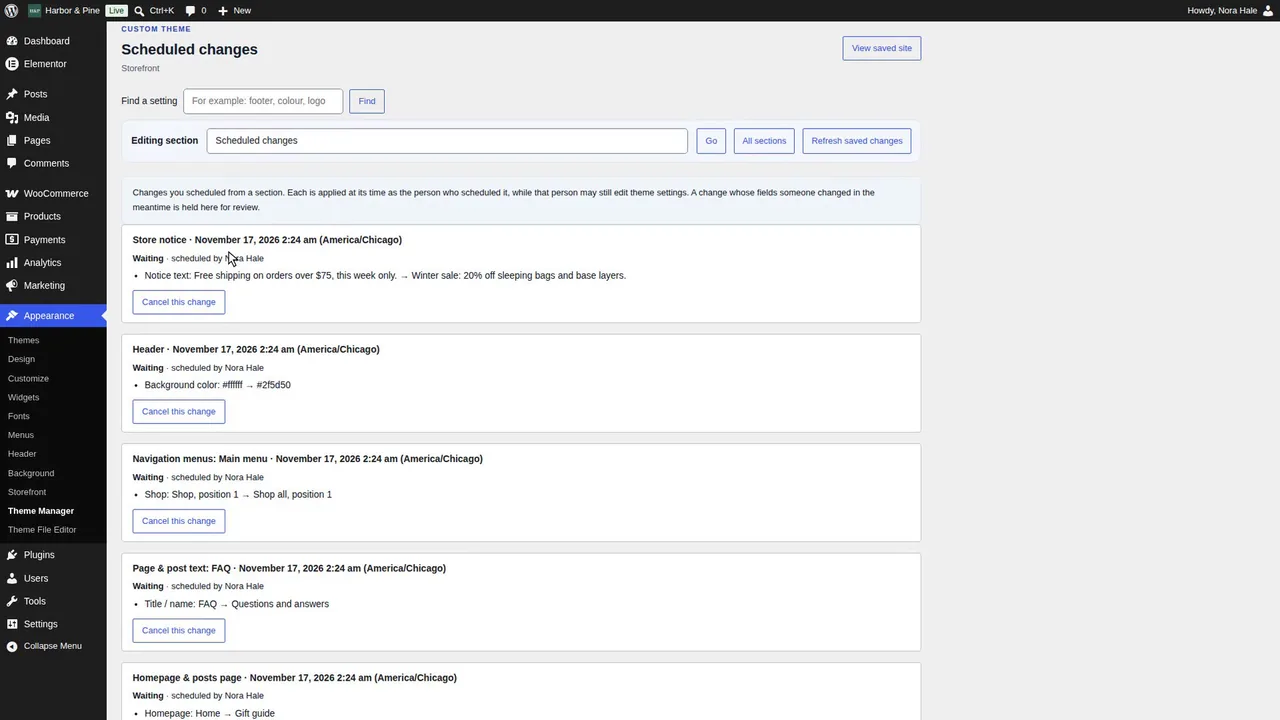
Checkpoints and the change history, comparing and restoring, two people editing at once, changes scheduled for later and what happens when they run, and exporting and importing the theme's settings.
Jump to a part of this video
- 0:00 What this video covers
- 0:21 A named checkpoint
- 0:46 Changes, in the Customizer too
- 1:11 The change history
- 1:39 Compare before restoring
- 2:04 Restore a checkpoint
- 2:30 Two people at once
- 3:27 Refresh saved changes
- 3:54 Restore theme defaults
- 4:07 Schedule a change
- 4:38 Header, menus, text and homepage
- 5:24 The Scheduled changes list
- 5:57 Export the settings
- 6:16 Check and apply an import
- 7:16 Scheduled changes made
- 7:31 Applied or held for review
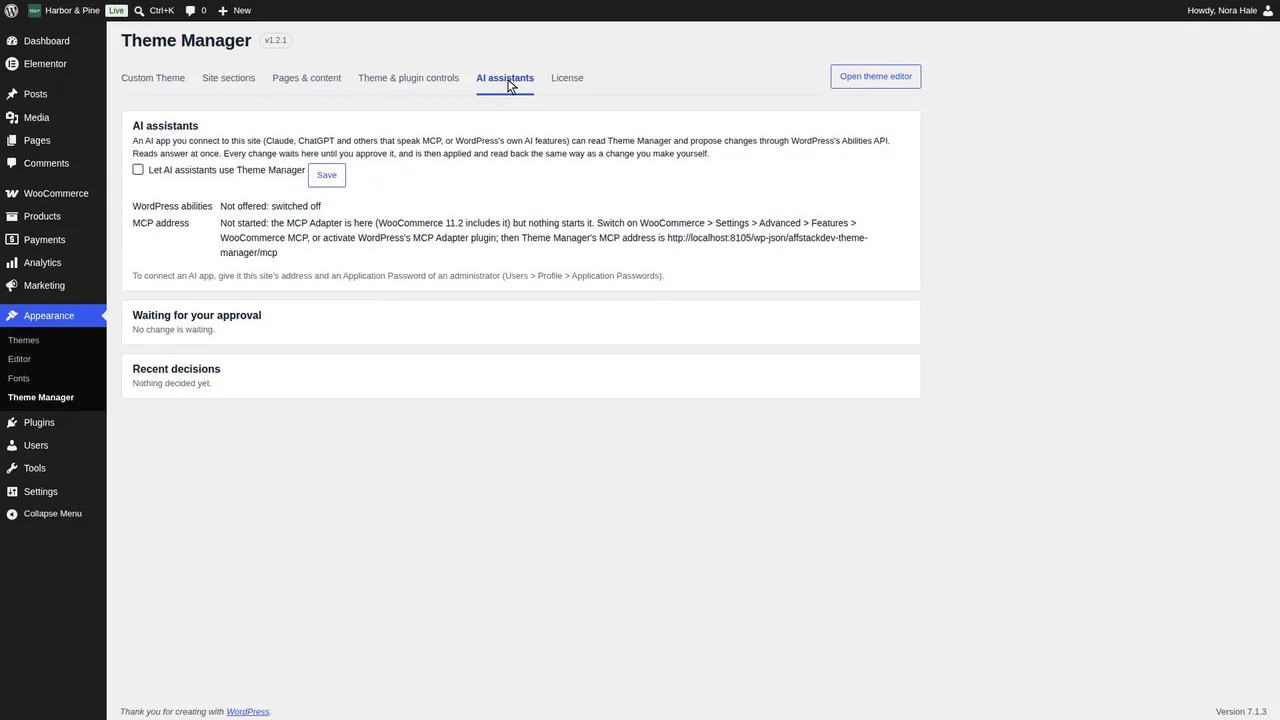
Switch to a block theme to see its colours, fonts, templates and styles revisions, then connect an AI assistant whose proposals wait for your approval.
Jump to a part of this video
- 0:00 What this video covers
- 0:13 Switch to a block theme
- 0:52 Colours
- 1:27 Fonts
- 1:47 Styles revisions
- 1:58 Templates and template parts
- 2:56 AI assistants
- 3:25 Switch them on and start MCP
- 4:07 A proposal waits
- 4:48 Approve or reject
- 5:10 A proposal that went stale
- 5:32 Theme settings from an AI
- 6:03 Workspace preferences
 Introduction · 6:08Introduction on the website and in WordPress
 Part A · 11:36Install, find where anything is edited, and your shortcut cards
 Part B · 10:09Edit your theme: drafts, preview, share link and the WordPress sections
 Part C · 8:32Checkpoints, history, two people, scheduled changes, export and import
 Part D · 6:48Block themes and AI assistants
Watch it work
Dynamic Pricing, step by step
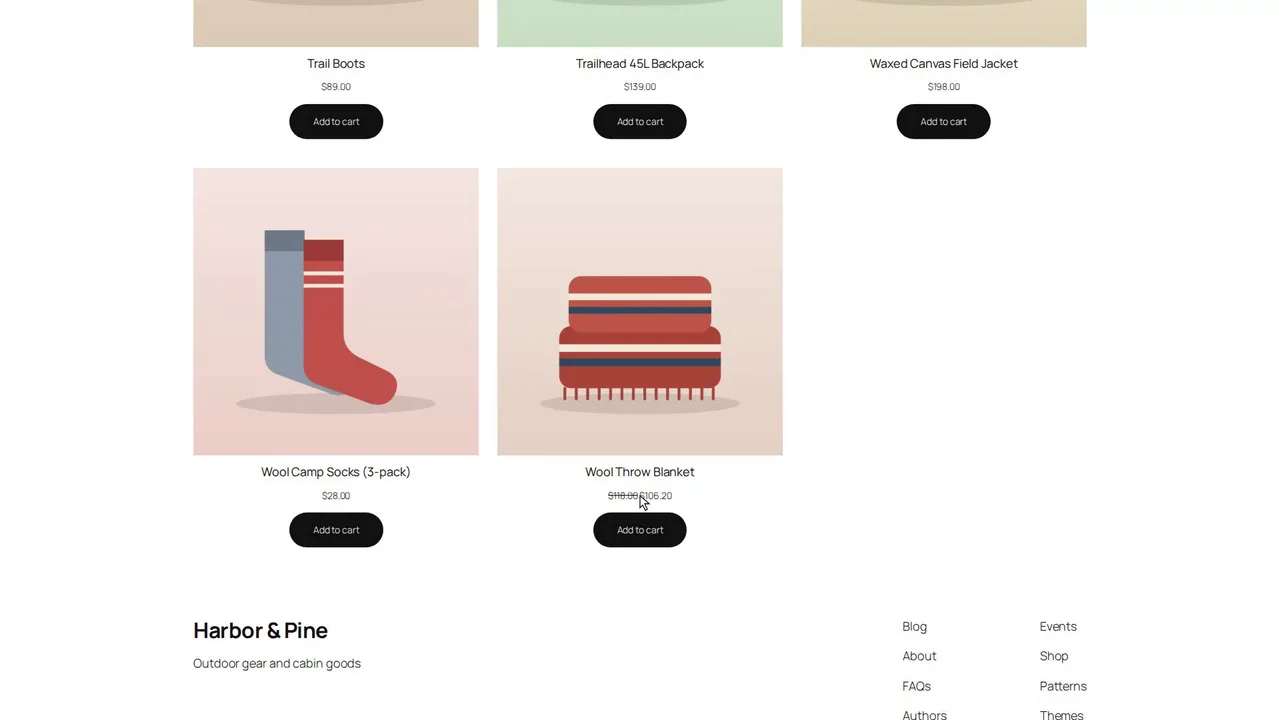
See Dynamic Pricing on our website, then inside WordPress: rules and their two switches, quantity prices and sets, the Simulator, what shoppers see, coupons and the record every order keeps.
Jump to a part of this video
- 0:00 What Dynamic Pricing does
- 0:32 The mini-site
- 0:56 Three ways a price goes down
- 1:20 Inside WordPress
- 1:57 A rule and its two switches
- 2:45 The Rules list
- 3:02 Quantity prices and sets
- 3:32 When rules overlap
- 3:44 The Simulator
- 4:10 What shoppers see
- 4:40 Coupons and store credit
- 5:05 The order record
- 5:28 Store listing and requirements
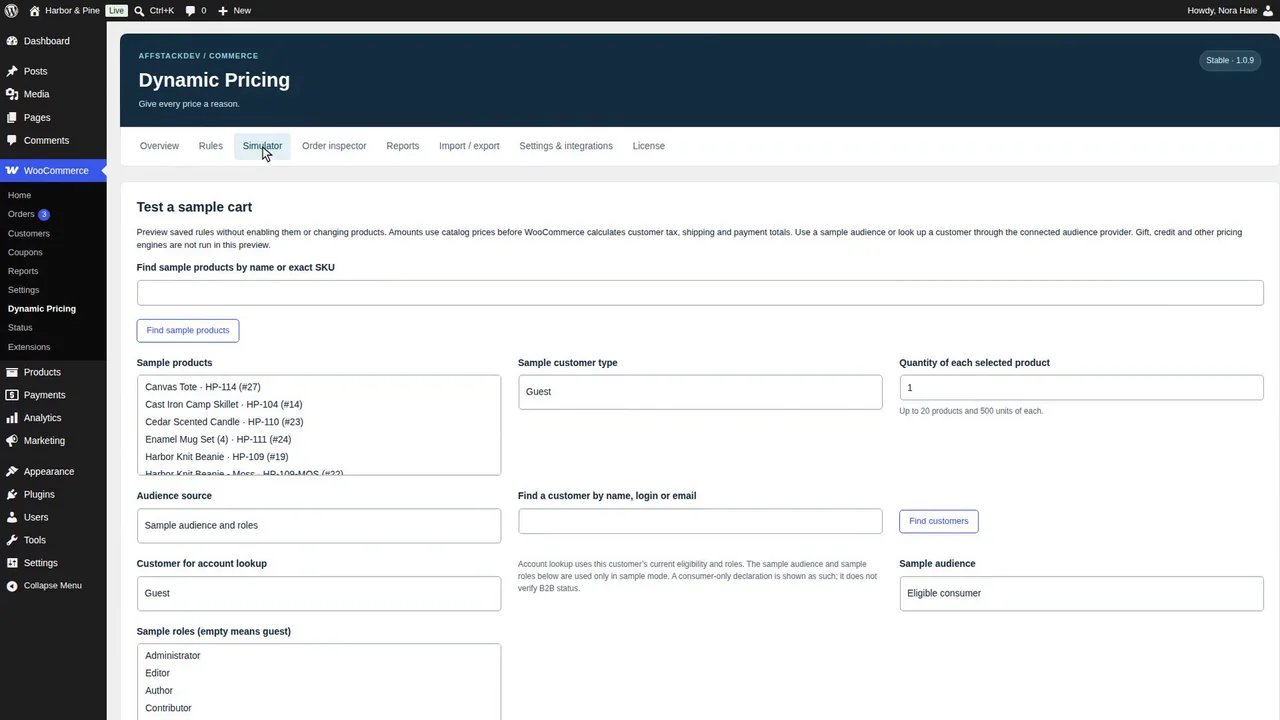
Install Dynamic Pricing, take a short tour and build a first offer, 10 percent off one category, try it in the Simulator, switch it on and follow it into a customer's cart and order.
Jump to a part of this video
- 0:00 What this video covers
- 0:19 How a rule works
- 0:37 Download and install
- 1:05 The license
- 1:49 The workspace and Overview
- 2:30 The main switch
- 3:23 A first rule
- 3:54 Products, the rest and save
- 4:43 Try it in the Simulator
- 5:22 What the Simulator shows
- 6:03 Switch it on
- 6:33 The shopper's cart
- 7:03 Checkout and the order
- 7:35 The Order inspector
- 8:01 Stopping a rule
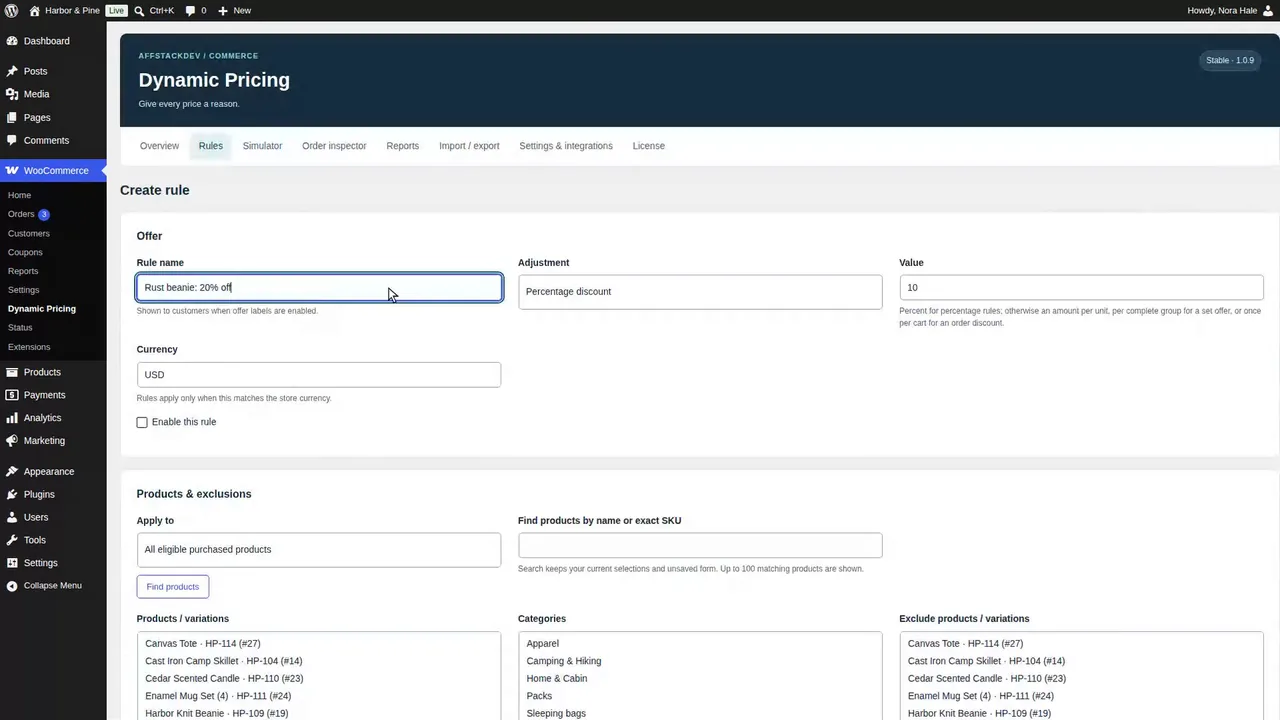
The rule editor: every way a price can go down, the products, attributes, tags and brands a rule covers or leaves out, roles and dates, then the Rules list, history, copies and moving rules between sites.
Jump to a part of this video
- 0:00 What this video covers
- 0:21 Templates
- 0:51 Three adjustments
- 2:02 One variation
- 2:27 Attribute values and roles
- 3:25 Currency
- 3:39 Tags, brands and exclusions
- 4:49 Products on sale
- 5:22 Dates
- 6:11 What the editor refuses
- 6:41 The Rules list
- 7:21 Several rules at once
- 8:01 Duplicate and archive
- 8:46 History and restore
- 9:37 Export and import
- 10:20 Copies, replacing and applying
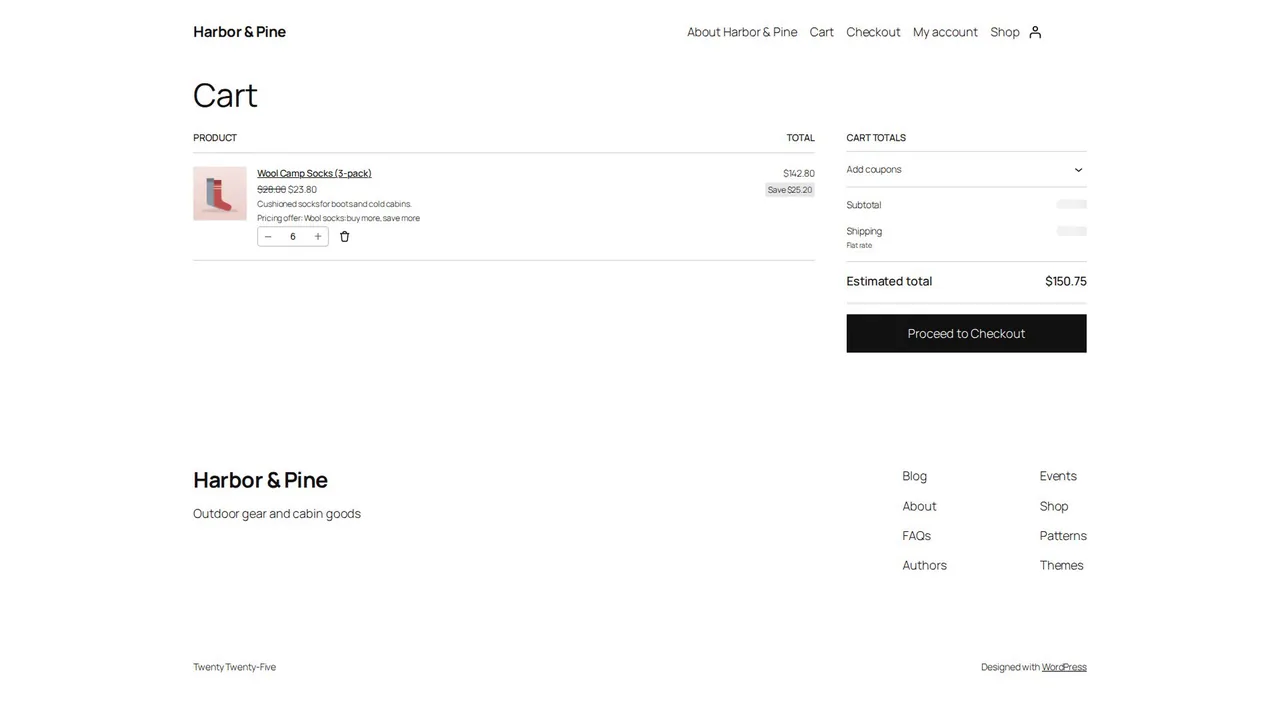
Prices that go down with the quantity, the quantity table on the product page, a price for a set, limits per cart, money off the order, and what happens when rules overlap or add up.
Jump to a part of this video
- 0:00 What this video covers
- 0:17 Buy more, save more
- 0:39 Counting and quantity breaks
- 1:20 In the Simulator
- 1:44 Graduated pricing
- 2:04 Counting across products
- 2:35 The table on the product page
- 3:12 Six packs in the cart
- 3:30 A price for a set
- 4:29 Limits per cart
- 5:25 A lowest unit price
- 5:46 Money off the order
- 6:37 In the cart and on the order
- 7:09 A percentage and a ladder
- 8:16 When rules overlap
- 9:18 A rule on top of the others
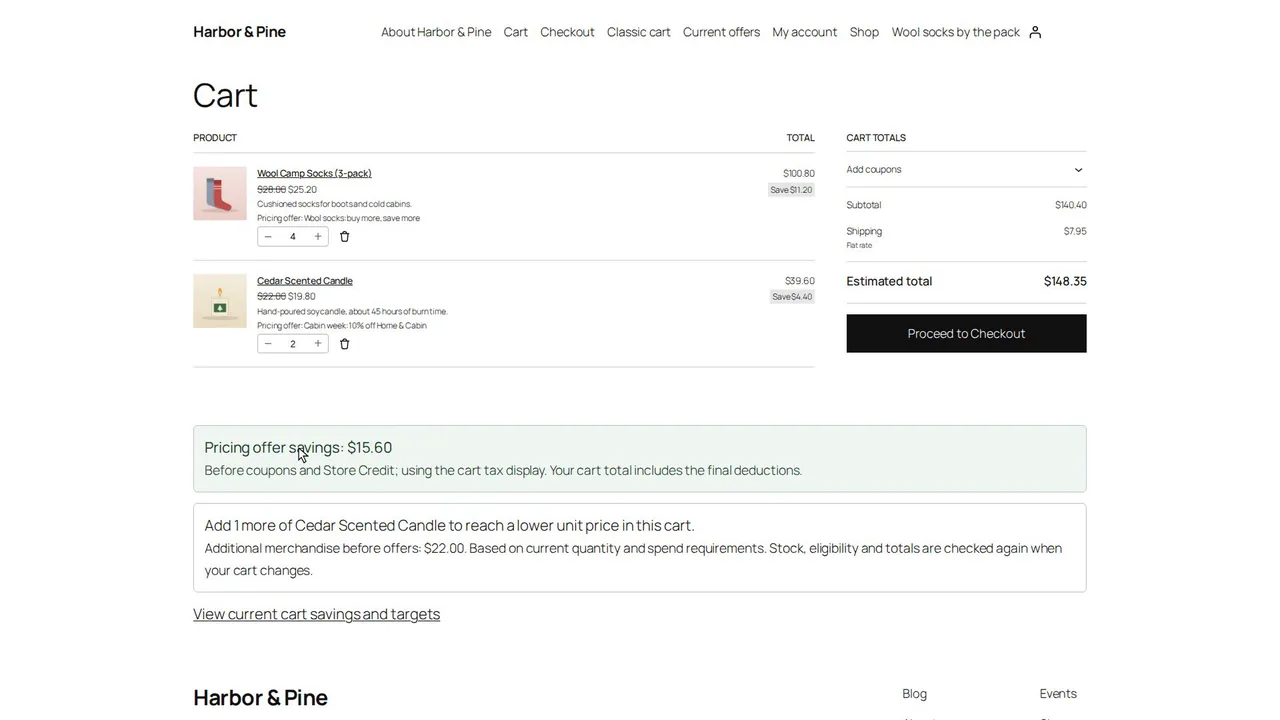
Who gets an offer: conditions on past orders and the cart tried with real customers, who counts as a consumer, coupons and store credit with offers, then every price display shoppers see.
Jump to a part of this video
- 0:00 What this video covers
- 0:16 A rule for returning customers
- 0:53 Past paid orders
- 1:15 Try it with real customers
- 2:06 Condition groups
- 2:54 Customer type and cart amount
- 3:30 Who counts as a consumer
- 3:54 Coupons and offers
- 4:45 Allowed coupons
- 5:14 Store credit and gift cards
- 5:50 Shopper displays and the quantity table
- 6:36 The offer price in the shop
- 7:30 Savings and hints in the cart
- 8:06 In Avery's cart
- 8:40 Current offers and offer names
- 9:15 A rule that changes at checkout
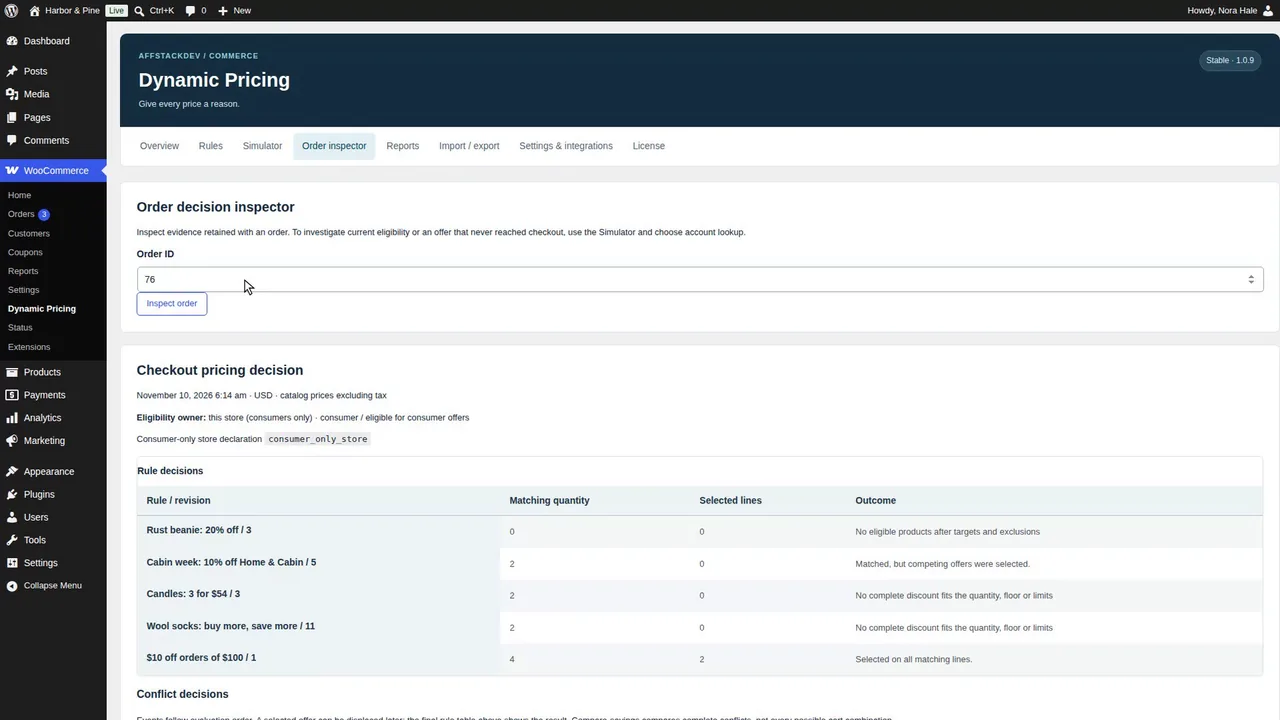
After the sale: the Order inspector, refunds, the pricing evidence report, integration status, the license, deactivating safely, and a checklist for a price you didn't expect.
Jump to a part of this video
- 0:00 What this video covers
- 0:17 The Order inspector
- 0:55 Order amounts
- 1:11 Retained observations
- 1:33 A refund
- 2:02 A completed order
- 2:13 The pricing evidence report
- 3:06 Documentation
- 3:16 Integration status
- 3:51 Navigation and your configuration
- 4:13 The License tab
- 4:39 Deactivate or delete
- 4:56 When a price is not what you expected
 Introduction · 6:34Introduction on the website and in WordPress
 Part 1 · 8:23Install Dynamic Pricing and make your first offer
 Part 2 · 11:22The rule editor and managing your rules
 Part 3 · 10:48Quantity prices, sets and money off the order
 Part 4 · 9:50Who gets an offer, and what shoppers see
 Part 5 · 5:37After the sale: orders, refunds, reports and your setup
Watch it work
Unified Email Manager, step by step
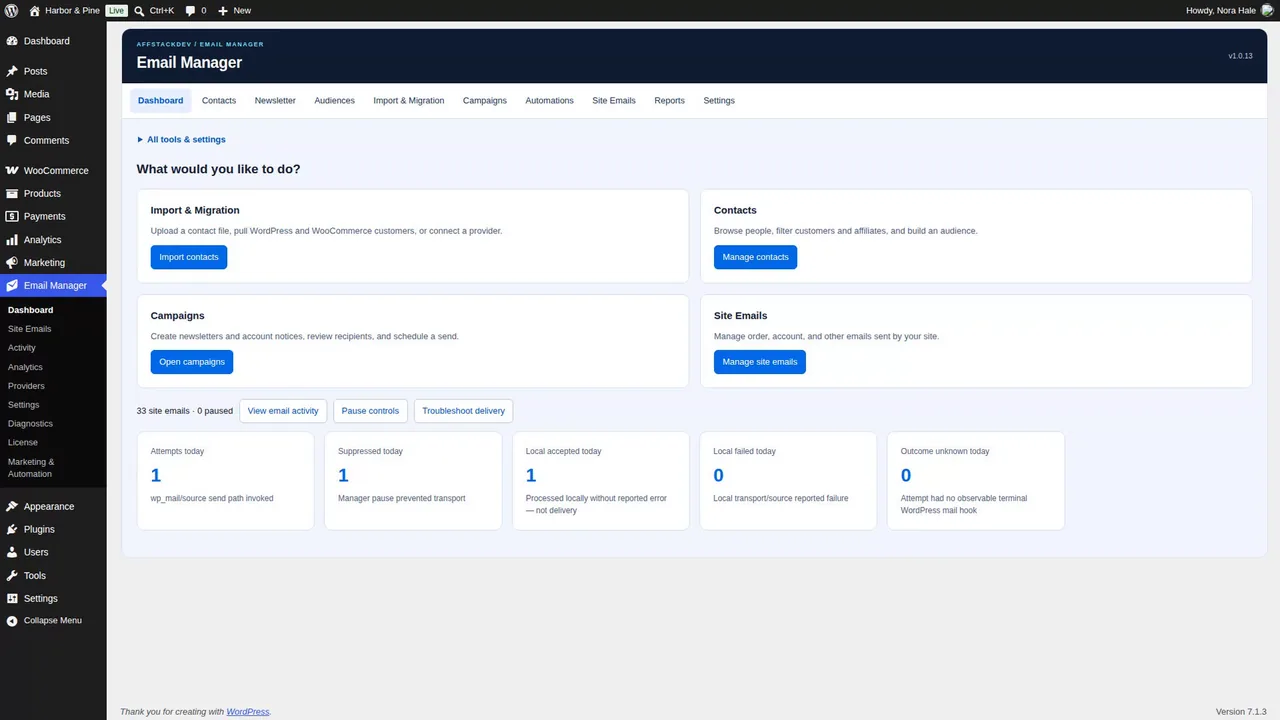
See Unified Email Manager on our website, then inside WordPress: your site's emails and pauses, contacts and consent, templates, campaigns, automations, the customer's side and the reports.
Jump to a part of this video
- 0:00 What Email Manager does
- 0:25 The mini-site
- 0:53 Your site's emails
- 1:18 Marketing and automation
- 1:38 Requirements
- 2:04 Inside WordPress
- 2:31 Site Emails
- 3:01 Pauses
- 3:17 Contacts and who gets what
- 3:42 Templates and campaigns
- 4:18 Automations
- 4:36 The customer's side
- 5:00 Reports
- 5:20 Store listing and where to start
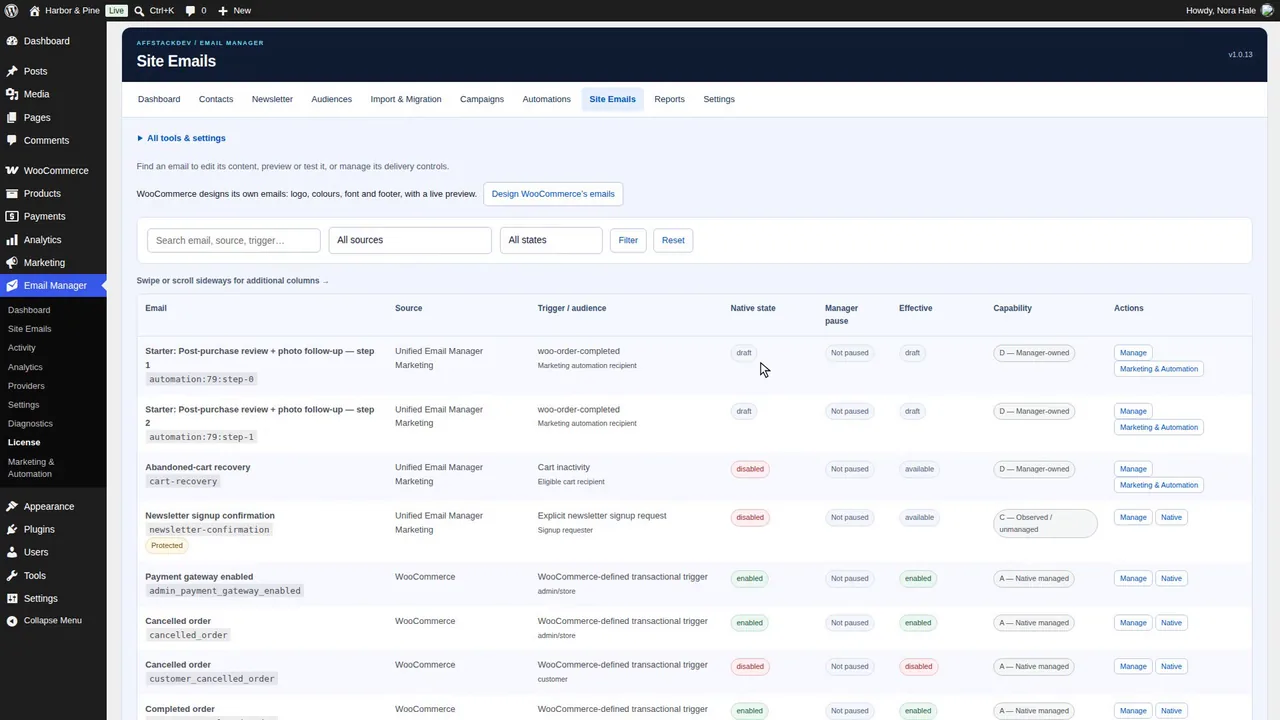
Install and license Email Manager, tour the Dashboard and the list of every email your site sends, then change, protect, preview and test WooCommerce's processing order email.
Jump to a part of this video
- 0:00 What this video covers
- 0:19 Two halves
- 0:49 Download and install
- 1:17 The License page
- 2:02 How checks work
- 2:29 When the license is active
- 3:19 The Dashboard
- 3:58 The task bar and the map
- 4:20 Site Emails and their states
- 5:13 Filters and search
- 5:35 Edit a WooCommerce email
- 6:21 Placeholders are protected
- 6:48 Preview
- 7:07 Send a test
- 7:42 WooCommerce's email design
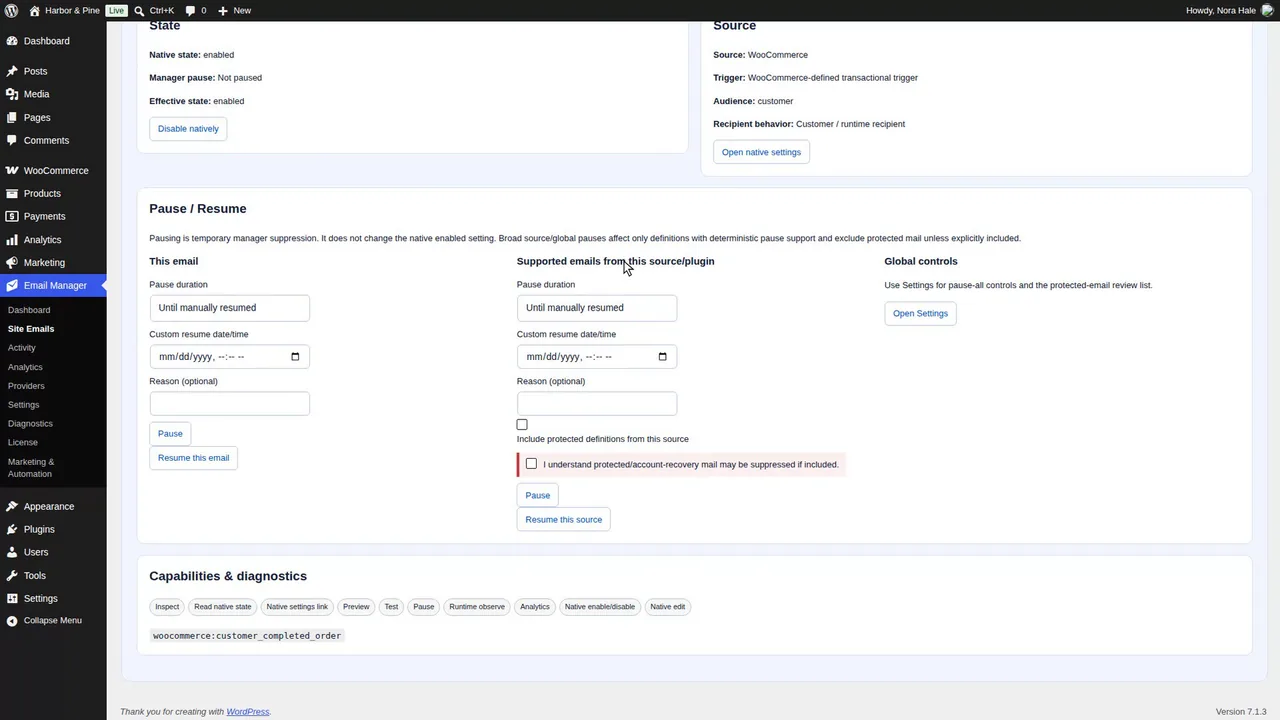
Change a WordPress account email safely, pause a WooCommerce email or everything non-critical while the store cleans up, and read what happened in the email activity.
Jump to a part of this video
- 0:00 What this video covers
- 0:12 A WordPress account email
- 0:59 The placeholder that keeps security
- 1:37 Preview and test
- 2:01 Pause an email
- 3:03 Paused
- 3:26 Orders completed, then resume
- 4:00 Pause a whole source
- 4:29 Pause all non-critical email
- 5:01 Pause even protected email
- 5:28 Find emails again
- 5:44 Email activity
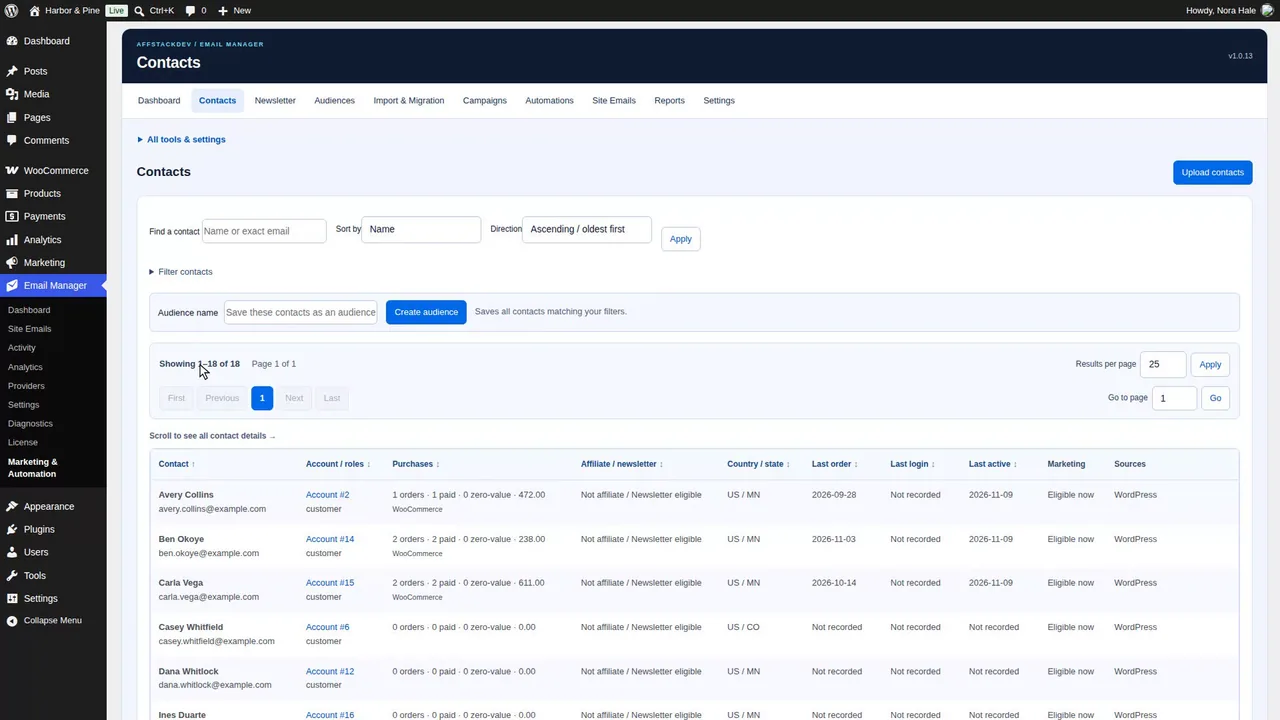
Gather the store's contacts, see who gets which kind of email, put a newsletter signup form on the site, manage consent person by person and at checkout, import a list and build audiences.
Jump to a part of this video
- 0:00 What this video covers
- 0:19 Pull in site contacts
- 1:04 Contact rows and filters
- 1:44 Who gets which email
- 2:34 Newsletter contacts
- 3:04 The signup form on a page
- 3:40 A visitor signs up and confirms
- 4:23 Signup records
- 4:52 Consent person by person
- 6:01 Consent at checkout
- 7:11 Preferences in My Account
- 7:30 Import a list
- 8:52 Other sources and import history
- 9:39 Audiences
- 10:04 A custom audience
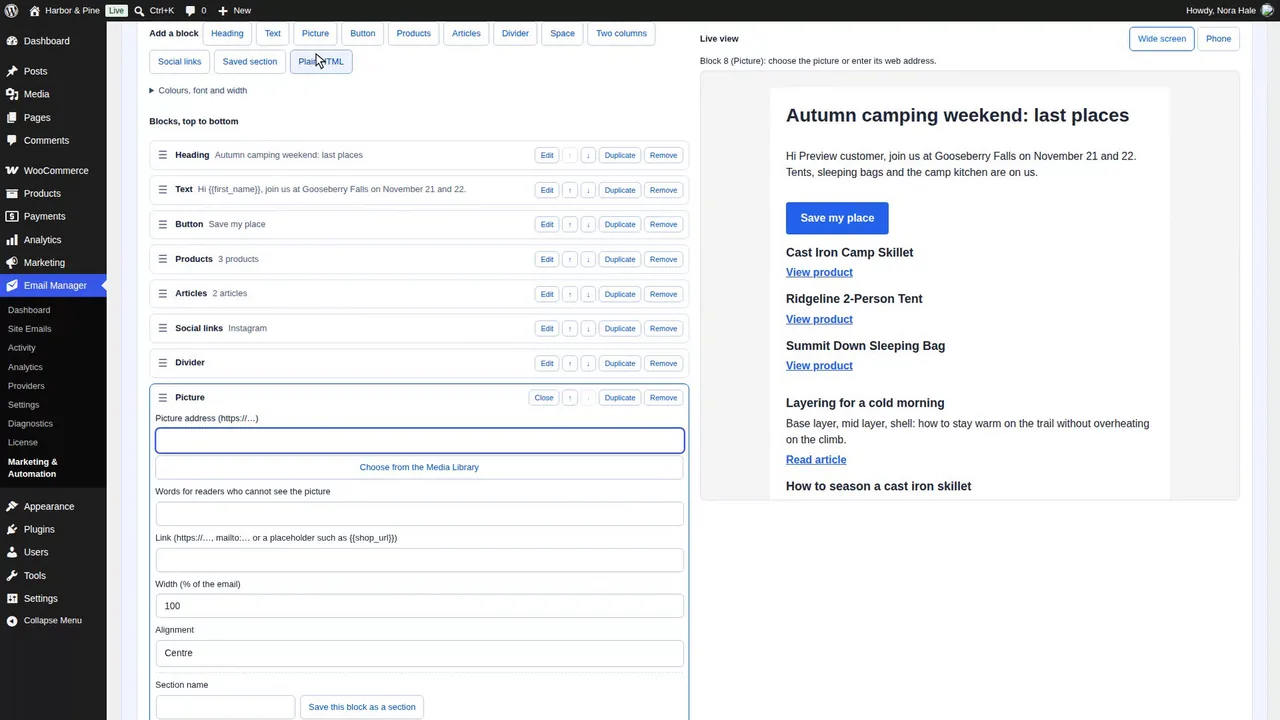
The template library and its starters, a newsletter template built with the block builder in the store's colours, and the brand, footer and support address every marketing email shares.
Jump to a part of this video
- 0:00 What this video covers
- 0:13 The template library and starters
- 1:03 Create a template
- 1:59 Block builder or HTML
- 2:23 Add blocks
- 2:47 Heading and text
- 3:11 Button and products
- 3:46 Move, copy and remove blocks
- 4:01 An unfinished block
- 4:18 Save a block as a section
- 4:33 Colours, font and width
- 5:01 Branding and the footer
- 5:40 Reusable sections and review links
- 6:12 Edit or delete templates
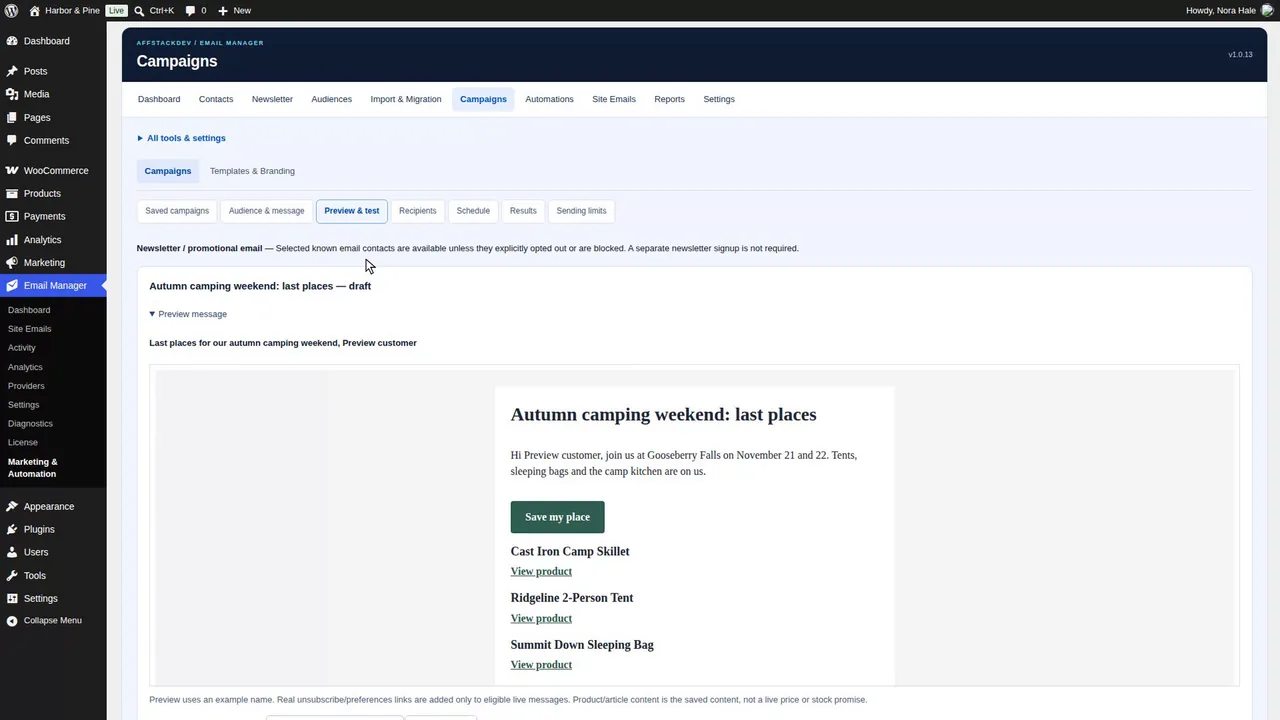
Send a newsletter step by step, from the audience and a test to the recipient review, the schedule and the results, then turn new blog posts into emails, set the sending limit and read the campaign reports.
Jump to a part of this video
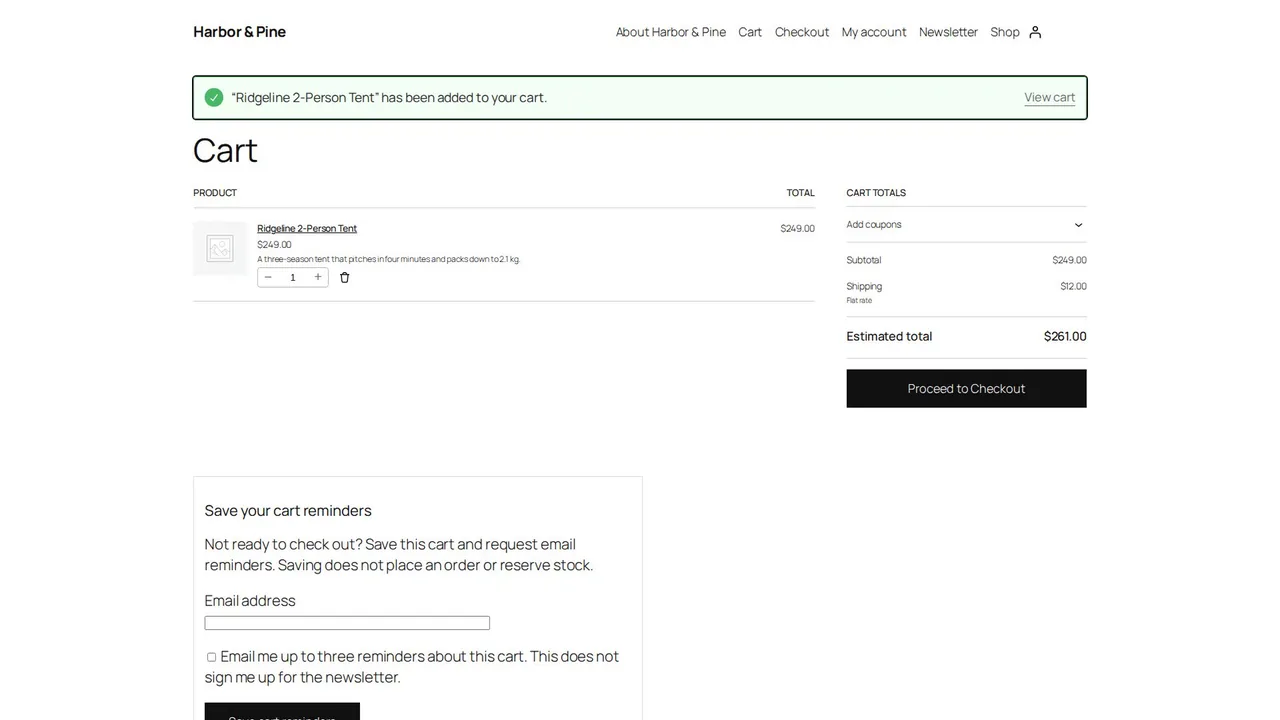
Emails that follow what customers do: one email after an event, a follow-up sequence with a Yes or No check, and abandoned-cart reminders from the guest's form to the restored cart.
Jump to a part of this video
- 0:00 What this video covers
- 0:14 Event emails
- 1:00 Name, subject and message
- 1:21 Delivery rules
- 2:21 The email is sent
- 2:47 Sequences
- 3:33 The Yes or No check
- 4:11 Consent and preview
- 4:47 Abandoned carts
- 5:22 Capture and timing
- 5:55 The guest's side
- 6:19 Captured carts
- 6:35 Preview and how recovery works
- 7:06 The reminder and the restored cart
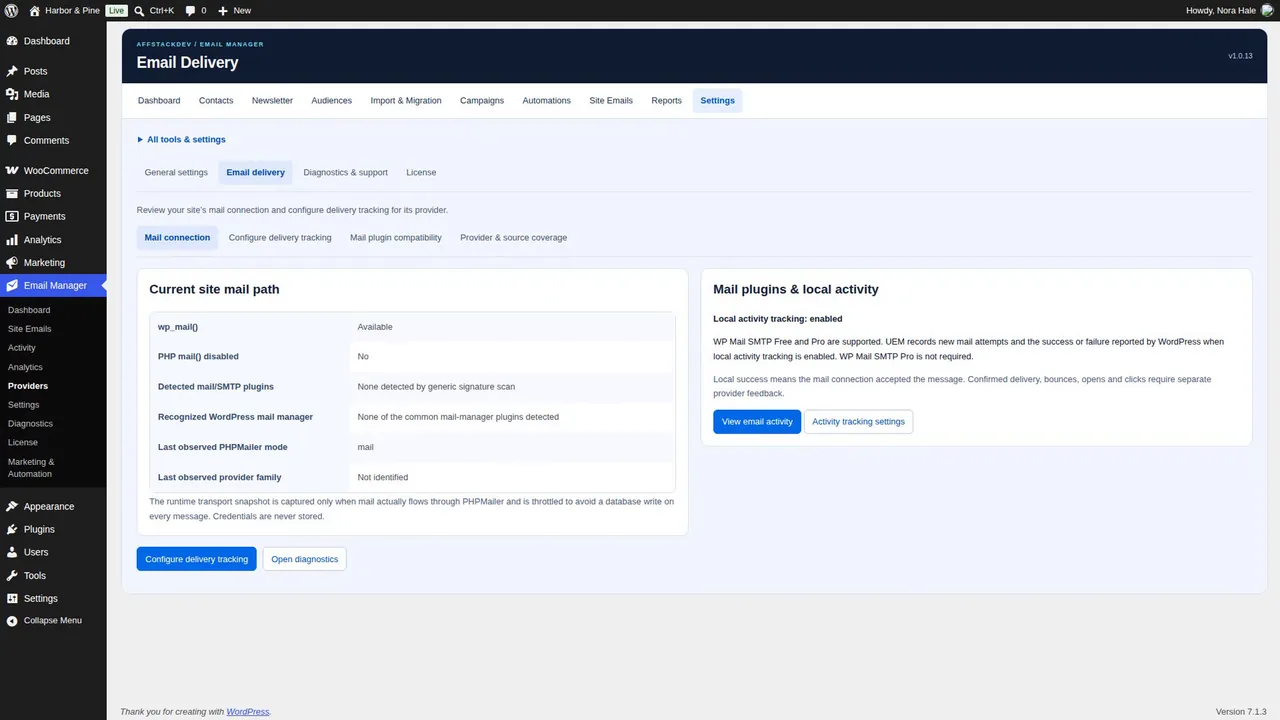
The reports and delivery tracking, settings, diagnostics and the support report, personal data tools, removing Email Manager safely, and what to check when an email did not go out.
Jump to a part of this video
- 0:00 What this video covers
- 0:19 What the activity's words mean
- 1:04 Delivery analytics
- 1:40 Where delivered and bounced come from
- 2:05 Delivery tracking
- 2:31 Mail plugin compatibility
- 3:14 General settings
- 3:30 Data and retention
- 4:03 Diagnostics
- 4:40 A support report
- 5:09 Personal data and the license
- 5:52 Deactivate or delete
- 6:48 When an email did not go out
 Introduction · 6:06Introduction on the website and in WordPress
 Part 1 · 8:14Install, license and your site's emails
 Part 2 · 6:46Account emails, pauses and the activity
 Part 3 · 10:54Contacts, consent, imports and audiences
 Part 4 · 6:31Templates and the block builder
 Part 5 · 8:19Campaigns and new posts
 Part 6 · 7:54Event emails, sequences and abandoned carts
 Part 7 · 7:37Reports, delivery, settings and removing
Watch it work
AffStackDev Suite, step by step
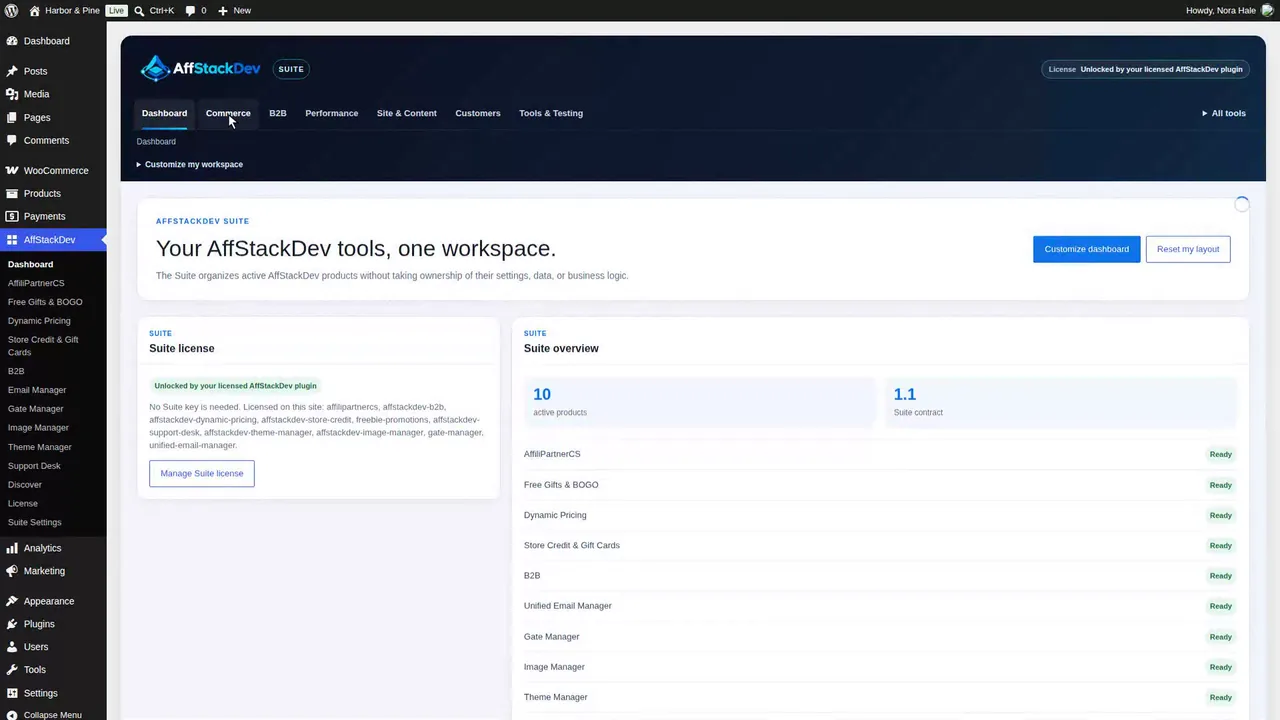
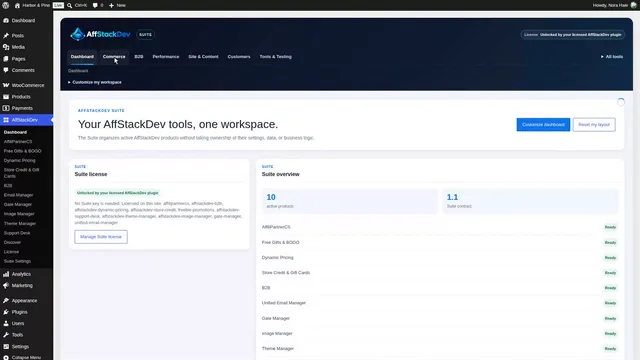
See the AffStackDev Suite on our website, then inside WordPress: one menu and one dashboard for your AffStackDev plugins, categories, Discover, your own arrangement, settings and the license.
Jump to a part of this video
- 0:00 What the Suite does
- 0:18 The Suite's page
- 1:06 Inside WordPress
- 1:30 The dashboard
- 1:52 The toolbar and categories
- 2:06 A plugin inside the Suite
- 2:30 Discover
- 2:41 Arrange it your way
- 3:05 Each person's own, and phones
- 3:25 Suite settings
- 3:42 No key of its own
- 3:58 Updates and deactivating
- 4:14 In the store
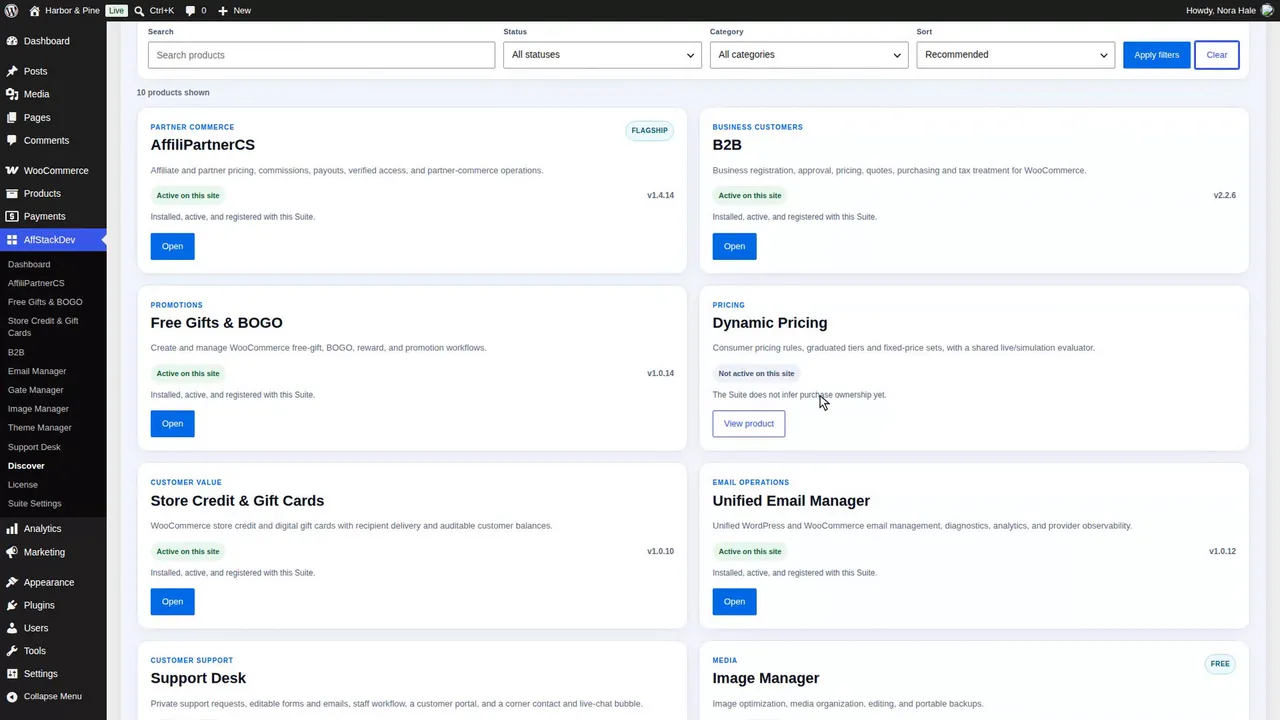
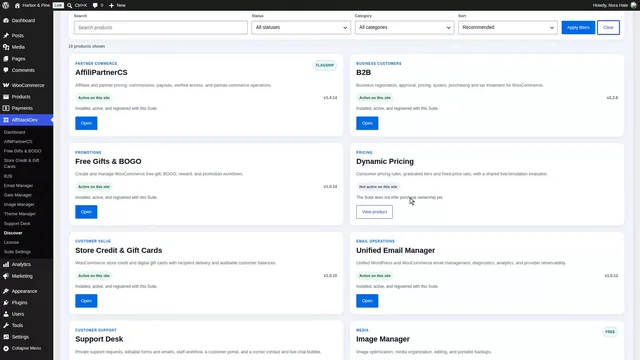
Install the Suite, see your plugins move under one AffStackDev menu, find your way with the toolbar, All tools and Discover, and arrange the dashboard for your own account.
Jump to a part of this video
- 0:00 What the Suite does
- 0:29 Plugins before the Suite
- 1:07 Download and install
- 1:42 One AffStackDev menu
- 2:21 The license link
- 2:46 The dashboard's cards
- 3:48 The toolbar and categories
- 4:23 A plugin inside the Suite
- 4:47 Other ways around and All tools
- 5:34 Discover
- 6:38 A product not active here
- 7:30 Customize the dashboard
- 7:54 Move, resize and drag cards
- 8:25 Hide a card and finish
- 8:54 Reset my layout
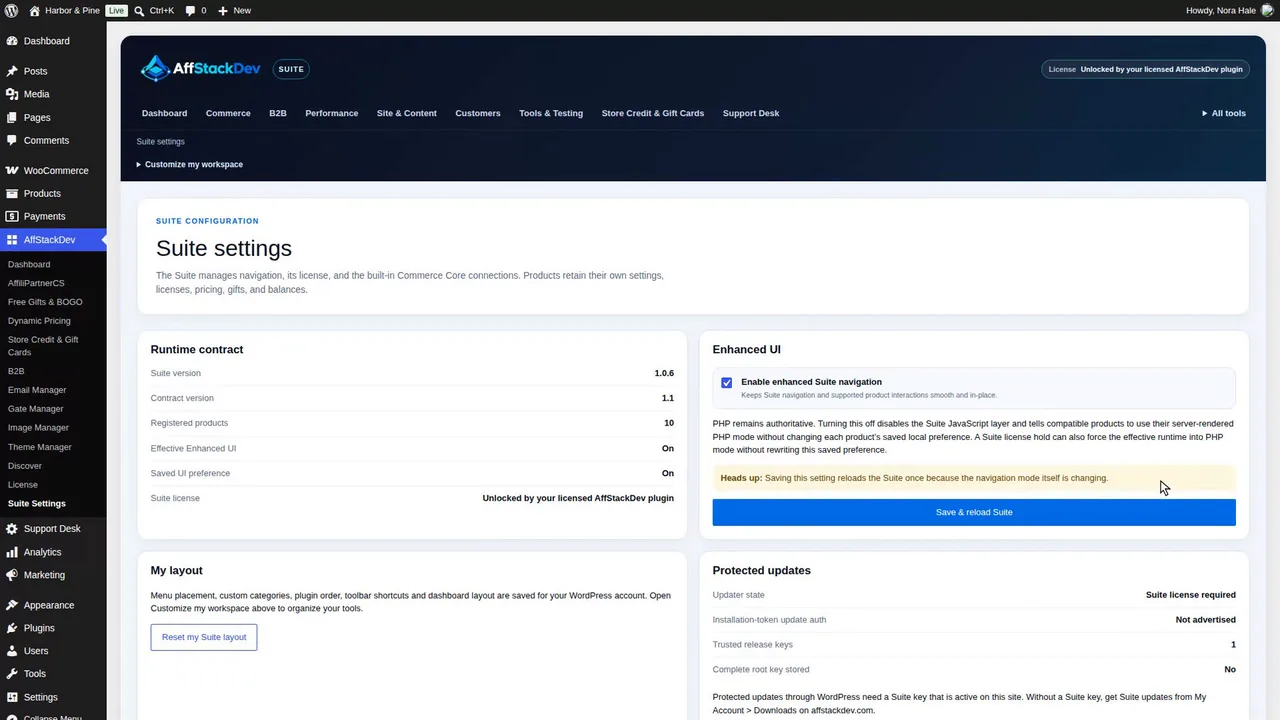
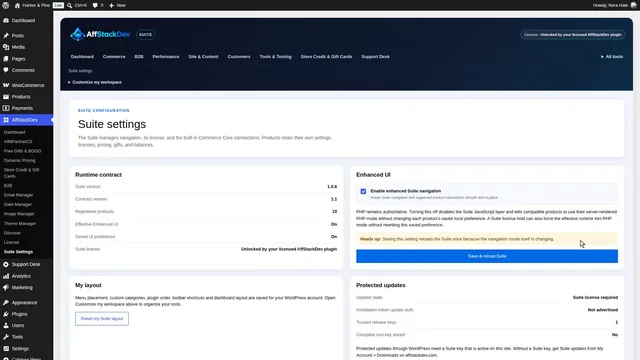
Arrange the Suite's toolbar and menus, then Suite settings, enhanced navigation, Commerce Core and the plugin connections, the License screen, and updating or removing the Suite.
Jump to a part of this video
- 0:00 What this video covers
- 0:12 Toolbar layout and pinned plugins
- 0:57 A category of your own
- 1:16 Plugin arrangement and menus
- 2:02 Rename or delete a category
- 2:35 Individual plugins and Cancel
- 2:49 Each person's own, and phones
- 3:30 Suite settings
- 3:56 Enhanced navigation
- 5:12 Layout, updates, status and documents
- 6:06 Commerce Core
- 6:32 Plugin connections
- 7:21 Retiring B2B's policy and the registry
- 8:32 The License screen
- 9:48 Update the Suite
- 10:32 Remove the Suite